


 Video Converter Ultimate
 Nagrywarka ekranu
 Naprawa wideo
Pomocne wskazówki dotyczące tworzenia filmów w zwolnionym tempie w iMovie
iMovie to znakomity edytor wideo dostępny w każdym systemie operacyjnym iOS i Mac. Aplikacja jest darmowa i oferuje różne narzędzia, które bardzo pomagają w wprowadzaniu istotnych zmian w materiale wideo, szczególnie jeśli chodzi o prędkość odtwarzania lub tworzenie nagrań w zwolnionym tempie. Ponieważ aplikacja jest przyjazna dla użytkownika, nietrudno ją opanować i używać do uzyskania dokładnie takiego efektu slow motion, jaki chcesz zastosować w swoim filmie. Aby jednak w pełni zrozumieć wszystkie szczegóły, jak tworzyć filmy w zwolnionym tempie w iMovie, przeczytaj ten artykuł i uważnie wykonuj kolejne kroki.

Część 1. Jak tworzyć filmy w zwolnionym tempie w iMovie za pomocą iPhone'a
Jak podano powyżej, iMovie działa tylko w systemach iOS, takich jak iPhone. Aby tworzyć najlepsze filmy w zwolnionym tempie za pomocą tej aplikacji, oto procedury, które wskażą Ci również, jak korzystać z tej aplikacji.
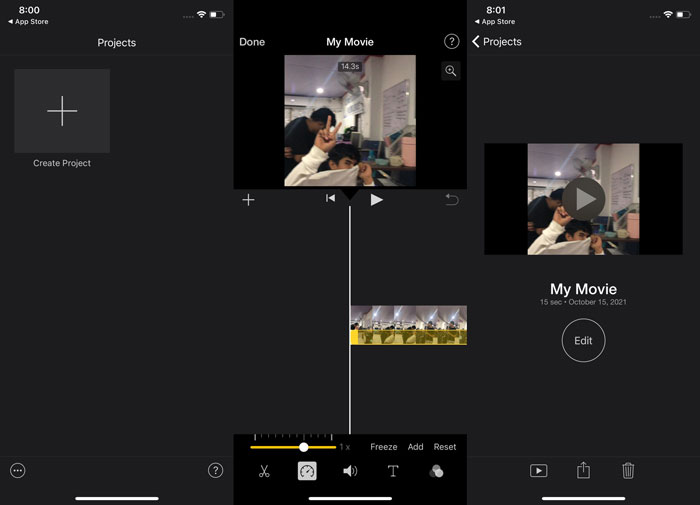
Krok 1. Korzystając z iPhone’a lub iPada, uruchom aplikację iMovie. Jeśli wyświetli się przegląd interfejsu, pojawi się przycisk Continue. Wybierz ikonę znaku + na karcie Projects, aby edytować nowy klip wideo. Aby kontynuować, przejdź do okna New Projects i wybierz Movie.
Krok 2. Po wybraniu wideo z rolki aparatu naciśnij przycisk Create Movie na dole ekranu. Narzędzie do zmiany prędkości, wyglądające jak prędkościomierz, znajdziesz, dotykając klipu wideo na osi czasu i czekając, aż pojawią się narzędzia edycyjne, a następnie wybierając jedną z opcji. Aby przyspieszyć lub spowolnić klip wideo, po prostu przesuń żółty dolny Slider w prawo lub w lewo. Możesz zwiększyć prędkość nawet dwukrotnie w stosunku do oryginału lub zwolnić ją do jednej ósmej pierwotnej szybkości.
Krok 3. Gdy wszystko będzie gotowe, stuknij Done w lewym górnym rogu ekranu telefonu. Aby zapisać gotowy film, kliknij ikonę Share na dole strony i wybierz miejsce, w którym chcesz go zachować.
Część 2. Jak tworzyć filmy w zwolnionym tempie w iMovie za pomocą komputera Mac
iMovie jest również dostępny na Macu, umożliwiając tworzenie najdoskonalszych filmów w zwolnionym tempie w najprostszy możliwy sposób. Aby dowiedzieć się, jak osiągnąć ten rodzaj filmów, których pragniesz, oto kroki, które należy wykonać:
Krok 1. Zmień prędkość klipu w programie iMovie na Macu, zaznaczając go na osi czasu i modyfikując jego prędkość.
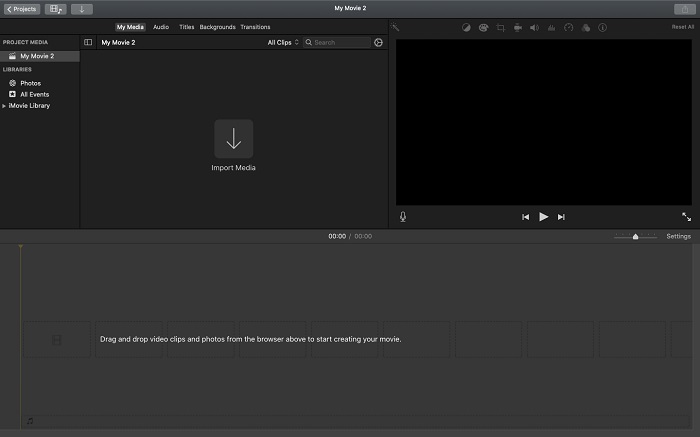
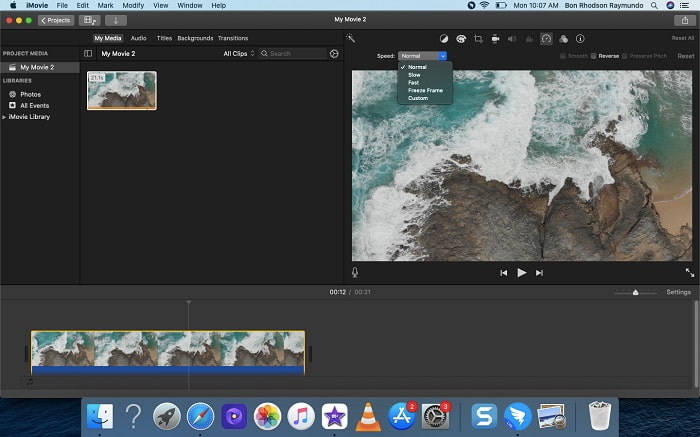
Krok 2. Ustawienia prędkości można otworzyć, klikając przycisk Speed znajdujący się w prawym górnym rogu ekranu. Aby precyzyjnie dopasować prędkość odtwarzania, wybierz jedną z opcji Slow lub Fast z przycisku prędkości na pulpicie komputera.
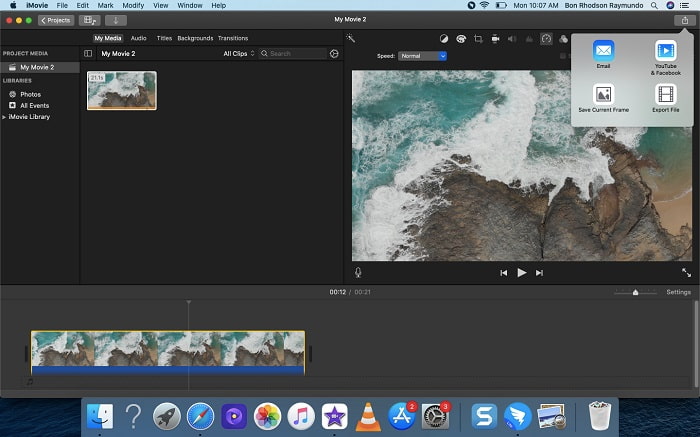
Krok 3. Aby zapisać plik na dysku twardym komputera, kliknij ikonę Upload w prawym górnym rogu ekranu.
Część 3. Najlepsza alternatywa w tworzeniu filmów w zwolnionym tempie
Oprócz używania iMovie do tworzenia filmów w zwolnionym tempie, doskonałą alternatywą dla wszystkich użytkowników komputerów stacjonarnych i laptopów jest Video Converter Ultimate. To darmowe oprogramowanie, dostępne zarówno w systemie Windows, jak i macOS. Jest łatwe w obsłudze i ma przyjazny interfejs, dzięki czemu nie będziesz mieć problemu z analizowaniem narzędzi potrzebnych do tworzenia filmów slow motion. Program oferuje jedno z najlepszych narzędzi – Video Speed Controller – którego możesz użyć do regulowania prędkości odtwarzania wideo, a tym samym stworzyć film w zwolnionym tempie z nagrania o normalnej prędkości. Aby poznać szczegóły korzystania z tego oprogramowania i uzyskać pożądany efekt zwolnionego tempa, zapoznaj się z poniższymi krokami:
Krok 1. Zanim zaczniesz korzystać z programu, najpierw pobierz go, klikając poniższy downlink odpowiedni dla Twojego systemu operacyjnego. Instalacja jest tak prosta, jak pobranie pliku na komputer i kliknięcie Start Now, aby rozpocząć.
Bezpłatne pobieranieDla Windows 7 lub nowszegoBezpieczne pobieranie
Bezpłatne pobieranieDla MacOS 10.7 lub nowszegoBezpieczne pobieranie
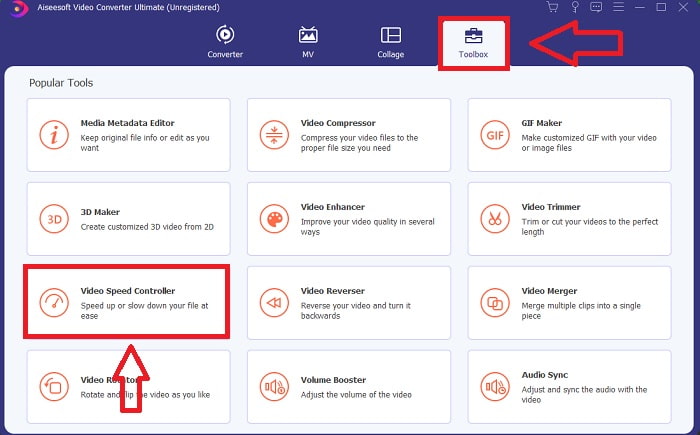
Krok 2. Po uruchomieniu programu na głównym interfejsie zobaczysz funkcję Converter. Następnie skorzystaj z funkcji Toolbox, aby znaleźć to, czego potrzebujesz do tworzenia filmów w zwolnionym tempie. Jeśli chcesz zmienić prędkość filmu lub po prostu stworzyć wideo slow motion, wybierz Video Speed Controller z listy dostępnych narzędzi.
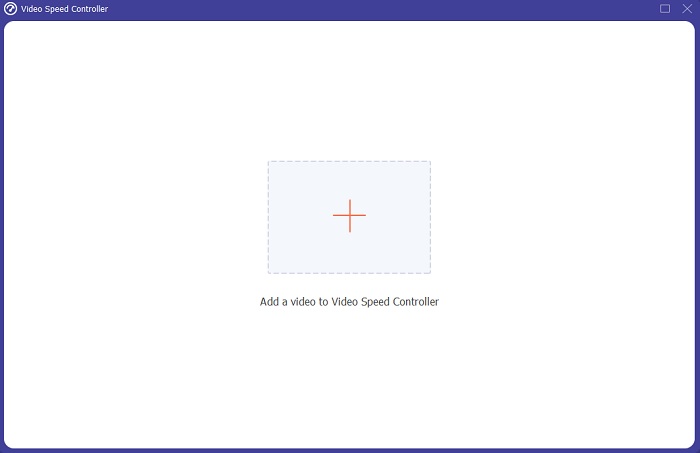
Krok 3. Po przejściu dalej na ekranie komputera otworzy się kolejne okno. Aby rozpocząć edycję, kliknij znak plus +.
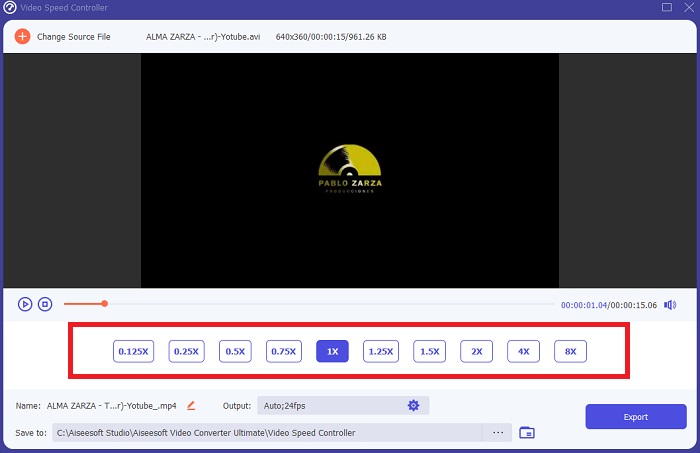
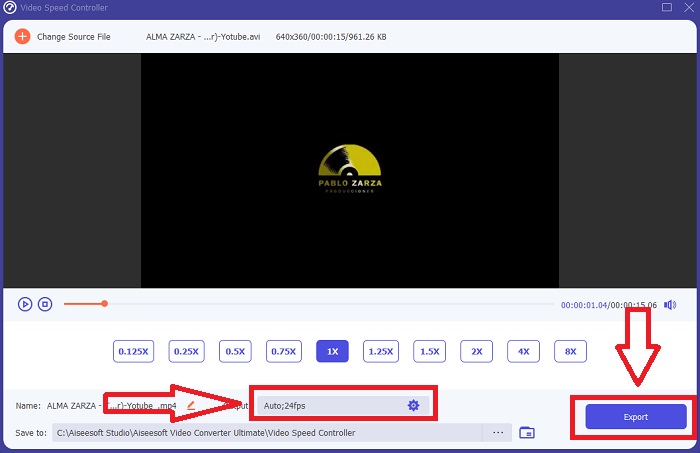
Krok 4. Aby rozpocząć edycję, wybierz, ile razy liczba klatek filmu ma się zwiększyć lub zmniejszyć podczas odtwarzania, aby zobaczyć, jak bardzo nagranie przyspieszy lub zwolni – to zdefiniuje efekt slow motion zastosowany w Twoim wideo. Ponieważ tworzysz film w zwolnionym tempie, zmniejszysz prędkość, wybierając wartość poniżej standardowej. Gdy będziesz zadowolony z prędkości odtwarzania, możesz dopracować jakość, zmieniając format, rozdzielczość, liczbę klatek na sekundę itd. Masz także możliwość zmiany nazwy wynikowego pliku wideo.
Krok 5. Kliknij Export i wybierz miejsce w systemie plików komputera, w którym chcesz zapisać swoją pracę.
Powiązane:
Część 4. Często zadawane pytania dotyczące tworzenia filmów w zwolnionym tempie w iMovie
Co jeśli iMovie nie działa?
Jeśli nie jest dostępna opcja, klip wideo nie jest wystarczająco długi, aby obsługiwać przyspieszone odtwarzanie. Możliwe też, że będziesz musiał przekonwertować swój film. Niektóre typy wideo, na przykład te nagrane telefonem iPhone lub w formacie H.264 kamerą Flip, muszą zostać przekonwertowane przed zmianą szybkości. W przeglądarce projektów kliknij i dwukrotnie kliknij plik wideo, aby go otworzyć. Jeśli w otwartym inspektorze zobaczysz przycisk Konwertuj cały klip, zaznacz go. Powtórz klip, a następnie kontynuuj proces zwolnionego tempa / szybkiego przewijania do przodu.
Czy możesz spowolnić film poklatkowy w iMovie?
Nagranie poklatkowe rozpocznie się natychmiast po zwolnieniu przycisku migawki w celu zakończenia nagrywania. Suwak szybkości poklatkowej znajduje się na samym dole ekranu. Gdy zatrzymasz nagrywanie z wciśniętym przyciskiem migawki, film poklatkowy rozpocznie się automatycznie. Suwak szybkości poklatkowej znajduje się na samym dole ekranu.
Jak spowalniasz filmy na Youtube?
Odtwórz wideo w aplikacji YouTube, znajdź ikonę koła zębatego lub określaną jako ikona ustawień. Kliknij opcję Szybkość odtwarzania i wybierz opcje powyżej normalnej szybkości, aby rozpocząć spowalnianie odtwarzanego wideo.
Wniosek
Podsumowując, iMovie to znakomity edytor wideo dostępny wyłącznie w systemach iOS i macOS. Ale co, jeśli korzystasz z Windowsa i chcesz stworzyć film w zwolnionym tempie? Polecamy użycie Video Converter Ultimate, aby uzyskać efekt slow motion, na którym Ci zależy. Oprogramowanie to jest dostępne na Windows i Mac. Dodatkowo jest darmowe i oferuje wiele narzędzi do edycji wideo. Zawiera także specjalne narzędzie służące do regulacji prędkości odtwarzania, co pozwala tworzyć filmy w zwolnionym tempie. Poza tym obsługuje różne formaty wideo, dzięki czemu nie będziesz mieć problemu z konwersją nagrań.
-
 [Bezpłatne i płatne] Zmieniacz prędkości GIF: Hot Picks z 2021 r.
 Czy jesteś niezadowolony z GIF-a, który stworzyłeś online, ponieważ jest nudny i powolny? To będzie Twój szczęśliwy dzień, ponieważ przedstawiamy artykuł o zmieniaczu prędkości GIF i szczegółach, które pomogą Ci go używać i opanować.
-
 Najlepsze odtwarzacze wideo 4 z kontrolerem prędkości w 2021 r.
 Czy nie zauważyłeś szybkości odtwarzania każdego odtwarzacza multimedialnego za każdym razem, gdy odtwarzasz wideo? Ten artykuł jest odpowiedni, aby dowiedzieć się wszystkiego o odtwarzaczach wideo z kontrolą prędkości.
-
 3 sposoby na przyspieszenie wideo na iPhonie [Sprawdzone&93;
 Masz problem z dostosowaniem szybkości odtwarzania wideo, ponieważ używasz iPhone'a? To doskonały artykuł, który pomoże Ci rozwiązać Twój problem.
