


 Video Converter Ultimate
 Nagrywarka ekranu
 Naprawa wideo
Wskazówki i porady, jak zwiększyć głośność w systemie Windows/Mac/iPhone/Android
Większość komputerów PC, Mac, a także urządzeń z Androidem lub iPhone’ów umożliwia jedynie dość przeciętny poziom głośności. Nie jest on na tyle dobry, by poczuć ciarki na skórze ani w pełni cieszyć się dźwiękiem. Co więcej, samo ustawienie głośności na maksimum często nie wystarcza. Nawet jeśli zwiększysz głośność, niektóre odtwarzane filmy wciąż są ciche. Dlatego przedstawiamy różne techniki, spośród których możesz wybrać te, które pomogą ci słuchać filmu z dobrą głośnością, korzystając wyłącznie z własnych urządzeń. Jeśli jesteś gotów, przejdźmy dalej i zobaczmy, jak łatwo zwiększyć głośność na różnych platformach.

Część 1. Jak zwiększyć głośność w systemie Windows/Mac/iPhone/Android?
1. Okna
Zwiększenie głośności MP3 na komputerze z systemem Windows jest znacznie łatwiejsze, nawet jeśli nie musisz korzystać z usług innej firmy. Jeśli jednak chcesz tutaj zwiększyć dźwięk, nie oczekuj czegoś specjalnego. Ponieważ ten system operacyjny nie zapewnia żadnego korektora, który pomógłby ci nim manipulować. Możesz jednak dostosować głośność innych aplikacji, które chcesz, aby były wyższe lub niższe. Przejdźmy teraz do poniższych kroków, aby określić, jak sprawić, by dźwięk wideo był wyraźniejszy na komputerze z systemem Windows.
Jak zwiększyć głośność filmu w systemie Windows:
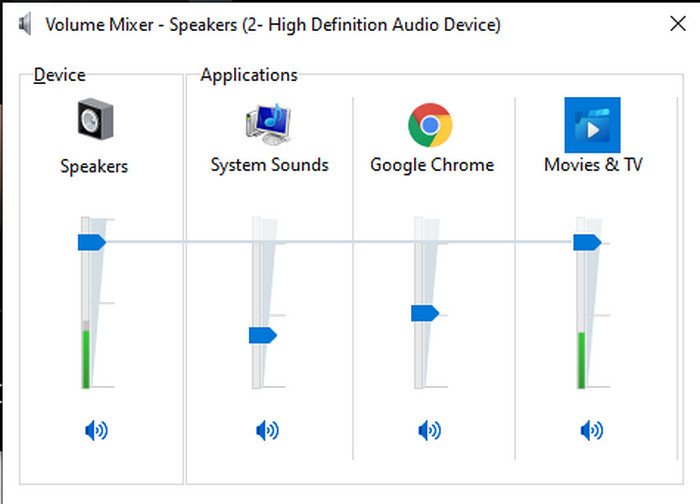
Krok 1. Na pulpicie komputera z systemem Windows odszukaj w prawym dolnym rogu ikonę Głośnika.
Krok 2. Kliknij ją prawym przyciskiem myszy i wybierz Otwórz mikser głośności.
Krok 3. Dostosuj głośność w sekcji Urządzenie, aby zwiększyć lub zmniejszyć ogólną głośność. Jeśli chcesz zmienić głośność pojedynczej aplikacji, możesz to zrobić, przesuwając odpowiedni suwak w górę lub w dół.
2. Mac
Podobnie jak w systemie Windows, możesz łatwo manipulować i zwiększać głośność wideo na komputerze Mac. Co więcej, jeśli chcesz zwiększyć wyjście audio na komputerze Mac, musi to być twój wybór, aby łatwo to wykonać. Jednak, jak powiedziano wcześniej, jest to jak Windows, ale w innym programie, ten system operacyjny nie ma wbudowanego korektora, aby głośność drastycznie się zmieniała. A teraz, jeśli chcesz dowiedzieć się, jak zwiększyć głośność, wykonaj ten krok wskazany poniżej.
Jak zwiększyć głośność filmu na Macu:
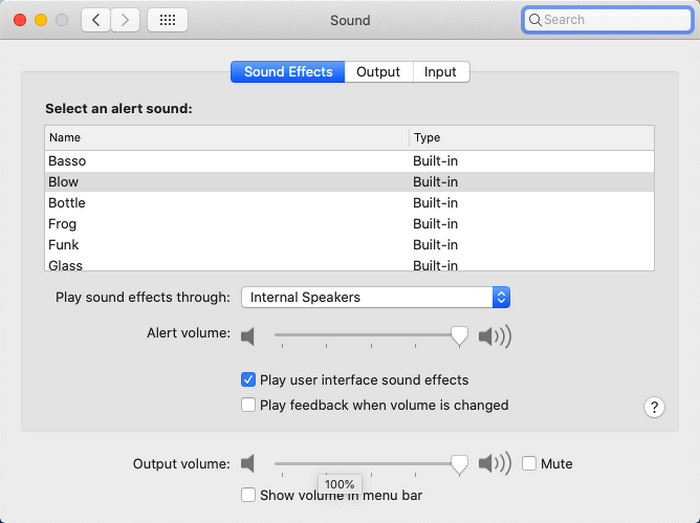
Krok 1. Włącz Maca i kliknij przycisk w kształcie jabłka na górnym pasku.
Krok 2. Następnie wybierz Preferencje systemowe. Kliknij Dźwięk, aby przejść do ostatniego kroku.
Krok 3. Dostosuj głośność wyjściową, przesuwając suwak, aby zwiększyć lub zmniejszyć poziom dźwięku.
3. iPhone
Jeśli masz iPhone'a, możesz łatwo nauczyć się, jak zwiększyć i poprawić głośność. Ponieważ to urządzenie ma wbudowany korektor, który na pewno Ci pomoże. Co więcej, wciąż zadziwia nas możliwość zwiększenia dźwięku w tym telefonie. Ponieważ nie wiedzieliśmy, że istnieje przenośny korektor, z którego mogą korzystać użytkownicy iOS. Więc teraz, jeśli nie masz pomysłu, jak go użyć, poniższe kroki pomogą ci to zrobić.
Jak zwiększyć głośność filmu na iPhonie:
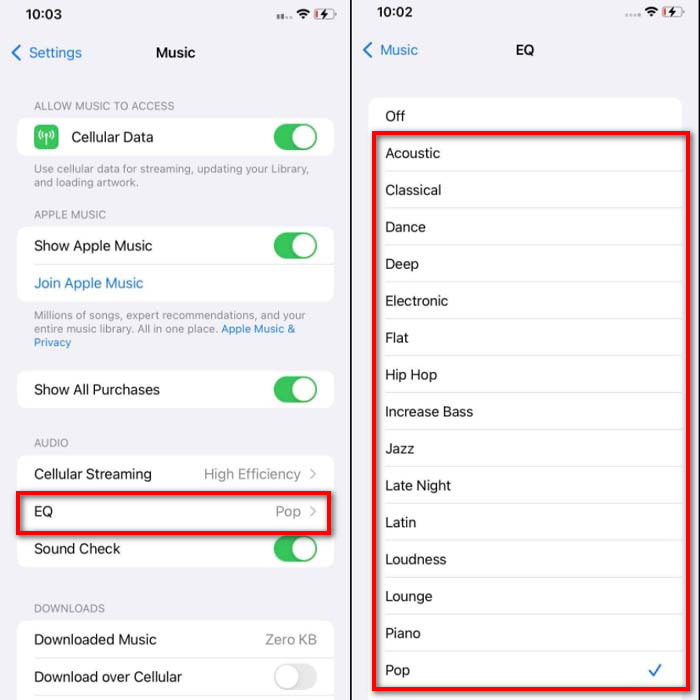
Krok 1. Wejdź w Ustawienia, znajdź pozycję Muzyka i kliknij ją.
Krok 2. Naciśnij EQ i wybierz jedną z pozycji na liście, a po dokonaniu wyboru wróć do ekranu Początek.
Krok 3. Otwórz aplikację Muzyka, odtwórz utwór, a następnie zwiększ głośność, naciskając przycisk głośniej lub ciszej z boku iPhone’a.
4. Android
Android nigdy nie zawiedzie swojego użytkownika, ponieważ to urządzenie mobilne ma również wbudowany korektor. Chociaż jeśli zwiększysz jakość i samą głośność za pomocą dostępnego tutaj korektora, nadal nie jest to tak skuteczne, jak na iPhonie. Jeśli jednak użyjesz go i dostosujesz głośność, mając słuchawki lub głośniki, odczujesz drastyczną zmianę głośności. Należy jednak pamiętać, że kroki mogą się różnić w zależności od marki i modelu urządzenia. Ponadto te kroki działają na Realme 7 pro, Android w wersji 11 i nowszych. Więc jeśli zastanawiasz się, jak zwiększyć głośność na moim telefonie z Androidem, wykonaj poniższe czynności.
Jak zwiększyć głośność filmu na Androidzie:
Krok 1. Wejdź w Ustawienia i znajdź pozycję Dźwięk i wibracje.
Krok 2. Przewiń w dół, aby znaleźć opcję Dolby Atmos i kliknij ją, aby przejść dalej.
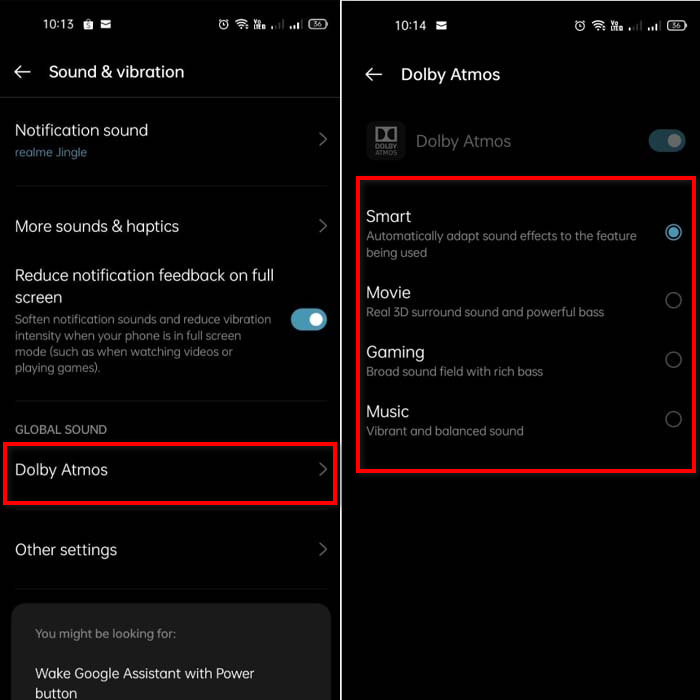
Krok 3. Zmień ustawienia korektora, wybierając jedną z pozycji na liście. Jeśli chcesz, by dźwięk był jeszcze lepszy, podłącz słuchawki – dzięki temu będzie głośniej i wyraźniej. Następnie dostosuj głośność przyciskami głośniej i ciszej z boku telefonu z Androidem, aby zwiększyć lub zmniejszyć głośność.
Część 2. Nadal nie słyszysz głośności filmów? Spróbuj go wzmocnić za pomocą Video Converter Ultimate
Choć powyższe kroki są pomocne, nadal nie zapewniają maksymalnego możliwego wzmocnienia głośności. Dlatego przedstawiamy ci wyjątkowy wzmacniacz głośności, którego możesz użyć, aby podnieść poziom zbyt cichego dźwięku – Video Converter Ultimate. Oprogramowanie to zostało już użyte przez ponad 10 milionów użytkowników na całym świecie. Nie możesz jednak korzystać z tego narzędzia na urządzeniach mobilnych, ponieważ nie jest ono tam obsługiwane. Możesz natomiast użyć programu na komputerze PC lub Mac, zapisać plik na dysku, a następnie przenieść go na telefon. Bez zbędnej zwłoki zobaczmy, jak korzystać z funkcji wzmacniania głośności w tym narzędziu i jak sprawić, by dźwięk był głośniejszy niż kiedykolwiek.
Jak zwiększyć głośność filmu za pomocą Video Converter Ultimate:
Krok 1. Zanim zaczniesz korzystać z Video Converter Ultimate, musisz najpierw pobrać program na dysk twardy. Następnie zainstaluj narzędzie, wykonaj konfigurację i kliknij Start Now, aby je uruchomić.
Bezpłatne pobieranieDla Windows 7 lub nowszegoBezpieczne pobieranie
Bezpłatne pobieranieDla MacOS 10.7 lub nowszegoBezpieczne pobieranie
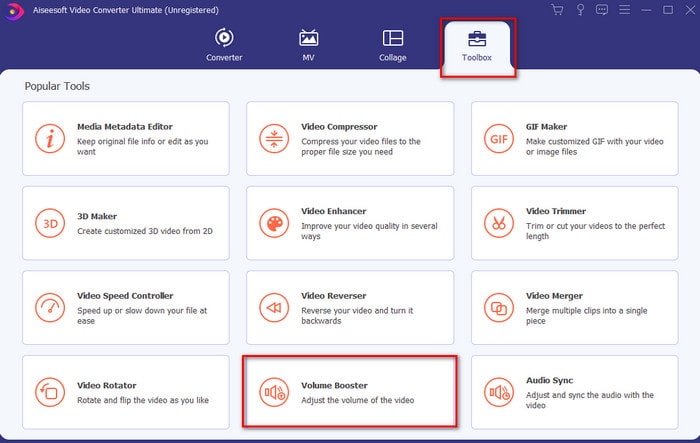
Krok 2. Po uruchomieniu programu przejdź do kolejnego kroku, wejdź w zakładkę Toolbox i znajdź funkcję Volume Booster.
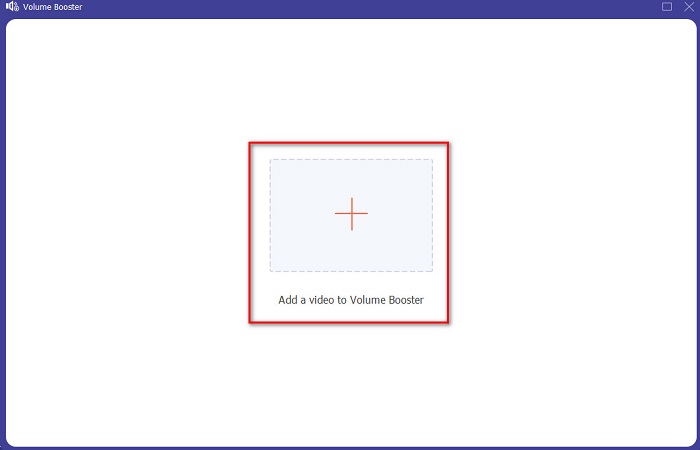
Krok 3. Kliknij znak +, aby dodać wideo, które chcesz wzmocnić. Wyszukaj plik w folderze, który pojawi się na ekranie, a następnie kliknij Otwórz, aby kontynuować.
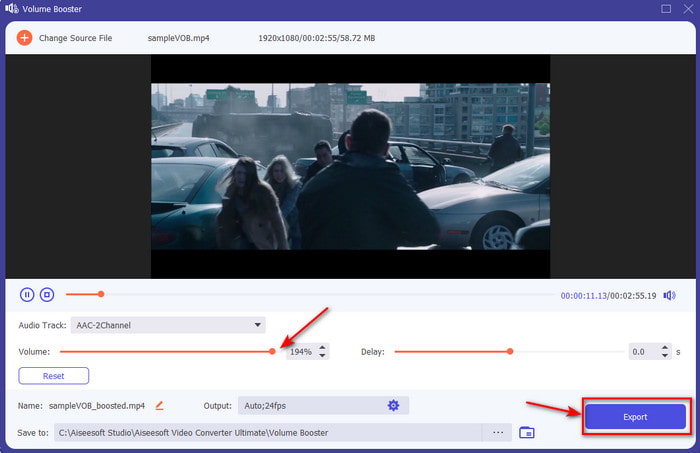
Krok 4. W interfejsie narzędzia dostosuj suwak głośności, przesuwając go na maksimum lub ustawiając zgodnie z własnymi preferencjami. Jeśli jesteś zadowolony z ustawionego poziomu, kliknij Eksportuj, aby pobrać plik.
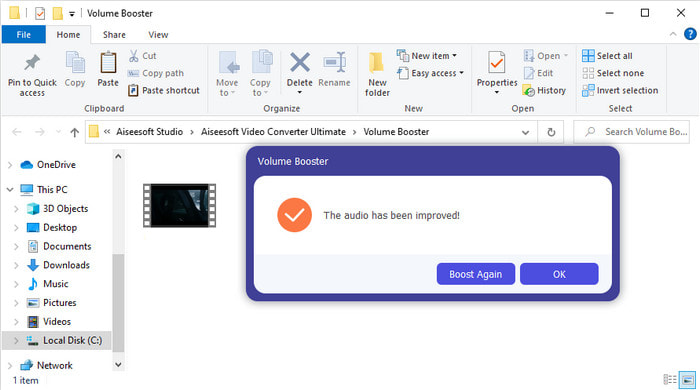
Krok 5. Poczekaj kilka sekund na przetworzenie. Gdy plik będzie gotowy, na ekranie automatycznie pojawi się folder – kliknij plik, aby odsłuchać wideo z dopasowaną przez ciebie głośnością.
Część 3. Często zadawane pytania dotyczące zwiększania głośności
Czy mogę zwiększyć głośność w VLC?
Właściwie tak, zamiast używać wzmacniacza głośności, możesz użyć odtwarzacza VLC, aby zwiększyć wyjście audio swojego wideo. Ponadto, zamiast ograniczać dźwięk do 100%, możesz zwiększyć głośność do 125%, jeśli chcesz.
Czy konwersja wideo obniża jakość wideo i audio?
To zależy od formatu, do którego chcesz konwertować. Na przykład jeśli konwertujesz plik AVI na MP4, możesz spodziewać się pewnych zmian jakości, ponieważ format AVI jest nieskompresowany. Można jednak tego uniknąć, zapoznając się z tym artykułem – aby przejść dalej, kliknij ten link. Jeśli konwertujesz skompresowany plik na nieskompresowany lub na inny skompresowany format, również możesz oczekiwać zmian jakości, zwłaszcza przy częstych konwersjach. Jeśli jednak zrobisz to tylko raz, jakość zasadniczo nie powinna się zmienić.
Jak naprawić opóźnienie wideo i audio?
Istnieją właściwie dwa sposoby naprawy takiego problemu. Pierwszy to usunięcie pliku i ponowne pobranie wideo, jeśli jest dostępne w sieci. Nie przerywaj procesu pobierania i zadbaj o stabilne połączenie z internetem, aby uniknąć brakujących fragmentów. Jeżeli plik jest przeznaczony wyłącznie dla ciebie, warto wybrać oprogramowanie, które pozwoli zsynchronizować dźwięk z obrazem. Aby zapoznać się z dostępnymi programami i dowiedzieć się, jak łatwo zsynchronizować dźwięk i obraz, kliknij link i przeczytaj artykuł. Zebraliśmy różne narzędzia, spośród których możesz wybrać odpowiednie.
Wniosek
Skoro wiemy już, jak naprawić zbyt ciche audio w wideo, to najlepszy moment, by wprowadzić to w życie. Wystarczy, że zastosujesz proste kroki opisane powyżej, aby poprawić głośność bardziej niż dotychczas. I choć nie wszystkie wskazówki sprowadzają się do zwykłego podkręcenia suwaka głośności, dzięki opisanym technikom możesz łatwo przeprowadzić cały proces. Jeśli jednak nadal uważasz, że dźwięk na twoim PC, Macu, Androidzie lub iPhonie jest zbyt cichy, wzmocnij go za pomocą Video Converter Ultimate. Podnieś głośność na wyższy poziom i doświadcz znacznie głośniejszego oraz lepszego dźwięku.
-
 7 prostych kroków, jak rozwiązać problemy z opóźnieniami OBS Audio [rozwiązane]
 Czy masz problemy z oglądaniem klipu wideo po nagraniu z powodu opóźnienia dźwięku podczas korzystania z OBS Studio? Przeczytaj poniższy artykuł, aby dowiedzieć się, jak skutecznie naprawić niezsynchronizowany dźwięk.
-
 Możliwe doskonałe sposoby | Jak naprawić opóźnienie dźwięku VLC [2021]
 Czy masz trudności z oglądaniem ulubionego filmu na odtwarzaczu multimedialnym VLC z powodu niepewności dźwięku? Kontynuuj czytanie tego artykułu, aby poznać wszystkie możliwe sposoby naprawienia opóźnienia dźwięku VLC.
-
 Najlepsze sposoby na zwiększenie głośności MP4 online i offline
 Czy masz problemy ze słyszeniem dźwięków z Twojego wideoklipu? Przeczytaj poniższy artykuł, aby dowiedzieć się, jak zwiększyć głośność mp4 na różne sposoby.
