


 Video Converter Ultimate
 Nagrywarka ekranu
 Naprawa wideo
Jak zmienić metadane plików MOV na komputerze Mac za pomocą kroków bez wysiłku?
Wszyscy wiemy, że MOV to jeden z najlepszych formatów, których można idealnie używać do odtwarzania wideo na urządzeniach Apple oraz do montażu. Ale co sprawia, że MOV jest wyjątkowy? Obsługuje kompresję wideo chętnie wybieraną przez profesjonalistów. Chociaż może przechowywać wiele elementów w jednym pliku, wciąż możliwe jest, że w pliku MOV pojawią się pomieszane tagi, co może prowadzić do problemów. Warto więc odpowiednio je edytować, aby nadać plikowi poprawne metadane i szybko wszystko naprawić. Z pomocą odpowiedniego narzędzia to zadanie jest banalnie proste. Dlatego dziś przedstawimy najlepsze sposoby na natychmiastową edycję metadanych pliku MOV.

Część 1. Jak edytować metadane MOV za pomocą Ultimate Tag Editor na Macu?
FVC Video Converter Ultimate to kompleksowe rozwiązanie wszystkich problemów z metadanymi, obsługujące ponad 1000 formatów na Macu i Windowsie. Za pomocą tego narzędzia możesz w mgnieniu oka usuwać, edytować lub dodawać metadane w swoim pliku MOV. Co więcej? Możesz wykonywać wiele innych edycji w pliku MOV, takich jak cięcie, przycinanie, łączenie, kadrowanie i tysiące innych czynności, nawet jeśli nie jesteś profesjonalnym montażystą. Naprawdę warto mieć to narzędzie pod ręką, a w kilku kliknięciach możesz zrobić z jego pomocą znacznie więcej. Dziś jednak przedstawiamy szczegółową instrukcję, którą przygotowaliśmy, abyś mógł z powodzeniem edytować metadane swoich plików MOV.
Krok 1. Pobierz program na Maca lub Windows, klikając przycisk pobierania poniżej. Przejdź przez proces instalacji, uruchamiając pobrany plik, a następnie kliknij Start Now, aby natychmiast uruchomić narzędzie.
Bezpłatne pobieranieDla Windows 7 lub nowszegoBezpieczne pobieranie
Bezpłatne pobieranieDla MacOS 10.7 lub nowszegoBezpieczne pobieranie
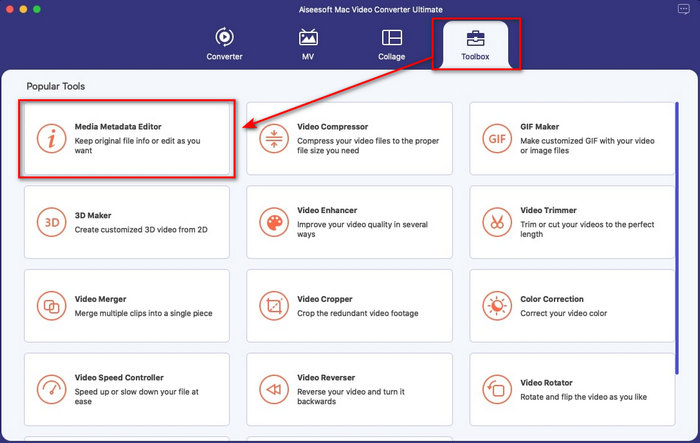
Krok 2. Na ekranie pojawi się interfejs narzędzia; przejdź do sekcji Toolbox i otwórz Media Metadata Editor.
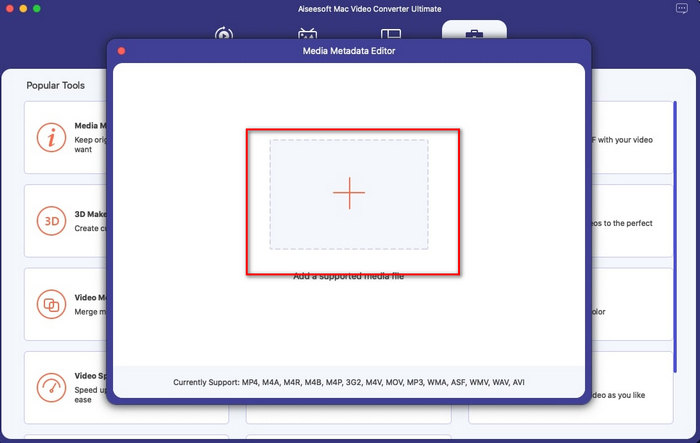
Krok 3. Gdy edytor zostanie otwarty, pojawi się małe okno; kliknij przycisk +, aby otworzyć folder, w którym znajduje się plik, a następnie, aby go wczytać, kliknij Open.
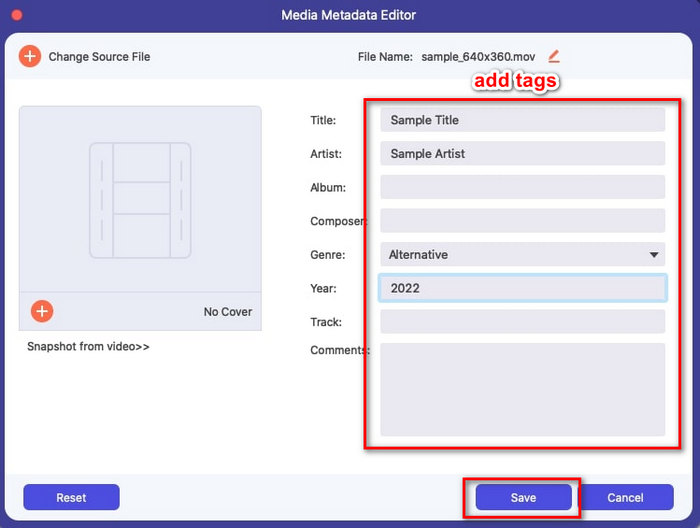
Krok 4. Teraz możesz dodawać, edytować lub usuwać tagi w swoim pliku MOV w polu tekstowym. Gdy wszystko zakończysz, kliknij przycisk Save. Właśnie tak szybko edytowałeś metadane swoich plików MOV.
Powiązane:
Część 2. 3 najlepszych edytorów tagów MOV do zmiany metadanych MOV
Vlc media player
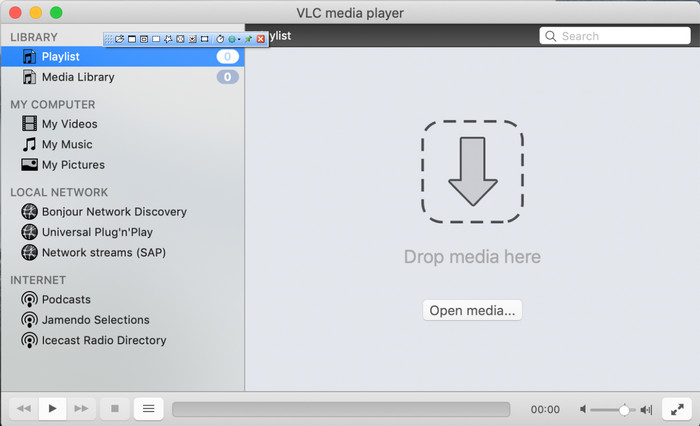
VLC Media Player to znany odtwarzacz multimedialny dostępny na Maca i Windowsa. Choć może odtwarzać różne formaty wideo, potrafi także zmieniać metadane plików multimedialnych, w tym MOV. Co więcej, jeśli chcesz wyświetlić metadane swojego pliku, możesz łatwo to zrobić właśnie w tym programie. Nie jest on jednak tak skuteczny jak inne dedykowane edytory metadanych, których można używać na Macu lub Windowsie. Mimo to wciąż da się w nim edytować metadane pliku MOV.
Krok 1. Pobierz odtwarzacz multimedialny z oficjalnej strony VLC, a następnie go otwórz.
Krok 2. Naciśnij na klawiaturze Command + I, a wyświetlą się informacje o multimediach, gdzie możesz dodawać lub usuwać metadane swojego pliku MOV.
Krok 3. Kliknij Save Metadata, gdy skończysz dodawanie tagów do pliku MOV.
iTunes
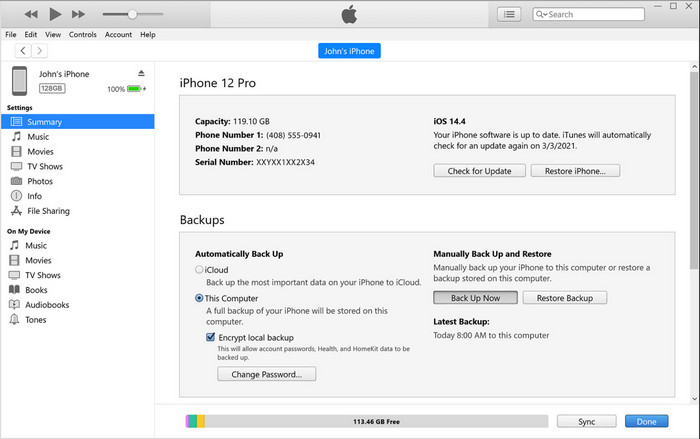
iTunes to najlepsza wbudowana aplikacja do streamingu, do której masz dostęp na każdym urządzeniu Apple. To narzędzie jest naszpikowane funkcjami, takimi jak odtwarzacz muzyki i sklep z muzyką, filmami, podcastami i wieloma innymi treściami zabezpieczonymi DRM, aby uniknąć problemów z prawami autorskimi. Mimo że jest to świetna wbudowana aplikacja, konkurencja wśród edytorów metadanych jest zbyt silna, by iTunes mógł z nimi rywalizować. Nadal jednak bierzemy tę aplikację pod uwagę, ponieważ pozwala zmieniać metadane plików MOV na Macu.
Krok 1. Otwórz i zaimportuj plik MOV do biblioteki iTunes.
Krok 2. Następnie kliknij prawym przyciskiem myszy dodany plik .mov i wybierz Get Info. Po kliknięciu pojawią się różne opcje zmiany metadanych, takie jak szczegóły, okładka, tekst utworu, opcje, sortowanie i plik – dostosuj je do swoich potrzeb.
Krok 3. Naciśnij OK, aby zapisać zmiany.
MetaZ
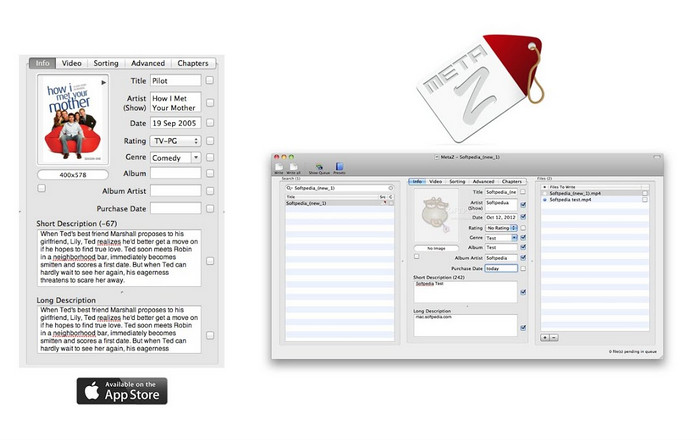
W przypadku systemu macOS X możesz bezpłatnie pobrać Metaz, aby łatwo zmieniać metadane plików. Ten edytor metadanych pomoże Ci zmienić tagi wideo w większości formatów, takich jak MOV. Dzięki tej aplikacji możesz łatwo wykonać tę sztuczkę i uporządkować MOV w swojej bibliotece. Jednak ostatnio pojawiło się wiele raportów związanych z aplikacją; użytkownicy napotykają wiele kłopotliwych problemów podczas korzystania z aplikacji. Mimo że mogą wystąpić problemy, nadal jest to jeden z najczęściej wybieranych edytorów metadanych MOV, które można pobrać na komputer Mac.
Krok 1. Pobierz aplikację na Maca, uruchom ją, a na ekranie pojawią się trzy sekcje interfejsu narzędzia, w których możesz dodawać pliki, edytować tagi i wyszukiwać tagi.
Krok 2. Przeciągnij i upuść plik MOV na lewą stronę; po lewej stronie zobaczysz, że program automatycznie wyszuka tagi dla twojego pliku MOV na podstawie jego tytułu, ale możesz je modyfikować w środkowej sekcji, jeśli chcesz.
Krok 3. Naciśnij Write, a tagi zostaną dodane do pliku MOV.
Część 3. Często zadawane pytania dotyczące edytora metadanych MOV
Czy mogę używać edytora metadanych QuickTime do zmiany tagów?
Niestety nie możesz, ponieważ to narzędzie może tylko odtwarzać format multimediów, edytować filmy i nagrywać. Ale możesz swobodnie przeglądać metadane swojego pliku w Quicktime, wykonując te proste czynności. Najpierw otwórz plik MOV w Quicktime i odtwórz go. W górnej części zobaczysz różne opcje; kliknij Window, a pod nim naciśnij View Inspector, a na ekranie pojawi się nowe okno, aby zobaczyć małe informacje o twoim pliku MOV.
Czy zmiana tagów MOV wpływa na jakość?
Na szczęście tak się nie stanie, ponieważ dostosowałeś tagi, a nie rozdzielczość lub jakość pliku MOV. Jeśli więc obawiasz się, że rozdzielczość wideo może się zmniejszyć po zmianie tagów, powtórzymy to; nie będzie.
Czy dodanie metadanych w MOV zwiększy rozmiar pliku?
W każdym pliku, po dodaniu metadanych do tego pliku, zobaczysz różnicę między plikiem, który nie ma tagu, a tym, który go ma. Jednak te tagi nie są tak duże, jak zawartość pliku. Tak więc, jeśli dodasz metadane do swojego MOV, spodziewaj się, że zwiększy się nieco, ponieważ dodałeś informacje o pliku wideo.
Wniosek
Skoro już skończyliśmy wyjaśniać, jak zmieniać metadane pliku MOV, nadszedł czas, abyś wybrał, z którego samouczka skorzystasz. Jeśli chcesz pobrać darmowe narzędzie na Maca, możesz zainstalować VLC i Metaz, aby naprawiać lub edytować metadane pliku MOV. Jeśli nie chcesz niczego dodatkowo pobierać, możesz użyć iTunes, aby w prosty sposób edytować metadane. Chociaż te narzędzia są przydatne, wciąż nie ma na Maca programu o tak rozbudowanych funkcjach edycji metadanych, jak te, które oferuje FVC Video Converter Ultimate. Jeśli więc nadal zastanawiasz się, czego użyć, zdecydowanie polecamy to rozbudowane narzędzie do tego typu zadań – jest łatwe w obsłudze, a przy tym zapewnia kompletny pakiet funkcji, których możesz potrzebować na co dzień.
-
 Co to są metadane: poznaj podstawowe informacje o metadanych
 Co to są metadane? Czy to ważne? Jakie są części metadanych? Czy masz to samo pytanie? W tym artykule poznasz podstawowe informacje o metadanych.
-
 4 najlepszych przeglądarek metadanych online i offline [Aktualizacja 2022]
 Czy mogę sprawdzić metadane mojego pliku? Tak, możesz, za pomocą tego posta przedstawimy Ci różne przeglądarki metadanych, z których możesz korzystać.
-
 Top 4 najczęściej wybierane edytory tagów WMV na komputerze [Aktualizacja 2022]
 Potrzebujesz niezawodnego edytora tagów WMV do edycji tagów WMV? Cóż, ten artykuł zawiera wystarczającą wiedzę na temat narzędzia obsługującego WMV.
