


 Video Converter Ultimate
 Nagrywarka ekranu
 Naprawa wideo
Proste sposoby szybkiego dodawania obrazu do wideo w iMovie
Dodawanie obrazów do wideo stało się jednym z najlepszych sposobów na jeszcze lepsze przekazanie treści odbiorcom. Większość edytorów wideo pozwala szybko nałożyć obraz na film, a jeśli jesteś użytkownikiem Apple, być może spotkałeś się już z iMovie. Jest ono uznawane za jeden z najlepszych edytorów, jakich możesz używać na swoim urządzeniu Apple. Wielu typowych użytkowników Apple uważa jednak iMovie za trudne w obsłudze, ponieważ nie mają z nim wcześniejszego doświadczenia. Jeśli więc jesteś takim samym użytkownikiem Apple, który ma problem z obsługą programu i chcesz dodać obraz do filmu, przeczytaj ten artykuł — nauka, jak dodawać obrazy do wideo w iMovie, jest prosta, jeśli zapoznasz się ze szczegółami poniżej.

Część 1. Jak nałożyć obraz na wideo w iMovie [Mac]
Jeśli masz iMovie na Macu, możesz go użyć i dodać obraz do wideo. Więc teraz, jeśli chcesz dowiedzieć się, jak umieścić zdjęcie na wideo iMovie, poniższe kroki pomogą ci.
Krok 1. Wyszukaj iMovie w Finderze, a następnie kliknij, aby je otworzyć.
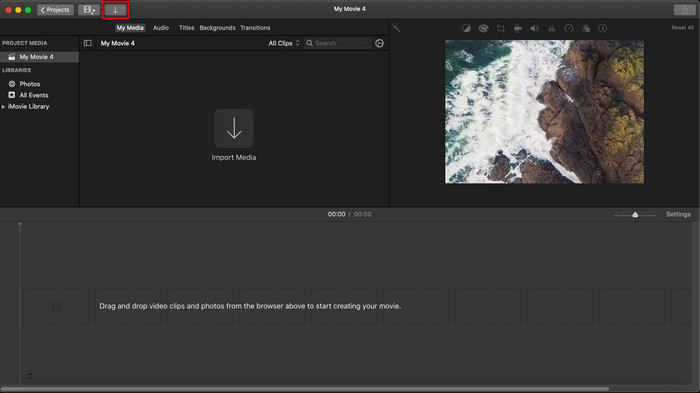
Krok 2. W lewym górnym rogu iMovie kliknij przycisk Importuj, aby łatwo zaimportować wideo i obraz. Przeciągnij i umieść dodane pliki multimedialne na osi czasu (Timeline).
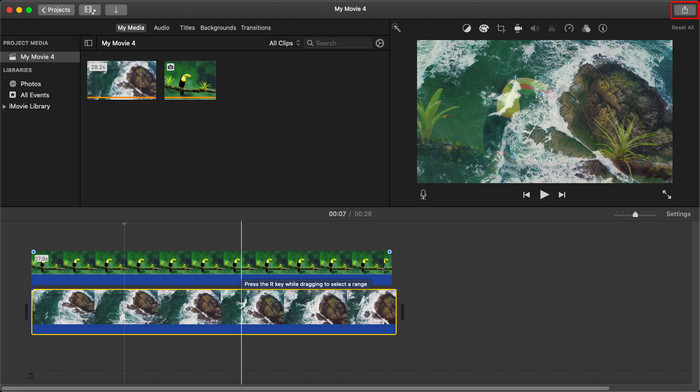
Krok 3. Dostosuj zaimportowany obraz oraz czas jego wyświetlania. Następnie kliknij Eksportuj, aby pobrać plik na komputer.
Przedstawione tutaj kroki pochodzą z praktycznych doświadczeń związanych z korzystaniem z iMovie. Kroki mogą się różnić, jeśli narzędzie zostanie zaktualizowane lub wkrótce nastąpią pewne zmiany.
Część 2. Jak wstawiać zdjęcia do wideo za pomocą iMovie [iOS]
Co się stanie, jeśli używasz urządzenia z systemem iOS i chcesz użyć iMovie jako edytora, aby dodać obraz do wideo? Czy to możliwe? No tak, jest. Możemy nauczyć Cię, jak umieścić zdjęcie w filmie iMovie na iPhonie, czytając poniższe szczegóły z podanymi przez nas czynnościami.
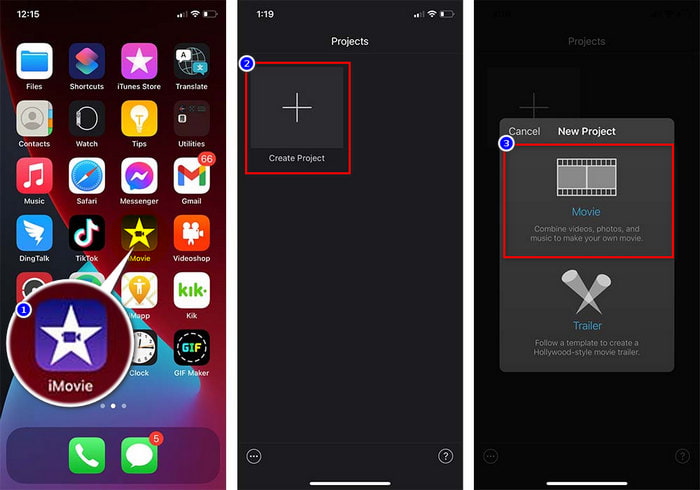
Krok 1. Uruchom aplikację iMovie na swoim urządzeniu z iOS, kliknij Utwórz projekt, a potem Film. Dodaj wideo znajdujące się w Twojej bibliotece.
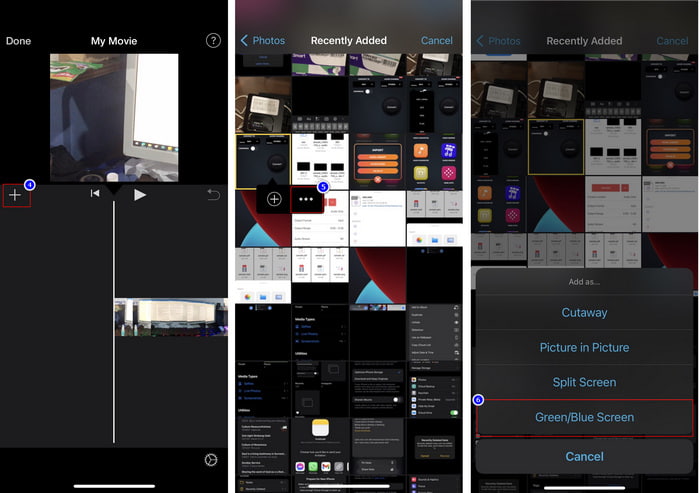
Krok 2. Kliknij przycisk +, aby dodać znak wodny w postaci obrazu do filmu. Wyszukaj go w bibliotece, kliknij, naciśnij ikonę trzech kropek, a następnie wybierz Zielony/niebieski ekran. Stuknij obraz, aby automatycznie usunąć tło.
Krok 3. Naciśnij Gotowe, kliknij Eksportuj, a potem Zapisz wideo.
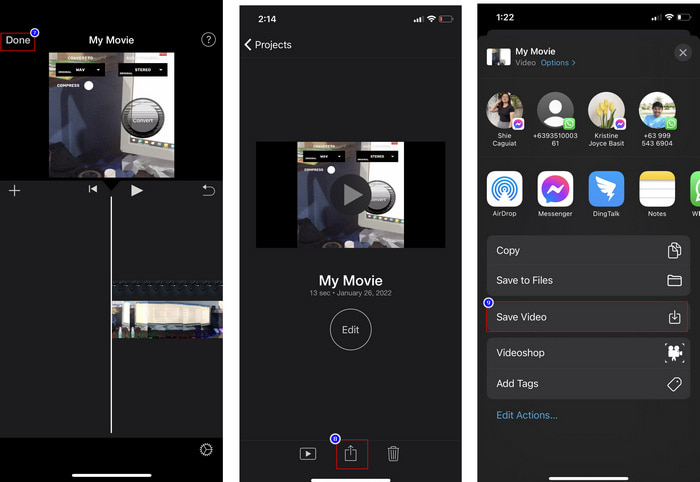
Wszystkie przedstawione tutaj kroki pochodzą z praktycznego doświadczenia korzystania z iMovie na iOS. Ale niektóre kroki mogą się zmienić, jeśli wkrótce nastąpi aktualizacja aplikacji edytora.
Część 3. Najłatwiejsze rozwiązanie do wstawiania zdjęć do wideo za pomocą najlepszego oprogramowania do znaków wodnych wideo na komputerze Mac
Masz podobne trudności z dodawaniem zdjęć do wideo w iMovie? Wypróbuj Video Converter Ultimate, ponieważ to narzędzie jest najlepszą alternatywą dla iMovie. Jego ogólna wydajność została już pochwalona przez miliony użytkowników, którzy je przetestowali. Nawet jeśli mieli różne problemy ze swoimi filmami, i tak wybierali to narzędzie, aby je rozwiązać. Co więcej, dzięki temu programowi możesz zrobić praktycznie wszystko, co związane z wideo, takie jak cięcie, dodawanie obrazów, łączenie, przycinanie itp. Niezależnie od tego, na jaki problem trafisz, jest to kompleksowe rozwiązanie. Chcesz rozwiązać swój problem? W takim razie postępuj zgodnie z krokami, które poniżej dla Ciebie przygotowaliśmy, aby łatwo za nimi podążać.
Funkcje:
◆ Najlepsze narzędzie obsługuje wiele formatów, więc przesłanie formatu nie będzie trudne.
◆ Obsługuje łatwy do zrozumienia interfejs, który umożliwia szybkie dodawanie obrazów do dowolnego filmu w ciągu kilku sekund.
◆ Obsługuje różne platformy, takie jak Mac i Windows, aby umożliwić użytkownikom korzystanie ze wszystkich platform.
Krok 1. Możesz pobrać narzędzie, klikając przycisk pobierania poniżej, następnie szybko je zainstalować i po instalacji uruchomić.
Bezpłatne pobieranieDla Windows 7 lub nowszegoBezpieczne pobieranie
Bezpłatne pobieranieDla MacOS 10.7 lub nowszegoBezpieczne pobieranie
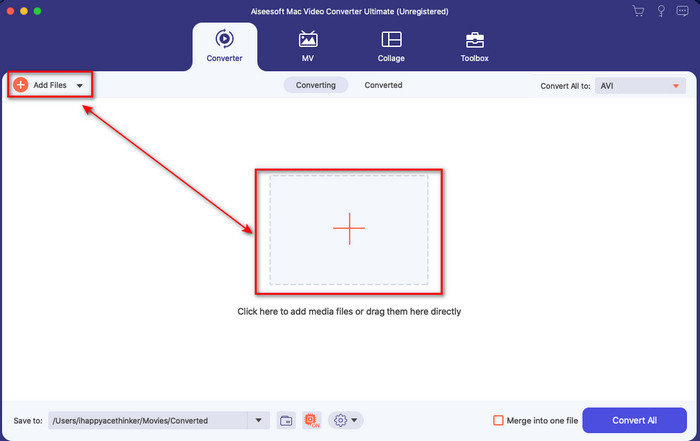
Krok 2. Po uruchomieniu kliknij przycisk +, aby zaimportować plik wideo. Następnie otworzy się folder, w którym zlokalizujesz plik wideo, i kliknij Otwórz.
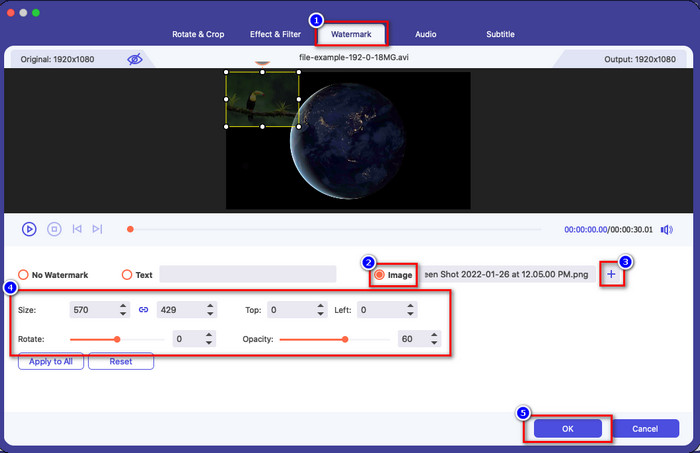
Krok 3. Naciśnij przycisk z różdżką, aby otworzyć okno edycji konwertera. Przejdź do zakładki Filigran, kliknij ikonę obrazu, a następnie naciśnij Dodaj, aby wgrać obraz. Możesz również edytować przezroczystość obrazu lub go obrócić zgodnie ze swoimi potrzebami, a aby zastosować zmiany, kliknij OK.
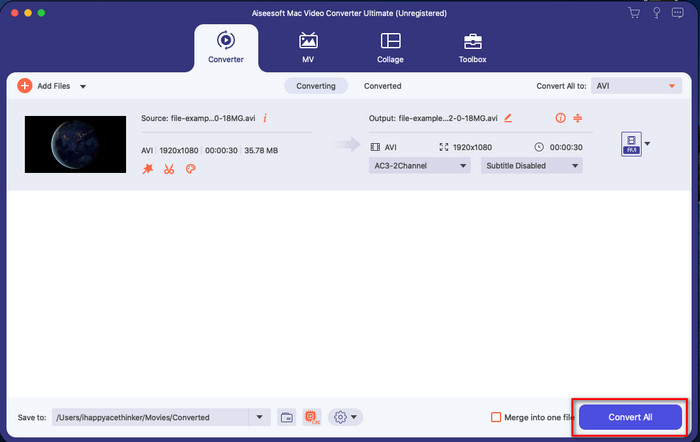
Krok 4. Kliknij przycisk Konwertuj wszystko, aby wyeksportować plik wideo. Po zakończeniu procesu eksportu zostanie on zapisany w folderze na Twoim komputerze — i tak łatwo otrzymasz wideo z obrazem jako znakiem wodnym. Czy teraz wierzysz w możliwości programu Video Converter Ultimate? Właśnie tak szybko dodałeś znak wodny w postaci obrazu do swojego filmu.
Powiązane:
Część 4. Często zadawane pytania dotyczące dodawania zdjęć do wideo w iMovie
Czy istnieją ograniczenia dotyczące liczby obrazów dodawanych do filmów iMovie?
Jak dotąd nie doświadczyliśmy żadnych niedogodności podczas dodawania wielu obrazów do filmu podczas korzystania z iMovie. Jednak proces eksportowania zajmuje trochę czasu, jeśli dodasz zbyt wiele zdjęć do wideo, ale nie ulegnie awarii, jak wynika z doświadczenia.
Jakich formatów obrazu mogę używać w iMovie?
Istnieje wiele formatów nieruchomych obrazów obsługiwanych przez iMovie, takich jak BMP, PNG, JPG lub JPEG, HEIF, PSD, RAW TIFF i TGA, ale jeśli chcesz animowany obraz, możesz użyć GIF. Chociaż tych formatów jest dużo, nadal nie obsługuje wszystkich formatów graficznych, takich jak EXIF, WebP i tym podobne.
Dlaczego powinienem używać iMovie?
Dla użytkowników Apple iMovie jest jednym z najlepszych wyborów do tworzenia krótkich filmów, reklam, vlogów i nie tylko; wszystko to jest za darmo. Edytor zapewnia półzaawansowany interfejs, aby pomóc użytkownikom w praktycznym poznaniu wyglądu zaawansowanego interfejsu lub narzędzia. Ponadto oprogramowanie jest mniej techniczne, ale jest wyspecjalizowane. Rzadko zdarza się, aby zobaczyć edytor, który zapewnia mniej techniczny sposób korzystania, ale może pomóc ci być profesjonalistą i dodać kilka specjalistycznych technik, które posiada zaawansowane narzędzia.
Wniosek
Na koniec możemy stwierdzić, że mamy już wystarczającą wiedzę, aby z łatwością dodawać zdjęcia do wideo w iMovie. Dzięki najlepszym narzędziom Apple możesz wykonywać tu nawet bardziej skomplikowaną edycję. Jednak nie wszystkie funkcje, których potrzebujesz, są dostępne w iMovie, dlatego możesz użyć Video Converter Ultimate, aby mieć prosty w obsłudze edytor na wszystkich platformach. Być może zastanawiasz się, dlaczego właśnie tego narzędzia powinieneś używać? Gdy mówimy o tym programie, obszerne wyjaśnienia nie są potrzebne, ponieważ przedstawiliśmy powyżej wystarczające dowody. Co więc powinieneś zrobić? Kliknij przycisk pobierania, aby samodzielnie przetestować to narzędzie i rozwiązać swój problem.
-
 5 najczęściej wybieranych aplikacji do nagrywania dźwięku na Androida i iOS [Aktualizacja 2022]
 Nie wiesz, jakiej aplikacji do nagrywania dźwięku powinieneś użyć? Jeśli tak, ten artykuł pomoże Ci wybrać aplikację, która pomoże Ci w zadaniu nagrywania dźwięku.
-
 Notatka głosowa na iOS – zalety, wady, funkcje i 4 najlepsze zamienniki
 Co to jest notatka głosowa? Czy to najlepszy rejestrator dźwięku na iOS? Szukasz odpowiedzi na to pytanie? Przeczytaj pełny zakres tego artykułu, aby dowiedzieć się więcej.
-
 7 najnowszych darmowych konwerterów MOD do zmiany pliku MOD na nowy format
 Jakich konwerterów MOD możesz użyć? Myślisz to samo pytanie? Więc oto jesteśmy, dostarczając siedem narzędzi, których możesz użyć do konwersji plików MOD.
