


 Video Converter Ultimate
 Nagrywarka ekranu
 Naprawa wideo
Najlepszy sposób, jak szybko usunąć znak wodny z Wondershare DVD Creator
Jeśli chodzi o zgrywanie płyt DVD, CD i Blu-ray, nie możesz się pomylić wybierając Wondershare DVD Creator. To narzędzie może zgrać całe dane i nagrać pliki ISO na dysku; to zrywak i palnik. Chociaż jest to jeden z najlepszych ripperów i palników, nadal pozostawia znak wodny na filmie, zwłaszcza jeśli korzystasz z bezpłatnej wersji. Frustrujące prawda? W tego typu scenariuszach zawsze jest rozwiązanie, które może ci pomóc. Informacje to szczegóły, które musisz znać i dowiedzieć się, jak usunąć znak wodny z WonderShare DVD Creator w ciągu kilku minut.

Część 1. Jak usunąć znak wodny z Wondershare DVD Creator
Najlepszym rozwiązaniem, które może rozwiązać Twój problem, jest usunięcie znaku wodnego WonderShare DVD Creator za pomocą najlepszego narzędzia, jakim jest FVC Video Converter Ultimate. To profesjonalne narzędzie potrafi usunąć znak wodny dołączony do zgranego DVD, CD i Blu-ray szybko i gładko jak masło. Coraz więcej użytkowników jest zadowolonych z korzystania z tego narzędzia ze względu na wbudowane funkcje oraz szybkość działania. Z jego pomocą możesz łatwo i szybko usunąć dowolny znak wodny z Twojego wideo.
Oprócz możliwości usuwania znaków wodnych możesz również dodać nowy znak wodny do filmu. Możesz zrobić spersonalizowany znak wodny, a następnie zastosować go do swojego filmu, jeśli chcesz. Jeśli więc uważasz, że możesz polegać na tym narzędziu, co jest prawdą, możesz wykonać poniższe kroki, ponieważ zapewniamy, jak usunąć znak wodny, który Kreator DVD WonderShare pozostawia na Twoim filmie.
Jak usunąć znak wodny Wondershare DVD Creator za pomocą oprogramowania Ultimate:
Krok 1. Aby pobrać oprogramowanie na komputer, kliknij przycisk pobierania poniżej i wybierz odpowiedni przycisk, aby pobrać właściwą wersję. Zainstaluj oprogramowanie na komputerze i kliknij Start Now, aby je uruchomić. Zanim przejdziemy dalej, upewnij się, że zapoznałeś się z interfejsem narzędzia, aby zapewnić sobie płynną pracę.
Bezpłatne pobieranieDla Windows 7 lub nowszegoBezpieczne pobieranie
Bezpłatne pobieranieDla MacOS 10.7 lub nowszegoBezpieczne pobieranie
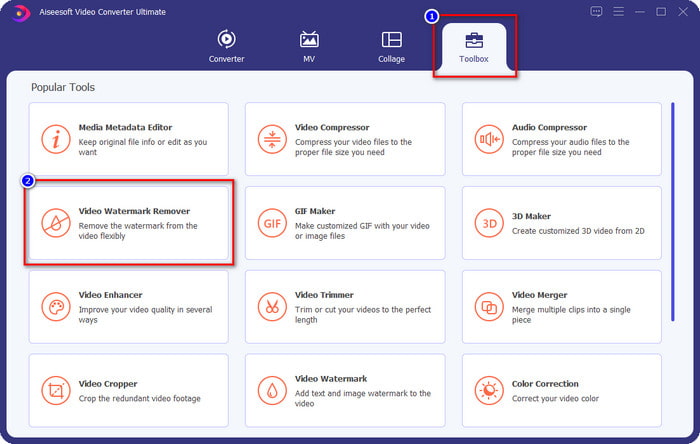
Krok 2. Po uruchomieniu oprogramowania przejdź do Toolbox i znajdź Video Watermark Remover. W tym narzędziu dostępne są także inne funkcje; możesz je wypróbować później, po usunięciu znaku wodnego.
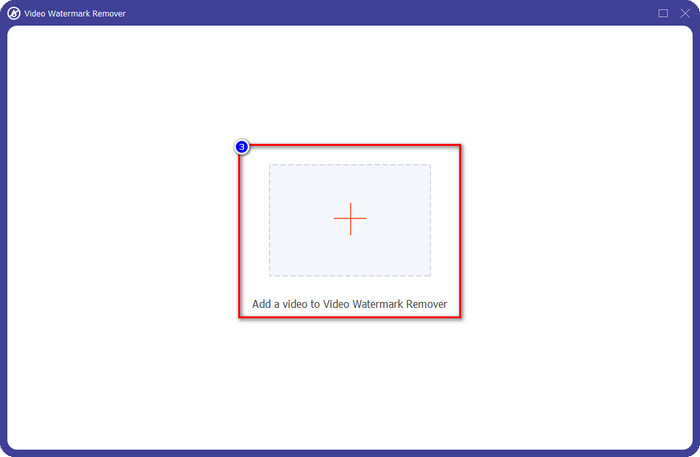
Krok 3. Naciśnij ikonę plus, aby dodać wideo wyeksportowane z WonderSHare DVD Creator, najpierw kliknij plik, a następnie naciśnij Open, aby pomyślnie wczytać go do narzędzia.
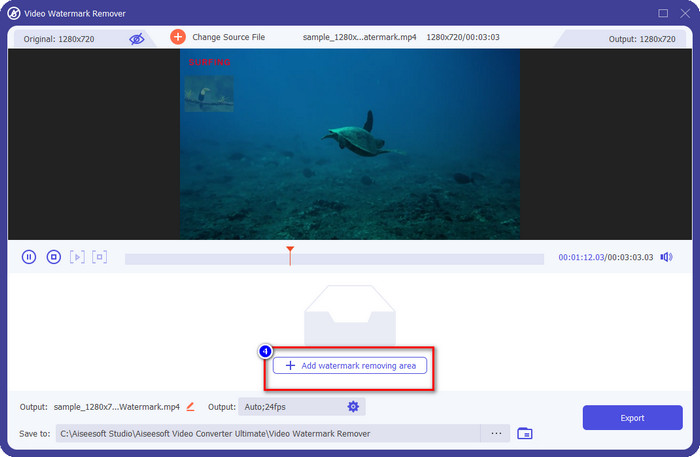
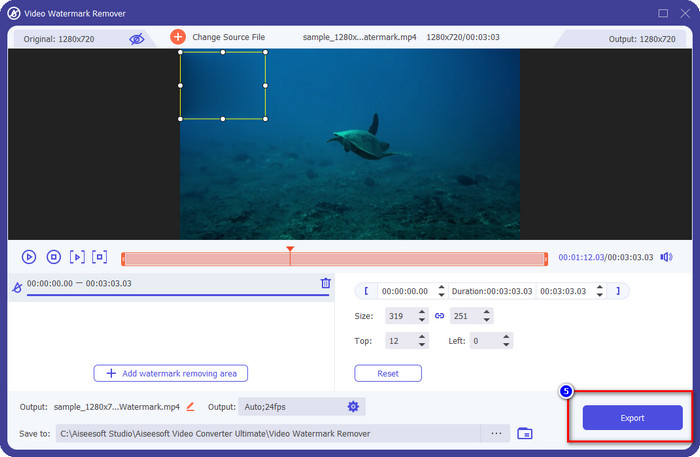
Krok 4. Gdy wczytywanie się zakończy, przejdź dalej, klikając Add Watermark Removing Area. Umożliwia to zasłonięcie znaku wodnego na Twoim wideo.
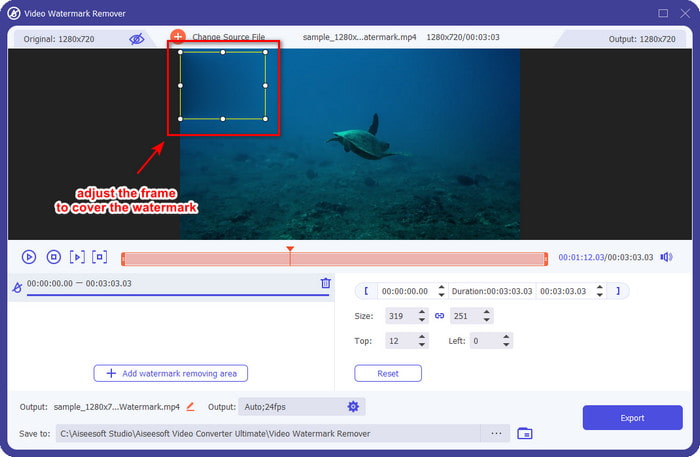
Krok 5. Upewnij się, że zasłaniasz znak wodny na wideo tak, aby po wyeksportowaniu został on usunięty. Aby to zrobić, możesz dostosować obszar ramki zakrywającej znak wodny tak, by całkowicie go przykryć.
Krok 6. Na koniec możesz zapisać wideo bez znaku wodnego, klikając przycisk Export. To takie proste – teraz masz wideo wyeksportowane z Wondershare bez znaku wodnego.
Plusy
- Nie jest zbyt skomplikowany w użyciu, więc jeśli jesteś początkującym, możesz sobie z tym poradzić.
- Dobrze radzi sobie z usuwaniem znaku wodnego z przesłanego filmu.
- Nie ma ograniczeń dotyczących przesyłania i rozmiaru pliku.
- Proces importowania i eksportowania stał się lżejszy, ponieważ obsługuje ultraszybki proces.
- Obsługuje wiele formatów wideo, takich jak MP4, AVI, MKV, WMV i 1000+.
- Dostępne do pobrania w wersjach Windows i Mac.
Cons
- Pobranie go jest konieczne.
- Możesz kupić oprogramowanie, aby mieć najlepsze funkcje i funkcje, które możesz tutaj uzyskać, ale nie będzie to dużo kosztować.
Część 2. Jak zgrywać i nagrywać pliki na Wondershare DVD Creator bez znaku wodnego
Podczas zgrywania i nagrywania pliku może Ci pomóc Wondershare DVD Creator, a jeśli chcesz usunąć znak wodny z wyeksportowanego wideo, możesz kupić to narzędzie. Choć będzie ono kosztować więcej niż wspomniane wcześniej oprogramowanie typu „ultimate”, nadal jest to dobre narzędzie do użycia. Możesz skorzystać z poniższych kroków, aby dowiedzieć się, jak używać Wondershare DVD Creator bez znaku wodnego.
Zanim przystąpimy do zgrywania i nagrywania plików wideo, pobierz oprogramowanie na komputer i kup jego wersję premium na oficjalnej stronie internetowej.
Jak zgrywać filmy na CD, DVD i Blu-ray za pomocą Wondershare DVD Creator:
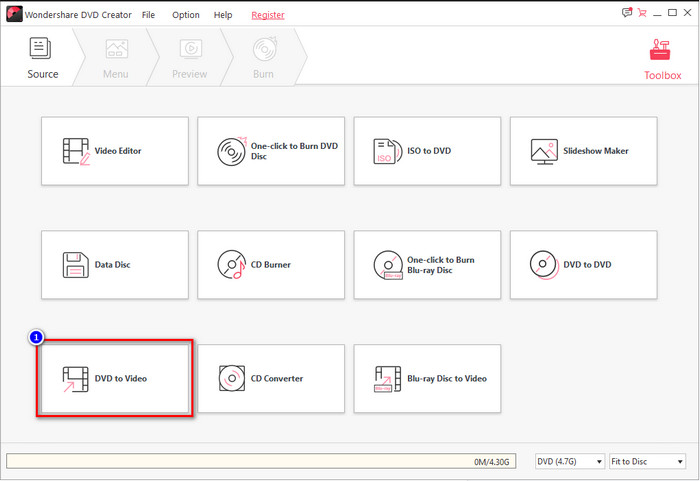
Krok 1. Po pobraniu oprogramowania kliknij Wondershare DVD Creator, aby uruchomić go na swoim urządzeniu. W głównym interfejsie kliknij More DVD Tool, a następnie naciśnij DVD to Video.
Krok 2. Kliknij Load DVD, aby wczytać płytę, którą włożyłeś do używanego urządzenia, przejdź do Add DVD i wczytaj plik wideo, który chcesz zgrać z płyty.
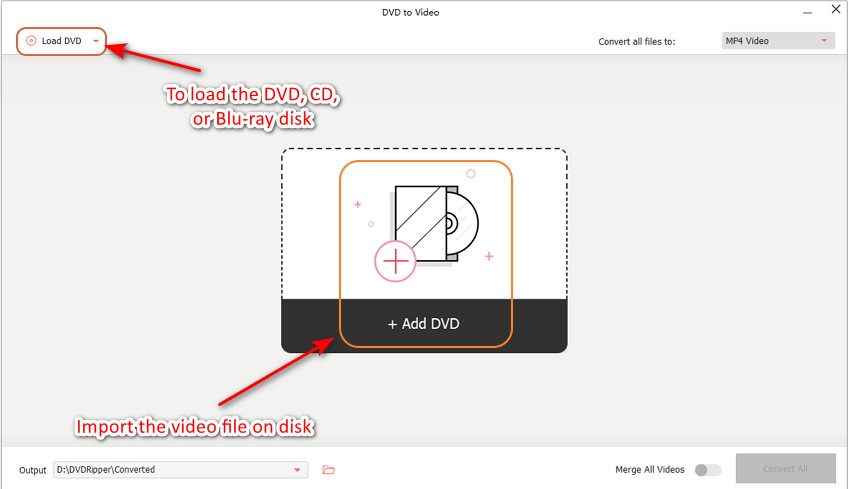
Upewnij się, że dysk CD, DVD lub Blu-ray jest już umieszczony na używanym urządzeniu, aby można było znaleźć plik w folderze komputera.
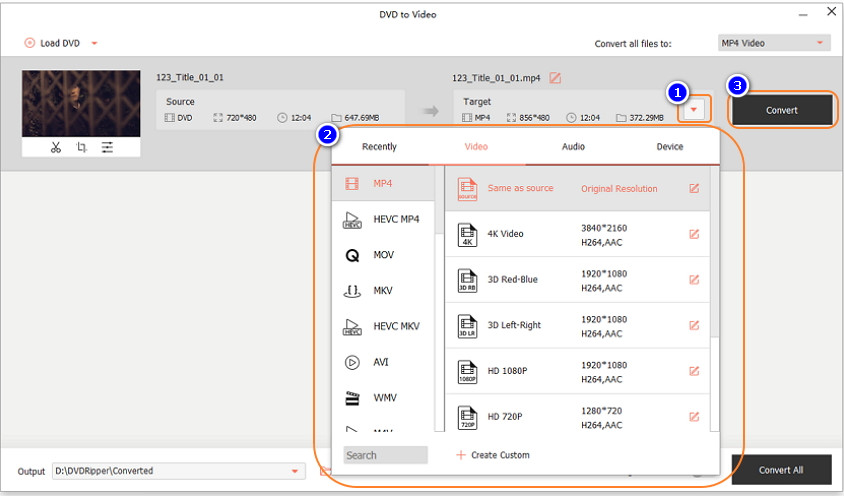
Krok 3. Kliknij przycisk drop-down i wybierz format, który chcesz, a następnie kliknij Convert, aby rozpocząć zgrywanie wideo na dysk.
Jak nagrywać filmy na płytach CD, DVD i Blu-ray za pomocą Wondershare DVD Creator:
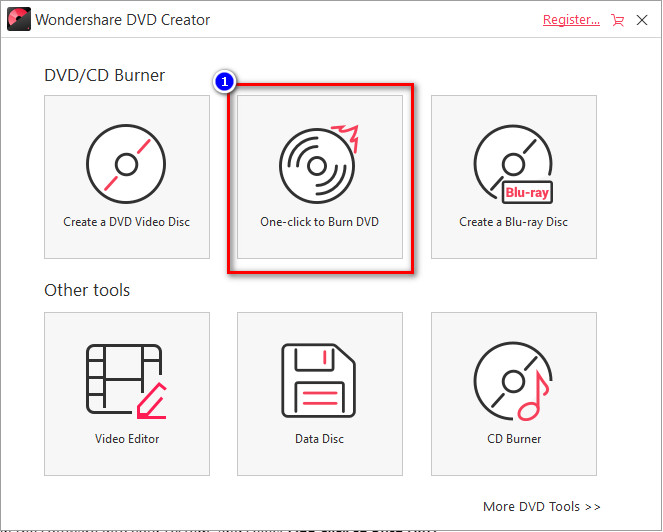
Krok 1. Uruchom oprogramowanie w swoim systemie i wybierz One-click to Burn DVD.
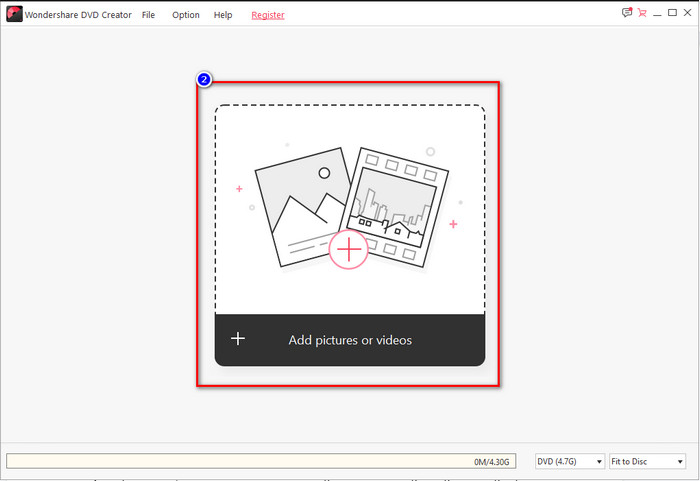
Krok 2. Kliknij Add pictures or video and upload i wczytaj wideo, które chcesz nagrać na DC, DVD lub Blu-ray.
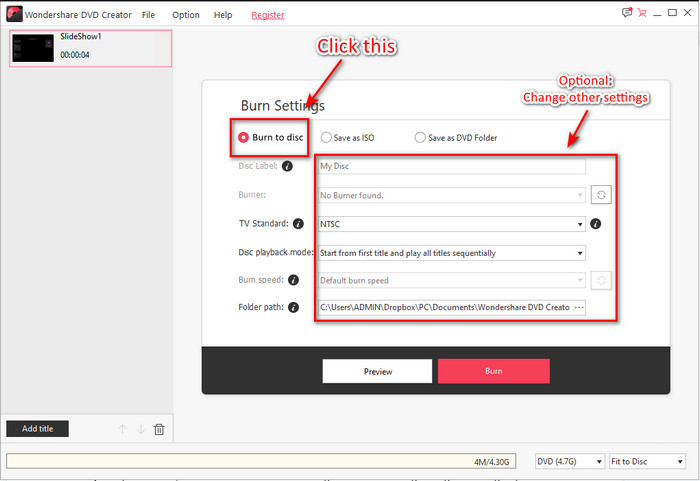
Krok 3. Włóż płytę, kliknij Burn to Disk, a następnie zmień pozostałe ustawienia nagrywania zgodnie ze swoimi wymaganiami.
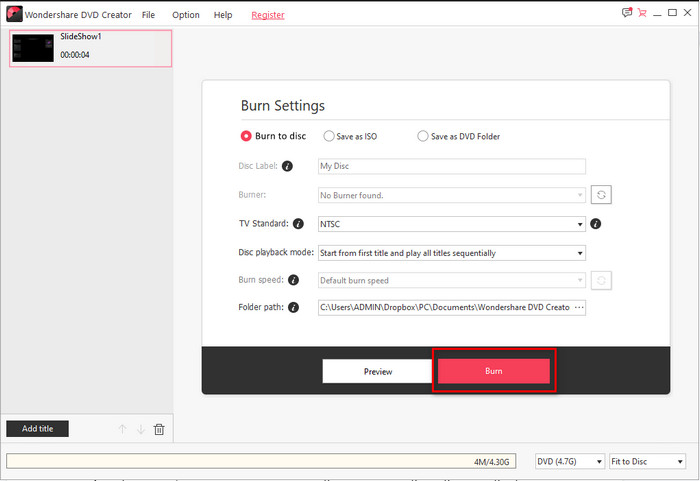
Krok 4. Po wszystkim kliknij Burn, aby rozpocząć nagrywanie pliku na włożoną płytę.
Powiązane:
Część 3. Często zadawane pytania dotyczące usuwania znaku wodnego z Wondershare DVD Creator
Ile kosztuje Wondershare DVD Creator?
W przypadku rocznej subskrypcji będziesz musiał zapłacić $39,95 rocznie, dożywotnią $55,95 i licencję dla wielu użytkowników $89.95. Nie obsługuje miesięcznych subskrypcji, a jeśli subskrybujesz na rok, automatycznie odnowisz subskrypcję.
Czy znak wodny Wondershare DVD Creator można usunąć?
Absolutnie tak, znak wodny na filmach eksportowanych w tym oprogramowaniu można usunąć. Kupujesz oprogramowanie lub używasz narzędzia do usuwania znaków wodnych, takiego jak FVC Video Converter Ultimate. Wszystkie potrzebne informacje znajdują się już w tym artykule.
Czy istnieją inne sposoby na usunięcie znaku wodnego Wondershare?
Oprócz używania narzędzia do usuwania znaków wodnych, możesz użyć obcinarki wideo, aby wyciąć rozmiar filmu, który nie ma znaku wodnego, i zapisać go. Jednak nie jest to idealne rozwiązanie do cięcia wideo w celu usunięcia znaku wodnego, ponieważ pochłonie wiele wymiarów i klatek wideo. Szansa na utratę jakości wideo jest wysoka.
Wniosek
Teraz, gdy możemy usunąć próbny znak wodny Wondershare DVD Creator, możesz wybrać, który pomaga w Twojej sytuacji, za pomocą innego oprogramowania, takiego jak FVC Video Converter Ultimate, lub kupując go. Zapewniamy, że uzyskasz najlepszy wynik na swoim filmie bez znaku wodnego. Jeśli więc uważasz, że ten artykuł pomaga, możesz zostawić pięć gwiazdek poniżej i mamy nadzieję, że możesz zastosować wszystkie powyższe informacje, aby usunąć znak wodny z filmu.
-
 Najlepszy sposób, jak dodać znak wodny do wideo w Photoshopie na Windows i Mac
 Chcesz wiedzieć, jak dodać znak wodny do filmu w Photoshopie? W takim przypadku ten artykuł dostarczy Ci rzeczy, o których musisz wiedzieć.
-
 3 najlepsze rozwiązania dotyczące łatwego usuwania znaku wodnego z filmów
 Chcesz usunąć irytujący znak wodny z filmu? Na tym blogu możesz poznać różne pomysły dotyczące usuwania znaku wodnego z filmu.
-
 4 najlepsze sposoby szybkiego dodawania znaku wodnego do dowolnych filmów
 Jeśli przeczytasz ten artykuł, nauczmy się dodawać znak wodny do dowolnych filmów w systemach Windows, Mac, Online, iOS i Android.
