


 Video Converter Ultimate
 Nagrywarka ekranu
 Naprawa wideo
Procedury wycinania części wideo na iPhonie
Być może w wolnym czasie nagrałeś iPhonem lub iPadem piękny film i chcesz podzielić się nim ze znajomymi albo opublikować w mediach społecznościowych. Warto jednak najpierw wyciąć fragmenty, których nie chcesz udostępniać. W takiej sytuacji możesz szybko edytować wideo za pomocą wbudowanych narzędzi, skracając je lub przycinając. Więc jak skrócić wideo na iPhonie? W tym artykule poznasz najlepsze metody. Jeśli chcesz poznać wszystkie kroki, przeczytaj uważnie poniższe informacje.

Część 1. Skuteczne procedury wycinania wideo na iPhonie
Korzystanie z aplikacji Zdjęcia
Jeśli jesteś użytkownikiem iPhone'a i chcesz skrócić długość swojego filmu, aplikacja Zdjęcia może ci pomóc. Aplikacja Zdjęcia jest dobra nie tylko do wyświetlania zdjęć i filmów. Za pomocą tej gotowej aplikacji możesz także przycinać lub przycinać wideo. Ponieważ jest to prosta aplikacja na iPhone'a, możesz skrócić wideo do zaledwie kilku dotknięć. W ten sposób wszyscy użytkownicy, zwłaszcza początkujący, mogą korzystać z aplikacji. Ponadto, ponieważ jest to gotowa aplikacja, instalacja nie jest wymagana. Jednak mimo że jest to praktyczna aplikacja do wycinania filmów, aplikacja Zdjęcia ma pewne ograniczenia. Aplikacja jest nieodpowiednia, jeśli chcesz, aby zaawansowane narzędzia do edycji poprawiały wideo oprócz skracania długości wideo. Aplikacja Zdjęcia może oferować tylko podstawowe funkcje edycji, takie jak wycinanie, dodawanie filtrów i inne. Jeśli chcesz wiedzieć, jak przyciąć wideo na iPhonie, wykonaj poniższe czynności.
Krok 1. Odblokuj iPhone’a i uruchom aplikację Zdjęcia.
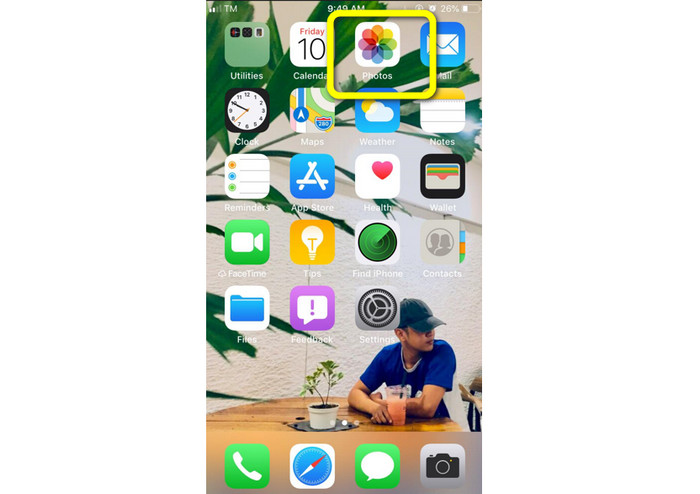
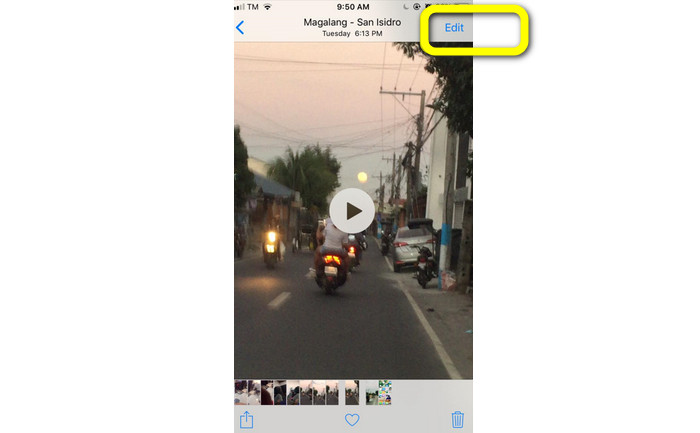
Krok 2. Następnie wybierz wideo, które chcesz skrócić. Potem naciśnij przycisk Edytuj w prawym rogu ekranu.
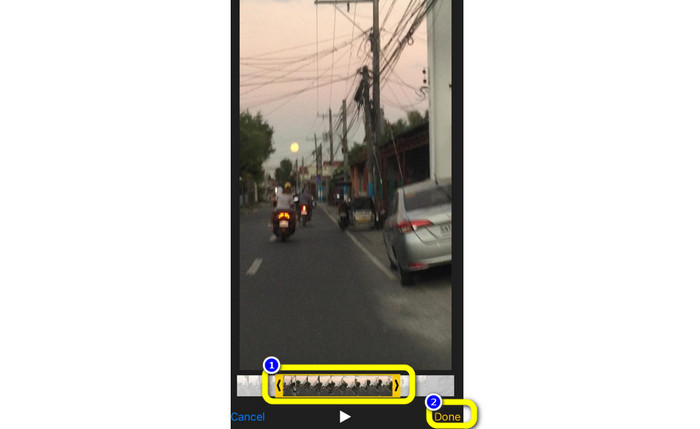
Krok 3. Teraz możesz skrócić nagranie, przeciągając jego krawędzie. Możesz przesuwać lewą i prawą krawędź klipu. Po przycięciu wideo stuknij przycisk Gotowe, aby zapisać je w telefonie.
Korzystanie z iMovie
Chcesz edytować niektóre nagrania zrobione iPhonem, na przykład wyciąć zbędne fragmenty, skrócić je lub sprawić, by wyglądały atrakcyjniej? Jest to łatwy i prosty proces, jeśli korzystasz z programu iMovie, dostępnego na urządzenia z systemem iOS. Wbudowany edytor wideo w domyślnej aplikacji Zdjęcia wystarcza większości użytkowników, ale nie umożliwia korzystania z bardziej zaawansowanych funkcji, takich jak podgląd osi czasu, dodawanie przejść, łączenie wielu klipów itd. W takiej sytuacji przydaje się specjalistyczny program do montażu wideo, taki jak iMovie. iMovie firmy Apple jest lepszy od wielu innych narzędzi do edycji wideo dostępnych w App Store. Możesz też zsynchronizować dźwięk i obraz w iMovie. iMovie ma jednak pewne wady. Jest dostępny wyłącznie na urządzenia iPhone. Oznacza to, że jeśli korzystasz z Androida, musisz użyć innej aplikacji, aby przyciąć wideo.
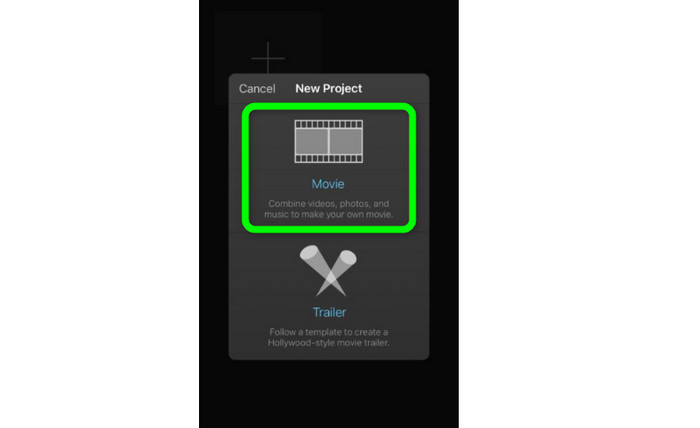
Krok 1. Pobierz i zainstaluj aplikację iMovie na swoim iPhonie. Następnie uruchom program. Gdy interfejs pojawi się na ekranie, kliknij opcję Utwórz projekt > Film i dodaj wideo.
Krok 2. Wybrany film pojawi się teraz na osi czasu iMovie. Domyślnie wskaźnik będzie na końcu klipu, ale możesz go przeciągnąć we właściwe miejsce i zatrzymać w punkcie, w którym chcesz przyciąć wideo.
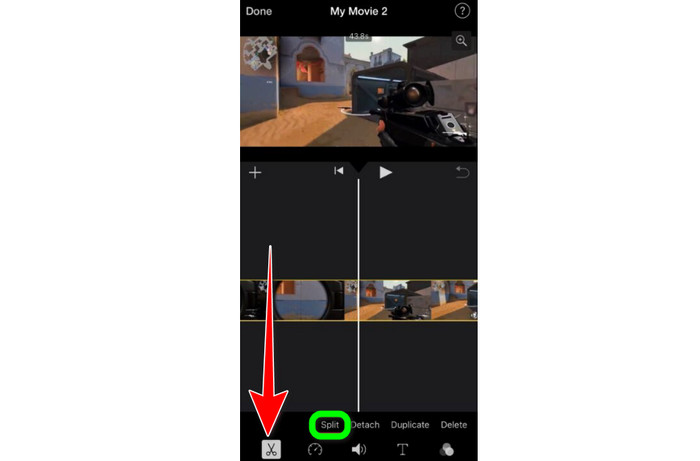
Krok 3. Teraz możesz skorzystać z różnych funkcji, które oferuje iMovie. Jak pokazano poniżej, ikona Nożyczek oznacza wybór narzędzia do cięcia. Wybierz z menu narzędzie Podziel, aby przyciąć klip dokładnie w zaznaczonym miejscu.
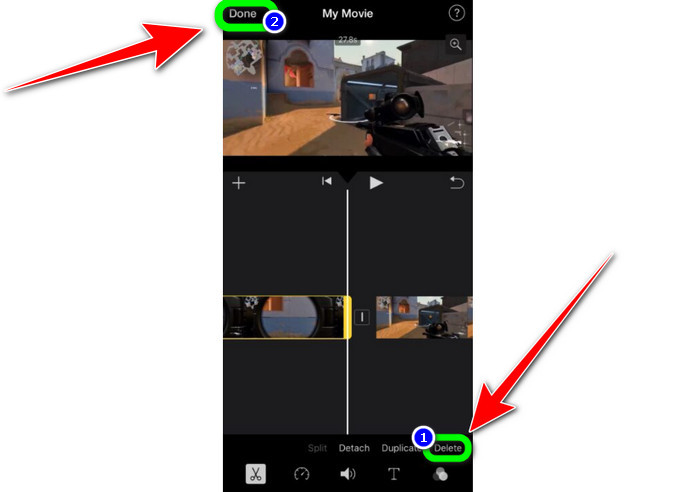
Krok 4. Następnie kliknij opcję Usuń, aby pozbyć się niepotrzebnej części nagrania. Kiedy skończysz przycinanie, naciśnij przycisk Gotowe.
Część 2. Jak przycinać filmy na iPadzie
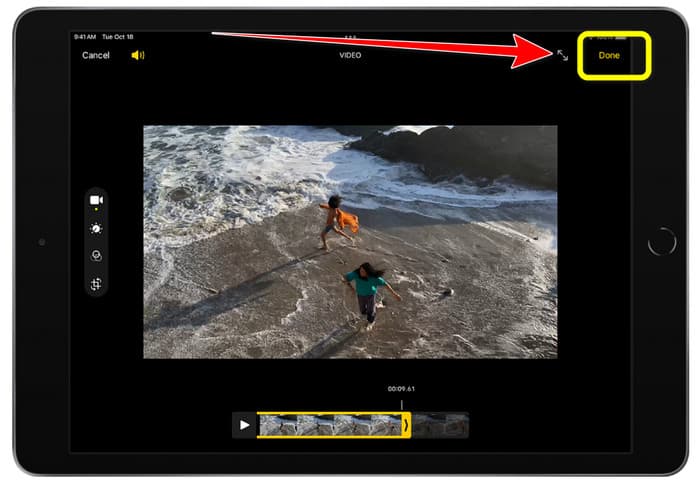
Jeśli chcesz przyciąć lub przyciąć wideo na iPadzie, nie musisz już szukać dodatkowych aplikacji do pobrania. Podobnie jak na iPhonie, możesz skracać lub ciąć wideo w aplikacji Zdjęcia. Aplikacja Zdjęcia na iPadzie ma jednak pewne ograniczenia. Jeśli Twoim celem jest jedynie przycięcie klipu, sprawdzi się dobrze. Nie użyjesz jej natomiast, jeśli potrzebujesz zaawansowanych narzędzi montażowych. Aby przyciąć wideo na iPadzie, postępuj według poniższych kroków.
Krok 1. Uruchom aplikację Zdjęcia na iPadzie, wybierz klip wideo, który chcesz edytować, i kliknij opcję Edytuj.
Krok 2. Przeciągnij krawędź ramki podglądu, aby skrócić długość nagrania i rozpocząć przycinanie.
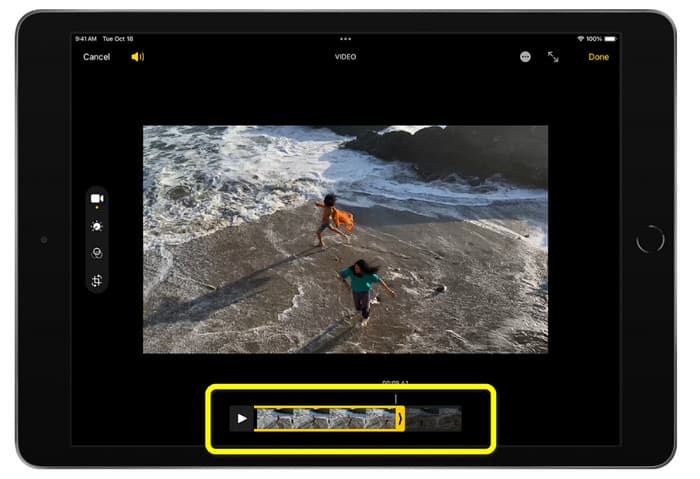
Krok 3. Gdy skończysz przycinanie, kliknij przycisk Gotowe.
Część 3. Jak wyciąć filmy z iPhone'a na PC
Szukasz najlepszego sposobu na przycinanie wideo z iPhone’a na komputerze? W takim razie skorzystaj z programu Video Converter Ultimate. Dzięki temu działającemu offline oprogramowaniu możesz z łatwością przyciąć nagranie z iPhone’a. Aplikacja oferuje prosty, intuicyjny interfejs i nieskomplikowane procedury, więc idealnie nadaje się dla wszystkich użytkowników, zwłaszcza początkujących. Możesz też zmienić różne parametry w ustawieniach wyjściowych. Da się modyfikować rozdzielczość, jakość i liczbę klatek na sekundę nagrania. Możesz również zmienić bitrate dźwięku, częstotliwość próbkowania i inne właściwości. Gotowy materiał możesz zapisać w wielu formatach, m.in. MP4, MOV, AVI, MKV itd. To duże udogodnienie, ponieważ Video Converter Ultimate jest dostępny zarówno na komputery z systemem Windows, jak i Mac. Co więcej, program nie dodaje znaków wodnych do edytowanego materiału, więc możesz oglądać wideo bez irytujących oznaczeń.
Bezpłatne pobieranieDla Windows 7 lub nowszegoBezpieczne pobieranie
Bezpłatne pobieranieDla MacOS 10.7 lub nowszegoBezpieczne pobieranie
Krok 1. Pobierz program Video Converter Ultimate na komputer. Kliknij przycisk Pobierz poniżej, aby łatwo uzyskać dostęp do programu.
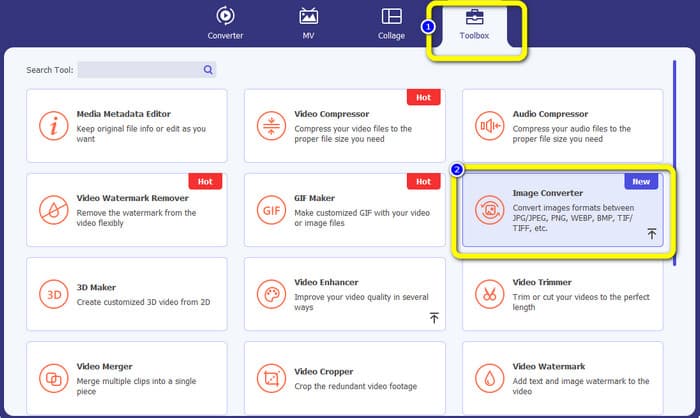
Krok 2. Po pobraniu uruchom program, aby wyświetlić główny interfejs. Upewnij się, że wideo z iPhone’a zostało już przeniesione na komputer. Następnie, gdy interfejs będzie widoczny, kliknij Toolbox > Video Trimmer Tool.
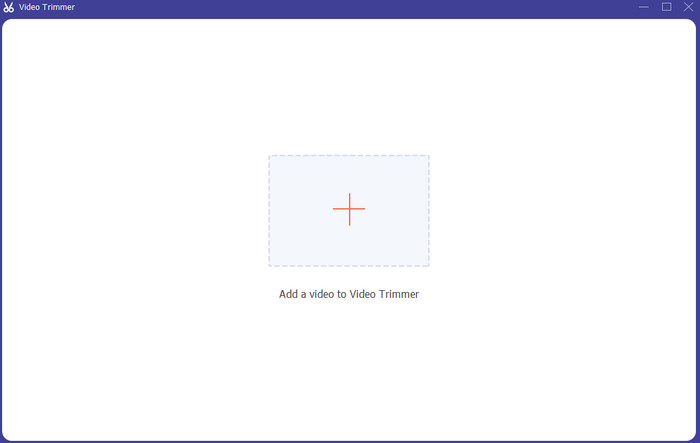
Krok 3. Gdy na ekranie pojawi się nowy interfejs, kliknij znak +, aby dodać wideo z iPhone’a.
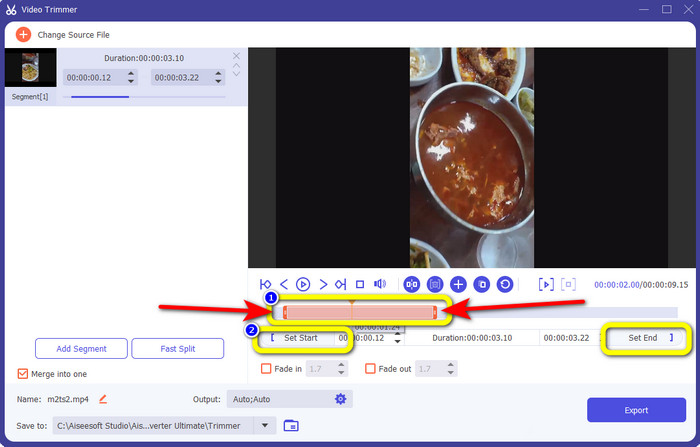
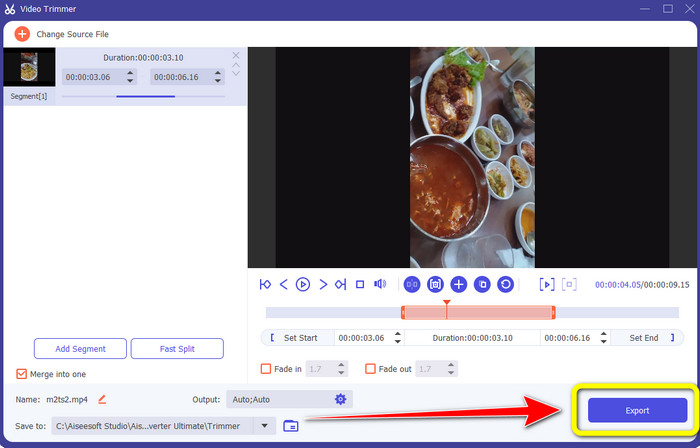
Krok 4. Teraz możesz już przeciągnąć krawędzie klipu, aby go przyciąć. Możesz też użyć opcji Set Start and Set End, aby ręcznie ustawić początek i koniec fragmentu.
Krok 5. Na koniec kliknij przycisk Export, aby zapisać wideo po przycięciu.
Część 4. Często zadawane pytania dotyczące skracania wideo na iPhonie
Jak przyciąć środek wideo na iPhonie?
Jeśli chcesz przyciąć środkową część filmu za pomocą iPhone'a, nadal możesz skorzystać z wyżej wymienionych metod. Aplikacja Zdjęcia i iMovie mogą również przycinać środkową część filmu.
Jak przyciąć wideo na telefonie z Androidem?
Możesz przejść do aplikacji Galeria. Następnie otwórz wideo i kliknij opcję Edytuj. Następnie możesz już przyciąć wideo, przeciągając krawędzie wideo.
Jak przenieść wideo na iPhone'a z komputera?
Możesz użyć wielu narzędzi do przeniesienia wideo z komputera na iPhone'a. Możesz używać iPhone Transfer Pro, Dropbox, AirDrop i innych.
Wniosek
Przycinanie wideo przydaje się, gdy chcesz udostępnić lub wgrać klip. W tym informacyjnym artykule omówiono więc, jak skrócić wideo na iPhonie. Jeśli natomiast chcesz skrócić nagranie z iPhone’a na komputerze, możesz użyć programu Video Converter Ultimate. Dzięki temu działającemu offline narzędziu możesz szybko i łatwo przyciąć wideo z iPhone’a na PC.
-
 [4 rozwiązania] Jak spowolnić wideo na iPhonie jak profesjonalista
 Masz problem ze spowolnieniem wideo na iPhonie? Jeśli napotkasz ten problem, nie martw się więcej, ponieważ pomożemy Ci rozwiązać problem, czytając ten artykuł.
-
 Jak szybko przewinąć wideo do przodu na iPhonie — dostosuj prędkość wideo
 Jak mogę szybko przewinąć wideo na moim iPhonie? Jak szybko przewinąć wideo na iPhonie za pomocą iMovie? Poznaj 3 sposoby na przyspieszenie wideo na urządzeniach iPhone i iPad.
-
 Samouczek - 4 bezpłatne sposoby łączenia filmów z iPhone'a w nowy
 Przeczytaj i uzyskaj 4 proste sposoby łączenia filmów na iPhonie. Obsługiwane są wszystkie modele iPhone'a i wersje iOS. Możesz szybko połączyć 2 lub więcej filmów na iPhonie w nowy film.
