


 Video Converter Ultimate
 Nagrywarka ekranu
 Naprawa wideo
Jak przyspieszyć filmy TikTok w Tiktok lub skorzystać z innego alternatywnego oprogramowania?
Jedną z najszybciej rozwijających się aplikacji rozrywkowych wideo, z których możesz korzystać na telefonie komórkowym, jest TikTok. Chociaż TikTok pojawił się w 2016 roku, w ciągu kilku miesięcy od premiery stał się błyskawicznie bardzo popularny. Jednym z popularnych efektów edycji jest tu przyspieszanie wideo, aby uzyskać ciekawy efekt wizualny. Jeśli więc należysz do osób, które chcą się dowiedzieć, jak to zrobić, jesteś we właściwym miejscu. Omówimy różne narzędzia, które pomogą ci nauczyć się, jak przyspieszyć wideo na TikToku.

Część 1. Jak przyspieszyć wideo w TikTok
Jak już wspomniano, TikTok stał się jedną z najpopularniejszych platform z krótkimi klipami wideo, więc edytowanie nagrania w tej aplikacji jest proste. Pamiętaj, że możesz przyspieszyć wideo już podczas nagrywania, a nie dopiero po jego zakończeniu. Gdy próbujesz przyspieszyć film na TikToku, musisz oszacować końcową prędkość, nie wiedząc z góry, czy na pewno odpowiada ona efektowi, który chcesz uzyskać. Jeśli jednak nie chcesz pobierać zewnętrznego narzędzia do przyspieszania wideo, sam TikTok wystarczy. A zatem postępuj według poniższych kroków, aby przyspieszyć wideo na TikToku.
Kroki, jak nagrać przyspieszone wideo na TikToku:
Krok 1. Najpierw pobierz aplikację TikTok na swój telefon, a po zakończeniu pobierania uruchom ją.
Krok 2. Naciśnij znak +, aby rozpocząć nagrywanie. Następnie kliknij „Dodaj dźwięk”, aby wstawić muzykę w tle, a jeśli chcesz – filtr. Aby przyspieszyć wideo, kliknij Speed (Prędkość) i wybierz jedną z dostępnych opcji. Aby rozpocząć nagrywanie, naciśnij okrągły przycisk round, a jeśli chcesz je zatrzymać, naciśnij go ponownie.
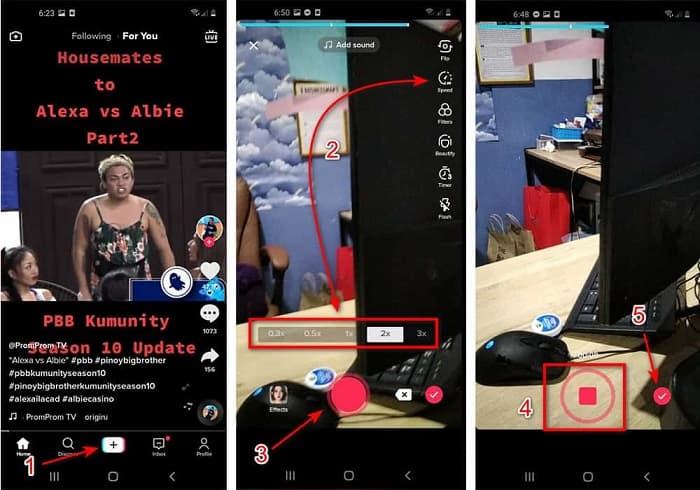
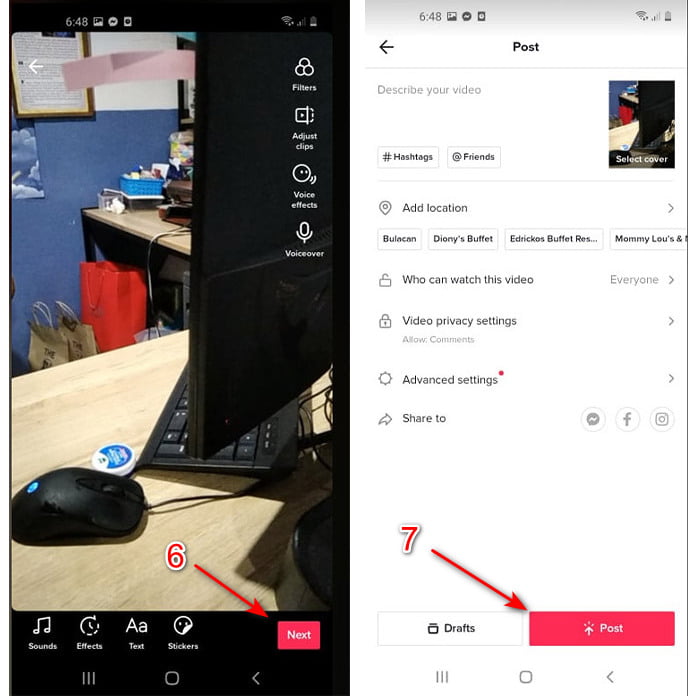
Krok 3. Aby obejrzeć nagranie, naciśnij przycisk check, a potem kliknij Next (Dalej). Następnie wybierz Post (Opublikuj), aby wgrać film na TikTok.
Część 2. Jak przyspieszyć dowolne filmy TikTok w konwerterze wideo Ultimate?
W przeciwieństwie do wbudowanej funkcji edycji, którą oferuje TikTok, program Video Converter Ultimate pozwala ręcznie przyspieszyć wideo, ale w znacznie prostszy sposób. Dodatkowo podczas zmiany prędkości widzisz podgląd, dzięki czemu możesz ocenić, czy tempo nagrania odpowiada twoim oczekiwaniom. Co więcej, to znakomite oprogramowanie umożliwia korzystanie z zaawansowanych, profesjonalnych funkcji edycji, podanych w uproszczonej formie krok po kroku. Ze względu na rozbudowane możliwości tego narzędzia trzeba za nie zapłacić kilka dolarów. Nie musisz się jednak martwić – na pewno nie będą to setki czy tysiące. Jeśli chcesz wiedzieć, jakie korzyści lub kluczowe funkcje zyskasz dzięki temu programowi, zapoznaj się z poniższą listą.
Najważniejsze funkcje, które znajdziesz w Video Converter Ultimate:
◆ Jest to oprogramowanie niezależne od platformy, co oznacza, że możesz je pobrać na komputer PC, Mac lub Linux.
◆ W tym narzędziu dostępne są wszystkie zaawansowane funkcje edycji, konwertera, kreatora GIF-ów i nie tylko.
◆ Użyteczność narzędzia jest bardzo przydatna dla każdego, nawet dla profesjonalisty lub nowicjusza w edycji.
◆ Pozwala użytkownikom wyrazić swoją kreatywność dzięki różnym dostępnym tutaj funkcjom edycji.
◆ Mimo że narzędzie jest płatne, nadal jest tańsze i bardzo przystępne cenowo dla każdego, kto chciałby go wypróbować.
Jeśli więc chcesz się dowiedzieć, jak przyspieszyć filmy z TikToka za pomocą tego znakomitego, alternatywnego edytora, przeczytaj i zastosuj się do poniższych wskazówek, aby osiągnąć pełen sukces.
Kroki, jak przyspieszyć filmy z TikToka za pomocą Video Converter Ultimate:
Krok 1. Aby korzystać z tego oprogramowania, najpierw pobierz je na komputer PC lub Mac. Następnie zainstaluj program, wykonaj prostą konfigurację i kliknij „Zakończ”, aby przejść dalej.
Bezpłatne pobieranieDla Windows 7 lub nowszegoBezpieczne pobieranie
Bezpłatne pobieranieDla MacOS 10.7 lub nowszegoBezpieczne pobieranie
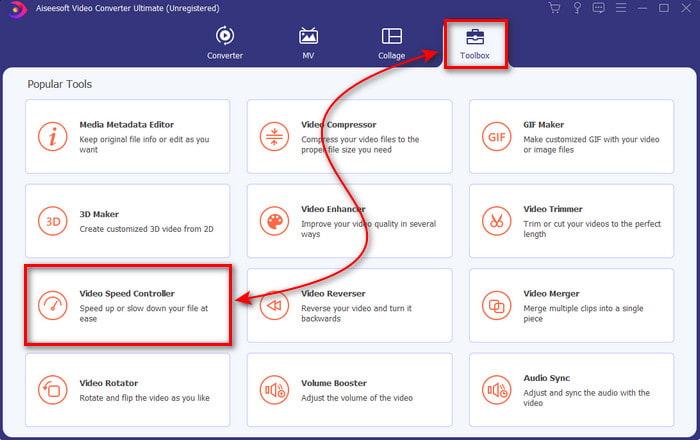
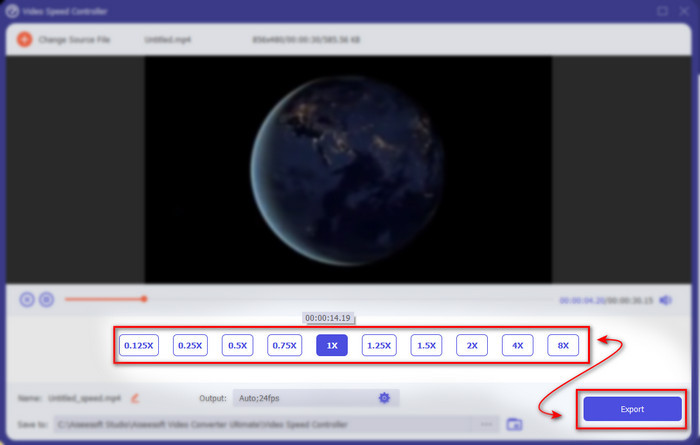
Krok 2. Kliknij zakładkę Toolbox (Narzędzia) i wybierz Video Speed Controller (Kontroler prędkości wideo).
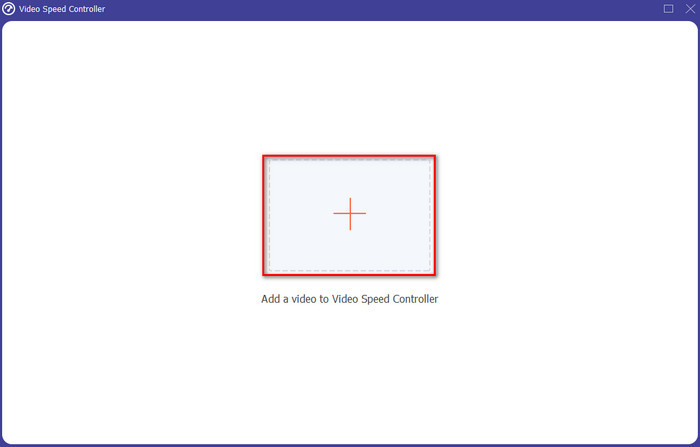
Krok 3. Aby dodać plik, który chcesz przyspieszyć, kliknij przycisk +. Następnie wybierz odpowiedni plik w wyświetlonym folderze i kliknij Open (Otwórz), aby kontynuować.
Krok 4. Aby ustawić prędkość wideo, wybierz odpowiednią speed (prędkość) poniżej. Aby pobrać gotowy plik, kliknij Export, by rozpocząć proces eksportu.
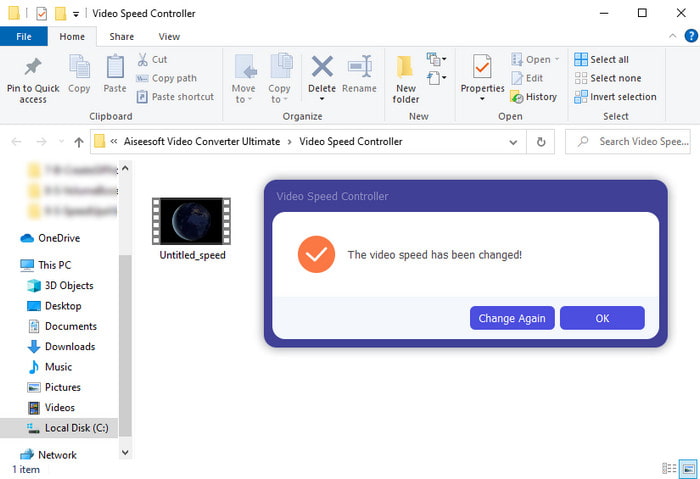
Krok 5. Nie musisz długo czekać – plik będzie gotowy po kilku sekundach. Jeśli na ekranie pojawi się folder, oznacza to, że plik został już wyeksportowany. Kliknij plik, aby odtworzyć przyspieszone wideo.
Powiązane:
Część 3. Często zadawane pytania dotyczące przyspieszenia wideo w Tiktok
Jak przyspieszyć wideo TikTok, które nie jest twoje?
Jeśli chcesz przyspieszyć film, który nie jest twój, najpierw musisz pobrać wideo z TikToka. Kliknij przycisk + i wybierz Upload (Prześlij), a następnie wskaż nagranie z galerii. Zaznacz opcję zmiany prędkości i kliknij Next (Dalej), aby je opublikować. Możesz też użyć Video Converter Ultimate, by przyspieszyć wideo, postępując zgodnie z krokami opisanymi powyżej.
Czy mogę nagrać 3-minutowy film na Tiktok?
Absolutnie Tak, możesz, jeśli są nagrane osobno, ale nie możesz nagrać prostego 3-minutowego wideo. Ponieważ długość nagrania z tą obsługą aplikacji wynosi od 15 do 60 pełnych sekund. Jeśli więc długość filmu, który chcesz nagrać, przekracza minutę, lepiej nagrać go osobno. Jeśli jednak jesteś jednym z użytkowników, którzy zostali wybrani przez Tiktok do wypróbowania 3-minutowego nagrania, to masz szczęście, ponieważ zostało to przetestowane tylko na małej grupie osób.
Czy mogę dodać MP3 do moich filmów w Tiktok?
Kiedy TikTok został po raz pierwszy wydany, użytkownicy mogli dodawać muzykę do swoich filmów, ale teraz usunęli tę funkcję. Z powodu problemu dotyczącego praw autorskich, który został zgłoszony do TikTok. Aby uniknąć problemu, usuwają go i dodają dostępną przykładową muzykę lub możesz użyć innej aplikacji, aby zrobić to za Ciebie.
Czy Tiktok ma ograniczenie wiekowe?
Zgodnie z warunkami TikTok, 13 lat lub więcej musi być w wieku użytkownika, który będzie korzystał z tej aplikacji. Ponadto Tiktok nie ma weryfikacji wieku podczas rejestracji, więc spodziewaj się, że w Twoim kanale pojawi się co najmniej 16 treści.
Wniosek
Skoro wiesz już, jak przyspieszyć wideo na TikToku, czas zacząć się tym bawić. Wybierz rozwiązanie, które twoim zdaniem najlepiej do ciebie pasuje. Jeśli uważasz, że wbudowane w TikToka funkcje przyspieszania są wystarczające – korzystaj z nich. Jeśli jednak chcesz uzyskać lepszą kontrolę nad prędkością i mieć podgląd efektu, użyj programu Video Converter Ultimate. Niezależnie od wybranej opcji możesz liczyć na znakomity rezultat dzięki ich możliwościom i ogólnej jakości działania.
-
 7 prostych kroków, jak rozwiązać problemy z opóźnieniami OBS Audio [rozwiązane]
 Czy masz problemy z oglądaniem klipu wideo po nagraniu z powodu opóźnienia dźwięku podczas korzystania z OBS Studio? Przeczytaj poniższy artykuł, aby dowiedzieć się, jak skutecznie naprawić niezsynchronizowany dźwięk.
-
 Możliwe doskonałe sposoby | Jak naprawić opóźnienie dźwięku VLC [2021]
 Czy masz trudności z oglądaniem ulubionego filmu na odtwarzaczu multimedialnym VLC z powodu niepewności dźwięku? Kontynuuj czytanie tego artykułu, aby poznać wszystkie możliwe sposoby naprawienia opóźnienia dźwięku VLC.
-
 Najlepsze sposoby na zwiększenie głośności MP4 online i offline
 Czy masz problemy ze słyszeniem dźwięków z Twojego wideoklipu? Przeczytaj poniższy artykuł, aby dowiedzieć się, jak zwiększyć głośność mp4 na różne sposoby.
