


 Video Converter Ultimate
 Screen Recorder
 Reparație video
Cum să faci un GIF din fotografiile tale salvate pe iPhone
Am folosit GIF‑uri ca să facem textul simplu mai captivant și am ajuns să fim o variantă mai bună decât imaginile statice. Asta pentru că sunt imagini statice animate, în mișcare. De asemenea, datorită popularității formatului, mulți utilizatori încearcă deja să‑și creeze propriile GIF‑uri, fie pe computer, fie pe telefon. Așadar, acum vom vorbi despre cum să faci un GIF pe iPhone din fotografiile salvate în memoria ta. Continuă să citești acest articol, în timp ce îți explicăm cum să creezi GIF‑uri și ce programe diferite poți folosi.

Partea 1. Cum să salvați fotografii live ca GIF în aplicația Fotografii
Știai că poți crea GIF‑uri simple din fotografiile tale pe iPhone? Folosind aplicația Poze. Această aplicație preinstalată stochează o mulțime de imagini și clipuri video pe telefonul tău. Practic, este un loc de stocare pentru fotografiile pe care le faci, asemenea Galeriei de pe Android. Însă acest instrument oferă și funcții de editare pe care poate nu le cunoști. Deși are un fel de generator de GIF‑uri, îi lipsesc încă unele funcții majore de editare, pentru ca GIF‑urile tale să arate excelent și să fie ceva nou pentru privitori. În plus, dacă vrei să încerci acest instrument, urmează pașii de mai jos și află cum să faci un GIF pe iPhone din Poze.
Pasul 1. Deschide aplicația Cameră preinstalată pe iPhone‑ul tău.
Pasul 2. Apoi apasă pe Fotografie Live în partea de sus, la mijloc, și apasă butonul Captură.
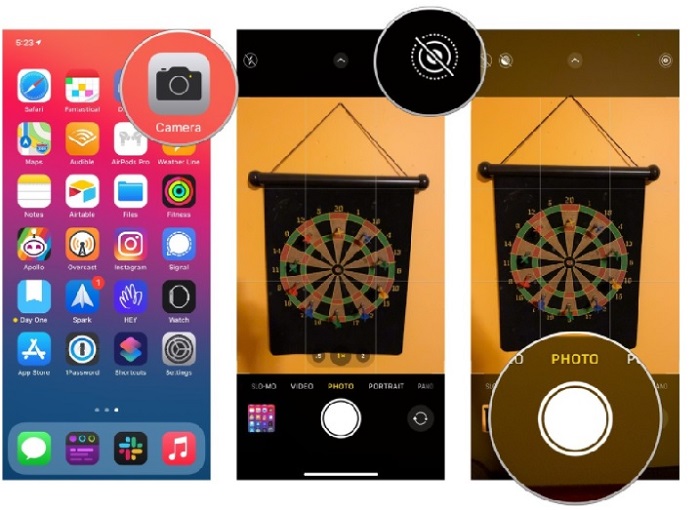
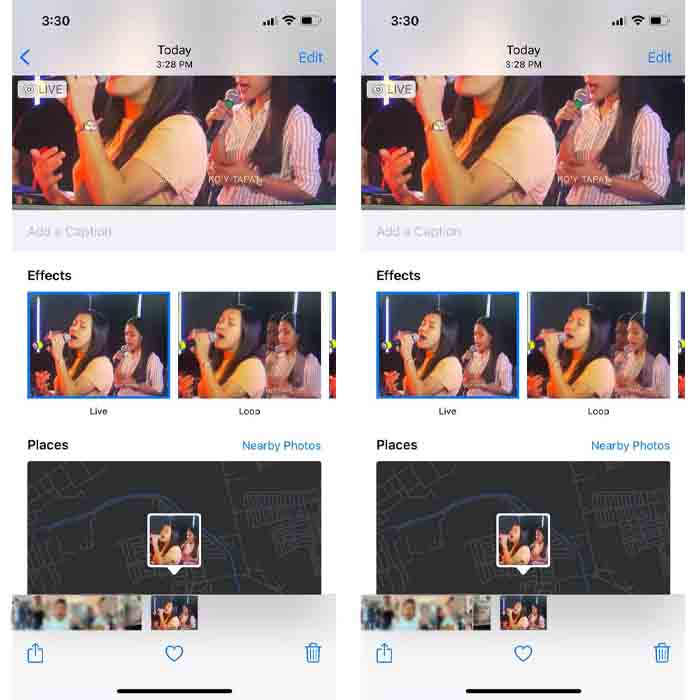
Pasul 3. După aceea, apasă pe fotografia mică pătrată din partea stângă jos a interfeței camerei. Apoi glisează fotografia în sus și alege efectele GIF de acolo. După selectare, aceasta va fi salvată automat și va fi gata de partajat cu alte persoane sau pe rețelele sociale.
Pro
- Nu este nevoie să descărcați, deoarece este deja preinstalat pe iPhone.
- Simplu de utilizat ca instrument de editare.
Contra
- Nu puteți transforma imaginile în GIF-uri dacă nu este o fotografie live.
- Nu oferă multe funcții de editare pentru a vă face GIF-ul uimitor.
Partea 2. Cum să faci un GIF pe iPhone cu GIPHY
GIPHY este un uriaș depozit de GIF‑uri la care poți avea acces gratuit, dacă îți creezi un cont. De asemenea, îți poți distribui aici GIF‑urile deja făcute, pentru a‑i ajuta pe alții folosindu‑ți propriile creații. Totuși, instrumentul nu suportă îmbinarea mai multor imagini într‑un singur GIF. Cu toate acestea, filtrele disponibile sunt excelente și ușor de folosit. Așadar, dacă vrei să folosești GIPHY și să creezi GIF‑uri, urmează pașii de mai jos.
Pasul 1. Descarcă mai întâi GIPHY pe iPhone și apoi deschide aplicația.
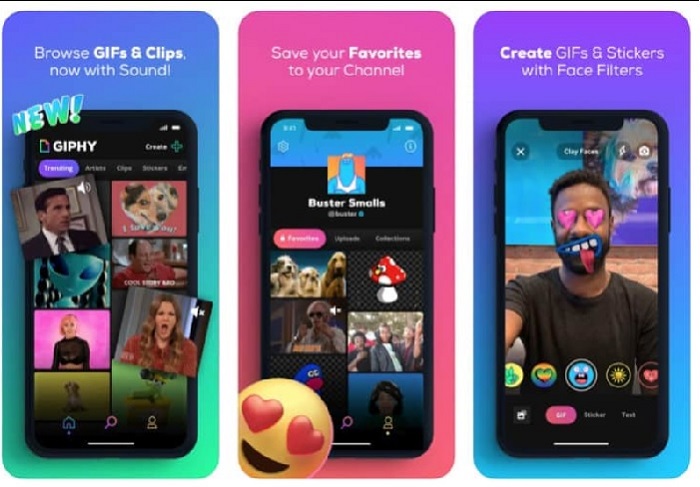
Pasul 2. Apasă pe Create, iar în partea stângă sus apasă pe butonul album și permite aplicației să îți acceseze imaginile.
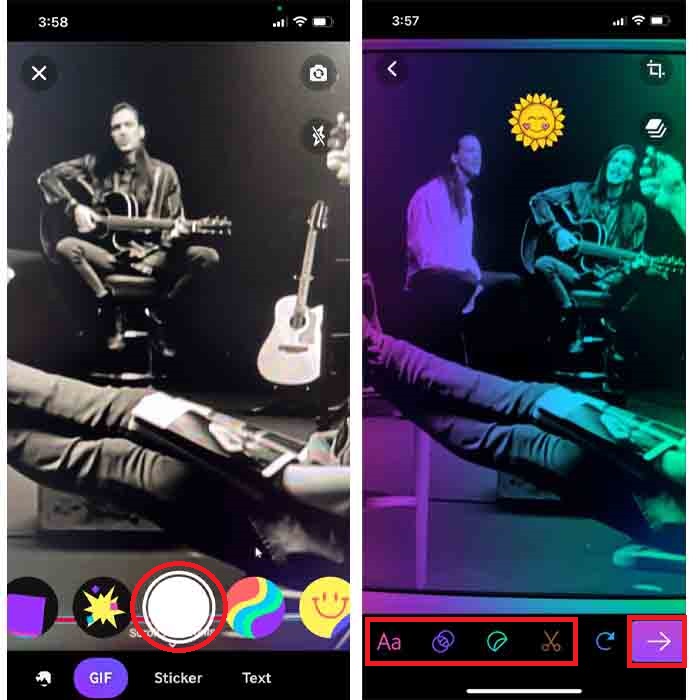
Apoi selectați imaginea pe care doriți să o transformați în GIF și faceți editarea în interfață.
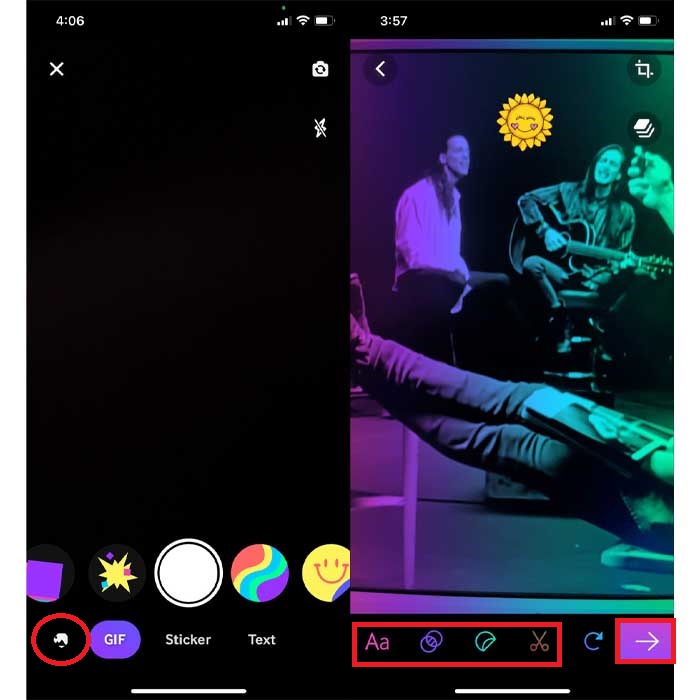
Pasul 3. Nu poți salva GIF‑ul direct pe iPhone, așa că ai două opțiuni. Prima este să îl încarci în spațiul de stocare cloud GIPHY, apoi să îl faci public sau privat, ori să îl distribui imediat.
Pro
- Este o bibliotecă imensă de GIF-uri.
- Are un efect mai bun decât poate oferi Fotografiile.
Contra
- Nu puteți salva GIF-ul finalizat direct în spațiul de stocare. Fie îl vei salva în contul pe care l-ai creat pe GIPHY, fie îl vei distribui.
- Nu se pot compila imagini pentru a face GIF-uri.
Partea 3. Cel mai profesionist instrument pentru a face GIF-uri din mai multe fotografii
Dacă primul instrument prezentat nu îți oferă tipul de GIF‑uri pe care vrei să le creezi, atunci încearcă să folosești Video Converter Ultimate. Acest program poate crea GIF‑uri din fotografiile tale mai bine decât celelalte două aplicații native și opțiunile descărcabile menționate. Totuși, instrumentul este disponibil doar pe desktop, așa că trebuie să transferi mai întâi mai multe fotografii pe computer înainte să poți crea GIF‑uri. De asemenea, filtrele disponibile aici sunt excepționale și te pot uimi. Așadar, pentru a afla cum să faci un GIF pe iPhone din mai multe fotografii, urmează pașii de mai jos.
Pasul 1. Descarcă mai întâi Video Converter Ultimate și instalează‑l.
Descărcare gratuită pentru Windows 7 sau o versiune ulterioară Descărcare securizată
Descărcare gratuită pentru MacOS 10.7 sau o versiune ulterioară Descărcare securizată
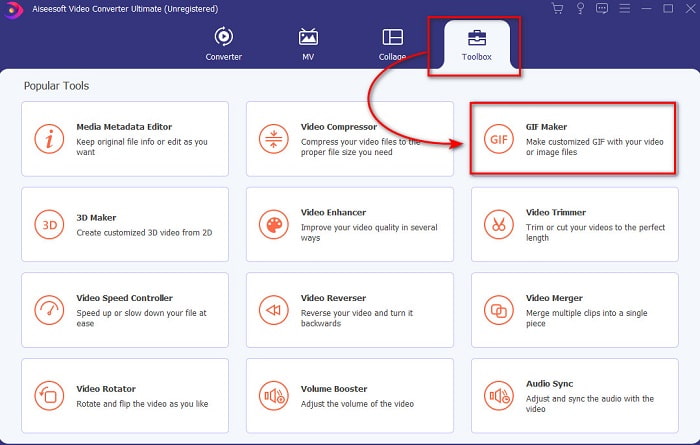
Pasul 2. Apoi, în secțiunea Toolbox, apasă pe GIF Maker.
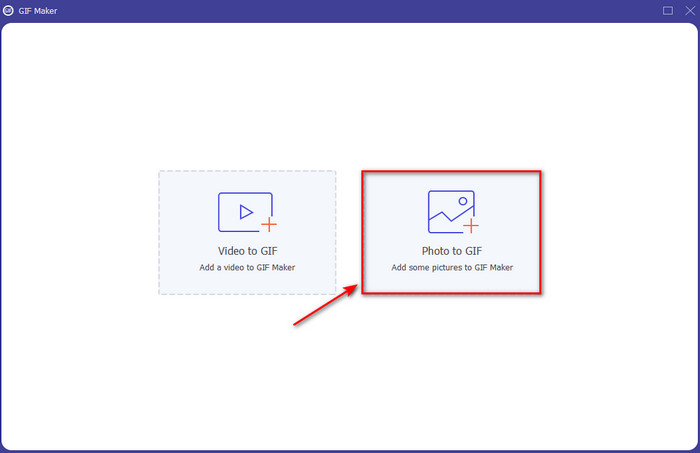
Pasul 3. Apasă pe Photos to GIF și selectează fotografia pe care vrei să o transformi în GIF, apoi apasă pe Open. În plus, nu poți adăuga mai multe imagini de la început, dar le poți adăuga ulterior. Apoi modifică Output Settings pentru GIF și apasă pe OK.
Pasul 4. Pentru a adăuga celelalte imagini, trebuie să apeși pe butonul + și să le selectezi. După ce au fost introduse toate imaginile, apasă pe Export.
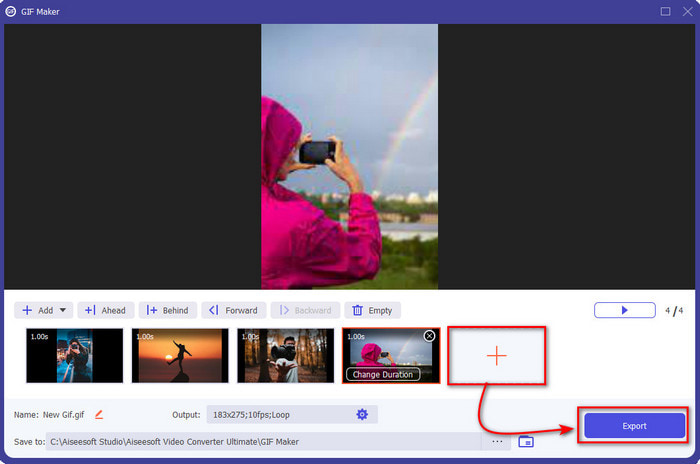
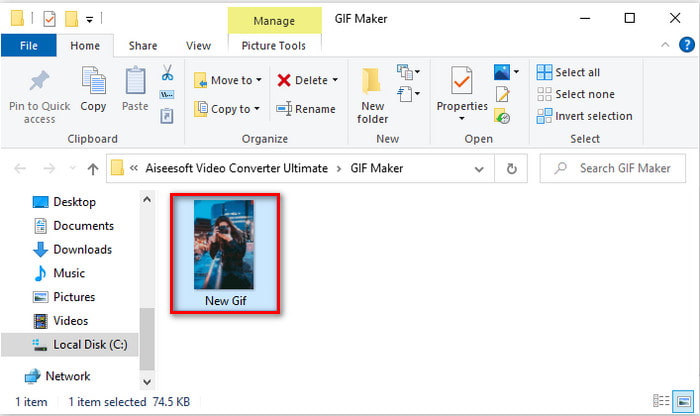
Pasul 5. Așteaptă câteva secunde și pe ecran va apărea un folder cu GIF‑ul pe care l‑ai realizat mai devreme.
Pro
- Editorul fenomenal pe care vă puteți baza pentru a vă face GIF-ul remarcabil.
- Are o mulțime de funcții avansate pe care le puteți utiliza.
- A învăța cum să folosești acest instrument este mai ușor datorită punctului său punctual.
Contra
- Va trebui să transferați imaginile de pe iPhone pe desktop.
- Trebuie să fie descărcat mai întâi pe desktop înainte de a putea accesa.
Partea 4. Întrebări frecvente despre Crearea GIF din Fotografii pe iPhone
Cum să faci un GIF pe Android din fotografii?
Puteți repeta pașii din partea 3 și faceți același lucru. Practic, va trebui să transferați pe unitatea dvs. toate videoclipurile pe care doriți să le transformați în GIF-uri. Apoi urmați pașii furnizați mai jos.
Ce este un GIF?
GIF‑urile sunt foarte populare în zilele noastre, deoarece pot face mesajele noastre simple mai expresive ca niciodată. Pentru a afla mai multe despre ce este un GIF, apasă pe acest link și citește explicațiile.
De ce imaginile mele devin neclare când le transform în GIF-uri?
Deoarece GIF-urile acceptă maximum 256 de culori diferite. Spre deosebire de JPEG și PNG, acest format de imagine acceptă peste 16 milioane de combinații de culori. Deci, JPEG și PNG produc cea mai înaltă calitate a imaginii în comparație cu GIF-urile. Dar JPEG și PNG nu pot conține animații în mișcare, așa cum fac GIF-urile.
Concluzie
Pe măsură ce ajungem la final, ne este acum mult mai ușor să gestionăm și să creăm GIF‑uri chiar și pe iPhone‑urile noastre. Deși toate instrumentele menționate în acest articol te pot ajuta să creezi GIF‑uri simple, Video Converter Ultimate rămâne totuși cel mai bun. Oferă o mulțime de funcții diferite pe care le poți folosi pentru a‑ți face clipurile și mai uimitoare, până în punctul în care cu greu crezi că tu ai realizat acel GIF. Așadar, nu te mulțumi cu un software simplu dacă poți avea la dispoziție cel mai bun instrument. Descarcă aplicația chiar acum și transformă‑ți colecția de imagini în GIF‑uri.
-
 Alegeți cel mai bun cropper GIF online și offline pentru a decupa GIF-uri [2021]
 Alegerea celui mai bun instrument de decupare este o necesitate, iar unii dintre creatorii de GIF nu au oferit această caracteristică. Dar care este cel mai bun instrument de decupare GIF de folosit și cum să îl folosești?
-
 Cele mai bune 5 opțiuni pentru înregistrarea formatului GIF cu înregistratoarele GIF pentru PC și Mac
 Care este cel mai bun recorder GIF pe care ar trebui să îl utilizați pentru a înregistra GIF-uri? Lista de mai jos oferă dovezi cu privire la care este cel mai bun înregistrator de ecran.
-
 Cum să convertiți MPG în format GIF [Online și Offline]
 Doriți să exprimați o emoție mult mai bună? Apoi, trebuie să utilizați GIF în loc. Această scriere vă va învăța cum să convertiți un fișier MPG în GIF pentru a vă exprima sentimentul mult mai bine.
