


 Video Converter Ultimate
 Screen Recorder
 Reparație video
Modalități rapide și eficiente de a transforma JPG în GIF
Images are included in the text to help the readers engage actively and improve their reading comprehension of the context. Most of the commonly used images are on the .jpg format because it supports a high-quality image. However, JPG images don't support animation on the image like the GIFs. So, if you want to know more about the JPG and GIF and learn how to switch JPG to GIF then keep the ball rolling.

Partea 1. JPG vs. GIF
Although JPG and GIFs are considered as one of the greatest formats to store images. Still there are a lot of differences between the two formats like the example below. So, before you convert JPG to GIF then learn first what are the important key differences between the two.
| Diferențe cheie importante | Grupul mixt de experți fotografici (JPG și JPEG) | Format de schimb grafic (GIF) |
| Extensie de nume de fișier | .jpg, .jpeg, .jpe .jif , .jfif , .jfi | .gif |
| Tip de compresie | Suporta compresia cu pierderi. | Suporta compresia fara pierderi. |
| Culoare acceptată | Suportă peste 16 milioane de culori. | Suportă doar 256 de culori. |
| Sprijină transparența | JPEG nu acceptă transparență. | GIF acceptă transparență cu 1 culoare. |
| Suportă animație | Toate extensiile de fișiere JPEG nu acceptă animația. | GIF este cea mai bună alegere dacă doriți să aveți o serie de animații de imagine. |
| Perfect folosit pentru | JPEG este cel mai bun format pentru imagini fotografice mai detaliate. | GIF-urile sunt grozave pentru a fi folosite dacă doriți să creați logo-uri sau animații. |
În plus, dacă vă convertiți JPG sau JPEG în acest format de imagine animată. Așteptați-vă la o schimbare drastică a imaginii dvs., deoarece a devenit comprimată. De asemenea, culoarea GIF acceptată este mult mai mică decât cea JPG. Deci, dacă doriți să pierdeți mai puțină calitate, încercați să utilizați instrumentul de mai jos. Țineți ritmul citind partea de mai jos.
Partea 2. Cum să convertiți JPG în GIF cu Phenomenal Editor
Unlike any other converter the Video Converter Ultimate is created to be the phenomenal editor, converter, enhancer, maker and more to be used by you. Even if you don't have enough experience you can use this tool to change JPG to GIF format with the easy-to-understand steps. Also, the customers who already used this software already receive an impressive final output. To top it up, let's learn how to turn your JPG images into a GIF format with the help of the two features of the Video Converter Ultimate; GIF Maker and MV. And so, before you can do the changing of format you must download the tool first on your desktop drive.
Descărcare gratuită pentru Windows 7 sau o versiune ulterioară Descărcare securizată
Descărcare gratuită pentru MacOS 10.7 sau o versiune ulterioară Descărcare securizată
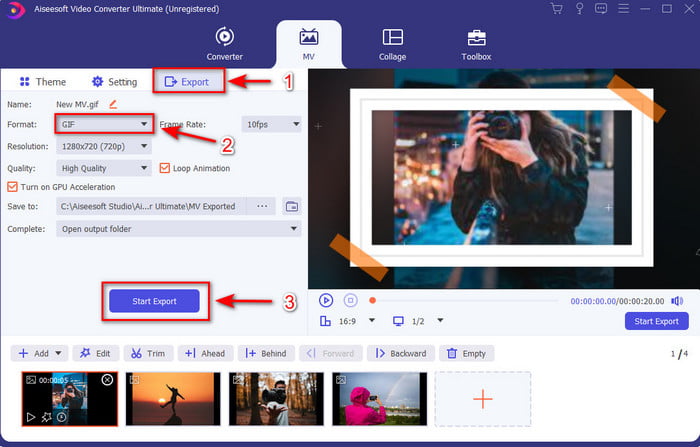
Metoda 1: 3 pași simpli despre cum să utilizați MV al Video Converter Ultimate
Step 1. Add JPG Images
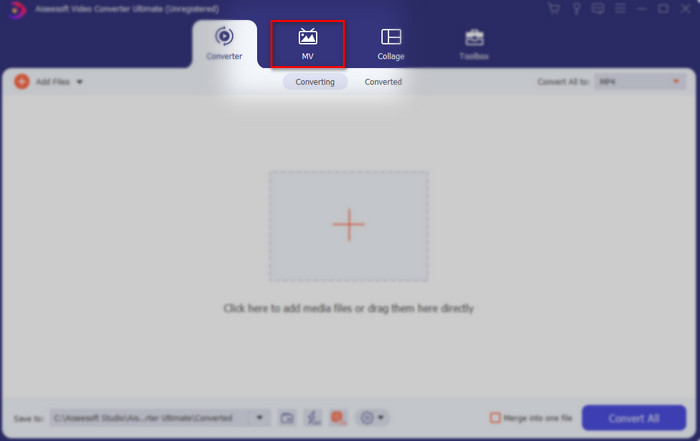
After downloading the tool click the MV next to the Converter and before Collage.
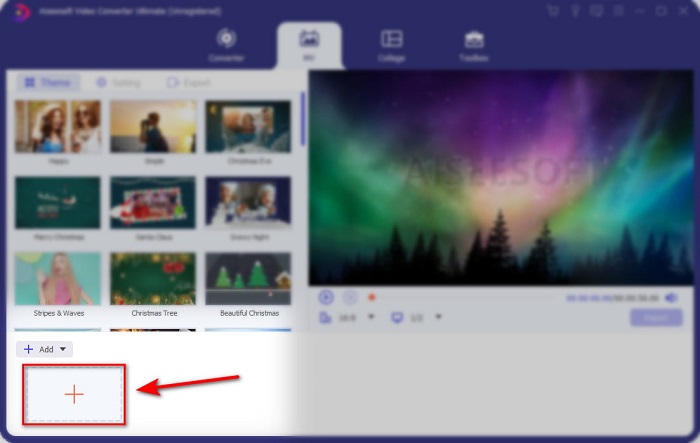
Apoi faceți clic pe butonul + de mai jos pentru a adăuga imaginile înainte de a putea transforma JPG/JPEG în GIF. De asemenea, puteți adăuga mai multe imagini aici pentru a le transforma într-o serie de imagini.
Step 2. Edit JPG images
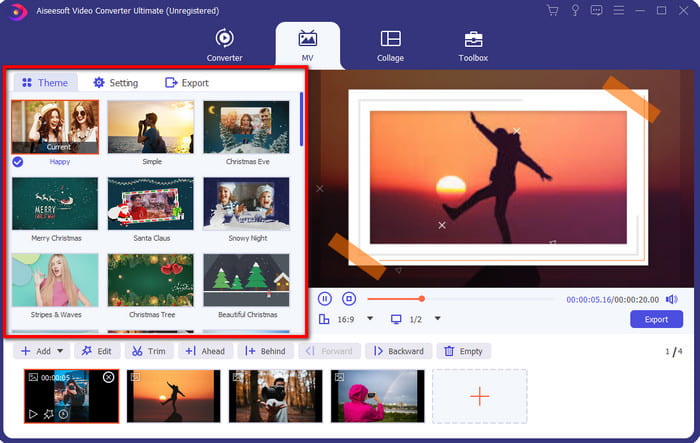
Pe interfață, selectați ce animație de imagine doriți pentru a vă face imaginile uimitoare pe temă. Sub temă, există o mulțime de varietăți diferite de opțiuni din care puteți alege.
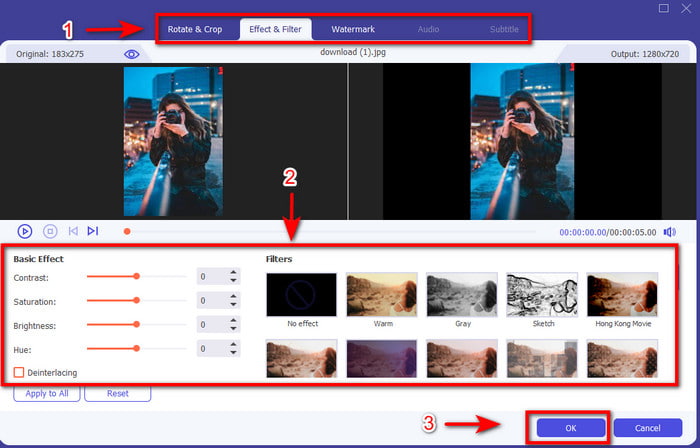
If you want to add more detailed effects on your image then click the wand button to rotate and crop, add effects and filter, or watermark if you want. So, if your detailed editing is done click the OK to save the changes.
Step 3. Convert JPG to GIF
To export the image, you've made it is now the right time to click the Export on the top or in the lower right side of the interface. Change your boring JPG to a transparent GIF animated series. Then click the Start Export button to save it directly on your drive.
Metoda 2: 3 pași simpli despre cum să utilizați GIF Maker pe Video Converter Ultimate
Step 1. Add JPG Images
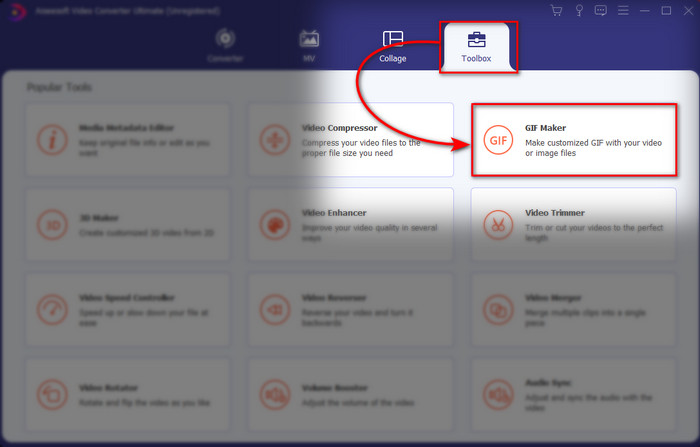
After launching the tool, go next to the Toolbox and locate the GIF Maker there and click it.
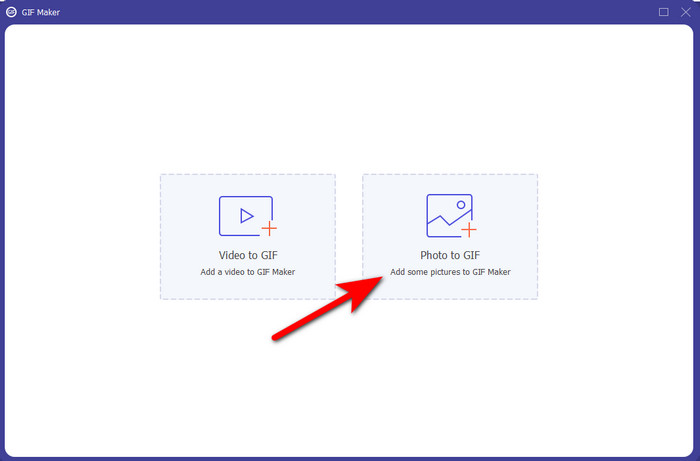
Then choose the Photo to GIF and select the image you want. To add more images hit the + button and select images on the folder.
Step 2. Edit JPG images
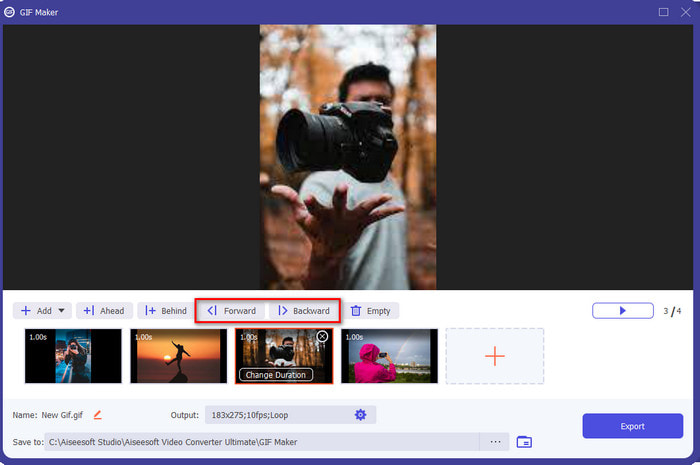
On MV you can do editing but on GIF Maker you can only edit the duration and put it ahead or backwards the image on the GIF. So, if you want to set the duration, click the image you want to be changed and click Change Duration. To save the duration you've set click Apply.
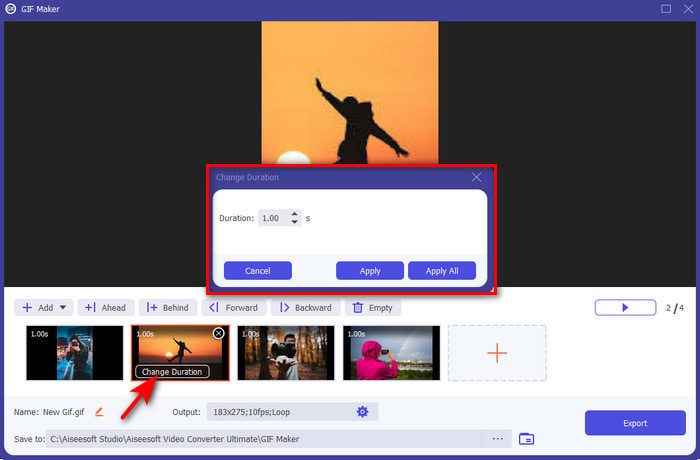
And if you want to re-arrange the images, click the image and click either Forward or Backwards.
Step 3. Convert JPG to GIF
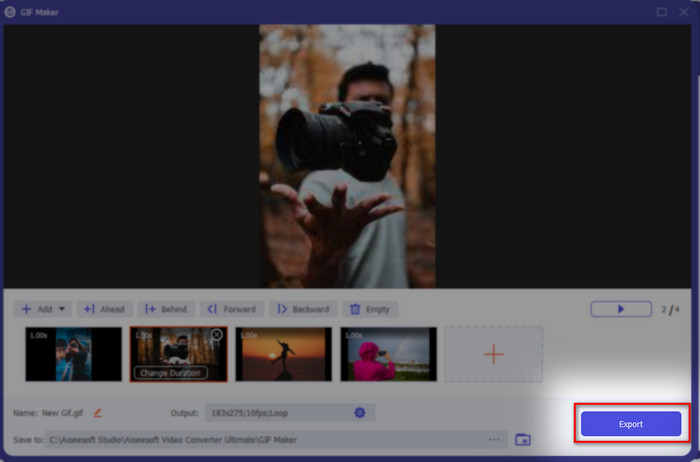
So now we are here on the last step on how to turn a JPG into a GIF by clicking Export. No need to change the format because it will automatically be converted into GIF. Wait for several seconds and a folder with your converted file will show, click the GIF file to watch and enjoy.
Partea 3. Întrebări frecvente despre JPG în GIF
Pot schimba JPG în GIF pe Photoshop?
Este o grăsime mare da! Puteți folosi Photoshop pentru a converti formatul de imagine în GIF. Nu numai asta, puteți folosi și Photoshop pentru a îmbunătăți imaginea și a deveni mai atrăgătoare în ochii privitorului. Cu toate acestea, veți avea nevoie de experiență și de mulți bani înainte de a putea utiliza acest instrument. Pentru că va trebui să petreci mult timp studiind Adobe Photo. Deci, dacă doriți să faceți editare de bază la un preț ieftin, atunci utilizați instrumentul de mai sus.
Pot transforma un JPG în GIF pe FFmpeg?
Da, puteți folosi FFmpeg pentru a schimba formatul JPG. Dar acest instrument este mult mai complicat decât Adobe Photoshop dacă ar fi să-l comparăm. Cu toate acestea, dacă doriți să faceți o simplă creare de GIF-uri cu imagini JPG, atunci citiți instrumentul furnizat mai sus. Pentru a avea o perspectivă despre cum să o faci cu pași foarte simpli.
Care este dezavantajul JPEG?
După cum se arată mai sus că JPEG nu acceptă transparență și animație, a mai rămas una și aceasta este dimensiunea fișierului. Datorită culorilor detaliate, JPEG suportat, dimensiunea fișierului este mai mare dacă am fi pe cale să-l comparăm cu GIF-urile.
Concluzie
Și acum ajungem la sfârșit, acum avem o cunoaștere profundă despre diferența dintre JPG și GIF din cauza acestui articol. De asemenea, datorită Video Converter Ultimate, acum puteți crea cu ușurință o serie animată de GIF-uri cu efecte pentru a le face să arate uimitor. Deci, dacă aveți îndoieli cu privire la Video Converter Ultimate, încercați mai întâi să-l descărcați și încercați-l singur, recreând pașii de mai sus.
-
 Creați-vă cel mai bun GIF animat prin Creatorul GIF online [2021]
 O recenzie informativă despre cum să creați un GIF folosind acești creatori de GIF online simpli pe care îi întâlniți deja sau nu pe web.
-
 Alegeți cel mai bun cropper GIF online și offline pentru a decupa GIF-uri [2021]
 Alegerea celui mai bun instrument de decupare este o necesitate, iar unii dintre creatorii de GIF nu au oferit această caracteristică. Dar care este cel mai bun instrument de decupare GIF de folosit și cum să îl folosești?
-
 [Actualizat 2021] 9 cele mai bune editoare GIF pentru PC, Mac, iOS și Android
 Trebuie să adăugați o notă personală GIF-ului dvs. pentru a deveni mai expresiv? Continuați să citiți acest articol pentru a ști cum să editați și cel mai bun instrument pentru job.
