


 Video Converter Ultimate
 Screen Recorder
 Reparație video
 Descărcare sigură
Cum să încetinești un videoclip pe iPhone cu ușurință și rapiditate cu cele mai bune soluții
Ai urmărit vreodată premiile Grammy ale artistului tău preferat și i‑ai văzut urcând pe un GlamBot? Majoritatea dintre noi am văzut deja cât de spectaculoase pot fi imaginile pe care această mașină le realizează în mai puțin de o secundă, după ce surprinde câteva mișcări și le redă în reluare. Din păcate, nu toată lumea își permite să ajungă la Grammy și să își facă un video slow‑motion cu GlamBot, dar dacă ești o celebritate, așa poți încerca să îl folosești. Nu fi trist dacă nu poți folosi Glambot, pentru că poți totuși să filmezi și să creezi slow‑motion pe iPhone cu o calitate ridicată. Așadar, ești gata să filmezi și să înveți cum să încetinești un video pe iPhone astfel încât să arate la fel de impresionant ca imaginile realizate de mașina despre care vorbeam? Atunci acest articol este pentru tine.

Partea 1. Cum să încetinești un videoclip pe iPhone cu cele mai bune 3 aplicații pentru controler de viteză
iMovie
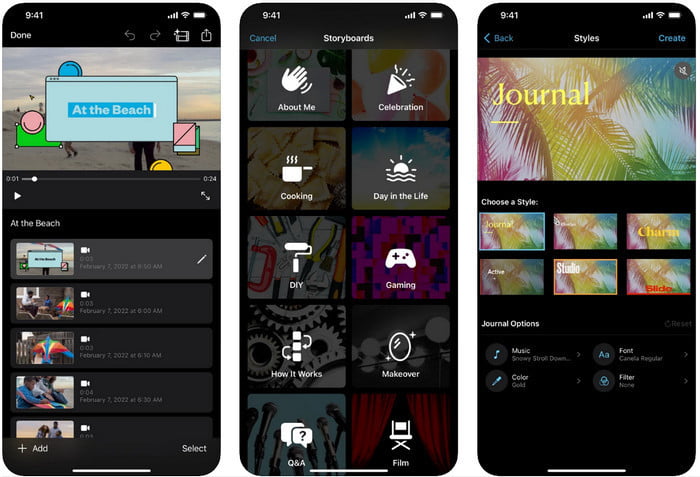
Pasul 1. Atinge iMovie pe ecran pentru a deschide aplicația, apoi atinge pictograma plus de pe ecran. Va apărea o nouă fereastră cu două opțiuni, dar apasă pe Movie.
Pasul 2. Alege videoclipul din listă care va apărea pe ecran și apasă pe Create Movie pentru a continua. După ce îl încarci, apasă pe pictograma în formă de ceas pentru a schimba viteza videoclipului și trage glisorul spre stânga pentru a încetini videoclipul.
Pasul 3. După ce ai terminat de editat viteza videoclipului, apasă pe Done, apoi pe Export pentru a‑l salva în memoria dispozitivului.
Editor video cu mișcare rapidă lentă
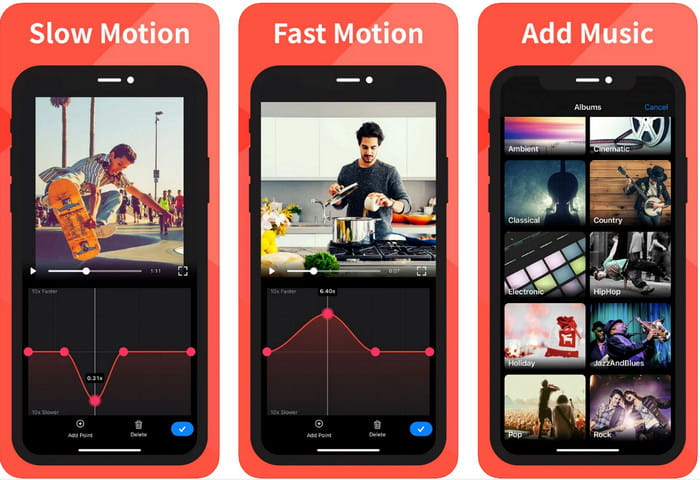
Slow Fast Motion Video Editor nu este la fel de bun ca iMovie în a face videoclipurile să arate uimitor, dar această aplicație poate încetini foarte ușor un video pe iPhone. Datorită editorului său multifuncțional de viteză, nu sunt multe lucruri pe care aplicația să nu le poată face, mai ales când vine vorba de accelerare. Chiar dacă videoclipul este în format portret sau landscape, poate lucra în ambele moduri. Astfel, învățarea modului de folosire a aplicației nu este complicată, spre deosebire de alte controlere de viteză pe care le poți descărca pe dispozitiv. Totuși, pentru a putea folosi aplicația pe iOS, trebuie să plătești un abonament, dar are o perioadă de probă gratuită de 3 zile, însă în această perioadă vor apărea reclame peste tot. Pentru a folosi aplicația, poți urma pașii de mai jos.
Pasul 1. Descarcă aplicația, apoi deschide‑o pe iOS; atinge Allow Access pentru a îi oferi acces la aplicația Photos.
Pasul 2. Selectează videoclipul de pe dispozitiv și atinge Show Selected; atinge All Videos pentru a vedea videoclipul pe care l‑ai încărcat și apasă pe Select.
Opțional: Poți decupa videoclipul în funcție de preferințe și poți trage play‑head‑urile până la lungimea dorită. Dar dacă nu vrei să decupezi sau să tai, poți apăsa pe Skip, iar dacă editezi, atinge Next.
Pasul 4. Atinge butonul Speed, ajustează fiecare viteză după cum dorești și trage în jos pentru a încetini videoclipul. Ține minte că, pentru fiecare punct pe care îl tragi, doar porțiunea respectivă va fi încetinită, nu întregul videoclip. Atinge Check and Save pentru a exporta videoclipul căruia i‑ai modificat viteza.
Slo-Mo: faceți videoclipuri cu mișcare lentă
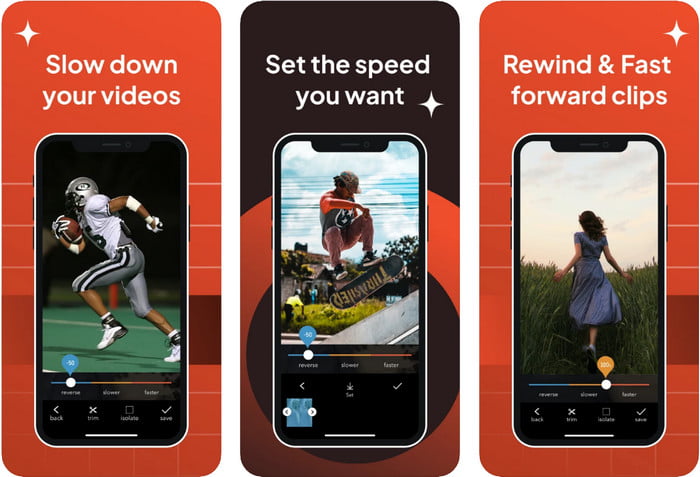
Slo-Mo: Make Slow Motion este o altă aplicație specială pe care o poți descărca gratuit pe iOS, dar care oferă achiziții în aplicație. La fel ca Slow Fast Motion Video Editor, va trebui să te abonezi înainte de a putea folosi întregul său potențial. Deși trebuie totuși să plătești abonamentul, merită și nu este foarte scump. Când vine vorba de schimbarea vitezei de redare a unui video, putem observa că acest instrument este foarte precis în acest tip de sarcină. Pentru a afla mai multe despre cum să faci un video slow‑mo pe iPhone, poți citi tutorialul de mai jos.
Pasul 1. Pentru a descărca aplicația, o poți accesa în App Store și apoi o descarci; după aceea, deschide aplicația pentru a începe să încetinești videoclipul pe care îl ai.
Pasul 2. Atinge Library, alege videoclipul căruia vrei să îi modifici viteza de redare, apoi atinge Choose pentru a începe.
Pasul 3. Trage glisorul spre stânga pentru a încetini; apasă pe Save dacă ești mulțumit de viteză.
Partea 2. Controler de viteză video de vârf Disponibil pe Windows și Mac
FVC Video Converter Ultimate are cel mai bun controler de viteză pe care trebuie să îl folosești pentru videoclipurile stocate pe Windows și Mac. Datorită funcțiilor sale unice de accelerare a videoclipurilor, dacă ar fi să îl comparăm cu celelalte aplicații menționate aici, există o diferență mare între un simplu controler bun și unul „ultimate”. Din cauza compatibilității limitate cu sistemele de operare, nu poți descărca software‑ul pe iOS, deoarece nu este compatibil. Cu toate acestea, este în continuare considerat un software all‑in‑one care poate rezolva problemele video și audio. Așadar, pentru a învăța cum să faci un videoclip în slow motion pe iPhone după înregistrare, trebuie să urmezi și să citești tutorialul pe care l‑am adăugat în partea următoare.
Pasul 1. Pentru a obține acest software „ultimate” de control al vitezei pe desktop, trebuie să faci clic pe butonul de descărcare și să alegi dacă folosești Windows sau Mac. După aceea, fă clic pe fișierul descărcat pentru a îl instala și lansa.
Descărcare gratuită pentru Windows 7 sau o versiune ulterioară Descărcare securizată
Descărcare gratuită pentru MacOS 10.7 sau o versiune ulterioară Descărcare securizată
Pasul 2. Mergi și deschide secțiunea Toolbox a acestui instrument pentru a accesa Video Speed Controller de aici.
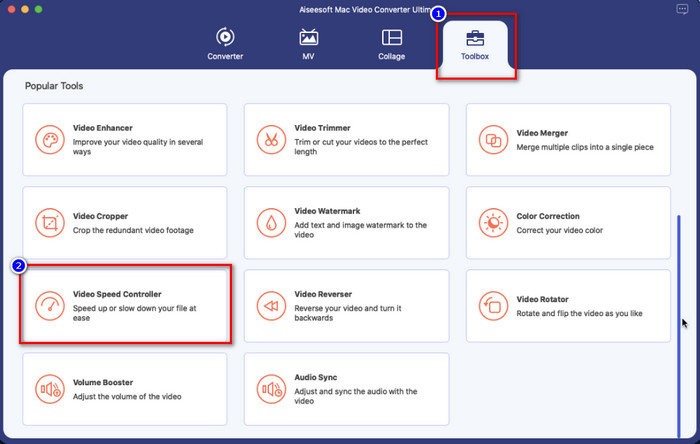
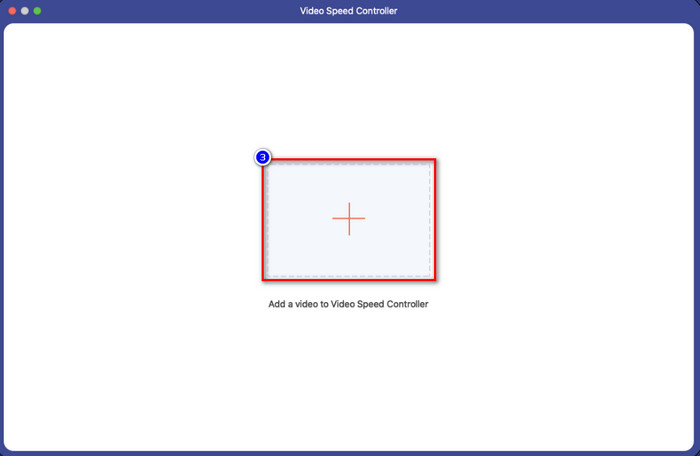
Pasul 3. Fă clic pe pictograma plus, iar pe ecran va apărea o fereastră de fișiere. Caută videoclipul pe care vrei să îl încarci, fă clic pe fișier și apasă pe Open.
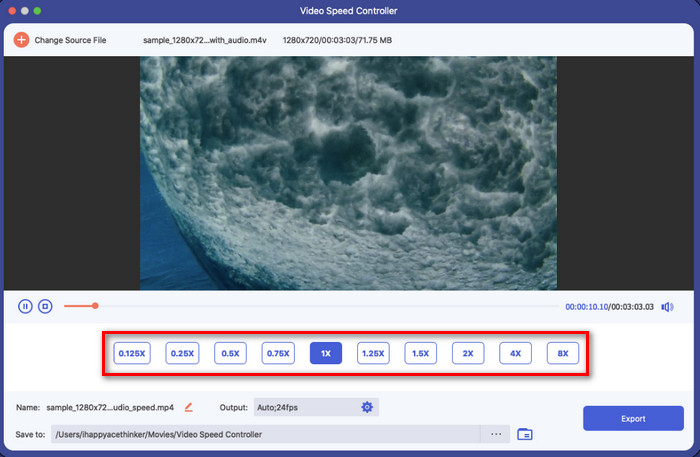
Pasul 4. Acum poți alege tipul de slow motion pe care vrei să îl aplici videoclipului în această zonă. Testează‑le pe toate pentru a vedea dacă aceea este viteza de redare pe care o dorești pentru videoclipul selectat mai devreme.
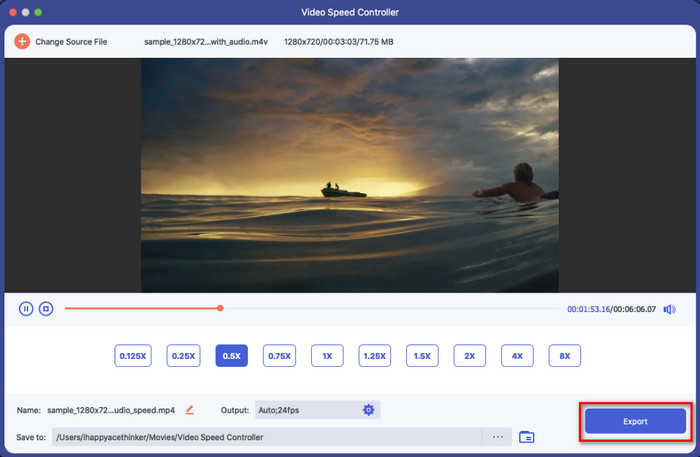
Pasul 5. În final, poți salva modificările pe care le‑ai aplicat videoclipului făcând clic pe butonul Export. După exportare, pe ecran va apărea un folder cu videoclipul încetinit pe care l‑ai exportat.
Partea 3. Întrebări frecvente despre cum să încetinești un videoclip pe iPhone
Încetinirea unui videoclip va afecta calitatea?
Datorită modificării redării video, unele modificări pot apărea asupra videoclipului odată ce schimbați viteza reală într-un efect slow-mo. Dar dacă aplicați un impact slow-mo asupra videoclipului, vă putem asigura că videoclipul nu va scădea calitatea, așa că asigurați-vă că nu exagerați folosindu-l.
De ce a devenit neclară videoclipul meu după ce am aplicat slow-mo?
Instanțe de acest fel sunt probabil să se întâmple dacă instrumentul ales de dvs. nu acceptă exportul unui videoclip de înaltă calitate. Dar unele instrumente gratuite ajută la aplicarea unui efect slow-mo fără nicio limitare a calității. La fel ca ceea ce puteți obține cu FVC Video Converter Ultimate, odată ce încetiniți videoclipul aici, aceeași calitate înaltă va rămâne pe videoclipul pe care îl încărcați.
De ce există filigrane după ce export videoclipul în slow-mo?
Dacă utilizați versiunea gratuită a aplicației pentru a încetini un videoclip, atunci există șanse ca atunci când exportați videoclipul, acesta să lase un filigran pe el. Deci, este obligatoriu să citiți informații despre software-ul pe care l-ați ales și să vedeți dacă va lăsa un filigran pe videoclip dacă sunteți pe cale să-l exportați.
Concluzie
Dacă vrei să filmezi ca o celebritate la Grammy, folosirea dispozitivelor iOS te poate ajuta, iar cu tutorialul pe care l‑am realizat, învățarea modului în care poți încetini un video pe iPhone devine posibilă și ușoară. Cu aplicațiile pe care le‑am selectat, șansa de a realiza această sarcină ca un profesionist devine accesibilă pentru oricine iubește să adauge efecte slow‑mo. Deși aplicațiile sunt grozave, nu putem ascunde faptul că FVC Video Converter Ultimate depășește toate standardele când vine vorba de încetinirea vitezei unui videoclip. Dacă vrei să ai și să folosești acest instrument, poți citi instrucțiunile pe care le‑am adăugat în partea a 2‑a și îl poți descărca.
-
 Într-adevăr: Cea mai bună practică pentru a încetini videoclipurile MP4
 Pe lângă creșterea vitezei videoclipului dvs., încetinirea este una dintre multele practici necesare pentru a obține cele mai bune rezultate din videoclip. Aspirați să fiți cel mai bun editor posibil citind restul articolului.
-
 Cum să schimbați videoclipul cu încetinitorul la viteză normală [Pași simpli]
 Doriți să știți cum să reveniți la un videoclip cu încetinitorul pe care l-ați descărcat de pe internet sau pe care l-ați înregistrat accidental cu încetinitorul? Aflați cum să convertiți videoclipuri cu încetinitorul la viteză normală pe Mac, Windows, iOS și Android.
-
 Tot ce trebuie să știți despre cum să realizați videoclipuri cu încetinitorul
 Vrei să faci videoclipuri cu încetinitorul ca un editor profesionist, dar nu știi ce software sau aplicații vrei să folosești? Citiți acest articol pentru a afla toate detaliile de care aveți nevoie.
