


 Video Converter Ultimate
 Screen Recorder
 Reparație video
 Descărcare sigură
Proceduri despre cum să decupați părți dintr-un videoclip pe iPhone
S-ar putea să fi înregistrat un videoclip frumos cu iPhone-ul sau iPad-ul tău în timpul liber și să vrei să îl distribui prietenilor sau să îl postezi pe rețelele sociale. Dar este util să editezi mai întâi părțile din videoclip pe care nu vrei să le trimiți. În această situație, poți edita rapid filmele cu instrumentele tale, scurtându-le sau modificându-le. Deci, cum scurtezi un videoclip pe iPhone? Vei vedea cele mai bune metode în acest articol. Dacă vrei să afli toți pașii, citește toate informațiile de mai jos.

Partea 1. Proceduri eficiente pentru a tăia videoclipuri pe iPhone
Utilizarea aplicației Fotografii
Dacă sunteți un utilizator iPhone și doriți să scurtați durata videoclipului, aplicația Fotografii vă poate ajuta. Aplicația Fotografii nu este bună numai pentru a afișa imagini și videoclipuri. Cu ajutorul acestei aplicații pre-construite, puteți, de asemenea, să tăiați sau să decupați videoclipul. Deoarece este o aplicație simplă pe iPhone, puteți scurta videoclipul la doar câteva atingeri. În acest fel, toți utilizatorii, în special începătorii, pot utiliza aplicația. În plus, deoarece este o aplicație pre-construită, instalarea nu este necesară. Cu toate acestea, chiar dacă este o aplicație practică pentru tăierea videoclipurilor, aplicația Fotografii are unele limitări. Aplicația este nepotrivită dacă doriți instrumente de editare avansate pentru a îmbunătăți un videoclip pe lângă scurtarea duratei videoclipului. Aplicația Fotografii poate oferi doar funcții de editare de bază, cum ar fi tăierea, adăugarea de filtre și multe altele. Dacă doriți să știți cum să decupați un videoclip pe un iPhone, urmați pașii de mai jos.
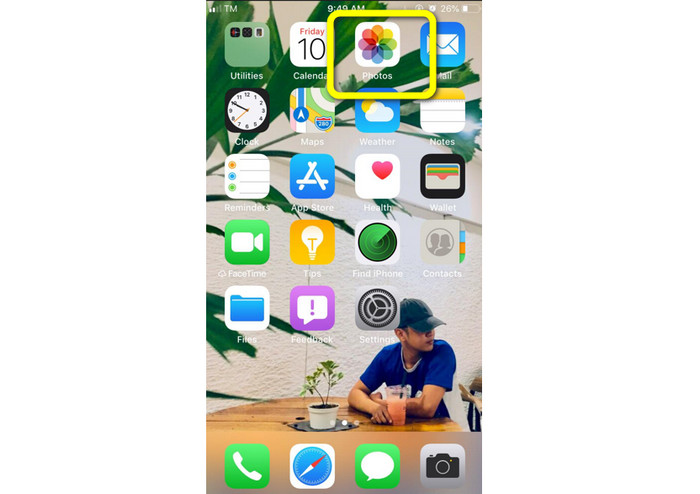
Pasul 1. Deschide iPhone-ul și pornește aplicația Poze (Photos).
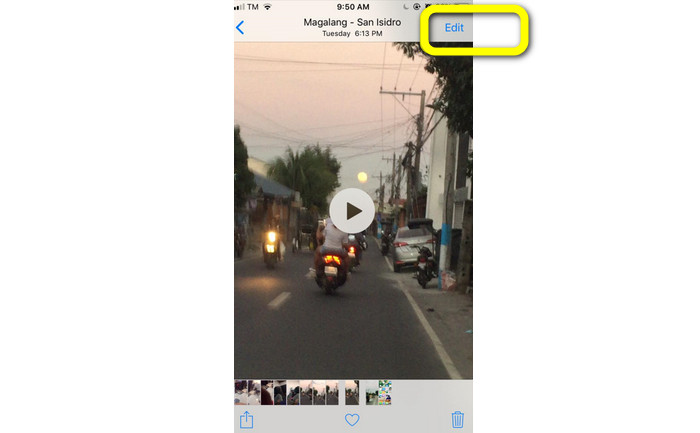
Pasul 2. Apoi, apasă pe videoclipul pe care vrei să îl scurtezi. După aceea, apasă butonul Editați (Edit) din colțul din dreapta al ecranului.
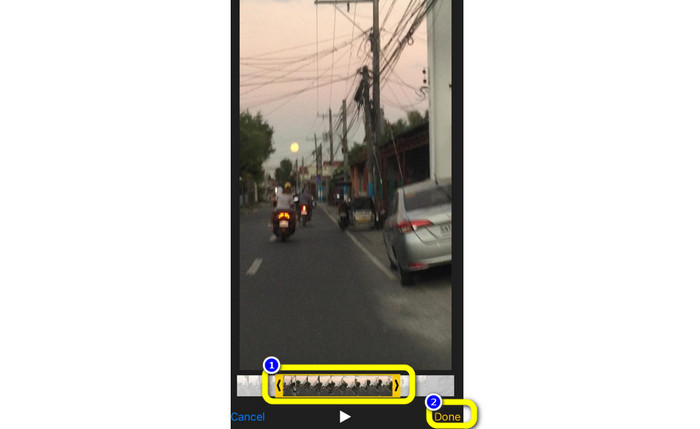
Pasul 3. Acum poți deja să scurtezi videoclipul trăgând de marginea acestuia. Poți trage marginile din stânga și din dreapta ale videoclipului. După ce ai tăiat videoclipul, apasă butonul Gata (Done) pentru a-l salva pe telefon.
Folosind iMovie
Vrei să editezi unele dintre filmele pe care le-ai înregistrat cu iPhone-ul, poate pentru a elimina părțile inutile, pentru a le face mai scurte sau mai atractive vizual? Acesta este un proces direct și simplu atunci când folosești programul iMovie, care este disponibil pentru dispozitivele iOS. Editorul video integrat în aplicația Poze (Photos) este suficient pentru majoritatea utilizatorilor. Totuși, nu îl poți folosi pentru a accesa funcții mai avansate, cum ar fi monitorizarea cronologiei, aplicarea de tranziții, îmbinarea mai multor filme etc. Un program specializat de editare video precum iMovie este util în această situație. iMovie de la Apple este superior altor instrumente de editare video din App Store. Și poți synchroniza sunetul și imaginea folosind iMovie. Totuși, iMovie are și unele dezavantaje. iMovie este disponibil doar pe dispozitive iPhone. Asta înseamnă că, dacă ești utilizator de Android, încearcă să folosești o altă aplicație pentru a tăia un videoclip.
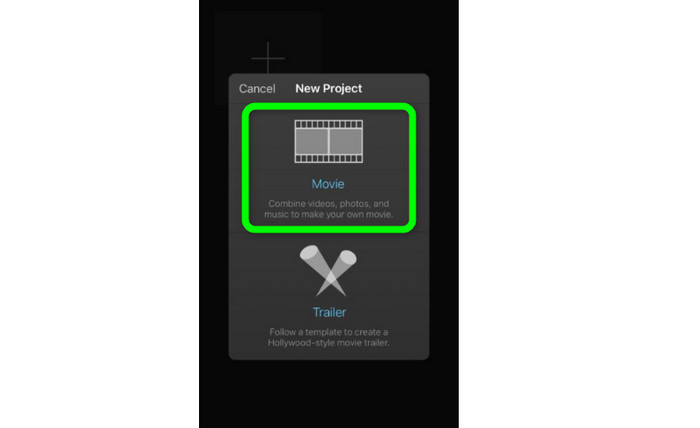
Pasul 1. Descarcă și instalează aplicația iMovie pe iPhone-ul tău. Apoi, pornește aplicația. După aceea, când interfața apare pe ecran, apasă opțiunea Create Project > Movie și adaugă videoclipul.
Pasul 2. Cronologia iMovie va include acum videoclipul pe care l-ai ales. În mod implicit, cursorul va fi la sfârșitul clipului, dar îl poți trage treptat spre dreapta și opri acolo unde dorești să tai videoclipul.
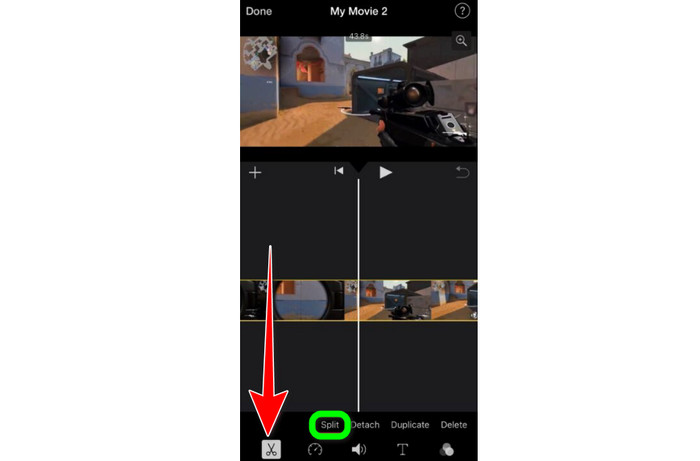
Pasul 3. Acum poți folosi mai multe dintre funcțiile pe care le oferă iMovie. După cum se arată mai jos, pictograma Foarfecă (Scissor) indică selectarea instrumentului de tăiere. Selectează instrumentul Split din meniu pentru a tăia clipul video exact în punctul pe care l-ai marcat.
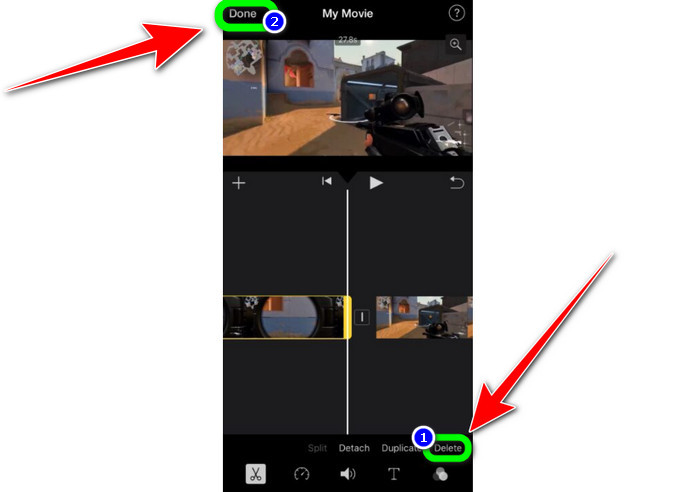
Pasul 4. Apoi, apasă opțiunea Delete pentru a elimina partea inutilă a videoclipului. După ce ai terminat de tăiat videoclipul, apasă butonul Done.
Partea 2. Cum să tăiați videoclipuri pe iPad
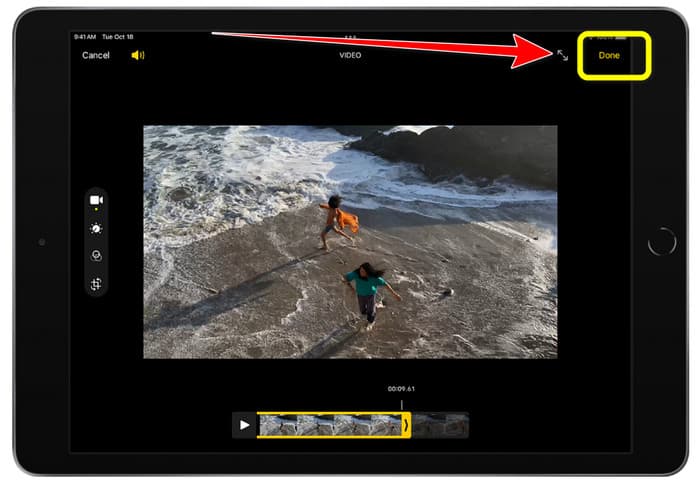
Dacă vrei să tai sau să trunchezi un videoclip folosind un iPad, nu mai trebuie să cauți o aplicație descărcabilă. La fel ca pe iPhone, poți tăia sau scurta videoclipul folosind aplicația Poze (Photos). Aplicația Poze poate avea totuși unele limitări atunci când este folosită pe un iPad. Dacă obiectivul tău este să tai videoclipul, este suficient de bună. Dar nu poți folosi aplicația dacă vrei să utilizezi instrumente avansate de editare. Urmează pașii de mai jos pentru a tăia sau trunchia videoclipul folosind iPad-ul.
Pasul 1. Deschide aplicația Poze (Photos) pe iPad, apasă pe clipul video pe care vrei să îl editezi și apasă pe opțiunea Editați (Edit).
Pasul 2. Trage de marginea vizualizatorului de cadre pentru a scurta durata videoclipului și pentru a începe tăierea.
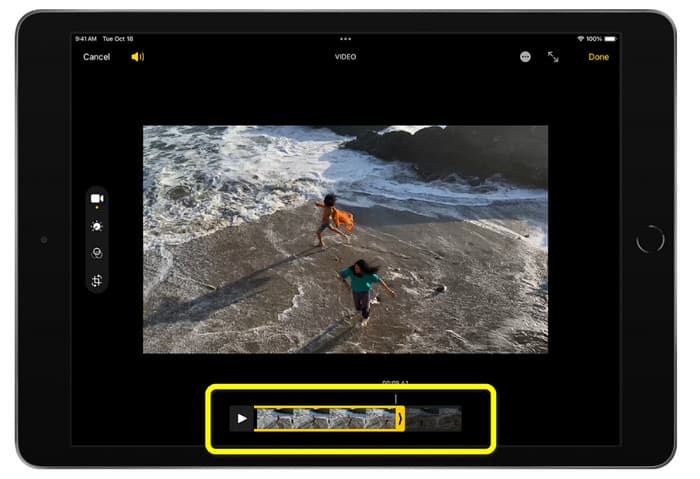
Pasul 3. După ce ai terminat de tăiat videoclipul, apasă butonul Gata (Done).
Partea 3. Cum să tăiați videoclipuri iPhone pe PC
Cauți cea mai bună metodă de a tăia videoclipuri de iPhone pe un PC? Dacă da, folosește Video Converter Ultimate. Poți tăia cu ușurință videoclipul de pe iPhone cu ajutorul acestui software offline. De asemenea, oferă o interfață ușor de utilizat, cu proceduri simple. Astfel, este ideal pentru toți utilizatorii, în special pentru începători. Poți, de asemenea, să ajustezi diverse aspecte accesând setările pentru ieșire (Output settings). Rezoluția, claritatea și rata de cadre a videoclipului pot fi toate modificate. Poți, de asemenea, să schimbi bitrate-ul audio, frecvența de eșantionare și alte detalii. Poți salva rezultatul final în diverse formate. Acestea includ MP4, MOV, AVI, MKV și altele. Este avantajos pentru utilizatori, deoarece Video Converter Ultimate este disponibil și poate fi folosit pe computere Windows și Mac. În plus, aplicația nu va adăuga filigrane pe videoclipul editat. Astfel, poți urmări în continuare videoclipul fără să fii deranjat.
Descărcare gratuită pentru Windows 7 sau o versiune ulterioară Descărcare securizată
Descărcare gratuită pentru MacOS 10.7 sau o versiune ulterioară Descărcare securizată
Pasul 1. Descarcă Video Converter Ultimate pe PC-ul tău. Apasă butonul Download de mai jos pentru a accesa cu ușurință programul.
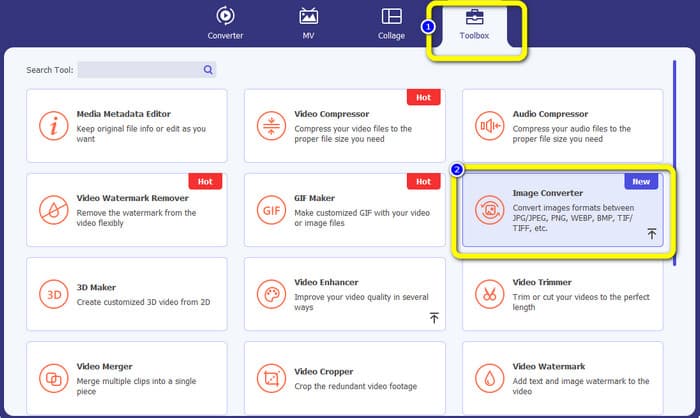
Pasul 2. După descărcare, pornește programul pentru a vedea interfața principală. Asigură-te că videoclipul de pe iPhone a fost deja transferat pe computer. După aceea, când apare interfața, apasă pe Toolbox > Video Trimmer Tool.
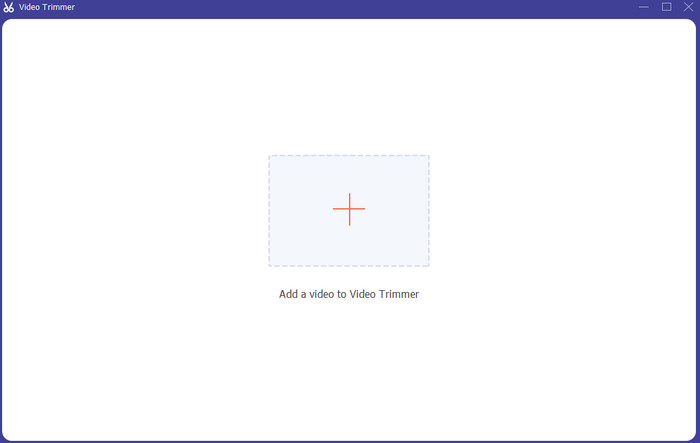
Pasul 3. Când noua interfață apare pe ecran, apasă semnul + pentru a adăuga videoclipul de pe iPhone.
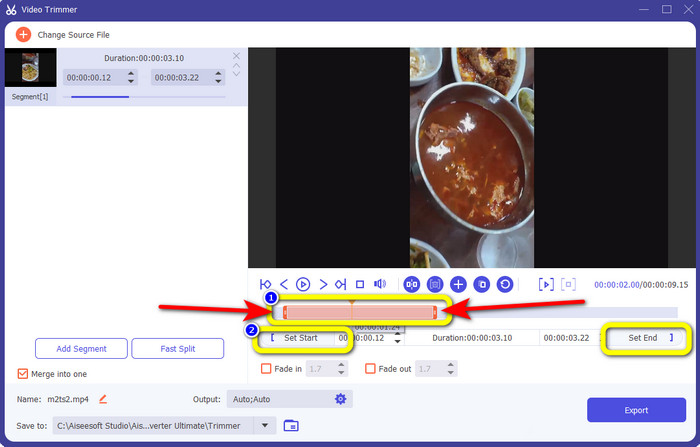
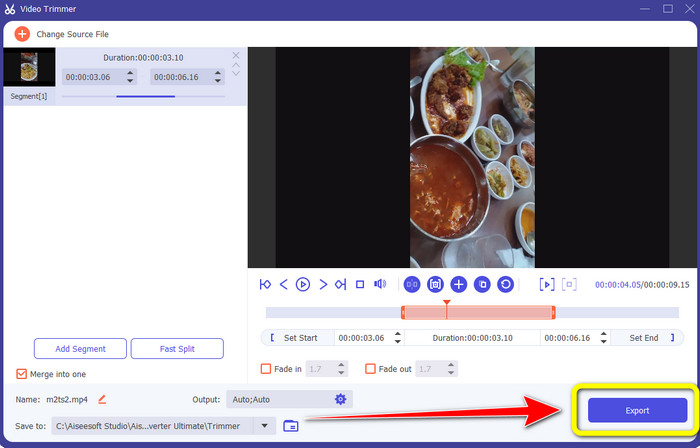
Pasul 4. Apoi poți deja să ajustezi marginea videoclipului pentru a-l tăia. De asemenea, poți folosi opțiunile Set Start și Set End pentru a tăia manual videoclipul.
Pasul 5. La final, apasă butonul Export pentru a salva videoclipul după tăiere.
Partea 4. Întrebări frecvente despre cum să scurtați un videoclip pe iPhone
Cum să tăiați mijlocul videoclipului pe un iPhone?
Dacă doriți să tăiați partea de mijloc a videoclipului folosind iPhone-ul, puteți utiliza în continuare metodele menționate mai sus. Aplicația Fotografii și iMovie pot decupa și partea de mijloc a unui videoclip.
Cum să tăiați videoclipul pe telefonul Android?
Puteți accesa aplicația Galerie. Apoi deschideți videoclipul și faceți clic pe opțiunea Editare. După aceea, puteți deja tăia videoclipul trăgând marginile videoclipului.
Cum să transferi videoclipuri pe iPhone de pe computer?
Puteți folosi multe instrumente pentru a transfera un videoclip de pe un computer pe un iPhone. Puteți folosi iPhone Transfer Pro, Dropbox, AirDrop și multe altele.
Concluzie
Tăierea unui videoclip este eficientă atunci când vrei să distribui sau să încarci un clip video. În acest caz, acest articol informativ vorbește despre cum să scurtezi un videoclip pe iPhone. În plus, dacă vrei să scurtezi durata unui videoclip de iPhone folosind un computer, poți folosi Video Converter Ultimate. Cu ajutorul acestui program offline, poți tăia cu ușurință și instantaneu un videoclip de iPhone folosind un PC.
-
 [4 soluții] Cum să încetinești un videoclip pe iPhone ca un profesionist
 Întâmpinați probleme la încetinirea unui videoclip pe iPhone? Dacă întâmpinați această problemă, nu vă mai faceți griji, pentru că vă vom ajuta să rezolvați problema citind acest articol.
-
 Cum să redirecționați rapid un videoclip pe iPhone - Reglați viteza video
 Cum pot avansa rapid un videoclip pe iPhone-ul meu? Cum să înaintezi rapid un videoclip pe iPhone folosind iMovie? Aflați 3 moduri de a accelera un videoclip pe dispozitivele iPhone și iPad.
-
 Tutorial - 4 moduri gratuite de a îmbina videoclipurile pe iPhone într-unul nou
 Citiți și obțineți 4 modalități ușoare de a îmbina videoclipurile pe iPhone. Toate modelele iPhone și versiunile iOS sunt acceptate. Puteți combina rapid 2 și mai multe videoclipuri pe iPhone într-un videoclip nou.
