


 Video Converter Ultimate
 Screen Recorder
 Reparație video
 Descărcare sigură
Cum să convertiți MOV în GIF: Un ghid cuprinzător pentru a crește prezența online
Menținerea atenției publicului în lumea digitală rapidă de astăzi necesită crearea de conținut vizual captivant. GIF-urile animate sunt utilizate pe scară largă datorită capacității lor de a transmite concepte complexe, sentimente și mesaje de marcă într-un mod distractiv și memorabil. Dar nu toate formatele video sunt accesibile prin mai multe platforme și dispozitive. Pentru a face acest lucru, puteți utiliza un convertor MOV în GIF.
O animație ușoară, de înaltă calitate, care poate fi distribuită cu ușurință pe site-ul tău web, pe rețelele sociale și în aplicațiile de mesagerie poate fi creată prin convertirea fișierelor tale MOV în GIF-uri animate. Poți îmbunătăți și mai mult eficiența promoțională a GIF-urilor adăugând text, filtre și elemente de branding. Conversia din MOV în GIF poate părea complicată, dar există mai multe programe de conversie, online și offline, care simplifică procesul. Acest articol îți va arăta cum să convertești MOV în GIF și va detalia mai pe larg avantajele acestei conversii.

Partea 1. Conversia MOV în GIF offline
În timp ce instrumentele offline necesită o instalare unică, ele oferă o mai mare flexibilitate și control asupra proceselor de conversie a fișierelor. Este important să alegeți un furnizor de software de renume și să păstrați software-ul actualizat pentru a asigura performanță și securitate optime. Acestea fiind spuse, am furnizat aici o listă de programe care vă ajută să convertiți MOV în GIF pe Mac, Windows și iPhone. Consultați-le pentru a afla mai multe.
FVC Free Video Converter poate converti fișiere video MOV în fișiere de tip imagine GIF. Face acest proces ușor oferind o interfață simplă și intuitivă pentru selectarea fișierului MOV și specificarea setărilor de ieșire pentru fișierul GIF. Când convertești MOV în GIF folosind FVC Free Video Converter, poți specifica dimensiunea și calitatea de ieșire a fișierului GIF, precum și rata de cadre și alte setări. Programul oferă, de asemenea, o funcție de previzualizare care îți permite să vizualizezi GIF-ul înainte de a-l salva. Per ansamblu, FVC Free Video Converter este un instrument util pentru oricine dorește să convertească videoclipuri MOV în imagini GIF pentru diverse scopuri. Află mai multe despre acest program consultând funcțiile sale cheie.
Funcții cheie:
◆ Convertiți mai multe videoclipuri simultan.
◆ Conversie de mare viteză cu tehnologii de accelerare.
◆ Proiectat pentru a fi ușor de utilizat de către utilizatori.
Pasul 1. Descarcă programul pe computer
Pentru a învăța cum să convertești MOV în GIF, descarcă și instalează FVC Free Video Converter pe computerul tău. Poți obține acest program făcând clic pe butonul Descărcare gratuită de mai jos. Poți alege între programul de instalare pentru Mac și cel pentru Windows.
Descărcare gratuităPentru Windows 7 sau versiuni mai recenteDescărcare sigură
Descărcare gratuităPentru MacOS 10.7 sau versiuni ulterioareDescărcare sigură
Pasul 2. Adaugă fișierul(le) MOV țintă
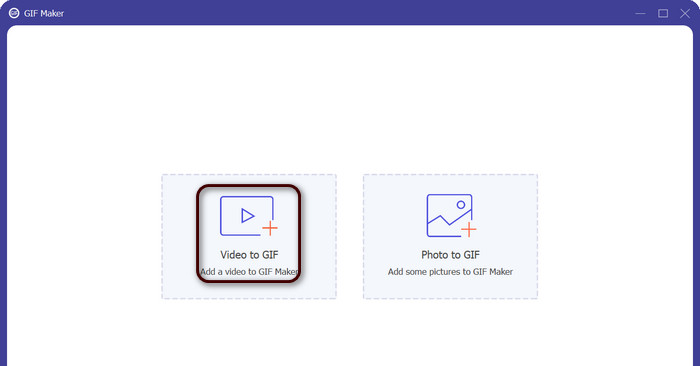
Lansează programul pentru a vedea interfața sa principală. De aici, mergi la fila Toolbox și dă clic pe instrumentul GIF Maker. Apoi apasă butonul Video to GIF pentru a adăuga fișierele tale MOV țintă.
Pasul 3. Editează videoclipul
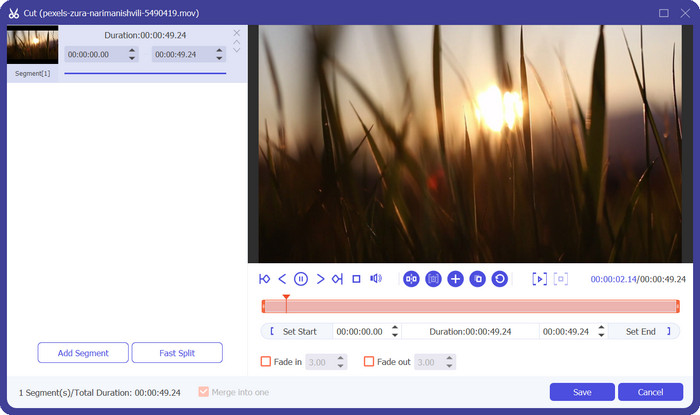
Dacă dorești să tai anumite părți din videoclip, bifează butonul Cut. Acum, folosește bara glisantă sau introdu timpi de început și de sfârșit specifici pentru a selecta porțiunea din videoclip pe care vrei să o folosești pentru GIF-ul tău. Apoi, personalizează setările GIF-ului, inclusiv dimensiunea de ieșire, rata de cadre și calitatea. Poți, de asemenea, să adaugi text sau stickere la GIF făcând clic pe butonul Edit.
Pasul 4. Transformă MOV în GIF
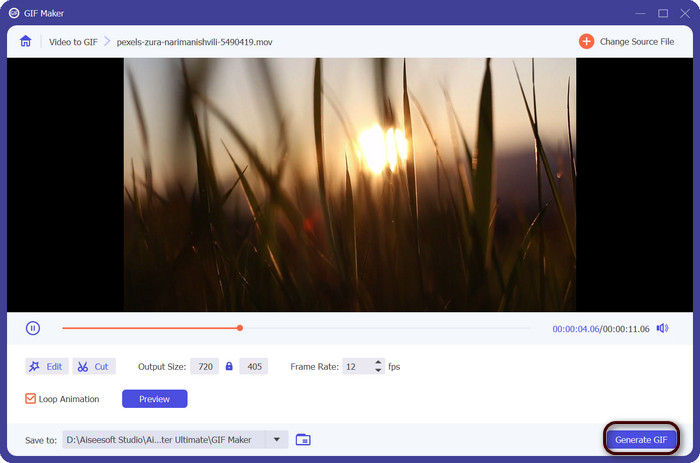
Previzualizează GIF-ul pentru a te asigura că arată așa cum îți dorești. Dă clic pe butonul Generate GIF pentru a crea GIF-ul. GIF-ul va fi salvat pe computerul tău în locația specificată în setările de ieșire.
2. FFmpeg
FFmpeg este un instrument software versatil și puternic care oferă dezvoltatorilor, profesioniștilor media și pasionaților o varietate de funcții pentru a lucra cu fișiere audio și video. Cu compatibilitatea sa multiplatformă, puteți utiliza FFmpeg pe diferite sisteme de operare, ceea ce îl face o soluție ideală pentru proiectele care necesită flexibilitate și versatilitate. Una dintre caracteristicile remarcabile ale FFmpeg este capacitatea sa de a face față diferitelor formate de fișiere audio și video, inclusiv formate populare precum MP4, MOV, AVI și multe altele. Aflați cum să transformați MOV în GIF folosind următoarele instrucțiuni.
Funcții cheie:
◆ Conversie și transcodare.
◆ Suport pentru o gamă largă de formate video și audio.
◆ Streaming și difuzare.
◆ Interfață de linie de comandă.
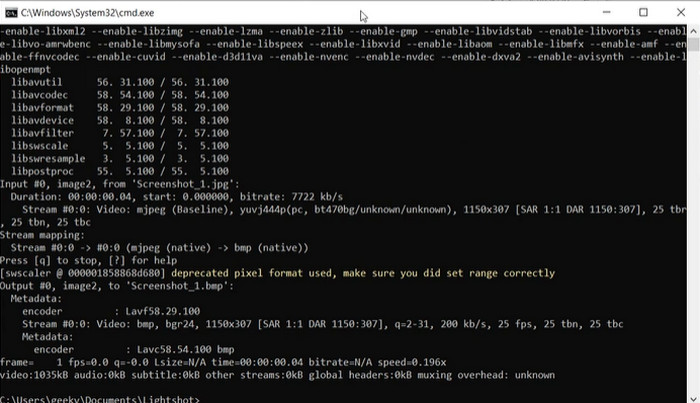
Pasul 1. Deschide o fereastră de Command Prompt sau terminal pe computer. Apoi navighează la directorul în care este localizat fișierul MOV pentru a începe conversia FFmpeg din MOV în GIF.
Pasul 2. Introdu următoarea comandă: ffmpeg -i input.mov output.gif. Înlocuiește input.mov cu numele fișierului tău MOV și output.gif cu numele dorit pentru fișierul GIF. Opțional, poți personaliza fișierul de ieșire adăugând parametri suplimentari la comandă. De exemplu, poți seta rata de cadre a GIF-ului de ieșire adăugând parametrul -r, astfel: ffmpeg -i input.mov -r 10 output.gif. Aceasta va seta rata de cadre la 10 cadre pe secundă.
Pasul 3. Apasă tasta Enter pentru a rula comanda. FFmpeg va converti fișierul MOV într-un GIF, iar fișierul rezultat va fi salvat în același director ca fișierul de intrare. Așa transformi un fișier MOV într-un GIF.
3. Photoshop
Photoshop de la Adobe Systems este un software standard în industrie pentru editarea și proiectarea imaginilor digitale. Numeroși profesioniști din domeniile fotografiei, designului grafic și artei se bazează pe acesta pentru a genera și modifica fotografii digitale, grafică și lucrări de artă. Din fericire, numeroasele instrumente Photoshop facilitează transformarea videoclipurilor MOV în GIF-uri. Unele dintre cele mai importante momente includ următoarele:
Funcții cheie:
◆ Caracteristica cronologică video pentru importarea fișierelor video.
◆ Exportați GIF-uri la diferite dimensiuni și rezoluții.
◆ Creați animații cadru cu cadru cu un panou de animație.
Pasul 1. Deschide Photoshop pe computer și mergi la File > Import > Video Frames to Layers. În fereastra „Import Video to Layers”, selectează fișierul tău MOV și fă clic pe Open.
Pasul 2. În caseta de dialog Video Layer, selectează From Beginning to End dacă vrei să folosești întregul videoclip sau Selected Range Only dacă vrei să folosești doar o porțiune din videoclip. Apoi dă clic pe OK.
Pasul 3. Photoshop va importa cadrele video ca straturi. Mergi la Window > Timeline pentru a deschide panoul de animație. În panoul de animație, fă clic pe butonul Create Frame Animation.
Pasul 4. Fă clic pe pictograma de meniu din colțul din dreapta sus al panoului de animație și selectează Make Frames From Layers. În panoul de animație poți ajusta durata fiecărui cadru făcând clic pe timpul de sub fiecare cadru și introducând o nouă valoare.
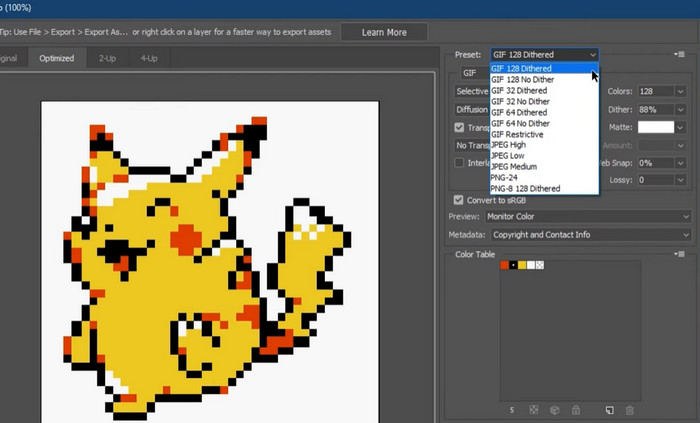
Pasul 5. Când ești mulțumit de GIF, mergi la File > Export > Save for Web (Legacy). În fereastra Save for Web, alege GIF ca tip de fișier. Ajustează setările după preferințe, cum ar fi dimensiunea, paleta de culori și opțiunile de optimizare. Fă clic pe Save pentru a salva GIF-ul. Așa exporți un fișier MOV în GIF în Photoshop.
Partea 2. Conversia MOV în GIF online
Utilizarea programelor online pentru a converti fișiere oferă o modalitate convenabilă și accesibilă de a converti fișiere fără a fi nevoie să instalați vreun software sau să navigați în interfețe complicate. Dacă sunteți curios despre ce program să utilizați, puteți arunca o privire la cele mai bune convertoare online MOV în GIF de mai jos.
1. Convertor video gratuit online
Free Video Converter Online de la FVC oferă o interfață simplă și ușor de utilizat, permițând utilizatorilor să își convertească rapid și ușor fișierele video. Utilizatorii pot selecta fișierul de intrare și pot alege formatul de ieșire și calitatea dorite. Instrumentul permite, de asemenea, personalizarea diferitelor setări, inclusiv rezoluția video, bitrate-ul și rata de cadre.
Pasul 1. Deschide un browser web și accesează site-ul FVC Free Video Converter Online.
Descărcați versiunea pentru desktop pentru a converti fișiere în lot.
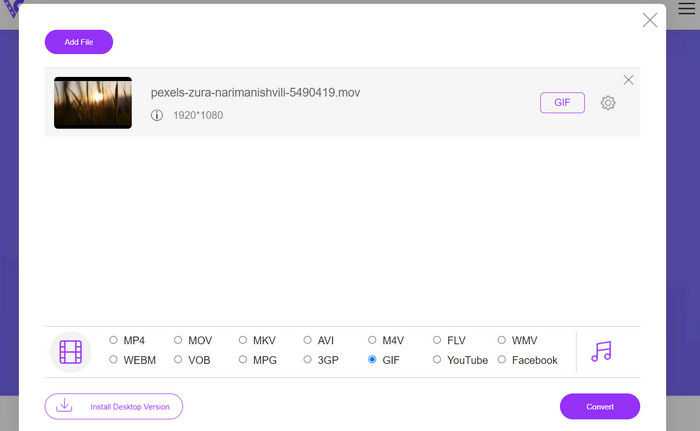
Pasul 2. Apoi, dă clic pe butonul Add Files to Convert pentru a încărca fișierul video MOV pe care dorești să îl convertești. Poți, de asemenea, să tragi și să plasezi fișierul în zona desemnată.
Pasul 3. Selectează formatul de ieșire bifând butonul radio GIF. Apasă butonul Convert pentru a începe procesul de conversie.
2. CloudConvert
CloudConvert este o aplicație web de conversie a fișierelor online care permite utilizatorilor să convertească diferite tipuri de fișiere, inclusiv videoclipuri, imagini, documente și multe altele. Oferă o gamă largă de opțiuni de conversie, care acceptă peste 200 de formate de fișiere, inclusiv formate populare precum MP4, MOV, GIF și altele.
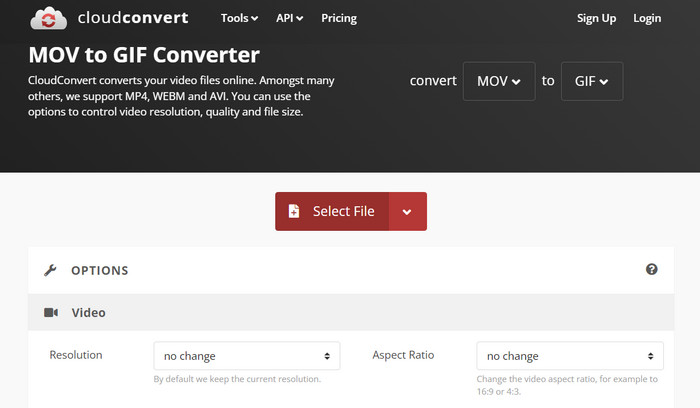
Pasul 1. Pentru a utiliza CloudConvert pentru conversia MOV în GIF, deschide un browser web și accesează site-ul CloudConvert. Fă clic pe butonul Select Files pentru a încărca fișierul MOV.
Pasul 2. După ce fișierul a fost încărcat, selectează GIF ca format de ieșire din meniul derulant. Opțional, poți personaliza setările de ieșire, cum ar fi rata de cadre și dimensiunea imaginii.
Pasul 3. Bifează butonul Convert pentru a începe procesul de conversie. După finalizare, poți descărca fișierul GIF convertit pe computerul tău. Așa funcționează acest convertor MOV în GIF online și gratuit.
3. EZGIF
EZGIF este o aplicație web flexibilă care oferă o gamă largă de opțiuni pentru lucrul cu GIF-uri. Programul este o resursă gratuită pentru crearea, editarea și optimizarea GIF-urilor din fișiere video, fotografii și chiar alte GIF-uri. Capacitatea EZGIF de a transforma rapid fișierele video în GIF-uri este unul dintre cele mai atractive puncte de vânzare. Utilizatorii pot încărca videoclipuri în formate precum MP4, AVI sau MOV și le pot converti în GIF-uri cu setări precum rata de cadre și dimensiunea imaginii pe care le pot modifica după bunul plac. Utilizați EZGIF pentru conversia MOV în GIF urmând pașii de mai jos.
Pasul 1. Deschide browserul web și accesează EZGIF pentru a-ți converti videoclipul într-un GIF animat.
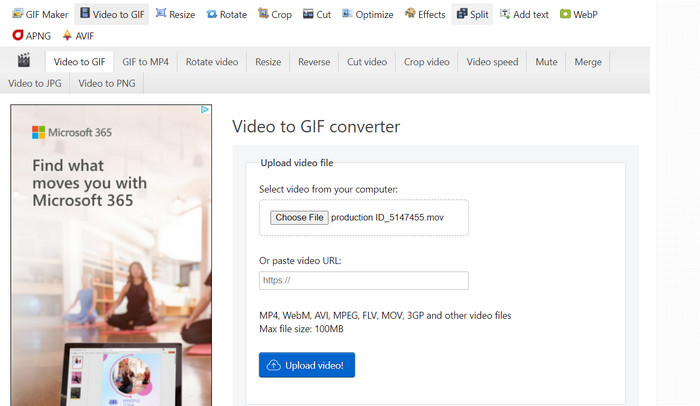
Pasul 2. Pentru a transforma un fișier MOV într-un GIF, pur și simplu dă clic pe Choose File și localizează fișierul pe care dorești să îl modifici.
Pasul 3. După ce fișierul a fost încărcat, folosește cursorii furnizați pentru a seta momentele de început și de sfârșit ale GIF-ului. De asemenea, poți modifica dimensiunea și legenda GIF-ului. Pentru a începe conversia, selectează opțiunea Convert to GIF.
Citește mai departe
[Gratuit & Online] 4 metode de a converti MOV în MP4
Redă în buclă un GIF cu cel mai bun program de loop pentru GIF-uri animate pe Windows & Mac
MOV vs. GIF
Formatul MOV poate fi utilizat pentru stocarea unui film, a unei emisiuni TV, a unui videoclip scurt sau a unui film de acasă. De fapt, este salvat în formatul de fișier QuickTime (QTFF), care a fost introdus de Apple în 1991. Fișierele MOV sunt adesea folosite atunci când oamenii doresc să salveze un videoclip de înaltă calitate.
GIF este un format de imagine comun pentru grafica web. Pe lângă salvarea imaginilor mici și a imaginilor care conțin text, GIF poate conține și afișa animații de bază pe site-uri web. Este un format fără pierderi, iar compresia GIF nu degradează claritatea imaginii.
Partea 3. Întrebări frecvente despre MOV în GIF
Ce setări ar trebui să folosesc când convertesc un MOV într-un GIF?
Setările pe care ar trebui să le utilizați atunci când convertiți un MOV într-un GIF vor depinde de nevoile dvs. specifice. În general, veți dori să ajustați rata de cadre, dimensiunea imaginii și adâncimea culorii pentru a optimiza GIF-ul pentru utilizarea dorită.
Pot converti o parte dintr-un fișier MOV într-un GIF?
Da, majoritatea instrumentelor vă permit să selectați o anumită porțiune a unui fișier MOV pentru a o converti într-un GIF. Acest lucru poate fi util doar dacă doriți
Care sunt câteva utilizări comune pentru GIF-urile create din fișiere MOV?
GIF-urile create din fișiere MOV pot fi utilizate pentru o gamă largă de scopuri, inclusiv postări pe rețelele sociale, animații de site-uri web și campanii de marketing prin e-mail.
Concluzie
Conversia MOV în GIF poate fi utilă pentru o varietate de scopuri, de la crearea de conținut atractiv pentru rețelele sociale până la prezentarea caracteristicilor unui produs sau realizarea de tutoriale. Există numeroase instrumente disponibile pentru a efectua această conversie, de la instrumente online precum EZGIF și CloudConvert până la aplicații desktop mai avansate, precum Photoshop și Adobe After Effects.
-
 Cele mai bune 5 moduri de a schimba imaginea în GIF animat [Actualizat 2023]
 Ai nevoie de un convertor de imagine în GIF? Acest articol va oferi cele mai bune cinci convertoare pe care le putem găsi pe piață. Deci, să aflăm aceste instrumente citind acest articol.
-
 Convertiți cu ușurință MOV în WMV folosind aceste convertoare uimitoare
 Doriți să vă convertiți fișierul MOV în fișier WMV? Iată modalitățile simple de a converti cu ușurință MOV în WMV utilizând aceste convertoare online și offline pe care vă recomandăm să le folosiți.
-
 Cel mai bun ghid despre cum să tăiați GIF-uri pentru a vă condimenta conținutul
 Nu ratați acest ghid de citit obligatoriu. Aflați cum să decupați și să tăiați GIF-urile pentru a atrage atenția publicului dvs. cu ajutorul unor decupatoare GIF grozave online și offline.
