


 Video Converter Ultimate
 Screen Recorder
 Reparație video
Cum se decupează un GIF cu ajutorul celor mai bune decupaje GIF
Alegerea GIF-urilor potrivite pentru mesaj este esențială pentru a transmite tonul corect a ceea ce vrei să exprimi. Însă unele GIF-uri trebuie decupate pentru a arăta intenția reală a GIF-ului. De asemenea, dacă încerci vreodată să îți decupezi GIF-urile, calitatea acestora nu ar trebui să fie afectată și ar trebui să își păstreze același număr de cadre pe secundă (fps). La un moment dat, alegerea programului potrivit pentru decuparea GIF-urilor poate fi puțin dificilă, deoarece nu toate instrumentele îți oferă această funcție. Iar unele dintre instrumentele care oferă decupare pierd din calitate și din fps-ul GIF-urilor. În acest articol îți poți alege cel mai bun decupator de GIF-uri, toate instrumentele enumerate au fost deja testate de noi pentru a-ți oferi dovezi corecte. De asemenea, îți prezentăm cel mai bun decupator de GIF-uri disponibil pe toate platformele și modul de utilizare. Continuă să citești acest material pentru a afla mai multe.

Partea 1. Cel mai bun GIF Cropper care acceptă sistemele de operare Windows și Mac
1. Video gratuit FVC către GIF Maker
Acest instrument este disponibil pe toate platformele, precum Windows și Mac. Este cel mai bun decupator de GIF-uri animate dezvoltat de FVC, și anume FVC Free Video to GIF Maker. Acest software le permite utilizatorilor să își exploreze și să își îmbunătățească GIF-urile deja create sau, dacă doresc, să creeze GIF-uri noi. Așadar, dacă vrei să îți decupezi GIF-ul, acest instrument te ajută să faci acest lucru chiar și fără conexiune la internet. Decupează-ți GIF-ul pentru a fi mai ușor de distins, simplu și eficient. Pentru a afla cum să îți decupezi GIF-ul, urmează pașii de mai jos.
Pasul 1. Instalează instrumentul pe unitatea ta de stocare și ajustează preferințele în funcție de nevoile tale.
Descărcare gratuităPentru Windows 7 sau o versiune mai nouăDescărcare sigură
Descărcare gratuităPentru MacOS 10.7 sau o versiune mai nouăDescărcare sigură
Pasul 2. O miniinterfață ca aceasta va apărea pe ecran după lansarea instrumentului.
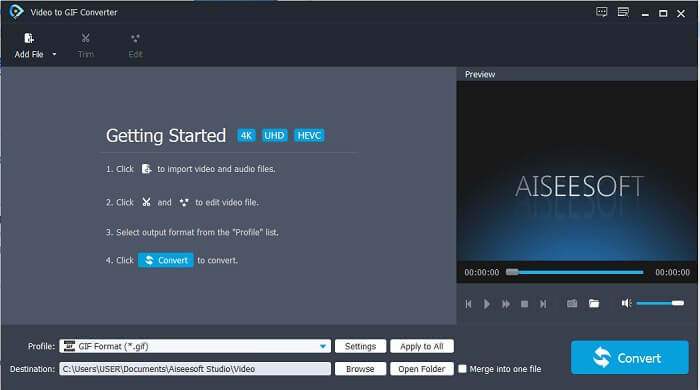
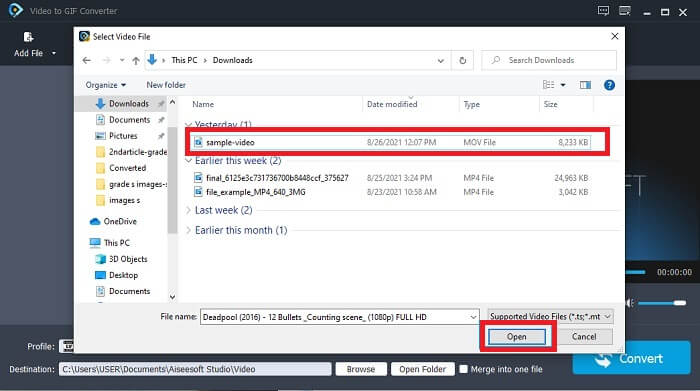
Pasul 3. Fă clic pe Add File sau, de asemenea, poți trage și plasa fișierul video în interfața instrumentului.
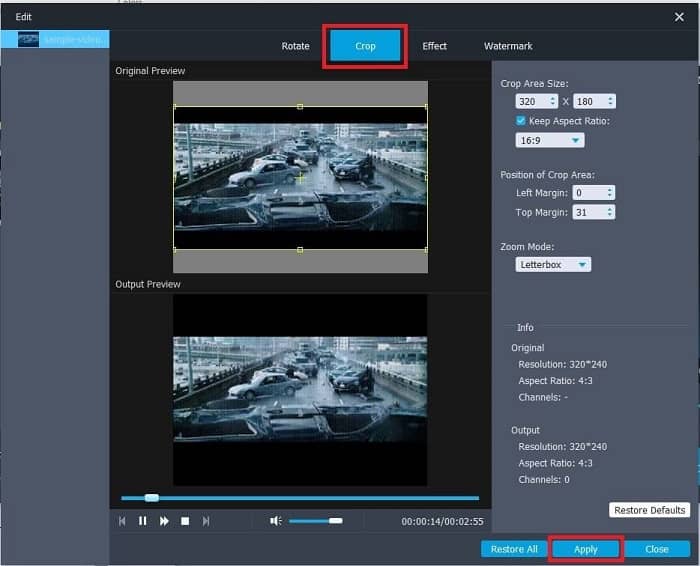
Pasul 4. Apasă pe Edit pentru a-ți îmbunătăți GIF-ul. Mergi la Crop și ajustează dimensiunea GIF-ului. Poți, de asemenea, să schimbi Aspect Ratio și Zoom Mode. Fă clic pe Apply pentru a salva ajustările pe care le-ai făcut.
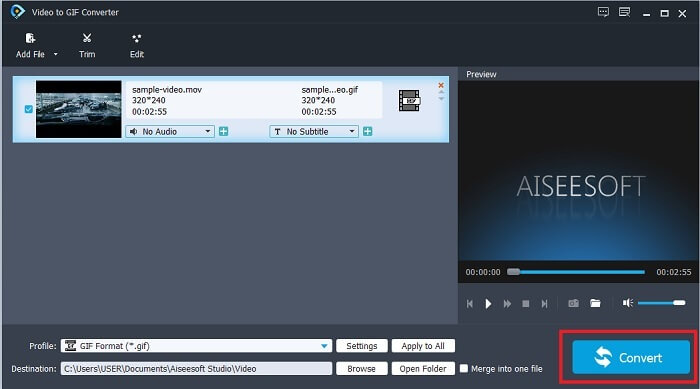
Pasul 5. Fă clic pe Convert pentru a începe conversia videoclipului în GIF. După ce conversia este terminată, poți verifica rezultatul final în exploratorul de fișiere tastând numele videoclipului.
Pro
- Toate caracteristicile minore sunt disponibile aici.
- Este mult mai bun decât instrumentul online și unele dintre instrumentele descărcabile.
- Creați-vă GIF cu ușurință cu acest instrument.
Contra
- Nu puteți utiliza caracteristicile majore pe care le oferă versiunea Ultimate.
- Acesta acceptă videoclipuri de format mai mic decât versiunea premium.
2. Video Converter Ultimate
Versiunea gratuită a acestui instrument poate face treaba simplă, dar versiunea sa premium este cea mai bună decupatoare GIF. Video Converter Ultimate nu este doar doar în nume, ci și că acest instrument este cel mai bun în conversia oricărui videoclip într-un fișier GIF. Spre deosebire de versiunea gratuită și instrumentul de mai jos, acest instrument vă poate face GIF-ul simplu unul mai splendid. Transformați GIF-ul dvs. într-un mod remarcabil adăugând efecte pe care acest instrument le poate oferi numai. De asemenea, oferă conversia unui videoclip în GIF, cum ar fi MP4 în GIF, îmbinarea videoclipurilor într-un singur, 3D Maker și multe altele. Deci, utilizați acest instrument ca tăietor personal și nu vă va dezamăgi niciodată. Mai mult, continuați să citiți pașii de mai jos pentru a ști cum să decupați GIF-ul dvs. pentru a transmite un mesaj mai specific receptorului dvs.
Pasul 1. Înainte de a utiliza acest instrument, trebuie să îl descarci. Instalează programul pe unitatea ta de stocare, schimbă preferințele în funcție de nevoile tale și fă clic pe finish pentru a porni instrumentul pe ecran.
Descărcare gratuită pentru Windows 7 sau o versiune ulterioară Descărcare securizată
Descărcare gratuită pentru MacOS 10.7 sau o versiune ulterioară Descărcare securizată
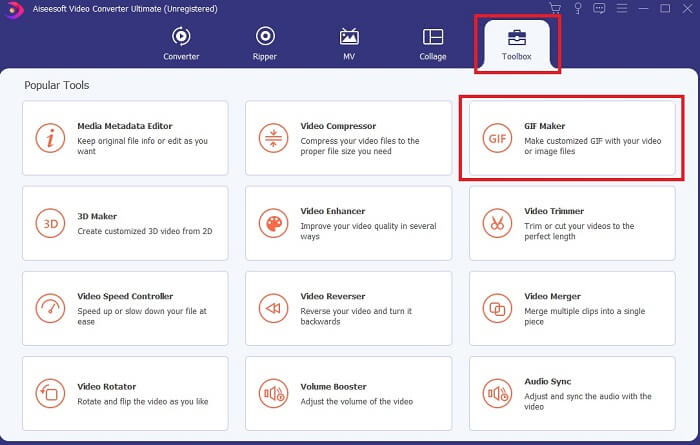
Pasul 2. Dacă instrumentul a fost descărcat complet pe unitatea ta, o interfață ușor de gestionat ca aceasta va apărea pe ecran. Fă clic pe Toolbar, iar în toolbar apasă pe GIF Maker.
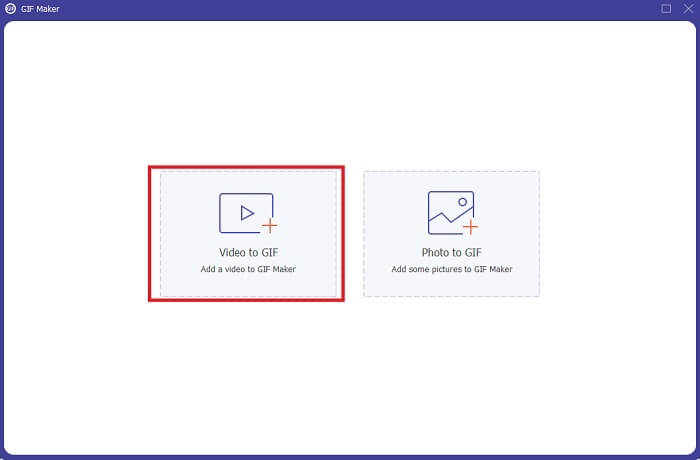
Pasul 3. Pentru a adăuga videoclipul, fă clic pe Video to GIF și localizează GIF-ul pe care vrei să îl decupezi sau să îl editezi. După selectarea videoclipului, apasă pe Open pentru a porni GIF Maker.
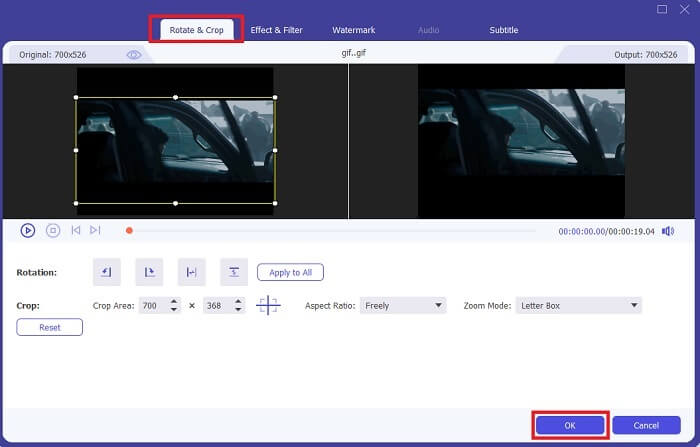
Pasul 4. Fă clic pe butonul cu o imagine de star pe el pentru a începe editarea. Apasă pe Rotate & Crop pentru a începe decuparea GIF-ului. Poți, de asemenea, să adaugi efecte și filtre, filigran și subtitrări. Dacă ai terminat toate ajustările, apasă pe OK pentru a salva modificările.
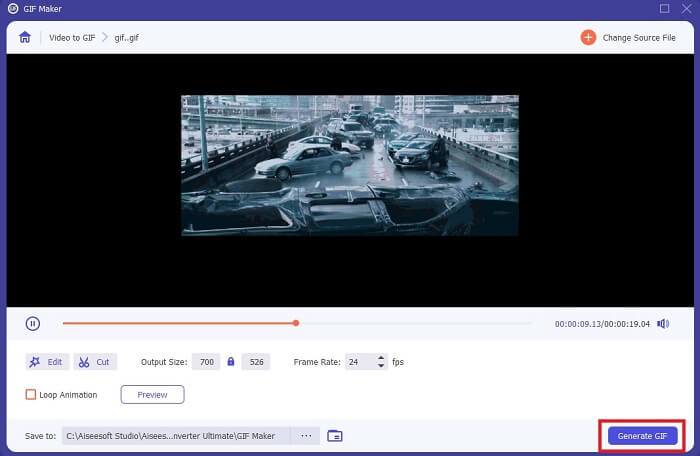
Pasul 5. Schimbă locația în care vrei să salvezi rezultatul final, pentru a-l găsi mai ușor. Fă clic pe Generate GIF pentru a începe conversia. Dacă conversia este complet 100%, găsește rezultatul final în locul în care ai ales să îl salvezi sau în managerul de fișiere.
Pro
- Instrumentul dvs. de utilizare, dacă doriți să vă îmbunătățiți GIF-ul într-unul mult mai interactiv. Folosiți-vă imaginația pentru a condimenta lucrurile în GIF-urile dvs.
- Poate transforma GIF-ul dvs. într-o ieșire impresionantă utilizând caracteristicile majore pe care le oferă pe care cealaltă versiune premium nu le poate oferi.
- Mai mult de un milion de utilizatori aleg acest instrument ca instrument de primă alegere pentru versiunea premium.
Contra
- Pentru a utiliza instrumentul, trebuie să furnizați mai întâi plata, dar sigur nu este atât de costisitoare. Deci, nu trebuie să vă așteptați la nimic mai puțin dacă ați cumpărat acest instrument.
- Descărcați instrumentul înainte de al lansa. Chiar dacă nu aveți internet, puteți utiliza în continuare acest instrument, deoarece nu depinde de internet.
Partea 2. Top 5 Cel mai bun Cropper GIF pe care îl puteți accesa prin Internet
1. iLoveIMG
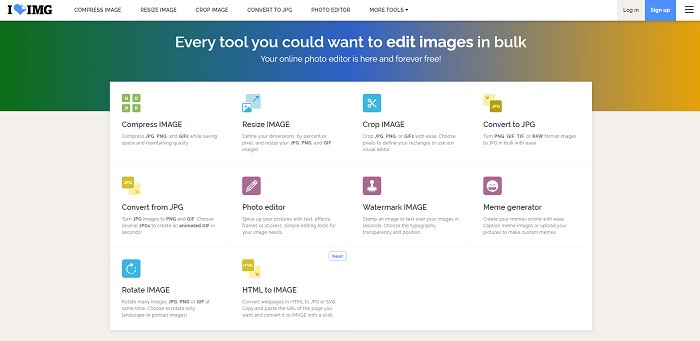
Decupează-ți GIF-ul cu ajutorul acestui decupator de GIF-uri online. iLoveIMG este cunoscut drept cel mai bun decupator online pentru GIF, JPG și PNG. Deși instrumentul nu poate converti videoclipuri în format GIF, deoarece se concentrează doar pe îmbunătățirea GIF-urilor, JPG-urilor și PNG-urilor, interfața site-ului este peste așteptări: nu este doar simplă, ci și mai interactivă. Așa că nu te vei plictisi în timp ce folosești site-ul. I-am acorda o notă de 7 din 10, ceea ce este foarte bine pentru o aplicație web online.
Pro
- Cel mai bun pentru a vă îmbunătăți GIF, JPG și PNG.
- Interfața site-ului este uimitor de frumoasă.
- Nu este nevoie să descărcați.
Contra
- Există o șansă de pierdere a datelor dacă conexiunea a fost întreruptă.
- Nu puteți converti formatul video într-un format GIF.
2. RedKetchup
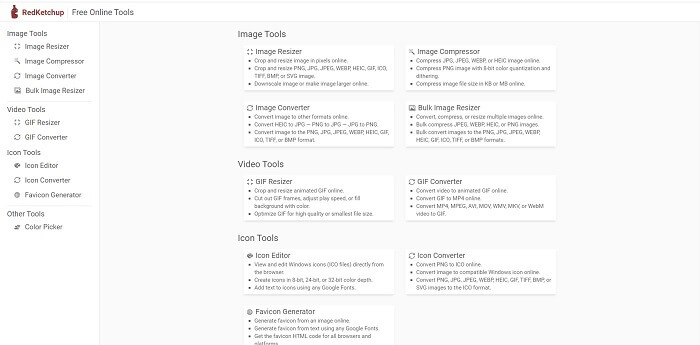
Dacă iLoveIMG nu este potrivit pentru tine, atunci ar trebui să încerci acest decupator de GIF-uri online. RedKetchup este foarte informativ datorită descrierilor pe care le oferă pentru fiecare unealtă de editare. Astfel, îți este mai ușor să înțelegi cum funcționează fiecare funcție, chiar dacă nu ai nicio idee despre ea la început. De asemenea, poți converti imaginile în GIF, PNG, JPG, WEBP și altele. Acceptă mai multe formate decât iLoveIMG, dar partea mai puțin plăcută a acestui instrument este că interfața paginii web este destul de plictisitoare. Tot fundalul site-ului este doar alb, iar singurul element colorat este numele și pictograma RedKetchup.
Pro
- Suportă mai multe formate de imagine decât iLoveIMG.
- Fiecare caracteristică a instrumentului are o scurtă descriere, astfel încât utilizatorul să-i poată înțelege funcțiile.
- Este un instrument online gratuit.
Contra
- Pagina web a acestui instrument este atât de plictisitoare să se uite din cauza culorii sale monotone.
- Există șansa ca fișierul să nu fie salvat corect dacă internetul dvs. este instabil.
3. Kapwing
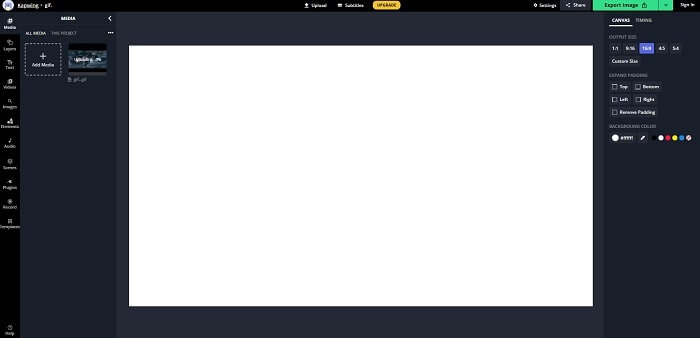
Acest instrument are aproape aceleași funcții ca Photoshop, dar este online. Este cel mai bun decupator de cadre GIF online. Kapwing este cunoscut pentru crearea celor mai reușite GIF-uri pe care le poți împărtăși cu prietenii tăi. Spre deosebire de primele două instrumente de mai sus, acest instrument acceptă anumite formate video pentru a le converti în format GIF. Deși învățarea modului de utilizare îți va lua ceva timp, merită efortul. Însă, dacă vrei să creezi un GIF simplu, acest instrument este excelent pentru asta. Acest instrument are aproape aceleași funcții ca Photoshop, dar este online. Este cel mai bun decupator de cadre GIF online. Kapwing este cunoscut pentru crearea celor mai reușite GIF-uri pe care le poți împărtăși cu prietenii tăi. Spre deosebire de primele două instrumente de mai sus, acest instrument acceptă anumite formate video pentru a le converti în format GIF. Deși învățarea modului de utilizare îți va lua ceva timp, merită efortul. Însă, dacă vrei să creezi un GIF simplu, acest instrument este excelent pentru asta.
Pro
- Interfața site-ului web al instrumentului vă va oferi aproape aceeași vibrație cu Photoshop.
- Convertiți videoclipul într-un format GIF.
- Sunt furnizate funcții de editare de bază.
Contra
- Procesarea rezultatului final al videoclipului va depinde întotdeauna de cât de rapid este internetul dvs. Deci, este nevoie de multă răbdare pentru a produce rezultatul final.
- Va trebui să vă înscrieți pentru a elimina filigranul din ieșire. Așadar, așteptați un e-mail la fiecare actualizare pe care o spune și câteva anunțuri enervante. Pentru că îi lăsați să vă acceseze contul.
4. GIFGIF-uri
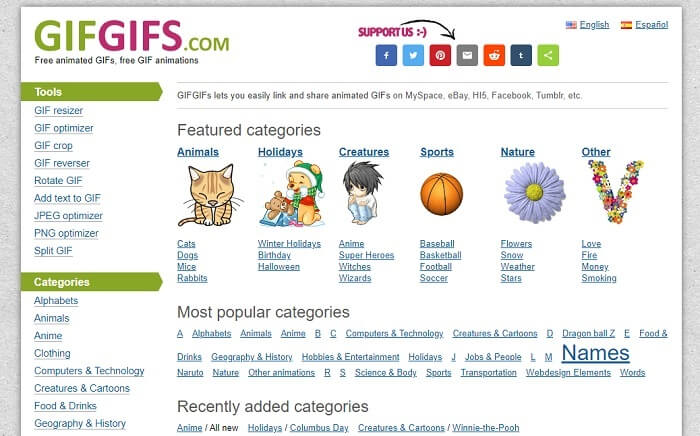
Îți poți decupa GIF-urile cu ajutorul acestui decupator de GIF-uri fără pierdere de calitate. GIFGIFs îți oferă cele mai bune GIF-uri gata făcute online. Poți alege din categoriile pe care le pune la dispoziție, precum alfabet, sport, anime, îmbrăcăminte etc. De asemenea, acest instrument nu oferă doar funcția de îmbunătățire a GIF-urilor, ci îți permite și să optimizezi JPG și PNG.
Pro
- Este o alegere bună pentru a vă îmbunătăți GIF-ul într-unul mai bun.
- Suportă optimizarea JPEG, PNG și GIF.
- Alegeți GIF-uri deja realizate în secțiunile categoriei sale.
Contra
- Nu oferă o bară de căutare, așa că este greu să găsești GIF-ul perfect pe care vrei să îl folosești.
- Interfața este în regulă. Nu este nimic special sau ar trebui să spunem că nu este bine, dar nu este rău.
5. VEED.IO
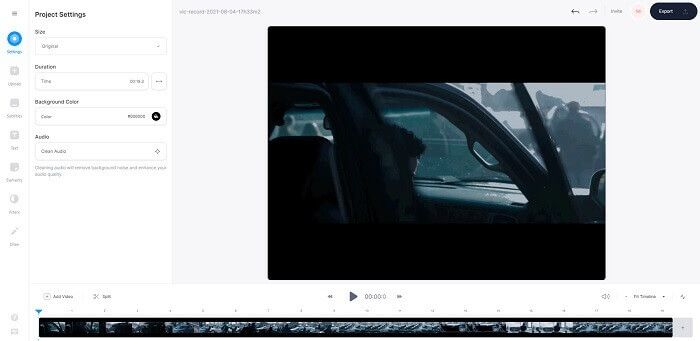
Alegeți acest lucru ca primul tăietor GIF gratuit online, dar, de asemenea, poate fi actualizat într-o versiune premium, dacă doriți. VEED.IO este unul dintre cele mai bune instrumente online pentru a vă îmbunătăți GIF-urile într-unul mai bun. Dar versiunea gratuită a instrumentului acceptă doar 50 MB de dimensiune a fișierului GIF și pentru a adăuga mai multe dimensiuni de fișier trebuie să cumpărați versiunea premium a instrumentului.
Pro
- Oferă o funcție de editare excelentă pentru a vă îmbunătăți GIF-ul.
- Interfață de utilizator simplă.
- Puteți adăuga subtitrări și dacă doriți.
Contra
- Nu oferă un producător 3D pentru a vă îmbunătăți imaginile 2D.
- În unele ocazii, software-ul se blochează când încercați să măriți cronologia.
Partea 3. Întrebări frecvente despre GIF Cropper
Există vreun format mai bun decât formatul GIF?
Deși este foarte bine cunoscut faptul că GIF este cel mai bun format de imagine de mișcare de pe web. Dar știați că există un format mai bun decât GIF? Acesta este APNG. Acest format oferă un palet de culori mai mult decât GIF și este mai bun și la compresie. Dar puteți utiliza și WEBP, MNG, FLIF și AVIF.
Care este motivul pentru care sunt create GIF-uri?
La sfârșitul anului 1987, un om pe nume Steve Wilhite s-a întrebat dacă există vreo șansă de a crea un fișier de imagine de dimensiune mică pentru afișarea pe computer și, în acel moment, s-a născut GIF-ul. Pentru a afla mai multe despre GIF-uri, poți face clic aici.
Care este mai bun? JPG sau GIF?
Formatul JPG vă oferă o imagine mai detaliată, deoarece acceptă o gamă largă de culori, astfel încât este cel mai bun la realizarea fotografiilor. GIF oferă o cantitate mică de paletă de culori, dar este bun la realizarea unei imagini statice.
Concluzie
Pentru a încheia discuția, trebuie să alegi cel mai bun decupator de GIF-uri care îți oferă exact funcțiile de decupare de care ai nevoie, fără a afecta calitatea GIF-ului, chiar dacă îl decupezi. Totuși, este clar că ar trebui să alegi instrumentul suprem dezvoltat de FVC. Acesta îți oferă cele mai bune funcții pentru GIF-uri pe care le poți adăuga în GIF-ul tău, astfel încât să arate mai impresionant decât alte GIF-uri. Așadar, decuparea GIF-urilor tale este mai ușoară ca niciodată dacă folosești Video Converter Ultimate.
-
 Tutorial pentru comprimarea GIF și reducerea dimensiunii fișierului cu calitate înaltă
 Iată 2 moduri simple de a comprima GIF pe computer sau pe telefonul mobil. Puteți utiliza FVC Free Online Video Compressor și Photoshop reduce dimensiunea fișierului GIF în diferite aspecte.
-
 GIF Player - 5 cele mai bune jucătoare GIF pentru Windows PC, Mac, Android și iPhone
 Ce program deschide fișiere GIF? Cum pot vedea GIF-uri pe Android? Are iPhone un player GIF pentru a deschide GIF-uri? Această postare împărtășește pentru tine cei mai buni 5 jucători GIF.
-
 Cum se convertesc videoclipuri AVI în fișiere GIF animate pe Windows / Mac
 Doriți să selectați segmentele AVI interesante pentru a crea meme GIF? Acest articol vă va spune cele mai bune 2 metode pentru a tăia videoclipurile AVI și a converti AVI în fișiere GIF animate gratuit.
