


 Video Converter Ultimate
 Screen Recorder
 Reparație video
Cum să schimbați videoclipul cu încetinitorul la viteză normală ca un profesionist
Tehnologia a evoluat considerabil de-a lungul anilor. Au fost dezvoltate diverse programe software și au fost inventate echipamente avansate pentru a aduce unicitate și creativitate chiar și într-un simplu videoclip. Unul dintre acestea este videoclipul în mișcare lentă. Totuși, majoritatea oamenilor sunt familiarizați doar cu realizarea unui astfel de videoclip și nu îl readuc la viteza normală. Un exemplu este utilizarea unor videoclipuri la întâmplare sau specifice de pe internet pentru un proiect școlar sau pentru orice activitate de producție video, care ar putea fi la o viteză de redare nefavorabilă respectivei persoane. Așadar, acest articol își propune să rezolve această problemă cu care cineva se poate confrunta din când în când, oferind cele mai bune modalități de a transforma un videoclip în mișcare lentă în viteză normală de redare pe sistemele de operare Mac, Windows, iOS și Android.

Partea 1. Cum să schimbați videoclipul cu mișcare lentă la viteză normală pe Mac și Windows
Este posibil să rezolvi problema schimbării vitezei unui videoclip în mișcare lentă la normal descărcând și utilizând convertoare offline. Pe de altă parte, Video Converter Ultimate este unul dintre cele mai bune programe de editare disponibile, datorită numeroaselor funcții pe care le oferă. Datorită accesibilității și ușurinței de utilizare pentru publicul larg, îl recomandăm cu tărie oricui dorește să convertească un videoclip în mișcare lentă la viteză normală pe un computer Mac sau Windows. Iată pașii sugerați pentru a utiliza corect software‑ul: folosește‑l cum trebuie.
Pasul 1: Fă clic pe butonul Free Download pentru a salva programul pe hard diskul computerului. Apoi poți instala software‑ul și îl poți personaliza.
Descărcare gratuită pentru Windows 7 sau o versiune ulterioară Descărcare securizată
Descărcare gratuită pentru MacOS 10.7 sau o versiune ulterioară Descărcare securizată
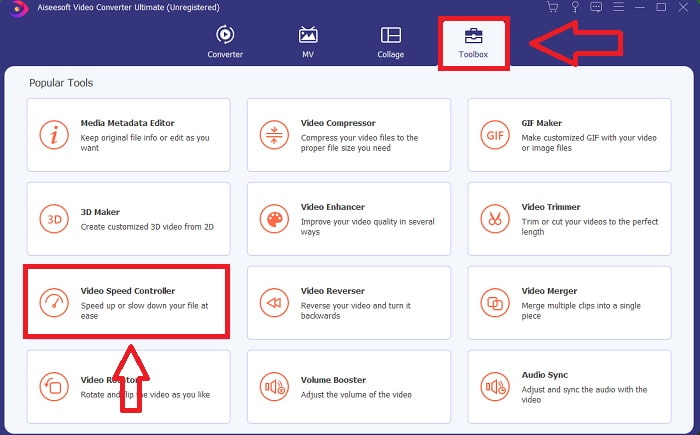
Pasul 2: Activează software‑ul făcând clic pe pictograma Toolbox din bara de meniu și selectând Video Speed Controller din listă.
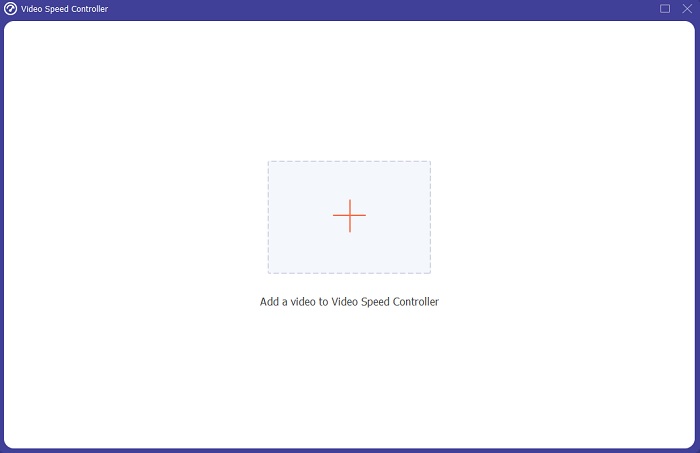
Pasul 3: Pentru a adăuga videoclipul în mișcare lentă, fă clic pe butonul + din bara de preferințe și apoi continuă să editezi videoclipul.
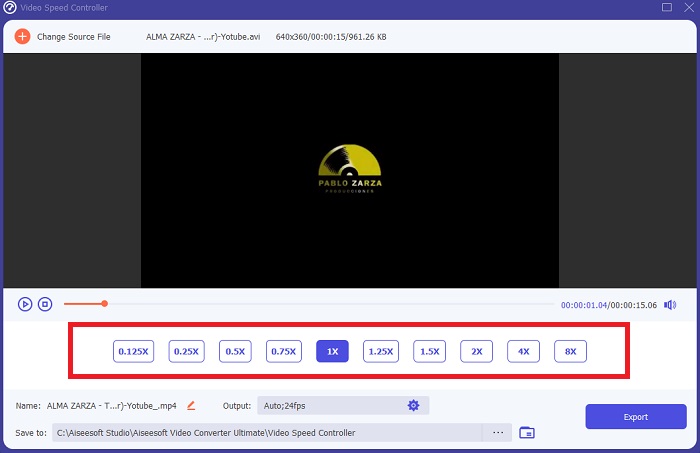
Pasul 4: Mărește sau micșorează viteza videoclipului pentru a ajusta viteza de redare.
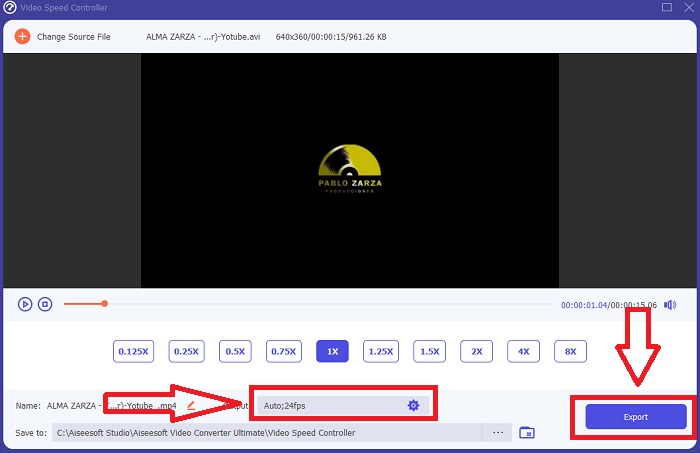
Pasul 5: Formatul de ieșire, rezoluția, calitatea și așa mai departe pot fi toate editate după ce viteza de redare a clipului video a fost ajustată. Când ești gata să îți salvezi munca, fă clic pe Export și alege o locație.
Partea 2. Cum să schimbați videoclipul cu mișcare lentă la viteza normală pe iPhone/iPad folosind fotografii
Videoclipurile în mișcare lentă sunt una dintre cele mai bune opțiuni pe care creatorii de conținut sau videografii le au în arsenalul lor pentru a adăuga un efect dramatic oricărui clip folosindu‑și doar telefonul mobil, cum ar fi iPhone‑ul. Deoarece iPhone‑ul este unul dintre telefoanele mobile cu o cameră foto de înaltă calitate, care poate filma la un număr mai mare de cadre pe secundă, poți obține un clip foarte plăcut de privit. Totuși, videoclipurile cu o viteză de redare redusă nu sunt întotdeauna cea mai bună abordare pentru fiecare videoclip pe care îl realizezi – există tipuri de conținut pentru care mișcarea lentă nu este suficientă sau este irelevantă. Prin urmare, schimbarea unui videoclip în mișcare lentă la viteză normală pe iPhone devine singura ta opțiune. Pentru a face acest lucru, urmează acești pași simpli:
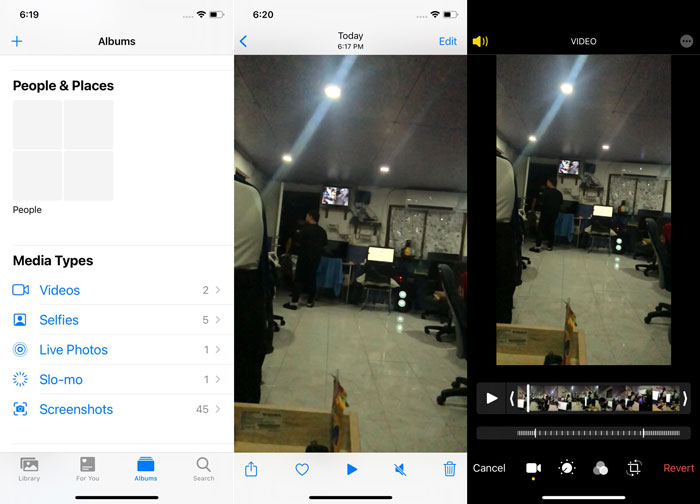
Pasul 1: Deschide aplicația Photos pe iPhone sau iPad și mergi la fila Albums. Derulează până la capăt și atinge Slo‑mo din secțiunea Media Types. Pentru a afișa un videoclip pe tot ecranul, atinge‑l.
Pasul 2: Selectează Edit în colțul din dreapta sus.
Pasul 3: Va apărea un mic cursor cu linii verticale albe. Efectul de mișcare lentă este reprezentat de liniile distanțate mai larg, în timp ce liniile apropiate reprezintă efectul de viteză normală. Ambele părți sunt separate de doi cursori. Trage un Slider de la un capăt al ecranului la celălalt. Toate liniile distanțate larg vor fi perfect aliniate. Acest lucru indică faptul că videoclipul va fi redat acum la viteză normală. Pentru a verifica dacă funcționează, apasă butonul triunghi de redare. Videoclipul care era în mișcare lentă este acum la viteză normală de redare. Totuși, poți anula această acțiune selectând Edit, Revert, Revert to Original. De asemenea, poți folosi cursoarele pentru a alege ce părți ale materialului să fie redate mai încet sau mai repede, după bunul tău plac.
Articole similare:
Cum să remediezi problema videoclipurilor care nu se redau pe iPhone
Cel mai bun player video pentru iPhone
Partea 3. Cum să schimbați videoclipul cu mișcare lentă la viteza normală pe Android utilizând Google Photos
Utilizatorii de Android pot ajusta gratuit viteza unui videoclip în mișcare lentă la normal, la fel ca și utilizatorii de iPhone. În acest caz, va trebui să folosești aplicația Google Photos preinstalată pe telefon, dar poți utiliza și o aplicație terță. De dragul accesibilității și al comodității, vom folosi Google Photos pentru a transforma un videoclip în mișcare lentă la viteză normală pe Android, iar iată cum:
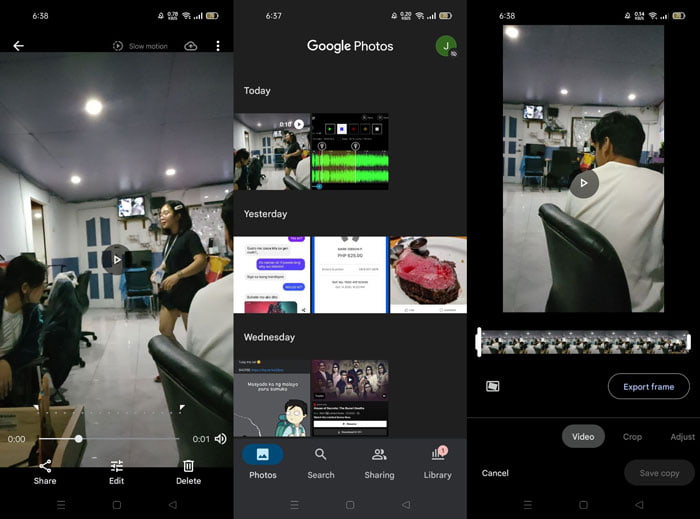
Pasul 1: Deschide aplicația Google Photos pe telefonul tău Android și fă clic pe videoclipul pe care vrei să îl accelerezi. Selectează Edit în partea de jos a ecranului și va apărea un control pentru viteza de redare.
Pasul 2: Trage Slider‑ul pentru a mări viteza de redare la 1,5x sau 2x, în funcție de viteza videoclipului în mișcare lentă.
Pasul 3: Fă clic pe butonul triunghi de redare pentru a verifica dacă videoclipul este acum la viteza dorită. După ce ești mulțumit, selectează Done pentru a‑l salva.
Partea 4. Întrebări frecvente despre schimbarea videoclipurilor cu mișcare lentă la viteză normală
Cum inversez un videoclip cu încetinitorul?
Pentru a vă răzgândi și a transforma din nou acest videoclip într-un clip lent, pur și simplu deschideți videoclipul și atingeți butonul Editați din partea de jos a ecranului. Apoi faceți clic pe Revenire și selectați Reveniți la original pentru a vă confirma decizia.
Puteți converti videoclipurile cu fps scăzut în mișcare lentă folosind aplicația Fotografii?
Aplicația Fotografii nu vă permite să convertiți videoclipuri iPhone normale înregistrate la 30fps sau 24fps în slo-mo. Cu toate acestea, puteți face acest lucru folosind aplicații terță parte, cum ar fi iMovie sau alte aplicații de editare Apple.
Este Google Foto cea mai bună aplicație pentru a converti videoclipuri cu încetinitorul la viteză normală?
După cum s-ar putea imagina, există câteva dezavantaje în utilizarea acestei aplicații gratuite. În primul rând, viteza de procesare video este relativ lentă, în special atunci când editați un videoclip lung. În plus, dacă împărțiți videoclipul înainte de a modifica viteza de redare, sunetul de fundal sau narațiunea vocală vor fi dezactivate. Indiferent, este o aplicație gratuită pentru Android. Puteți folosi în continuare aplicații terță parte, dar majoritatea celor convenabile de utilizat nu sunt gratuite.
Concluzie
Versatilitatea videoclipurilor poate satisface nevoi diferite, iar simpla schimbare a vitezei de redare poate acoperi genuri variate, fie ele de divertisment sau educative. Faptul că acest lucru se poate face ușor în zilele noastre, cu ajutorul aplicațiilor și programelor accesibile, ne stimulează creativitatea și ne oferă comoditate, în funcție de preferințe. Deși schimbarea unui videoclip în mișcare lentă la viteză normală online este, de asemenea, convenabilă, descărcarea unui software reduce problemele legate de conectivitate. Acest articol poate fi de mare ajutor pentru cei care nu sunt încă familiarizați cu aceste metode și oferă răspunsuri la întrebările lor.
-
 VR Video Player - Recenzie a celor mai bune 5 playere video VR în 2021
 Poate VLC să joace VR? Care este cel mai bun player video VR? Cum să redați videoclipuri în setul cu cască VR? La toate întrebările dvs. despre playerul video VR puteți primi răspuns aici.
-
 Cum să redați DVD pe Windows Media Player în 2021
 De ce DVD-ul meu nu se redă pe Windows Media Player? Cum se joacă DVD pe Windows 7 media player? Această postare împarte 3 moduri de a reda DVD-uri cu sau fără WMP.
-
 Deschideți fișierul MKV în Windows Media Player
 Puteți reda fișiere MKV pe Windows Media Player? Cum se convertește MKV în Windows Media Player? Găsiți aici 3 moduri de a deschide fișierul MKV în Windows Media Player.
