


 Video Converter Ultimate
 Screen Recorder
 Reparație video
Intensificați-vă experiența în abordarea problemelor precum Cum să încetiniți un videoclip
Ești un artist aspirant și vrei să urmărești un tutorial de design artistic ca să‑ți îmbunătățești abilitățile în arte. Totuși, majoritatea acestor tutoriale sunt accelerate pentru a acumula un anumit timp de redare și a putea fi încărcate cu un fișier de dimensiuni mici. Așa că te gândești la o soluție care să necesite reducerea vitezei videoclipului. Dar nu știi cum să încetinești un videoclip time‑lapse, așa cum sunt majoritatea tutorialelor de artă. Citește acest articol pentru a‑ți îmbogăți cunoștințele despre această problemă pe care o au mulți artiști la început de drum.

Partea 1. 3 pași simpli pentru a încetini un videoclip [desktop/laptop]
Există o mulțime de abordări oferite de web, fie editor online, fie offline. Unele dintre ele trebuie să fie descărcate, mai ales când utilizați un desktop sau un laptop pentru editare. Există o diferență semnificativă între utilizarea unui desktop în ceea ce privește detaliile de utilizare; de aceea, acest articol selectează cea mai bună modalitate de a încetini un videoclip offline sau online pe un desktop. Iată abordările cu pașii lor furnizați:
Abordare 1. Utilizați Video Converter Ultimate
Este posibil să descarci și să folosești numeroase convertoare chiar și atunci când nu ești conectat la internet. Pentru a încetini un videoclip, poți folosi Video Converter Ultimate, una dintre cele mai bune alternative. Este ușor de utilizat și îl poți descărca gratuit. Nu trebuie să‑ți faci griji că viteza internetului îți va afecta încetinirea unui videoclip online, deoarece acest software îți poate procesa videoclipul fără bătăi de cap. Datorită instrumentului său impresionant, Video Speed Controller, poți acum ajusta viteza de redare a videoclipurilor tale în mai puțin de un minut. Acum că ești curios cum are loc acest lucru, iată câțiva pași ghidați pe care să îi urmezi:
Pasul 1: Fă pur și simplu clic pe butonul Free Download pentru a descărca software‑ul pe desktopul computerului tău. Instalarea software‑ului și personalizarea setărilor de instalare se finalizează apoi în pașii următori.
Descărcare gratuită pentru Windows 7 sau o versiune ulterioară Descărcare securizată
Descărcare gratuită pentru MacOS 10.7 sau o versiune ulterioară Descărcare securizată
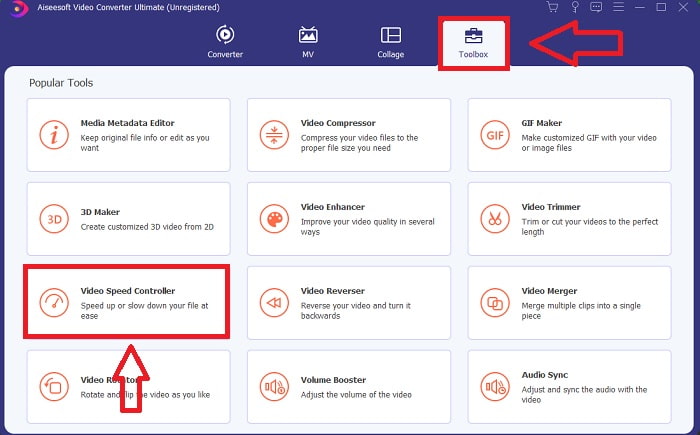
Pasul 2: Pentru a folosi Video Speed Controller, lansează imediat software‑ul după instalare și selectează acest instrument din meniul Toolbox.
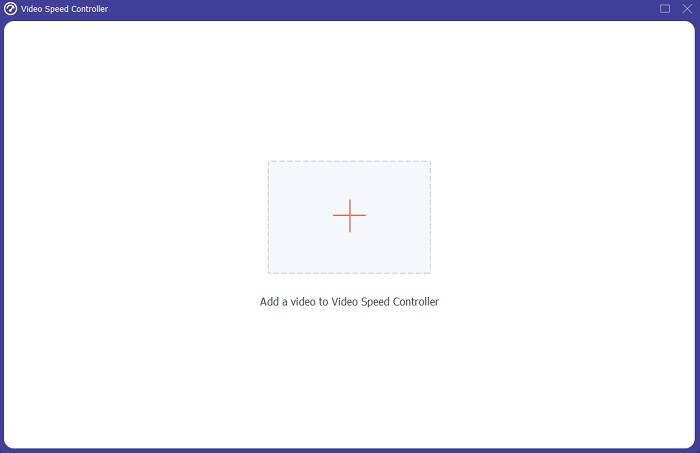
Pasul 3: Interfața Video Speed Controller va apărea după ce dai clic pe el. Pentru a încărca un fișier, apasă pictograma +.
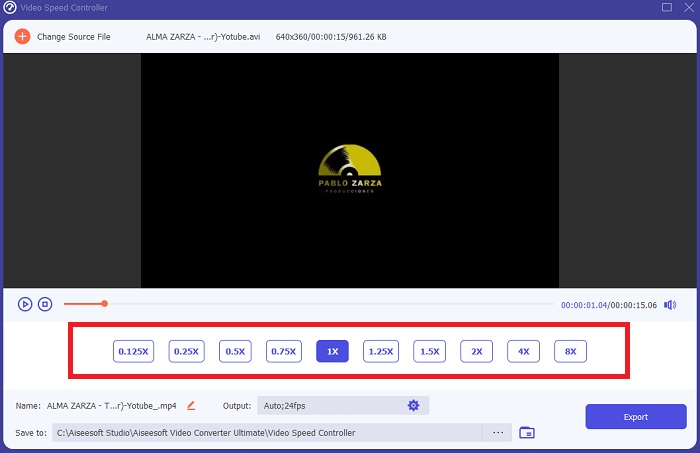
Pasul 4: Poți începe acum să încetinești videoclipul alegând valori mai mici decât viteza normală. Majoritatea numerelor vor apărea în partea stângă a vitezei reale a videoclipului tău.
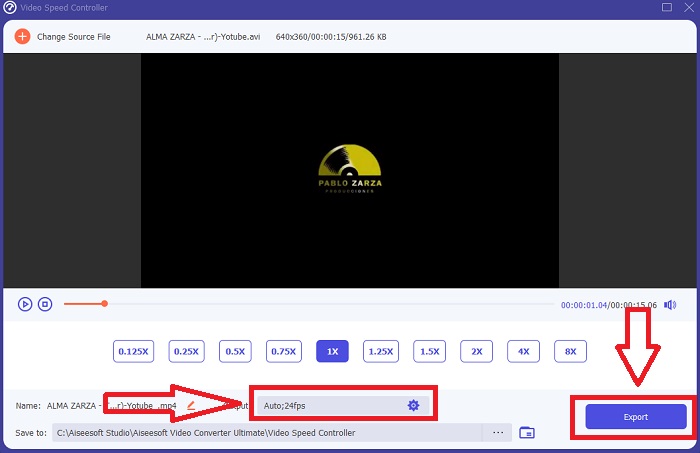
Pasul 5: După ce ai terminat de modificat viteza de redare a clipului video, poți selecta formatul de ieșire, rezoluția, calitatea și alți parametri pe care vrei să îi folosești. Când ai terminat, fă clic pe Export și alege unde vrei să fie salvat fișierul după ce totul este finalizat.
Abordarea 2. Utilizați VEED
VEED și instrumentul său web open-source se bazează pe creatorii de conținut din întreaga lume pentru a produce videoclipuri pentru rețelele sociale și alte utilizări. Este o aplicație web care necesită o conexiune solidă pentru a funcționa corect, dar puteți încărca direct și modifica viteza de redare în interfața sa de utilizator. În plus, are diverse caracteristici, dintre care una este scăderea vitezei de redare a videoclipului. Acum puteți încetini un videoclip fără a descărca nimic pe desktop. Aveți nevoie doar de un motor de căutare și de o conexiune puternică pentru a accesa acest instrument online. Are o interfață de utilizator simplă, ușor de utilizat, de care poate beneficia majoritatea utilizatorilor începători care trebuie să încetinească un videoclip fără a învăța pași complicați. Iată exemplele de proceduri de digerat pentru a realiza ajustările dorite la videoclip.
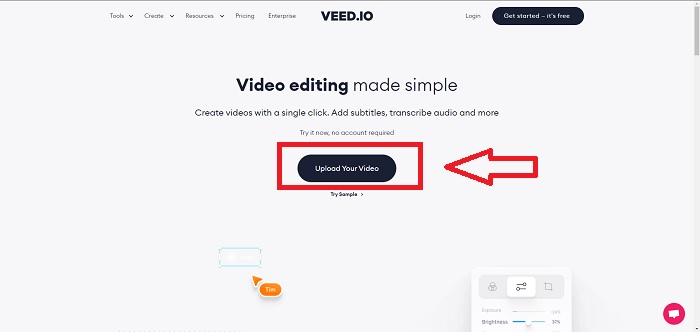
Pasul 1: Apasă butonul Upload Your Video pentru a trimite un fișier video de pe computer pe server.
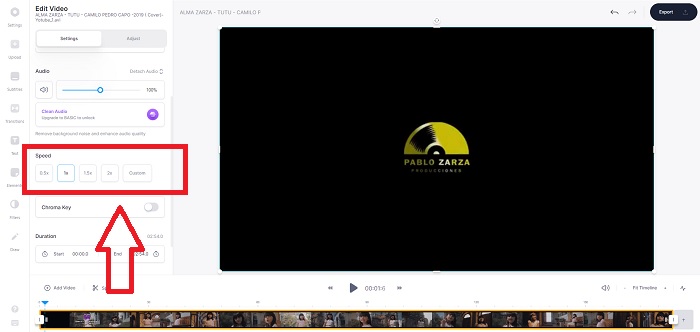
Pasul 2: Interfața de editare a instrumentului web poate fi accesată făcând clic pe Video Track în colțul din stânga sus. Selectează o viteză de redare mai mare căutând opțiunea Speed și făcând clic pe ea. Dacă viteza dorită nu este oferită ca opțiune, poți alege Custom pentru a înlocui setările implicite și a reda clipul video la o viteză personalizată.
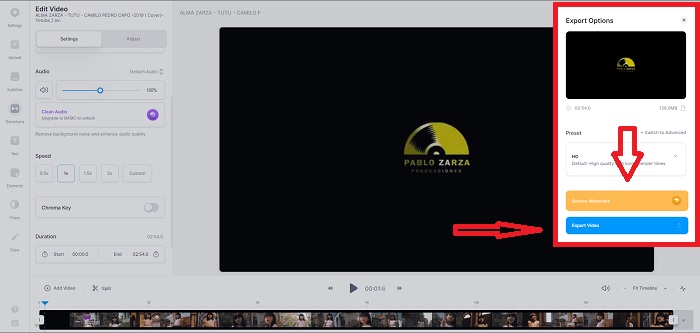
Pasul 3: După ce modifici viteza video dorită, mergi la fila de export făcând clic pe Export. Între timp, poți alege ce calitate preferi pentru videoclipul tău și poți elimina filigranul cumpărând versiunea premium a instrumentului online. Dacă totul este stabilit, transferă videoclipul convertit pe computer făcând clic pe Exporting Video.
Partea 2. 3 pași simpli pentru a încetini un videoclip [telefon mobil]
Te-ai săturat să te gândești la o soluție care să răspundă cum să încetinești un videoclip pe iPhone sau Android? Există multe aplicații și instrumente disponibile pe internet pentru a justifica că există un răspuns la problema dată. Dar iată cele mai bune și mai accesibile instrumente pe care le recomandăm să le folosiți dacă sunteți un editor de telefoane mobile și doriți să faceți o capodopera din dispozitivul mic pe care îl aveți.
Abordare 1. Utilizați iMovie
Acum poți controla viteza de redare sau poți încetini videoclipul pe iPhone și iPad cu această aplicație gratuită și utilă numită iMovie. Este una dintre aplicațiile de încredere disponibile pe dispozitivele cu sistem iOS, care îți poate edita videoclipul și, mai ales, îți poate edita viteza de redare a unui videoclip. Pentru a afla mai multe despre aplicația menționată, iată pașii pe care trebuie să îi urmezi pentru a rezolva problema de mai sus:
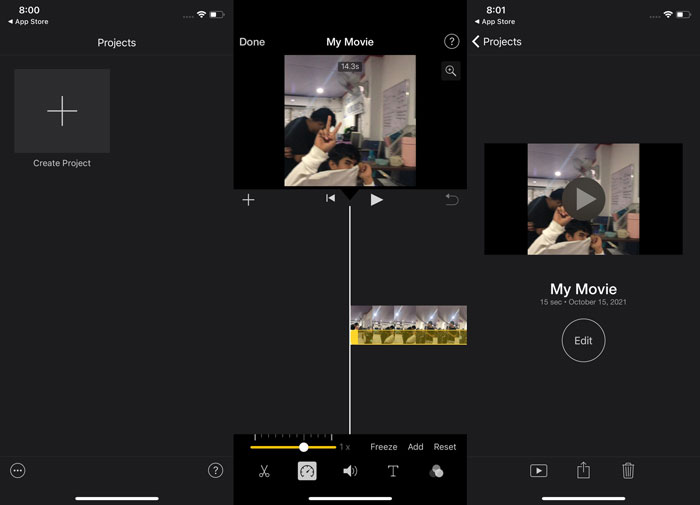
Pasul 1: Începe editarea filmului în iMovie pe iPhone sau iPad. Este posibil să ți se prezinte pe scurt interfața de utilizator înainte de a continua. Pe pagina Projects, apasă semnul plus pentru a adăuga un clip video nou, apoi selectează Movie din meniul New Projects.
Pasul 2: Alege un videoclip din galeria camerei foto înainte de a trece la secțiunea Create Movie. Instrumentul de viteză seamănă cu un vitezometru și poate fi găsit apăsând pe clipul video din cronologie și apoi așteptând să apară instrumentele de editare înainte de a le folosi. Derulează înapoi sau înainte filmarea glisând cursorul galben din partea de jos. În comparație cu viteza lor originală, lucrurile pot fi accelerate de până la două ori sau încetinite până la o optime din acea viteză.
Pasul 3: Apasă Done în colțul din stânga sus al telefonului când ai terminat procesul. Îți poți salva videoclipul finalizat selectându‑l din meniul Share și apoi alegând unde vrei să îl păstrezi.
Abordare 2. Utilizați VideoFX Music Video Maker
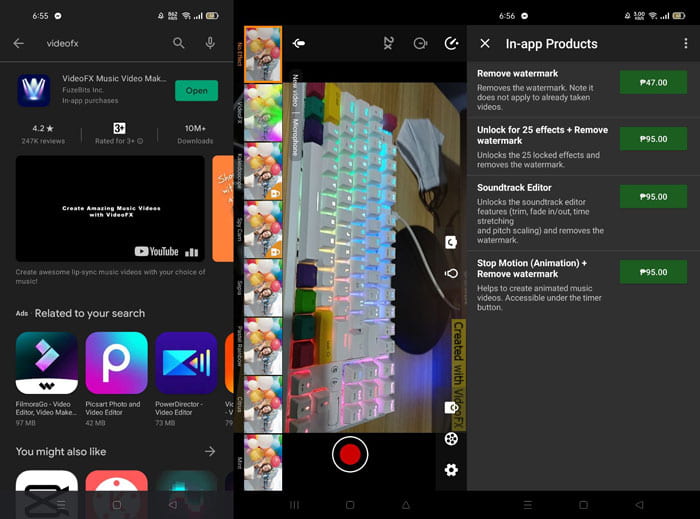
Creează‑ți videoclipurile muzicale în câteva secunde cu instrumentul VideoFX Music Video Maker. Tot ce trebuie să faci este să înregistrezi un videoclip folosind unul dintre numeroasele efecte disponibile, să alegi o melodie și să o salvezi în memoria internă a telefonului tău cu Android. Deoarece poți aplica filtre înainte de a înregistra videoclipul, aplicația este foarte ușor de folosit. În bine sau în rău, editarea în post‑producție nu este o opțiune; este posibilă doar înainte ca videoclipul să fie filmat. Înainte de a începe filmarea, alege o melodie care să se potrivească videoclipului tău. Poți accelera sau încetini muzica, dar modificările trebuie făcute înainte de înregistrarea videoclipului. Iată pașii de urmat:
Pasul 1: Descarcă și instalează VideoFX pe telefonul tău Android.
Pasul 2: Deoarece funcțiile acestei aplicații se aplică doar înainte de modificarea videoclipului, începe înregistrarea apăsând butonul Record.
Pasul 3: Apoi, apasă pe 2x pentru a ajusta viteza videoclipului pe care îl înregistrezi. Înainte de a debloca toate funcțiile aplicației, trebuie mai întâi să achiziționezi accesul complet.
Partea 3. Întrebări frecvente despre încetinirea unui videoclip
Cum să încetinești un videoclip pe iPhone?
Creatorii de conținut și videografii au la dispoziție o mulțime de instrumente, iar încetinirea (slow‑motion) este unul dintre cele mai bune. Un videoclip cu un număr mai mare de cadre pe secundă îți va oferi o experiență de vizionare mai plăcută. Chiar și așa, videoclipurile încetinite nu sunt întotdeauna cea mai bună abordare pentru fiecare video pe care îl faci. În unele cazuri, slow‑motion pur și simplu nu este potrivit sau este chiar inutil. Drept urmare, singura ta opțiune este să readuci videoclipul slow‑motion de pe iPhone la viteza normală.
Cum încetiniți un videoclip din galerie?
Telefoanele Android și iOS au pictograme de setări pe care trebuie să le atingeți pentru a activa modul lent sau încetinitorul înainte de a înregistra videoclipul. Ar trebui să înregistrați scenele cu încetinitorul în rafale de cinci până la zece secunde pentru a evita să aveți prea multe filmări.
Pierd calitatea dacă încetinesc un videoclip?
Nu, nu veți pierde calitatea unui videoclip, dar veți vedea rezoluția și rata de cadre a videoclipului dvs. scăzând pentru fiecare secundă pe care o reduceți la viteza medie. Când viteza de redare a videoclipului este crescută sau micșorată, doar cadrul va fi împărțit. Creșterea acestuia va avea efectul dorit. De cinci ori mai rapid, adică 60 de cadre pe 1/120 de secundă. Cu alte cuvinte, cu excepția cazului în care videoclipul are o rată de cadre scăzută, nu va avea niciun efect.
Concluzie
Prin urmare, prin acest articol afli totul despre diferitele metode pe care le are fiecare sistem de operare pentru a face față problemei tuturor aplicațiilor pentru încetinirea unui videoclip. Sunt oferiți, de asemenea, pași pentru unii utilizatori începători care nu au niciun fel de experiență în editarea videoclipurilor. Recomandând o aplicație care te ajută atât la viteza de redare a videoclipului, cât și la restul uneltelor de editare de care are nevoie un editor, descarcă software‑ul Video Converter Ultimate pentru a experimenta la maximum ce înseamnă să fii un editor profesionist.
-
 Top 4 cei mai buni jucători VOB pentru telefoane mobile Android pentru utilizări diferite
 Când descărcați videoclipuri VOB și doriți să le vizionați pe Android, îl puteți alege pe cel mai potrivit dintre următorii 4 jucători VOB din acest articol.
-
 Top 5 cele mai bune alternative pentru Windows Media Player pentru telefoane mobile Android
 Deoarece nu puteți descărca Windows Media Player pentru Android, ar trebui să citiți acest articol și să aflați despre cele mai bune 5 alternative la Windows Media Player.
-
 Topul celor mai bune 5 playere video pentru iPhone pe care nu ar trebui să le ratezi în 2021
 Pentru a reda videoclipuri în toate formatele și pentru a avea o experiență de vizionare mai bună pe iPhone, ar trebui să citiți acest articol și să aflați cele mai bune 5 playere video pentru iPhone 12/11 / X / 8/7/6.
