


 Video Converter Ultimate
 Screen Recorder
 Reparație video
 Descărcare sigură
Cum să vă convertiți fișierele video FLV în format 3GP gratuit
Acest articol îți va arăta cele mai bune metode de a converti FLV în 3GP. Conform studiilor, pe piață există o mulțime de formate de fișiere video. Dezvoltatorii le-au lansat în scopuri diferite. FLV, de exemplu, prescurtare de la Flash Video, este folosit pentru a stoca conținut vizual care este redat în Adobe Flash Player prin internet.
3GP, pe de altă parte, este formatul multimedia creat de Third Generation Partnership Project pentru a economisi lățimea de bandă și utilizarea datelor pe dispozitivele mobile. Cu alte cuvinte, ar fi bine să convertiți FLV în 3GP și să vizionați videoclipuri de pe telefon.

Partea 1: Cel mai bun mod de a converti FLV în 3GP pe desktop
FVC Free FLV Converter este un convertor video puternic. După cum indică și numele, îți permite să convertești FLV în 3GP fără să plătești niciun ban. În plus, îți oferă o mulțime de funcții utile, precum editare video și audio. Mai important, interfața prietenoasă îți permite să găsești rapid ceea ce ai nevoie.
Caracteristici cheie ale celui mai bun convertor FLV gratuit
- 1. Convertiți videoclipurile FLV în orice format multimedia, cum ar fi 3GP.
- 2. Batch gestionează mai multe fișiere video în același timp.
- 3. Transcodificare fișiere FLV pentru redare pe dispozitive mobile.
Descărcare gratuităPentru Windows 7 sau versiuni ulterioareDescărcare sigură
Descărcare gratuităPentru MacOS 10.7 sau versiuni ulterioareDescărcare sigură
Cum se convertește FLV în 3GP gratuit
Pornește cel mai bun convertor FLV gratuit după ce îl instalezi pe calculatorul tău. Este compatibil cu Windows 10/8/7 și Mac OS X. Fă clic pe butonul Add File(s) pentru a deschide fereastra de selectare a fișierelor. Selectează fișierele FLV pe care vrei să le convertești și apasă Open. Apoi videoclipurile vor apărea în zona bibliotecii.

Pasul 2: Setează formatul de ieșire
Fă clic și extinde meniul derulant Profile format din partea de jos și ți se va afișa caseta de profil. Introdu 3GP în căsuța Search Profile și apasă tasta Enter de pe tastatură. Apoi selectează formatul de ieșire. Dacă vrei să redai videoclipurile pe dispozitivul tău mobil, selectează producătorul și alege direct modelul potrivit.

Pasul 3: Convertește FLV în 3GP
Stabilește un director specific pentru a salva fișierele rezultate apăsând butonul Open Folder din partea de jos. La final, dă clic pe butonul Convert pentru a începe conversia din FLV în 3GP. După câteva minute, vei găsi fișierele 3GP pe hard disk.

Partea 2: Cum să convertiți FLV în 3GP online
Aplicațiile web de conversie video sunt o altă modalitate populară de a converti FLV în 3GP gratuit. Totuși, majoritatea au diverse dezavantaje, precum limită de dimensiune a fișierului, filigran, probleme de securitate și altele. Din fericire, FVC Free Online Video Converter te poate ajuta să rezolvi aceste probleme. Este gratuit și nu are niciun fel de restricții. Calitatea fișierelor de ieșire este excelentă.
Pasul 1: Accesează https://www.free-videoconverter.net/free-online-video-converter/ într-un browser web și fă clic pe butonul Add Files to Convert pentru a descărca lansatorul. Nu va ocupa spațiu local semnificativ pe computerul tău.
Descărcați versiunea pentru desktop pentru a converti fișiere în lot.
Pasul 2: Fă clic pe meniul Add File și încarcă fișierele FLV pe care vrei să le convertești. Aplicația web îți permite să convertești în lot mai multe videoclipuri deodată.
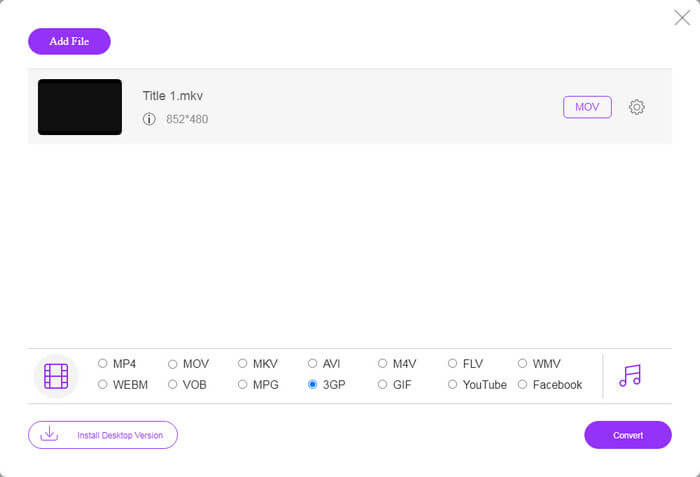
Pasul 3: Mergi în partea de jos și selectează 3GP în secțiunea de profil. Fă clic pe butonul Convert pentru a începe conversia FLV în 3GP online. Dacă ai o conexiune rapidă la internet, procesul se va termina în câteva secunde. Apoi descarcă fișierele 3GP pe hard disk.
Nu ratați:
Partea 3: Cum se convertește FLV în 3GP cu VLC
Uneori, freeware-ul este la fel de puternic ca software-ul profesional. VLC, de exemplu, este un popular player media open-source. Este capabil să convertească FLV în 3GP pe Windows, Mac și Linux gratuit. Desigur, cheltuiala este evidentă, cum ar fi greu de utilizat. Prin urmare, împărtășim pașii de mai jos:
Pasul 1: Rulează convertorul gratuit FLV în 3GP pe computerul tău. Mai întâi trebuie să îl instalezi. Site-ul oficial oferă un program de instalare sigur.
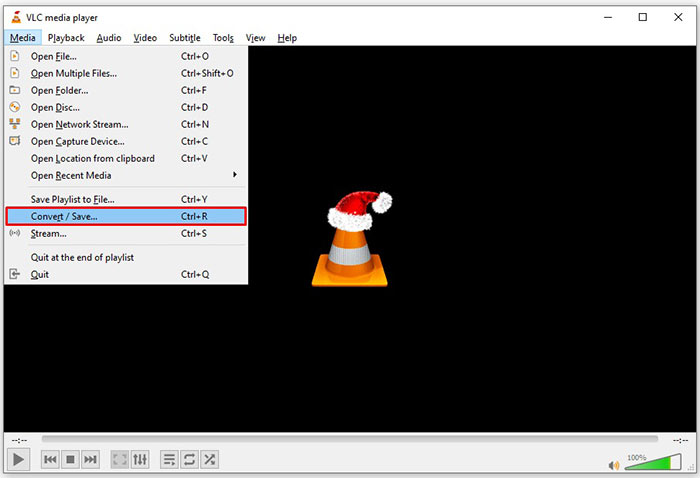
Pasul 2: Mergi la meniul Media din bara superioară și alege Convert/Save. Apoi va apărea fereastra de deschidere media.
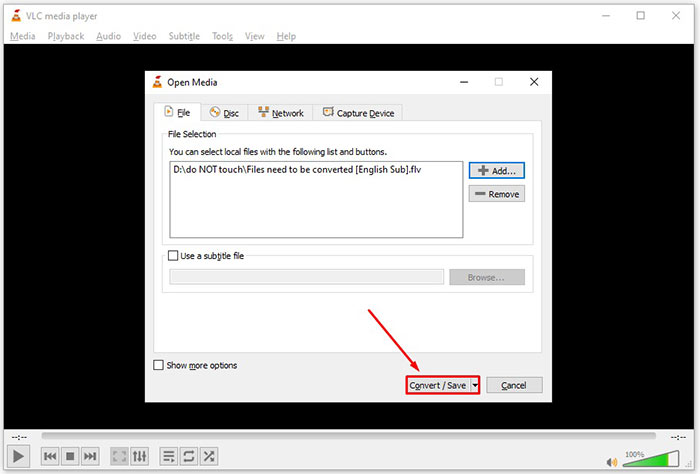
Pasul 3: Fă clic pe butonul Add, găsește fișierul FLV pe care trebuie să îl convertești și selectează-l, apoi apasă Open. Apasă butonul Convert/Save pentru a trece la următoarea fereastră.
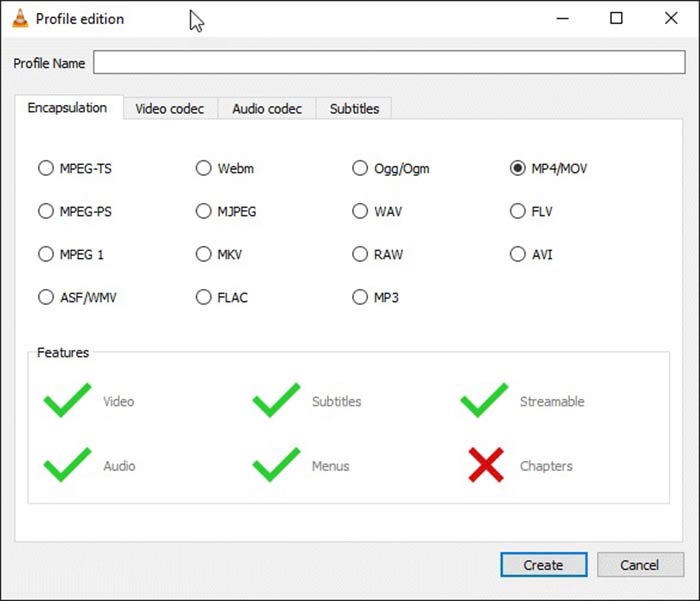
Pasul 4: Deschide lista derulantă de lângă Profile și alege 3GP sau un format video înrudit. Dacă vrei să schimbi codecul video sau alți parametri, fă clic pe butonul Profile Edit de lângă lista derulantă și adaugă 3GP.
Pasul 5: Apasă pe butonul Browse și alege un folder anume în care să salvezi fișierul 3GP rezultat în secțiunea Destination.
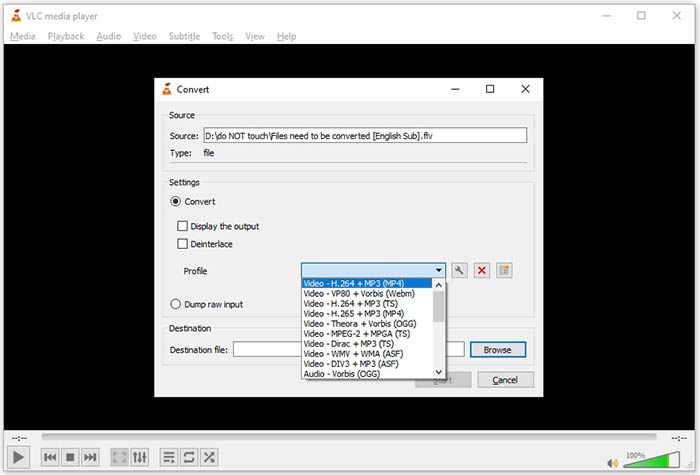
Pasul 6: De îndată ce dai clic pe butonul Start, VLC va începe conversia FLV în 3GP.
Este nevoie de un moment pentru a finaliza conversia, deoarece VLC face treaba înregistrând videoclipul original. Înseamnă că procesul petrece atâta timp cât durata videoclipului dvs. FLV.
FLV vs. 3GP
Adobe Flash Player a folosit FLV pentru a furniza conținut video, cum ar fi filme și emisiuni TV. În prezent, Adobe nu mai dezvoltă playerul și recomandă utilizatorilor să-l dezinstaleze din motive de securitate. Cu toate acestea, puteți utiliza în continuare formatul FLV pe multe programe non-Adobe/Macromedia.
Proiectul de parteneriat a 3-a generație (3GPP) a produs formatul 3GP/3GPP ca format de container multimedia. De fapt, se bazează pe formatul de fișier media ISO. Îl folosim adesea pentru a salva fluxurile video/audio care sunt transmise între telefoanele mobile 3G și online.
Partea 4: Întrebări frecvente despre conversia FLV în 3GP
Conversia FLV în 3GP va afecta calitatea videoclipului?
În general, conversia video va pierde calitate. Cu toate acestea, un program puternic de conversie video este capabil să remedieze această problemă și să optimizeze calitatea video utilizând tehnologie avansată.
Cât durează conversia unui videoclip FLV?
Este determinat de mai mulți factori, cum ar fi lungimea videoclipului, software-ul de conversie video pe care îl utilizați, performanța hardware și multe altele. Dacă utilizați un convertor video web, conexiunea dvs. la internet este un element esențial.
De ce FLV nu se joacă pe iPhone-ul meu?
iPhone acceptă MOV, o parte a MP4, ASF și AVI. Prin urmare, nu puteți deschide direct FLV pe iPhone. Cu toate acestea, există modalități de a viziona FLV pe dispozitive mobile. Dacă fișierul dvs. FLV este găzduit de servicii de internet, cum ar fi Google Drive, playerul media încorporat este disponibil. În plus, puteți utiliza un alt player media, cum ar fi VLC.
Concluzie
Acest ghid v-a spus trei moduri gratuite de a converti fișiere video FLV în format 3GP pe computer sau online. Dacă vă pregătiți să vizionați videoclipuri FLV pe dispozitive mobile, ar fi bine să le convertiți în 3GP sau alte formate video compatibile cu dispozitivele mobile cu FVC Free FLV Converter. Nu numai că este ușor de utilizat, dar și vă poate proteja calitatea video. Mai multe întrebări? Vă rugăm să lăsați un mesaj mai jos.
-
 Cum să vă convertiți fișierele video FLV în MP4 fără a plăti un ban
 Acest ghid împărtășește patru metode gratuite pentru a vă converti fișierele video FLV în format MP4 pe Windows 10/8/7 / XP și Mac OS X, astfel încât să vă puteți bucura de videoclipurile de pe orice dispozitiv.
-
 Cum să vă convertiți videoclipurile FLV în fișiere audio MP3 pe desktop și online
 Cum se convertește un FLV într-un fișier MP3? Tot ce trebuie să faceți este să citiți cu atenție acest articol, să găsiți metoda preferată și să urmați ghidul nostru pas cu pas pentru a obține ceea ce doriți.
-
 Top 3 moduri de a converti FLV în MOV
 Cum se convertesc FLV în MOV? Cum convertesc FLV în MOV pe Mac? Există vreo modalitate gratuită de a converti FLV în MOV online? Această postare prezintă 3 convertoare FLV în MOV pentru a schimba fișierele FLV în MOV.

