


 Video Converter Ultimate
 Screen Recorder
 Reparație video
 Descărcare sigură
Cum să vă convertiți fișierele video FLV în format AVI pe PC / Mac
Acest ghid se concentrează pe modul în care poți converti FLV în AVI cu ajutorul programelor pentru desktop și al aplicațiilor online. Există multe motive pentru care ai nevoie să îți convertești videoclipurile FLV. FLV a fost dezvoltat pentru distribuirea conținutului video online, dar nu pentru redare pe dispozitive digitale. Când vrei să vizionezi FLV pe computer, trebuie să îl transformi într-un alt format video. În plus, este o idee bună să îți editezi fișierele video prin convertirea FLV într-un format video necomprimat.

Partea 1: Top 2 moduri gratuite de a converti FLV în AVI
Metoda 1: Convertiți FLV în AVI cu convertorul FLV gratuit
Când convertești FLV în AVI, s-ar putea să fii îngrijorat de mai mulți factori, precum calitatea la ieșire, ușurința în utilizare și altele. FVC Free FLV Converter este cea mai bună alegere. Deși este gratuit, vei obține o mulțime de funcții la nivel profesionist, fără a avea nevoie de cunoștințe tehnice avansate. În plus, oferă o serie de instrumente bonus, cum ar fi editarea video.
Principalele caracteristici ale celui mai bun convertor FLV
- 1. Convertiți cu ușurință videoclipurile FLV în alte formate multimedia.
- 2. Suportă aproape toate formatele video, cum ar fi AVI, MP4, MKV etc.
- 3. Procesați în lot sute de fișiere FLV pe conversie.
Descărcare gratuităPentru Windows 7 sau versiuni ulterioareDescărcare sigură
Descărcare gratuităPentru MacOS 10.7 sau versiuni ulterioareDescărcare sigură
Cum se convertește FLV în AVI pe desktop gratuit
Pasul 1: Adaugă fișiere FLV
După ce instalezi cel mai bun convertor FLV gratuit pe computer, pornește-l. Este compatibil atât cu PC, cât și cu Mac. Dă clic pe meniul Add File(s) din colțul stânga sus pentru a deschide fereastra de selectare a fișierelor. Apoi caută și selectează videoclipurile FLV de pe computer și apasă butonul Open pentru a le adăuga.

Pasul 2: Editează videoclipul și setează formatul
Dacă vrei să modifici fișierele video, selectează fișierul FLV și dă clic pe meniul Edit. Vei fi dus în fereastra editorului video. Urmează instrucțiunile de pe ecran pentru a-l edita, apoi revino la interfața principală.
Faceți clic pe meniul derulant Format ieșire din partea de jos a interfeței principale pentru a deschide dialogul de profil. Apoi căutați AVI și selectați-l în fila Video general.

Pasul 3: Convertește FLV în AVI
Apasă pe pictograma cu trei puncte de lângă câmpul Output folder și alege un dosar specific în care să salvezi fișierele AVI. În final, dă clic pe butonul Convert pentru a începe imediat convertirea FLV în AVI.

Metoda 2: Cum se convertește FLV în AVI cu VLC
VLC este mult mai mult decât un simplu player media. Puteți găsi o mulțime de caracteristici utile, inclusiv conversia video. Ca proiect open-source, VLC vă permite să convertiți FLV în AVI gratuit. Mai mult, VLC este capabil să repare videoclipuri AVI corupte.
Pasul 1: Deschide convertorul FLV gratuit. Dacă nu ai VLC, descarcă-l gratuit de pe site-ul oficial.
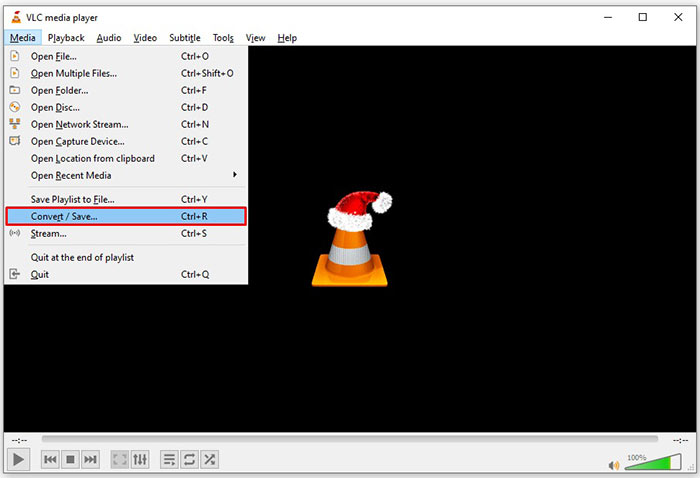
Pasul 2: Accesează meniul Media din bara de sus și alege Convert/Save. Pe Mac, alege Convert/Stream din meniul File.
Pasul 3: Dă clic pe butonul Add în fereastra de deschidere media și adaugă fișierul FLV pe care vrei să îl convertești.
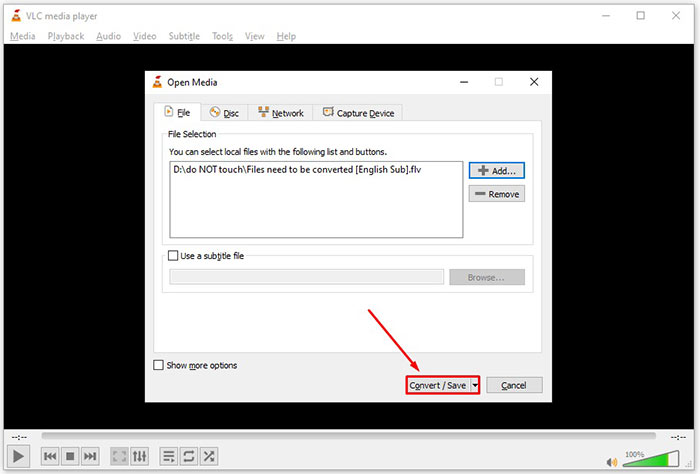
Pasul 4: Apoi apasă butonul Convert/Save pentru a trece la următoarea fereastră.
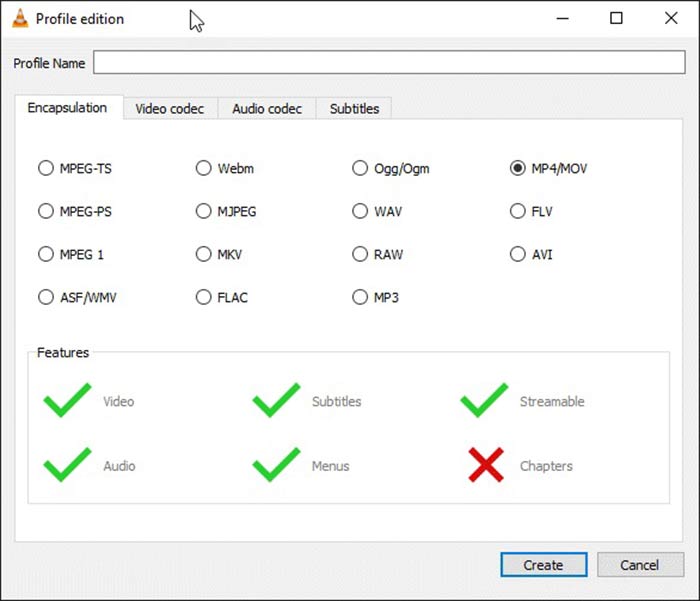
Pasul 5: Deschide lista derulantă Profile și selectează AVI. Dacă nu îl găsești, fă clic pe al treilea buton de lângă Profile. Se va deschide fereastra Profile edition. Selectează AVI și introdu un Profile Name. Apasă Create pentru a confirma. Apoi selectează noul profil din Profile.
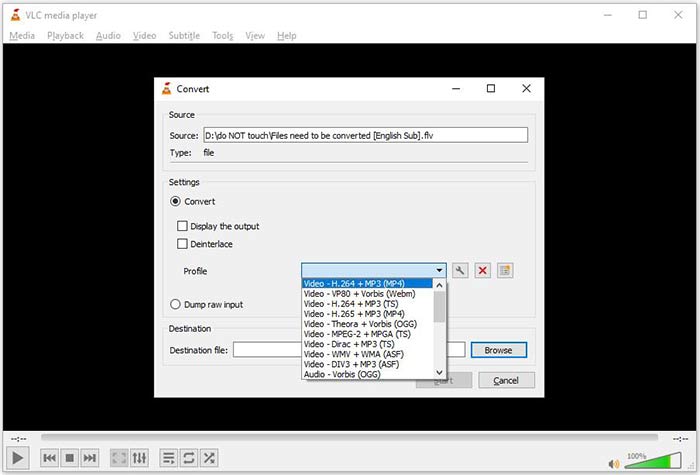
Pasul 6: Setează dosarul de ieșire apăsând butonul Browse. Dă clic pe butonul Start, iar VLC va converti fișierul FLV în AVI.
Nu rata:
- • Top 3 moduri de a converti FLV în MOV
- • Cum să vă convertiți videoclipurile FLV în fișiere audio MP3 pe desktop și online
Partea 2: Cum să convertiți FLV în AVI online
Uneori, ai nevoie să convertești FLV în AVI online doar ocazional. În plus, unii oameni nu doresc să instaleze software. FVC Free Online Video Converter îți poate satisface nevoia. Funcționează online, dar este suficient pentru a converti câteva fișiere FLV în AVI. Spre deosebire de alte aplicații web, nu are limită de dimensiune a fișierului, filigran și altele.
Pasul 1: Vizitează https://www.free-videoconverter.net/free-online-video-converter/ într-un browser când ai nevoie să convertești videoclipuri. Dă clic pe butonul Add Files to Convert și descarcă lansatorul.
Descărcați versiunea pentru desktop pentru a converti fișiere în lot.
Pasul 2: După descărcare, lansatorul va apărea automat. Dă clic pe butonul Add File din partea stângă sus și încarcă fișierele FLV pe care vrei să le convertești. Apoi alege AVI în partea de jos.
Pentru a schimba rezoluția, rata de cadre și alți parametri, apasă pe pictograma Gear pentru a deschide fereastra de profil.
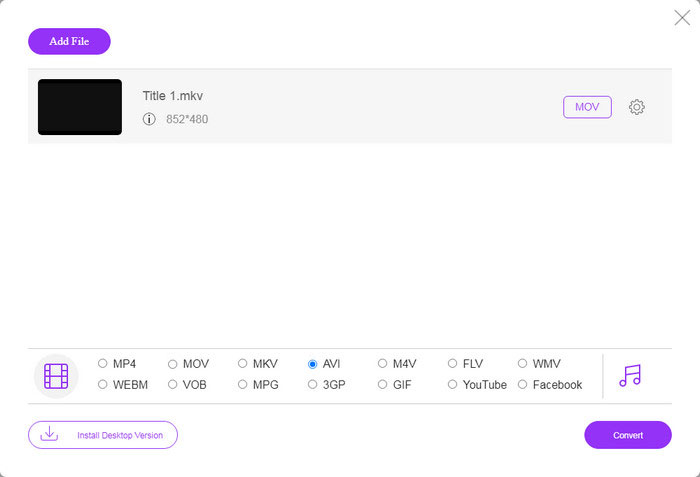
Pasul 3: După ce dai clic pe butonul Convert, aplicația web va funcționa așa cum dorești. La solicitare, descarcă fișierele video AVI pe hard disk.
Comparativ cu alte convertoare video web, Free Online Video Converter funcționează rapid, dar aveți nevoie și de o conexiune bună la internet.
FLV vs. AVI
Adobe Flash Player a folosit FLV pentru a furniza conținut video, cum ar fi filme și emisiuni TV. În prezent, Adobe nu mai dezvoltă playerul și recomandă utilizatorilor să-l dezinstaleze din motive de securitate. Cu toate acestea, puteți utiliza în continuare formatul FLV pe multe programe non-Adobe/Macromedia.
Bazat pe formatul RIFF (Resource Interchange File Format), formatul AVI a fost introdus de Microsoft în 1992. Poate salva video/audio de înaltă calitate, deoarece utilizează mai puțină compresie. Dar asta provoacă și dimensiunea mare a fișierului AVI, care poate fi o problemă atunci când spațiul este limitat.
Partea 3: Întrebări frecvente despre FLV la AVI
Cât timp ar trebui să aștept pentru a converti FLV în AVI?
Depinde de situația ta. În general vorbind, este foarte rapid să convertiți videoclipuri pe desktop. Pentru instrumentele online, conexiunea dvs. la internet va determina eficiența.
Este sigur să convertiți FLV în AVI online?
Majoritatea aplicațiilor de conversie FLV online promit să vă șteargă videoclipurile după conversie. Cu toate acestea, nu trebuie să încărcați videoclipuri private online decât dacă sunteți sigur că aplicația web este 100% sigură de utilizat.
Este AVI mai bun decât FLV?
FLV este un format video cu pierderi, în timp ce AVI este un format video necomprimat. Înseamnă că fișierul FLV este mai mic decât AVI în aceeași stare. Cu toate acestea, AVI oferă o calitate video mai bună. FLV este folosit pentru a partaja videoclipuri online, în timp ce AVI este o alegere bună pentru a edita videoclipuri.
Concluzie
Acest ghid a împărtășit trei moduri de a converti fișierele video FLV în format AVI cu software-ul desktop și aplicația web. VLC este atât un player media gratuit, cât și un convertor video, deși este dificil de utilizat. Mai mult, puteți face treaba online fără a instala niciun software. Cu toate acestea, vă sugerăm să încercați FVC Free FLV Converter, deoarece calitatea ieșirii este uimitoare. În plus, este destul de ușor de utilizat și de navigat. Dacă aveți alte întrebări legate de conversia FLV în AVI, vă rugăm să lăsați un mesaj sub această postare.
-
 3 moduri gratuite de a converti FLV în WAV
 Cum convertesc un fișier FLV? VLC poate converti FLV în WAV? Această postare spune 3 moduri gratuite de a converti FLV în WAV fără pierderi de calitate.
-
 3 moduri gratuite de a converti FLV în MPG
 Cum se convertește FLV în MPEG? Pot converti FLV în MPG gratuit? Această postare împarte 3 convertoare video gratuite pentru a vă ajuta să convertiți FLV în MPG fără pierderi de calitate.
-
 3 moduri gratuite de a converti FLV pentru a juca pe Xbox
 Nu puteți reda fișiere FLV pe Xbox One sau Xbox 360? Aveți nevoie să convertiți FLV în format acceptat Xbox, cum ar fi MP4, AVI, MOV sau WMV? Această postare listează 3 convertoare FLV către Xbox gratuite pentru a putea juca FLV pe Xbox.

