


 Video Converter Ultimate
 Screen Recorder
 Reparație video
Ghid detaliat despre cum să convertiți GIF animat în FLV cu pași
Adăugarea de GIF-uri în mesajele tale pentru a transmite clar un mesaj a devenit la modă în zilele noastre. Pentru moment, ele sunt folosite ca tactici de marketing datorită modului în care ajung la public. Cu toate acestea, unele platforme nu acceptă postarea de GIF-uri pe site-urile lor. Această problemă este enervantă, dar este floare la ureche să convertești un GIF într-un format video precum FLV și să îl distribui. Nu ai idee cum să convertești GIF-uri animate în FLV pe PC, Mac, online, pe Android sau pe iOS? Hai să parcurgem împreună instrumentele pe care le poți folosi și care te vor ajuta.

Partea 1. Cum să convertiți GIF animat în FLV cu FVC Video Converter Ultimate
Nu poți distribui GIF-uri pentru că nu sunt acceptate? Atunci încearcă să schimbi GIF-ul animat în FLV cu FVC Video Converter Ultimate. Acest instrument acceptă conversia GIF-urilor și a altor fișiere în peste 200 de formate disponibile, cu rezoluții diferite. De asemenea, dispune de accelerare hardware și conversie rapidă, astfel încât să nu pierzi mult timp cu transformarea fișierului. Mai mult, acest instrument „ultimate” este disponibil pe toate sistemele de operare, fie Windows, fie Mac. Fără îndoială, este cea mai bună alegere în domeniul conversiei fișierelor media. Așadar, să păstrăm ritmul și să învățăm cum să îți transformi GIF-ul și să îl poți distribui ulterior.
Pasul 1. Apasă pe butonul de descărcare și instalează apoi instrumentul; după instalare, dă click pe Start Now pentru a trece la pasul următor.
Descărcare gratuită pentru Windows 7 sau o versiune ulterioară Descărcare securizată
Descărcare gratuită pentru MacOS 10.7 sau o versiune ulterioară Descărcare securizată
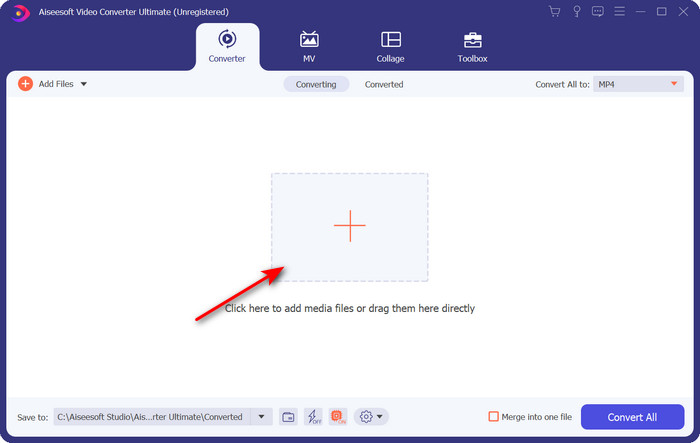
Pasul 2. Apoi dă click pe Add Files sau pe butonul + pentru a încărca fișierul GIF în software și apasă pe Open.
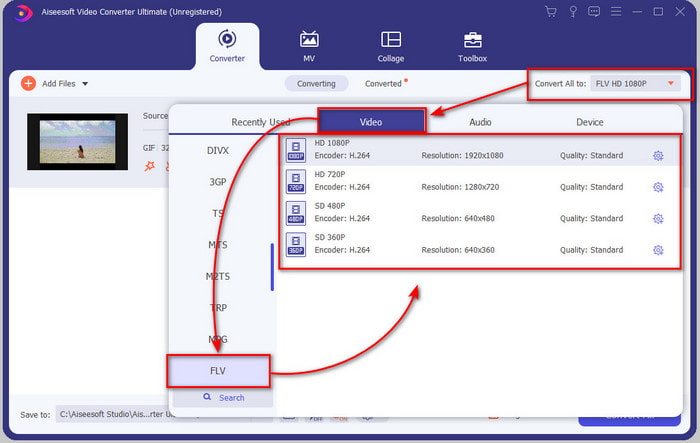
Pasul 3. În partea stângă a interfeței convertorului, dă click pe Convert All to și apoi selectează FLV ca format final de ieșire.
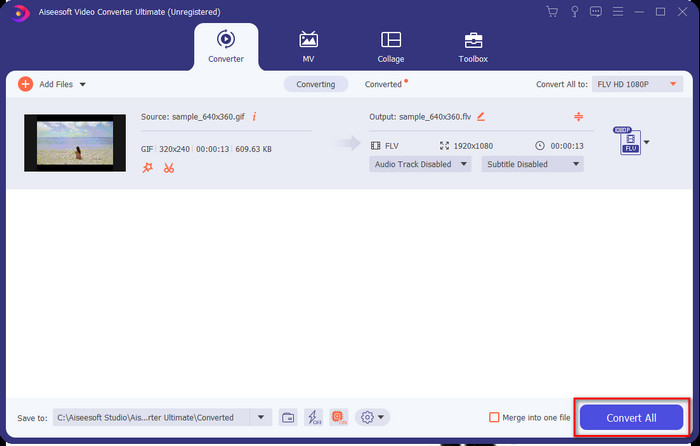
Pasul 4. Dacă ești gata să convertești GIF în FLV, atunci apasă pe Convert All.
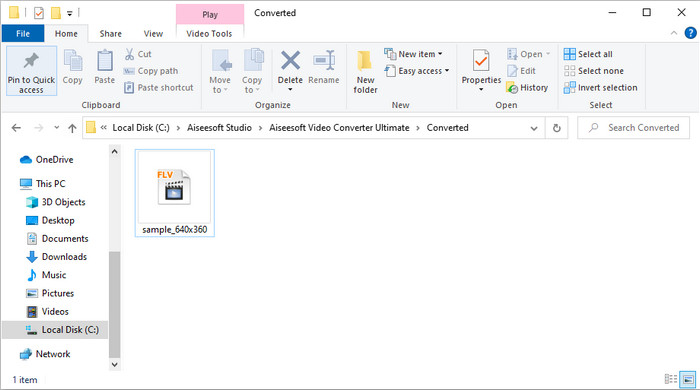
Pasul 5. Un director va apărea pe ecran cu fișierul convertit, iar acum este gata de trimis tuturor.
Partea 2. Conversia GIF în FLV Online
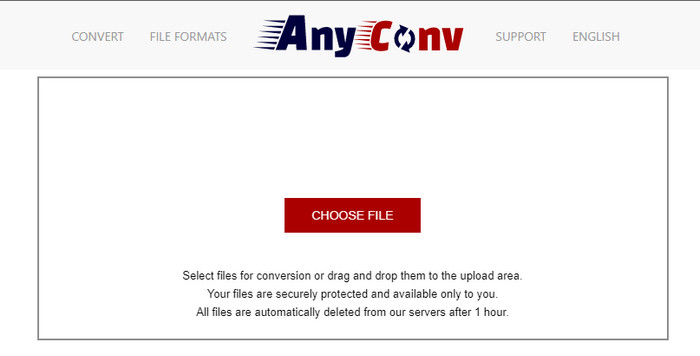
Poți folosi AnyConv pentru a converti GIF în FLV online, gratuit; de asemenea, acesta acceptă o gamă largă de formate de fișiere pentru imagini, cărți electronice, documente și altele. În plus, poți folosi acest convertor oricând și oriunde ai conexiune la internet. Totuși, nu poți face conversii în lot aici pentru a economisi timp, ci trebuie să convertești fișierele individual. De asemenea, nu poți încărca fișiere media mai mari de 50 MB, deoarece nu sunt acceptate. Dacă vrei să afli cum să folosești acest instrument web, urmează procedura.
Pasul 1. Găsește instrumentul web în browser, accesându-l.
Pasul 2. Apasă pe Choose File pentru a încărca GIF-ul, apoi schimbă formatul în FLV. După ce ai terminat, dă click pe Convert pentru a începe procesul de conversie.
Pasul 3. Apasă pe Download .FLV pentru a-l salva pe unitatea ta de stocare.
Partea 3. Convertiți GIF în FLV pe iPhone
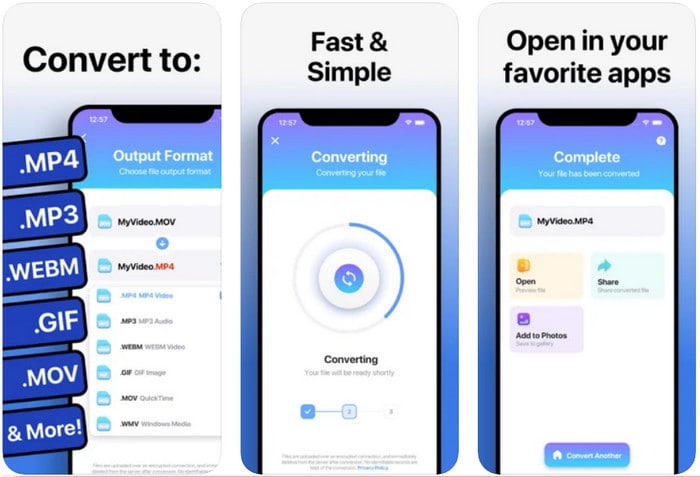
The Video Converter este convertorul de top pe care îl poți descărca pe dispozitivul tău iOS pentru a transforma GIF în FLV. Acest convertor pentru iOS are un rating de 4,2 de la toți utilizatorii, deoarece funcționează excelent. Totuși, unii utilizatori regretă că au cumpărat abonamentul pe viață oferit de acest instrument, pentru că au întâmpinat numeroase blocări și erori după achiziție. Dar dacă vrei să-l încerci, poți folosi versiunea gratuită descărcând-o și urmând pașii de mai jos.
Pasul 1. După descărcarea aplicației, deschide-o, apasă pe Photos și localizează GIF-ul.
Pasul 2. Meniul derulant va apărea automat, apoi caută formatul FLV și apasă pe el.
Pasul 3. Apasă pe Convert Files pentru a începe conversia.
Partea 4. Convertiți GIF în FLV pe Android
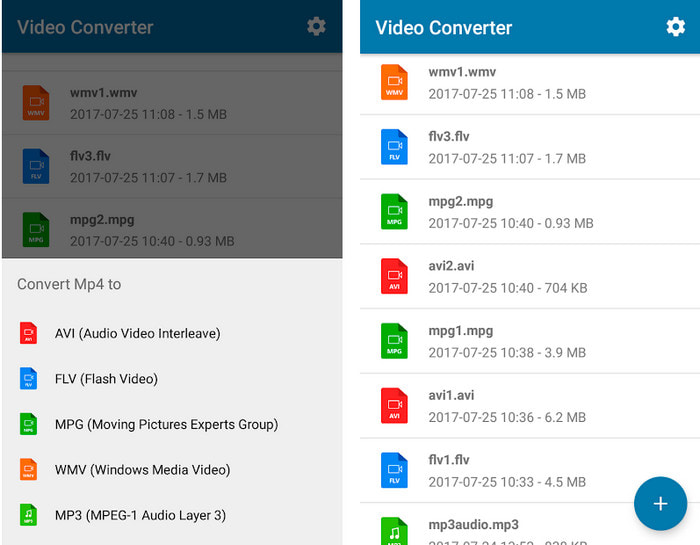
Dacă ești utilizator Android, poți folosi Video Converter: MP3, AVI, MPEG, GIF, FLV, WMV, MP4 pentru a converti GIF în FLV rapid. Această aplicație este disponibilă în fiecare Play Store de pe telefon, dacă îți place să convertești formatul într-o versiune nouă. Spre deosebire de ratingul primului instrument menționat, acest convertor are doar 2,3 stele, bazate pe 1.000 de recenzii. Deși acest scor este foarte mic, aplicația poate totuși să îți convertească fișierul într-un nou format. Așadar, dacă vrei să afli cum se face, să trecem la pași.
Pasul 1. Descarcă aplicația pe Android căutând-o în Play Store.
Pasul 2. Deschide aplicația, apasă pe butonul plus de sub GIF pentru a găsi fișierul pe care vrei să îl convertești. Va apărea o nouă opțiune, apasă pe FLV (Flash Video).
Pasul 3. După conversia fișierului, caută videoclipul în folderul telefonului tău.
Partea 5. Scurtă discuție despre GIF și FLV
Formatul GIF este ușor de înțeles deoarece le vedem și le folosim aproape în fiecare zi. Acest format conține o imagine în mișcare; deși fișierele media sunt animate, încă nu este considerat un format video. Să cercetăm puțin despre GIF-uri; acest format acceptă 8 biți per pixel pentru imagini cu o paletă de culori de până la 256 de culori într-o combinație de culori RGB de 24 de biți. Deși culorile sunt multe, acest lucru încă nu este suficient, având în vedere că JPG și PNG conțin mai multe combinații de culori. Dar dacă nu vrei să ai o imagine statică plictisitoare, trebuie să folosești un GIF pentru că este mic și animat.
Pe de altă parte, FLV este cel mai bun format pentru transmiterea fișierelor video și audio pe internet. Considerând acest fișier ca un format video standard pe HTML 5, chiar și tu nu folosești pluginuri flash pentru a reda videoclipuri. Până acum, acest format a câștigat mult suport în partajarea online, comparativ cu GIF.
Pentru a continua, dacă doriți să adăugați sau să partajați un GIF pe toate site-urile de social media, este necesar să convertiți fișierul mai întâi în FLV fără a pierde calitatea.
Partea 6. Întrebări frecvente despre conversia GIF în FLV
Cum să faci un GIF?
Chiar dacă poți descărca sau genera GIF-uri online, este mai bine să creezi unul personalizat. Dacă vrei să afli secretul realizării unor GIF-uri personalizate, apasă pe acest link și citește detaliile de acolo.
Cât timp poate fi redat un GIF?
Durata maximă a unui GIF nu trebuie să depășească 15 secunde, dar dacă GIF-ul dvs. este într-o buclă, nu există limită de timp. Este standardul pentru fiecare GIF să trimită fișierul mai rapid și mai puțin încărcat.
Pot reda GIF-uri pe VLC?
După cum s-a menționat, GIF-urile sunt un format de imagine, nu un format video. Așadar, dacă încarci fișiere GIF în VLC, acestea vor fi afișate ca imagini statice, nu ca imagini în mișcare. Iată cei mai buni playere pentru GIF pe care îi poți folosi.
Concluzie
Ca urmare a informațiilor de mai sus, ne este acum ușor să convertim GIF-uri în FLV, AVI, MP4, MOV și alte formate fără niciun efort. Totuși, dacă vrei să faci conversia în mod eficient, trebuie să descarci FVC Video Converter Ultimate. Pentru că acest instrument nu este doar cel mai bun în conversia de formate, ci este remarcabil și în alte privințe. Vrei să știi care sunt funcțiile acestui instrument? Atunci apasă pe butonul de descărcare și explorează toate caracteristicile acestui software.
-
 Care este cea mai bună modalitate de a converti GIF în AVI [Open-source & Premium]
 Doriți să vă convertiți GIF-ul într-un format AVI fără a pierde calitatea videoclipului? Continuați să citiți pentru a afla cum să vă convertiți fișierul GIF în AVI.
-
 Cel mai bun convertor GIF pentru a converti GIF animat în format MOV [2021]
 Convertiți-vă GIF în format MOV într-un mod fără efort, fără a afecta calitatea fișierului video. Cu pași și instrumente diferite.
-
 Top 10 convertoare GIF în MP4 pentru a converti GIF animate în MP4 [2021]
 Aflați care convertor este cel mai bun în conversia GIF în MP4. Cu ajutorul acestui articol, vom vorbi despre diferitele instrumente pe care le puteți folosi și rămâneți la curent.
