


 Video Converter Ultimate
 Screen Recorder
 Reparație video
2 dintre cele mai bune convertoare M4V în FLV pentru Windows/Mac/Online
Un container video și audio creat în principal pentru utilizare în Apple iTunes, M4V. Acest format este protejat pentru a evita problemele legate de drepturile de autor prin protecția DRM. În acest caz, fișierul este greu de redat dacă nu ai un cont pe iTunes cu datele tale de conectare. Așadar, dacă vrei să urmărești videoclipurile pe PC sau pe telefonul Android, este obligatoriu să le convertești în fișiere FLV care pot fi redate. Pentru a afla cum să convertești M4V în FLV, citește acest articol și obține o scurtă prezentare a formatelor M4V și FLV.

Partea 1. Prima alegere pentru conversia M4V în FLV pe Mac și PC
Este cel mai eficient convertor pe care îți va plăcea să îl folosești, mai ales dacă convertești M4V în FLV pe Mac sau pe PC. FVC Video Converter Ultimate este convertorul preferat de o mulțime de utilizatori. Mai mult, dacă vrei să ai un instrument multifuncțional care oferă un rezultat excepțional, acesta este alegerea potrivită. De asemenea, poți converti orice fișier media aici și poți seta calitatea la SD, HD, 1080 sau chiar videoclipuri 4K. Nu te aștepta la nimic mai puțin dacă descarci acest instrument pe unitatea ta, pentru că, după cum spune și numele, este „ultimate”. În plus, urmează tutorialul scris mai jos dacă vrei să experimentezi capacitatea maximă de conversie a acestui instrument.
Cum să convertești M4V în FLV cu ajutorul FVC Video Converter Ultimate:
Pasul 1. Fă clic pe butonul de descărcare de mai jos, alege sistemul de operare pe care îl folosești în prezent. După descărcare, apasă pe Install, va apărea o interfață de bun venit, apoi apasă Start Now.
Descărcare gratuită pentru Windows 7 sau o versiune ulterioară Descărcare securizată
Descărcare gratuită pentru MacOS 10.7 sau o versiune ulterioară Descărcare securizată
Pasul 2. Pornește instrumentul, dă clic pe semnul + din mijlocul interfeței și selectează fișierul .m4 din folderul care va apărea, apasă pe el și apoi pe Open.
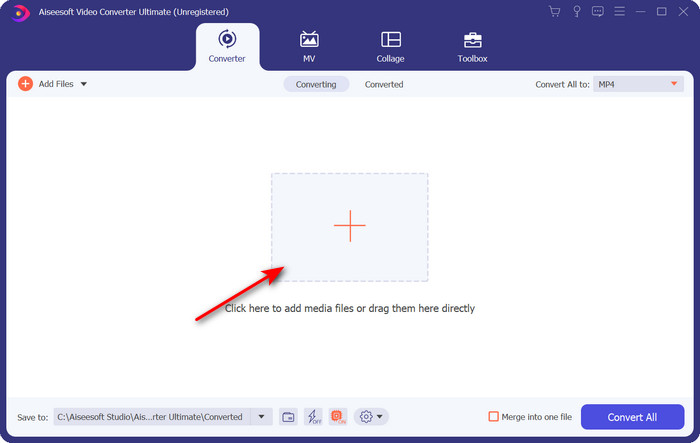
Pasul 3. După ce fișierul .m4v este în interfață, dă clic pe Convert All to și găsește formatul FLV.
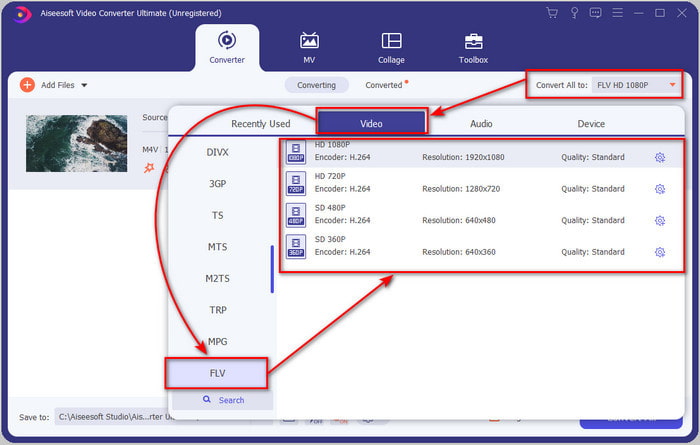
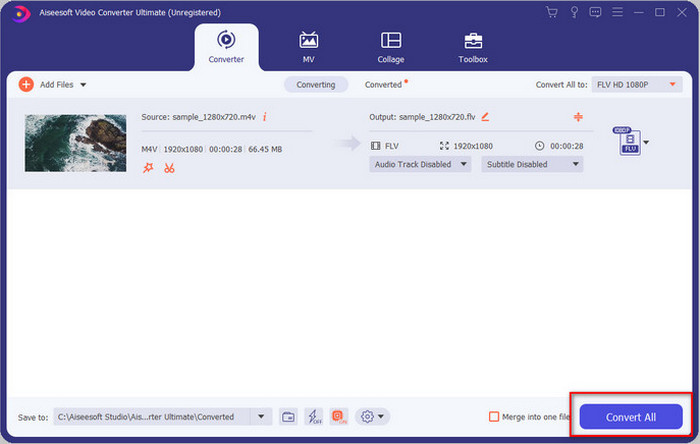
Pasul 4. Mergi mai departe și apasă pe Convert All pentru a începe transformarea M4V în FLV.
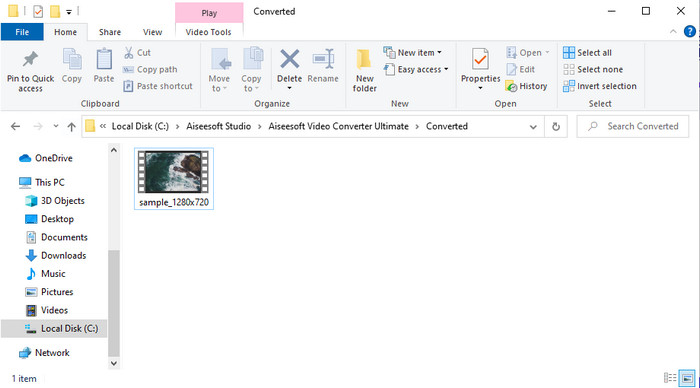
Pasul 5. Conversia fișierului va dura mai puțin de un minut datorită vitezei mari de conversie pe care o oferă acest instrument. Un folder îți va afișa fișierul convertit; dă clic pe fișier pentru a-l urmări sau pentru a-l partaja online.
Pro
- Conversia rapidă și Accelerarea hardware sunt disponibile pentru cea mai bună experiență.
- Disponibil pe toate platformele precum PC sau Mac.
- Efectuarea de editare a videoclipurilor pentru a le face remarcabile poate fi depășită aici.
Contra
- Plată înainte de utilizare, dar prețul este accesibil.
- Descărcați software-ul înainte de utilizare.
Partea 2. A doua alegere pentru conversia M4V în FLV gratuit prin online
Conversia fișierelor tale online poate fi realizată eficient dacă folosești un convertor M4V în FLV online adecvat, cu ajutorul FVC Free Video Converter Online. Acest instrument online este cel mai bun convertor la care poți avea acces în toate browserele web, dacă ai conexiune la internet. De asemenea, poți converti aici fără limită de dimensiune, însă nu poți efectua conversie în lot. Chiar dacă software-ul online este excelent, este totuși nevoie de o conexiune la internet, așa că, dacă nu ai, acesta nu este o opțiune, la fel ca și alte convertoare web disponibile. Dar, dacă ai conexiune la internet și vrei să experimentezi o conversie online gratuită, bine realizată, trebuie să urmezi pașii de mai jos.
Cum să convertești M4V în FLV cu ajutorul FVC Free Video Converter Online:
Pasul 1. Accesează acest link pentru a ajunge la convertorul online gratuit oferit de FVC.
Pasul 2. Pe interfața web, fă clic pe Add Files to Convert pentru a descărca programul de instalare. După ce descărcarea programului de instalare s-a încheiat, apasă din nou pe Add Files to Convert, iar apoi, în folderul care apare, selectează fișierul M4V.
Descărcați versiunea pentru desktop pentru a converti fișiere în lot.
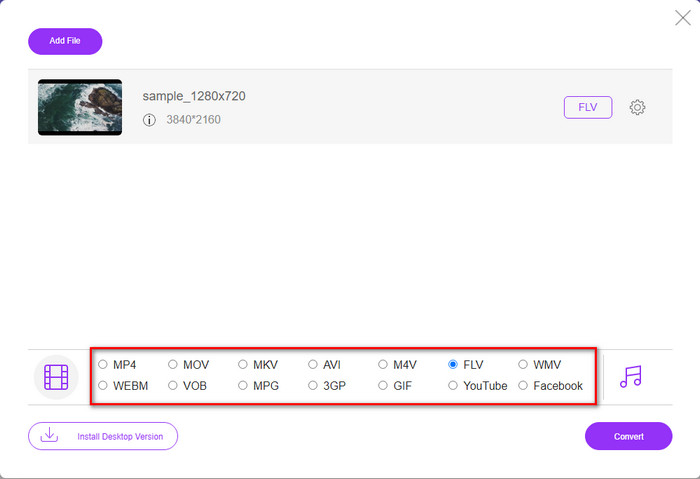
Pasul 3. Va apărea o nouă interfață web; mai jos alege formatul FLV făcând clic pe el.
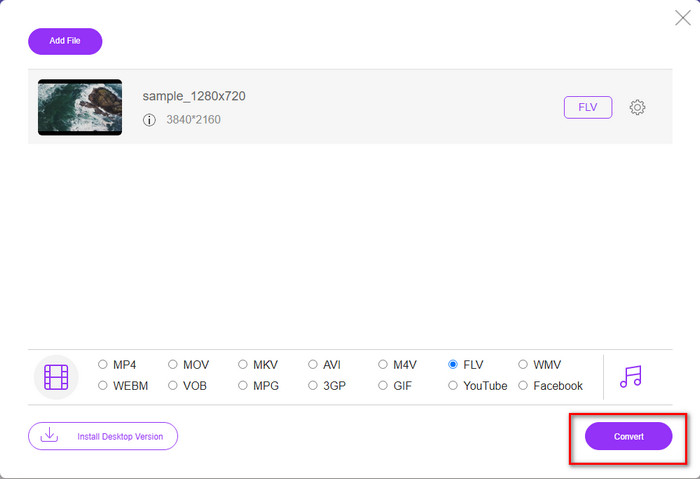
Pasul 4. Așadar, pentru a începe să convertești M4V în FLV gratuit, apasă pe Convert.
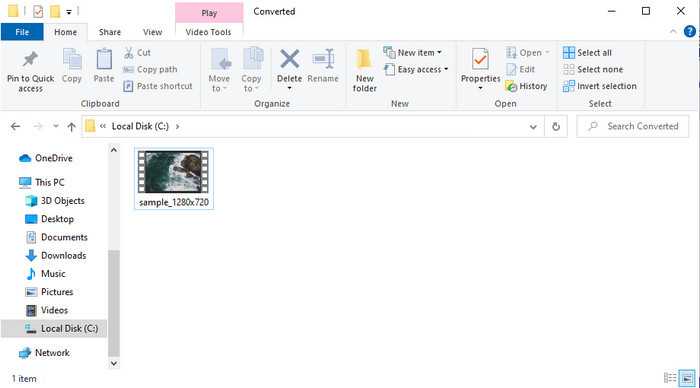
Pasul 5. După conversie, pe interfață va apărea un folder; fă clic pe fișier pentru a-l reda în playerul media local.
Pro
- Gratuit și compatibil în toate browserele web.
- Dimensiunea și conversia fișierelor nelimitate.
- Sigur și fără anunțuri în instrumentul web principal.
Contra
- Are nevoie de conexiune la internet pentru a utiliza instrumentul.
- Format mai puțin acceptat pentru a încărca și a converti în.
Partea 3. Diferențele dintre formatele M4V și FLV
M4V stochează cea mai înaltă calitate video descărcată în magazinul tău Apple iTunes. Acest format este similar cu MP4 deoarece folosesc codecul MPEG-4 ca compresor. Dar videoclipurile M4V sunt protejate sub protecția dreptului de autor Apple FairPlay DRM. Deci, redarea videoclipurilor sub acest format este dificilă, deoarece nu se va reda imediat dacă le introduceți pe un player media, altul decât iTunes sau Quicktime Player. Fișierele M4V neprotejate pot fi accesate pe playerul dvs. media schimbând extensia fișierului în .mp4.
În schimb, FLV este folosit pentru a transfera date video și audio pe web cât mai repede posibil. Flash Video este cel mai favorabil format care există pe fiecare site HTML 5. Cu toate acestea, acest format a fost întrerupt deoarece Adobe Flash se retrăsese deja. Cu toate acestea, îl puteți reda în pluginurile de player media necesare după ce îl descărcați sau îl convertiți.
M4V vs. FLV
M4V este dezvoltat de Apple, care folosește și MPEG 4. Fișierele M4V sunt adesea folosite pentru a stoca acele videoclipuri descărcate din magazinul Apple iTunes, cum ar fi videoclipuri muzicale, episoade TV etc. Este posibil să găsiți unele fișiere M4V protejate la copiere, deoarece utilizează Protecția prin drepturi de autor FairPlay DRM de la Apple.
Adobe Flash Player a folosit FLV pentru a furniza conținut video, cum ar fi filme și emisiuni TV. În prezent, Adobe nu mai dezvoltă playerul și recomandă utilizatorilor să-l dezinstaleze din motive de securitate. Cu toate acestea, puteți utiliza în continuare formatul FLV pe multe programe non-Adobe/Macromedia.
Partea 4. Întrebări frecvente despre conversia M4V în FLV
Care e mai bun; MP4 sau M4V?
Dacă doriți să vă protejați fișierul, atunci M4V este formatul pe care trebuie să-l utilizați deoarece acesta este disponibil doar pe Apple și este protejat. Dar să presupunem că doriți un format compatibil cu toate playerele media, editorul și multe altele. În acest caz, MP4 este formatul media universal pe care ți-ar plăcea să-l folosești.
Pot juca M4V pe VLC?
VLC este gratuit de utilizat și compatibil cu toate platformele; de asemenea, poate reda aproape toate formatele media. Însă fișierele M4V protejate nu pot fi redate aici pentru că sunt protejate. Așadar, dacă vrei acum să urmărești fișiere .m4v în VLC, este obligatoriu să convertești fișierul M4V în MP4 sau AVI.
Pierd calitatea după conversia M4V?
După conversia M4V, calitatea acestuia ar trebui să păstreze rata standard a calității originale M4V. Cu toate acestea, unele convertoare nu acceptă conversia videoclipului în HD, 1080 sau 4k. Așadar, mai bine alegeți instrumentul perfect și nu instrumentul bun, care va fi suficient pentru nevoile dvs. în conversie fără a-și pierde calitatea.
Concluzie
În concluzie, cele două instrumente online și offline prezentate aici sunt menite să fie de mare ajutor, mai ales dacă vrei să convertești M4V în FLV. De asemenea, am obținut informații despre cele două formate, M4V și FLV. Deși modificarea fișierului M4V este necesară pentru a urmări fișierul protejat, alegerea instrumentului potrivit pentru sarcina potrivită este dificilă. De aceea, îți prezentăm două instrumente pe care le poți folosi pentru a converti formatul gratuit folosind FVC Free Video Converter Online. Sau poți trăi o experiență de conversie la un alt nivel utilizând FVC Video Converter Ultimate. Și acum, ce mai aștepți dacă vrei să urmărești M4V-urile tale gratuit? Alege unul dintre instrumentele de mai sus, urmează pașii simpli și rapizi prezentați mai sus și, voila, bucură-te de video.
-
 [Ghid] Cum să convertiți videoclipuri M4V în GIF-uri animate pe Windows/Mac
 Dacă doriți să creați fișiere GIF animate din videoclipurile M4V preferate, puteți afla despre 2 moduri ușoare și eficiente de a converti videoclipurile M4V în GIF-uri cu setări personalizate.
-
 3 Program Video Converter folosit pentru a converti iTunes M4V în AVI pe Mac
 Nu aveți idee cum să convertiți MKV într-un format AVI? Pe măsură ce continuăm să citim acest articol, vom cunoaște cele 3 instrumente care vă pot ajuta să convertiți acest format de fișier.
-
 Convertor gratuit M4V în MOV - Cum să convertiți M4V în MOV
 Dacă playerul dvs. media'nu acceptă M4V, v-ați chinuit vreodată să vizionați un film pe iPhone? Subiectul principal al acestui articol este convertirea acestuia într-un fișier video MOV.

