


 Video Converter Ultimate
 Screen Recorder
 Reparație video
Stăpânește arta conversiei GIF în format video cu pași detaliați
GIF joacă un rol important în îmbunătățirea mesajelor pe care le trimitem cuiva. De asemenea, dacă ai GIF-uri în textul tău sau pe site, acesta va deveni mai interesant. Deși GIF-urile au devenit populare în întreaga lume, încă există platforme care nu acceptă acest format. Așadar, cea mai bună modalitate de a distribui sau publica acest format este să convertești GIF în fișier video. Însă unele convertoare nu îți oferă o experiență completă de conversie. De aceea am adunat diferite soluții pentru a rezolva această problemă principală. În timp ce scriem acest articol, prezentăm și menționăm doar faptele despre fiecare unealtă. Așadar, fără alte întârzieri, să trecem mai departe și să găsim cea mai bună soluție la problema noastră cu GIF-urile.

Partea 1. 3 dintre cele mai bune convertoare pentru a converti GIF în video online
Ezgif
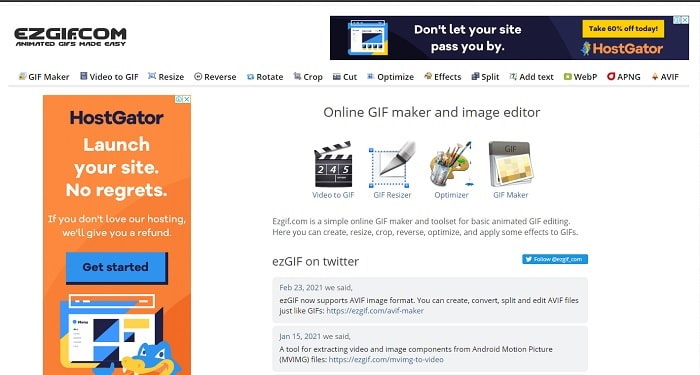
Ezgif îi ajută deja foarte mult pe utilizatorii online să creeze GIF-uri. Oferă funcții uimitoare, cum ar fi decupare, redare inversă, rotire și altele. Însă dacă îl folosim ca convertor, formatul final de ieșire pe care îl suportă acest instrument este doar MP4. Așadar, dacă vrei să convertești GIF în MOV cu această unealtă online, practic nu poți face asta. Însă dacă vrei să convertești GIF în MP4, atunci acesta trebuie să fie convertorul tău de bază. Deși acest convertor primește deja o mulțime de laude de la mulți utilizatori, încă există numeroase convertoare care oferă ceva mai bun decât poate face Ezgif.
GIPHY
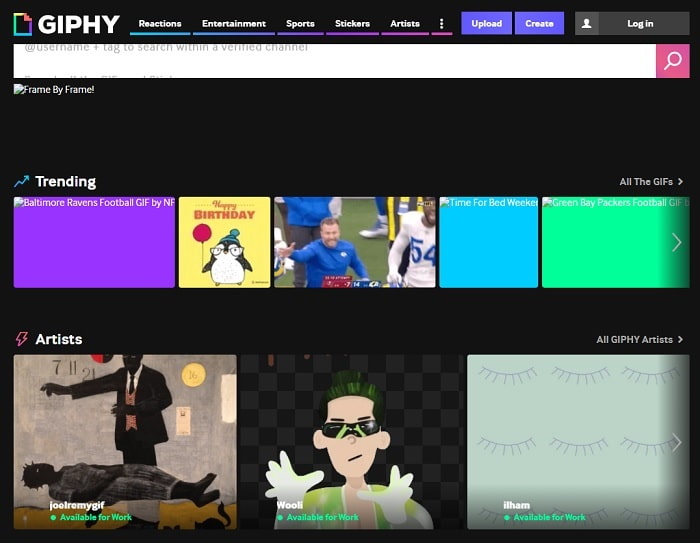
O altă unealtă care îți permite să creezi GIF-uri este GIPHY. De asemenea, acest instrument online generează diferite GIF-uri pe care le poți folosi și distribui cuiva. Nu doar atât, GIPHY te poate învăța cum să transformi un GIF în video, cu ajutorul funcției sale. Însă ideea de conversie aici, deși posibilă, nu merită timpul nostru ca să-l folosim drept convertor principal. Cu toate acestea, acest instrument online este singurul din această listă care are propria bibliotecă plină cu GIF-uri diferite dintre care poți alege. Alege GIF-ul și trimite-l altcuiva copiind linkul acestuia.
Zamzar
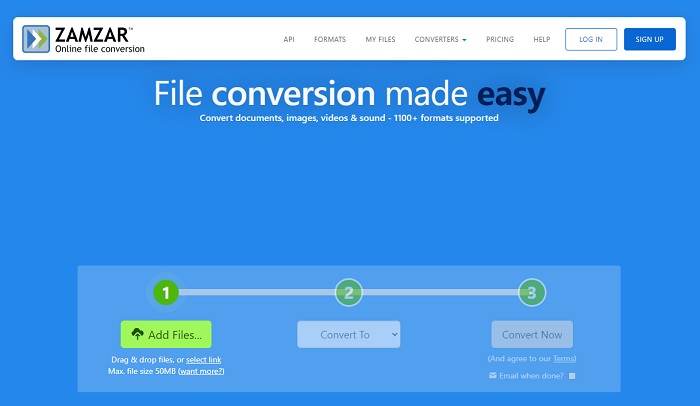
Dacă vorbim despre conversie, atunci Zamzar trebuie să fie pe această listă, deoarece este unul dintre cele mai bune convertoare online pe care le poți folosi. Dacă ești începător în conversie, încearcă să folosești această unealtă, pentru că oferă instrucțiuni ușor de urmat. Acest instrument online are o limitare în privința dimensiunii fișierului și a numărului de fișiere pe care le poți adăuga. Așadar, dacă vrei să faci mai multe conversii simultan, nu poți face asta aici, pentru că procesul de conversie se aplică doar într-un mod unidirecțional. De asemenea, dacă nu ai internet, nu vei putea accesa niciuna dintre uneltele de mai sus, deoarece toate depind de conexiune la internet.
Partea 2. Top 3 cele mai mari convertoare pentru a schimba GIF în video offline
1. FVC Video Converter Ultimate
Primul de pe listă este FVC Video Converter Ultimate, cunoscut și ca fenomenalul convertor pe care îl poți avea. Atât pentru începători, cât și pentru profesioniști, această unealtă realizează întotdeauna cele mai impresionante conversii la care poți spera. Nu doar atât, poți crea și cele mai spectaculoase GIF-uri prin intermediul uneia dintre funcțiile sale, GIF Maker. Pe măsură ce înaintăm, această unealtă pare atât de bună încât utilizatorii nu mai doresc să caute alt software alternativ. Dacă folosești această unealtă, poți învăța cu ușurință cum să salvezi un GIF ca video.
Deoarece oferă mai multe funcții futuriste, cum ar fi îmbunătățirea videoclipului, sincronizarea audio și video, creșterea sunetului și multe altele. Toate convertoarele nu oferă aceste caracteristici de tip, așa că putem spune că, dacă doriți să aveți o funcție avansată, aceasta trebuie să fie. Poate vă întrebați că acest instrument este greu de gestionat, dar să vă spun adevărul, acest instrument este foarte ușor de utilizat și de înțeles. După cum este indicat pe interfața principală, ce poate face setarea. Deci, pentru a impresiona pe cineva trebuie să înveți să fii stăpânul tuturor convertoarelor. Urmați acești pași simpli, dar detaliați de mai jos pentru a finaliza lucrarea într-un mod ușor și eficient.
Pasul 1. Apasă butonul de descărcare pentru a descărca programul pe unitatea ta. Apoi instalează programul și modifică setările de instalare, dacă dorești. Dacă totul este deja rezolvat, apasă pe Finish.
Descărcare gratuită pentru Windows 7 sau o versiune ulterioară Descărcare securizată
Descărcare gratuită pentru MacOS 10.7 sau o versiune ulterioară Descărcare securizată
Pasul 2. Pornește unealta, apoi fă clic pe Add Files și pe open pentru a introduce fișierul GIF pe care vrei să îl convertești.
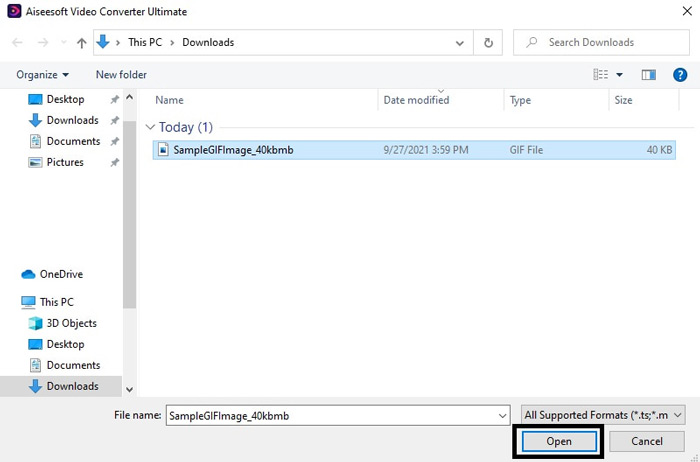
Pasul 3. După ce ai adăugat fișierul GIF, mergi la meniul drop-down pentru a transforma GIF-ul în format video, așa cum îți dorești.
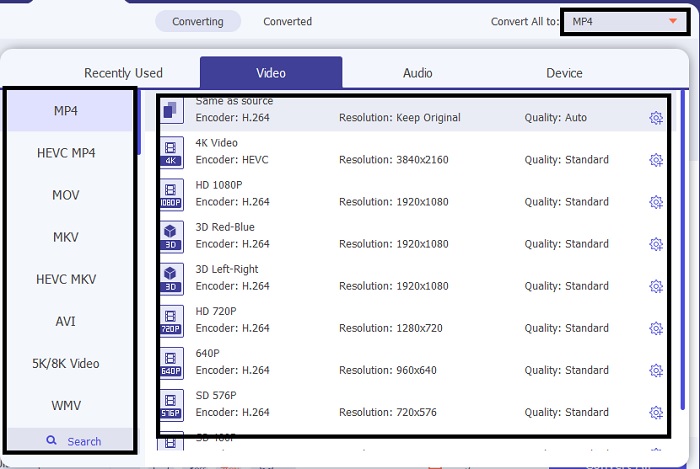
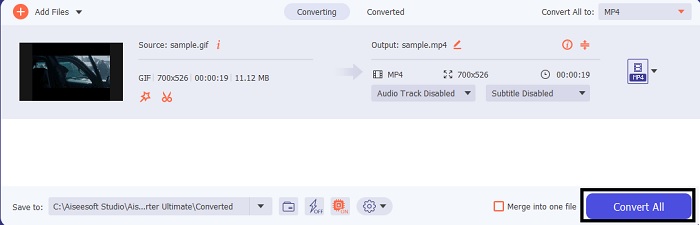
Pasul 4. După ce ai schimbat formatul GIF-ului, fă clic pe butonul Convert All pentru a începe schimbarea formatului.
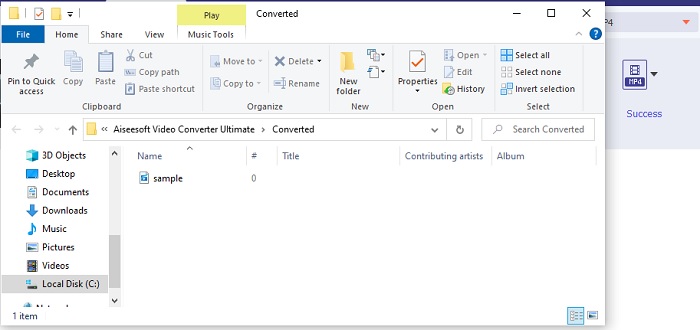
Pasul 5. Pentru a viziona GIF-ul convertit, folderul cu fișiere se va afișa automat pe ecran. Fă clic pe primul fișier pentru a-l urmări și apoi distribuie GIF-ul pe toate platformele pe care dorești.
2. FVC Free Video to GIF Maker
Aceasta este versiunea gratuită a convertorului suprem, FVC Free Video to GIF Maker. Spre deosebire de prima unealtă de mai sus, aceasta nu are funcții de editare și îmbunătățire. Așadar, această unealtă are doar funcțiile de bază ale convertorului Ultimate. Nu îți poți adăuga propria notă personală aici, decât dacă creezi GIF-uri. Însă procesul de conversie este mult mai rapid decât al uneltelor bazate pe web sau programe complexe. Totuși, dacă ar fi să comparăm acest software cu procesul de conversie al convertorului Ultimate, acesta nu va atinge niciodată viteza pe care o poate obține unealta premium. Cu toate acestea, merită să îl folosești pentru conversie, mai ales pentru a transforma GIF-uri în videoclipuri. Urmează pașii indicați mai jos și să începem.
Pasul 1. Instalează unealta pe PC sau Mac și pornește-o.
Descărcare gratuităPentru Windows 7 sau o versiune mai nouăDescărcare sigură
Descărcare gratuităPentru MacOS 10.7 sau o versiune mai nouăDescărcare sigură
Pasul 2. Fă clic pe Add File pentru a căuta fișierul GIF în folderul tău.
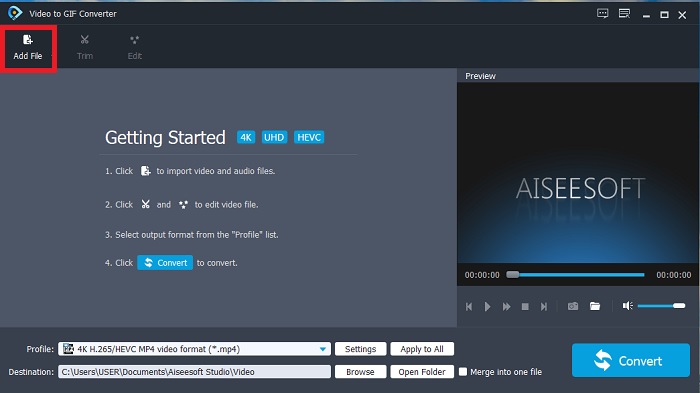
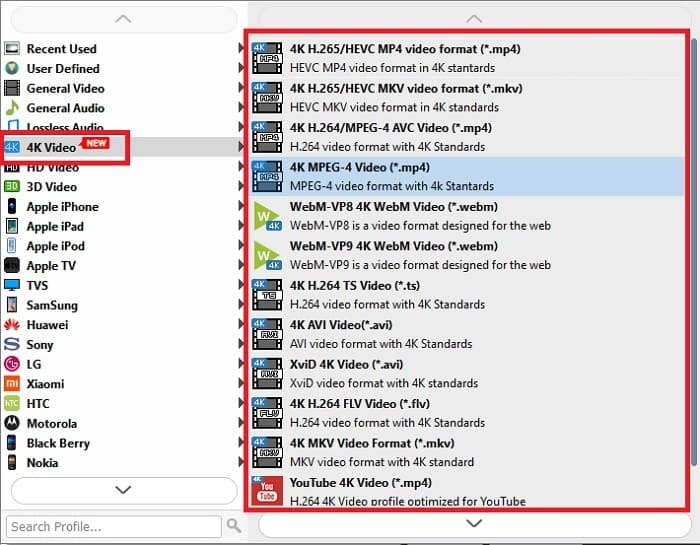
Pasul 3. Pentru a schimba formatul, fă clic pe Profile și alege dintre diferitele opțiuni de mai jos.
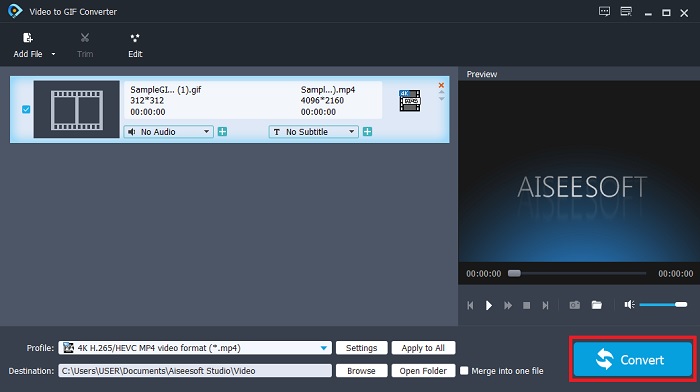
Pasul 4. Dacă ești gata, fă clic pe butonul Convert pentru a începe procesul.
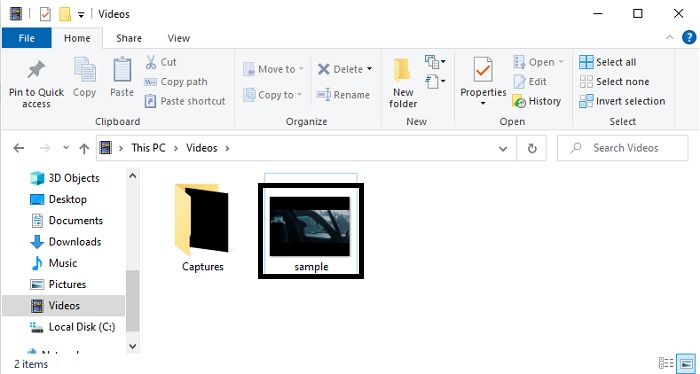
Pasul 5. Pentru a revedea fișierul GIF, mergi în exploratorul de fișiere și îl poți localiza acolo.
3. QuickTime Media Player
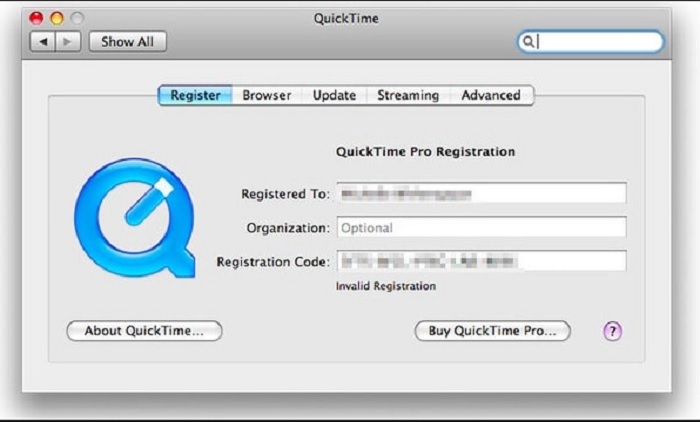
Acest player media nativ este creat să fie disponibil doar pe Mac și poate realiza și conversii. QuickTime a devenit celebru ca unul dintre cele mai bune playere media, deoarece redă conținut media de înaltă calitate în orice format suportat. Însă conversia aici este puțin rigidă, pentru că există o mulțime de pași de urmat înainte de a putea converti chiar și un singur GIF. Nu doar atât, acest program are și alt neajuns: suportă un număr redus de formate, dacă îl folosești ca convertor. Totuși, dacă ai un Mac, îl poți încerca singur și poți învăța cum să convertești GIF-uri în videoclipuri cu QuickTime Media Player.
Partea 3. Transformați GIF în format video pe programul iOS și Android
GIF Cracker - GIF în video
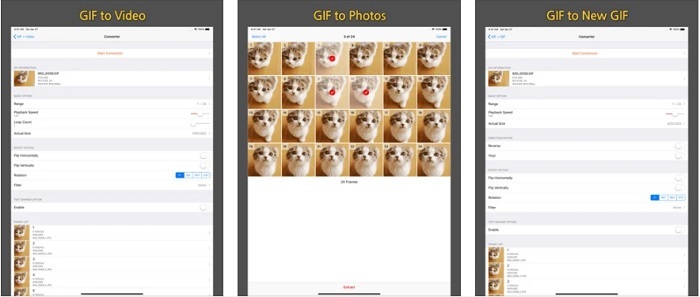
Dacă vrei să încerci să convertești pe iOS pentru a rezolva această problemă, lasă GIF Cracker - GIF to Video să te ajute. Această unealtă poate fi accesată și pe Android, dar nu este cea mai bună alegere acolo. Motivul este că aplicația prezentă pe Android este versiunea mai veche a GIF Cracker. Așadar, dacă descarci această aplicație pe telefonul tău Android, așteaptă-te la numeroase bug-uri majore sau minore și la reclame deranjante. În schimb, dacă ești utilizator iOS, te poți bucura de experiența de conversie de bază de care ai nevoie. După cum s-a menționat, aplicația nu are funcții majore de editare și îmbunătățire.
ImgPlay – GIF Maker
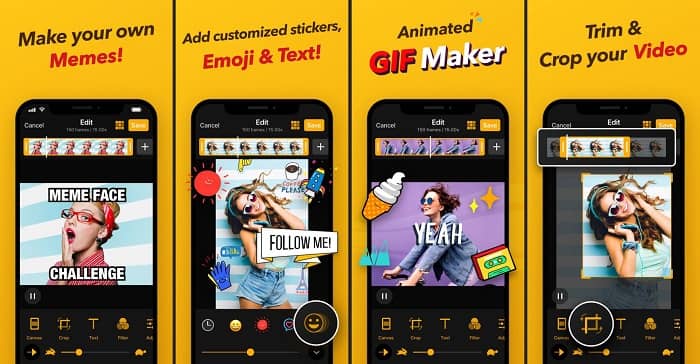
O altă aplicație iOS care îți permite să convertești GIF în video pe iPhone este ImgPlay – GIF Maker. Majoritatea utilizatorilor de iOS folosesc această aplicație, deoarece le permite să facă editări simple, dar eficiente. Totuși, în ciuda publicului larg pe care îl are, există încă unele defecte. De exemplu, atunci când convertești un GIF în format MP4, calitatea video devine puțin neclară. De asemenea, există și unele bug-uri minore, însă dacă folosești aplicațiile Img Play, te poți aștepta la o conversie bună și o viteză decentă.
GIF în video, GIF în imagine
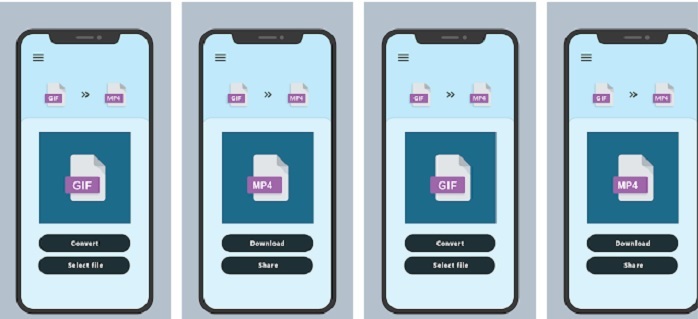
Utilizatorii Android își pot face conversiile și direct pe telefon. GIF To Video, GIF To Image și-a câștigat un nume pe Android ca fiind unul dintre cele mai bune convertoare pe care le poate folosi un utilizator de mobil. Mai mult, dacă folosești această unealtă, îți va fi mult mai ușor de înțeles decât aplicațiile de conversie de pe iOS. Însă, la fel ca în cazul convertoarelor de pe iOS, toate acceptă un număr mic de formate. Prin urmare, nu poți explora și alte formate pe care poate ai vrea să le folosești.
Citește mai departe
Cel mai bun software pentru editarea GIF-urilor animate
Partea 4. Întrebări frecvente despre GIF to Video
Pierd calitatea când fac conversia?
Această idee este adevărată dacă folosești convertoare nepotrivite, dar acum există o soluție. Soluția la această problemă este să folosești FVC Ultimate Video Converter. Dacă folosești această unealtă, nu există riscul să pierzi din calitate după conversie. Dar dacă simți că videoclipul este puțin neclar, poți folosi Video Enhancer din Toolbox.
Ce format este mai bun decât GIF?
APNG este mai bun decât formatul GIF, deoarece acceptă o mulțime de palete de culori, fps, rezoluție și multe altele. Dar APNG are mai puțin suport, deși acest lucru se va schimba în viitor ca o nouă versiune de GIF.
Ce format video este cel mai bun care poate conține GIF-uri?
Este adevărat că toate formatele video pot conține fișiere GIF-uri convertite. Dar cel mai bun este MP4, deoarece este un format universal care a fost folosit pentru a stoca videoclipuri și audio, păstrând în același timp calitatea naturală.
Concluzie
În concluzie, toate soluțiile prezentate în această listă au propriile lor capabilități unice. Dar există una care iese în evidență, iar aceasta este FVC Video Converter Ultimate. Uneltele și aplicațiile din acest articol pot realiza conversii, însă pentru a obține cel mai bun rezultat trebuie să folosești convertorul Ultimate. După cum s-a menționat mai sus, această unealtă este cunoscută ca fiind convertorul fenomenal. Așadar, ia orice GIF, fișier video sau audio și convertește-l aici pentru a experimenta cea mai bună versiune a fișierului.
-
 Cum se convertesc videoclipuri AVI în fișiere GIF animate pe Windows / Mac
 Doriți să selectați segmentele AVI interesante pentru a crea meme GIF? Acest articol vă va spune cele mai bune 2 metode pentru a tăia videoclipurile AVI și a converti AVI în fișiere GIF animate gratuit.
-
 [Rezolvat] Cum să convertiți gratuit videoclipuri FLV în fișiere GIF animate
 Dacă doriți să creați GIF-uri din segmentele video FLV pentru o mai bună trimitere, puteți afla mai multe despre cum să convertiți cu ușurință videoclipurile FLV în fișiere GIF din acest articol.
-
 [2 Soluții] Cum să convertiți cu ușurință SWF în fișiere GIF gratuit
 Când nu reușiți să exportați formatul GIF prin intermediul software-ului Flash, puteți încerca să salvați fișierele în format SWF la început. Apoi, puteți afla 2 modalități ușoare de a converti SWF în fișiere GIF din acest articol.
