


 Video Converter Ultimate
 Screen Recorder
 Reparație video
Cele mai bune convertoare GIF în video accesibile pe dispozitive digitale [2021]
GIF este un generator de meme-uri bine cunoscut pentru dispozitivele Android și iOS. În ciuda faptului că are acest tip de reputație, unele platforme precum Instagram și Twitter nu acceptă acest tip de format. În loc să folosim GIF-uri, am folosit alte formate valide precum MOV, MP4, AVI și altele. Totuși, le putem converti și păstra aceeași calitate ca a GIF-ului. Așadar, dacă ești gata să începi conversia și vrei să știi care sunt cele mai bune aplicații pentru a face videoclipuri GIF, continuă să citești acest articol pentru a afla ce instrumente ar trebui să folosești pentru a converti fișiere GIF într-un nou format video.

Partea 1. 2 Cele mai bune aplicații GIF în Video Converter pentru iOS
1. GIF în MP4
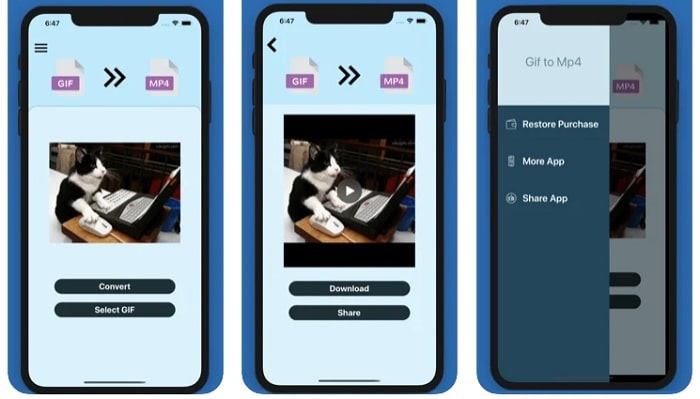
Poți folosi această aplicație pentru a face videoclipuri GIF pe iOS. GIF to MP4 are un rating de 4,7 stele, ceea ce înseamnă că este un convertor de GIF-uri foarte bun. Instrumentul este foarte intuitiv, așa că îl poți folosi chiar dacă nu ai nicio idee cum să faci conversia. Deși primește multe laude, serviciul de asistență pentru clienți este foarte slab. Nu oferă răspunsuri la problemele utilizatorilor pentru a îmbunătăți instrumentul. Așadar, dacă ai o întrebare despre această aplicație, poți lăsa un comentariu mai jos, dar nu te aștepta la un răspuns imediat.
2. GIF Cracker - GIF în Video
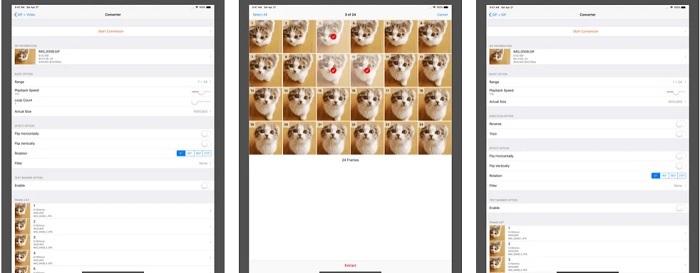
Un alt instrument pentru iOS pe care îl poți folosi pentru a converti GIF în orice format video dorești este acesta. GIF Cracker acceptă mai multe formate decât primul. De asemenea, oferă conversia GIF în imagini, astfel încât, dacă vrei să creezi un JPG din GIF-ul tău, poți folosi această aplicație. La prima vedere pare o aplicație perfectă, dar, ca să fim sinceri, se confruntă și cu unele erori. Unele bug-uri minore au fost rezolvate, dar nu toate. Totuși, poți cumpăra versiunea Pro pentru o experiență mai bună.
Partea 2. 3 Cele mai bune aplicații GIF în Video Converter pentru Android
1. GIF Maker - Video to GIF, GIF Editor
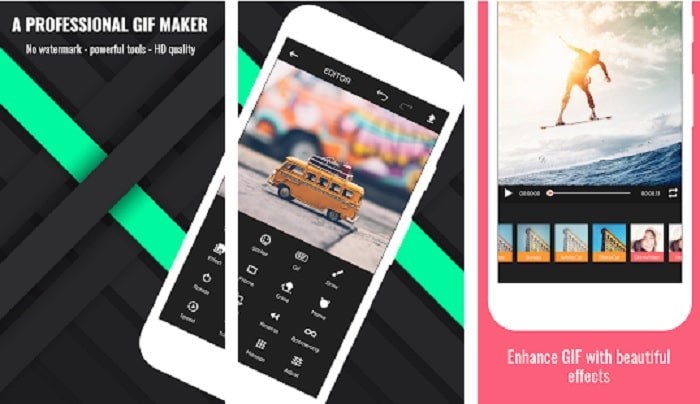
Poți folosi această aplicație pentru a face videoclipuri GIF. Dar nu numai atât, ea oferă și funcții de editare, așa că poți crea GIF-uri direct de pe telefon. Unele funcții majore pe care le găsești în programele de editare de pe desktop nu sunt incluse aici, deoarece aplicația ar deveni prea mare. În plus, poți crea GIF-uri originale cu acest instrument, deoarece oferă mai mult de 30 de efecte, 20 fps pe imagine, posibilitatea de a adăuga emoji-uri sau text și de a decupa videoclipul. Totuși, aplicația afișează reclame, iar pentru a le elimina va trebui să cumperi aplicația propriu-zisă.
2. GIF în video
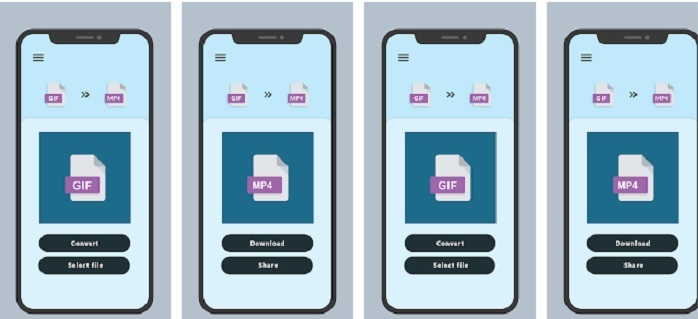
Unul dintre cele mai bune instrumente pentru a converti GIF-uri într-un nou format. Selectează orice GIF din galerie și convertește-le pe toate folosind GIF to VIDEO. La fel ca primul instrument pentru iOS menționat mai sus, oferă doar conversie din GIF în MP4. Totuși, poți converti GIF-uri foarte ușor cu ajutorul acestui instrument. Are comenzi foarte clare, astfel încât nu trebuie să îți faci griji, deoarece se concentrează strict pe conversie. De asemenea, această aplicație a primit recent o actualizare de la dezvoltatorul ei, RAYO INNOVATIONS PRIVATE LIMITED.
3. GIF2VIDEO- trans GIF în VIDEO
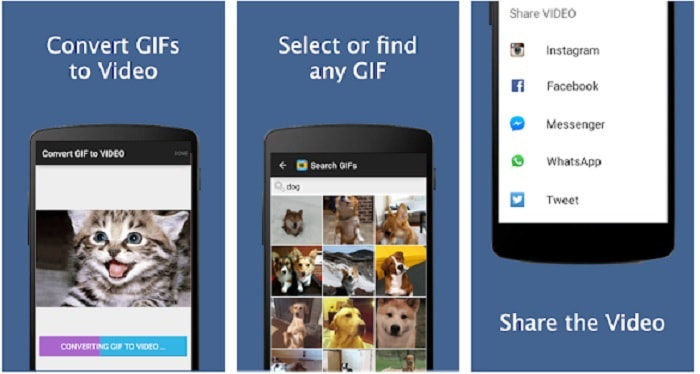
Convertește GIF-ul tău într-un nou format video care poate fi distribuit pe alte platforme. De asemenea, poți găsi ușor GIF-urile în bara de căutare cu ajutorul GIF2VIDEO. Poți seta cu ușurință ieșirea video la 1:1 sau 4:3. Deși este eficientă în ceea ce face, interfața este puțin sub standard. În unele cazuri, nu poți descărca GIF-urile, iar dacă le descarci, calitatea scade.
Partea 3. Recomandat GIF to Video Converter pe Windows sau Mac
De exemplu, dacă doriți să aveți o metodă mai precisă de conversie și doriți să adăugați o notă specială videoclipului. Puteți utiliza instrumentul Video Converter Ultimate, care este disponibil pe PC și Mac și este obligatoriu să urmați pașii în ordinea corectă.
Se știe că telefoanele mobile sunt ca niște mini-computere ale generației noastre. Însă nu toate aplicațiile pe care le vezi pe telefon sunt disponibile și pe computer sau invers. Video Converter Ultimate, o aplicație de conversie GIF în video pentru computer, este mult mai bună decât orice convertor disponibil în Play Store sau App Store. Niciun software mobil nu poate face mai mult decât o simplă conversie. În plus, îți poți îmbunătăți și calitatea video și audio atât în timpul procesării, cât și după. Așadar, dacă vrei să experimentezi cât de puternic este acest instrument, trebuie să urmezi cu atenție pașii de mai jos. Toți sunt importanți pentru a obține conversia perfectă pe care vrei să o realizezi.
Pasul 1. Descarcă instrumentul pe computer. Modifică setările în funcție de nevoile tale și dă clic pe Finish pentru a salva ajustările.
Descărcare gratuită pentru Windows 7 sau o versiune ulterioară Descărcare securizată
Descărcare gratuită pentru MacOS 10.7 sau o versiune ulterioară Descărcare securizată
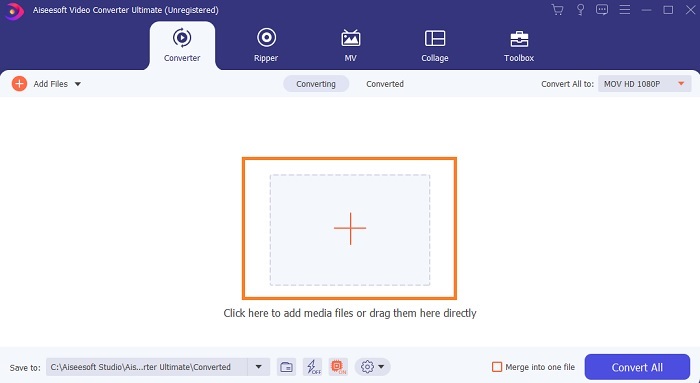
Pasul 2. Rulează programul pe desktop. Dă clic pe butonul Add Files pentru a adăuga fișierele. Însă, dacă ai mai mult de două GIF-uri, este mult mai bine să le tragi și plasezi (drag-and-drop) în interfața instrumentului.
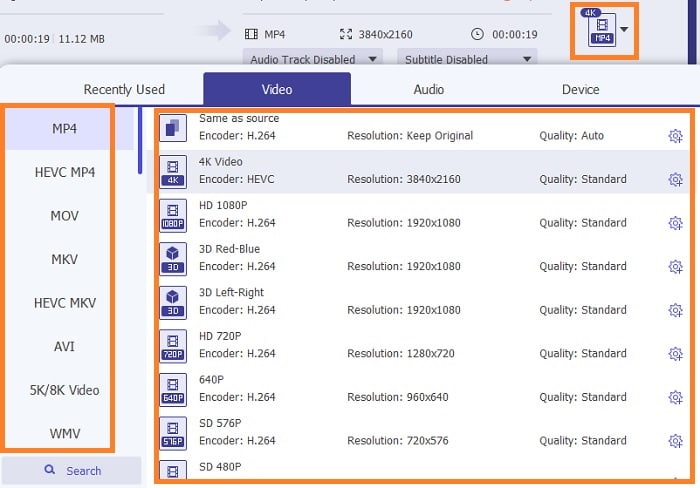
Pasul 3. Alege formatul dorit din meniul derulant Convert All to. După aceea, dă clic pe butonul Convert All pentru a începe conversia.
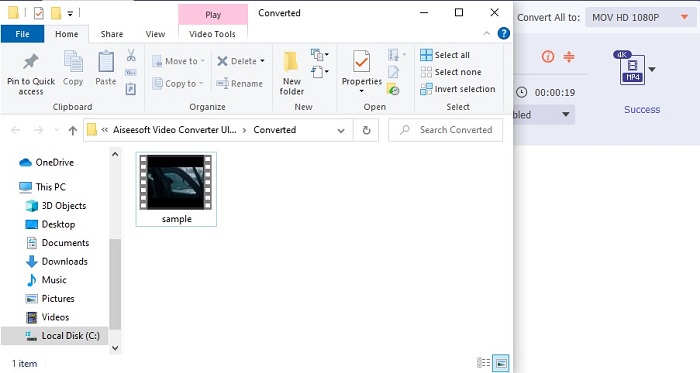
Pasul 4. Conversia îți va lua doar puțin timp. Apoi poți verifica fișierul și îl poți transfera pe dispozitivul tău mobil. După toate acestea ai terminat, te poți bucura de videoclipul convertit pe care tocmai l-ai creat.
Citește mai departe
Partea 4. Întrebări frecvente despre aplicația GIF to Video
Cât de mare este fps-ul unui singur fișier GIF?
Unele dintre GIF-urile standard pot ajunge până la 15 sau 24 de cadre pe secundă, dar datorită tehnologiei, acum poate ajunge la 30 până la 50 de fps per GIF, ceea ce necesită mai mult spațiu de stocare dacă le descărcați pe telefon.
Care sunt diferitele tipuri de GIF-uri?
Dacă nu ați observat că există 5 tipuri diferite de GIF-uri, acestea sunt: reluare, GIF de reacție, grafic cinematografic, GIF-uri tehnice și bucla perfectă.
Ce este interiorul unui GIF?
Toate GIF-urile conțin o serie de date de imagini care pot fi o imagine animată, clipuri scurte despre filme și o imagine în mișcare dacă este pe web.
Concluzie
În concluzie, toate instrumentele alese în acest articol sunt alese corect pentru ca utilizatorul să le cunoască. A învăța cum să creezi un GIF este un talent grozav pe care chiar și tu îl poți face dacă ai dăruire și dacă folosești instrumentul potrivit. De exemplu, folosești măcar un ciocan pentru a deschide o cutie? Deci, dacă folosiți un ciocan, deschideți o cutie și scoateți ce este înăuntru. Substanța de pe cutie este acum distrusă. La fel ca în cazul conversiei, dacă utilizați instrumentul greșit, există o mare posibilitate ca conversia să eșueze. Deci, alegeți instrumentul potrivit pentru lucrare, cum ar fi Video Converter Ultimate.
-
 [Ghid] Cum să convertiți videoclipuri M4V în GIF-uri animate pe Windows/Mac
 Dacă doriți să creați fișiere GIF animate din videoclipurile M4V preferate, puteți afla despre 2 moduri ușoare și eficiente de a converti videoclipurile M4V în GIF-uri cu setări personalizate.
-
 WebM în GIF - 3 convertoare WebM în GIF gratuite pentru a vă crea propriile GIF-uri
 WebM este un GIF? Cum să transformi un videoclip într-un GIF? Există un convertor gratuit de la WebM la GIF? Această postare prezintă 3 moduri gratuite de a vă ajuta să convertiți WebM în GIF.
-
 Cum se convertesc videoclipuri MKV în GIF-uri animate fără Photoshop / FFmpeg
 După ce ați descărcat și vizionat filme MKV pe computer, vă recomandăm să împărtășiți câteva momente minunate cu prietenii sau pe Internet ca GIF-uri. În acest articol, puteți afla despre cele mai simple 2 modalități de a converti MKV în GIF.
