


 Video Converter Ultimate
 Screen Recorder
 Reparație video
 Descărcare sigură
Cele mai bune metode de comprimare a imaginilor în PowerPoint
Un PPT poate să nu fie foarte mare în primul rând, dar după ce ați introdus în el tot felul de imagini clare, videoclipuri de înaltă calitate și paragrafe mari de text, acesta poate deveni un fișier imens. În acest moment, veți constata că atunci când încercați să trimiteți PPT-ul finalizat altora prin e-mail sau pe rețelele de socializare, veți întâmpina limitări de dimensiune a fișierului. Dacă imaginile din PPT-ul pe care îl prezentăm publicului sunt prea mari, acest lucru poate provoca, de asemenea, o întârziere în încărcarea conținutului complet al paginii. Acest lucru afectează impresia pe care publicul o are despre noi.
Deci de unde ar trebui să începem pentru a rezolva acest tip de problemă? Încearcă să compresezi fotografiile în PowerPoint. Instrumentele PowerPoint atât pe Windows, cât și pe Mac oferă compresie de imagini. În acest ghid, îți vom arăta în detaliu cum să o aplici. Având în vedere că ai putea avea și alte nevoi pentru imagini mai complexe, îți vom recomanda și cei mai specializați compresori terți. Totul pentru ca tu să poți realiza o prezentare cât mai fluentă.

Partea 1. Cum se comprimă imaginile în PowerPoint pe Windows
Să începem cu PC-urile.
Iată cum se comprimă o fotografie în PowerPoint pe un computer cu Windows.
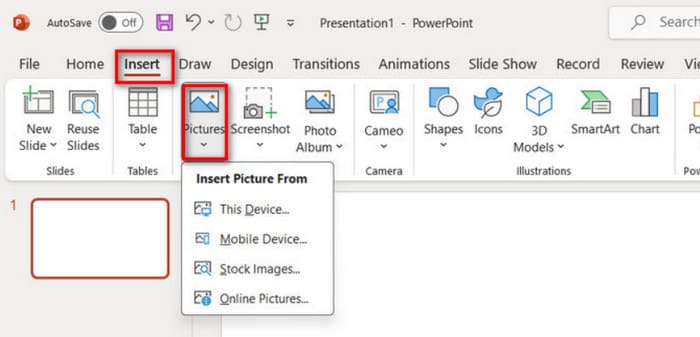
Pasul 1. Deschide PowerPoint, mergi la Inserare > Imagini și adaugă imaginile pe care vrei să le comprimi.
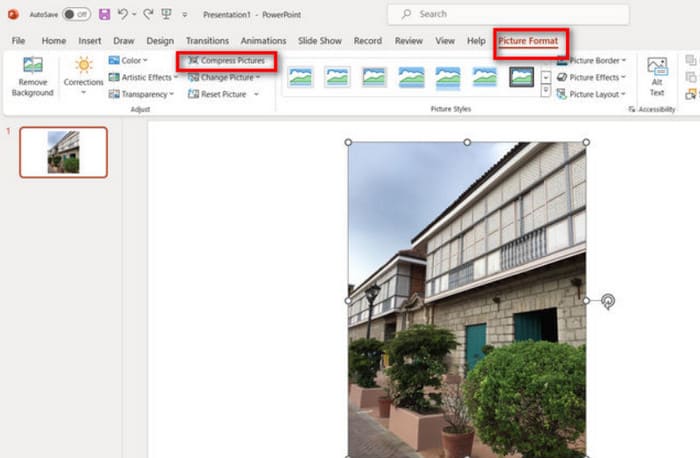
Pasul 2. Selectează imaginea, apoi fă clic pe Comprimare imagini în fila Format imagine.
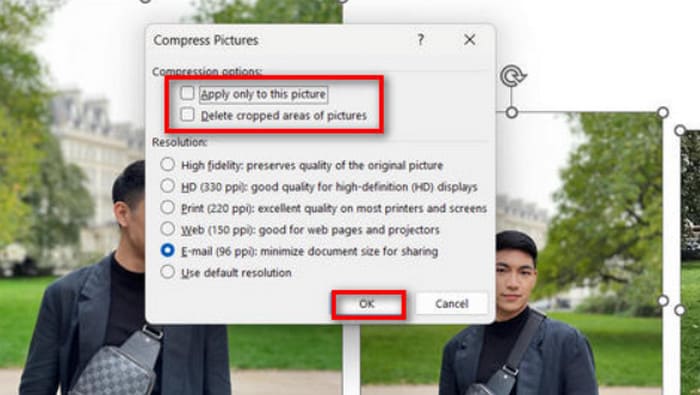
Pasul 3. Alege opțiunile de compresie și rezoluția țintă. Opțiunile oferite de PowerPoint sunt flexibile. Îți permit să personalizezi rezoluția imaginilor după compresie.
Pasul 4. Pentru a modifica doar imaginea selectată, bifează Aplică numai acestei imagini, apoi confirmă.
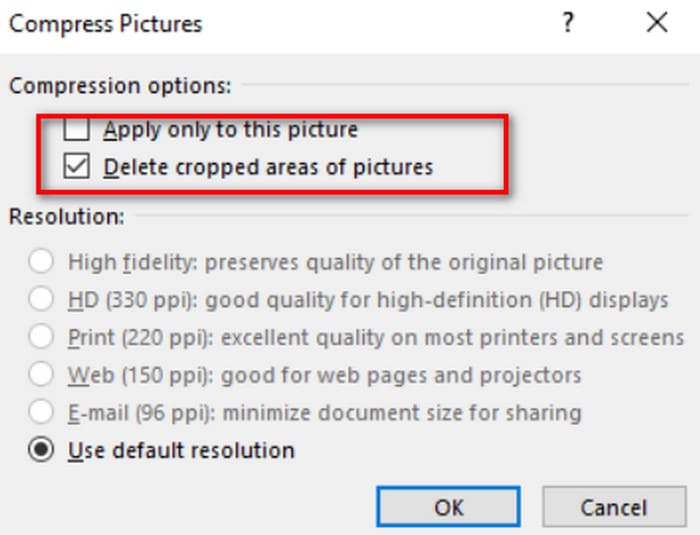
Pașii de mai sus se aplică atunci când doriți să comprimați fotografia curentă. Dacă această fotografie este una pe care ați decupat-o deja, nu uitați să activați opțiunea Ștergeți zonele decupate ale imaginilor. Aceasta va reduce, de asemenea, într-o oarecare măsură dimensiunea fișierului fotografiei curente.
Dacă vrei să comprimi mai multe imagini simultan pe Windows, citește mai departe.
Iată cum se comprimă imaginile în PPT.
Pasul 1. Mergi la fila Inserare și selectează Imagini pentru a importa imaginile.
Pasul 2. Fă clic dreapta pentru a selecta toate fotografiile, apoi mergi la fila Format imagine și fă clic pe Comprimare imagini.
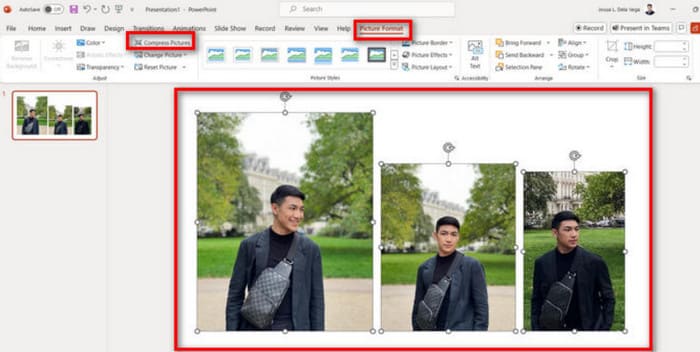
Pasul 3. Alege setările de compresie. Pentru a comprima toate imaginile din prezentare, debifează Aplică numai acestei imagini. Când ești gata, fă clic pe OK.
Partea 2. Comprimarea fotografiilor în PowerPoint pe Mac
PowerPoint pe computerele Mac acceptă și comprimarea dimensiunilor imaginilor. Dacă sunteți utilizator Mac, consultați această subsecțiune.
Iată cum se comprimă imaginile în PowerPoint pe MacBook.
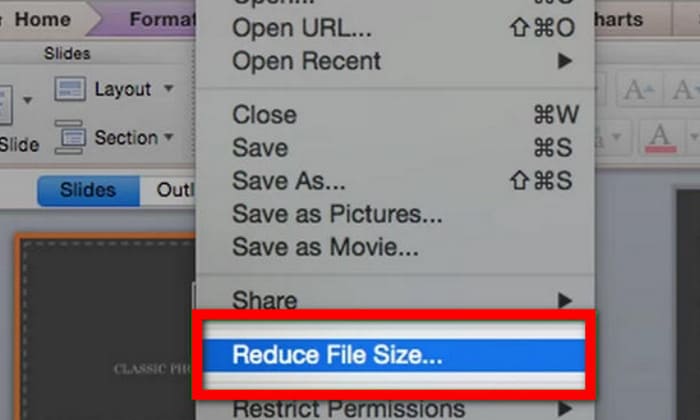
Pasul 1. Deschide fișierul PowerPoint, mergi la meniul Fișier și selectează Reducere dimensiune fișier.
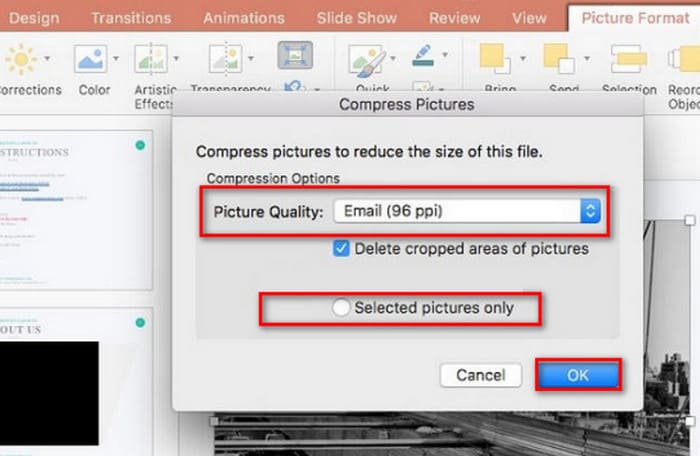
Pasul 2. În fereastra pop-up, alege E-mail (96 ppi) din meniul derulant Calitate imagine și bifează Ștergere zone decupate din imagini.
Pasul 3. Selectează Numai imaginile selectate, apoi fă clic pe OK.
Dacă doriți să comprimați simultan dimensiunea mai multor imagini pe un Mac, urmați acești pași.
Pasul 1. Din meniul Fișier, selectează Reducere dimensiune fișier.
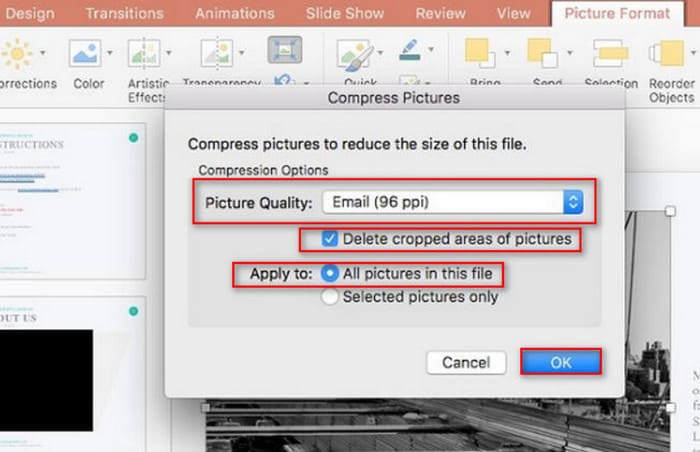
Pasul 2. Alege E-mail (96 ppi) la Calitate imagine. Bifează Ștergere zone decupate din imagini.
Pasul 3. Selectează Toate imaginile din acest fișier, apoi fă clic pe OK.
Partea 3. Cum se comprimă imagini pentru PowerPoint folosind instrumente terțe
Funcția de comprimare a fotografiilor din PowerPoint este ușor de folosit și eficientă, dar poate afecta semnificativ calitatea imaginilor. Acest lucru va face ca prezentarea ta PPT să arate neprofesionist și să nu fie afișată suficient de bine. De aceea îți recomandăm să folosești un instrument profesional precum FVC Free Image Compressor. Începe prin a încărca imaginile pe care vrei să le inserezi în PPT pe această platformă online. Le poți comprima la dimensiunea dorită dintr-un singur clic. Platforma are integrate funcții de editare de bază, permițându-ți să rotești, să răstorni sau să redimensionezi imaginea. Când ai terminat totul, salvează imaginea editată pe computer. Apoi insereaz-o în PPT. Reține că nu trebuie să descarci sau să instalezi niciun software pe parcursul întregului proces. Trebuie doar să deschizi browserul. Și mai surprinzător este faptul că FVC Free Image Compressor este complet gratuit.
Iată cum se comprimă fotografiile în PowerPoint cu FVC Free Image Compressor.
Pasul 1. Deschide FVC Free Image Compressor în browser.
Pasul 2. Fă clic pe Upload Images pentru a adăuga fișierul pe care vrei să îl comprimi.
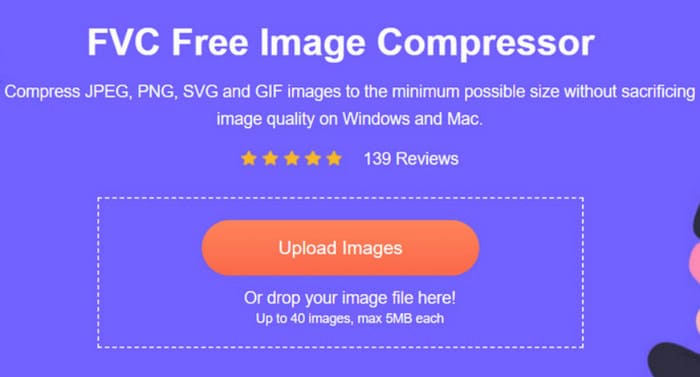
Pasul 3. Compresia va începe automat. Apoi verifică rezultatul și fă clic pe Download pentru a salva imaginea redusă.
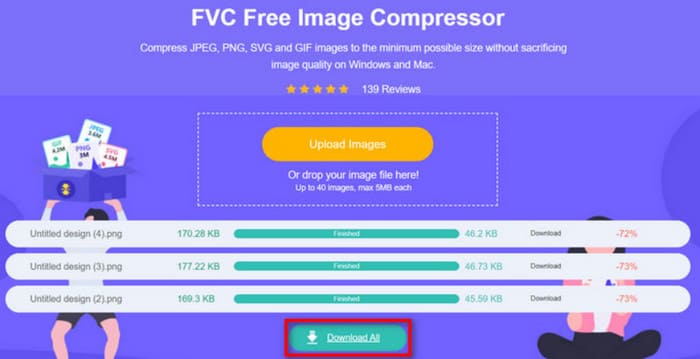
După finalizarea compresiei, compresorul de imagini FVC Free va afișa pe ecran procentul imaginii comprimate și dimensiunea înainte și după compresie.
Deși rata de compresie este vastă, vom fi surprinși să constatăm că imaginea nu a fost afectată semnificativ. Compresorul de imagini FVC Free folosește algoritmi avansați de optimizare și compresie.
Partea 4. Întrebări frecvente despre comprimarea fotografiilor în PowerPoint
De ce este dimensiunea fișierului meu PowerPoint atât de mare?
Mulți oameni sunt obișnuiți să insereze imagini de înaltă rezoluție atunci când creează fișiere PowerPoint. Și să încorporeze animații video și efecte de tranziție în poziții potrivite. Toate aceste elemente de design vor face ca fișierul dvs. să fie mare. Dacă doriți să transformați PowerPoint într-o formă mai ușoară pentru stocare și transmitere, vă recomandăm să comprimați imaginile sau videoclipurile inserate în acesta. Dar vă rugăm să țineți cont de acest lucru și să nu faceți prea multe compromisuri în ceea ce privește calitatea vizuală pe care o aduc fotografiile.
Cum comprimi o imagine în PowerPoint?
PowerPoint are încorporată funcția de compresie a imaginilor. Pentru a începe să o aplici, trebuie să selectezi imaginile țintă și să cauți Format imagine > Comprimare imagini în bara de acțiuni.
Cum comprim o imagine?
Există mulți compresori de imagini profesioniști. Poți alege dintre Adobe Photoshop, FVC Free Image Compressor, Google Photos, TinyPNG și multe altele. Dacă ești în căutarea unor compresoare GIF, încearcă EZgif, VEED.io, FreeConvert și altele.
Concluzie
Indiferent dacă ești utilizator de Windows sau Mac, poți găsi în acest ghid modalități de a comprima fotografii în PowerPoint. Deși PowerPoint are compresie de imagini integrată, este posibil să nu te ajute să găsești un echilibru mai bun între calitatea și dimensiunea imaginii.
Pentru a realiza o compresie mai eficientă a imaginilor PowerPoint, luați în considerare utilizarea unui instrument profesional precum FVC Free Image Compressor, potrivit nevoilor dumneavoastră. Este ușor de utilizat și se încarcă rapid. Pașii pentru a-l utiliza în vederea procesării imaginilor au fost, de asemenea, menționați mai sus.
-
 Cum să redimensionezi o imagine în PowerPoint [Cel mai rapid mod de a schimba dimensiunea]
 Învățarea cum să redimensionați imaginile în PowerPoint este esențială, mai ales dacă doriți să le utilizați în prezentarea dvs. Citiți acest articol pentru a ști cum să o faceți.
-
 Cum să remediați videoclipul care nu este redat în PowerPoint | Ghid rapid
 Videoclipul dvs. PowerPoint nu este redat? Depășiți frustrarea legată de videoclipurile încorporate care nu sunt redate acum cu cele mai bune cinci soluții pentru a le rezolva fără efort.
-
 2 moduri de a comprima videoclipuri pentru YouTube
 Videoclipurile YouTube sunt mari și lent de încărcat? Pur și simplu comprimați dimensiunea fișierului video în mai mic pentru YouTube în două moduri, online și pe computer.
