


 Video Converter Ultimate
 Screen Recorder
 Reparație video
Cum să decupezi o imagine în Photoshop
Poți face foarte multe în Photoshop; este ca un instrument complet pentru editarea imaginilor. Dacă folosești Photoshop și ești încă familiar cu toate funcțiile sale sau ești cineva care încearcă să descopere opțiunile de decupare pe care le oferă, suntem aici să te sprijinim! Învață și înțelege rapid și ușor cum să decupezi o imagine în Photoshop. De asemenea, descoperă și alte metode de decupare a imaginilor online, dacă Photoshop nu se potrivește resurselor și abilităților tale.

Partea 1. Cum să decupezi o imagine în Photoshop
A învăța cum să tăiați imagini în Photoshop este important, deoarece permite persoanelor să separe și să manipuleze cu precizie diferite elemente dintr-o imagine. Această abilitate este fundamentală pentru sarcini precum eliminarea fundalului, crearea de colaje și realizarea de îmbunătățiri specifice în timpul editării imaginii. Fie în design grafic, fotografie de produs sau artă digitală, capacitatea de a tăia imagini oferă flexibilitate și control creativ, permițând profesioniștilor și entuziaștilor să obțină rezultatele vizuale dorite în diverse proiecte.
Iată cum să tăiați o imagine în Photoshop:
Pasul 1. Deschide o imagine în Photoshop mergând la fila File.
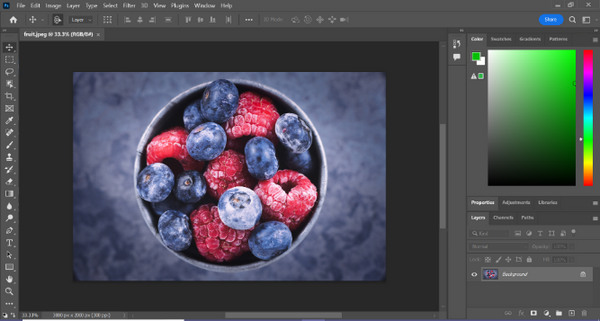
Pasul 2. Alege instrumentul Object Selection și trage cu mouse-ul peste obiectul tău pentru a selecta zona pe care vrei să o decupezi.
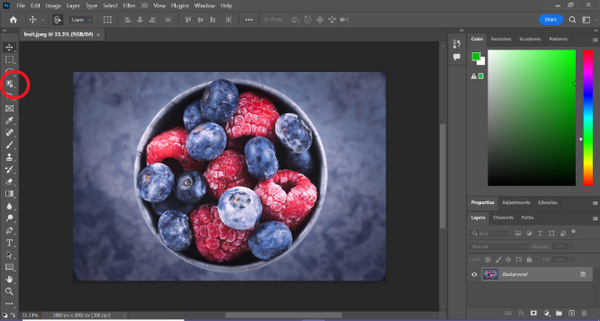
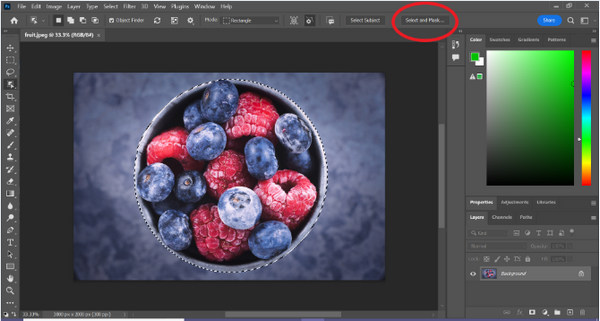
Pasul 3. Dă click pe Select and Mask.
Pasul 4. Ajustează setările de selecție, cum ar fi estomparea (feather), dacă este nevoie.
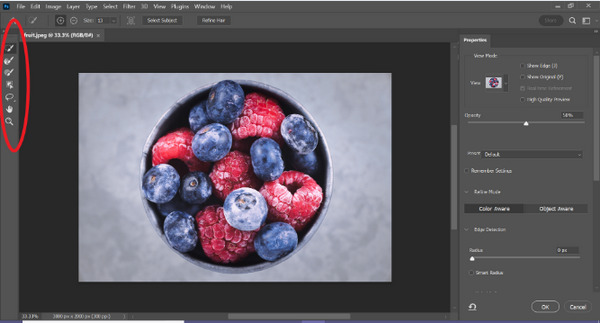
Pasul 5. Fă click pe pictograma Mask pentru a decupa imaginea și salvează imaginea modificată.
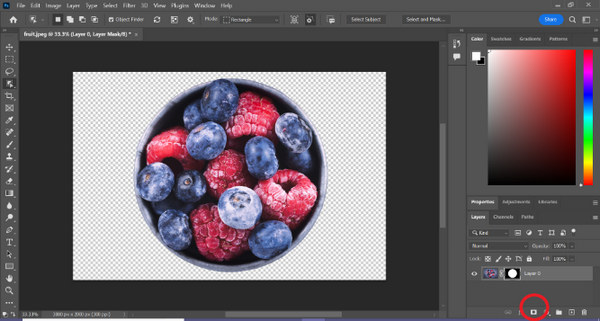
Cu acest ghid simplu, poți acum să decupezi o imagine în Photoshop rapid și ușor. Urmează pașii și bucură-te de un proces fără bătăi de cap pentru o editare precisă a imaginilor. De asemenea, poți schimba culoarea imaginii pentru a înlocui partea decupată.
Partea 2. Cum să decupezi o imagine fără Photoshop online?
Dacă nu aveți Photoshop instalat pe computer, există o modalitate prin care puteți decupa o imagine online. În timp ce Photoshop este un instrument de calitate pentru editarea imaginilor, în special pentru decuparea perfectă a unei imagini, a fost nevoie de abilități și practică pentru a o stăpâni. Așadar, dacă acest instrument nu mai este în mâinile tale, poți folosi aceste metode pentru a decupa cu ușurință o imagine.
Metoda 1: Eliminator de fundal online FVC
FVC Online Background Remover este versatil și ușor de utilizat, fiind conceput pentru a elimina automat fundalurile din imagini în formate precum PNG, JPG și JPEG. Acest instrument simplifică procesul de creare a fundalurilor transparente și oferă opțiuni de personalizare, permițând utilizatorilor să folosească o pensulă pentru a selecta anumite zone de eliminat sau păstrat.
În plus, FVC Free Background Remover permite utilizatorilor să schimbe fundalul imaginii la o culoare solidă la alegerea lor sau chiar să o înlocuiască cu o altă fotografie. Instrumentul depășește eliminarea fundalului, oferind funcții de editare simple, cum ar fi decuparea, relocarea, răsturnarea și rotirea, permițând utilizatorilor să sporească atractivitatea generală a imaginilor lor. Mai jos sunt pașii despre cum să utilizați acest lucru.
Pasul 1. Mai întâi, mergi pe site-ul lor oficial și dă click pe Upload Image.

Pasul 2. Așteaptă finalizarea procesului. După aceea, îți poți edita imaginea prin rafinarea marginilor și mutarea subiectului.
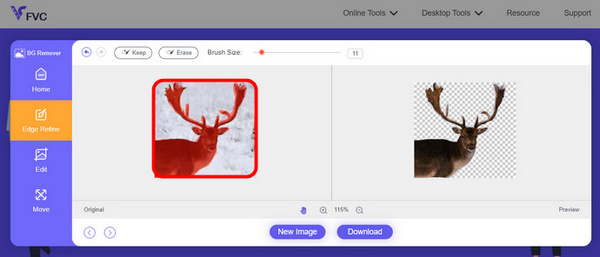
Pasul 3. Pentru a salva rezultatul, fă clic pe butonul Download.
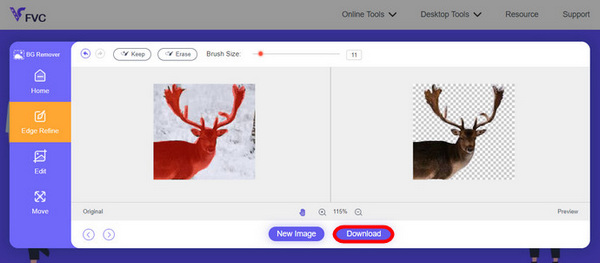
FVC Image Background Remover este cu adevărat un instrument de bază pentru decuparea unei imagini. Pe lângă faptul că este gratuit, acest instrument este extrem de ușor de folosit pentru a adăuga un fundal unei imagini. Vezi, trebuie doar să urmezi câțiva pași simpli și poți îndepărta fundalul fotografiilor tale cu mare ușurință.
Metoda 2: Utilizarea funcției iPhone iOS 16
iPhone iOS 16 aduce mai multe funcții și actualizări noi. Una dintre ele este imaginea decupată. Această funcție de decupare a imaginii permite utilizatorilor să izoleze subiectul unei fotografii și să creeze decupaje foto direct pe iPhone-urile lor.

Pasul 1. Deschide o fotografie în aplicația Photos.
Pasul 2. Ține apăsat pe subiectul fotografiei, iar apoi va apărea un contur alb strălucitor.
Pasul 3. Acum copiază și lipește imaginea în notițe, aplicațiile de mesagerie sau mesaje. O poți, de asemenea, trimite direct prin AirDrop către un alt dispozitiv iPhone.
Această funcție de tăiere a fotografiilor este disponibilă numai în iOS 16 și versiuni ulterioare pe iPhone XS, iPhone XR și versiuni ulterioare.
Partea 3. Întrebări frecvente despre decuparea unei imagini în Photoshop
Cum să tăiați pe cineva dintr-o imagine și să o puneți în alta în Photoshop?
Pentru a decupa o persoană dintr-o fotografie în Photoshop și a o plasa într-o altă imagine, urmează acești pași:
1. Folosește instrumentul Lasso sau Pen pentru a contura cu grijă persoana.
2. Dă click dreapta și alege Layer via Copy pentru a duplica zona selectată.
3. Deschide imaginea de destinație, creează un nou layer și lipește acolo layerul copiat.
4. Ajustează dimensiunea și poziția după necesități, rafinând marginile pentru o integrare cât mai naturală.
Cum decupezi ceva în Photoshop și îl faci transparent?
Pentru a decupa un obiect în Photoshop și a-l face transparent:
1. Folosește instrumentul Pen sau Magic Wand pentru a selecta obiectul.
2. Apasă Delete pentru a șterge zona selectată.
3. Salvează imaginea în format PNG.
4. Asigură-te că zona ștearsă apare ca un model de pătrățele, indicând transparența.
Cum scazi o formă în Photoshop?
Pentru a scădea (subtract) o formă în Photoshop:
1. Creează două forme folosind instrumentul Shape sau orice instrument de selecție.
2. Asigură-te că ambele forme sunt pe layere separate.
3. Selectează layerul de sus, mergi la Path Operations în bara de instrumente și alege Subtract Front Shape.
4. Forma de sus va fi scăzută din forma de jos, creând o nouă formă cu zona decupată.
Pot decupa obiecte complexe cu detalii fine în Photoshop?
Da, Photoshop oferă instrumente avansate, cum ar fi instrumentul Pen, pentru selecții precise de obiecte complicate. Măriți pentru precizie, creați puncte de ancorare în jurul obiectului și rafinați calea pentru decupaje detaliate.
Care este diferența dintre Strat prin tăiere și Strat prin copiere atunci când tăiați o imagine în Photoshop?
Layer via Cut elimină zona selectată și o plasează pe un nou strat. În timp ce, Strat prin copiere dublează zona selectată pe un nou strat, lăsând intact originalul. Alegeți în funcție de dacă doriți să păstrați originalul sau nu în timpul procesului de tăiere.
Concluzie
Este simplu, nu-i așa? Acum că știi cum să decupezi o imagine în Photoshop, perfecționează-ți această abilitate și explorează și alte funcții din Photoshop. În plus, poți încerca și alte metode de decupare a unei imagini online folosind FVC Online Background Remover sau direct de pe dispozitivul tău iPhone. Decuparea unei imagini este acum mai ușoară ca niciodată, așa că nu rata această ocazie și dezvoltă-ți creativitatea urmând acest ghid.
-
 Cum să eliminați filigranul din fotografie în Photoshop [Pași]
 Photoshop este unul dintre instrumentele de editare populare. Obțineți tutorialul gratuit aici folosind Photoshop pentru a elimina filigranul din fotografii. De asemenea, descoperi căi alternative.
-
 Cum să decupați în Photoshop: Ghid pentru începători [2025]
 Descoperiți cum să decupați imagini în Photoshop cu acest ghid ușor de urmat. De asemenea, aflați cum să selectați zonele, să reglați raporturile de aspect și multe altele pentru decuparea fotografiilor.
-
 Cum să schimbi culoarea în Photoshop | Ghid cuprinzător 2025
 Doriți să vă duceți creativitatea la următorul nivel învățând cum să schimbați culoarea de fundal în Photoshop? Acest articol are tot ce trebuie să știți. Citește-l acum!
