


 Video Converter Ultimate
 Screen Recorder
 Reparație video
 Descărcare sigură
Aflați cum să faceți o imagine mai clară cu aceste metode simple
Când captezi o imagine care se dovedește a fi neclară, acest lucru este considerat un defect. Și este foarte neplăcut să ai o imagine încețoșată. Din fericire, în prezent există o mulțime de aplicații care te pot ajuta să îmbunătățești claritatea și să „deblurizezi” fotografia. Adobe Photoshop se numără printre cele mai cunoscute aplicații de editare foto. Totuși, nu este un instrument prietenos cu începătorii. Prin urmare, îți vom prezenta metode mai simple pe care le poți folosi pentru ca poza ta neclară să capete o calitate excelentă. Citește explicațiile de mai jos pentru a afla cum să faci o poză mai clară în câțiva pași simpli.

Partea 1. Cum să faci o imagine mai clară online
Odată cu utilizarea tehnologiei AI, există acum multe upscaler de imagini online care vă pot clarifica automat imaginea. Utilizarea aplicațiilor online pentru a vă face imaginea mai clară este convenabilă, deoarece nu trebuie să descărcați nimic pe dispozitiv. De asemenea, va economisi spațiu de stocare pe dispozitiv, deoarece îl puteți accesa din browser.
FVC Free Image Upscaler este cea mai cunoscută aplicație online dacă vrei să ascuți sau să faci imaginea mai clară. Acest instrument este ușor de folosit deoarece are o interfață foarte simplă. În plus, poți îmbunătăți calitatea imaginii tale de 2x, 4x, 6x și 8x prin mărire. De asemenea, FVC Free Image Upscaler folosește tehnologie AI (Inteligență Artificială) care detectează automat părțile neclare ale imaginii și apoi le îmbunătățește. Îți permite să repari cu precizie pixelii pierduți, texturile de culoare și multe alte detalii.
În plus, acceptă mai multe formate de imagine, cum ar fi PNG, JPG, JPEG și WebP. Și ceea ce este chiar grozav la acest instrument online este că nu aveți nevoie de niciun cont pentru a-l accesa. De asemenea, este gratuit și sigur de utilizat. Și, în ciuda faptului că este o aplicație online, nu conține reclame neplăcute care ar putea să vă distragă atenția și este rapid și eficient de utilizat. Deci, dacă sunteți în căutarea unui instrument convenabil, FVC Free Image Upscaler este cel mai bun instrument.
Cum să faceți o imagine mai clară online folosind FVC Free Image Upscaler:
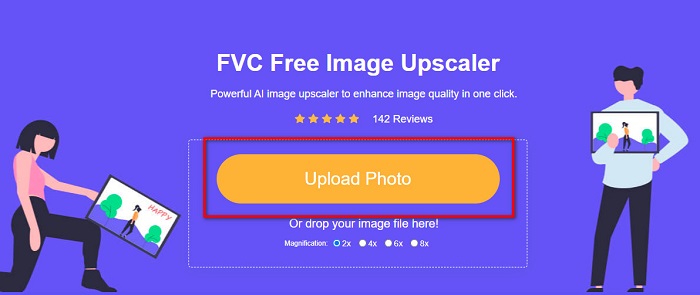
Pasul 1. Pe computer, deschide browserul și caută FVC Free Image Upscaler în bara de căutare. Sau poți da clic pe linkul furnizat pentru a merge direct la pagina principală a aplicației. Apasă butonul Upload Photo pentru a lansa aplicația.
Pasul 2.0 După ce ai lansat aplicația, apasă din nou pe Upload Photo pentru a adăuga imaginea pe care vrei să o mărești/ascuți. Se vor deschide fișierele de pe computer, unde îți vei localiza imaginea și o vei deschide.
Pasul 3. Apoi selectează presetarea de magnification pe care o preferi. Cu cât mărirea este mai mare, cu atât crește claritatea imaginii. Dar ține cont că dimensiunea fișierului va crește pe măsură ce crește și calitatea. Poți alege magnification între 2x, 4x, 6x și 8x.
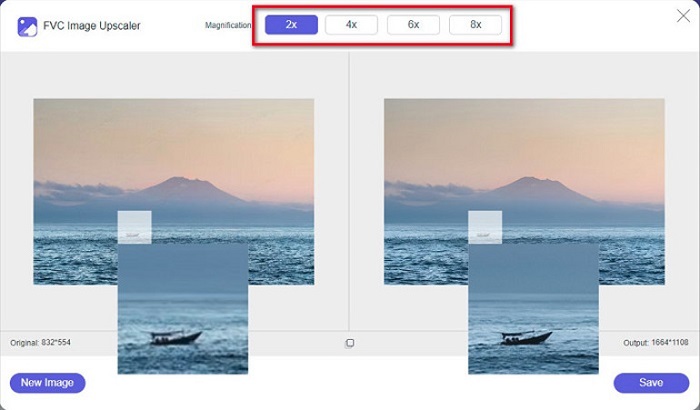
Pasul 4. Vei vedea rezultatul în partea dreaptă a interfeței. Iar dacă ești mulțumit de rezultat, apasă butonul Save pentru a salva imaginea pe dispozitivul tău.
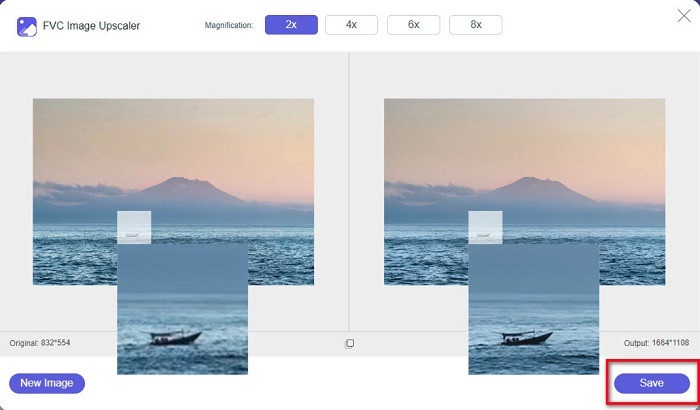
Așteptați doar ca imaginea dvs. să fie salvată și voila! Acum puteți partaja fotografia uimitoare cu prietenii sau pe alte platforme de socializare.
Partea 2. Cum să faci o imagine mai clară offline
De asemenea, este bine să folosiți o aplicație offline atunci când doriți să vă ascuți sau să editați imaginea. Multe aplicații de editare foto sunt offline; trebuie să le cumpărați înainte de a le folosi. Dar nu iti face griji; în această parte, vă vom oferi un instrument offline gratuit pe care îl puteți utiliza pe desktop.
Paint.net este una dintre cele mai folosite aplicații de editare foto, gratuită și sigură. Acest instrument offline are o interfață mai ușor de utilizat decât Adobe Photoshop, pe care îl folosesc mulți profesioniști. Deși are o interfață simplă, poate produce în continuare rezultate excelente și îți permite să ascuți imaginea neclară. În plus, dispune de alte funcții de editare care te pot ajuta să îmbunătățești fotografia. Cu Paint.net poți ascuți, corecta culorile și adăuga fundal pozei tale.
Mai mult, prin mișcarea glisorului, puteți alege claritatea imaginii dvs. și puteți elimina părțile neclare ale acesteia. Cu toate acestea, este disponibil numai pe dispozitivele Windows. Cu toate acestea, dacă doriți să măriți o imagine în timp ce o clarificați, puteți utiliza Paint.net.
Cum să faci o imagine mai mare și mai clară folosind Paint.net:
Pasul 1. Mai întâi, descarcă și instalează Paint.net pe desktop, apoi deschide-l după ce instalarea s-a încheiat. Apoi, încarcă imaginea dând clic pe File > Open.
Pasul 2. Apoi mergi la Effects > Photo > Sharpen. Va apărea o nouă fereastră în care vei ajusta claritatea imaginii pentru a o deblura.
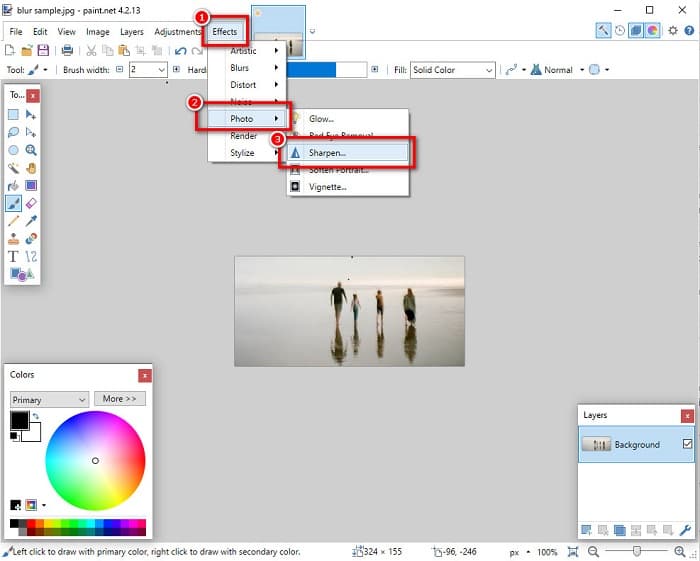
Pasul 3. În fila Sharpen, mișcă glisorul pentru a selecta nivelul de claritate dorit. Poți, de asemenea, să folosești săgețile sus/jos pentru a alege numeric valoarea clarității imaginii.
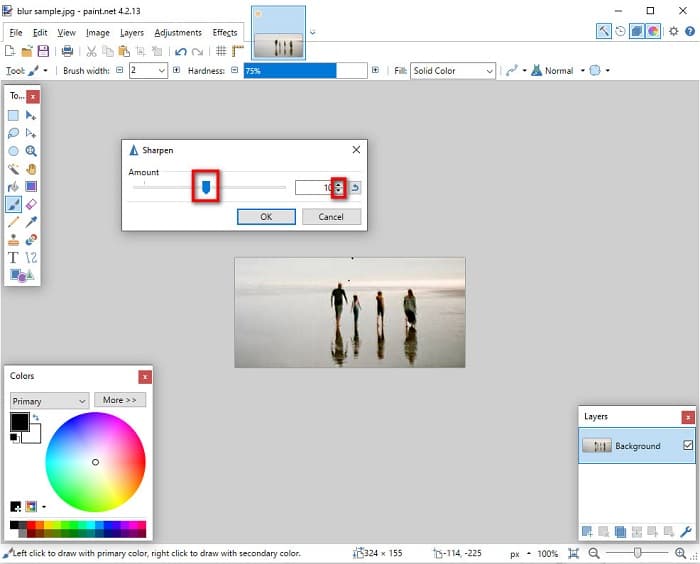
Pasul 4. La final, apasă butonul OK și mergi la File > Save pentru a salva rezultatul pe desktop.
Partea 3. Cum să faci o imagine mai clară pe iPhone
Și dacă aveți o imagine neclară capturată folosind iPhone-ul dvs., puteți utiliza și o aplicație de deblocare pentru dispozitivul dvs. iPhone. Numeroase aplicații de editare a imaginilor pe care le puteți descărca din AppStore vă pot ajuta să vă decolorați imaginea. Cu toate acestea, nu toate aplicațiile sunt folosite gratuit; trebuie să le cumpărați înainte de a le folosi. Din fericire, am găsit o aplicație pentru imagini de estompare care poate fi folosită gratuit din AppStore. Citiți complet această secțiune pentru a afla cum să faceți o imagine mai clară pe dispozitivul dvs. iPhone.
Dacă te întrebi care este aplicația gratuită de editare foto care te poate ajuta să deblurezi o imagine, VSCO este aplicația pe care o cauți. VSCO este o cunoscută aplicație de editare foto disponibilă pentru descărcare din AppStore. În plus, când deblurezi o imagine folosind VSCO, există câteva setări asupra cărora trebuie să te concentrezi. Pentru a deblura fotografia în VSCO, trebuie să ajustezi claritatea (clarity), ascuțimea (sharpness) și expunerea imaginii. VSCO are de asemenea și alte instrumente de editare pe care le poți folosi pentru a-ți modifica pozele. Mai mult, suportă cele mai comune formate de imagine de pe iPhone, precum HEIC și HEIF. Un mic dezavantaj al aplicației este că acceptă doar câteva formate de imagine și trebuie să plătești pentru a folosi celelalte funcții de editare.
Cum să faci o imagine mai clară pe iPhone folosind VSCO:
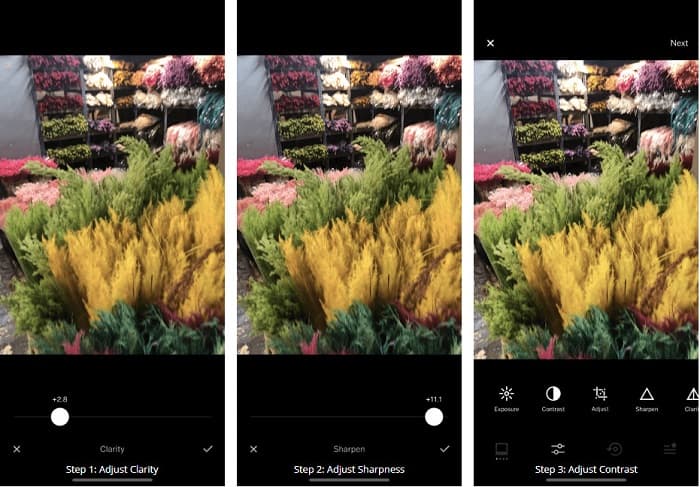
Pasul 1. Instalează VSCO din AppStore, apoi deschide aplicația pe iPhone.
Pasul 2. Deschide imaginea, apoi mergi la Clarity. Opțiunea Clarity te va ajuta să elimini zgomotul de scară mare din imagine. Doar mișcă puțin glisorul Clarity aflat în partea de jos a interfeței.
Pasul 3. În continuare vom ajusta claritatea de tip Sharpen a imaginii. Funcția Sharpen te va ajuta să obții „crispiness”-ul dorit. Apoi, mișcând glisorul, poți alege nivelul de ascuțime dorit pentru fotografie.
Pasul 4. După ce ai terminat de editat clarity și sharpness, urmează să ajustăm Contrastul. Mișcă opțiunea Contrast și glisorul Contrast pentru a alege nivelul de luminozitate și întunecime dorit pentru imagine.
Pasul 5. La final, vom ajusta Exposure-ul fotografiei pentru a o lumina puțin. Creșterea expunerii imaginii te va ajuta să echilibrezi zonele întunecate cu Contrastul. Și asta este tot! Ajustând aceste setări, poți deblura imaginea neclară. Dă clic aici pentru a afla cum să redimensionezi o imagine pe iPhone.
Partea 4. Cum să faci o imagine mai clară pe Android
Există și aplicații pe Android pe care le puteți folosi pentru a face o imagine mai clară. Deci, dacă doriți o imagine neclară salvată în Galerie, această aplicație vă poate ajuta să vă îmbunătățiți imaginea. Citiți această parte pentru a afla cum să estompați o imagine pe dispozitivul dvs. Android.
Aplicația Remini (pentru Android) este probabil una dintre cele mai bune aplicații de editare foto pe care le poți folosi pe dispozitivul tău Android. Această aplicație îți permite să editezi și chiar să deblurezi imaginea neclară. În plus, este ușor de folosit și este gratuită. Folosind opțiunea Enhance, poți face fotografia mai clară. Totuși, trebuie mai întâi să îți creezi un cont înainte de a putea folosi aplicația. Iar în versiunea Pro poți accesa funcțiile avansate de debluruire ale acestei aplicații.
Cum să decolorați o imagine folosind Remini pentru Android:
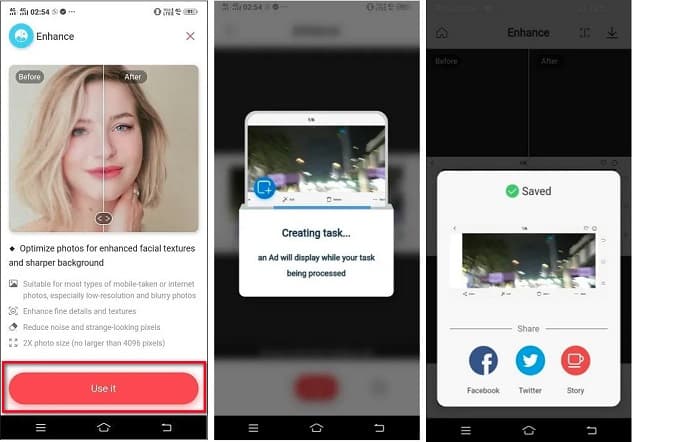
Pasul 1. Instalează Remini pe dispozitivul tău Android. După instalare, deschide aplicația imediat. Pe interfața principală a aplicației, apasă butonul Use it pentru a trece la debluruirea imaginii.
Pasul 2. Apoi selectează imaginea și apasă butonul roșu din partea de jos a interfeței. Se va crea o sarcină și va fi afișată o reclamă în timpul procesării.
Pasul 3. După aceea va apărea rezultatul final, unde poți compara înainte și după al imaginii. Iar dacă ești mulțumit de rezultat, salvează fotografia.
Partea 5. Întrebări frecvente despre cum să faci o imagine mai clară
Pot folosi GIMP pentru a estompa o imagine?
Da. GIMP este un software uimitor de editare a fotografiilor pe care îl puteți folosi pentru a vă estompa imaginea. De asemenea, puteți descărca această aplicație pe dispozitivul dvs. Windows.
Eliminarea estompării unei imagini crește dimensiunea fișierului?
Da. Eliminarea estompării unei imagini înseamnă creșterea calității și rezoluției imaginii dvs. Când rezoluția crește, crește și dimensiunea fișierului imaginii dvs.
Ce aplicație pot folosi pentru a-mi estompa imaginea?
YouCam Perfect este o aplicație care vă poate ajuta să vă estompați imaginea. Cu tehnologia sa AI, vă puteți estompa imediat imaginea.
Concluzie
În această postare am prezentat tot ce trebuie să știi despre cum să faci o poză mai clară. Așadar, dacă ești în căutarea unor aplicații care îți permit să deblurezi o imagine, metodele de mai sus te vor ajuta să îți atingi obiectivul. Însă, dacă preferi să folosești un instrument online cu o interfață ușor de utilizat, folosește FVC Free Image Upscaler.
-
 Recenzie reală PicResize pe care trebuie să o știți acest 2022
 Vrei să știi dacă PicResize este cea mai bună opțiune pentru editarea imaginii? Citiți acest articol în timp ce revizuim instrumentul general.
-
 Tot ce trebuie să știți despre Waifu2x și alternativă
 Vrei să știi mai multe despre Waifu2x? Acest articol oferă informațiile care trebuie evidențiate în această aplicație și alternativa acesteia.
-
 Cum să optimizați imaginea pentru web folosind cele mai bune soluții [rapid]
 Cum să optimizați imaginea pentru web? Veți avea nevoie de software de încredere și de un tutorial; toate informatiile sunt aici.
