


 Video Converter Ultimate
 Screen Recorder
 Reparație video
 Descărcare sigură
6 Cel mai eficient mod de a redimensiona o imagine pe Web și pe desktop
Cu miliarde de fotografii prestigioase pe care le putem descărca, cei mai mulți dintre noi fac imagini frumoase, dar există cazuri în care dimensiunea lor nu este cea pe care o preferăm cel mai mult. Utilizatorii au încercat să redimensioneze imaginea pe care o aveau ajustând înălțimea, lățimea și raportul de aspect al imaginii folosind editorul, care a schimbat PPI-ul imaginii. Rezultatul nu este ceea ce toată lumea se aștepta; imaginile de înaltă definiție devin pixelate.
De ce? Pentru că editorul pe care l-au folosit pentru redimensionare nu poate crea sau completa golul de pixeli din versiunea redimensionată. Astfel, întrebările pe această temă au devenit populare, iar noi suntem aici pentru a te ajuta să rezolvi problema. În acest articol de blog, îți vom oferi o experiență practică despre cum să redimensionezi o imagine fără ca rezultatul final să fie distorsionat.

Partea 1. Cele mai bune dispozitive de redimensionare a fotografiilor pe care le puteți accesa pe web pentru a redimensiona imaginea online [3 instrumente gratuite]
Aceste instrumente online pe care le adăugăm aici sunt disponibile pe diferite browsere web pe care le aveți pe dispozitiv. De asemenea, acestea sunt gratuite, dar există un instrument pe care va trebui să îl achiziționați pentru a îl utiliza fără nicio limită. Cu toate acestea, acestea sunt instrumente online capabile pe care le puteți accesa pentru a începe să redimensionați imaginea pe care o aveți. Citiți pașii pentru a ști cum să le folosiți.
1. FVC Free Image Upscaler - Cel mai bun redimensionator de imagine pe web [Opțiune favorabilă]
FVC Free Image Upscaler Online este un instrument web bazat pe inteligență artificială care poate redimensiona rapid imaginile fără pierderi de calitate. Într-adevăr, acest instrument web va redimensiona automat fiecare fișier de imagine pe care îl încarci aici. Deși este un instrument online, performanța lui la redimensionare este rapidă și eficientă. Fiecare imagine pe care o încarci aici este ștearsă automat de pe server imediat ce o redimensionezi. De asemenea, are unul dintre cele mai curate și mai versatile redimensionatoare de care ai putea avea nevoie; chiar dacă folosești dispozitive diferite, poți accesa acest instrument web atâta timp cât ai conexiune la internet. Vrei să vezi cum se descurcă acest software la această sarcină? Dacă da, citește pașii de mai jos și urmează-i pentru a schimba dimensiunea imaginii rapid și eficient.
Cum să redimensionezi o imagine folosind FVC Free Image Upscaler:
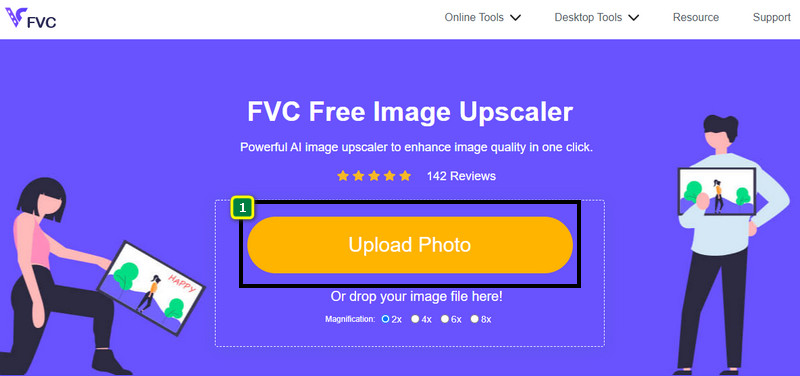
Pasul 1. Pentru a accesa instrumentul web, poți da clic pe acest link, care te va duce automat pe site-ul oficial al redimensionatorului.
Pasul 2. Clic pe Add Image, astfel încât să apară un folder pe ecran, selectează fișierul de imagine pe care vrei să îl încarci și apasă Open.
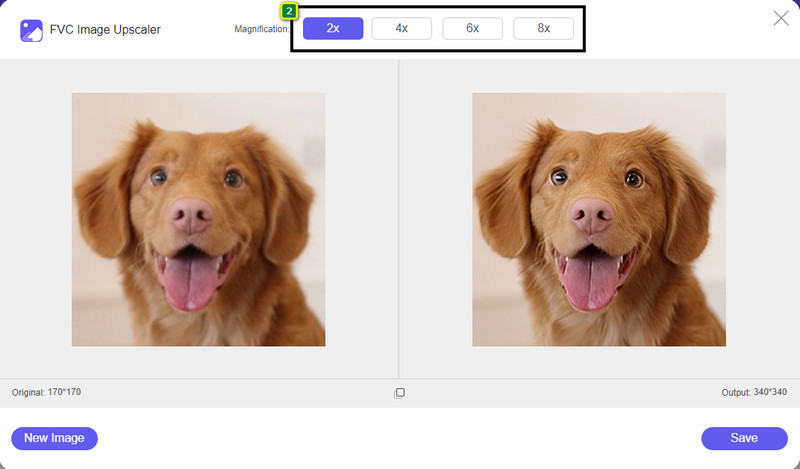
Pasul 3. Pentru a schimba dimensiunea pozei, trebuie să selectezi tipul de mărire pe care vrei să îl aplici imaginii tale. Vei vedea că dimensiunea generală a imaginii se schimbă imediat ce încerci și apeși pe 2x, 4x, 6x sau 8x.
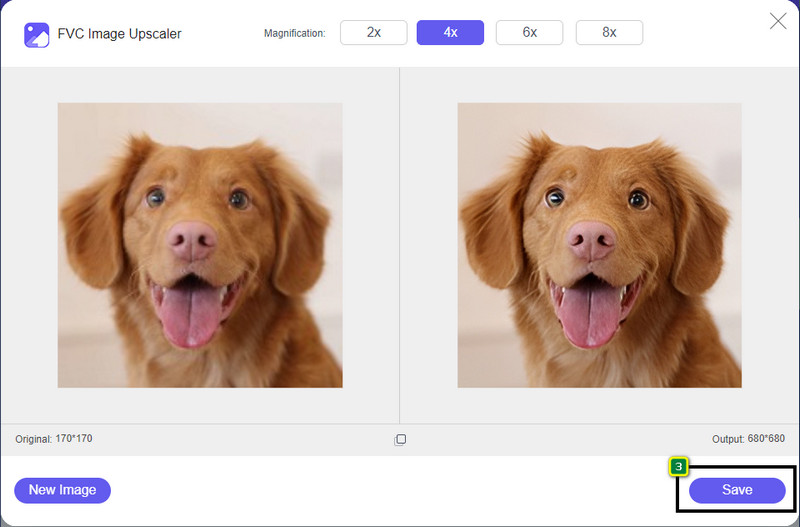
Pasul 4. După ce ai selectat mărirea pe care vrei să o aplici, voila, poți apăsa acum pe Save pentru a descărca versiunea redimensionată pe unitatea desktopului tău.
2. Be Funky - Editor de fotografii [Gratuit și plătit]
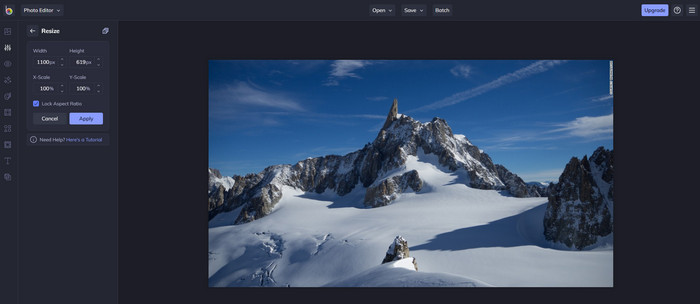
Be Funky - Photo Editor este o platformă creativă pe care o poți folosi pentru a face lucruri extraordinare cu imaginile tale. Poate redimensiona fișiere BMP fără pierderi de calitate. Acest instrument este considerat unul dintre cele mai bune editoare de imagini accesibile online. Deși are o interfață grafică similară cu Photoshop, funcțiile pe care le oferă sunt simple și ușor de înțeles, astfel că putem spune că este și ușor de utilizat. Așadar, dacă vrei să încerci acest instrument online pentru a-ți redimensiona ușor imaginea, urmează pașii pe care i-am inclus aici.
Cum să redimensionezi o imagine folosind Be Funky:
Pasul 1. Caută numele acestuia în browserul tău web, apoi dă clic pe Get Started and Edit Photo.
Pasul 2. Apasă Open pentru a încărca fișierul BMP sau orice altă imagine pe care vrei să o redimensionezi aici.
Pasul 3. Mergi la Edit și apasă opțiunea Resize.
Pasul 4. Aici poți schimba liber lățimea și înălțimea sau scara x și y a imaginii. Apoi apasă Apply pentru a vedea cum arată versiunea redimensionată.
3. Simplu Image Resizer [Gratuit]
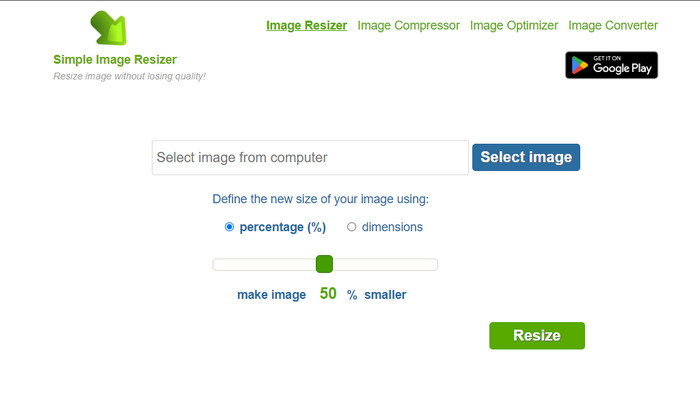
Simple Image Resizer îți permite să redimensionezi o imagine definind noua dimensiune prin schimbarea procentului sau a măsurii. Este ultimul redimensionator de imagini pe care l-am adăugat în acest articol. Interfața sa simplă și ușurința în utilizare au devenit principalii factori pentru care l-am inclus. Pe lângă funcția de redimensionare, poți optimiza, comprima și converti aici imaginea gratuit, dar cu reclame deranjante pe site. Așadar, dacă vrei să încerci acest redimensionator online, urmează pașii de mai jos.
Cum să redimensionezi o imagine folosind Simple Image Resizer:
Pasul 1. Folosind browserul tău web, caută numele lui pentru a începe să folosești acest redimensionator online.
Pasul 2. Apasă Select Image pentru a adăuga fotografia pe care vrei să o redimensionezi aici.
Pasul 3. Alege metoda pe care o preferi pentru redimensionare și modifică procentul sau măsura. Indiferent de variantă, rezultatul este același.
Pasul 4. Dă clic pe Resize pentru a salva rezultatul final pe desktop.
Partea 2. Cum să redimensionați o imagine pe Windows și Mac [plătit și gratuit offline]
Spre deosebire de primul instrument online menționat, următoarele instrumente pe care le-am introdus nu sunt dependente de internet, ceea ce înseamnă că chiar dacă nu aveți internet, le puteți folosi fără probleme. Pentru că sunt descărcabile sau deja preinstalate pe desktop. Aflați cum să le folosiți astăzi citind informațiile pe care le adăugăm fiecăruia dintre ele.
1. Adobe Photoshop [Windows și Mac]
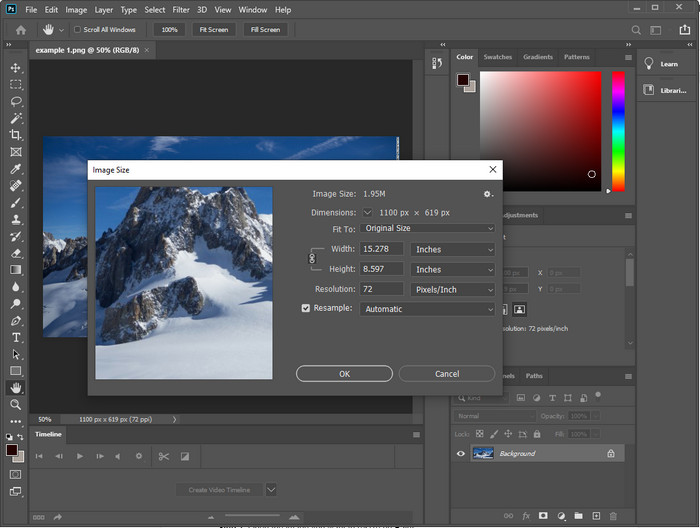
Prima noastră opțiune de redimensionare de imagini offline pe care o poți descărca pe dispozitiv este Adobe Photoshop. De ce? Pentru că generează noi date de pixeli atunci când redimensionezi și astfel evită obținerea unui rezultat final de calitate slabă. În plus, acest software este cunoscut ca editor de imagini profesional care poate procesa cu ușurință atât imagini raster, cât și vectoriale. Deși software-ul este un instrument profesional, poate fi totuși cam costisitor dacă vrei să îl folosești doar pentru redimensionare. Dar, dacă ești interesat(ă) să afli cum să redimensionezi o imagine în Photoshop, citește mai jos.
Cum să redimensionezi o imagine folosind Adobe Photoshop:
Pasul 1. Descarcă și instalează software-ul pe desktop accesând site-ul său oficial.
Pasul 2. Apasă pe File și localizează imaginea în folder după ce dai clic pe Open.
Pasul 3. Apasă pe meniul Image din partea de sus, apoi selectează Image Size.
Pasul 4. Schimbă valorile Width și Height în funcție de preferințele tale, apoi dă clic pe OK pentru a aplica modificările.
Pasul 5. Întoarce-te la File și salvează imaginea pe desktop.
2. Paint [Aplicație implicită pe Windows]
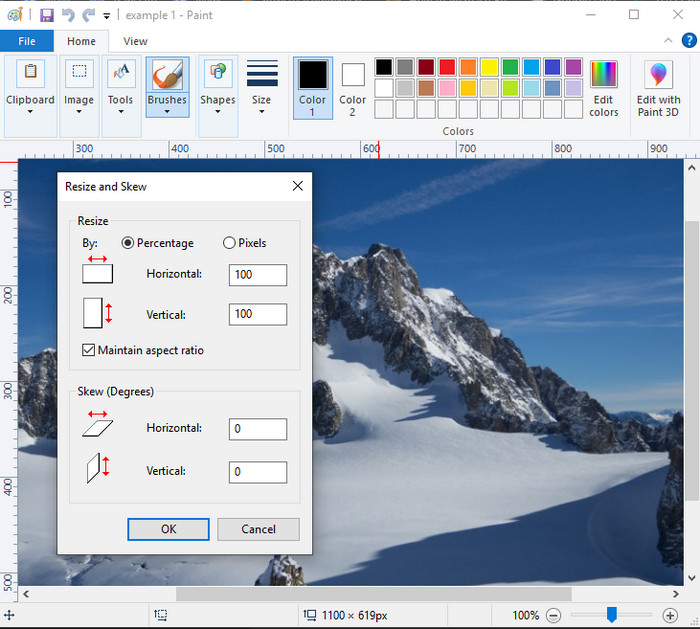
Paint este cunoscut ca o aplicație în care poți desena pe o pânză albă. Diferite categorii de utilizatori de Windows o folosesc în mod obișnuit pentru a crea ceva pe o pagină goală, pentru a adăuga detalii pe imagini și pentru a le redimensiona după nevoie. Deși nu este un editor dedicat, poate totuși să redimensioneze orice imagine raster pe care o ai în unitatea locală. Avantajul utilizării acestuia este că nu trebuie să descarci software-ul pe Windows, deoarece este preinstalat. Așadar, dacă vrei să știi cum să redimensionezi poze cu rezoluție mică folosind această aplicație, citește tutorialul pe care îl adăugăm mai jos.
Cum să redimensionezi o imagine folosind Paint:
Pasul 1. Deschide în Paint imaginea pe care vrei să o redimensionezi.
Pasul 2. După ce ai deschis imaginea, dă clic pe pictograma cu două pătrate pentru a începe redimensionarea imaginii deschise aici.
Pasul 3. Pentru a redimensiona imaginea, poți modifica valorile în procente sau pixeli. După ce ai schimbat numerele, apasă OK pentru a aplica modificările.
Pasul 4. Apasă pictograma de salvare pentru a exporta imaginea pe care ai redimensionat-o aici.
3. Previzualizează [Aplicația implicită pe Mac]
Preview este o aplicație dedicată pe care te poți baza și care îți arată cum să redimensionezi o imagine pe Mac. Dacă nu îți place să descarci aplicații pe macOS, atunci mai bine folosești această aplicație. Este o soluție subapreciată, dar poate redimensiona fotografia direct pe desktop. Să înveți cum să o folosești poate fi un mare avantaj pentru a valorifica pe deplin potențialul acestui software. Dacă ești interesat(ă) de modul în care funcționează acest instrument, treci la informațiile pe care le-am adăugat în continuare.
Cum să redimensionezi o imagine folosind Preview:
Pasul 1. Dă clic dreapta pe imaginea de pe Mac, apasă pe Open with și selectează Preview.
Pasul 2. În partea superioară, dă clic pe Tools, apoi selectează Adjust Size.
Pasul 3. Schimbă dimensiunile imaginii în funcție de nevoile tale, apoi apasă OK pentru a salva modificările făcute.
Partea 3. Suplimentar: Top Image Resizer pe care îl puteți descărca pe Android și iPhone
1. Photo & Picture Resizer [Android]
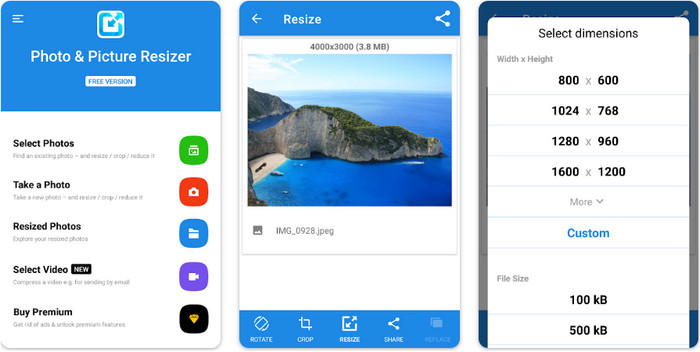
Photo & Picture Resizer este una dintre cele mai rapide și mai simple modalități de a redimensiona imaginile pe care le ai pe dispozitivul Android. Chiar și utilizatorii neexperimentați care doresc să redimensioneze pot descărca și folosi această aplicație ca redimensionator de imagini. Aplicația este gratuită, iar dacă vrei să folosești funcțiile suplimentare, va trebui să o achiziționezi. Per ansamblu, funcțiile ei de redimensionare sunt excelente și o poți stăpâni de la prima utilizare.
2. Image Resizer Free [iPhone]
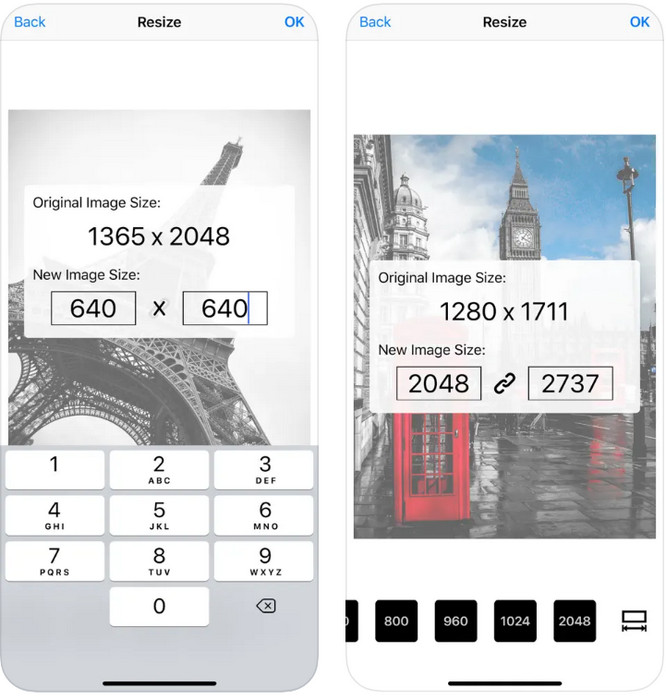
Image Resizer Free este o aplicație pentru iOS pe care o poți descărca pe iOS 7.0 sau versiuni mai noi. Această aplicație este un redimensionator de imagini bine definit, folosit de mulți utilizatori de iOS. Nu are funcții suplimentare în afară de funcția principală, redimensionarea. Deși instrumentul este ușor de utilizat, mulți utilizatori se plâng că nu poate suprascrie imaginea originală cu versiunea redimensionată.
Partea 4. Întrebări frecvente despre cum să redimensionați imaginea
Ce format este mai bine de redimensionat, raster sau vector?
Formatele raster sunt alcătuite din pixeli minuscuri pentru a crea aspectul imaginii, iar atunci când îi schimbați dimensiunea sau dimensiunea, acești pixeli devin întinși, devenind vizibili. Spre deosebire de redimensionarea imaginii vectoriale, aceasta este creată special pentru redimensionarea și mărirea imaginii fără a crea dezordine pe ea.
Pot redimensiona BMP online?
Da, puteți redimensiona BMP folosind soluția online pe care o adăugăm aici. Cu toate acestea, atunci când măriți imaginea, BMP tinde să devină pixelat deoarece sunt imagini raster. Deci, dacă doriți să evitați problema redimensionării fișierului BMP, mai bine alegeți FVC Free Image Upscaler Online, deoarece nu lasă pixelare pe rezultatul final al BMP redimensionat.
Dimensiunea fișierului crește după redimensionarea imaginii?
Da, da. În principal pentru că imaginea pe care ați redimensionat-o adaugă date suplimentare de pixeli la ieșirea reală. Cu toate acestea, dimensiunea fișierului său nu diferă mult de dimensiunea originală a fișierului.
Concluzie
Ce tehnică de redimensionare a imaginilor crezi că ți se potrivește cel mai bine? Alege dintre redimensionatoarele pe care le-am adăugat aici. Dacă ai probleme legate de conexiunea la internet, îți recomandăm cu tărie să folosești FVC Free Image Upscaler Online datorită performanței sale la redimensionare. Nu vei întâmpina dificultăți la redimensionare dacă folosești acest instrument online.
-
 Imagine 1440p – Informații all inclusive de care veți avea nevoie [Actualizare 2022]
 Vrei să știi despre imaginile 1440p? Sau de unde il poti lua? Treci imaginea la 1440p? Citiți asta pentru a le cunoaște pe toate.
-
 Tutorial pentru a depixela o imagine folosind cel mai bun 3 Photo Unpixelator
 Aveți probleme la manipularea imaginilor pixelate? Astăzi, am rezolvat problema și puteți folosi instrumentele pe care le adăugam aici.
-
 Cum să clarificați imaginea în fotografie folosind 3 moduri [Tutorial rapid]
 Problemă cu imaginea neclară? Aici, vom prezenta cum să clarificați imaginile în Photoshop utilizând cele trei moduri pe care le adăugăm.
