


 Video Converter Ultimate
 Screen Recorder
 Reparație video
 Descărcare sigură
Modalități gratuite și profesionale de a converti MKV în MOV
Nu poți deschide un fișier MKV cu QuickTime Player pe Mac și vrei să convertești MKV în MOV?
MKV (Matroska Multimedia Container) este un format container multimedia care poate încorpora audio, video și subtitrări într-un singur fișier. MKV este dezvoltat ca un proiect cu standarde deschise. MKV este utilizat pe scară largă pe internet pentru videoclipuri HD deoarece acceptă descrieri, evaluări, copertă și multe altele. Însă fișierele MKV nu pot fi redate în QuickTime și nici editate în iMovie.

MOV este formatul cel mai prietenos cu Apple. Dacă folosești un Mac, este mai bine să convertești MKV în MOV pentru redare sau editare. În acest articol, îți vom arăta 2 moduri simple de a converti MKV în MOV pe Mac și pe PC cu Windows.
Partea 1. Cum se convertește MKV în MOV gratuit online
Când cauți pe Google cum să convertești MKV în MOV pe internet, poți vedea că multe rezultate sunt convertoare online gratuite MKV în MOV. În prima parte, vrem să îți prezentăm un excelent instrument online de conversie MKV în MOV, FVC Free Online Video Converter, pentru a realiza conversia fișierelor MKV.
Suportă orice format video utilizat frecvent, inclusiv MKV, MOV, MP4, AVI, FLV, WMV, MPEG și multe altele. Oferă o modalitate directă de a converti direct fișierul dvs. MKV în MOV gratuit online.
Descărcați versiunea pentru desktop pentru a converti fișiere în lot.
Pasul 1. Când vrei să convertești un fișier MKV online, poți accesa site-ul FVC Free Online Video Converter în browserul tău. Acest convertor gratuit MKV în MOV este compatibil cu orice browser popular, precum Chrome, IE, Safari și Firefox.
Pasul 2. Dă clic pe butonul Add Files to Convert pentru a instala un mic lansator necesar pentru conversia video MKV. După aceea, va apărea o fereastră pop-up în care poți selecta și încărca fișierul MKV pe care vrei să îl convertești în MOV.

Pasul 3. După încărcare, vei vedea multe formate video des utilizate, precum MP4, MOV, FLV, AVI, WMV, VOB, WEBM și altele, listate pentru a le putea alege. Poți selecta MOV ca format de ieșire.
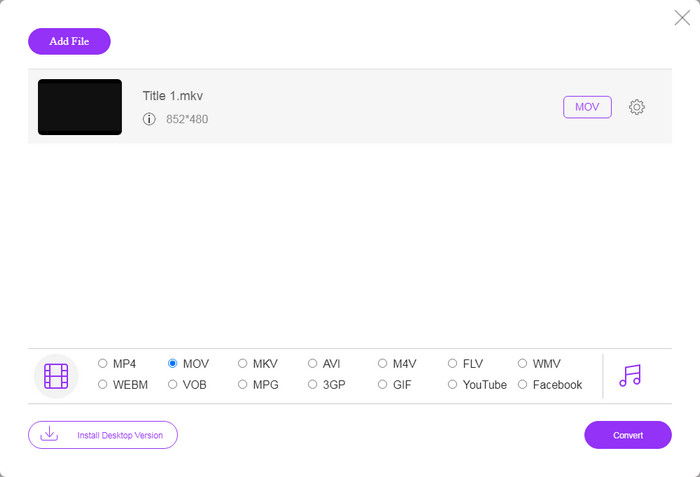
Pasul 4. Acest convertor MKV în MOV îți permite să ajustezi diverse setări video și audio. Poți da clic pe pictograma Settings pentru a personaliza aceste setări.

Pasul 5. Dă clic pe butonul Convert pentru a începe conversia videoclipului de la MKV la MOV pe computerul tău. În acest pas poți alege un folder de destinație potrivit pentru fișierul video MOV convertit. După conversie, vei fi direcționat automat către acel folder.
Partea 2. Cel mai bun mod de a converti MKV în MOV fără pierderi de calitate
Ar trebui să știi că; majoritatea convertoarelor gratuite online sunt concepute în principal pentru conversia de fișiere mici. Mai bine alegeți un convertor video profesionist dacă obțineți o experiență de conversie mai bună și o calitate a rezultatului mai mare.
Aici îți recomandăm cu tărie puternicul software de conversie video și audio, Video Converter Ultimate, pentru a converti MKV în MOV pe Mac și PC fără pierderi de calitate. Poate converti videoclipuri păstrând calitatea originală a imaginii și a sunetului.
Video Converter Ultimate este software-ul profesional de conversie video și audio care poate converti MKV în MOV fără pierderi de calitate.
- 1. Convertiți videoclipurile 4K, 1080p HD și SD în peste 300 de formate precum MOV, MP4, AVI, FLV, MP3 etc.
- 2. Funcții de editare puternice precum tăierea, decuparea, rotirea, filigranul, 3D, îmbunătățirea, efectele și multe altele.
Descărcare gratuită pentru Windows 7 sau o versiune ulterioară Descărcare securizată
Pasul 1. Fă dublu clic pe butonul de descărcare de mai sus pentru a instala gratuit și a rula acest convertor MKV în MOV pe computer. Ar trebui să alegi versiunea potrivită în funcție de sistemul tău.
Pasul 2. Selectează funcția Converter pentru a realiza conversia video MKV. Dă clic pe Add Files pentru a adăuga fișierul (fișierele) MKV. Acest convertor are o funcție de conversie în lot, care îți permite să convertești unul sau mai multe fișiere MKV deodată.

Pasul 3. Alege formatul MOV ca format de ieșire din lista derulantă Convert All to. Apoi dă clic pe butonul Convert All pentru a începe conversia din MKV în MOV.

Cu ajutorul celei mai noi tehnologii de accelerare, acest convertor MKV în MOV îți poate oferi o viteză de conversie super-rapidă. Îți permite, de asemenea, să comprimi fișiere MOV cu ușurință.
MKV vs. MOV
Formatul container multimedia Matroska, lansat în 2002, este un format open-source care poate include o serie de piese video, audio, imagini și subtitrare. Deci, îl puteți folosi pentru a stoca cu ușurință clipuri video scurte, emisiuni TV și filme. Este destul de popular pentru fan-subbing anime.
Formatul MOV poate fi utilizat pentru stocarea unui film, a unei emisiuni TV, a unui videoclip scurt sau a unui film de acasă. De fapt, este salvat în formatul de fișier QuickTime (QTFF), care a fost introdus de Apple în 1991. Fișierele MOV sunt adesea folosite atunci când oamenii doresc să salveze un videoclip de înaltă calitate.
Partea 3. Întrebări frecvente despre convertirea MKV în MOV
Întrebarea 1. Poate iMovie să citească MKV?
Nu. Ca software implicit de editare video pentru dispozitivele Apple, iMovie poate edita cu ușurință videoclipuri MOV sau MP4. Dar nu acceptă formatele de compresie pentru containere sau video, cum ar fi FLV, VOB, WebM și WMV.
Întrebarea 2. MKV este mai bun decât MP4?
Nu poți spune pur și simplu că MKV este mai bun decât MP4 sau că MP4 este mai bun. Atât MKV, cât și MP4 pot reda video de înaltă calitate H.264. Însă, ca cel mai popular format video, MP4 este acceptat de mai multe dispozitive, sisteme, playere și programe de editare. Verifică această pagină pentru a compara diferențele dintre MKV și MP4.
Întrebarea 3. Poate converti VLC MKV în MOV?
Da. VLC poate funcționa ca un bun convertor video pentru a realiza conversia video din MKV în MOV. Poți deschide VLC, da clic pe Media, alege Convert/Save, adăuga fișierul MKV și selecta MOV ca format de ieșire, apoi da clic pe butonul Start pentru a efectua conversia video din MKV în MOV în VLC. Îl poți folosi chiar și pentru a îmbina fișiere MOV.
Concluzie
Ai nevoie să convertești MKV în MOV? După ce ai citit această pagină, poți obține 2 metode eficiente pentru a transforma fișierele MKV în MOV. Dacă ai orice altă recomandare de convertor MKV, te rugăm să o împărtășești în comentarii cu ceilalți cititori.
-
 8 cei mai buni jucători MOV pentru a reda fișiere QuickTime MOV cu calitate originală
 Aflați mai multe despre cele mai bune 8 playere MOV disponibile atât pentru Windows, cât și pentru Mac. Puteți alege cea dorită și potrivită pentru a reda fișiere MOV cu calitatea originală.
-
 Înregistrare ecran QuickTime - Înregistrați videoclipuri cu audio pe Mac și PC
 Ecranul de înregistrare cu audio pe Mac este util. Playerul încorporat, QuickTime Player poate face acest lucru. Citiți-i postarea și știți cum să capturați ecranul cu sunet pe Mac și PC.
-
 Cele mai bune 4 metode pentru a converti cu ușurință MOV în MP3 pe Windows și Mac
 Când doriți să extrageți fișierele audio MP3 din fișiere MOV, puteți afla mai multe despre cele mai eficiente 4 convertoare MOV în MP3 pentru a obține fișierele dorite din articol.

