


 Video Converter Ultimate
 Screen Recorder
 Reparație video
 Descărcare sigură
Metode ușoare de a converti DV în MP4 online și offline
Formatul de fișier DV a fost cel mai popular pe aproape toate camerele video înainte, deoarece stochează videoclipuri excelente pentru vizionare și editare. Totuși, acest tip de fișier nu mai este utilizat frecvent în era modernă. Unele programe nu acceptă acest tip de fișier, ceea ce este nepotrivit pentru utilizatorii care au un fișier video DV. Însă, dacă vrei să îți redai videoclipurile în toate programele, trebuie să convertești fișierul DV în cel mai popular format din prezent, formatul MP4. Ești norocos, deoarece acest articol îți va arăta cele mai eficiente metode de a converti DV în MP4 folosind convertoare de excepție. Așadar, citește acest articol pentru a afla toate detaliile necesare.

Partea 1: Diferențele dintre DV și MP4
Înainte de a trece la procesul de conversie a fișierelor, să vedem mai întâi diferențele dintre fișierul DV și formatul MP4.
| Fişier | DV | MP4 |
| Extensie de fișier | .dv | .mp4 |
| Numele complet | Video digital | MPEG-4 |
| Descriere | Principalii producători de echipamente video au creat DV în 1995 ca format digital pentru înregistrarea video magnetică și o metodă de compresie video. Formatul DV utilizează un semnal video digital component de 720×576 pixeli, pe 8 biți. Pentru a transfera date este utilizată o secvență DIF care conține date video, audio și subcod. În zona de service, ora și data sunt înregistrate. | Standardele video MPEG-4 și audio AAC definesc împreună extensia MP4. Containerul poate conține orice conținut media, inclusiv grafică 2D și 3D, audio, video și subtitrări. Pe Windows, practic orice player poate reda fișiere MP4, dar pe Mac, aveți nevoie de un plug-in sau convertiți fișierul MP4 într-un alt format. |
| Dezvoltator | Sony și Panasonic | Grupul de experți în imagini în mișcare |
| Tip MIME | video/x-dv | video/mp4 |
| Programe asociate | QuickTime Player Windows Movie Maker VLC Media Player | VLC Media Player MPlayer QuickTime Player Windows Media Player Filme și TV Microsoft |
Partea 2: Cel mai bun mod de a converti DV în MP4 online
Conversia DV în MP4 online este dificilă, mai ales când nu știi ce aplicație poți folosi și în care poți avea încredere. Dar, datorită FVC Free Video Converter Online, îți poți transforma rapid și instantaneu fișierul DV în format MP4. Acest instrument online acceptă diverse fișiere video, precum AVI, FLV, M4V, VOB, WMA, MOV, TS și altele. De asemenea, are o metodă de conversie simplă, prin care poți converti fișierele în doar câteva clicuri. În plus, dacă intenționezi să convertești mai multe fișiere DV într-un singur fișier MP4, poți folosi acest convertor deoarece oferă un proces de conversie în lot. De asemenea, poți utiliza acest instrument în toate browserele, cum ar fi Google Chrome, Mozilla Firefox, Safari, Microsoft Edge și altele, ceea ce îl face mai convenabil pentru toată lumea. Având în vedere toate aceste caracteristici, poți spune că acest convertor online este una dintre cele mai speciale aplicații pe care le poți folosi. Urmează instrucțiunile simple de mai jos pentru a învăța cum să convertești un fișier DV în format MP4 folosind FVC Free Video Converter Online.
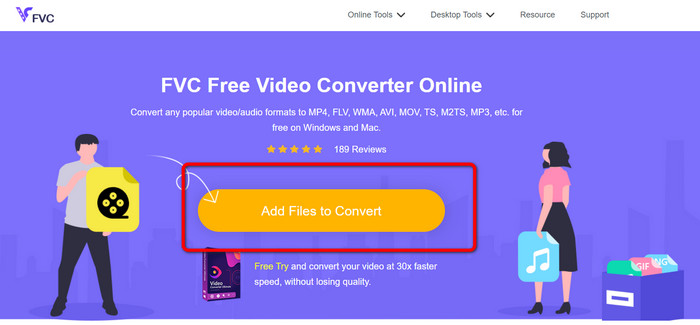
Pasul 1: Mai întâi, deschide browserul și vizitează site-ul FVC Free Video Converter Online. Apoi, în partea centrală a paginii principale, fă clic pe butonul Add Files to Convert pentru a încărca fișierul video DV.
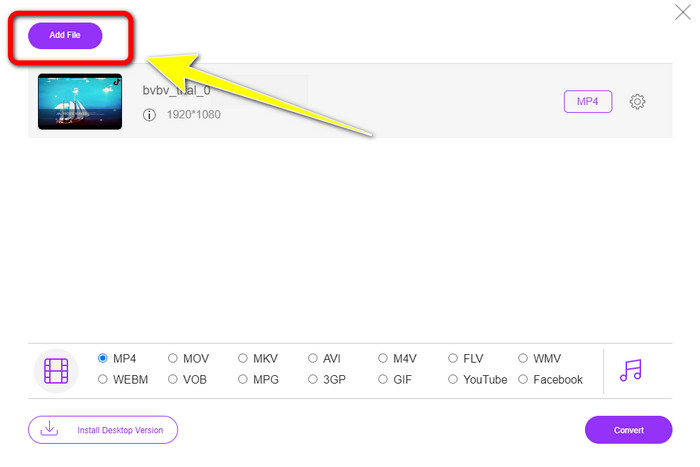
Pasul 2: Dacă vrei să convertești mai multe fișiere DV într-un singur MP4, fă clic pe butonul Add File din partea stângă sus a interfeței pentru a adăuga mai multe fișiere.
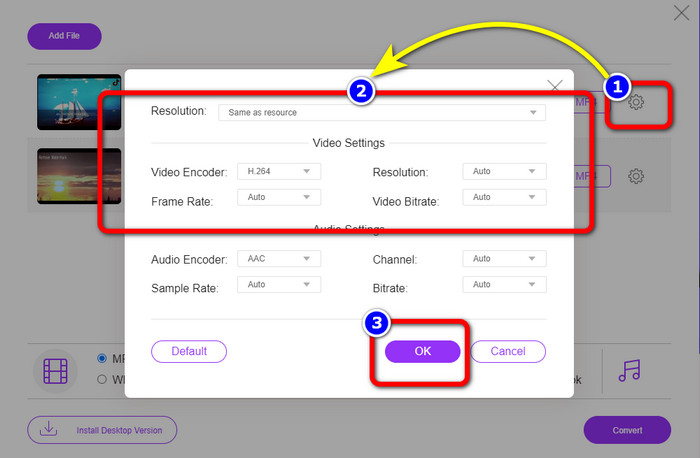
Pasul 3: Fă clic pe pictograma Setting pentru a ajusta bitrate‑ul, rata de cadre și rezoluția videoclipului. Apoi, după ce ai terminat de făcut modificările în funcție de preferințe, apasă pe OK.
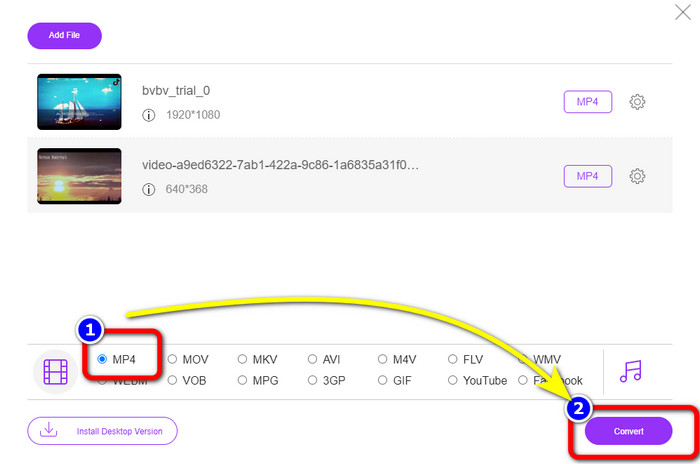
Pasul 4: După ce ai făcut toate modificările, mergi în partea de jos a interfeței pentru a vedea opțiunile de format. Selectează formatul MP4 și apasă Convert pentru a începe procesul de conversie.
Partea 3: Cum să convertiți DV în MP4 fără pierderi
În ceea ce privește un convertor offline, poți folosi Video Converter Ultimate pentru a converti DV în MP4 pe Mac și Windows fără pierderi de calitate. Poți converti diverse fișiere video fără a pierde din calitate. De asemenea, folosind această aplicație, poți converti mai multe fișiere simultan deoarece oferă un proces de conversie în lot. Acest instrument offline poate accepta numeroase formate video, precum MOV, AVI, FLV, M4V, SWF, MTS, MKV, WMV, VOB și peste 100 de altele. În plus, Video Converter Ultimate are o viteză de conversie de până la 30x mai rapidă decât viteza medie, ceea ce îl face mai convenabil pentru toți utilizatorii. Mai mult, toți utilizatorii preferă o metodă ușoară de a converti fișiere. Această aplicație oferă o interfață simplă, cu cea mai directă metodă de a-ți converti videoclipurile. Poți, de asemenea, să îți editezi videoclipurile în timp ce le convertești, deoarece are instrumente de editare. Dacă vrei să convertești mini DV în format de fișier MP4, folosește ghidul detaliat de mai jos cu Video Converter Ultimate.
Pasul 1: Trebuie să descarci și să instalezi Video Converter Ultimate pe Mac sau Windows făcând clic pe butonul Download. Lansează software‑ul după instalare.
Descărcare gratuită pentru Windows 7 sau o versiune ulterioară Descărcare securizată
Descărcare gratuită pentru MacOS 10.7 sau o versiune ulterioară Descărcare securizată
Pasul 2: Apasă pe panoul Converter și selectează semnul Plus pentru a atașa fișierul DV. Poți, de asemenea, să faci clic pe butonul Add Files sau să plasezi fișierul direct în casetă prin tragere‑și‑fixare.
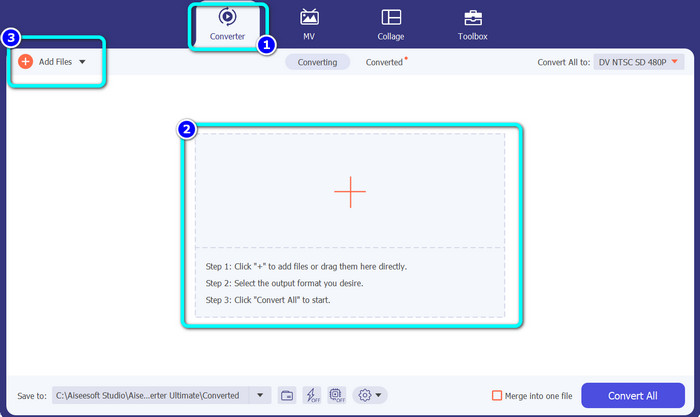
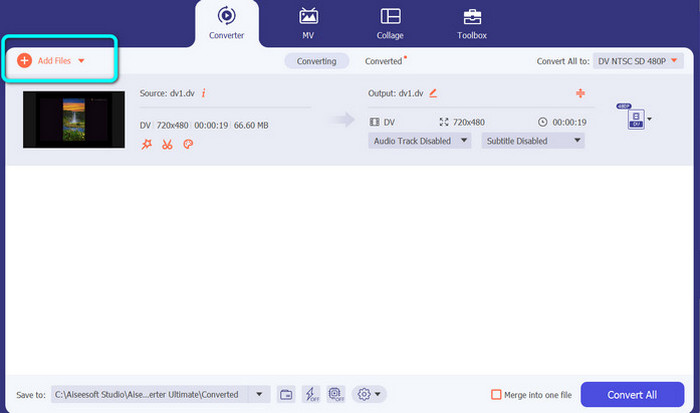
Pasul 3: Dacă vrei să realizezi un proces de conversie în lot, fă clic pe butonul Add Files pentru a adăuga mai multe fișiere video DV.
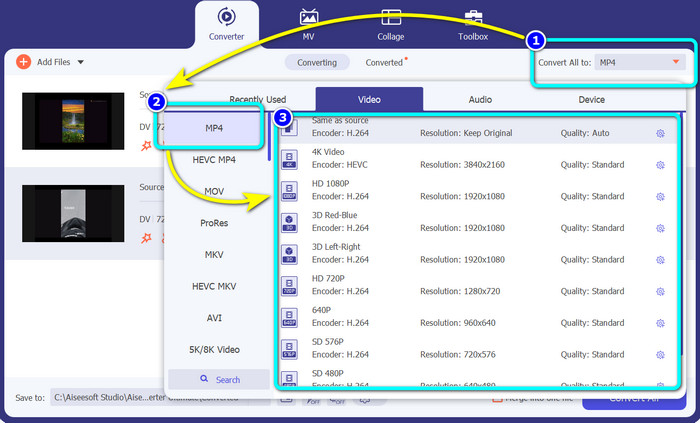
Pasul 4: După ce ai adăugat un alt fișier DV, schimbă formatul de ieșire făcând clic pe butonul Convert All to. Vor apărea opțiunile de format și selectează formatul MP4. Apoi, alege rezoluția dorită.
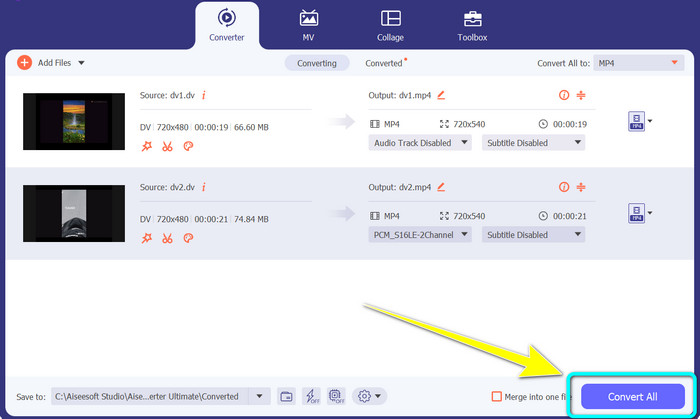
Pasul 5: Pentru ultimul pas, începe procesul de conversie făcând clic pe butonul Convert All. Apoi, salvează fișierul video în locația de fișiere dorită.
Partea 4: Metodă ușoară de a converti DV în MP4 folosind Freeware
În această parte, veți învăța cum să convertiți DV în MP4 folosind o frână de mână. Acest instrument offline este, de asemenea, capabil să convertească fișiere video precum MP4, MKV, WEBM etc. Oferă și un proces de conversie în lot. Cu toate acestea, utilizarea acestui instrument nu este ușoară. Are multe opțiuni pe interfață, ceea ce este greu de înțeles, mai ales pentru începători. Urmați pașii de mai jos pentru a converti DV în MP4.
Pasul 1: Descarcă aplicația Handbrake pe computer. Apoi lanseaz-o.
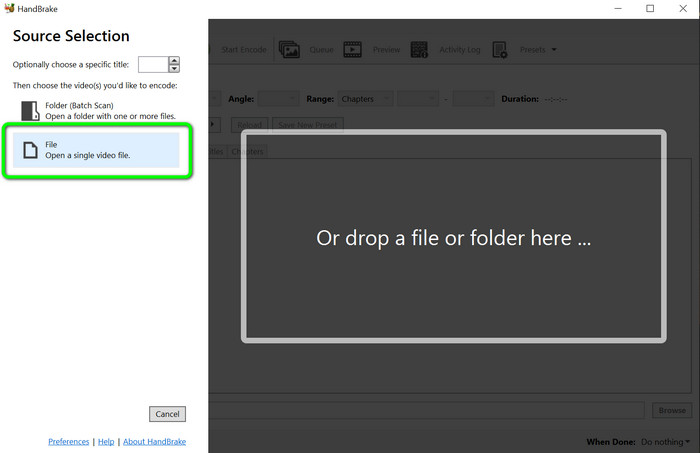
Pasul 2: După ce deschizi aplicația, selectează butonul File pentru a adăuga fișierul DV.
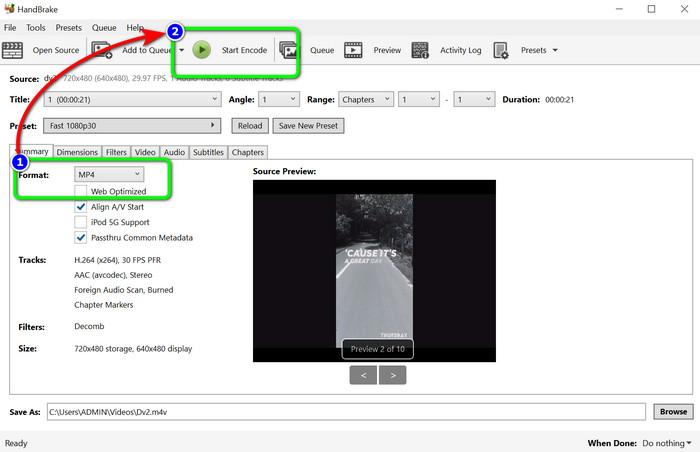
Pasul 3: Din opțiunea de format, selectează formatul de fișier MP4. Apoi, fă clic pe butonul Start Encode pentru a începe procesul de conversie.
Lecturi suplimentare:
Top 2 metode de a converti fișiere DV în MOV gratuit, pe desktop și online
Convertoare DV în FLV utile pentru a converti DV în FLV [2023]
Partea 5: Întrebări frecvente despre conversia DV în MP4
1. VLC poate reda fișiere DV?
Da! VLC Media Player acceptă formatul de fișier DV, astfel încât să vă puteți reda videoclipurile în acest program.
2. Care software online este cel mai bun pentru conversia video?
Poți folosi FVC Free Video Converter Online. Acest instrument online îți poate converti cu ușurință videoclipurile. Poți, de asemenea, să faci conversie în lot și să editezi bitrate‑ul, rata de cadre și rezoluția videoclipului.
3. Care este rezoluția standard a fișierului DV?
Rezoluția standard a fișierului DV este de 720 de pixeli orizontali și 480 de linii întrețesute. Standardul de înaltă definiție al DV este de 720 și 1080 de linii.
Concluzie
După cum s-a arătat mai sus, acestea sunt cele mai bune metode de a converti DV în MP4 online și offline. Poți folosi FVC Free Video Converter Online pentru a converti fișierele online. De asemenea, folosește Video Converter Ultimate pentru a converti fișierele mai rapid offline.
-
 Un mod final și gratuit de a converti DV în WMV [Online și Offline]
 Aflați care sunt cele mai bune modalități de a converti DV în WMV fără probleme. Vrei să afli mai multe? Atunci citiți acest articol pentru a afla mai multe despre DV și WMV.
-
 Cum să convertiți F4V în MP4 cu cele mai eficiente metode
 Videoclipurile tale F4V nu sunt de o calitate bună? Apoi transformați-l într-un fișier MP4. Această postare va oferi cea mai bună modalitate de a converti F4V în MP4 online și offline
-
 Cinci abordări populare pentru a converti Xvid în format MP4
 Aruncați o privire asupra acestor metode uimitoare despre cum să convertiți Xvid în format de fișier MP4 în acest articol. De asemenea, veți învăța cele mai bune aplicații pe care le puteți utiliza pentru conversie
