


 Video Converter Ultimate
 Screen Recorder
 Reparație video
Înțelegeți cum să descărcați linkul iFunny în format MP4 [Online și Offline]
După cum știm cu toții, iFunny este noul furnizor de meme‑uri de pe internet. De asemenea, oferă zilnic meme‑uri actualizate în diferite categorii. Însă, dacă exporți videoclipuri de aici, există mereu un filigran în colțul din stânga jos al videoclipului. În plus, în acest articol vom vorbi despre cum să descarci și să salvezi iFunny în format MP4 fără niciun filigran. Fără alte întârzieri, să trecem la instrumentele pe care le poți folosi pentru a salva videoclipurile.

Partea 1. Cele mai bune metode de salvare a videoclipului iFunny pe MP4 pe PC și Mac
1. FVC Free Screen Recorder
Dacă descărcarea videoclipurilor iFunny în MP4 nu este punctul tău forte, atunci înregistrarea videoclipului sigur este. FVC Free Screen Recorder îți oferă control deplin asupra înregistrării videoclipului direct de pe ecran. De asemenea, poți schimba formatul, dacă dorești, însă există doar câteva opțiuni limitate pentru această funcție. Cu toate acestea, este sigur și securizat, nu doar pentru că are o bibliotecă integrată prin care poți accesa ușor înregistrările. Așadar, fă loc celui mai bun instrument web pe care îl poți găsi pe internet. Urmează instrucțiunile de mai jos, unde vom vorbi despre cum să folosești acest instrument.
Pasul 1. Accesează linkul pus la dispoziție pentru tine și se va deschide un site.
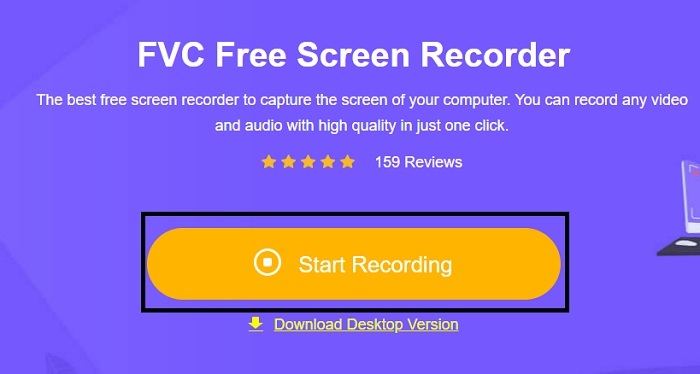
Pasul 2. Pentru a porni instrumentul, dă clic pe Start Recording și permite lansarea aplicației.
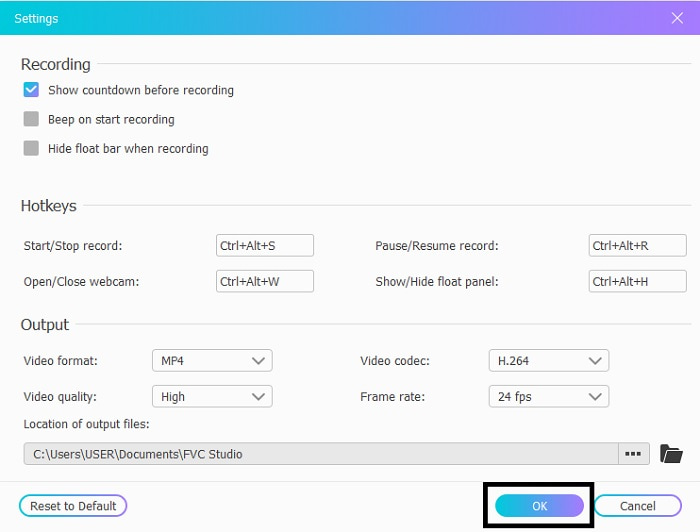
Pasul 3. În mini‑bara de instrumente, dă clic pe pictograma gear pentru a modifica setările de înregistrare, tastele rapide și formatul de ieșire, dacă dorești. Pentru a salva modificările, apasă pe OK.
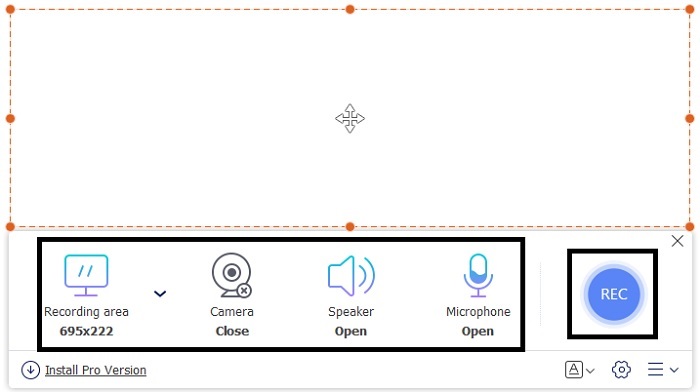
Pasul 4. Acum ajustează lungimea și lățimea zonei de înregistrare în Recording Area; dacă vrei să adaugi reacția feței tale, apasă pe Webcam, adaugă sunetul videoclipului activând System Sound, iar pentru a adăuga propria voce activează Microphone. Apasă butonul rotund REC pentru a începe înregistrarea.
Pasul 5. Când ai terminat înregistrarea, apasă pe butonul în formă de cub pentru a opri. Fișierul va fi salvat automat în unitatea ta de stocare, dar îl poți verifica în History List și îl poți reda.
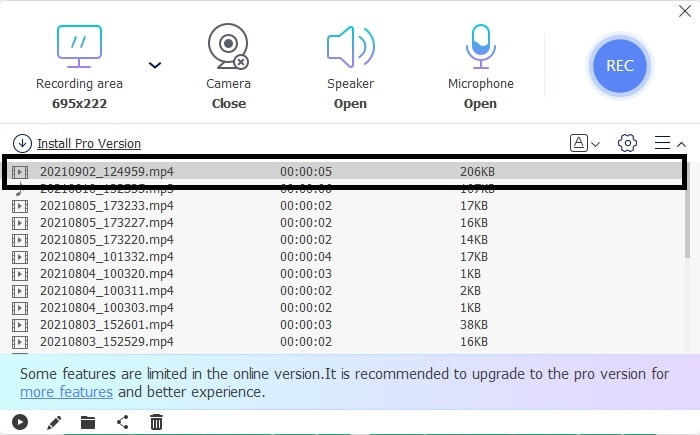
2. FVC Screen Recorder
Știm că instrumentele web îți oferă doar funcții limitate, ceea ce înseamnă că nu poți adăuga și explora prea multe. Dar dacă îți spunem că poți înregistra la cel mai înalt nivel fără nici cel mai mic efort? Îți prezentăm FVC Screen Recorder, un recorder de ecran multifuncțional, care se concentrează pe inovație și pe o interfață mai futuristă. Cea mai bună metodă de a salva videoclipurile iFunny fără a pierde din calitate este să înregistrezi iFunny în MP4. Pentru că, dacă distribui un videoclip pe alte platforme folosind iFunny, există șansa ca calitatea lui să se piardă, mai ales atunci când descarci linkul.
Poate vă întrebați dacă acest instrument nu este ușor de utilizat sau dacă este ușor de utilizat nu poate înregistra așa cum fac instrumentele pro. Sincer să fiu, nu există un astfel de instrument care să dezvolte acest tip de caracteristică, în afară de FVC Screen Recorder. Există trei lucruri cu care acest instrument se mândrește, deoarece este ușor, eficient și cu un cost redus, în timp ce experimentează o înregistrare remarcabilă. Așadar, fără să ne lăudăm cu acest lucru, să continuăm cum să-l folosim urmând pașii de mai jos.
Pasul 1. Alege programul care este compatibil cu desktopul sau laptopul tău pentru a‑l descărca. Descărcarea în unitatea ta de stocare va dura un minut sau două. Instalează‑l, configurează instrumentul după preferințele tale și apasă pe „Finish” pentru a salva.
Descărcare gratuităPentru Windows 7 sau versiuni mai noiDescărcare sigură
Descărcare gratuităPentru MacOS 10.7 sau versiuni mai noiDescărcare sigură
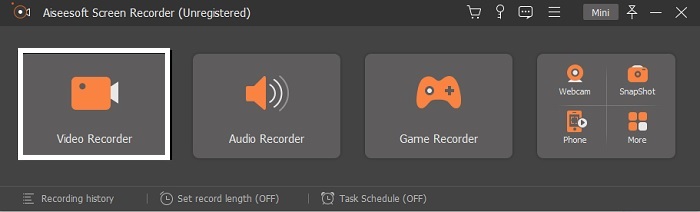
Pasul 2. Instrumentul va porni automat pe ecran. Dă clic pe Video Recorder pentru a înregistra videoclipurile iFunny.
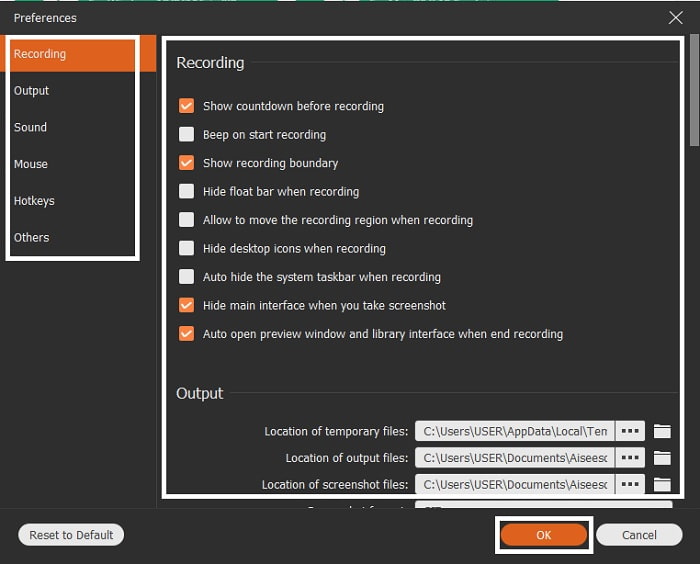
Pasul 3. În bara de instrumente, mergi la pictograma cog și modifică preferințele. Pentru a salva modificările efectuate, apasă pe OK.
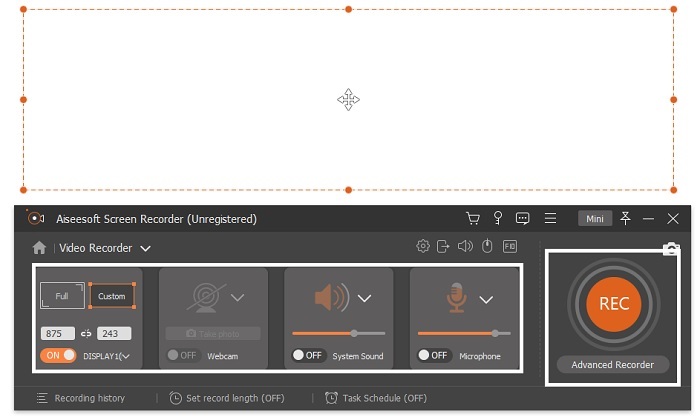
Pasul 4. Modifică screen ratio al înregistrării în funcție de preferințele tale. Alte funcții: pentru a adăuga reacțiile tale, activează Webcam; pentru a adăuga sunetul videoclipului pe care îl înregistrezi, apasă pe System Sound; iar, în final, pentru a adăuga vocea ta apasă pe Microphone. Dacă totul este setat, apasă butonul REC pentru a începe înregistrarea.
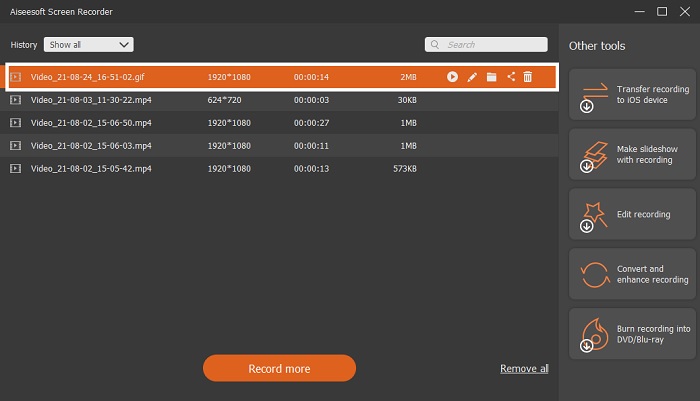
Pasul 5. Pentru a opri înregistrarea, apasă pe butonul în formă de pătrat. Pentru a salva videoclipul iFunny și a‑l salva direct în format MP4, apasă pe Save și apoi pe Next. Dacă vrei să revezi înregistrarea iFunny pe care ai făcut‑o, mergi la Recording List și dă clic pe primul fișier.
Partea 2. Link iFunny către Instrumentul web MP4 Downloader
Toate instrumentele din listă se numără printre cele mai bune pe care le poți folosi pentru a descărca prin link. Copiază linkul iFunny pentru a salva în format MP4 cu ajutorul acestor instrumente.
1. TubeOffline

Convertește linkul iFunny cu ajutorul TubeOffline. Acest instrument te ajută să convertești ușor, însă dezavantajul este că reclamele apar peste tot. De asemenea, nu există limită de vârstă pentru reclamele afișate în acest instrument. În urma testelor noastre, interfața nu este potrivită pentru persoanele sub 18 ani din cauza conținutului publicitar cu tentă sexuală. Atâta timp cât rămâi pe site, reclamele vor continua să apară peste tot. Dar, dacă nu te deranjează reclamele, atunci merită să îl încerci.
2. Experți PHP
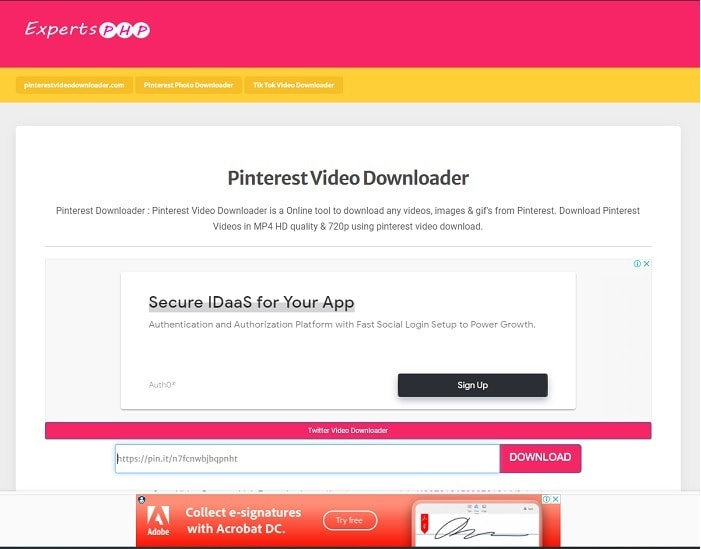
Acest instrument are reclame, dar mult mai puține decât TubeOffline. ExpertsPHP ar putea fi downloaderul tău iFunny link to MP4, dacă îți place să îl folosești. Acest instrument web este foarte clar, ceea ce înseamnă că până și un începător îl poate folosi. Totuși, oferă doar două opțiuni: alege între ele și descarcă. Chiar dacă acest instrument ar putea fi alegerea ta pentru salvarea conținutului iFunny, tot pot apărea probleme dacă fișierul nu este descărcat corect. Cu toate acestea, este mult mai bun decât primul, mai ales dacă ești deranjat de reclame.
3. DoremiZone
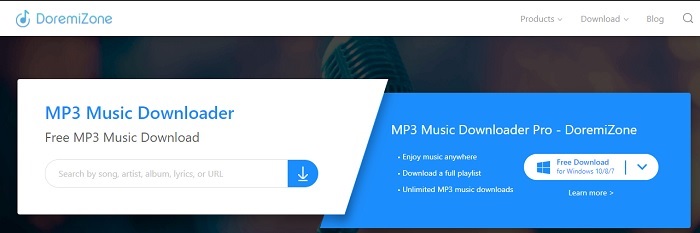
Dacă primele două instrumente pentru descărcarea iFunny afișează reclame, DoremiZone nu are reclame. Acest instrument este foarte informativ, deoarece îți arată cum să îl folosești. Combinația de albastru și alb se potrivește perfect cu site‑ul. De asemenea, spre deosebire de metoda clasică în care inserezi un URL și descarci, acest instrument are un motor de căutare unic, dedicat exclusiv muzicii. Poți căuta după melodie, numele artistului și versuri. Dar, chiar dacă instrumentul oferă această funcție avansată, dacă îți este întreruptă conexiunea, există șanse mari ca unele fragmente de cod ale fișierului să lipsească.
Citește mai departe
Cum să convertești M2TS în MKV
Partea 3. Întrebări frecvente despre iFunny în MP4
Este iFunny potrivit pentru a fi accesat de minori?
Limita de vârstă necesară pentru a accesa iFunny este de peste 13 ani, dar dacă nu v-ați conectat la site-ul lor. Nu există nicio șansă ca dezvoltatorul iFunny să monitorizeze această limită de vârstă și activitățile minorilor.
Îmi pot partaja meme-urile sau videoclipurile pe iFunny?
Da, vă puteți partaja meme-urile sau videoclipurile realizate prin această platformă. Distribuie meme-urile pe care le-ai creat aici și lasă lumea să le folosească pentru a-și exprima mai bine emoția.
Pot crea GIF-uri pe iFunny?
Poți crea GIF‑uri pe iFunny, dar există un instrument mult mai bun care te ajută să creezi meme‑uri. FVC Ultimate Video Converter are printre funcțiile sale și un creator de GIF‑uri, cu ajutorul căruia poți face cele mai amuzante GIF‑uri pe care le‑ai văzut vreodată. Trebuie să descarci acest instrument și să mergi la bara de instrumente pentru a‑l accesa.
Concluzie
În concluzie, înregistrarea este metoda ideală și cea mai bună pentru a salva videoclipuri iFunny în MP4. Dar alegerea între cele două opțiuni poate fi dificilă pentru tine. Noi căutăm cel mai bun instrument care îți poate oferi rezultatul uimitor pe care îl aștepți. FVC Screen Recorder este cel mai bun în domeniul înregistrării de video, audio și chiar gameplay. Dacă achiziționezi acest instrument, este ca și cum ai fi deja pregătit pentru viitor. FVC Screen Recorder îți promite funcții și mai futuriste, pe măsură ce continuăm să ne ridicăm nivelul.
-
 2 moduri gratuite de a converti ARF în MP4 pe Mac și PC (100% funcționează)
 Obțineți un fișier ARF, dar nu știți cum să îl deschideți? Această postare vă poate ajuta exact. Iată 2 moduri gratuite de a converti ARF în MP4 pe Mac și PC în detaliu.
-
 Ghid despre cum să convertiți RMVB în MP4 pe Windows / Mac (3 moduri gratuite)
 Doriți să convertiți RMVB în MP4 pentru o redare ușoară pe computer sau pe telefonul mobil? Veți găsi modalități simple de a vă converti fișierele RMVB în MP4 în acest ghid.
-
 4 cele mai bune convertoare MP4 în M4V pentru a transforma videoclipurile MP4 în M4V cu ușurință
 Când trebuie să schimbați fișierele MP4 în M4V, ar trebui să aflați mai multe detalii despre diferențele dintre cele două formate, precum și cele mai bune convertoare MP4 în M4V din articol.
