


 Video Converter Ultimate
 Screen Recorder
 Reparație video
 Descărcare sigură
Cum se convertește MP4 în 3GP online și offline
MP4 este un format video popular care poate fi redat pe playere MP4, telefoane mobile și tablete. Filmele pe care le descărcăm de pe site rămân de obicei în format MP4. Dar unele telefoane mobile acceptă doar redarea videoclipurilor 3GP. Acest articol vă va arăta 3 convertizoare gratuite MP4 în 3GP și puteți converti MP4 în 3GP fără probleme.

Partea 1. Cum se convertește MP4 în 3GP pe Windows și Mac
Dacă vrei să convertești MP4 în 3GP offline, poți folosi un convertor MP4 în 3GP pentru desktop. FVC Free FLV to 3GP Converter este un software gratuit și ușor de utilizat pentru conversia fișierelor video pe Windows și Mac. Poate converti diverse formate video precum FLV, MP4, MOV, MKV, MTS, M2TS etc. în 3GP cu ușurință. În plus, oferă funcții de editare pentru a adăuga teme, a ajusta autorul, ora, furnizorul la începutul/finalul videoclipului.

- Convertiți videoclipuri în MP4, MKV, AVI, MOV, MP3, AAC, AIFF etc. în 3GP.
- Exportați videoclipuri 3GP și fișiere audio fără pierderi din fișierul MP4 cu un singur clic.
- Permiteți utilizatorilor să editeze furnizorul, titlul, autorul, ora și să adauge temă.
- Convertiți în format MP4 în 3GP pentru a juca pe unele telefoane mobile.
Descărcare gratuităPentru Windows 7 sau versiuni mai recenteDescărcare sigură
Descărcare gratuităPentru MacOS 10.7 sau versiuni mai recenteDescărcare sigură
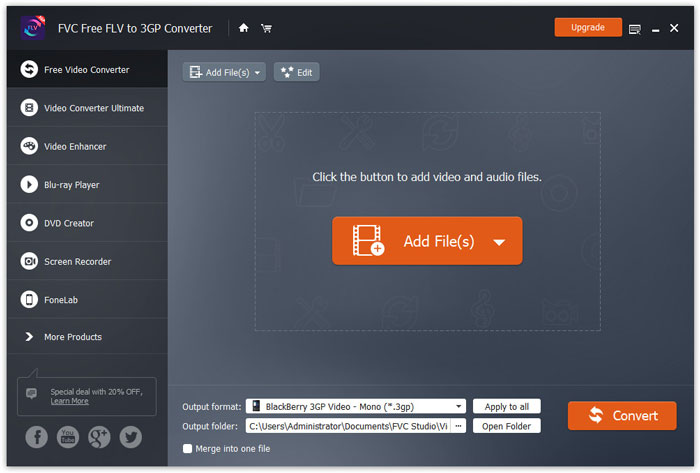
Pasul 1. Descarcă gratuit, instalează și pornește FVC Free FLV to 3GP Converter pe Windows sau Mac. Fă clic pe butonul Add Files pentru a încărca fișierele MP4 de pe computer. Poți converti mai multe fișiere MP4 în același timp.
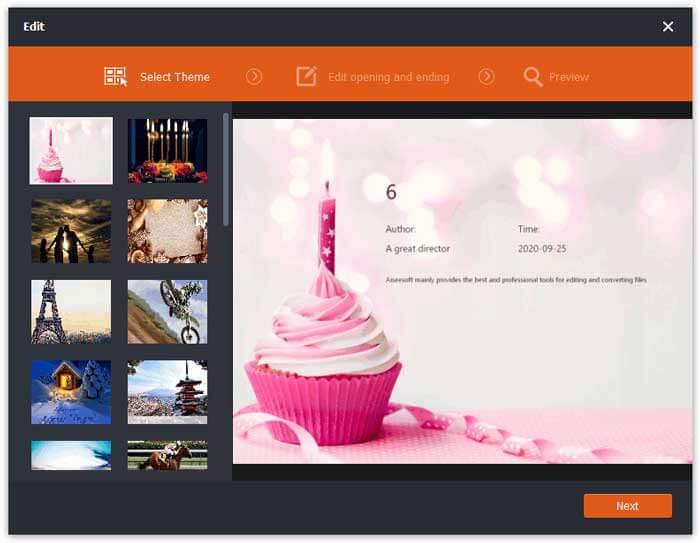
Pasul 2. Fă clic pe fișierul tău MP4 și apoi pe butonul Edit. Poți adăuga o temă fișierului MP4 și poți edita conținutul de deschidere și de încheiere. Apoi fă clic pe Next pentru a previzualiza și salva modificările.
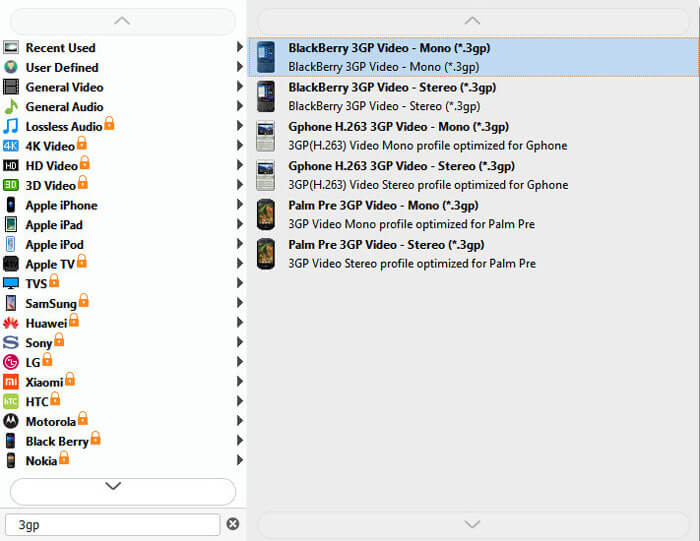
Pasul 3. Selectează 3GP din lista derulantă Output format din partea de jos. Poți selecta BlackBerry 3GP Video - Mono (*.3gp) sau orice altă opțiune dorești.
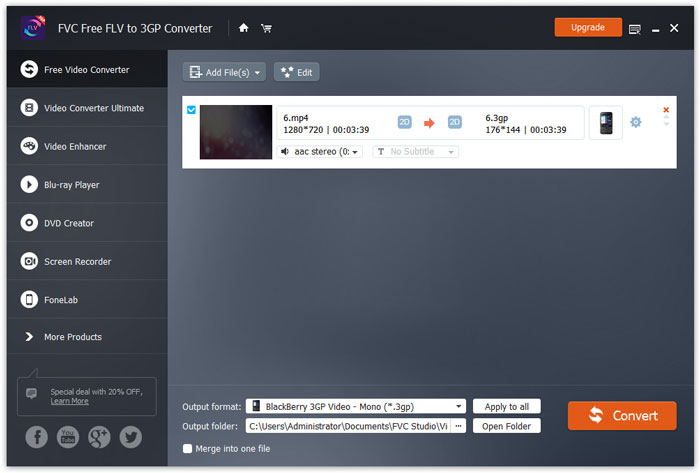
Pasul 4. La final, alege folderul de ieșire de pe computer și fă clic pe butonul Convert pentru a începe transformarea MP4 în 3GP.
Partea 2. Export 3GP din MP4 cu 2 convertoare 3GP online
Comparativ cu instalarea unui convertor 3GP pentru desktop, utilizarea unui convertor bazat pe web este mult mai simplă și mai ușoară pentru conversia MP4 în 3GP. În această parte, vom împărtăși 2 convertoare 3GP online pentru a vă ajuta să convertiți MP4 în 3GP fără dificultate.
1. Convertor video online FVC gratuit
FVC Free Online Video Converter este o platformă bine-cunoscută de conversie video, unde poți converti formate populare video și audio în 3GP, MKV, MOV, WMV, AVI, MP3 și altele.
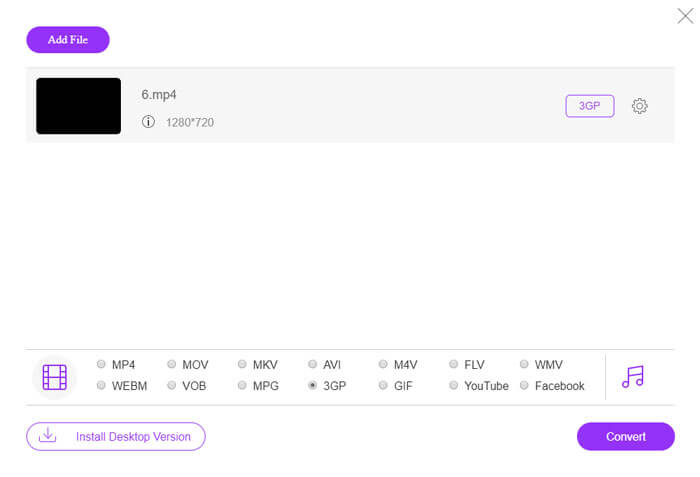
Pasul 1. Accesează site-ul oficial FVC Free Video Converter. Fă clic pe butonul Add Files to Convert pentru a descărca și instala lansatorul.
Descărcați versiunea pentru desktop pentru a converti fișiere în lot.

Pasul 2. Selectează fișierele MP4 de pe computerul local. Poți face clic pe pictograma rotiță pentru a ajusta bitrate-ul video, rata de eșantionare, rata de cadre, rezoluția și volumul.

Pasul 3. Setează formatul de ieșire pe 3GP în partea de jos. Apoi fă clic pe butonul Convert pentru a începe conversia MP4 în 3GP. Poți converti simultan în lot mai multe fișiere MP4 în 3GP.
2. Zamzar
Zamzar este un convertor video online, convertor audio, convertor de imagini și convertor de cărți electronice. Este convenabil să convertiți MP4 într-o varietate de alte formate folosind Zamzar. Următorii pași simpli pentru a converti MP4 în 3GP.
Pasul 1. Mergi la zamzar.com/convert/mp4-to-3gp/ și fă clic pe butonul Add Files pentru a încărca fișierele MP4.
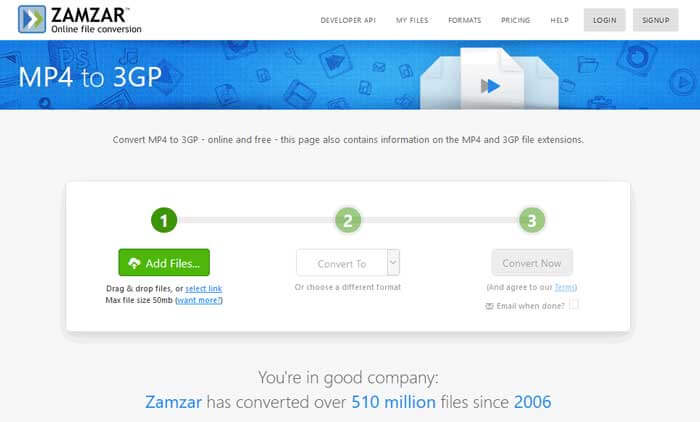
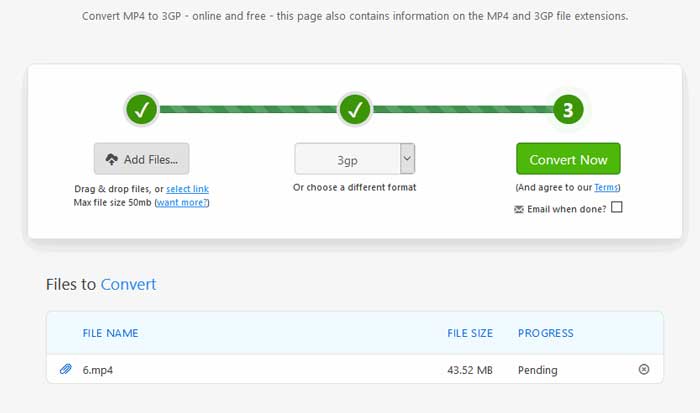
Pasul 2. Poți alege un alt format de ieșire. De obicei, 3gp va fi setat ca format de ieșire implicit. Fă clic pe butonul Convert Now pentru a începe conversia MP4 în 3GP.
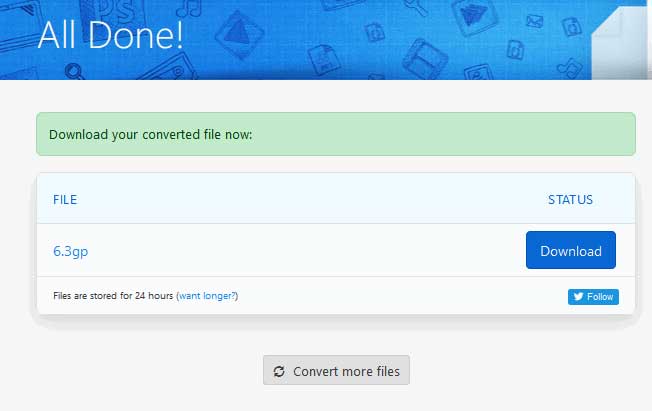
Pasul 3. Apoi vei fi redirecționat către o altă pagină. Poți face clic pe butonul Download pentru a salva fișierul 3GP convertit pe computer.
Ce se întâmplă dacă fișierul tău MP4 are o dimensiune mare? Vezi aici cum să comprimi fișiere MP4.
MP4 vs. 3GP
Lansat de Moving Picture Experts Group (MPEG) în 2001, formatul MP4 vă poate ajuta să salvați date video, audio, subtitrări și imagini în piste separate. Este prescurtarea pentru MPEG-4 Part 14. În plus, este unul dintre cele mai populare formate folosite pentru streaming și partajarea videoclipurilor.
Proiectul de parteneriat a 3-a generație (3GPP) a produs formatul 3GP/3GPP ca format de container multimedia. De fapt, se bazează pe formatul de fișier media ISO. Îl folosim adesea pentru a salva fluxurile video/audio care sunt transmise între telefoanele mobile 3G și online.
Partea 3. Întrebări frecvente despre convertirea MP4 în 3GP
1. Este 3GP mai bun decât MP4?
3GP este conceput pentru telefoane mobile cu rețea 3G. Poți reda fișiere 3GP în playere precum QuickTime, VLC și RealPlayer. MP4 este mult mai compatibil decât 3GP. Este acceptat universal de numeroase playere media portabile și de smartphone-uri.
2. Ce este 3GP?
3GP este un format de container multimedia definit de a treia generație. Poate stoca videoclipuri și fluxuri audio redate pe telefoane mobile 3G, dar poate fi redat și pe unele telefoane 2G sau 4G.
3. Cum convertesc MP4 în FLV?
Cu ajutorul FVC Free Online Video Converter, poți converti cu ușurință MP4 în FLV online. Accesează acest site online și fă clic pe butonul Add Files to Convert pentru a instala lansatorul. Apoi selectează fișierele MP4 de pe computer și bifează FLV ca format de ieșire. Fă clic pe butonul Convert pentru a converti MP4 în FLV.
Concluzie
Am vorbit în principal despre 3 metode pentru a converti MP4 în 3GP pe Windows și Mac. Dacă preferați o soluție online, puteți încerca FVC Free Online Video Converter sau Zamzar online. Dacă doriți să editați fișierul MP4 pentru perfecționare suplimentară, puteți utiliza în schimb convertorul gratuit FLV în 3GP. Dacă aveți soluții mai bune, vă rugăm să nu ezitați să lăsați un comentariu.
-
 Top 3 moduri gratuite de a converti rapid MP4 în VOB
 Cum se convertește MP4 în VOB pe Windows PC și Mac? Pentru a rezolva această problemă, această postare va împărtăși cele mai bune 3 modalități de a vă ajuta să convertiți MP4 în VOB gratuit.
-
 Gratuit | Cele mai bune 3 metode pentru a converti MP4 în WMV fără a pierde calitatea
 Această postare prezintă modul de convertire a videoclipurilor MP4 în format WMV pe Mac sau Windows. Vă vom oferi, de asemenea, mai multe opțiuni, inclusiv software-ul desktop și convertoarele online bazate pe web. Sunteți gata să cunoașteți cele mai bune instrumente de conversie MP4 în WMV?
-
 3 metode pentru a converti MP3 în MP4 cu imagine
 Cum se convertește MP3 în MP4 de înaltă calitate? Această postare prezintă 3 metode eficiente și gratuite pentru a schimba MP3 în MP4 cu imagini pe Windows și Mac.

