


 Video Converter Ultimate
 Screen Recorder
 Reparație video
 Descărcare sigură
Cum se convertește orice videoclip în MP4 gratuit
Când vine vorba de formate video, MP4 este, fără îndoială, unul dintre cele mai universale formate pe care le folosim astăzi. Poate conține nu doar video, ci și audio și subtitrări. În prezent, mulți oameni folosesc MP4 pentru a face copii de rezervă ale videoclipurilor și filmelor lor. Prin urmare, este destul de obișnuit să convertești și să salvezi un fișier video în format MP4. În plus, aproape orice player și dispozitiv poate reda videoclipuri MP4, ceea ce ne oferă încă un motiv să convertim videoclipuri în MP4.
Prin urmare, în acest articol vom vedea cum să transformăm alte formate video în MP4. De asemenea, vom învăța cum să descărcăm videoclipuri online pe PC-ul tău.

Partea 1. Cum se convertesc fișiere video locale în MP4
Cineva poate tăia colțurile modificând extensia de fișier la MP4 pentru a schimba tipul de fișier. Cu toate acestea, acest lucru poate cauza probleme - fișierul modificat nu poate fi recunoscut de dispozitiv. Deci, ar fi bine să utilizați un convertor video profesional pentru a schimba tipul de fișier.
1. Convertor video MP4 online
Dacă ai nevoie să convertești în MP4, online, videoclipurile salvate pe computer, poți pur și simplu să folosești un instrument util de conversie numit FVC Free Online Video Converter.
Acest convertor video poate efectua conversia cu ușurință. Poți converti fără efort orice videoclipuri și filme în MP4, păstrând calitatea originală. Poți chiar modifica rezoluția, rata de cadre și bitrate-ul videoclipului sau poți converti fișiere, de exemplu WMV în MP3, în funcție de nevoile tale.
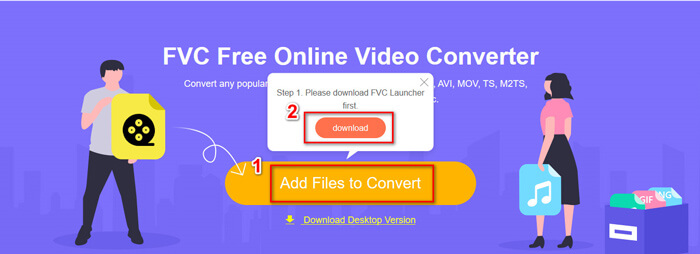
Pasul 1. Accesează site-ul oficial. Fă clic pe Add Files to Convert și apoi pe Download. Lansatorul va fi descărcat pe computerul tău. Te rugăm să îl instalezi.
Pasul 2. După instalare, vei vedea fereastra Open Window, unde poți selecta videoclipurile pe care vrei să le convertești.
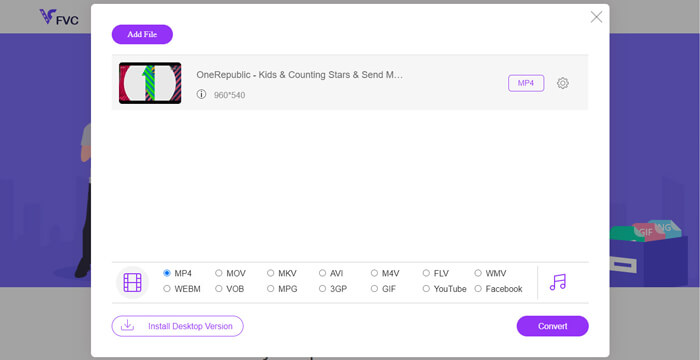
Pasul 3. Apoi poți alege formatul MP4 înainte de a începe conversia. Fă clic pe Convert și alege o destinație pentru salvare. După aceea, în scurt timp vei obține fișierul tău video MP4.
2. VLC Media Player
Ați putea fi surprins că VLC Media Player poate converti și videoclipuri. Dar acest lucru este adevărat că poate fi folosit ca un convertor video MP4. Dacă aveți deja VLC pe computer, puteți încerca.
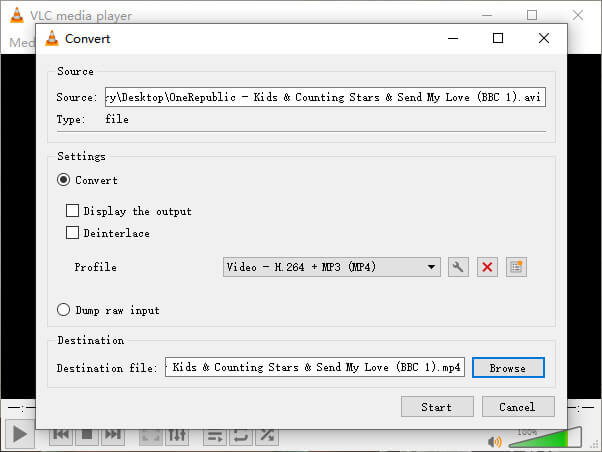
Pasul 1. Deschide VLC Media Player. Mergi la Media, apoi selectează Convert/Save…
Pasul 2. Adaugă videoclipul în VLC și fă clic pe butonul Convert / Save de mai jos.
Pasul 3. Apoi asigură-te că formatul de ieșire este MP4. Selectează o destinație pentru salvare și apoi Start pentru a începe conversia.
Partea 2. Cum se descarcă fluxul video pe MP4
În zilele noastre, oamenilor din întreaga lume le place să vizioneze videoclipuri online. În timp ce vizionați aceste videoclipuri, le puteți găsi interesante și doriți să le salvați pe computer pentru vizionare ulterioară. Cu toate acestea, majoritatea videoclipurilor de streaming online nu pot fi descărcate direct, iar unele pot avea chiar și propriile formate, care sunt greu de recunoscut de către jucătorii obișnuiți.
Deci, cum să descărcați și să convertiți videoclipurile online într-un format mai popular, cum ar fi MP4, pe computerul dvs.?
Funcția de înregistrare a FVC Free Screen Recorder te poate ajuta în acest sens. Poți înregistra orice videoclipuri online de pe YouTube, Vimeo etc., la calitatea dorită. Și este complet gratuit de utilizat. Urmează pașii de mai jos pentru a înregistra videoclipuri în flux (streaming).
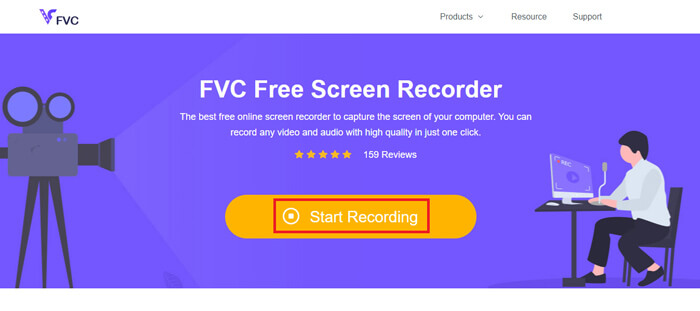
Pasul 1. Fă clic pe linkul de mai sus și selectează Start Recording. Apoi trebuie să descarci și să instalezi lansatorul pe computer, dacă nu ai făcut asta deja.
Descărcare gratuităPentru Windows 7 sau versiuni mai noiDescărcare sigură
Descărcare gratuităPentru MacOS 10.7 sau versiuni mai noiDescărcare sigură
Pasul 2. Ajustează zona de înregistrare la o dimensiune potrivită. Apoi activează Speaker. Poți chiar să activezi și Microphone dacă vrei să adaugi o voce din off. Fă clic pe REC pentru a începe înregistrarea.
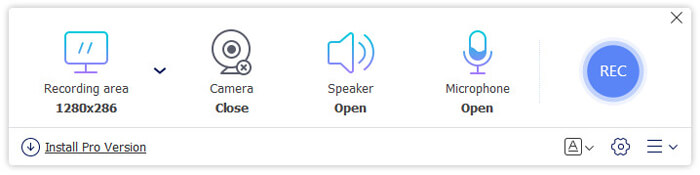
Pasul 3. Când ai terminat de înregistrat, fă clic pe pictograma Stop pentru a opri. Videoclipul va fi salvat implicit pe computerul tău.
Partea 3. Întrebări frecvente despre conversia videoclipurilor în MP4
1. Cât va dura conversia video în MP4?
De obicei, durează doar câteva minute pentru a converti videoclipurile în MP4. Dar dacă dimensiunea videoclipului este prea mare sau viteza rețelei este lentă, poate fi nevoie de mai mult timp pentru a finaliza conversia.
2. Ce se întâmplă dacă fișierul MP4 convertit este prea mare pentru a fi partajat?
Apoi trebuie să comprimi acest fișier MP4 la o dimensiune mai mică. De fapt, cu FVC Free Online Video Converter poți reduce dimensiunea fișierului foarte ușor. Doar fă clic pe pictograma Setări de lângă fișierul tău, după ce ai lansat recorderul, și ajustează rezoluția la un standard mai scăzut. După conversie, vei constata că videoclipul este mult mai mic decât originalul.
O altă soluție este să folosești un compresor video puternic, cum ar fi FVC Free Video Compressor, care îți poate micșora dimensiunea videoclipului în cel mai scurt timp, păstrând o calitate înaltă.
3. Există o modalitate de a converti videoclipurile YouTube sau Facebook în MP4?
Dacă sunteți utilizator YouTube Premium, puteți descărca videoclipul YouTube și puteți utiliza un convertor video pentru a-l converti în MP4.
Concluzie
Preferi instrumentele online? Atunci bazează-te pe FVC Free Online Video Converter. Ai deja VLC instalat pe computer? Poți încerca funcția lui de conversie.
Acum știi totul despre transformarea videoclipurilor în format MP4. Sperăm că ai găsit convertorul care ți se potrivește cel mai bine. Nu ezita să ne lași un comentariu. Feedbackul tău valoros ne va ajuta să ne îmbunătățim.
-
 3 moduri gratuite de a schimba AVI în MP4 pe Windows / Mac
 Uneori, când vizionăm un film pe telefonul nostru, playerul pe care îl folosim ne solicită că videoclipul nu poate fi redat deoarece nu acceptă formatul AVI. Deci, cum putem schimba rapid AVI în MP4 fără pierderi de calitate? Iată câteva metode gratuite pe care le puteți încerca.
-
 Cum se convertește MKV în MP4 pe Windows / Mac
 Nu puteți reda videoclipuri MKV? Doriți să vizionați videoclipuri MKV pe dispozitivele care nu acceptă MKV? Iată 2 moduri gratuite de a converti MKV în MP4 fără a pierde calitatea.
-
 Top 4 moduri de a converti gratuit MP4 în MOV
 Cum se convertește MP4 în MOV pe Mac? Există vreo modalitate gratuită de a converti MP4 în MOV fără pierderi de calitate? Această postare prezintă 4 moduri simple de a vă ajuta să faceți conversia video de la MP4 la MOV pe Mac, Windows PC și online.
