


 Video Converter Ultimate
 Screen Recorder
 Reparație video
 Descărcare sigură
Conversia WMV în MP4: Care dintre cele 4 metode este mai bună
WMV este cel mai potrivit pentru Windows. Totuși, nu este la fel de compatibil ca opțiuni precum MP4, MOV etc. Utilizatorii de iPhone, iPad sau Mac pot descoperi că nu pot deschide acest format fără probleme. Utilizatorii de iPhone, iPad sau Mac pot constata că nu pot deschide fișiere WMV fără dificultăți, iar iMovie și QuickTime Player nu acceptă acest format. Pentru a evita această limitare și pentru a ne asigura că fișierele WMV pot fi gestionate pe orice dispozitiv și în orice software de editare, trebuie să le convertim în format MP4. Multe instrumente pot îndeplini această operațiune, iar problema este cum să le alegem și să le folosim. În acest ghid, îți vom arăta însă tot ce trebuie să știi. Cele mai bune convertoare WMV în MP4 pentru desktop și online vor fi recomandate, iar FFmpeg, care funcționează într-un mod unic, va apărea, de asemenea, pe listă. Le vom compara performanța din toate punctele de vedere într-un tabel și vom însoți fiecare instrument cu un ghid detaliat, cu ilustrații.

Partea 1. Convertește WMV în MP4 pe Win/Mac cu timp nelimitat
Dintre cele patru instrumente de conversie, cel pe care îți recomandăm să îl încerci este FVC Video Converter Ultimate. Acest lucru se datorează faptului că este compatibil cu aproape toate formatele populare și este prietenos atât pentru utilizatorii de Windows, cât și pentru cei de Mac. Platforma nu se limitează doar la conversia WMV în MP4, ci ne permite să realizăm tot felul de editări și îmbunătățiri ale videoclipului pe care urmează să îl exportăm. Pe interfața sa putem găsi un instrument de tăiere, unul de îmbunătățire, un compresor, un eliminator de zgomot etc., și putem adăuga, de asemenea, diverse filtre imaginii pentru a ne asigura că rezultatul este mai colorat. Revenind la sarcina de conversie a formatelor, FVC Video Converter Ultimate este susținut de o tehnologie avansată de accelerare hardware, care îi permite să convertească de până la 30 de ori mai rapid și, desigur, să păstreze pe cât posibil calitatea video fără pierderi. Cu FVC Video Converter Ultimate, îi putem încredința și orice sarcină de procesare audio sau imagine. Acest program all-in-one, care acceptă peste 1000 de formate, este cu siguranță cea mai bună alegere pentru utilizatori.
Descărcare gratuităPentru Windows 7 sau versiuni mai recenteDescărcare sigură
Descărcare gratuităPentru MacOS 10.7 sau versiuni ulterioareDescărcare sigură
Iată cum se convertește un videoclip WMV în MP4 folosind FVC Video Converter Ultimate.
Pasul 1. Descarcă și instalează FVC Video Converter Ultimate pe dispozitivul tău. Deschide-l și fă clic pe Add Files pentru a încărca videoclipul WMV pregătit.

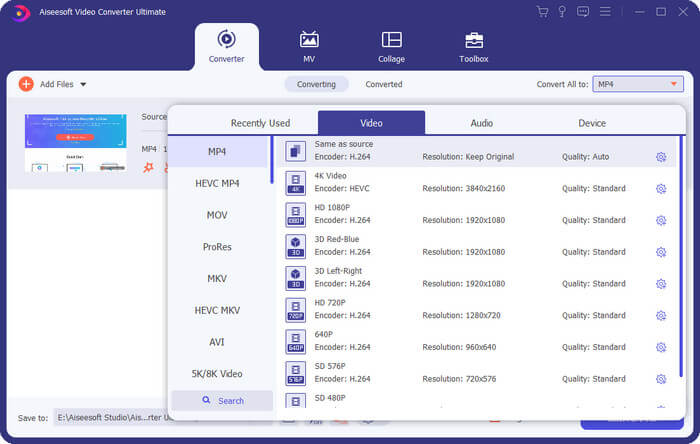
Pasul 2. Mergi la Convert All to și selectează Video > MP4. Alege versiunea de claritate în funcție de nevoile tale specifice.
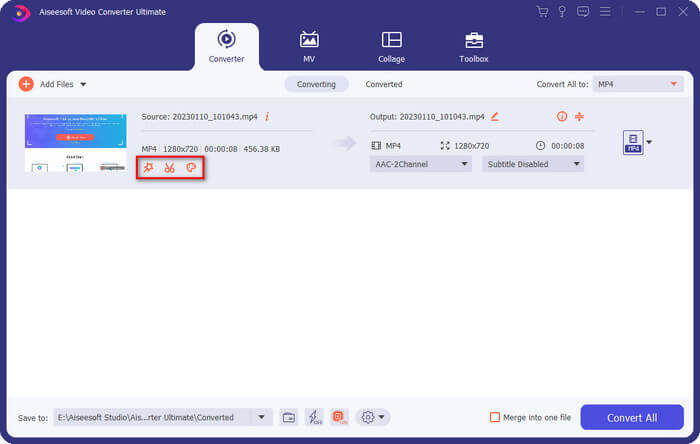
Dacă vrei să editezi videoclipul adăugat înainte de conversie, fă clic pe Edit sau Cut.
Pasul 3. După ce ai setat calea de stocare, fă clic pe Convert All pentru a începe conversia între MP4 și WMV.
Partea 2. Conversia WMV în MP4 gratuită folosind VLC Media
Jucător
Un alt convertor WMV în MP4 de la o terță parte care merită încercat este VLC Media Player, al cărui avantaj principal este că este open source și gratuit. Indiferent dacă sunteți utilizator Windows, Mac sau Linux, îl puteți descărca pe dispozitivul dvs. Playerul este compatibil cu aproape toate formatele multimedia standard de pe piață și are câteva instrumente esențiale de editare video.
Iată cum poți converti gratuit fișiere WMV în MP4 cu VLC Media Player.
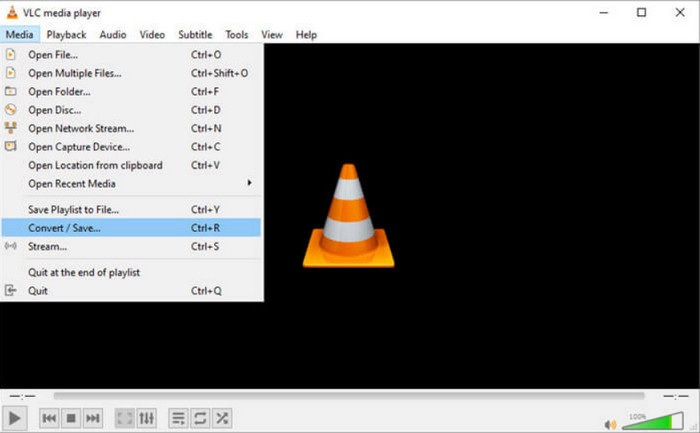
Pasul 1. Descarcă cea mai nouă versiune de VLC Media Player pe computerul tău. Pornește-l și fă clic pe Media în colțul din stânga sus. Din lista derulantă, alege Convert/Save.
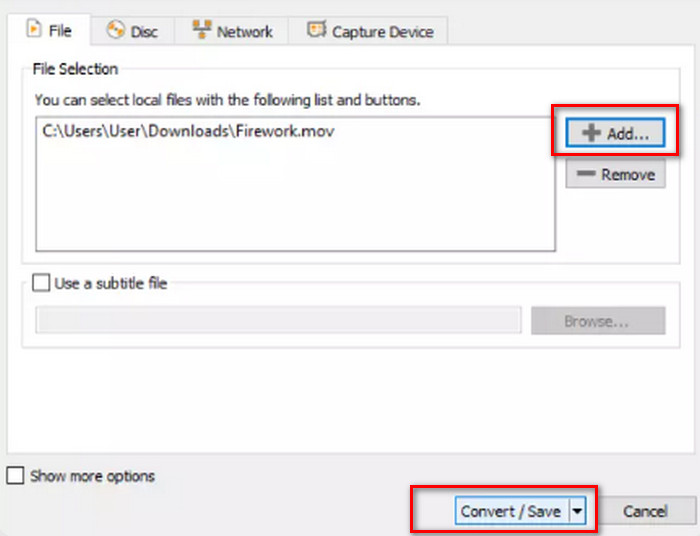
Pasul 2. Va apărea o nouă fereastră pop-up. Mergi la fila File și fă clic pe +Add pentru a încărca fișierul WMV dorit. Apoi fă clic pe Convert/Save.
Pasul 3. Acum se va deschide o altă fereastră. Găsește Profile și selectează Video - H.264 + MP3 (MP4) ca format de ieșire.
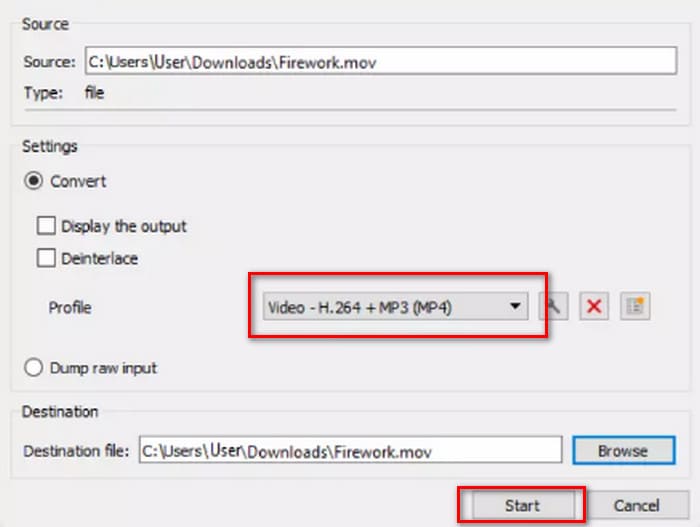
Pasul 4. Selectează o cale de destinație și fă clic pe Start pentru a transforma WMV în MP4.
Deși serviciul VLC Media Player este complet gratuit, există prea puține opțiuni de procesare video disponibile. Dacă trebuie să faceți modificări la videoclipurile încărcate, vă recomandăm totuși un software profesional de editare a fișierelor multimedia, cum ar fi FVC Video Converter Ultimate.
Partea 3. Transfer WMV în MP4 fără pierderi de calitate prin FFmpeg
Metodele comune de conversie a formatului WMV în MP4 necesită adesea încărcarea fișierului sursă, alegerea formatului de ieșire și apoi apăsarea butonului Start sau Convert. Însă FFmpeg este diferit. Deși poate efectua și sarcini de conversie de format și editare video, nu există o interfață și butoane obișnuite; ci se bazează pe instrucțiuni de cod. Trebuie să găsim șablonul pentru operațiunea corespunzătoare și să completăm calea de stocare și formatul de ieșire al videoclipului pentru ca FFmpeg să funcționeze. Această platformă este, de asemenea, open source și gratuită.
Iată cum se convertește WMV în MP4 cu FFmpeg.
Pasul 1. Instalează FFmpeg pe computerul tău. Apoi folosește bara de căutare a computerului pentru a localiza aplicația Terminal.
Pasul 2. Consultă următorul șablon de instrucțiuni de cod.
ffmpeg -i input.wmv output.mp4
Înlocuiți intrarea cu numele fișierului WMV care conține calea de stocare; înlocuiți ieșirea cu calea de ieșire dorită în același format.
Exemplu: /home/user/Desktop/XXX
Pasul 3. Introdu comanda editată și apasă tasta Enter de pe tastatură.
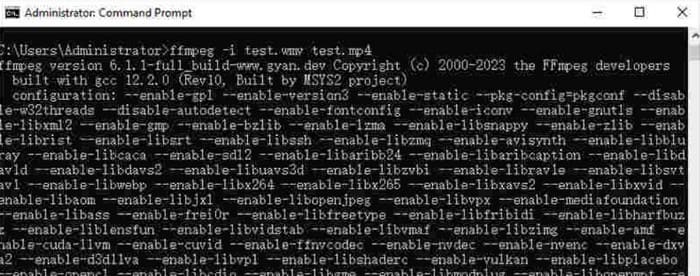
Pentru utilizatorii care sunt familiarizați cu comenzile de cod sau au experiență în utilizarea FFmpeg, aceasta este cea mai ușoară metodă de a converti WMV în MP4 pe Mac sau Windows. Însă pentru începători, editarea codului este dificilă. Cu greu putem observa procesul de conversie substanțial.
Partea 4. Schimbați ușor WMV în MP4 online
Dacă folosirea software-ului pentru desktop vi se pare prea dificilă și căutați o metodă mai eficientă și mai convenabilă, vă recomandăm să convertiți fișierele WMV în MP4 online. Există multe astfel de platforme, iar Convertio este o alegere bună. Avantajul acestei platforme este că acceptă încărcarea videoclipurilor din cloud și oferă câteva setări personalizate simple. Nu este nevoie să instalați niciun software sau plugin-uri; o găsim prin browser și putem începe să o folosim.
Iată cum se convertește WMV în MP4 cu Convertio.
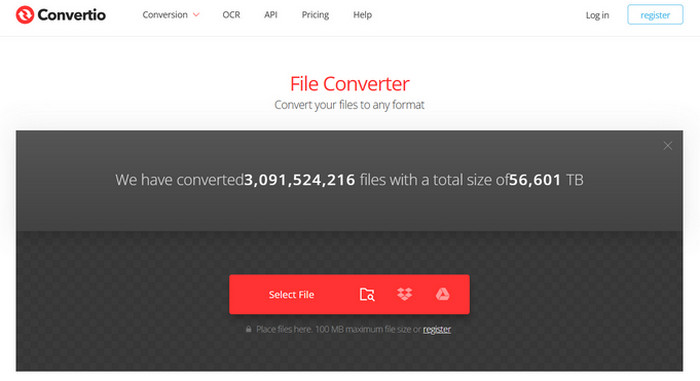
Pasul 1. Deschide Convertio în browserul tău. Fă clic pe Select File pentru a adăuga videoclipul WMV pe această platformă.
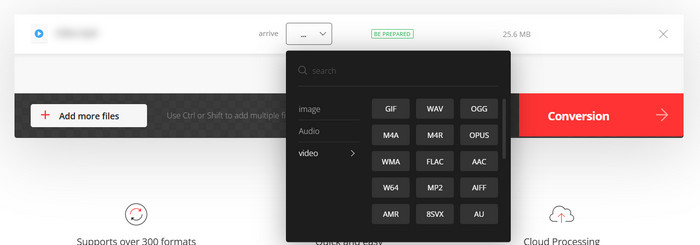
Pasul 2. Alege Arrive > Video > MP4. La final, selectează Conversion.
Convertio este potrivit pentru cei care au sarcini de conversie urgente sau nu doresc ca software-ul terț să ocupe memoria computerului. Cu toate acestea, platforma are prea puține funcții de editare video și poate gestiona doar fișiere de până la 100 MB. Dacă doriți să convertiți WMV în MP4 cu timp nelimitat, vă recomandăm totuși să încercați și alte câteva metode.
Partea 5. Comparați fiecare mod într-un tabel
Dacă întâmpinați dificultăți în alegerea dintre cele patru convertoare de format, vă rugăm să consultați tabelul de mai jos. Vom compara performanța lor din mai multe aspecte.
| Viteză | Platformă de asistență | Limită de dimensiune | Caracteristici de editare | Ușor de folosit | |
| FVC Video Converter Ultimate | De 30 de ori mai rapid | Windows și Mac | Nu | Variat | Foarte usor |
| VLC Media Player | Bun | Windows, Mac și Linux | Nu | Câteva setări de bază | Bun |
| FFmpeg | Bun | Windows, Mac și Linux | Nu | Variat | Dificil |
| Convertio | Finalizați conversia în 1-2 minute | Toate platformele includ desktop și mobil | 100 MB | Foarte puțini | Foarte usor |
Partea 6. Întrebări frecvente despre conversia WMV în MP4
Ar trebui să convertesc WMV în MP4?
Deși calitatea video a formatului WMV este ușor mai bună decât cea a MP4, MP4 este superior WMV în ceea ce privește compatibilitatea și dimensiunea fișierului. Dacă ești foarte preocupat de problema calității video, poți folosi și un editor MP4 pentru a îmbunătăți calitatea după conversie sau pentru a ajusta parametri precum bitrate-ul.
Este WMV învechit?
Deși WMV a apărut foarte devreme, este încă utilizat pe scară largă în zilele noastre și este potrivit pentru transferul și partajarea videoclipurilor. Singurul lucru de care trebuie să vă faceți griji este că WMV nu este potrivit pentru dispozitivele iOS.
Cum se convertește un videoclip în MP4 pe Windows?
Instrumente gratuite precum VLC Media Player și Handbrake sunt alegeri bune. Totuși, îți recomandăm FVC Video Converter Ultimate, care nu este doar compatibil, ci are și cele mai cuprinzătoare instrumente de procesare video și chiar permite adăugarea și eliminarea watermark-urilor din videoclipuri.
Concluzie
Acesta este un articol care te învață cum să convertești WMV în MP4. Îți oferim patru convertoare potrivite: FVC Video Converter Ultimate, care este cel mai versatil; VLC Media Player, care este gratuit; FFmpeg, care are un mod unic de rulare; și Convertio, care este online. După ce le compari performanțele, vei descoperi că FVC este cea mai rentabilă alegere. Nu numai că nu are limită de dimensiune a fișierului, dar oferă și cele mai cuprinzătoare funcții de editare video dintre toate cele patru și nu este la fel de dificil de utilizat ca FFmpeg.
-
 Gratuit | Cele mai bune 3 metode pentru a converti MP4 în WMV fără a pierde calitatea
 Această postare prezintă modul de convertire a videoclipurilor MP4 în format WMV pe Mac sau Windows. Vă vom oferi, de asemenea, mai multe opțiuni, inclusiv software-ul desktop și convertoarele online bazate pe web. Sunteți gata să cunoașteți cele mai bune instrumente de conversie MP4 în WMV?
-
 Revizuirea celor mai bune 10 playere video WMV din 2025 (computer și telefon)
 Cum pot juca WMV? VLC redă WMV? Ce aplicație redă fișiere WMV? Această postare arată cele mai bune 10 playere video WMV pentru dvs. pe Mac, Windows PC, Android și iPhone.
-
 Cele mai bune 3 metode de a vă alătura fișierelor WMV online gratuit (Actualizare 2025)
 Cum se îmbină gratuit videoclipurile WMV online? FVC Free Online Video Merger și Clideo WMV Joiner sunt două instrumente puternice pentru a alătura fișiere WMV online. Acest articol va prezenta modul de utilizare a acestora.

