


 Video Converter Ultimate
 Screen Recorder
 Reparație video
 Descărcare sigură
3 moduri de a reda fișiere MKV în Windows Media Player
Nu poți să deschizi fișierul MKV în Windows Media Player?
MKV este un tip de format video popular. Poți avea multe filme, seriale TV sau alte videoclipuri de înaltă calitate salvate în MKV. Totuși, ca utilizator de Windows, trebuie să știi că playerul video implicit, Windows Media Player, nu acceptă în mod nativ deschiderea (split‑uirea) containerelor MKV. Așadar, revenim la întrebare: cum redai fișiere MKV în Windows Media Center?

Chiar și după ce actualizați Windows Media Player la cea mai recentă versiune, nu există nicio garanție că nu veți întâmpina problemele de redare MKV. Având în vedere acest lucru, acest post vrea să împărtășească 3 modalități eficiente de a vă ajuta să redați fișiere MKV pe computerul dvs. Windows.
Partea 1. Cum se deschide fișierul MKV în Windows Media Player
Windows Media Player nu poate reda fișiere MKV în principal din cauza nepotrivirii codec‑urilor. Trebuie să știi că MKV este de fapt un container media pentru fluxuri video, fluxuri audio, subtitrări și altele. Trebuie să îi oferi lui WMP splitterul corect pentru MKV și codec‑urile și filtrele potrivite pentru fișierul video și audio. Această parte îți va arăta cum să redai fișierul MKV în Windows Media Player.
Pasul 1. Deschide Windows Media Player și deschide fișierul MKV cu el. De asemenea, poți să dai clic dreapta pe fișierul MKV și să selectezi Deschidere cu WMP.
Pasul 2. Acum vei vedea un mesaj de eroare care spune că Windows Media Player nu poate reda fișierul. Fă clic pe opțiunea Ajutor Web (Web Help) din caseta de dialog.
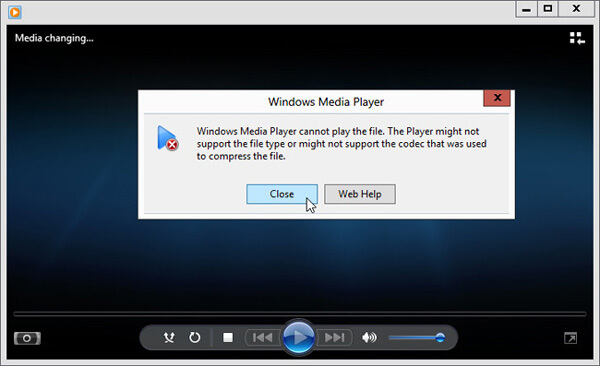
Pasul 3. Fă clic pe linkul codec de sub Codec lipsă (Codec is Missing). Copiază și lipește linkul în browser. Acest lucru te va ghida să obții codec‑ul corect MKV pentru Windows Media Player. După descărcare, urmează instrucțiunile pentru a finaliza procesul de instalare a codec‑ului MKV în Windows Media Player.
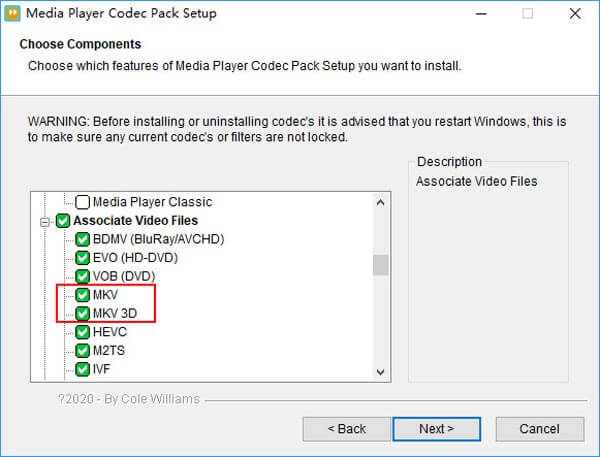
Pasul 4. Repornește Windows Media Player și apoi încearcă din nou să redai fișierul MKV.

Partea 2. Mod mai bun de a reda fișiere MKV în Windows Media Player Alternative
Cu codecul MKV potrivit, puteți deschide cu ușurință fișierul MKV în Windows Media Player. Cu toate acestea, mulți utilizatori au raportat că există încă alte probleme de redare în timpul redării MKV cu WMP. În acest caz, puteți alege o alternativă Windows Media Player pentru a vă ajuta să redați fișiere MKV.
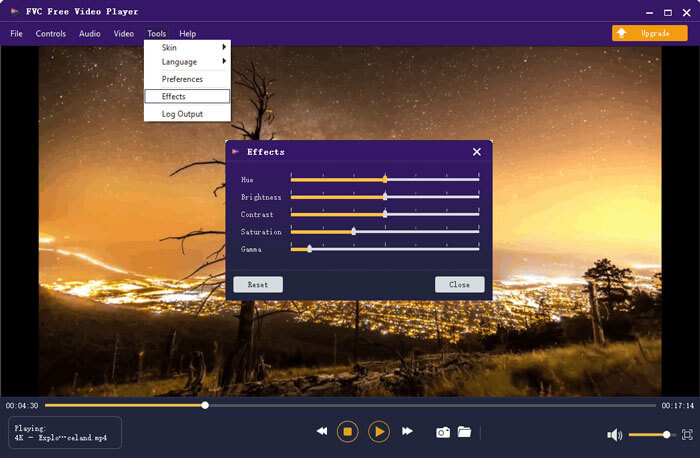
FVC Free MKV Player este un instrument excelent, alternativ la Windows Media Player. Acceptă în mod nativ orice format video și audio utilizat frecvent, precum MKV, MOV, MP4, FLV, AVI, RMVB, MPEG, AAC, MP3, M4A, WMA și altele. Te poți baza pe el pentru a urmări filme MKV la calitate înaltă.

Pasul 1. Deschide browserul și accesează site‑ul acestui player MKV gratuit. Fă clic pe butonul Play Now pentru a instala un fișier de lansare de dimensiune mică necesar redării MKV. După aceea, fereastra principală de redare MKV va apărea pe ecran.

Pasul 2. Fă clic pe butonul Open File pentru a căuta și importa fișierul MKV în player. Apoi videoclipul va fi redat automat. Datorită utilizării tehnologiei avansate de codare video, poate reda fișiere MKV fluent și la calitate înaltă. În plus, suportă DTS‑HD și Dolby TrueHD.

Vi se oferă toate comenzile de redare MKV. Pe lângă operațiile de bază, cum ar fi redare, pauză, înapoi, înainte, reglarea volumului și multe altele, vă permite, de asemenea, să reglați efectele, să schimbați pista audio și subtitrarea și alte setări personalizate.
Partea 3. Conversia MKV pentru redare pe Windows Media Player
Pentru a reda un fișier MKV în Windows Media Player, poți de asemenea să alegi să convertești MKV într‑un format video compatibil, precum MP4. Aici îți prezentăm Free Online Video Converter, care te ajută să convertești MKV în MP4 fără pierdere de calitate.
Pasul 1. Accesează în browser această pagină a convertorului online gratuit din MKV în MP4. Este compatibilă cu orice browser web popular, inclusiv Chrome, IE, Safari și Firefox.
Pasul 2. Când ajungi acolo, fă clic pe butonul Add File to Convert. În acest pas, trebuie să instalezi un mic launcher pentru conversia MKV. După aceea, va apărea pe ecran o fereastră pop‑up în care poți selecta fișierul MKV.
Pasul 3. Vei vedea multe formate video populare listate, precum MP4, MOV, AVI, MKV, FLV etc. Asigură‑te că formatul de ieșire este MP4 și apoi fă clic pe butonul Convert.
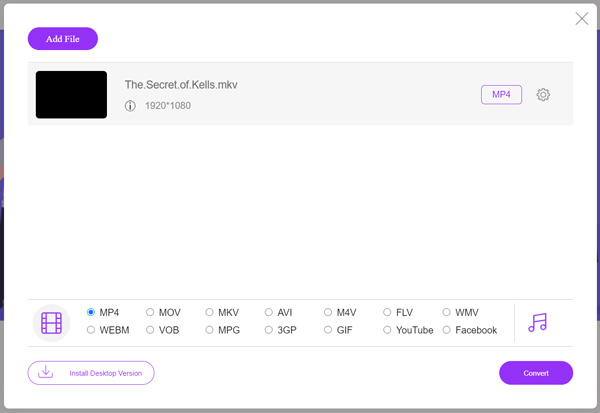
După convertirea MKV în MP4, îl poți reda cu Windows Media Player. Nu va exista nicio pierdere de calitate a imaginii sau sunetului în timpul conversiei.
Partea 4. Întrebări frecvente despre redarea MKV în Windows Media Player
Întrebarea 1. Cum modific formatul unui videoclip pe Windows Media Player?
Deschideți Windows Media Player și încărcați fișierul video pe care doriți să îl convertiți. Faceți clic pe săgeata mică de sub fila Rip din meniul de sus. Selectați Mai multe opțiuni și apoi faceți clic pe meniul drop-down etichetat Format. Aici puteți alege un format de ieșire adecvat și puteți începe conversia.
Întrebarea 2. Ce format video este Windows Media Player?
Formatul de fișier implicit al Windows Media Player este WMV, Windows Media Video și WMA, Windows Media Audio. De asemenea, acceptă Advanced Systems Format și propriul format de listă de redare bazat pe XML, Windows Playlist.
Întrebarea 3. Poate Windows 10 să redea fișiere MKV?
Nu. Windows Media Player 12 încorporat în Windows 10 nu poate reda fișiere MKV. Trebuie să instalați codec MKV pentru a obține redarea.
Concluzie
Când Windows Media Player nu poate interpreta codec‑ul MKV, afișează pur și simplu o eroare. Pentru a reda fișierul MKV în Windows Media Player, trebuie să instalezi codec‑ul potrivit. De asemenea, poți folosi un player terț sau poți converti formatul MKV pentru redare. Dacă încă mai ai întrebări despre cum să deschizi fișierul MKV în Windows Media Player, nu ezita să ne lași un mesaj.
-
 Top 8 jucători MKV pentru a reda fișiere MKV cu subtitrarea dorită
 Când doriți să redați videoclipul MKV cu subtitrarea dorită, puteți afla mai multe despre cei mai buni 8 playere de fișiere MKV pentru PC / Mac și alegeți cel dorit în funcție de cerința dvs.
-
 MKV în MOV - Cum se convertește MKV în MOV
 Cum convertesc MKV în MOV pe Mac? Poate iMovie să citească MKV? Ce înseamnă formatul MOV? Această postare spune 2 moduri simple de a vă ajuta să convertiți MKV în MOV cu convertoare video gratuite online și profesionale.
-
 AC3 Player - Recenzie a celor mai buni 10 jucători AC3 gratuiți din 2021
 Care este cel mai bun player AC3? MX Player poate deschide AC3? Această postare face o listă cu 10 playere AC3 gratuite pentru dispozitive Mac, Windows PC, iOS și Android.
