


 Video Converter Ultimate
 Screen Recorder
 Reparație video
 Descărcare sigură
4 sfaturi utile pentru a remedia VLC Playerul nu va reda MKV
Fișierul MKV (Matroska Video) este un format multimedia gratuit și deschis. Însă nu este acceptat de mulți dintre playerele folosite frecvent, inclusiv Windows Media Player și QuickTime Player. De aceea, poți apela la popularul VLC Media Player pentru redarea fișierelor MKV. Totuși, mulți utilizatori s-au confruntat cu problema VLC player nu redă fișierele MKV.

Problemele de redare MKV pot varia, de exemplu pista audio a fișierului MKV este întârziată, redarea sacadată, imagine neclară, mici erori de interfață și așa mai departe. În această postare, dorim să îți prezentăm 4 sfaturi utile pentru a remedia problema fișierele MKV nu se redau în VLC.
Partea 1. Setați preferințele pentru a remedia VLC Playerul nu va reda MKV
VLC este un instrument de redare a fișierelor media foarte popular care poate suporta majoritatea formatelor video și audio digitale, inclusiv MKV, MP4, AVI, FLV, MP3, AAC, M4A, FLAC etc.și VCD-uri, CD-uri audio și DVD-uri.
VLC Media Player atrage milioane de utilizatori deoarece poate reda orice fișier media pe care îl aveți. Dar playerul VLC nu va reda fișierele MKV, problema apare din când în când. Dacă playerul VLC omite doar fișierul dvs. MKV sau HD MKV, puteți face preferințe personalizate pentru a-l remedia.
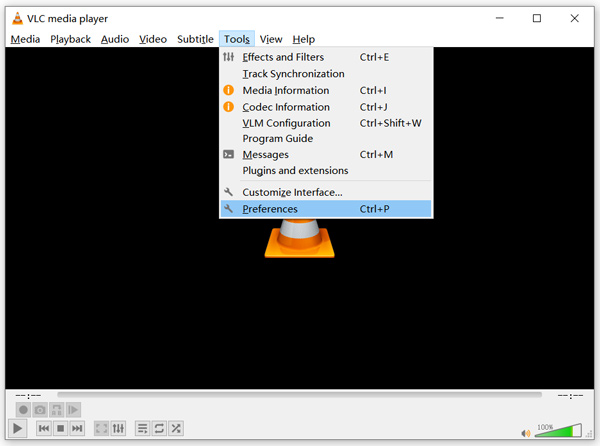
Pasul 1. Deschide VLC Media Player și alege meniul Tools (Unelte). Din lista derulantă, selectează opțiunea Preferences (Preferințe).
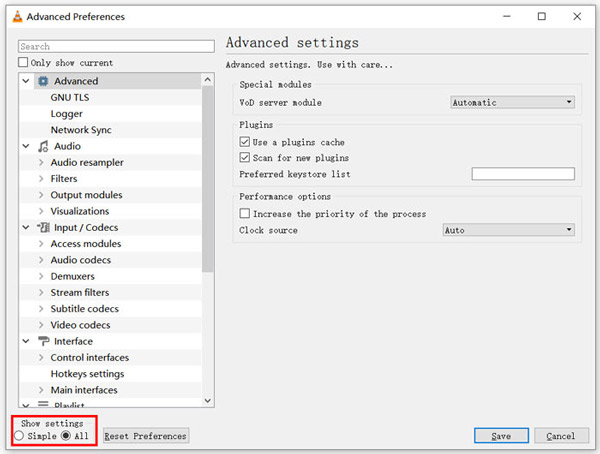
Pasul 2. Bifează All (Toate) în secțiunea Show settings (Afișează setări) din colțul stânga jos al ferestrei de dialog. Procedând astfel, vei afișa fereastra Advanced Preferences (Preferințe avansate).
Pasul 3. Alege secțiunea Input/Codecs din stânga, apoi găsește opțiunea File Caching(ms) în partea dreaptă. Este posibil să fie nevoie să derulezi în jos pentru a o găsi.
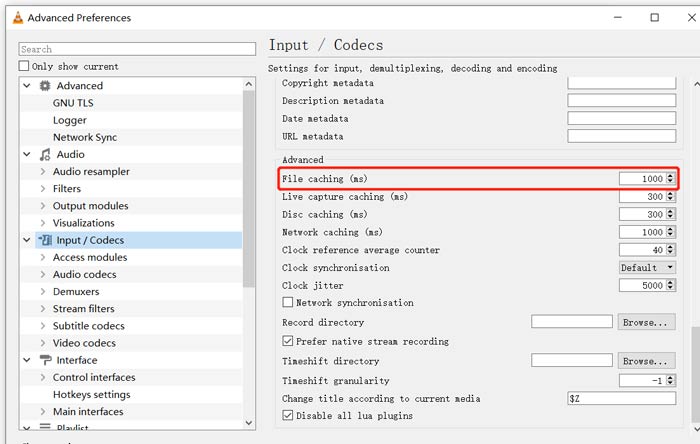
Pasul 4. Setează File Caching la 1000 și apoi dă clic pe butonul Save pentru a-ți confirma acțiunea. După aceea, poți reporni VLC și reda din nou fișierul MKV.
Partea 2. Actualizați sau reinstalați VLC pentru a remedia Playerul nu va reda MKV
Dacă playerul VLC nu va reda problema MKV există, puteți alege să îl actualizați la cea mai recentă versiune. Trebuie să știți că o nouă versiune va remedia întotdeauna multe erori ale versiunilor vechi. Puteți urma pașii de mai jos pentru a vă actualiza VLC Media Player.
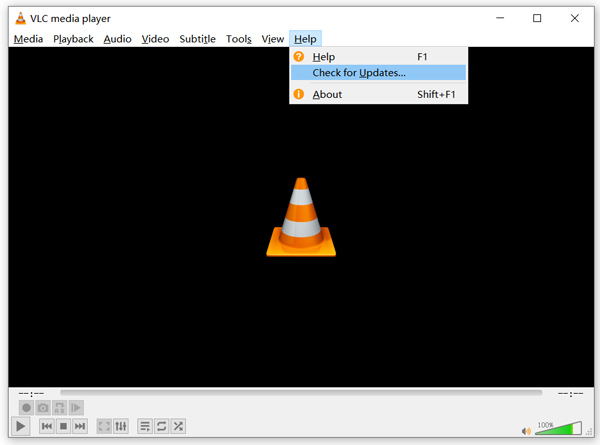
Deschide VLC și dă clic pe meniul Help (Ajutor). Selectează opțiunea Check for Updates (Caută actualizări) din lista derulantă. VLC va începe să verifice dacă există o versiune nouă disponibilă. Apoi poți urma instrucțiunile pentru a actualiza VLC la cea mai recentă versiune.
Poți, de asemenea, să dezinstalezi direct VLC de pe computer și apoi să mergi pe site-ul oficial, VideoLAN, pentru a instala o versiune potrivită. După ce ai instalat un nou VLC Media Player, poți reda fișierul MKV și verifica dacă poate fi redat normal.
Partea 3. Activați sunetul pentru a remedia playerul VLC fără sunet în timpul redării MKV
Dacă VLC Media Player poate reda fișier MKV, dar fără sunet, ar trebui să verificați dacă setările sale audio sunt corecte.
Pasul 1. Alege opțiunea Tools din bara de meniu VLC. Din meniurile derulante, selectează Preferences. Apoi vei fi direcționat la fereastra Simple Preferences (Preferințe simple).
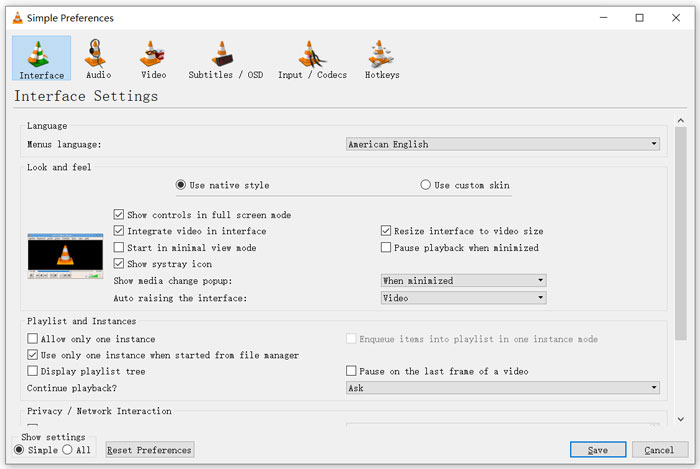
Pasul 2. Dă clic pe fila Audio, apoi bifează opțiunea Enable Audio (Activează audio). În acest pas, poți de asemenea să personalizezi Output Module, HDMI/SPDIF audio passthrough și Device în funcție de nevoile tale. Dă clic pe butonul Save pentru a salva modificările.
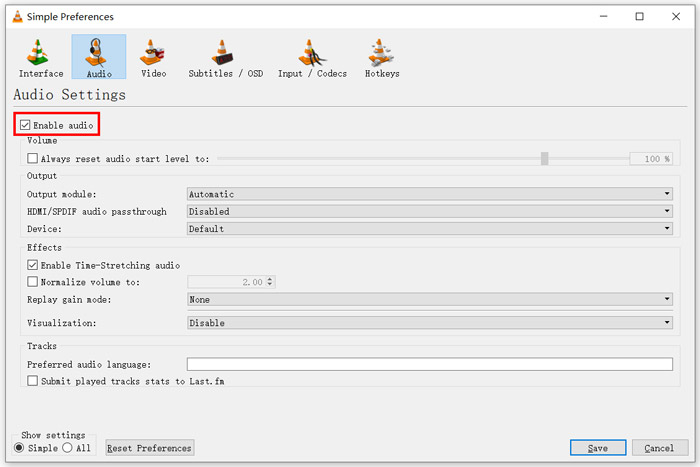
Acum vei fi readus la interfața principală VLC, unde poți da clic pe Media și apoi pe Open File pentru a reda fișierul MKV.
Partea 4. Selectați o alternativă pentru VLC Player pentru a reda fișiere MKV
Când vrei să urmărești filme MKV, poți alege și un alt player în locul VLC. Poți încerca popularul Free Online Video Player. Indiferent dacă folosești un PC cu Windows 10/8/7 sau un Mac, te poți baza pe el pentru a reda orice fișiere MKV la calitate înaltă.
Acest player online gratuit are capacitatea de a reda fără probleme 4K, 1080p / 720p HD, videoclipuri SD, videoclipuri 3D și fișiere audio. Pe lângă MKV, suportă și multe alte formate, inclusiv MP4, MOV, FLV, AVI, MPEG, WMV, WMA, AAC, MP3 și multe altele.
Pasul 1. Când vrei să vizualizezi fișiere MKV, poți accesa site-ul Free Online Video Player. Este compatibil cu orice browser web, precum Chrome, IE, Firefox și Safari. Dă clic pe butonul Play Now pentru a instala rapid un mic launcher pentru redarea fișierelor MKV.
Pasul 2. După ce instalarea este finalizată, acest player online gratuit pentru fișiere MKV va porni automat. Dă clic pe butonul Open File pentru a importa fișierul MKV. Aici poți, de asemenea, să dai clic pe Open Disc pentru a viziona un film de pe DVD.
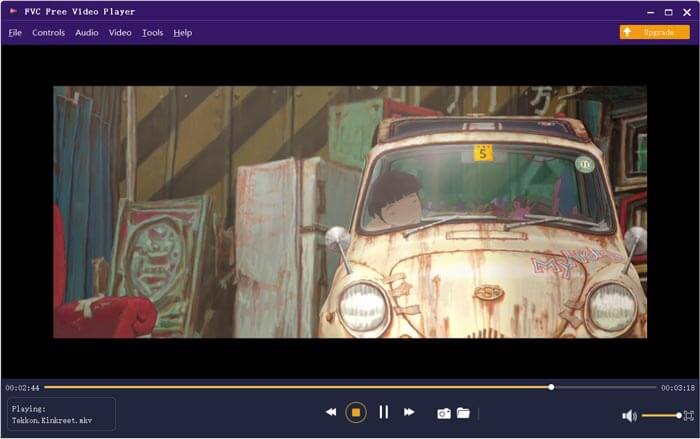
Videoclipul MKV va fi redat automat după aceea. Ai control complet asupra redării MKV. Comparativ cu VLC Media Player, oferă un mod mai simplu de a te bucura de fișierele MKV. Acest player MKV online gratuit suportă atât DTS-HD, cât și Dolby TrueHD, pentru a-ți asigura o experiență audio excelentă.
Partea 5. Întrebări frecvente despre VLC Player nu va reda MKV
Televizorul inteligent redă fișiere MKV?
Da. Multe televizoare inteligente, precum Sony și Samsung, care acceptă fișiere MKV. Vă puteți reda MKV-ul printr-un hard disk extern sau un dispozitiv UBS
Cum se joacă DVD-ul cu VLC Media Player?
Când doriți să redați un film DVD cu VLC, trebuie mai întâi să introduceți discul DVD în unitatea de disc a computerului. Deschideți VLC, faceți clic pe Media pe bara de meniu și apoi alegeți Open Disc. Răsfoiți și încărcați acest film DVD pe VLC și redați-l.
Cum se dezactivează decodarea accelerării hardware pe VLC?
Pentru a dezactiva decodarea accelerării hardware pe VLC Media Player, trebuie să accesați Preferințe din meniul Instrumente. Alegeți categoria Intrare / Codecuri și apoi Codecuri. Găsiți opțiunea de decodare accelerată hardware și dezactivați-o acolo.
Concluzie
Când te confrunți cu problema că VLC player nu redă fișierele MKV, poți folosi direct un alt player, cum ar fi recomandatul Free Online Video Player, pentru a vizualiza fișierele MKV. De asemenea, poți alege să actualizezi VLC Media Player sau să personalizezi diverse setări pentru a o remedia.
-
 Modalități gratuite și profesionale de a converti MKV în MOV
 Cum convertesc MKV în MOV pe Mac? Poate iMovie să citească MKV? Ce înseamnă formatul MOV? Această postare spune 2 moduri simple de a vă ajuta să convertiți MKV în MOV cu convertoare video gratuite online și profesionale.
-
 Cum se convertește M2TS în MKV fără a pierde calitatea
 Doriți să convertiți M2TS în MKV păstrând în același timp calitatea originală? Această postare vă arată metode gratuite și online pentru a schimba M2TS în MKV fără pierderi.
-
 VLC Media Player - O scurtă recenzie Video Player și cele mai bune alternative pe Windows și Mac
 De ce sunetul nu funcționează pe VLC Media Player? Dacă doriți să aflați mai multe despre popularul media player, puteți afla mai multe despre recenzie și cele mai bune alternative din articol.
