


 Video Converter Ultimate
 Screen Recorder
 Reparație video
Cel mai bun mod de a înregistra audio pe iPhone prin intermediul aplicațiilor disponibile și al convertizorului
Cu un smartphone în buzunar, putem face aproape orice. Acest mic dispozitiv a fost creat pentru a fi noua generație de computere, care pot fi purtate cu ușurință oriunde în lume fără a necesita configurare. Datorită lui, acum avem posibilitatea să facem înregistrări audio pe telefon fără să instalăm o mulțime de echipamente. De exemplu, îți poți înregistra propriul podcast pe iPhone, dar cel mai mare inamic al nostru este calitatea slabă a înregistrării. Așadar, în această listă prezentăm diferite moduri de a înregistra audio pe iPhone fără a instala o mulțime de echipamente și fără a pierde din calitatea sunetului.

Partea 1. Cum să înregistrați audio extern pe iPhone cu cele 2 dintre cele mai bune aplicații
Aflați cum să utilizați acest instrument disponibil pe dispozitivele Apple sau pe magazinul de aplicații. Aceste aplicații din această listă sunt cunoscute a fi utilizate de mulți utilizatori din întreaga lume. Mai ales dacă doresc să se înregistreze singuri sau să înregistreze ceva prin audio. Așadar, fără mai multe întârzieri, permiteți-ne să vă prezentăm primele 2 înregistratoare audio pe care le puteți utiliza.
1. Note vocale
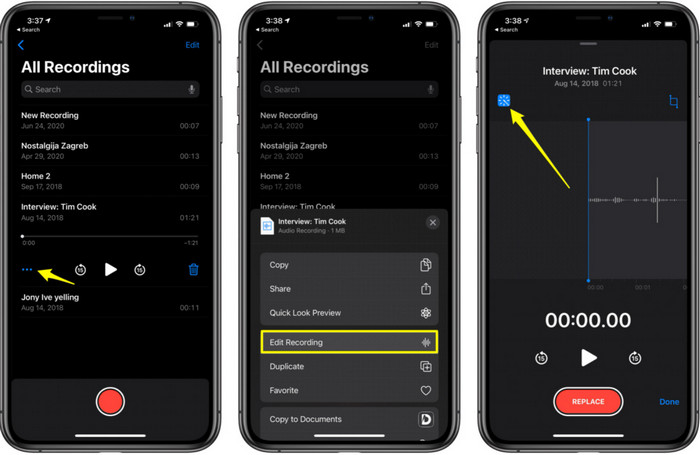
Note vocale este cel mai bun mod de a înregistra audio pe un iPhone fără descărcare și este gratuit. De asemenea, poți edita înregistrările chiar aici. Însă funcțiile de editare disponibile sunt limitate la decupare și adăugarea altor fișiere audio. Așadar, dacă vrei să îmbunătățești înregistrarea, nu poți face acest lucru aici, deoarece nu are astfel de funcții. Totuși, înregistrările de bază, precum notițe, jurnal audio, cursuri și altele, pot fi realizate cu ajutorul aplicației Note vocale.
Pro
- Instrument încorporat pe iPhone pentru a face înregistrarea audio extern.
- Editarea de bază este disponibilă, cum ar fi tăierea și îmbinarea.
Contra
- Nu are amplificator audio pentru a vă îmbunătăți înregistrarea.
- Nu se poate înregistra intern.
2. GarageBand
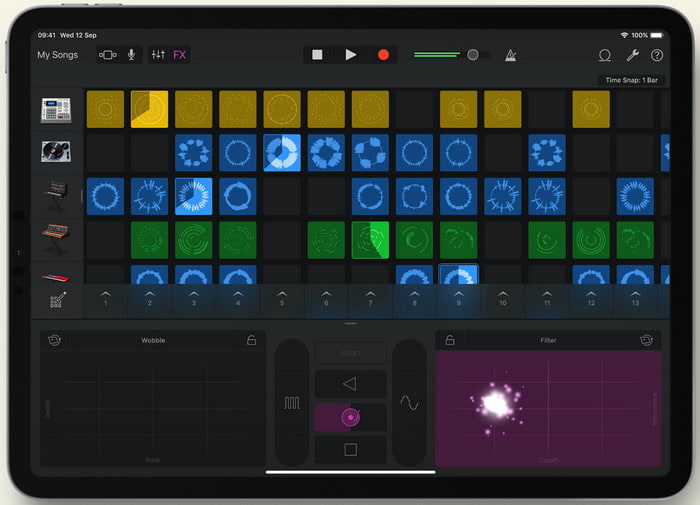
Vrei să produci înregistrări muzicale? Atunci încearcă să folosești GarageBand. Această unealtă oferă o mulțime de funcții cu care te poți juca. Însă este mult mai complexă decât Note vocale, deoarece aplicația este gândită pentru producție muzicală. Așadar, să înveți cum să înregistrezi voce pe iPhone cu GarageBand îți va lua destul de mult timp. Dar, dacă ești dedicat să înveți, poți descărca acest instrument gratuit, iar fișierul de instalare are 1,7 GB, incluzând funcțiile avansate de care ai nevoie pentru a înregistra muzică.
Pro
- Este cea mai bună aplicație de utilizat ca producție muzicală portabilă, care poate înregistra audio intern.
Contra
- Nu este cea mai bună alegere pentru un începător din cauza interfeței complicate a aplicației.
- Dimensiunea fișierului poate ajunge până la mai mult de 1,7 GB.
Partea 2. Cum să transformați înregistrarea ecranului iPhone în format audio
Deoarece iPhone-ul nu are doar înregistrare audio internă, poți mai întâi să faci o înregistrare de ecran și apoi să o transformi în fișier audio. Cu ajutorul extraordinarului Video Converter Ultimate, poți alege dintre peste 200 de formate disponibile în acest instrument și poți tăia porțiunile audio inutile extrem de ușor. Mai mult, poți amplifica sunetul aici pentru a-l face mai clar și mai plăcut. Spre deosebire de folosirea Note vocale, dacă utilizezi acest instrument și faci conversia, poți realiza o mulțime de lucruri „magice” pentru a obține cel mai bun rezultat. Fără să mai lungim vorba, să începem conversia înregistrării de ecran într-un format audio urmând pașii de mai jos.
Pași pentru a converti o înregistrare de ecran într-un format audio cu Video Converter Ultimate
Pasul 1. Apasă butonul de descărcare gratuită pentru a descărca software-ul pe PC sau Mac. După ce descărcarea s-a încheiat, instalează-l și configurează-l, apoi apasă „Finish” pentru a-l porni.
Descărcare gratuită pentru Windows 7 sau o versiune ulterioară Descărcare securizată
Descărcare gratuită pentru MacOS 10.7 sau o versiune ulterioară Descărcare securizată
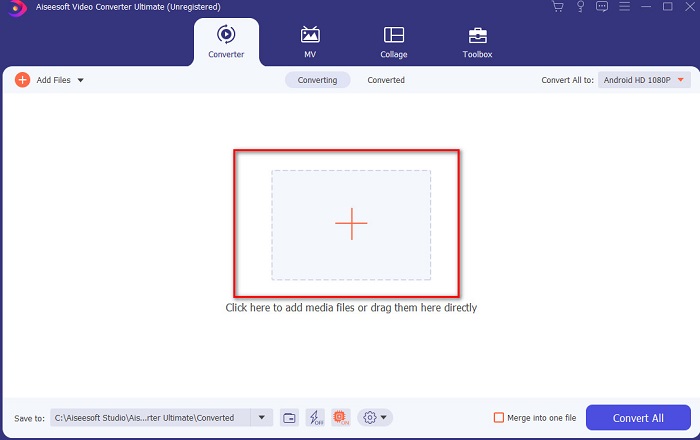
Pasul 2. Adaugă fișierul pe care l-ai înregistrat pe iPhone și dă clic pe butonul Add Files din partea stângă sus a interfeței instrumentului. Apoi caută fișierul în folder, acesta va apărea într-o fereastră pop-up și apasă pe Open.
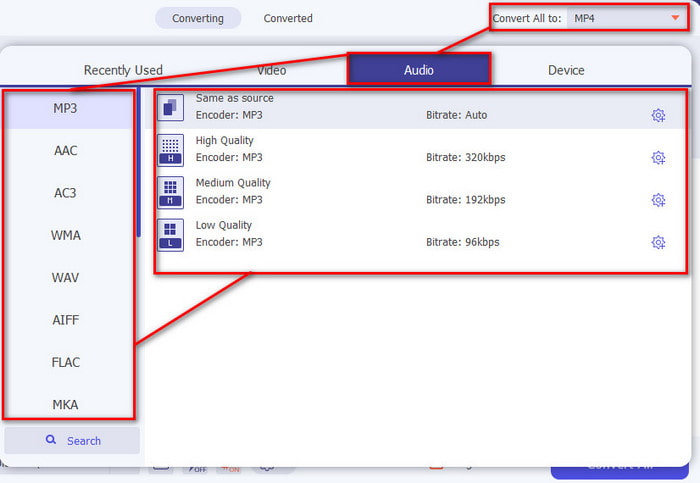
Pasul 3. Fă clic pe opțiunea drop-down de lângă Convert All și alege formatul final dorit din lista de categorii Audio pentru a continua. În plus, poți edita fișierul înregistrat dacă apeși pe butonul în formă de baghetă magică din interfața principală. După ce ai terminat editarea, apasă OK pentru a salva modificările făcute.
Pasul 4. Dacă ești gata să începi procesul de conversie, apasă pe butonul Convert All și așteaptă mai puțin de o secundă.
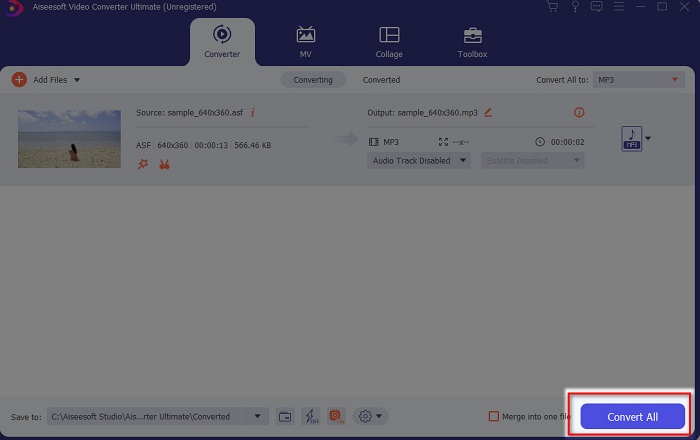
Pasul 5. Un folder se va deschide după ce conversia s-a încheiat; dă clic pe fișier și ascultă-l, apoi, ulterior, îl poți transfera și salva pe iPhone.
Pro
- Cel mai bun instrument fenomenal folosit pentru a converti înregistrarea de pe ecran în format audio.
- Funcțiile de editare avansată sunt disponibile aici pentru a vă îmbunătăți înregistrarea.
- Mai multe loturi de conversie pot fi efectuate aici.
Contra
- Nu se poate face ecranul sau înregistrarea audio aici deoarece nu este acceptată.
- Se plateste dar nu este scump.
Partea 3. Întrebări frecvente despre înregistrarea audio pe iPhone
Care este cel mai bun format audio pentru a face înregistrarea audio?
Formatul ideal pe care îl vei dori dacă vrei să înregistrezi audio la cea mai înaltă calitate este formatul FLAC. Deși instrumentul de mai sus nu permite schimbarea în acest format, deci nu poți face înregistrări FLAC. Totuși, dacă dai clic pe acest link, vei afla mai multe despre cele mai bune înregistratoare FLAC pentru a obține cel mai înalt nivel de calitate audio.
Cât timp pot înregistra pe iPhone-ul meu?
Ei bine, puteți înregistra atâta timp cât aveți suficient spațiu. Practic, se estimează că la fiecare 1 GB poți stoca cel puțin 100 de minute de înregistrare audio. Deci, dacă doriți să înregistrați o discuție lungă sau o prelegere, este ideal să eliberați spațiu înainte de a începe înregistrarea.
Pot să înregistrez audio prin VLC?
Desigur că da! Poți face înregistrări audio dacă folosești VLC, fie pe PC, fie pe Mac. Pentru a afla cum să faci înregistrări în VLC, trebuie să dai clic pe acest link.
Concluzie
În încheiere, ți-am prezentat deja o mulțime de moduri prin care îți poți face înregistrările mai bune și mai eficiente. Acestea sunt cele mai bune soluții în domeniul înregistrării, deoarece le-am testat noi înșine înainte de a scrie acest articol. Însă nu există un editor mai ușor de folosit, care să ofere și funcție de amplificare audio, mai bun decât Video Converter Ultimate. Așadar, dacă vrei ca înregistrările tale să fie mai mult decât bune, încearcă să le editezi și să le convertești cu acest instrument.
Descărcare gratuită pentru Windows 7 sau o versiune ulterioară Descărcare securizată
Descărcare gratuită pentru MacOS 10.7 sau o versiune ulterioară Descărcare securizată
-
 7 dintre cele mai bune înregistratoare AAC pentru Windows și Mac [2021]
 Descoperiți ce este AAC și cele mai apreciate înregistratoare AAC pe care le puteți folosi gratuit și descărcabile atât pe computerele Mac, cât și pe cele Windows.
-
 Ghid Spot-On: Care sunt cele mai bune înregistratoare M4A pentru Windows și Mac
 M4A sunt fișiere de containere codificate ACA și ALAC pentru compresie cu pierderi. Lista de mai jos sunt instrumentele de înregistrare M4A pe care le puteți utiliza. Citiți cu atenție următoarele.
-
 Cel mai util înregistrator OGG din 2021 [Gratuit și online]
 Acest articol vorbește despre cele mai bune instrumente de înregistrare OGG care vă ajută să faceți înregistrarea audio OGG. Pentru a adăuga informații mai detaliate pentru utilizator, continuați să le citiți
