


 Video Converter Ultimate
 Screen Recorder
 Reparație video
 Descărcare sigură
Trucuri excelente pentru a converti cu ușurință WMV în M4V pe care le puteți încerca
Are you one of the users looking for excellent and easy methods to convert your WMV to M4V? There are various converters you can find on the web. However, some of them don’t support WMV and M4V file formats. If that is your problem, this article can provide you with the easiest solution using worthy applications. You will also discover their features to get an idea of the other functions of these applications. Read the article from top to bottom to find out more essential details.

Partea 1: Introducere în WMV și M4V
Format de fișier WMV
| Nume | WMV |
| Extensie de fișier | .wmv |
| Descriere | Acronimul WMV (Windows Media Video) reprezintă un grup de codecuri video pe care Microsoft le-a lansat pentru prima dată pe cadrul său Windows Media. A fost creat pentru a rivaliza cu formatul RM pe aplicațiile de streaming pe internet. Deține fișiere video comprimate și chiar ajută Blu-ray/DVD-urile să livreze conținut. |
| Categoria de fișiere | Video |
| Dezvoltat de | Microsoft |
| Programe asociate | VLC Media Player MPlayer Media Player Classic Windows Media Player |
| Tip MIME | video/x-ms-asf video/Mpeg |
| Detalii tehnice | Conținutul multimedia care a fost codificat este conținut într-un fișier WMV utilizând formatul de container ASF (Advanced Systems Format). Fișierele ASF ar trebui să utilizeze extensia de fișier .ASF mai degrabă decât extensia de fișier .WMV, chiar dacă ASF poate conține multimedia în codificări diferite de cele permise standardul fișierelor WMV. |
Format de fișier M4V
| Nume | M4V |
| Extensie de fișier | .m4v |
| Descriere | Apple a creat formatul de fișier M4V, un format de container video similar standardului MP4. Principala diferență este că formatele de fișiere M4V pot avea protecție la copiere DRM. În iTunes Store, Apple codifică fișiere video folosind formatul M4V. |
| Categoria de fișiere | Video |
| Dezvoltat de | Compania Apple. |
| Programe asociate | VLC Media Player KMPlayer Media Player Classic Zoom Player |
| Detalii tehnice | Fișierele M4V pot fi protejate folosind protecția de copiere FairPlay de la Apple pentru a preveni replicarea neautorizată. Numai computerele aprobate (prin iTunes) cu contul folosit pentru a cumpăra videoclipul pot reda un fișier M4V protejat de FairPlay. |
Partea 2: Cel mai bun mod de a converti WMV în M4V pentru Mac și Windows
The best way to convert WMV to M4V is the FVC Video Converter Ultimate. This converter is downloadable on both Windows and Mac. It can convert 100+ video file formats, such as WMV, M4V, MP4, AVI, FLV, MKV, MOV, and more. When converting, you can convert multiple files simultaneously because this application can handle the batch conversion. Also, you will never be disappointed when it discusses the conversion process. This converter offers a high-speed conversion process, wherein you can convert files 30x faster than the average speed.
În plus, Video Converter Ultimate are o altă funcție principală. Dacă sunteți interesat să vă convertiți fișierele imagine, puteți face acest lucru.
Funcții
◆ Convertiți diferite formate de fișiere video, cum ar fi M4V, WMV, FLV, AVI, MP4, MOV, VOB etc.
◆ Oferă instrumente de editare video, cum ar fi un amplificator video, compresor, cropper, trimmer, inversor etc.
◆ Capabil să creeze un colaj.
◆ Realizarea unui videoclip muzical este disponibilă.
◆ Permite conversia loturilor.
◆ Schimbați viteza videoclipului.
◆ Convertiți formate de fișiere imagine precum PNG, JPG, BMP, WEBP și multe altele.
Să convertim WMV în M4V pe Mac folosind FVC Video Converter Ultimate. Utilizați ghidurile simple de mai jos.
Step 1: Download and install the FVC Video Converter Ultimate on your Mac by clicking the download button below with the Mac version.
Descărcare gratuită pentru Windows 7 sau o versiune ulterioară Descărcare securizată
Descărcare gratuită pentru MacOS 10.7 sau o versiune ulterioară Descărcare securizată
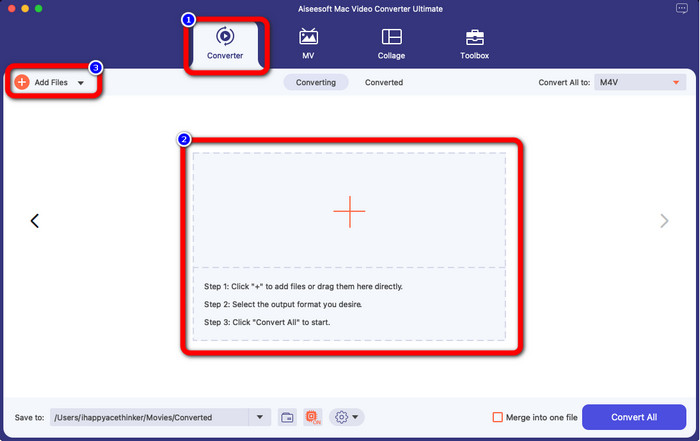
Step 2: Launch the application and select the Converter panel. Then, click the + icon or Add Files button to insert your WMV video file.
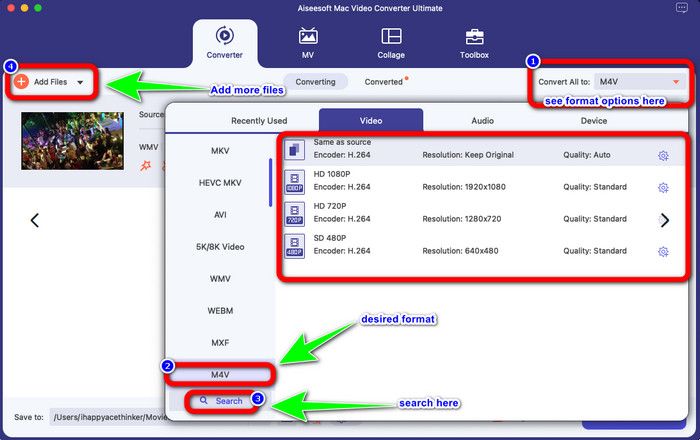
Step 3: After adding your video, click the Convert All to button to view the format options, and select the M4V file format. You can also search your desired format on the search box on the lower part of the interface. You can still click the Add Files button to add more videos to do batch conversion.
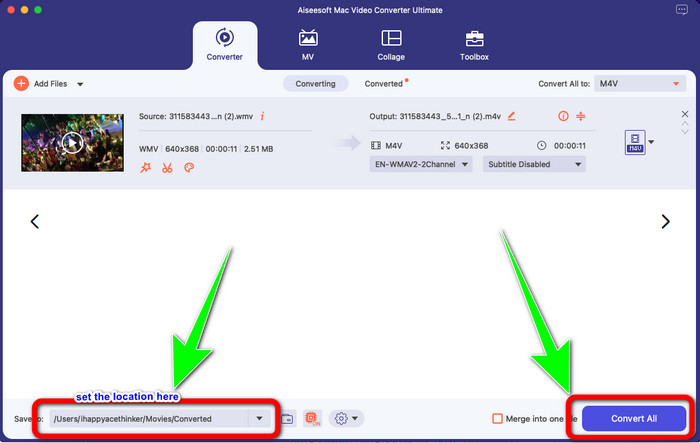
Step 4: When you select your desired file format, the M4V, you can already choose the location where you want to save your video. Then click the Convert button.
Partea 3: Mod gratuit de a converti WMV în M4V
To convert WMV to M4V for free, you can use Convertfiles.This online software is also capable of converting multiple files. It has easy instructions with a simple interface, which is suitable for all users. Aside from converting videos, you can also convert images, audio, presentation, and more. However, there are times when this converter doesn't perform well. It has a slow conversion process, and the ads are annoying.
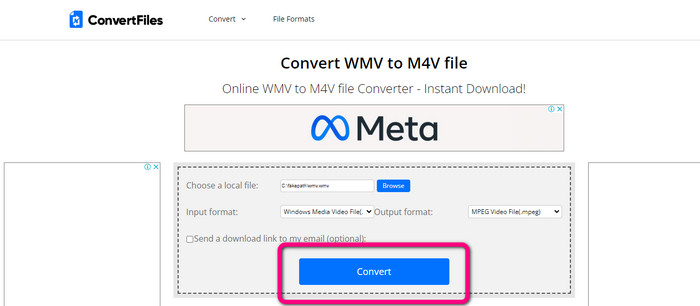
Step 1: Go to the Convertfiles website.
Step 2: Upload the WMV file format you want to convert.
Step 3: On the Output format, select the M4V file. Then click the Convert button.
Partea 4: Metodă excelentă de a converti WMV în M4V online
Another method to convert WMV to M4V online is to use the FVC Free Video Converter Online. With the help of this online tool, converting WMV is easy. It also converts more files like AVI, MP4, FLV, MKV, VOB, etc. Moreover, even though it is a free online converter, you don’t need to worry about the quality of your video. You can save your converted video with the original quality. Furthermore, you can also change your video's bit rate, frame rate, and resolution.
Funcții
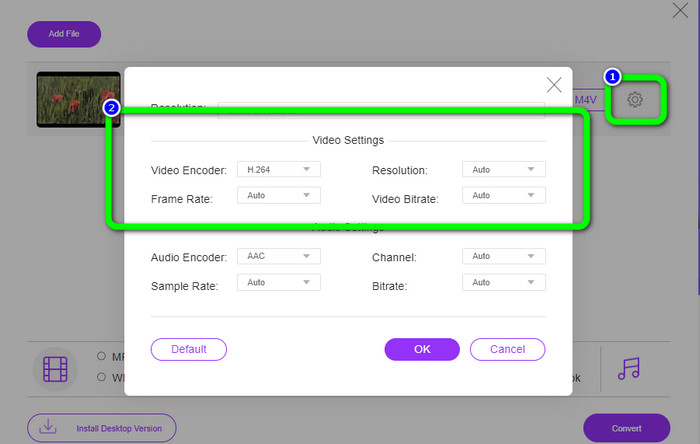
◆ Capabil să modifice rata de biți, rata de cadre și rezoluția videoclipului.
◆ Oferă conversie în lot.
Urmați pașii detaliați de mai jos pentru a converti WMV în M4V utilizând FVC Free Video Converter Online.
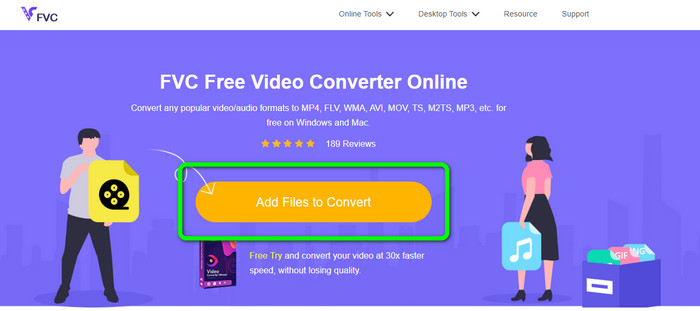
Step 1: Visit the FVC Free Video Converter Online website. Then, click the Add Files to Convert button.
Step 2: If you want to change your video’s bit rate, frame rate, and resolution, click the Settings icon. Then, press OK when you are done.
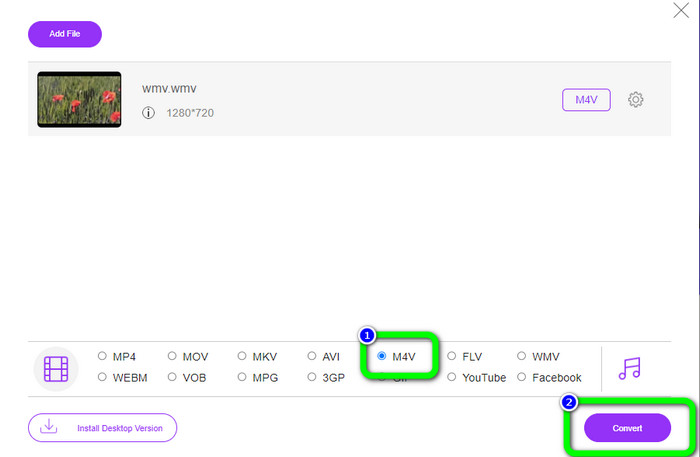
Step 3: Then, on the lower part of the interface, you will see the format options. Select the M4V file as your desired output file format, and click the Convert button to download your video.
Partea 5: Întrebări frecvente despre conversia WMV în M4V
1. Toate dispozitivele pot reda M4V?
Unfortunately, no. Built-in player of Android devices doesn’t support M4V files. You can download a third-party M4V player that supports the M4V format or convert it to a compatible format.
2. Există cel mai bun convertor pentru a converti WMV în M4V?
If you want the best WMV to M4V converter, you can use the FVC Free Video Converter Online. It can convert your files efficiently and effortlessly.
3. Care este mai bun, M4V sau MOV?
M4V is better. If you want to play your files on a portable device, such as iPhone, iPod, or iPad, M4V is highly recommended. But in some devices, MOV is supported only. In that case, you can convert M4V to MOV.
Concluzie
With all the essential information above, you can already convert WMV to M4V easily and instantly. If you prefer a fast conversion speed converter, you can use the FVC Video Converter Ultimate. Also, you can use the FVC Free Video Converter Online if you want a free online converter.
-
 Cum să comprimați fișierele M4V într-o dimensiune mai mică (gratuit și online)
 Dacă căutați o modalitate simplă de a reduce dimensiunea fișierului dvs. M4V, ar trebui să veniți și să citiți acest articol. Aici vă vom împărtăși cel mai simplu mod de a comprima fișierele M4V
-
 Ghid concret pentru a vă alătura fișierelor M4V pe Windows și Mac gratuit
 Dacă sunteți în căutarea unei soluții pentru a combina fișierele video M4V într-unul singur, nu ratați niciodată acest pasaj. Aici vom vorbi despre cele mai bune două metode de a combina fișiere video M4V
-
 Sfaturi rapide și ușoare pentru a converti WMV în MOV [Dovedit]
 Vrei să știi care sunt cele mai bune și ușor de utilizat convertoare care convertesc WMV în MOV? Continuați să citiți acest articol, deoarece discută toate opțiunile posibile pe care trebuie să le luați în considerare
