


 Video Converter Ultimate
 Screen Recorder
 Reparație video
Cum să adăugați rapid imagini la un videoclip în mai puțin de un minut
Există multe motive pentru care trebuie să adăugați imagini la videoclip. De exemplu, unii editori au descoperit că adăugarea de imagini la videoclipurile lor creează o nouă interacțiune pentru ceilalți utilizatori. În acest fel, puteți folosi acest lucru pentru a vă reprezenta brandingul sau pentru a face o prezentare vizuală excelentă și pentru a ajuta videoclipul să transmită mesajul potrivit utilizatorilor. Dar știați că multe unelte îndeplinesc aceeași muncă? Știm că este greu să alegi care instrument ți se potrivește cel mai bine. Așadar, astăzi am selectat deja cele trei instrumente pe care le-am găsit care funcționează bine. Odată ce ați citit acest articol, veți învăța să adăugați imagini la videoclipurile dvs.

Partea 1. Ghid pas cu pas pentru adăugarea unei imagini la videoclipuri cu Video Converter Ultimate
Vrei să adaugi o imagine în videoclip cu instrumentul suprem? Atunci folosește Video Converter Ultimate. Cu ajutorul acestui instrument de top, poți suprapune cu ușurință imaginea peste video chiar dacă nu ești profesionist în acest domeniu de editare. Pe lângă capacitatea sa de a suprapune imagini peste videoclipuri, poți folosi cu ușurință acest program pentru a adăuga muzică pe fundal, subtitrări și multe altele. Este cunoscut ca o soluție completă pentru majoritatea problemelor legate de editarea video. Vrei să știi care sunt avantajele folosirii lui? Dacă da, poți citi detaliile de mai jos.

FVC Video Converter Ultimate
5.689.200+ Descărcări- Oferă performanțe remarcabile la conversie și editare.
- Editează și realizează un videoclip fantastic în câteva clicuri.
- Suportă peste 200 de formate, cum ar fi MP4, MOV, FLV, WMV, AVI, MTV etc.
- Disponibil în toate platformele multiplatforme pentru descărcare, cum ar fi Windows și Mac.
Descărcare gratuită pentru Windows 7 sau o versiune ulterioară Descărcare securizată
Descărcare gratuită pentru MacOS 10.7 sau o versiune ulterioară Descărcare securizată
Nu este uimitor ce sunt lucrurile pe care le poți face cu instrumentul? Da, știm că instrumentul este impresionant din multe puncte de vedere. Dacă acest instrument v-a atras atenția și doriți să aflați cum să adăugați o imagine la un videoclip cu acest instrument, puteți citi tutorialul de mai jos.
Pasul 1. Apasă butonul de descărcare de mai jos pentru a-l descărca direct pe unitatea ta, urmează rapid pașii de instalare și pornește programul. Înainte de orice, ar fi de ajutor să te familiarizezi cu interfața instrumentului pentru a distinge mai ușor pașii următori.
Descărcare gratuită pentru Windows 7 sau o versiune ulterioară Descărcare securizată
Descărcare gratuită pentru MacOS 10.7 sau o versiune ulterioară Descărcare securizată
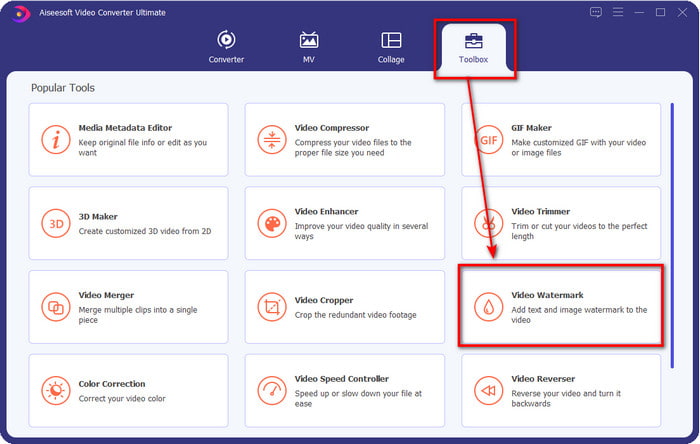
Pasul 2. După ce instrumentul rulează pe sistem, dă clic pe Toolbox, apoi, sub acesta, găsește Video Watermark și deschide-l.
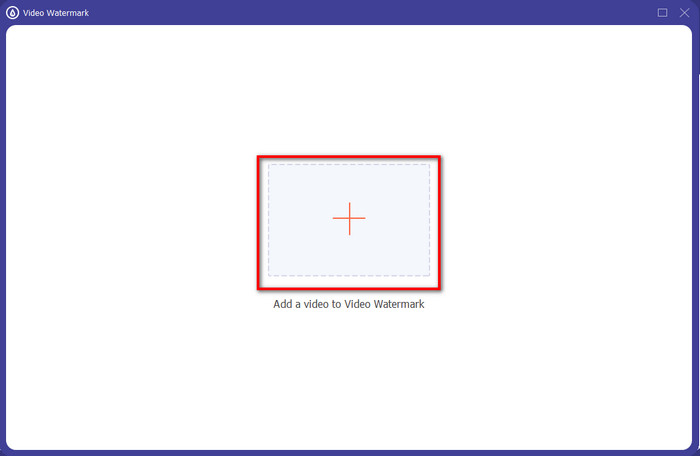
Pasul 3. După ce ai apăsat butonul +, pe ecran va apărea un folder; localizează fișierul și apasă Open dacă acela este fișierul video.
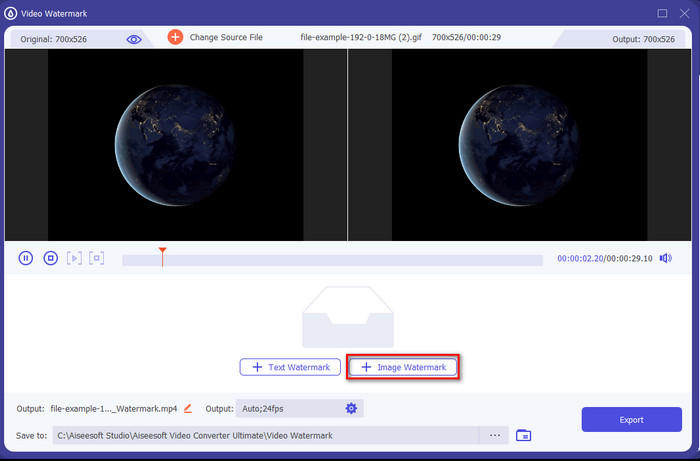
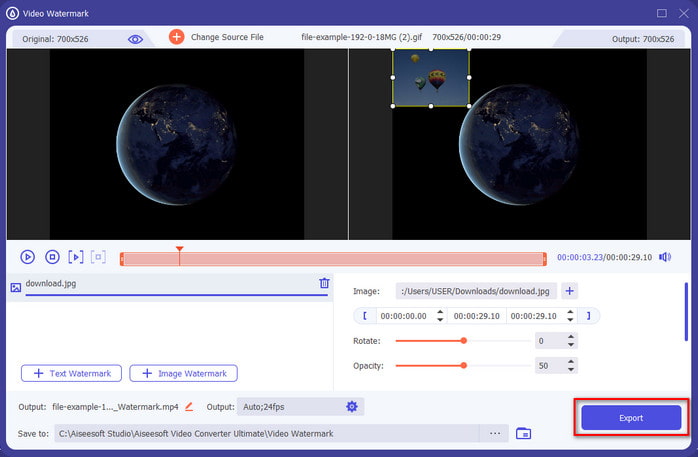
Pasul 4. Va apărea o fereastră nouă, dă clic pe Image Watermark, apoi va apărea din nou un folder, însă de data aceasta vei insera imaginea pe care vrei să o adaugi în videoclip și vei apăsa Open.
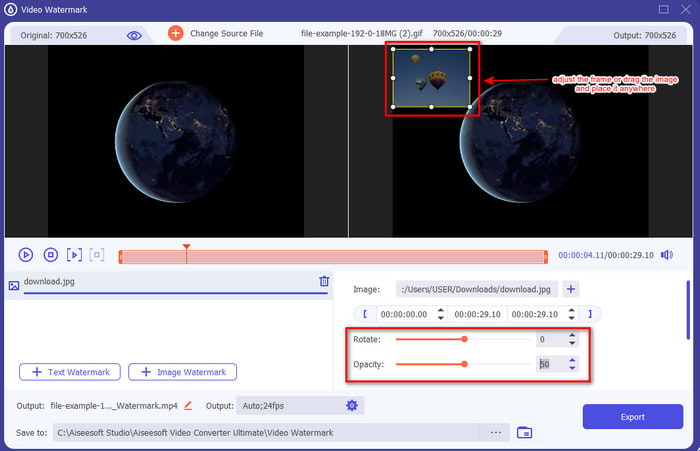
Pasul 5. Ajustează dimensiunea imaginii pe care ai inserat-o în video și poziția ei trăgând de frame-ul fotografiei. O poți plasa oriunde dorești prin menținerea apăsată și tragerea imaginii. În plus, poți ajusta și vizibilitatea imaginii modificând Opacity. De asemenea, poți roti imaginea trăgând de slider-ul de Rotate.
Pasul 6. După ce ai editat fotografia, este momentul să dai clic pe Export.
Articole similare:
Cum să adaugi audio la un videoclip
Cum să adaugi subtitrări la videoclip
Partea 2. Cum să suprapuneți gratuit imagini la videoclipuri de pe Internet
Cutter video online – Adăugați o imagine la un videoclip
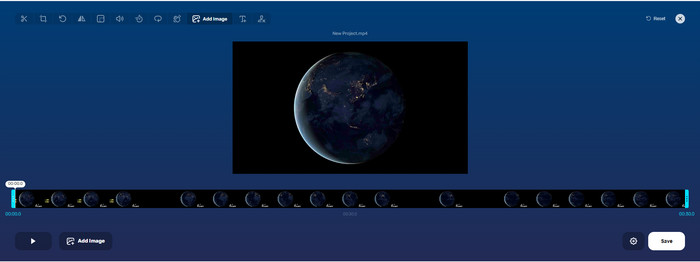
Dacă vrei să suprapui imagini online, poți folosi Online Video Cutter – Add Image to a Video. Acest instrument web oferă o modalitate simplă, dar eficientă, de a adăuga fotografii la orice video. Deși instrumentul este foarte bun de utilizat, poate fi puțin incomod să încarci videoclipul, deoarece depinde de conexiunea ta la internet. De asemenea, nu poți adăuga două imagini aici, deoarece această funcție nu este acceptată. Dar, dacă vrei să folosești instrumentul, poți urma pașii de mai jos.
Pasul 1. Deschide browserul, caută instrumentul web în bara de căutare și apoi deschide-l.
Pasul 2. Apasă pe Open File pentru a încărca videoclipul, apoi dă clic pe Add Image pentru a încărca imaginea pe care ai ales-o.
Pasul 3. Drag imaginea pentru a-i schimba poziția, apoi apasă pe Save pentru a o codifica și a o salva pe computer.
Pro
- Utilizare gratuită și nu va trebui să-l descărcați.
- Acceptă funcții de editare de bază pentru utilizatori.
- Nu are filigran la ieșirea finală.
Contra
- Nu poate adăuga până la 2 sau mai multe imagini în videoclip.
- Încărcarea imaginii și a videoclipului necesită timp.
Flixier
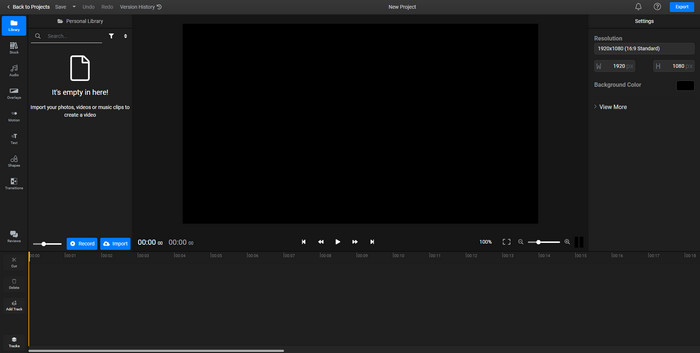
Poți folosi Flixier pentru a adăuga o imagine într-un videoclip online, gratuit. De asemenea, poți edita șablonul video cu acest instrument online, inclusiv adăugarea de imagini. Acest instrument oferă funcții de editare integrate, deosebite, pe care le poți folosi pentru a-ți îmbunătăți videoclipul. Deși instrumentul web îți oferă această funcție utilă, în momentul exportului, va apărea un filigran pe rezultatul final deoarece versiunea este gratuită. Însă poți cumpăra versiunea premium pentru a elimina acest filigran.
Pasul 1. Deschide motorul de căutare, caută numele instrumentului și apasă pe Choose File.
Pasul 2. Apasă pe Import pentru a încărca videoclipul și imaginile, trage videoclipul și imaginea pe Timeline și asigură-te că imaginea este deasupra videoclipului. Schimbă poziția imaginii trăgând-o în interiorul videoclipului.
Pasul 3. Dă clic pe Export, apoi pe Export and Download pentru a o salva pe unitatea desktopului tău.
Pro
- Gratuit și accesibil pe web.
- Oferă mai multe funcții de editare decât primul instrument online.
- Acceptă adăugarea mai multor imagini la videoclipul dvs.
Contra
- Ieșirea finală are un filigran la sfârșit, deoarece este gratuită.
- Trebuie să achiziționeze versiunea VIP pentru a elimina filigranul de pe ieșirea video.
Partea 3. Întrebări frecvente despre adăugarea de imagini la videoclip
Adăugarea de imagini la un videoclip afectează calitatea?
Calitatea video nu va afecta imaginea pe care o adăugați. Pentru a simplifica, adăugarea de imagini nu are o calitate video semnificativă, chiar dacă adăugați multe fotografii. Cu toate acestea, dacă exportați videoclipul în editorul pe care l-ați folosit și îl setați la o calitate scăzută, așteptați-vă la ieșirea video de mai jos.
De ce imaginile pe care le adaug la videoclip devin neclare?
Motivul principal pentru care a devenit este că imaginea este deja neclară de la început. Pentru a evita această problemă, trebuie să verificați mai întâi imaginea și să vă asigurați că nu este neclară înainte de a o folosi pe videoclip.
Pot adăuga o tranziție la imaginea din videoclip?
Cu unii editori, este posibilă adăugarea unei tranziții la imaginea dvs. Deși există multe tranziții animate diferite, tăierea, estomparea, ștergerea și dizolvarea sunt cele mai frecvent disponibile. Chiar dacă acestea sunt cele mai comune, este totuși ideal pentru a adăuga o tranziție la imagine pentru a face videoclipul mai profesionist și mai interesant.
Concluzie
După ce ai citit acest articol, învățarea modului de a adăuga fotografii într-un videoclip devine mai ușor de înțeles dacă parcurgi întreaga explicație despre diferitele instrumente online și offline. Chiar dacă am prezentat seturi diferite de instrumente, recomandăm totuși tuturor utilizatorilor să folosească instrumentul suprem pentru a îndeplini această sarcină. Video Converter Ultimate oferă o interfață ușor de înțeles pentru a-i ajuta pe utilizatori să își facă treaba eficient. Încă nu ești sigur dacă ți se potrivește? Ei bine, descărcarea instrumentului este singura modalitate de a dovedi că este potrivit pentru tine.
-
 5 convertoare utile OGV în WMV pentru a vă converti fișierele OGV
 Există 5 convertoare diferite OGV în WMV pe care le puteți folosi pentru a converti fișierele OGV. Acest articol oferă un fapt puternic despre cele 5 convertoare OGV disponibile.
-
 Tutorial pentru cel mai bun 2 software de conversie AMV în WMV [2022]
 Doriți să convertiți AMV în WMV? Dacă da, trebuie să citiți acest articol pentru a vă face o idee despre ce este AMV și cum să convertiți fișierul într-un format WMV.
-
 Cele mai utile instrumente pentru a converti SWF în WMV (Online și Offline)
 Te chinui să găsești un player pentru fișierele tale SWF? Nu trebuie să vă faceți griji, deoarece îl puteți converti în format WMV pentru o experiență mai bună consumatoare de videoclipuri. Citiți acest articol pentru a afla mai multe despre acest proces de conversie.
