


 Video Converter Ultimate
 Screen Recorder
 Reparație video
Cum să adăugați subtitrări la videoclipurile pe care le salvați pe desktop
Subtitles are the best way to translate dialogues of other countries into your native language to a text. This is created for those who don't understand the dialogues of the actor or actresses. Also, they improve the overall engagement of the audience to the film, series, and movies as well. But in some cases, the video you download has no subtitles or has a separate file for it. So, the best way to add subtitles to videos is presented in this article. So, keep on reading this write-up as we provide steps on how to insert your subtitles and what are the different tools you can use.

Partea 1. 4 dintre cele mai bune instrumente pe care le puteți folosi pentru a adăuga subtitrări la videoclipul dvs
1. Video Converter Ultimate (Windows și Mac)
Did you know that you can add subtitles to Video Converter Ultimate? This phenomenal converter has a lot of different features that keep us amaze every time. The overall performance of this software is phenomenal in the line of converting files, editing, making, adding and more. But for now, we will now be going to explain how to add subtitles to a video on a perfect sequence of text. In addition, this tool supports all of the subtitle formats you can use to add it to your video. So, without any more delays, let's proceed on how to add the subtitles by following this step provided only for you below.
5 Easy Steps on How to Add Subtitles on your Video with the Video Converter Ultimate
Step 1. Download the software into your Windows or Mac drive. Next, install it and do the quick set-up then click finish.
Descărcare gratuită pentru Windows 7 sau o versiune ulterioară Descărcare securizată
Descărcare gratuită pentru MacOS 10.7 sau o versiune ulterioară Descărcare securizată
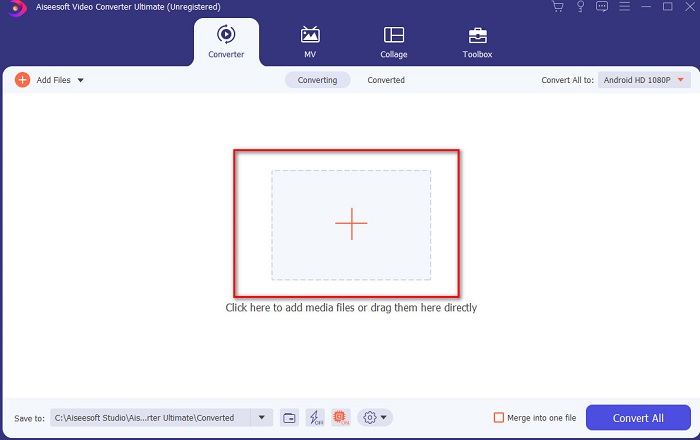
Step 2. Launch the tool, and click the plus button at the middle of the interface. Then locate the video on the folder and click Open.
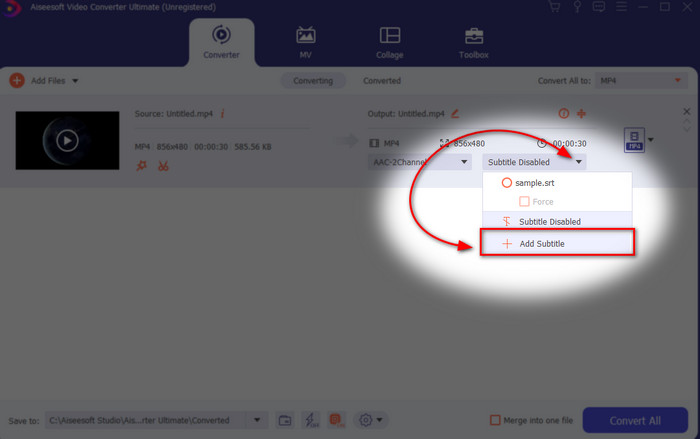
Step 3. On the interface, click the drop-down button for Subtitle and click Add Subtitle. Select the subtitle file on the file folder and click open.
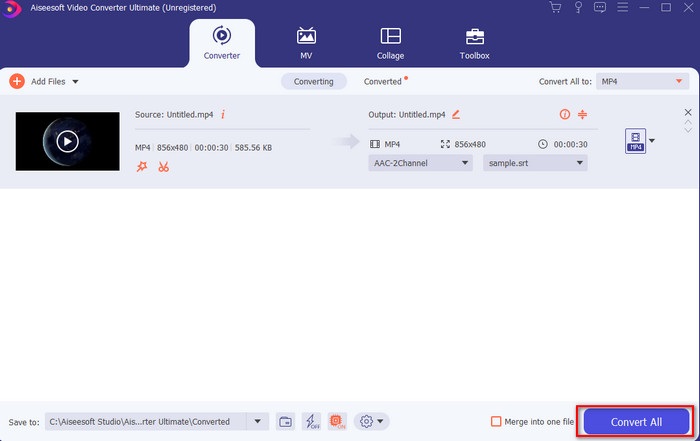
Step 4. After you add the subtitle you can now export it by clicking the Convert All.
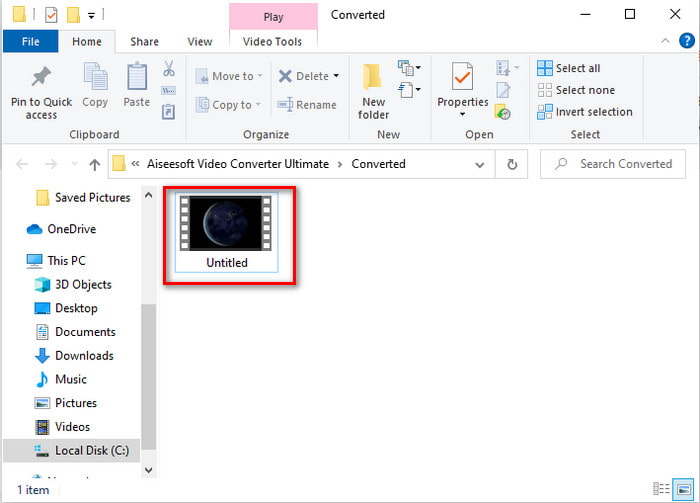
Step 5. The file explorer will pop up next to your screen with the video file that has a subtitle on it. Hit the file to watch and read the subtitle without delays.
Articole similare:
How to Cut and Merge Songs Online
2. iMovie (Mac și iPhone)
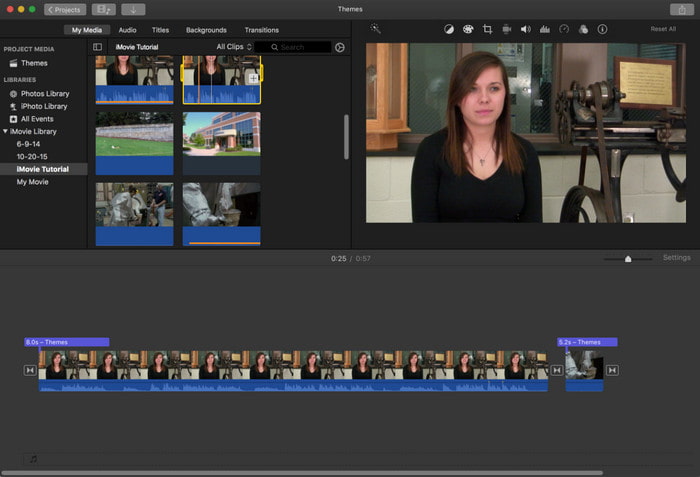
One of the best tools Apple can offer to their users, so adding subtitles to a video on iMovie is easy and free. This default tool is the best in editing and more on Mac, so adding subtitles here is easy as it is. But you can't use SRT subtitle format and add it to your video because this format is not supported by the iMovie. However, the overall performance of this Mac default editor is great to be used by anyone who is on a tight budget. Also, this tool offers a premium version that supports a lot of editing features you can use.
3. Adobe Premiere Pro (Windows și Mac)
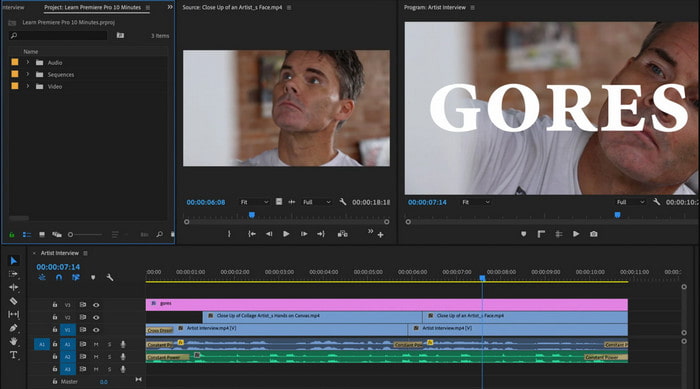
Adobe Premiere Pro offers the best editing features used by professionals in the editing industry. Also, this tool can add SRT subtitle format unlike on iMovie you can't. Moreover, this tool supports almost all of the subtitle formats you can use. Although the tool seems flawless, the price of it is enormous and if you just want to add subtitles to video on Adobe Premiere Pro this is an okay choice but not the best. Especially if you are on a tight budget and don't want to spend a lot. Also, if you are a beginner this is not the best choice because you will need a lot of time to study it first.
4. Clideo (Online)
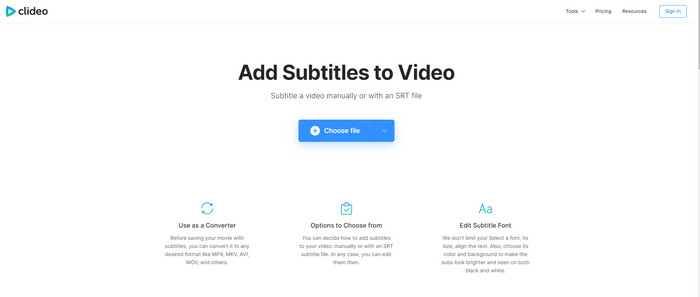
Clideo supports editing features you can use for free if you have an internet connection. This tool can be used in all devices as long as you have a browser. Although the tool is flexible the subtitle format it supports is only .srt. So, if your subtitle is not in the format of SRT then you must manually do it here which is a bit of a hassle for you. Also, the process of adding the video here will depend on your internet. With that being said, if you have a slow internet then expect a lot of time waiting than adding subtitles to video online.
Partea 2. Întrebări frecvente despre adăugarea de subtitrări la videoclipuri
Care sunt diferitele tipuri de format de subtitrare?
Pe web, există o mulțime de formate diferite de subtitrare, dar cel mai des folosit format pe care îl întâlniți deja este formatul de subtitrare SRT, WEBVTT și SBV. Deoarece acestea sunt cele mai bune și flexibile formate pe care le puteți utiliza cu ușurință, dar există SSA, TTML, DFXB, TXT și multe altele. Deși funcționează excelent, primul format de subtitrare menționat este cel mai bun pe care îl puteți folosi.
Care este principala diferență între subtitrări și subtitrări?
Deși folosesc același format, există totuși diferențe principale între subtitrări și subtitrări. În primul rând, în videoclip sunt incluse subtitrări pentru a traduce limba vorbită a actorului sau a actriței în limba spectatorului. Acesta este cel mai frecvent folosit pentru cei care pot auzi audio, dar nu pot înțelege ce spun. În timp ce legendele sunt create pentru a descrie ceea ce se întâmplă și prin text, cum ar fi efecte sonore. Acestea sunt făcute pentru cei care pot viziona videoclipuri, dar nu pot auzi audio clar sau surzi.
Dub vs. Sub; Care este mai bun?
Unii alți telespectatori preferă Dub decât sub, în timp ce alții sunt invers. Deși sunt o modalitate puternică de a traduce mai bine mediul publicului. Dub și subtitrări au multe diferențe, de exemplu, subtitrările sunt versiuni traduse ale audio și se transformă în text pe videoclip. În timp ce dublurile sunt folosite de spectatorii cărora le este greu să citească. Deci, în loc să citească contextul, folosesc dub-urile pentru a se concentra mai bine pe ceea ce urmăresc. Deci, depinde întotdeauna de dvs. pe care preferați să utilizați, dacă reușiți să citiți în timp ce vizionați subtitrațiile sunt cele mai bune, dar dacă doriți să vă concentrați cu laser asupra videoclipului în sine, atunci folosiți dublarea...
Concluzie
Finally, we now understand and learn how to add subtitle files to your video permanently. As we make your searching easier and present different solutions for you to use. Still, it is undeniable that the Video Converter Ultimate is the best choice on the list. Because it supports all of the subtitle formats for you to use. So, instead of a huge amount of money to the other tool that has the same function or even better than the other tool. Then why don't you acquire it first and try it for yourself? To know what we are talking about.
-
 Tutorial - 4 moduri gratuite de a îmbina videoclipurile pe iPhone într-unul nou
 Citiți și obțineți 4 modalități ușoare de a îmbina videoclipurile pe iPhone. Toate modelele iPhone și versiunile iOS sunt acceptate. Puteți combina rapid 2 și mai multe videoclipuri pe iPhone într-un videoclip nou.
-
 Cum să comprimați fișierele M4V într-o dimensiune mai mică (gratuit și online)
 Dacă căutați o modalitate simplă de a reduce dimensiunea fișierului M4V, ar trebui să veniți să citiți acest articol. Aici vă vom împărtăși cel mai simplu mod de a comprima fișiere M4V cu dvs.
-
 Compress WebM - Cum se poate comprima fișierul WebM online
 Cum să comprimați fișierul WebM online? Care este cel mai rapid mod de a comprima fișiere mari? Această postare spune 2 moduri gratuite de a comprima WebM.
