


 Video Converter Ultimate
 Screen Recorder
 Reparație video
 Descărcare sigură
Cum să adaugi cu ușurință un filigran la un videoclip | 3 cele mai bune metode
Filigranele joacă un rol esențial în conținutul nostru digital publicat și servesc drept identitate și strat de protecție împotriva utilizării neautorizate. Așadar, dacă ești un creator de conținut care publică videoclipuri și vrei ca acestea să nu fie folosite fără permisiunea sau menționarea ta, adăugarea unui filigran este o soluție simplă, dar eficientă. Prin urmare, în acest articol te vom ajuta să adaugi un filigran pe un videoclip în trei moduri diferite. Dacă ești pregătit, să începem.

Partea 1. Adăugați un filigran la videoclip | Soluția supremă
Soluția ideală pentru a adăuga un filigran pe un videoclip este utilizarea FVC Screen Video Converter Ultimate. Cu acest instrument, utilizatorii pot adăuga cu ușurință un filigran videoclipurilor lor folosind funcția Video Watermark. Da, acest convertor video are o casetă de instrumente (Toolbox) care conține diverse unelte pe care utilizatorii le pot folosi ori de câte ori au nevoie de o soluție pentru orice problemă de audio și video cu care se pot confrunta.
Caracteristici principale
• Acceptă peste 1000 de formate de intrare, care pot satisface aproape toate tipurile de videoclipuri.
• Permite utilizatorilor să adauge un filigran de imagine la un videoclip.
• Permite utilizatorilor să adauge un filigran text la un videoclip.
• Permite personalizarea și editarea de bază a filigranului adăugat.
• Acceptă diverse opțiuni de ieșire video.
Iată cum se adaugă un filigran la un videoclip folosind FVC Video Converter Ultimate:
Pasul 1. Mai întâi, trebuie să descarci și să instalezi FVC Video Converter Ultimate pe computer. Te rugăm să reții că este compatibil atât cu Windows, cât și cu macOS.
Descărcare gratuită pentru Windows 7 sau o versiune ulterioară Descărcare securizată
Descărcare gratuită pentru MacOS 10.7 sau o versiune ulterioară Descărcare securizată
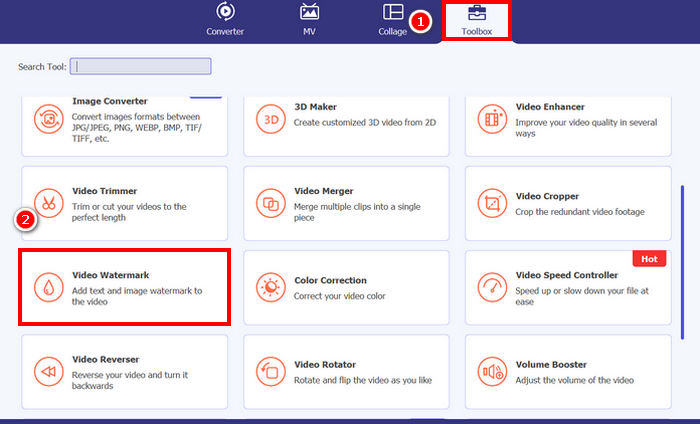
Pasul 2. Lansează instrumentul, dă clic pe fila Toolbox, iar de acolo selectează Video Watermark.
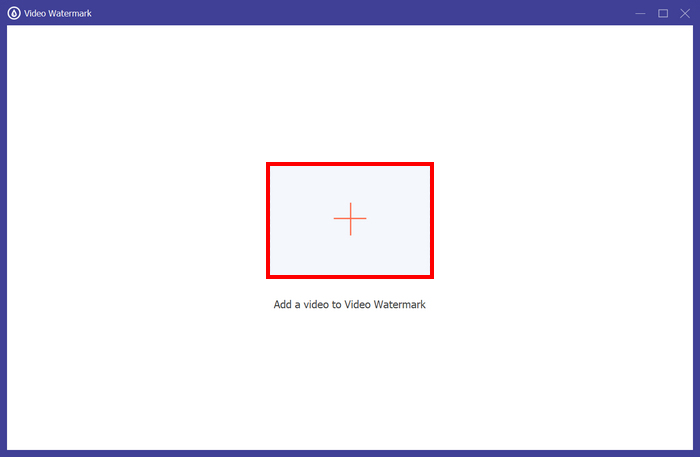
Pasul 3. Apoi, dă clic pe Add a Video to Video Watermark și selectează videoclipul căruia dorești să îi adaugi un filigran de tip imagine.
Pasul 4. Acum, alege + Image Watermark pentru a adăuga imaginea pe care vrei să o folosești drept filigran pentru videoclipul tău. De acolo o poți ajusta. După ce ai terminat, fă clic pe butonul Export.
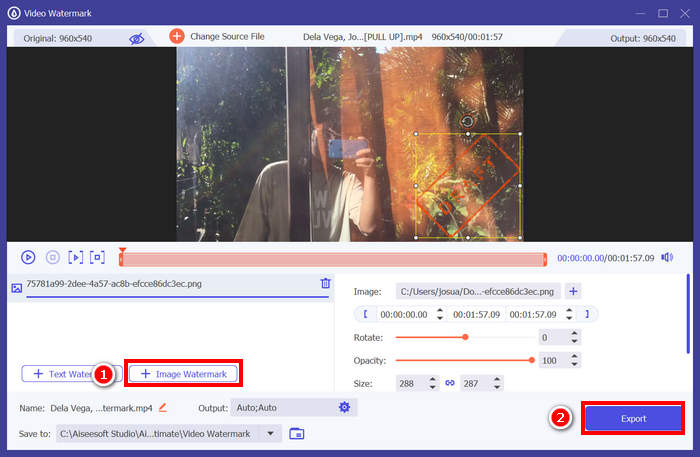
Cu FVC Video Converter Ultimate, poți adăuga cu ușurință un filigran la un videoclip și, rețineți, poți adăuga fie un filigran text, fie un filigran imagine. De asemenea, are funcții de editare de bază, unde poți ajusta opacitatea, dimensiunea și chiar rotirea. În cele din urmă, interfața este foarte simplă și intuitivă, așa că chiar și începătorii pot învăța cu ușurință cum să o utilizeze.
Partea 2. Cum se adaugă un filigran la un videoclip în Canva?
Canva este un instrument de editare popular și cu siguranță ai auzit de el. Dar știai că acest instrument poate fi folosit pentru a adăuga un filigran pe un videoclip? Da, cu interfața sa prietenoasă și funcțiile puternice de tip drag-and-drop, Canva îți permite să încarci logo-ul sau filigranul personalizat și să îl plasezi exact unde dorești pe videoclip. Mai jos găsești un ghid pas cu pas despre cum poți adăuga un filigran pe un videoclip folosind Canva:
Pasul 1. Mai întâi, trebuie să ai un cont Canva. Te poți înregistra sau te poți conecta cu contul tău Google.
Pasul 2. Apoi, deschide Canva și fă clic pe Create a Design și selectează opțiunea Upload pentru a importa fișierul video pe care vrei să îl filigranezi.
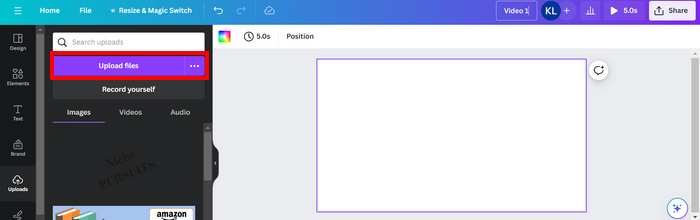
Pasul 3. Acum, fă același lucru cu filigranul tău: încarcă-l și trage-l peste videoclip. Odată poziționat, poți mări sau micșora filigranul și îi poți edita culoarea și transparența.
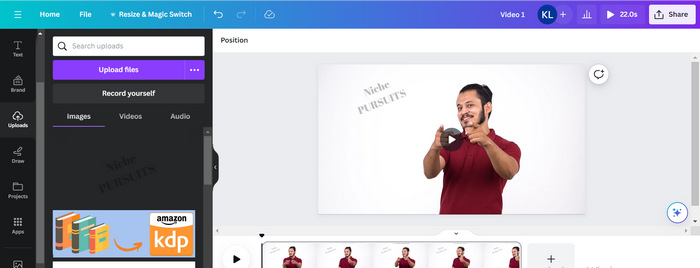
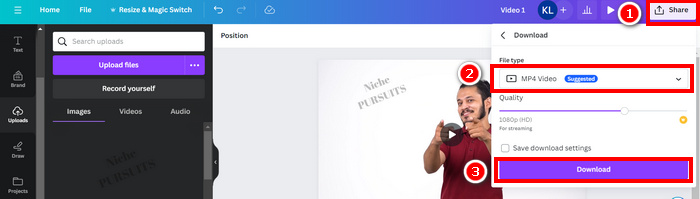
Pasul 4. Redă videoclipul pentru a previzualiza dacă filigranul apare pe video. Dacă totul funcționează bine, dă clic pe butonul Share și descarcă fișierul ca fișier video MP4 făcând clic pe butonul Download.
Notă: Dacă imaginea filigranului este prea intensă sau prea închisă pentru videoclipul tău, îi poți ajusta transparența, astfel încât să se integreze mai natural cu materialul video, fără să acapareze vizualul sau să distragă spectatorii.
Partea 3. Adăugați un filigran text la un videoclip online [Gratuit]
Dacă preferi o metodă gratuită și bazată pe web pentru a adăuga un filigran la un videoclip, echowave.io ar putea fi o opțiune excelentă. Acest instrument online oferă funcții intuitive care permit utilizatorilor să creeze, să editeze și să vizualizeze conținut audio și video. Dar, în afară de asta, cu acest instrument, utilizatorii pot profita de funcția sa de editare, unde pot adăuga un filigran text. Mai jos este ghidul pas cu pas despre cum să adaugi un filigran text la un videoclip online:
Pasul 1. Mai întâi, în Chrome, caută echowave.io.
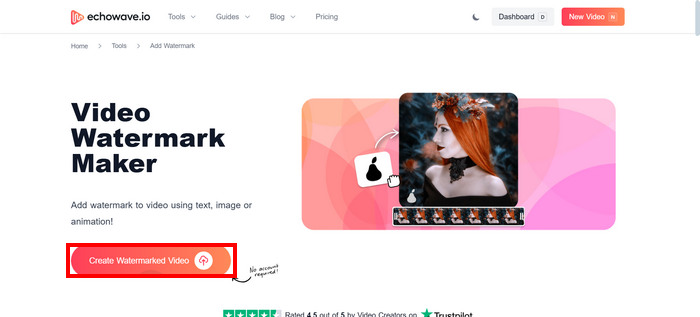
Pasul 2. Apoi, odată ajuns în interfața instrumentului, dă clic pe Create Watermarked Video.
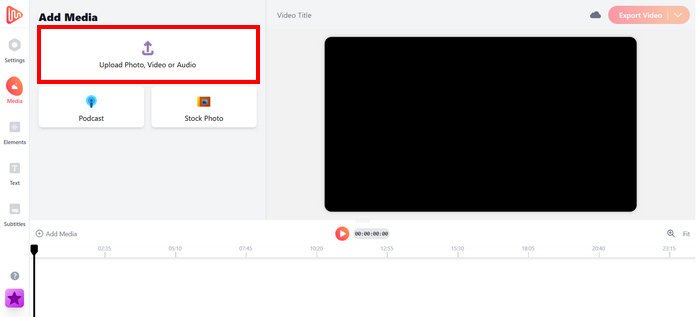
Pasul 3. După aceea, fă clic pe Upload Photo, Video, or Audio pentru a încărca videoclipul pe care vrei să îl filigranezi.
Pasul 4. În final, în panoul din stânga al ecranului, fă clic pe Text pentru a adăuga și compune filigranul text pe care îl vei crea. Dar mai întâi trebuie să selectezi formatul pe care vrei să îl folosești. După aceea, tastează textul. Când ai terminat, poți ajusta poziția filigranului, iar când totul este în regulă, dă clic pe butonul Export pentru a salva fișierul.
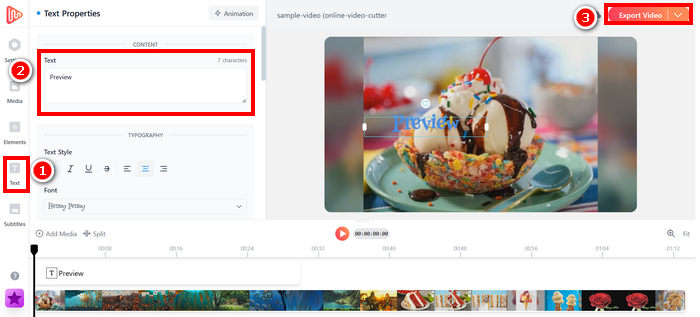
Deși adăugarea unui filigran la un videoclip folosind echowave.io este simplă și ușor de utilizat pentru începători, instrumentul poate uneori să întâmpine întârzieri, chiar și atunci când procesează videoclipuri scurte sau fișiere de dimensiuni mici.
Apasă aici pentru a citi mai multe despre adăugarea unui filigran la GIF, dacă ești interesat.
Partea 4. Întrebări frecvente despre adăugarea unui filigran la un videoclip
Este ilegal să acoperi un filigran?
Da, este ilegal. Filigranele sunt adesea folosite ca formă de protecție a drepturilor de autor, indicând proprietatea sau autorul conținutului. Ascunderea sau eliminarea intenționată a acestora poate încălca legile privind drepturile de autor și poate duce la consecințe juridice, mai ales dacă conținutul modificat este redistribuit, reutilizat sau utilizat în scopuri comerciale.
Cum adaug un filigran în videoclip în DaVinci Resolve?
Pentru a adăuga un filigran în DaVinci Resolve, importați videoclipul și imaginea sau textul filigranului. Plasați videoclipul pe cronologie, apoi trageți filigranul deasupra lui pe o pistă separată. Folosiți panoul Inspector pentru a redimensiona, muta și ajusta opacitatea. Când totul arată în regulă, exportați videoclipul cu filigranul inclus.
Cum adaug un filigran la un videoclip în Lightroom?
Pentru a adăuga un filigran la un videoclip în Lightroom, începeți prin a deschide Lightroom și selecta imaginea pe care doriți să o filigranați. Apoi, faceți clic pe fila Lightroom din partea de sus a ecranului și alegeți Editare filigrane din meniul derulant. În fereastra Editor filigran care apare, introduceți textul filigranului dorit în caseta situată sub imaginea de previzualizare. De acolo, puteți personaliza și stilul, fontul, dimensiunea și amplasarea filigranului.
Concluzie
Adăugarea unui filigran pe un videoclip chiar contează, iar a învăța cum să faci acest lucru este esențial pentru protejarea conținutului tău și pentru a-ți arăta dreptul de proprietate. Deși există multe instrumente disponibile, FVC Video Converter Ultimate oferă o modalitate simplă și eficientă de a adăuga un filigran într-un videoclip. Este, într-adevăr, o alegere practică pentru începătorii care vor o soluție rapidă, dar explorarea altor instrumente, precum Canva sau editorii online, poate fi, de asemenea, utilă, în funcție de nevoile tale.
-
 5 moduri de a elimina un filigran dintr-un videoclip într-un mod profesional
 Trebuie să eliminați un filigran dintr-un videoclip pentru a-l face să arate profesional? Ei bine, citiți acest articol, deoarece adăugăm un tutorial despre cum să o faceți!
-
 2 aplicații grozave pe care le puteți folosi pentru a elimina filigranul din videoclipurile MP4
 Acest articol vă va oferi modalități simple și ușoare cu privire la cum să eliminați filigranul din videoclipurile MP4 folosind dispozitive precum Windows și Mac
-
 Eliminați filigranul Animotica de pe videoclipurile exportate cu 3 moduri dovedite
 V-ați întrebat vreodată dacă este posibil să eliminați filigranul Animotica de pe videoclipurile pe care le-ați exportat? Acest articol oferă un mod de lucru.
