


 Video Converter Ultimate
 Screen Recorder
 Reparație video
 Descărcare sigură
Tutorial despre cum să editați metadatele MKV pe desktop în cel mai simplu mod
MKV este o extensie foarte populară pentru formatele de container multimedia Matroska. Ce face ca MKV să fie mai popular decât alte formate? Mulți utilizatori au crezut că MKV este un tip de compresie video folosit pentru audio și video, însă nu este așa. Acest format a devenit popular datorită flexibilității sale de a adapta codecuri pentru audio, video și subtitrări, stocându-le într-un singur fișier. Cu aceste caracteristici, formatul a devenit „rezistent la viitor”, ceea ce înseamnă că nu va deveni niciodată depășit, inclusiv metadatele stocate în el. Așadar, dacă vrei să adaugi, să elimini sau să editezi metadatele fișierului tău MKV, continuă să citești acest articol și învață mai rapid cum să editezi metadatele MKV.

Partea 1. Cum să editați metadatele fișierului MKV cu cel mai bun software de pe desktop
FVC Video Converter Ultimate – Cel mai puternic editor de etichete MKV pe Windows și Mac
FVC Video Converter Ultimate este cel mai bun editor de metadate MKV pe care îl poți descărca pe ambele sisteme de operare pentru a duce treaba la bun sfârșit ca un profesionist. Acest software „ultimate” poate gestiona fișierul MKV cu ușurință și îl poate deschide pentru a-i modifica metadatele, dacă vrei să fie schimbate. Cu suportul său larg pentru formate video și audio, încărcarea oricărui format media, precum MKV, nu a mai fost niciodată o „bătaie de cap”. Folosind software-ul, vei progresa ușor în înțelegerea modului de utilizare. Vrei să folosești instrumentul, dar nu ai niciun tutorial de încredere? Din fericire, informațiile oferite mai jos te vor ajuta să îndeplinești sarcina ca un profesionist; citește detaliile de mai jos pentru a afla cum să schimbi titlul fișierului MKV în mai puțin de un minut.
Pasul 1. Mai întâi, dând clic pe butonul de descărcare vei descărca imediat software-ul pe desktop și vei alege versiunea potrivită sistemului pe care îl folosești. Apoi, instalează-l pe desktop și pornește-l pentru a adăuga metadatele în fișierele tale MKV.
Descărcare gratuită pentru Windows 7 sau o versiune ulterioară Descărcare securizată
Descărcare gratuită pentru MacOS 10.7 sau o versiune ulterioară Descărcare securizată
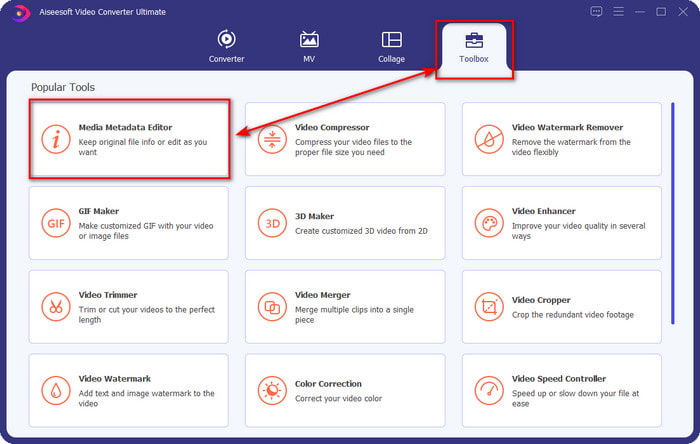
Pasul 2. Acum că ai lansat instrumentul, trebuie să mergi la secțiunea Toolbox și să cauți Media Metadata Editor în lista de mai jos.
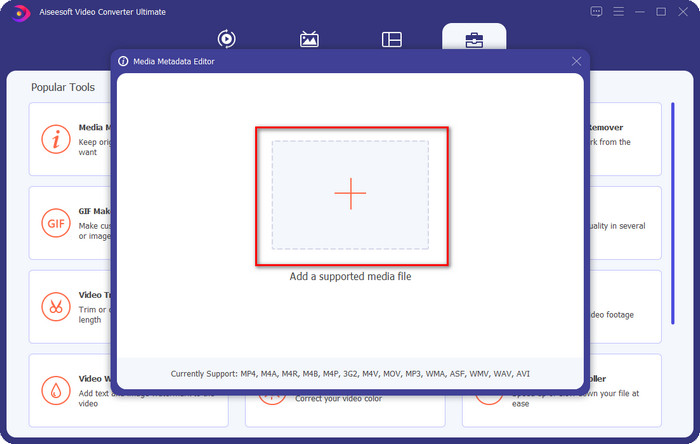
Pasul 3. Pentru a adăuga fișierul MKV, apasă butonul + care va apărea pe ecran, găsește fișierul .mkv în folder și dă clic pe Open pentru a trece la pasul următor.
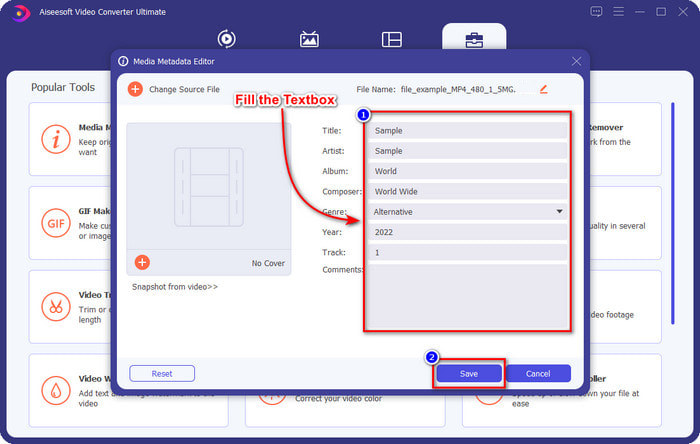
Pasul 4. În această etapă, poți acum să adaugi metadatele de care ai nevoie pentru MKV-ul tău, completează-le după cum dorești și apasă Save după ce ai terminat și ești gata să aplici modificările. Astfel, ai adăugat etichete fișierului tău MKV pentru a identifica rapid ce conține fișierul.
VLC Media Player – Editor gratuit de metadate MKV
VLC Media Player poate reda și edita cu ușurință etichetele fișierului tău MKV. Acest instrument este open‑source, deci nu trebuie să îți faci griji când îl descarci pe desktop, deoarece poți folosi toate funcțiile sale gratuit, dar poți dona dacă vrei. Deși instrumentul nu este la fel de avansat ca alte editore de metadate din această listă, este totuși considerat un instrument de încredere pe care îl poți folosi pe dispozitivul tău. În plus, ești liber să adaugi informații de bază fișierului MKV, precum numele autorului, titlul, artistul, albumul etc. Urmează pașii și află cum să editezi metadatele MKV folosind acest player media ca editor de metadate.
Pasul 1. Descarcă și apoi deschide VLC pe desktop.
Pasul 2. Mergi la Tools și dă clic pe Media Information. Dacă vrei o metodă mai rapidă, poți folosi o combinație de taste apăsând CTRL + I. Indiferent de metoda aleasă, funcțiile sunt aceleași.
Pasul 3. Tastează informațiile de care ai nevoie și apasă Close pentru a salva automat metadatele.
MKVToolNix GUI – Editor de etichete MKV dedicat
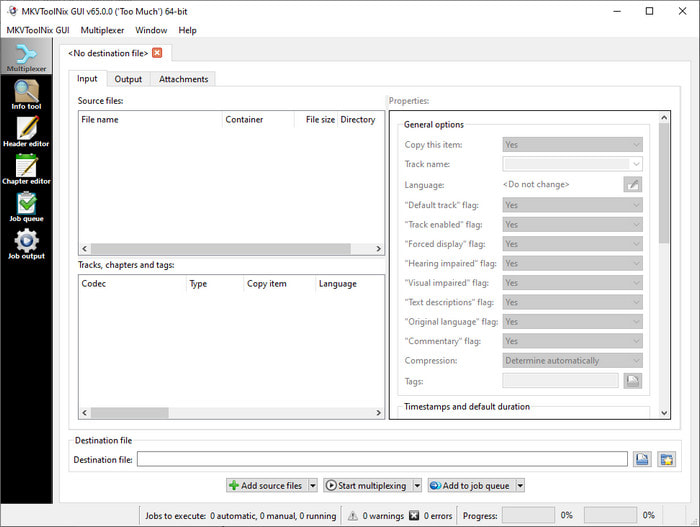
MKVToolNix GUI este o soluție dedicată fișierelor MKV; deși poți încărca și alte formate, software-ul va converti formatul în MKV. Instrumentul a devenit cunoscut ca o soluție completă pentru MKV, întrucât oferă un set de unelte, ceea ce înseamnă că poți avea și alte funcții în afară de editarea metadatelor. Cu interfața sa grafică simplă, nu este prea mult de învățat despre modul de utilizare; practic, poți învăța cum să îl folosești în câteva minute. Chiar dacă instrumentul este simplu, unii utilizatori care folosesc deja un editor de metadate foarte bine pus la punct au comparat interfața sa cu altele și au spus că nu este suficient de intuitivă pentru ei. După toate acestea, nu există nicio îndoială că instrumentul ne poate învăța cum să schimbăm titlul unui fișier MKV.
Pasul 1. Descarcă software-ul pe desktop, deschide-l, dă clic pe Add Source File și localizează fișierul MKV în folder.
Pasul 2. Apasă Output și modifică metadatele aici.
Pasul 3. Dacă ai făcut toate acestea, poți acum să salvezi apăsând pe Start Multiplexing.
Partea 2. Întrebări frecvente despre Editorul de metadate MKV
Pot converti VOB în MKV?
Poți converti cu ușurință VOB în MKV dând clic pe acest link, iar o nouă filă se va deschide și te va ajuta direct să convertești VOB în MKV. Dacă vrei mai multe informații despre VOB și MKV, acesta este articolul potrivit pentru tine.
De ce fișierele mele MKV au o dimensiune mai mare a fișierului?
Motivul pentru care fișierele tale MKV sunt mari este că formatul nu conține doar video și audio. El include și multiple elemente, precum subtitrări, metadate, rată de biți variabilă și multe altele. Așadar, ce ar trebui să faci dacă vrei să comprimi fișierul MKV pentru a-l micșora fără a-i distruge calitatea? Nu există foarte multe compresoare video de încredere, iar din acest motiv am făcut câteva cercetări pentru a te ajuta să comprimă MKV fără pierdere de calitate cu ușurință.
Care sunt dezavantajele formatului MKV?
Chiar dacă formatul fișierului este cunoscut, unele playere și editori media se pot ocupa în continuare de format din cauza problemei codecului și elementelor. De asemenea, formatul are o dimensiune enormă și nu toate programele acceptă încărcarea unui fișier de dimensiune mare, deoarece importul și exportul acestuia ar consuma mult timp. Dimensiunea fișierului va crește, de asemenea, deoarece este o parte a fișierului, la fel ca și celălalt format pe care l-ați adăugat metadate. Chiar și are slăbiciunile sale, este încă competitiv în ceea ce privește stocarea fișierului media și păstrarea lor în siguranță pentru scopuri viitoare.
Concluzie
Nu este uimitor? Ce vă pot oferi aceste trei software-uri desktop? Celălalt este un player media, în timp ce celălalt este un editor dedicat pentru MKV, dar ce instrument ar trebui să utilizați? Dacă doriți ce este mai bun, vă aducem cu plăcere instrumentul suprem. A învăța cum să editați metadatele MKV cu FVC Video Converter Ultimate a devenit ușor și eficient. Deci ce mai aștepți? Aveți instrumentul la îndemână și folosiți-l pentru a remedia metadatele din fișierele dvs. MKV ca un profesionist, cu câteva clicuri distanță.
-
 2 Cele mai bune moduri de a edita metadatele OGG pe care ar trebui să le încercați gratuit
 Trebuie să editați metadatele OGG? Ei bine, vă puteți ocupa cu ușurință de editarea etichetelor folosind software-ul corect. Dacă nu aveți unul, citiți acest articol este o necesitate.
-
 O privire de ansamblu absolută despre Editorul de metadate Pentaho [Actualizat 2022]
 Nu găsește un articol de încredere despre Pentaho Metadata Editor? Din fericire, noi înșine am revizuit instrumentul pentru a oferi informațiile pe care le veți ști despre instrument.
-
 Sfaturi și trucuri despre Editorul de metadate VLC pe care trebuie să-l cunoașteți în 2022
 Doriți să utilizați VLC ca editor de metadate? În acest caz, puteți citi acest articol, deoarece oferim o revizuire imparțială a editorului de metadate VLC.
