


 Video Converter Ultimate
 Screen Recorder
 Reparație video
 Descărcare sigură
Cele mai simple 4 moduri de a schimba viteza de redare a videoclipurilor pe desktop, web și telefoane
Majoritatea utilizatorilor găsesc o modalitate eficientă de a urmări un videoclip de o oră în mai puțin de o oră. Singura soluție care poate rezolva această problemă este schimbarea vitezei de redare a videoclipului pe care îl vizionezi în prezent. Majoritatea editorilor video pe care îi vei găsi pe piață te pot ajuta să finalizezi această sarcină, dar întrebarea este: sunt ei de încredere? În timp ce le-am analizat pe fiecare în parte, am descoperit că poți schimba viteza videoclipului pe desktop, online, pe dispozitive iOS și Android. Dacă vrei să afli cum se face, trebuie să continui să citești acest articol, deoarece includem instrumente și aplicații care te pot ajuta.

Partea 1. Cel mai bun mod recomandat de a schimba fără efort viteza video pe Windows și Mac
Pentru a schimba ușor viteza unui videoclip, trebuie să alegi cel mai bun instrument, care oferă performanță excelentă chiar și în doar câteva clicuri – îți prezentăm FVC Video Converter Ultimate. Acest instrument modifică eficient viteza videoclipului pe care îl ai, oricând și oriunde. De asemenea, poți schimba viteza videoclipului chiar dacă formatele sunt MP4, MOV, AVI, FLV, TS, RMVB și peste 1000 de alte formate; încărcarea fișierului aici este rapidă și simplă. Chiar dacă ești utilizator Windows sau Mac, descărcarea software‑ului pe acel sistem de operare te poate ajuta să finalizezi sarcina de modificare a vitezei de redare în doar câteva clicuri.
Pe lângă funcția de control al vitezei video, instrumentul are și o cutie de instrumente multifuncțională, care ar putea ajuta alte sarcini. Cum ar fi adăugarea de metadate, crearea unui GIF, eliminarea filigranelor și multe altele. Deși instrumentul poate fi descărcat, veți observa în timp ce îl utilizați că nu veți avea nevoie de multă experiență în editare, deoarece este ușor de utilizat. Există funcții și caracteristici pe care nu le-am scris încă care vor evidenția acest produs. Dar dacă doriți să învățați cum să schimbați viteza unui videoclip, citiți detaliile pentru a face cunoștință.
Avantajele utilizării software-ului suprem ca schimbător de viteză video:
◆ Interfață intuitivă, astfel încât să învețe cum să o folosească în câteva minute.
◆ Încărcați peste 1000 de videoclipuri pentru a accelera redarea pe care o are.
◆ Utilizabil pentru a ajuta utilizatorii să experimenteze la maximum.
◆ Alte funcții sunt în Toolbox, cum ar fi editarea video de bază și avansată.
◆ Este prima alegere a aproape un milion de utilizatori care o descarcă.
◆ Disponibil pe Windows și Mac pentru a descărca instrumentul fără efort.
Pași despre cum să schimbați viteza video folosind software-ul Ultimate:
Pasul 1. Poți avea acest software complet atât pe Windows, cât și pe Mac făcând clic pe butonul de descărcare. Finalizează procesul de instalare după ce faci clic pe fișierul descărcat, apoi lansează programul pentru a continua.
Descărcare gratuită pentru Windows 7 sau o versiune ulterioară Descărcare securizată
Descărcare gratuită pentru MacOS 10.7 sau o versiune ulterioară Descărcare securizată
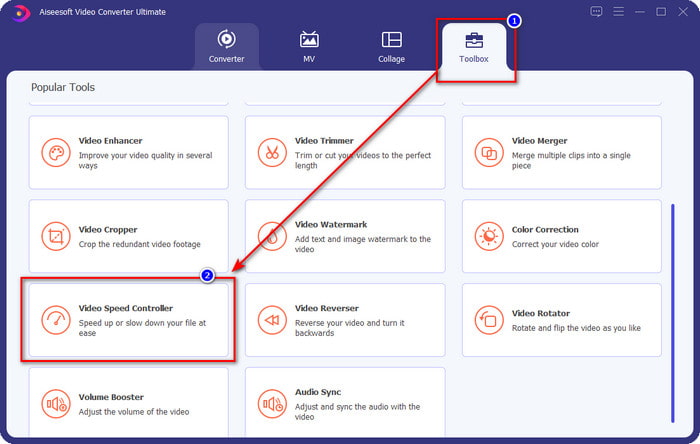
Pasul 2. După ce ai deschis software‑ul, mergi la secțiunea Toolbox, iar acolo deschide Video Speed Controller. Nu trebuie să îți faci griji, nu va fi nevoie să descarci resurse suplimentare pentru a utiliza acest instrument.
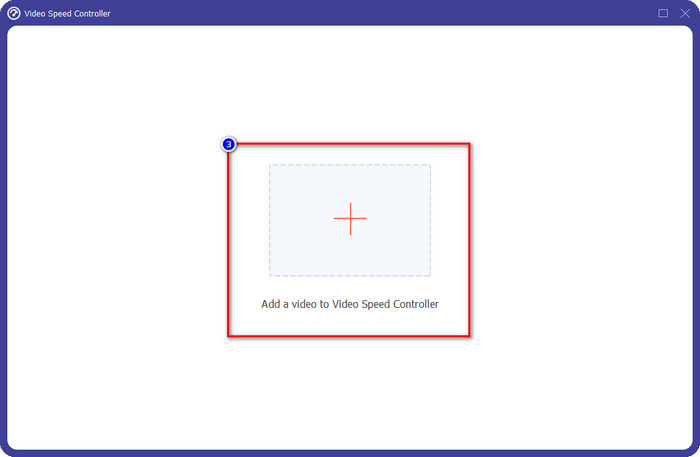
Pasul 3. Apasă pictograma +, adaugă fișierul pe care îl ai în folder, fă clic pe el și apoi pe Open pentru a încărca videoclipul.
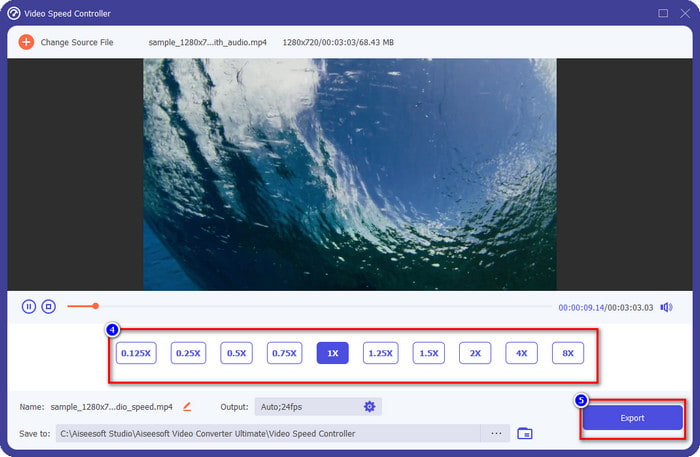
Pasul 4. Alege din listă viteza de redare pe care vrei să o obții; cu toții avem viteze de redare diferite pe care ni le dorim. Fă clic pe Export pentru a salva rezultatul final al videoclipului căruia i‑ai modificat viteza. În mai puțin de un minut, ai schimbat deja viteza videoclipului. Acum îl poți viziona într‑un timp mai scurt.
Partea 2. Cel mai bun mod gratuit de a schimba viteza video pe web
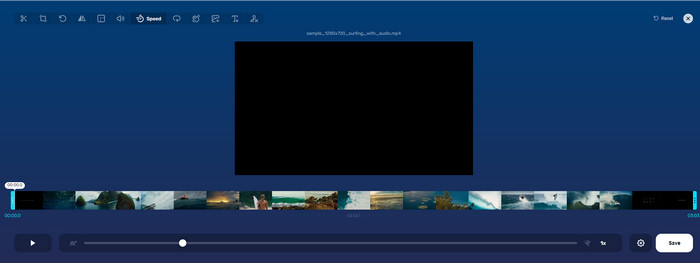
Cu ajutorul Online Video Cutter, poți schimba online viteza videoclipului gratuit. Spre deosebire de primul instrument, nu va fi nevoie să descarci resurse suplimentare sau un program de instalare pe desktop pentru a utiliza acest instrument web. Pe lângă funcția de modificare a vitezei, poți folosi acest instrument și pentru editări de bază. Chiar dacă instrumentul este foarte bun, nu poți încărca aici toate formatele pe care le ai, deoarece formatele acceptate sunt limitate. Pentru a‑l folosi, urmează pașii de mai jos.
Pasul 1. Deschide browserul pe care vrei să îl folosești și caută acest instrument web.
Pasul 2. Deschide instrumentul online, fă clic pe Open File, găsește fișierul video pe care îl ai și încarcă‑l.
Pasul 3. Trage sliders spre stânga sau spre dreapta pentru a‑i schimba viteza; fă clic pe butonul Save dacă ești mulțumit de viteză.
Partea 3. Cel mai bun editor video pe iOS pentru a schimba viteza video gratuit
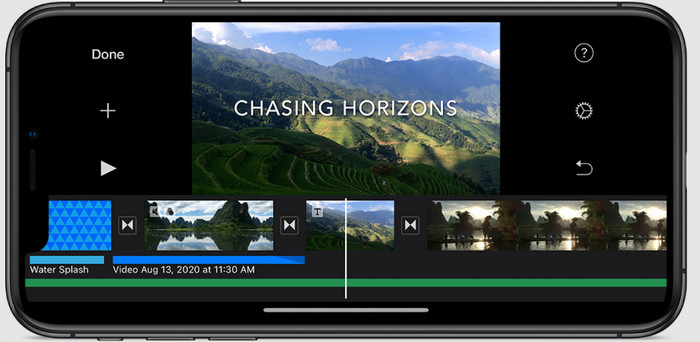
Pentru utilizatorii iOS, puteți folosi iMovie pentru a afla cum să schimbați gratuit viteza video pe iPhone. Chiar dacă instrumentul este un editor video nativ pe Mac, mai aveți de ales să descărcați sau nu aplicația pe dispozitiv. Această alegere demonstrează că utilizatorii iOS pot păstra editorul sau nu, pentru a economisi ceva spațiu pe stocarea lor. Dar dacă aveți aplicația pe iPhone, puteți urma pașii pe care îi adăugăm mai jos pentru a afla cum funcționează acest instrument.
Pasul 1. Descarcă apoi deschide aplicația pe iPhone și, în Project, apasă semnul +, apoi apasă pe Movie.
Pasul 2. Atinge videoclipul pe care vrei să îl accelerezi, apoi în partea de jos a ecranului apasă Create Movie pentru a‑l încărca pe cronologie.
Pasul 3. Atingând clipul pe care l‑ai încărcat, apasă pictograma speed controller și ajustează viteza videoclipului trăgând sliders pe iPhone. Apasă Done pentru a‑l salva, apoi exportă‑l dacă dorești.
Partea 4. Cel mai bun mod de a schimba viteza de redare a videoclipurilor pe dispozitive Android utilizând editorul încorporat
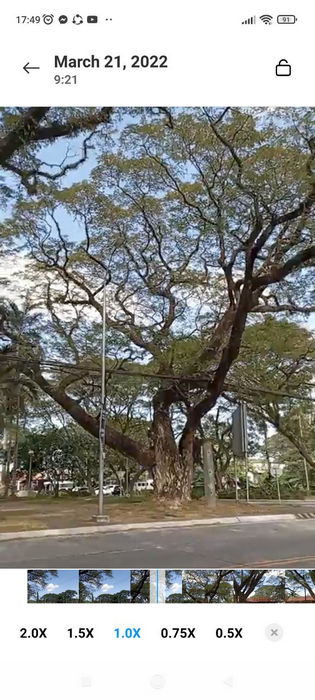
Descărcarea unei aplicații nu este cazul dacă sunteți un utilizator Android; schimbați viteza video pe telefon cu editorul video încorporat. Cu acest editor, puteți face editarea de bază necesară pentru videoclipul dvs. pentru a-l face să arate mai bine decât înainte. Puteți găsi acest editor în Galerie sau Album pe Android. Dacă vrei să știi cum să-l folosești, următoarele informații te vor ajuta.
Pasul 1. Deschide Galeria sau Albumul, apoi atinge videoclipul căruia vrei să îi schimbi viteza.
Pasul 2. Apasă pe Edit pentru a continua.
Pasul 3. Atinge secțiunea Playback Speed, apoi modifică viteza în funcție de nevoile tale.
Partea 5. Întrebări frecvente despre schimbarea vitezei video
Pot schimba viteza pe YouTube?
Absolut da, puteți schimba redarea videoclipului pe YouTube chiar dacă nu descărcați software pentru a face acest lucru. Urmați pașii pentru a afla cum să schimbați viteza videoclipului de pe YouTube. Mai întâi este deschiderea YouTube, găsiți videoclipul pe care doriți să-l vizionați într-o mișcare modificată, faceți clic pe pictograma roată, iar sub aceasta, Viteza de redare, alegeți viteza pe care doriți să o atingeți și bucurați-vă.
Schimbarea vitezei scurtează durata videoclipului?
Depinde cum schimbi viteza; dacă încetiniți videoclipul, așteptați-vă ca durata acestuia să se extindă, deoarece îl redați într-un mod lent. Dar dacă schimbați viteza la mare, atunci durata videoclipului pe care îl redați va fi mai scurtă decât cea originală. Pentru a afla mai multe despre schimbarea vitezei video, trebuie să citiți următoarele detalii pe care le adăugăm mai sus.
După schimbarea vitezei, calitatea va avea efect?
În funcție de viteza video setată, calitatea poate scădea sau rămâne. Dacă redați un videoclip de opt ori sau mai mult, așteptați-vă la videoclipul pe care îl veți reda. Cu toate acestea, nu ați observa prea multe diferențe în afară de redare, din punct de vedere al calității, va rămâne aceeași.
Concluzie
Acum că avem o idee despre cum putem schimba viteza videoclipului pe desktop, online și pe telefoane, este momentul să decidem ce ar trebui să folosim. Presupunând că nu vrei să descarci software pe desktop pentru a economisi spațiu și pași de instalare, atunci trebuie să citești partea a doua a acestui articol. Dar dacă ești utilizator iOS sau Android, părțile a treia și a patra sunt pentru tine. Dacă vrei să folosești cel mai bun editor video pe Windows și Mac, trebuie să descarci FVC Video Converter Ultimate. Este cel mai bun controlor de viteză video pentru a schimba fără efort viteza de redare a videoclipurilor pe care le ai pe desktop. Ce mai aștepți? Descarcă‑l acum și profită de promoția noastră, disponibilă doar pentru tine!
-
 Cum să accelerezi videoclipuri în Premiere Pro și cu alternativele sale
 Vrei să știi cum să folosești Premiere Pro pentru a accelera un videoclip? Atunci sunteți în articolul potrivit, deoarece vă oferim pași și alte alternative accesibile.
-
 2 moduri fără efort de a accelera un videoclip pe TikTok
 Vrei să știi secretul cum să accelerezi videoclipurile pe TikTok? Atunci citește acest articol pentru a avea o idee despre cum să o faci și pentru a ști care sunt celelalte 2 instrumente care te vor ajuta.
-
 Sfaturi excelente pentru 2021: Cum să accelerezi un videoclip pe iMovie
 Prietenul tău sugerează iMovie să te ajute cu problema ta despre cum să accelerezi un videoclip folosind sistemul de operare iOS, dar nu știi ce să faci? Vezi mai multe despre asta pe măsură ce citești mai multe prin acest articol.
