


 Video Converter Ultimate
 Screen Recorder
 Reparație video
5 Cel mai grozav cutter MP4: Aflați cum să decupați videoclipuri pe PC, Mac și dispozitive mobile
Dacă ești un vlogger sau un aspirant, să faci un videoclip despre tine este atât de comun. Acest lucru ar necesita mult efort și încredere, precum și pentru a fotografia în fața unei camere. De asemenea, cel mai obișnuit lucru pe care toți cei profesioniști și cei noi în vlogging sunt greșelile pe care le faci. În loc să reînregistreze videoclipul, au tendința de a-l tăia și de a fuziona cu videoclipurile originale. Pentru a realiza un videoclip complet nou, care constă din diferite unghiuri, vizualizări, montaje și multe altele, îl decupează din videoclipuri diferite și îl adaugă într-unul singur. Dar, ca nou în acest tip de muncă sau chiar profesionist, alegerea aparatului de tuns potrivit este dificilă. Pentru că nu toate funcțiile, așa cum au spus în reclama instrumentului, nu sunt în instrumente. În loc să mergi la celălalt articol și să citești recomandarea, de ce nu înveți mai întâi din asta. Cum am adunat doar dovezile reale pentru propriul tău câștig. Deci, aici, în listă, sunt dispozitivele de tăiere MP4 pe care le puteți folosi pentru a începe vlogging-ul. Rămâi concentrat pentru a afla care sunt cele mai bune aparate de tuns pe care le poți folosi și care oferă videoclipurilor tale o perspectivă simplă, dar profesională.

Partea 1. Descărcați cel mai bun software MP4 Video Cutter pe PC și Mac
Dacă urmează să vorbim despre ce e mai bun, atunci trebuie neapărat să citești mai întâi acest lucru. După cum s‑a spus mai devreme, crearea de vloguri este mult mai dificilă decât ne așteptam, nu este vorba doar de încrederea de a sta în fața camerei și de a posta. Trebuie să iei în considerare și folosirea unui instrument multifuncțional. Unul care oferă un videoclip mai atrăgător pentru ochii fiecărui privitor. FVC Video Converter Ultimate oferă funcții fantastice de editare și de conversie, care pot fi folosite de oricine dorește. Fie că ești începător sau profesionist, trebuie să iei în calcul ceea ce este mai bun dintre cele mai bune de pe piață. Deși este o versiune plătită, tot îți oferă tot ce e mai bun din ce îți dorești. Iar dacă alegi acest program ca opțiune personală, atunci ai un viitor promițător în față. Vrei să începi să faci vloguri chiar de azi? Atunci urmează acest pas despre cum să folosești acest tăietor video MP4.
Pasul 1. Fă clic pe butonul de descărcare de mai jos și instalează programul pe PC sau Mac. Urmează pașii de instalare ai instrumentului și fă clic pe „Finish” pentru a lansa software‑ul.
Descărcare gratuită pentru Windows 7 sau o versiune ulterioară Descărcare securizată
Descărcare gratuită pentru MacOS 10.7 sau o versiune ulterioară Descărcare securizată
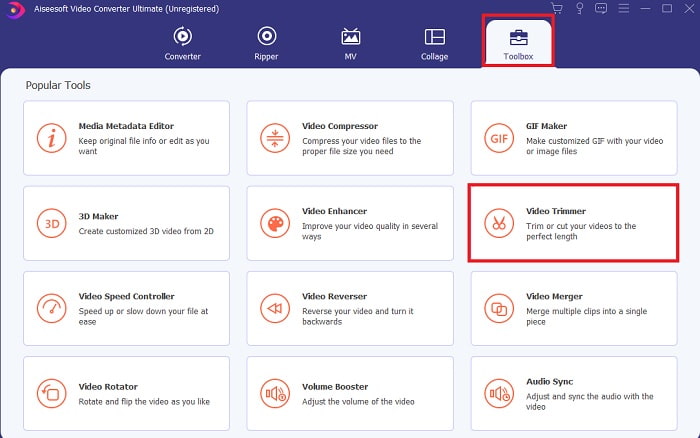
Pasul 2. Dacă această fereastră este afișată, fă clic pe Toolbar și caută mai jos Video Trimmer.
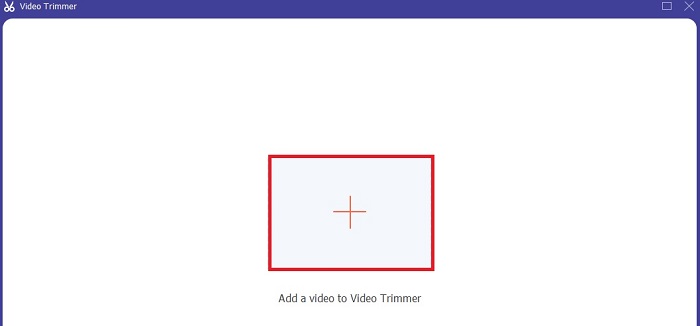
Pasul 3. Fă clic pe butonul plus pentru a adăuga fișierul. Selectează fișierul de pe unitate pe care vrei să îl tai și fă clic pe open pentru a insera videoclipul.
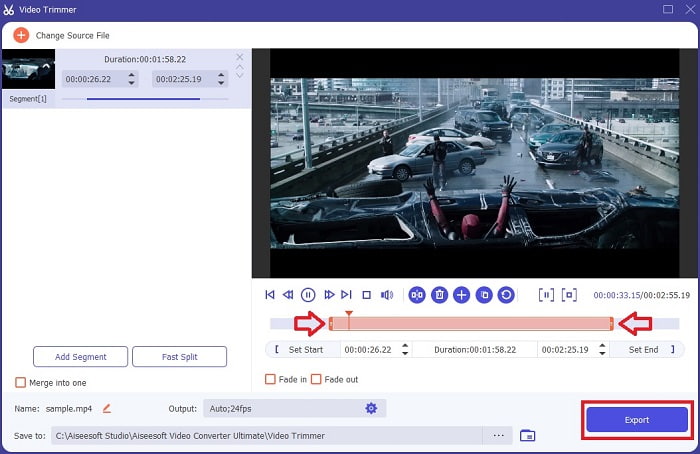
Pasul 4. Pentru a ajusta punctul de început și de sfârșit al videoclipului tău, modifică playback in and out pentru a seta durata dorită. Adaugă fade‑in și fade‑out dacă vrei. De asemenea, poți schimba și formatul de ieșire dacă faci clic pe butonul cog. Când ai terminat, fă clic pe butonul Export pentru a începe procesul de tăiere.
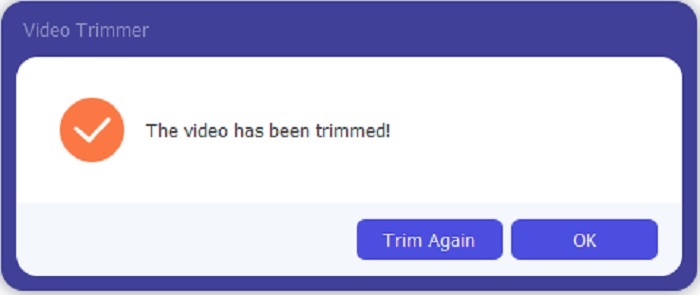
Pasul 5. Așteaptă doar o secundă și videoclipul tău va fi deja tăiat. Apoi fă clic pe OK sau Trim Again dacă trebuie să tai un alt fișier. Dacă vrei să îmbunătățești videoclipul pe care tocmai l‑ai creat, fă din nou clic pe toolbar și caută funcția de îmbunătățire video (video enhancer).
Avantajul de a avea un instrument de îmbinare oferit de FVC Video Converter Ultimate with Steps
Spre deosebire de orice altă aplicație, îmbinarea videoclipurilor în FVC Video Converter Ultimate este foarte ușor de făcut. Aceasta este o caracteristică bonus dacă achiziționați acest instrument. După cum s-a spus, acest instrument este un instrument multifuncțional, așa că, fără alte prelungiri, să începem să îmbinam diferite videoclipuri într-unul singur.
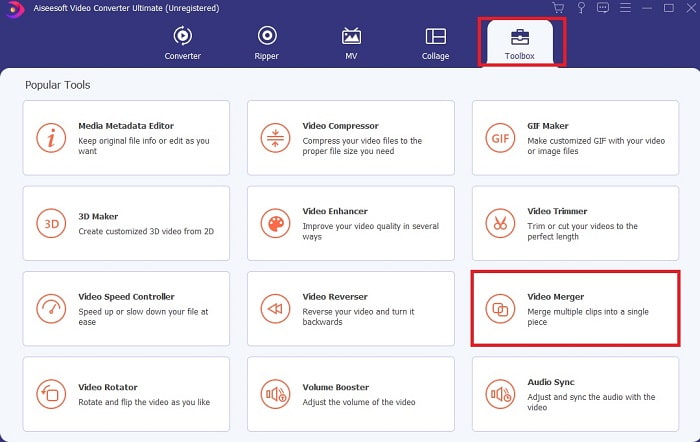
Pasul 1. Deschide software‑ul și mergi la Toolbar, apoi găsește Video Merger și fă clic pe el.
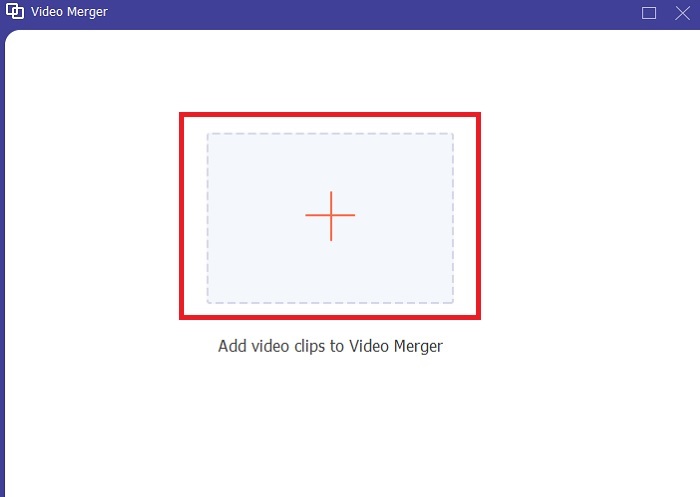
Pasul 2. Fă clic pe butonul add și selectează videoclipul pe care vrei să îl unești, apoi fă clic pe open pentru a continua. După selectarea primului fișier, fă clic pe semnul plus pentru a adăuga și celălalt fișier pe care vrei să îl îmbini.
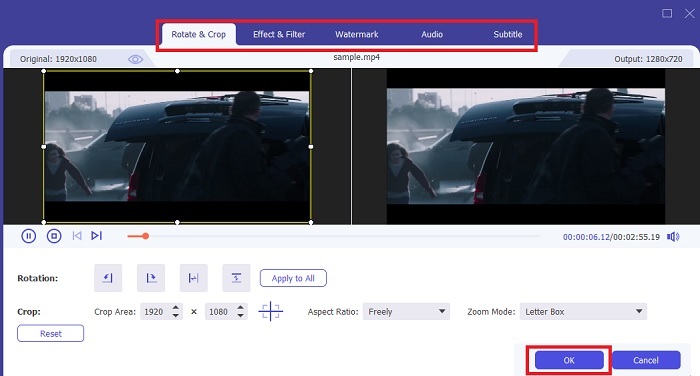
Pasul 3. În interfață, fă clic pe butonul wand pentru a add efecte, a enhance the audio, a rota sau decupa și a adăuga subtitrări. Pentru a salva editările făcute, fă clic pe OK. Procedează la fel și cu celelalte videoclipuri, dacă dorești.
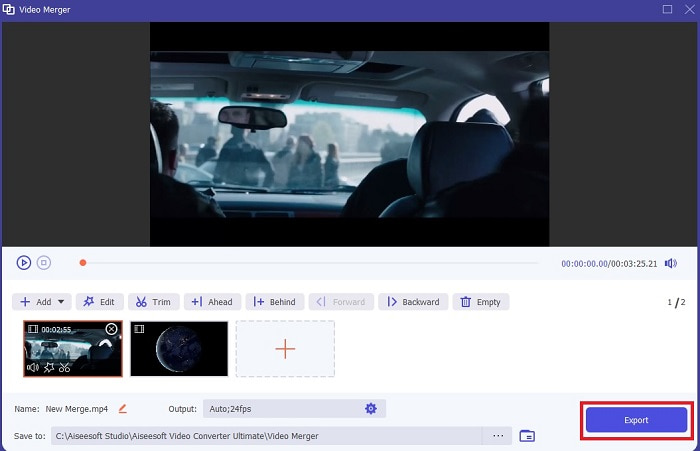
Pasul 4. Așadar, când ești gata să începi procesul, fă clic pe Export. După ce exportul este finalizat, pe ecran va apărea o fereastră de gestionare a fișierelor. Pentru a viziona videoclipul exportat, trebuie doar să dai clic pe el și să te bucuri.
Partea 2. Cele mai bune dispozitive de tăiat MP4 online
Acesta poate fi un tăietor bun, dar nu este la fel de bun ca FVC Video Converter Ultimate. Totuși, merită să încerci să folosești aceste tăietoare MP4 online.
1. 123Apps Online Video Cutter
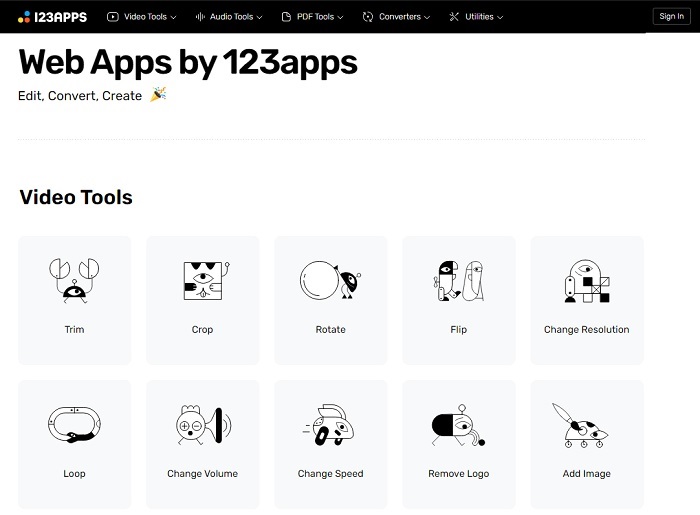
Acest prim instrument online are scopul de a vă îmbunătăți videoclipurile. Poate ajusta durata videoclipului, poate decupa, adăuga text și multe altele. Dar acest instrument necesită mult timp pentru a fi exportat. După ce exportați, trebuie să îl descărcați, iar acest proces va depinde de viteza dvs. de internet. De asemenea, nu puteți ajusta calitatea videoclipurilor dvs. Deci, dacă videoclipul dvs. este puțin neclar și trebuie să ajusteze fps-ul acestuia, nu o puteți face aici. Dar totuși, merită încercat.
2. Clideo
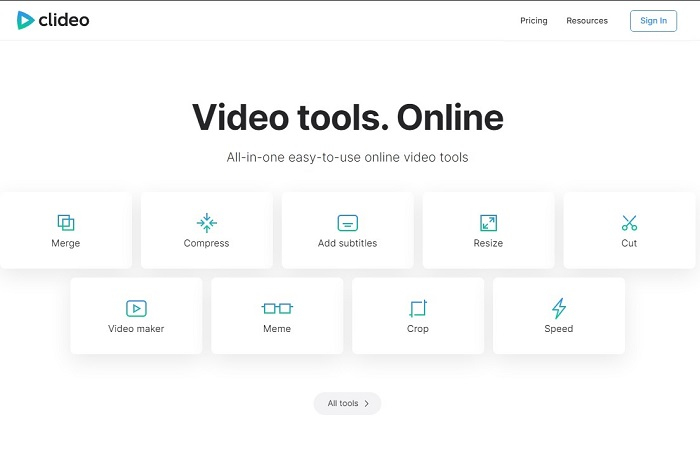
Dacă vorbim despre tăiere, acesta poate fi, de asemenea, o alegere bună. Clideo este unul dintre cele mai bune trimmere MP4 online pe care le poți găsi. La fel ca primul instrument online menționat mai devreme, și acesta oferă funcții de editare de bază. Deși suportă editare de bază, tot nu este suficient dacă vrei un videoclip cu adevărat atrăgător. Îl poți însă testa online, nu trebuie să îți faci griji: este gratuit și sigur.
Partea 3. 3 cele mai bune aplicații MP4 Cutter pe Android și iOS
Ce se întâmplă dacă nu ai un desktop pentru a folosi instrumentele de mai sus și vrei să fii vlogger, mai este posibil? Dacă aveți un telefon precum Android sau iOS, atunci puteți utiliza aceste aplicații pentru a edita pe telefoanele dvs. Dar există câteva funcții disponibile mai sus și care nu sunt aici. Deci, continuați să citiți mai jos pentru a afla care sunt aceste instrumente și alegeți dintre ele.
1. iMovie pentru iOS
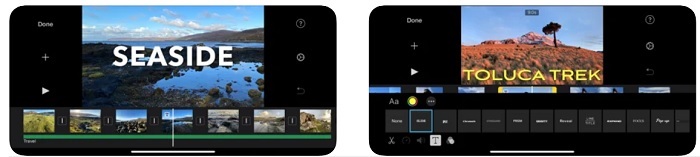
Dacă vrei să adaugi un aer de film de la Hollywood videoclipului tău, atunci iMovie este software‑ul potrivit. Această aplicație de tăiere MP4 a fost creată doar pentru utilizatorii iOS. Dar, chiar dacă instrumentul oferă funcții de editare de nivel înalt, unele dintre bug‑urile existente încă nu au fost rezolvate. În anumite cazuri, aplicația se blochează de fiecare dată când încerci să editezi și ecranul devine negru. Uneori, video și audio nu sunt sincronizate din cauza acestor erori. Acestea sunt doar câteva dintre bug‑urile existente; pot părea minore, dar sunt foarte enervante de cele mai multe ori. Așa că, dacă vrei să încerci iMovie, îl poți descărca în continuare din App Store.
2. Video Editor & Maker – Viva Video pentru Android
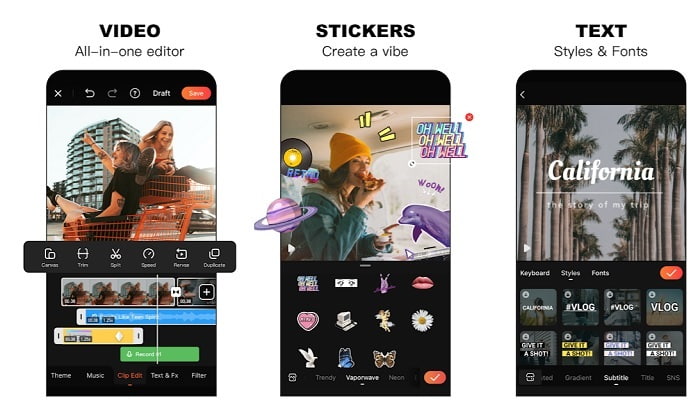
Unul dintre cele mai bune trimmere MP4 gratuite pe Android este Video Editor & Maker – Viva Video. La fel ca instrumentul de mai sus, ambele oferă cele mai bune funcții de editare pe telefon. De exemplu, tranziții video, efecte de tip glitch și multe altele, însă este un instrument cu plată. Există și un neajuns: nu există un buton clar de dezabonare pentru a opri aplicația. Așadar, probabil că te gândești că cea mai bună soluție este să ștergi aplicația pentru a încheia abonamentul, dar acesta nu se va opri. Îți va debita în continuare cardul de credit dacă ai ales această metodă de plată. Per total însă, instrumentul este de clasă A, nimic mai mult, nimic mai puțin.
Partea 4. Întrebări frecvente despre MP4 Cutter
Ce este un MP4?
MP4 este cunoscut și ca format media multifuncțional. În loc să stocheze un cod, acesta stochează datele videoclipurilor, fotografiilor, subtitrarilor sau textelor. De asemenea, este cel mai folosit format de video din întreaga lume.
Este MP4 cu pierderi sau fără pierderi?
Fiind un format multifuncțional, MP4 este o compresie cu pierderi.
Care este cel mai bun format în afară de MP4?
Există câteva formate care oferă o calitate mai bună a fișierelor media decât MP4, dar nu sunt la fel de flexibile ca acest format. De exemplu, WMV: acest format oferă o dimensiune mai mică decât MP4, dar nu este compatibil cu dispozitivele Apple, deoarece este destinat să fie format nativ pentru Windows Media Player. Poți alege să convertești fișierele MP4 în WMV pentru o redare mai bună.
Concluzie
În concluzie, acum este mai ușor să înțelegi diferențele dintre fiecare instrument pe care îl poți folosi. Dar, după cum s‑a menționat mai devreme, nu toate oferă funcțiile de tăiere excelente pe care le are FVC Video Converter Ultimate. Mai ales dacă vrei să creezi un videoclip mai atrăgător, care să îți aducă mai multe vizualizări și, de asemenea, profit. Așa că, în loc să te mulțumești cu o soluție temporară, de ce să nu alegi FVC Video Converter Ultimate pentru a privi spre viitor și a obține cea mai bună versiune pentru tine însuți?.
-
 Ghid despre cum să convertiți RMVB în MP4 pe Windows / Mac (3 moduri gratuite)
 Doriți să convertiți RMVB în MP4 pentru o redare ușoară pe computer sau pe telefonul mobil? Veți găsi modalități simple de a vă converti fișierele RMVB în MP4 în acest ghid.
-
 4 cele mai bune convertoare MP4 în M4V pentru a transforma videoclipurile MP4 în M4V cu ușurință
 Când trebuie să schimbați fișierele MP4 în M4V, ar trebui să aflați mai multe detalii despre diferențele dintre cele două formate, precum și cele mai bune convertoare MP4 în M4V din articol.
-
 Convertor AMV - 3 cele mai bune metode pentru a converti MP4 în AMV pe Win / Mac
 Care sunt cele mai bune convertoare de la MP4 la AMV pentru a transforma videoclipurile în Amine Music Video, puteți afla mai multe despre cele mai eficiente 3 metode pentru a obține videoclipurile dorite cu ușurință din articol.
