


 Video Converter Ultimate
 Screen Recorder
 Reparație video
Modalități simple de a adăuga rapid imagini la videoclipuri în iMovie
Adăugarea imaginilor într‑un videoclip a devenit una dintre cele mai bune modalități de a transmite mesajul către public și mai clar. Majoritatea editorilor video te pot ajuta să suprapui rapid o imagine peste un videoclip, iar dacă ești utilizator Apple, probabil că ai dat deja peste iMovie. Este cunoscut ca fiind unul dintre cele mai bune programe de editare pe care le poți folosi pe dispozitivul tău Apple. Totuși, mulți utilizatori obișnuiți de Apple consideră dificil de folosit iMovie deoarece nu au avut încă experiență cu el. Așadar, dacă ești același tip de utilizator Apple care are probleme în a‑l folosi și vrei să adaugi o imagine într‑un videoclip, poți citi acest articol — a învăța cum să adaugi imagini peste videoclip în iMovie este simplu dacă citești detaliile de mai jos.

Partea 1. Cum să suprapuneți o imagine pe un videoclip în iMovie [Mac]
Dacă aveți un iMovie pe Mac, îl puteți utiliza și adăuga imaginea la videoclip. Deci, acum, dacă doriți să învățați cum să puneți o fotografie pe video iMovie, pașii de mai jos vă vor ajuta.
Pasul 1. Caută iMovie în Finder, apoi dă clic pe el pentru a‑l deschide.
Pasul 2. În partea stângă sus a interfeței iMovie, dă clic pe butonul Import pentru a importa ușor videoclipul și imaginea. Trage și plasează fișierul media pe care l‑ai introdus în Timeline.
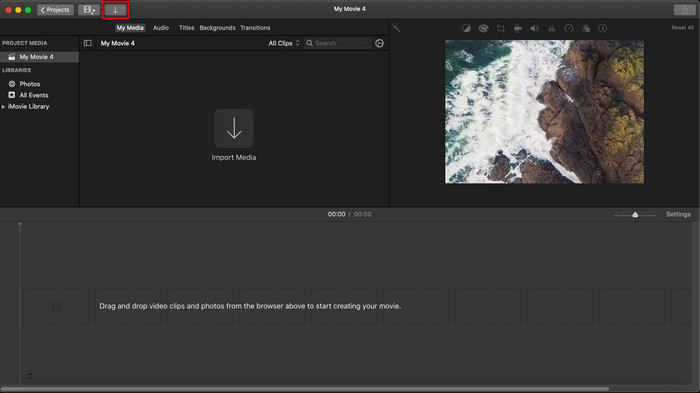
Pasul 3. Ajustează imaginea pe care ai importat‑o și durata acesteia. După aceea, dă clic pe Export pentru a descărca fișierul pe computer.
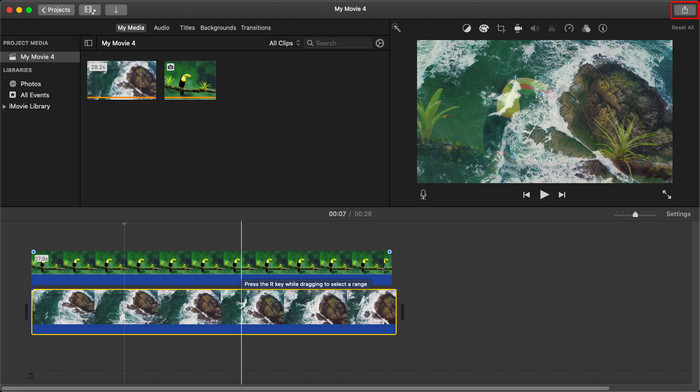
Pașii pe care i-am prezentat aici provin din experiența practică de utilizare a iMovie. Pașii pot varia dacă există o actualizare a instrumentului sau dacă au loc unele modificări în scurt timp.
Partea 2. Cum să inserați fotografii în videoclip cu iMovie [iOS]
Ce se întâmplă dacă utilizați un dispozitiv iOS și doriți să utilizați iMovie ca editor pentru a adăuga o imagine la un videoclip? Este posibil? Ei bine, da, este. Vă putem învăța cum să puneți o imagine într-un videoclip iMovie pe iPhone citind detaliile de mai jos cu pașii pe care i-am furnizat.
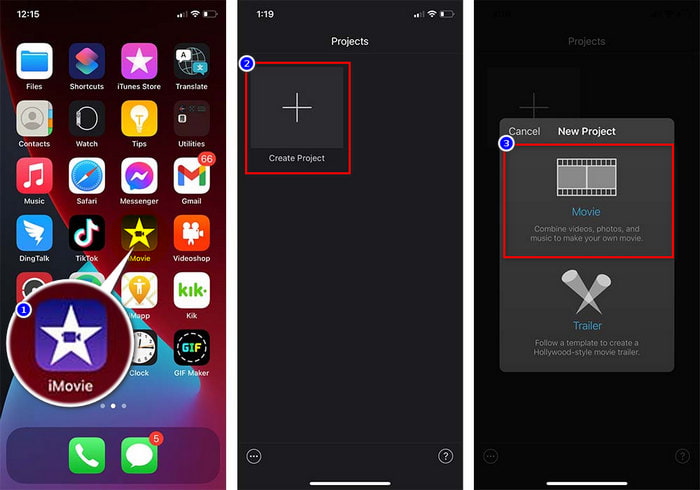
Pasul 1. Deschide aplicația iMovie pe dispozitivul tău iOS, apasă pe Create Project, apoi pe Movie. Adaugă videoclipul din librăria ta.
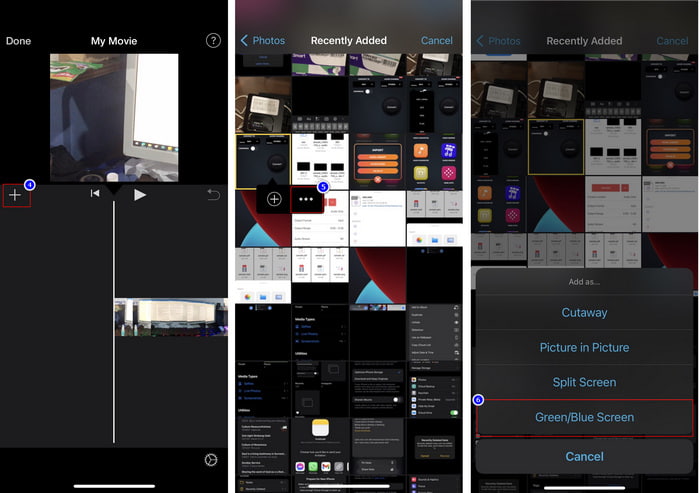
Pasul 2. Apasă butonul + pentru a adăuga imaginea‑watermark peste videoclip. Caut‑o în librărie, dă clic pe ea, apasă pe linia cu trei puncte și apoi pe Green/Blue Screen. Atinge imaginea pentru a elimina automat fundalul.
Pasul 3. Apasă Done, apoi Export și după aceea Save Videos.
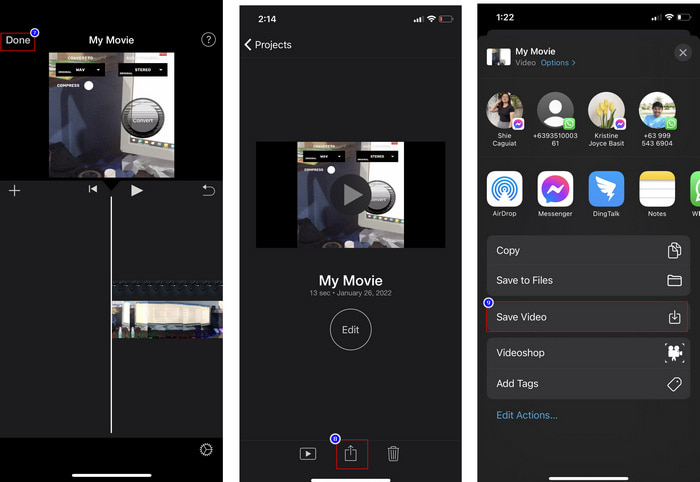
Toți pașii pe care i-am prezentat aici provin din experiența practică de utilizare a iMovie pe iOS. Dar unii dintre pași se pot schimba dacă apare o actualizare în aplicația editor în curând.
Partea 3. Cea mai ușoară soluție de inserare a unei fotografii în videoclip cu cel mai bun software de filigran video pe Mac
Ai aceleași dificultăți în a adăuga fotografii peste videoclip în iMovie? Încearcă să folosești Video Converter Ultimate, deoarece acest instrument este cea mai bună alternativă la iMovie. Performanța generală a programului a fost deja apreciată de milioane de utilizatori care l‑au încercat. Chiar dacă au avut probleme diferite cu videoclipurile lor, tot au ales acest instrument „ultimate” pentru a le rezolva. În plus, cu acest program poți face aproape orice este legat de video, cum ar fi tăierea, adăugarea de imagini, îmbinarea, decuparea etc. Indiferent care este problema, acesta este soluția completă. Vrei să rezolvi problema? Atunci urmează pașii de mai jos, pe care i‑am scris astfel încât să‑i poți urma cu ușurință.
Funcții:
◆ Instrumentul suprem acceptă mai multe formate, așa că încărcarea formatului nu va fi dificilă.
◆ Suportă o interfață ușor de înțeles pentru a adăuga rapid imagini la orice videoclip în câteva secunde.
◆ Suportă diferite platforme precum Mac și Windows pentru a permite utilizatorilor să se bucure de toate platformele.
Pasul 1. Poți descărca programul făcând clic pe butonul de download de mai jos, apoi instalează‑l imediat și deschide‑l după instalare.
Descărcare gratuită pentru Windows 7 sau o versiune ulterioară Descărcare securizată
Descărcare gratuită pentru MacOS 10.7 sau o versiune ulterioară Descărcare securizată
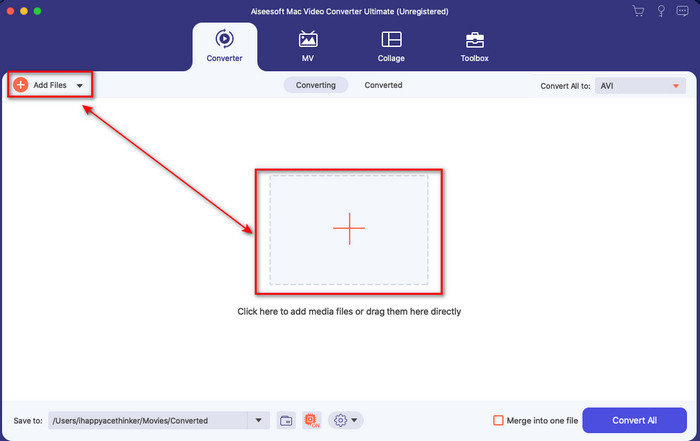
Pasul 2. După ce îl deschizi, apasă butonul + afișat pentru a importa fișierul video. Apoi se va deschide un folder în care vei localiza fișierul video și vei da clic pe Open.
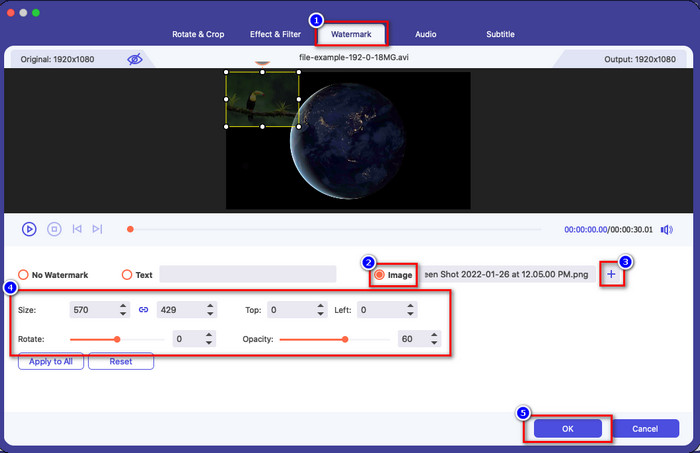
Pasul 3. Apasă butonul cu bagheta magică pentru a deschide fereastra de editare a convertorului. Mergi la Watermark, dă clic pe imagine, apoi apasă add pentru a încărca imaginea. De asemenea, poți edita opacitatea imaginii sau o poți roti în funcție de nevoile tale, iar pentru a aplica modificările, dă clic pe OK.
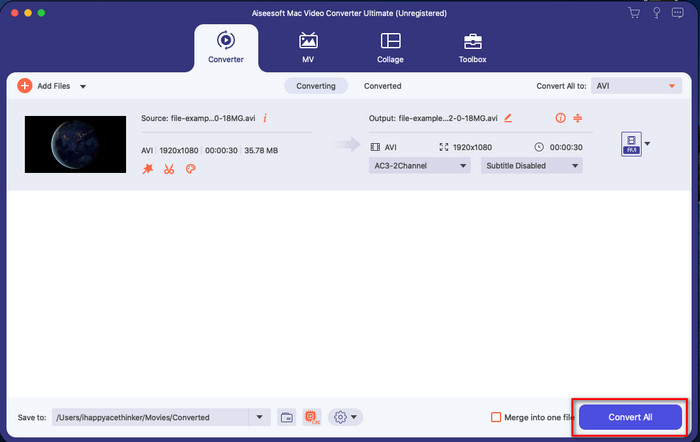
Pasul 4. Dă clic pe butonul Convert All pentru a exporta fișierul video. După procesul de export, acesta va fi salvat într‑un folder de pe computer, iar la fel de simplu vei avea deja o imagine‑watermark pe videoclipul tău. Așadar, acum crezi în capacitatea Video Converter Ultimate? Ai adăugat deja imaginea‑watermark pe video atât de repede.
Articole similare:
Cum să adaugi audio la un videoclip
Cum să adaugi subtitrări la videoclip
Partea 4. Întrebări frecvente despre adăugarea de fotografii pe videoclipuri în iMovie
Există limitări ale numărului de imagini adăugate în videoclipurile iMovie?
Până acum, nu am întâmpinat niciun inconvenient la adăugarea mai multor imagini în videoclip în timp ce folosim iMovie. Cu toate acestea, procesul de export necesită timp dacă adăugați prea multe imagini pe videoclip, dar nu se va bloca, conform experienței.
Care sunt formatele de imagine pe care le pot folosi pe iMovie?
Există numeroase format de imagini statice acceptate de iMovie, cum ar fi BMP, PNG, JPG sau JPEG, HEIF, PSD, RAW TIFF și TGA, dar dacă doriți o imagine animată, puteți utiliza GIF. Deși aceste formate sunt multe, încă nu acceptă toate formatele de imagine precum EXIF, WebP și altele asemenea.
De ce ar trebui să folosesc iMovie?
Pentru utilizatorii Apple, iMovie este una dintre cele mai bune alegeri pentru a crea un scurtmetraj, reclame, vloguri și multe altele; toate acestea sunt gratuite. Editorul oferă o interfață semi-avansată pentru a ajuta utilizatorii să aibă o experiență practică a modului în care arată o interfață sau un instrument avansat. De asemenea, software-ul este mai puțin tehnic, dar este specializat. Nu este obișnuit să vezi un editor care oferă un mod mai puțin tehnic de utilizare, dar te poate ajuta să fii un profesionist și să adaugi câteva tehnici specializate pe care le are instrumentele avansate.
Concluzie
În concluzie, putem spune că avem deja suficiente cunoștințe pentru a adăuga cu ușurință fotografii peste videoclip în iMovie. Cu cel mai bun instrument de pe platforma Apple, poți realiza aici chiar și editări complicate. Totuși, nu toate funcțiile de care ai nevoie se regăsesc în iMovie, dar poți folosi Video Converter Ultimate pentru a avea un editor ușor de utilizat pe toate platformele. Poate te întrebi de ce ar trebui să folosești acest „ultimate tool”? Nu este nevoie de prea multe explicații când vorbim despre acest instrument, deoarece am prezentat deja dovezile mai sus. Și atunci ce ar trebui să faci? Poți da clic pe butonul de descărcare pentru a avea o experiență directă cu acest instrument „ultimate” și pentru a rezolva această problemă.
-
 Cele mai populare 5 aplicații de înregistrare audio pe Android și iOS [Actualizat 2022]
 Nu știi ce aplicație de înregistrare audio ar trebui să folosești? Dacă da, acest articol vă va ajuta să alegeți ce aplicație vă va ajuta cu sarcina de înregistrare audio.
-
 Notă vocală pe iOS - Avantaje, dezavantaje, caracteristici și 4 cele mai bune înlocuiri
 Ce este Notă vocală? Este cel mai bun recorder audio pe iOS? Cauți un răspuns la această întrebare? Prin urmare, citiți întregul domeniu al acestui articol pentru a afla mai multe.
-
 7 cele mai recente convertizoare MOD gratuite pentru a schimba fișierul MOD într-un format nou
 Care sunt convertoarele MOD pe care le puteți folosi? Te gândești la aceeași întrebare? Iată-ne așadar, oferind cele șapte instrumente pe care le puteți folosi pentru a vă converti fișierele MOD.
