


 Video Converter Ultimate
 Screen Recorder
 Reparație video
 Descărcare sigură
Cele mai bune modalități de a elimina filigranele din videoclip în After Effects
Eliminarea siglelor (watermark-urilor) dintr‑o fotografie este ușoară cu Adobe Photoshop. Dar știi cum să elimini watermark‑urile dintr‑un videoclip în Adobe After Effects? Unii spun că este dificil, deoarece există doar câteva aplicații cu care poți elimina watermark‑urile dintr‑un video. Ești norocos. Folosind Adobe After Effects, acest articol îți prezintă metode excelente pentru a elimina obiectele nedorite din videoclipurile sau filmele tale, cum ar fi watermark‑uri, logo‑uri, texte, stickere etc. De asemenea, vei descoperi cele mai bune alternative pe care merită să le încerci, astfel încât să ai mai multe opțiuni în ceea ce privește aplicațiile pe care le preferi. Citește articolul pentru mai multe detalii.

Partea 1: Cum să eliminați filigranele din videoclip în After Effects
Adobe After Effects poate elimina cu ușurință filigranele și alte elemente frustrante din videoclipurile dvs. De asemenea, puteți face mai multe lucruri cu numeroasele sale instrumente. Unul dintre cele mai apreciate și de ultimă oră programe de editare video de la Adobe, After Effects vă ridică munca la un nou nivel. Acest instrument este folosit pentru procesul de post-producție de filmare, producție de televiziune și jocuri video. Mai mult, vă puteți baza pe această aplicație pentru animare, compostare, urmărire și introducere.
În plus, designerii vizuali, animatorii, agențiile de publicitate, editorii video, designerii de grafică în mișcare, specialiștii în rețelele sociale, producătorii video, editorii video, specialiștii UX și animatorii folosesc toți After Effects. Cu toate acestea, Adobe After Effects nu este perfect pentru utilizatorii neprofesioniști. Are o mulțime de instrumente, procese complicate și funcții avansate, ceea ce este confuz. De asemenea, puteți utiliza versiunea de încercare gratuită doar timp de până la șapte zile. Trebuie să achiziționați software-ul pentru a utiliza acest software în mod continuu. Urmați pașii simpli de mai jos pentru a elimina filigranele dintr-un videoclip.
Pasul 1: Descarcă Adobe After Effects și instalează‑l pe dispozitivul tău. Deschide aplicația și mergi la File > Open pentru a insera videoclipul cu watermark.
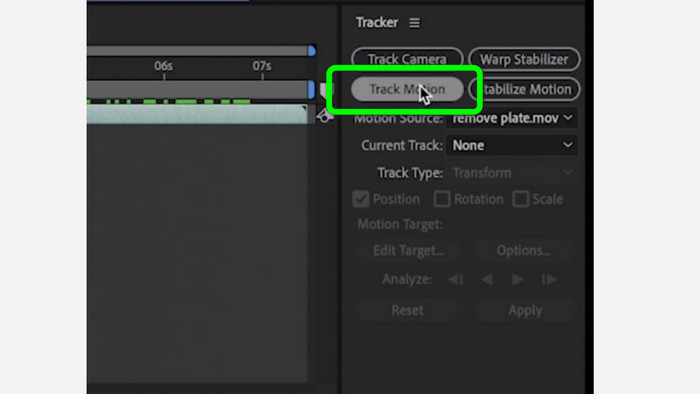
Pasul 2: Accesează fila Tracker și apasă pe Tracker motion. Plasează caseta de urmărire pe zona watermark‑ului și apasă săgeata de derulare înainte (track forward).
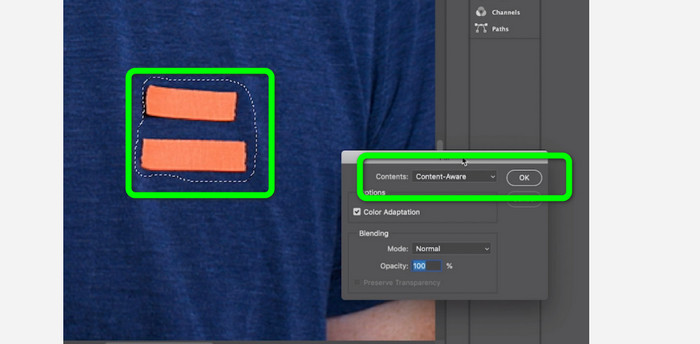
Pasul 3: Selectează watermark‑ul folosind instrumentul Marquee și alege Edit > Fill. Când apare caseta de dialog, selectează Content‑aware și apasă OK.
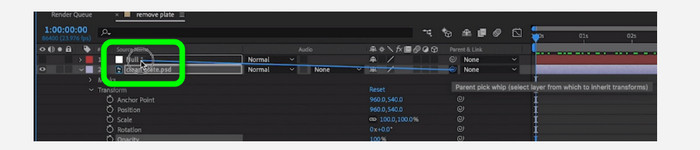
Pasul 4: Leagă obiectul Null urmărit de cadrul static mascat folosind pick whip‑ul. Acesta va fi apoi asociat cu obiectul Null în mișcare. Când redai acum videoclipul, watermark‑ul ar trebui să fie practic nedetectabil.
Partea 2: Cele mai ușoare metode de a elimina filigranul dintr-un videoclip
Folosind Video Converter Ultimate
După cum știm, Adobe After Effects este dificil de folosit, mai ales pentru începători. În acest caz, cea mai eficientă și mai ușor de utilizat aplicație pentru eliminarea watermark‑urilor din videoclipuri este Video Converter Ultimate. Are o interfață simplă și metode ușor de înțeles, fiind perfectă pentru oricine. Pe lângă watermark‑uri, poți elimina și alte elemente deranjante, cum ar fi logo‑uri, stickere, emoji‑uri, texte și altele. Procesul de eliminare cu acest instrument este rapid, astfel încât nu trebuie să aștepți prea mult.
În plus, are mai multe caracteristici decât vă imaginați. Dacă alte dispozitive nu acceptă videoclipul dvs., îl puteți converti într-un alt format de fișier. Acest instrument poate converti formatele de fișiere video și audio. De asemenea, dacă videoclipul dvs. este prea rapid și doriți să-l încetiniți, vă puteți baza în continuare pe această aplicație, deoarece oferă o funcție Video Speed Controller în care vă puteți regla viteza video de la 0,125x la 8x mai rapid.
Pentru a elimina filigranele din videoclipurile dvs., utilizați ghidurile detaliate de mai jos.
Folosind Video Watermark Remover
Pasul 1: Poți descărca Video Converter Ultimate pe Windows și Mac făcând clic pe butonul Download de mai jos. După finalizarea instalării, îl poți lansa imediat.
Descărcare gratuită pentru Windows 7 sau o versiune ulterioară Descărcare securizată
Descărcare gratuită pentru MacOS 10.7 sau o versiune ulterioară Descărcare securizată
Pasul 2: Selectează panoul Toolbox dintre cele patru opțiuni de sus și dă clic pe Video Watermark Remover. Așteaptă să apară o nouă interfață. After the installation process, you can instantly launch it.
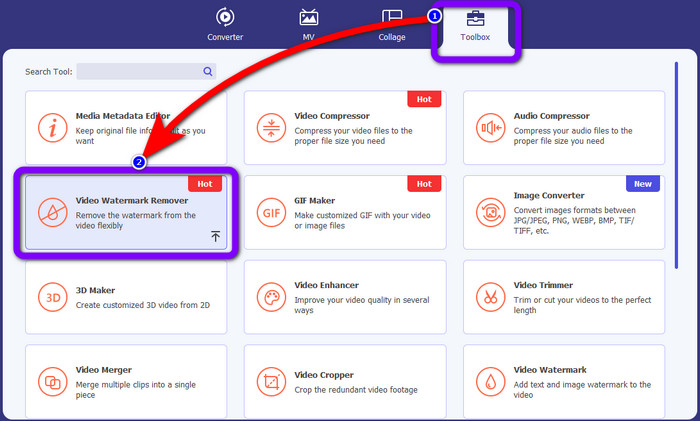
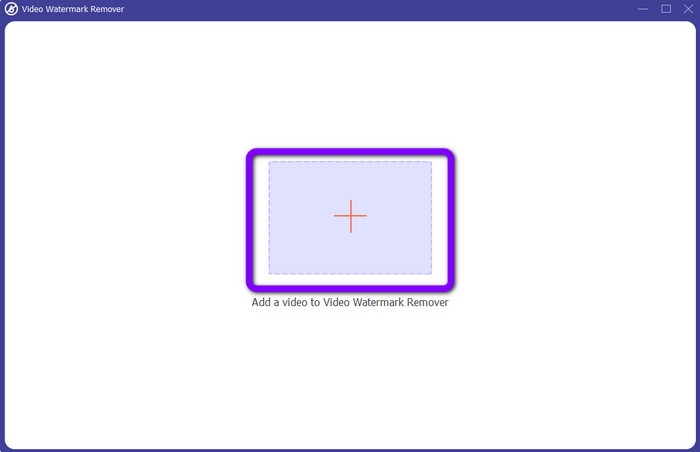
Pasul 3: Fă clic pe pictograma Plus. Îți va apărea folderul, apoi alege videoclipul cu watermark pe care vrei să îl elimini.
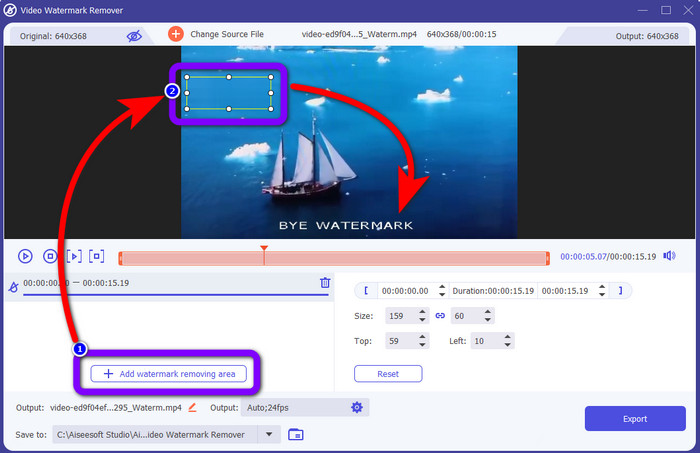
Pasul 4: Apasă butonul Add Watermark Removing Area după ce ai adăugat videoclipul cu watermark. Va apărea un mic pătrat pe videoclip. Folosește‑l pentru a acoperi watermark‑urile.
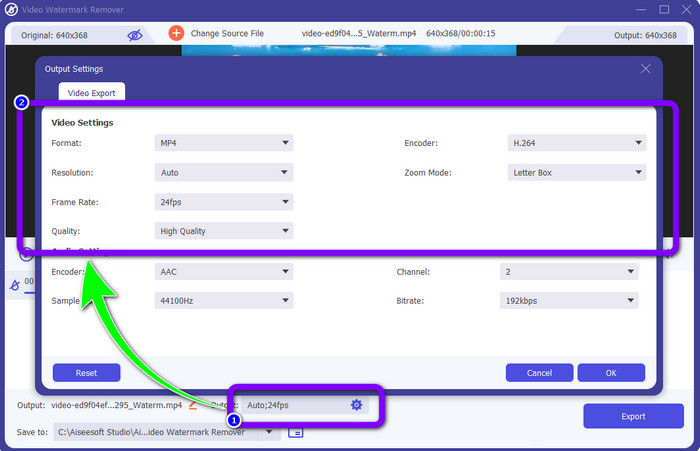
Pasul 5: După ce ai acoperit watermark‑urile, poți, de asemenea, să schimbi formatul, calitatea, frame rate‑ul și rezoluția videoclipului făcând clic pe opțiunea Output din partea de jos a interfeței.
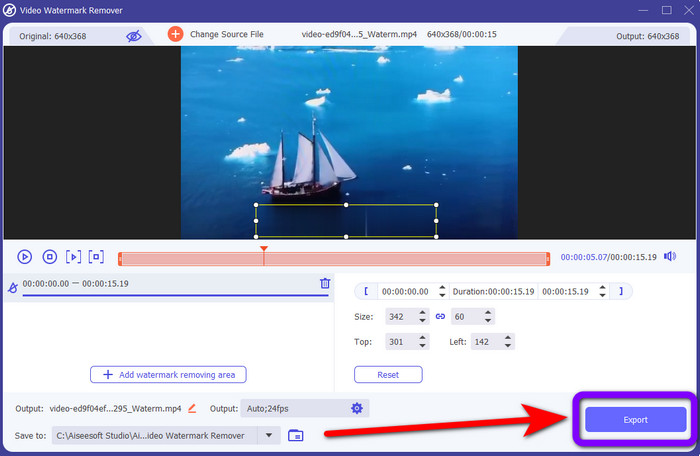
Pasul 6: Pentru ultimul pas, fă clic pe butonul Export și salvează videoclipul editat.
Folosind Video Cropper
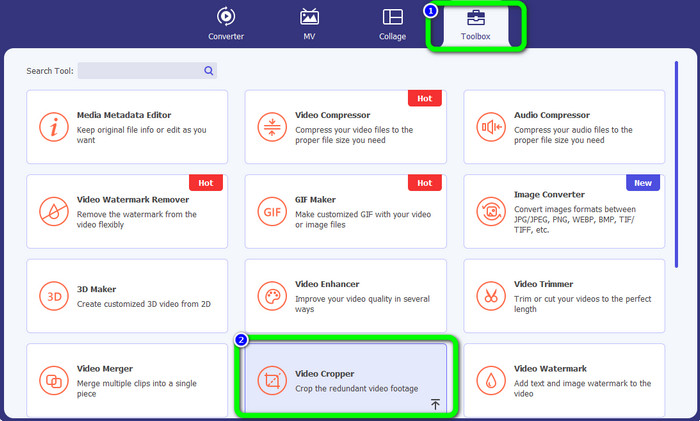
Pasul 1: Mergi la panoul Toolbox și selectează instrumentul Video Cropper.
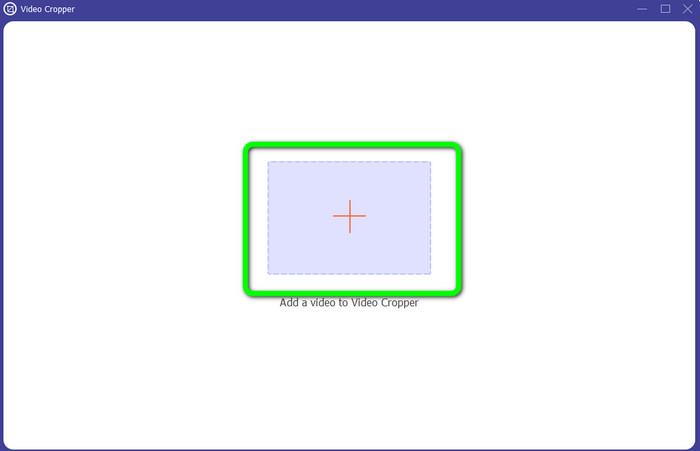
Pasul 2: Apasă pictograma + pentru a adăuga videoclipul cu watermark.
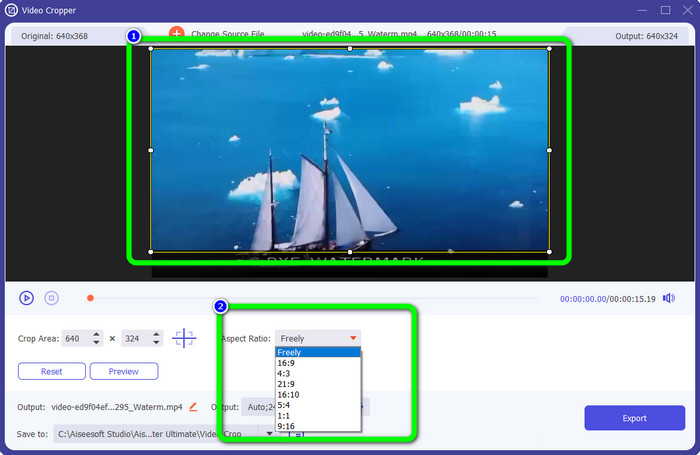
Pasul 3: Poți decupa videoclipul în această etapă pentru a elimina watermark‑ul. Poți, de asemenea, să mergi la a doua casetă pentru a selecta modelul de decupare pe care îl preferi.
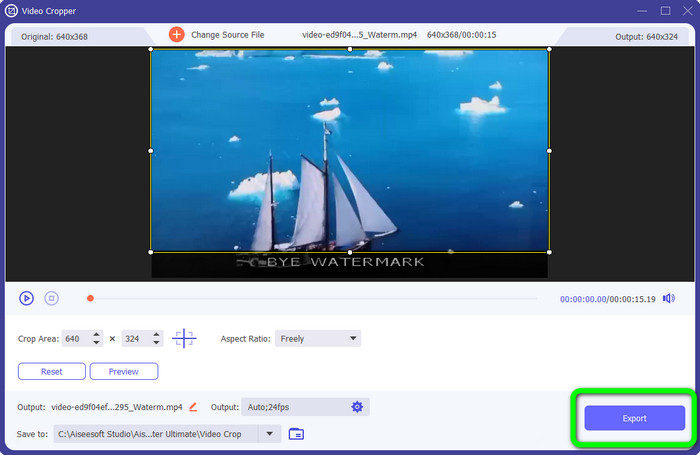
Pasul 4: Dacă ai terminat de decupat videoclipul, fă clic pe butonul Export pentru a salva videoclipul fără watermark.
Utilizarea Video Watermark Remover Online
După ce ai aflat cele mai simple metode folosind instrumente offline, îți vom prezenta un alt remover de watermark pe care îl poți încerca online. Această aplicație este Video Watermark Remover Online. Este un nou remover de watermark pentru video complet automatizat, care îți va simplifica viața. De asemenea, poți elimina diverse elemente din videoclipuri, precum logo‑uri, semnături, marcaje de dată, watermark‑uri, texte și altele. Acest software este similar cu alte programe de eliminare, dar singurul lucru care îl face unic este faptul că poate elimina watermark‑urile automat. Aplicația a fost creată pentru a detecta obiectele și a le înlocui cu culori potrivite, pentru a reda și umple totul astfel încât să arate ca fișierul original.
Cu toate acestea, puteți încărca doar cinci videoclipuri când utilizați versiunea gratuită. De asemenea, are un proces de codare lent și nu îl puteți exporta în alte formate de fișiere. Trebuie să cumpărați un abonament pentru a experimenta mai multe funcții excelente de la acest instrument. Urmați pașii de mai jos pentru a elimina filigranele din videoclipuri folosind Video Watermark Remover Online.
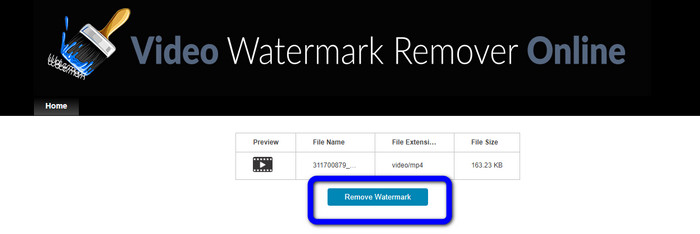
Pasul 1: Accesează Video Watermark Remover Online. Fă clic pe căsuța albastră pentru a adăuga videoclipul. Poți și să tragi fișierul video în fereastră.

Pasul 2: După procesarea fișierului, fă clic pe butonul Remove Watermark. Așteaptă procesul de eliminare. Salvează videoclipul fără watermark.
Partea 3: Întrebări frecvente despre eliminarea filigranelor dintr-un videoclip
1. Care este cel mai bun dispozitiv de îndepărtare a filigranelor video pentru Windows și Mac?
Video Converter Ultimate este cel mai bun dispozitiv de îndepărtare a filigranelor. Poate elimina cu ușurință obiectele nedorite din videoclipurile tale, cum ar fi filigrane, logo-uri, autocolante, texte etc.
2. Este online sigur pentru îndepărtarea filigranelor video?
Nu toate sunt în siguranță. După eliminarea filigranelor folosind instrumente online, acestea vă pot șterge imediat fișierul, astfel încât nimeni să nu poată vizualiza și utiliza fișierul dvs. video. Cu toate acestea, unele aplicații nu sunt sigure, așa că trebuie să verificați mai întâi aplicația pe care o utilizați.
3. Se va schimba calitatea videoclipului meu după eliminarea filigranelor?
Depinde de aplicațiile pe care le utilizați. Dacă nu doriți să afectați calitatea videoclipurilor dvs., puteți utiliza Video Converter Ultimate
Concluzie
Ai aflat și ai învățat cum să elimini watermark‑urile din videoclipuri în Adobe After Effects. De asemenea, acest articol ți‑a oferit cele mai bune alternative pentru a elimina watermark‑urile prin metode cât se poate de simple. Iar dacă vrei să îndepărtezi eficient elementele nedorite din videoclipuri fără pierdere de calitate, poți încerca să folosești Video Converter Ultimate.
-
 Dovezi solide pentru a realiza videoclipuri cu încetinitorul utilizând After Effects
 Orice gânduri sau sentimente pot fi generate sau îmbunătățite prin vizionarea a ceva cu încetinitorul. Citiți acest articol pentru a afla cum să creați mișcare lentă în After Effects.
-
 Cum să accelerezi videoclipurile în After Effects [Cel mai bun instrument de accelerare]
 Accelerează sau încetinește videoclipul folosind cel mai bun instrument video de accelerare. Aflați cum să accelerați un videoclip în efecte secundare citind acest articol.
-
 Ghiduri pas cu pas despre cum să eliminați emoji din videoclip
 Te simți enervat cu emoji-urile din videoclipurile tale? Această postare vă va oferi cele mai bune proceduri pentru a elimina instantaneu emoji-urile din videoclipurile dvs. folosind instrumente excelente
