


 Video Converter Ultimate
 Screen Recorder
 Reparație video
Stăpânește cum să accelerezi videoclipuri în Windows Media Player în cele mai bune moduri posibile [pe bază de dovezi]
Toate scenele video diferă ca viteză de redare, dar diferă și ca scop în momentul în care își schimbă viteza. Când mărești viteza unui videoclip, acest lucru simbolizează elemente nerelevante și momente mai puțin interesante din film sau video. În schimb, când încetinești redarea, sunt accentuate momentele sau scenele foarte importante de surprins. Aceste modificări ale vitezei de redare sunt esențiale de realizat în procesul de editare sau de creare a filmelor video. Citește acest articol pentru a‑i învăța pe utilizatori cum să mărească viteza videoclipurilor, în special în câțiva dintre cei mai comuni playere media de pe desktopul nostru, cum ar fi Windows Media Player.

Partea 1. Windows Media Player: Cum să accelerezi videoclipurile
Windows Media Player este un player media gratuit de la Microsoft care vine cu fiecare copie de Windows. Este cunoscut și ca WMP sau WM player de către Microsoft. Pe lângă faptul că le permite să se uite la fotografii și să asculte muzică, le permite și să vizioneze videoclipuri. Extragerea CD-urilor audio și organizarea bibliotecii de muzică sunt ambele posibile cu Windows Media Player (WMP). Are, de asemenea, o filă de editare care ajută la ajustarea videoclipurilor, imaginilor și muzicii. Dacă doriți să accelerați un videoclip folosind Windows Media Player, iată pașii de urmat:
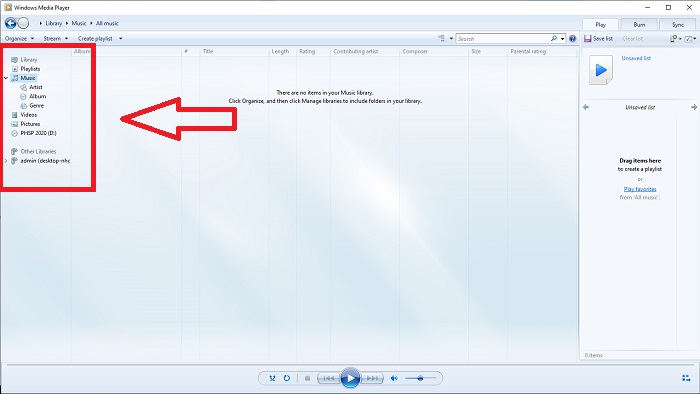
Pasul 1: Deschide Windows Media Player; în colțul din stânga, alege fila Video.
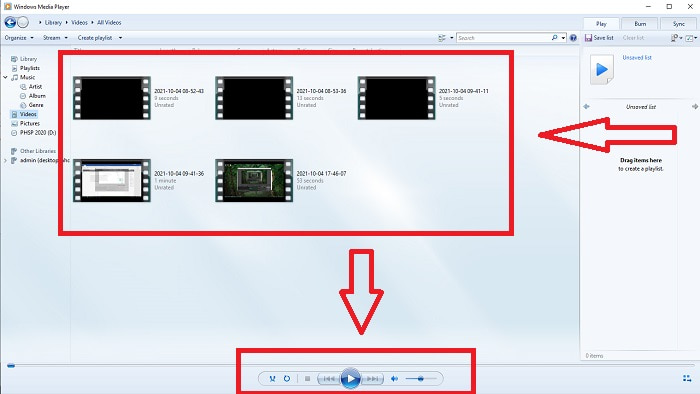
Pasul 2: Redă videoclipul fie prin dublu clic stânga, fie prin clic dreapta, sau poți apăsa butonul Play din colțul de jos, la mijlocul interfeței.
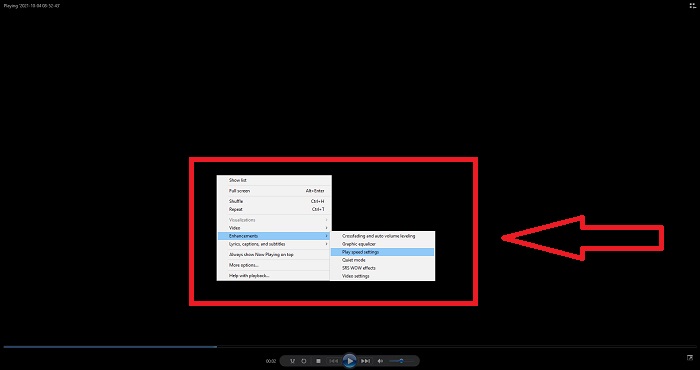
Pasul 3: Apoi, dă clic dreapta pe ecran pentru a accesa fila de editare. Continuă făcând clic pe Enhancements și Play Speed Settings. După aceea, poți ajusta viteza de redare a clipului video trăgând de Slider.
Partea 2. Ce se întâmplă dacă viteza de redare Windows Media Player nu funcționează?
Când redați fișiere video AVI, WAV sau MOV, este posibil să accesați Windows Media Player și să întâmpinați o problemă în timpul redării erorii de fișier. Videoclipurile de calitate mediocră sunt vizionate frecvent în format AVI. Alte playere media nu au probleme la redarea AVI. WMP, pe de altă parte, poate avea o eroare la redarea unui fișier AVI. Windows Media Player nu acceptă fișiere AVI, deoarece acestea sunt codificate folosind codecuri. Este posibil să fi primit următoarea notificare: Windows Media Player nu poate reda fișierul. Este posibil ca Playerul să nu accepte tipul de fișier sau să nu accepte codecul care a fost folosit pentru a comprima fișierul. Există două explicații posibile pentru acest fenomen.
1. Deoarece nu se potrivește cu fișierul necesar, Windows Media Player (WMP) nu poate accepta codecul pentru fișier.
2. Windows Media Player nu acceptă codecuri de compresie.
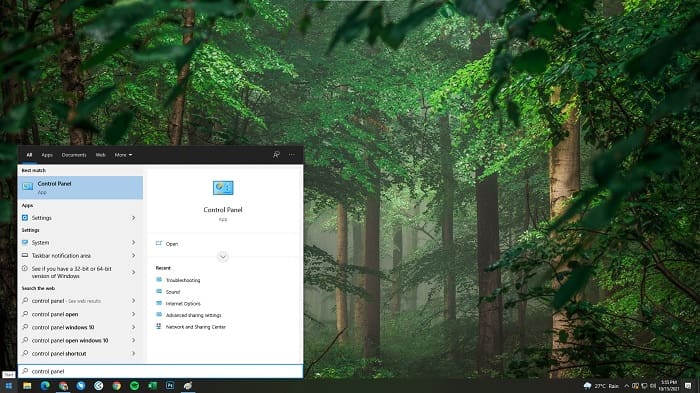
Pasul 1: Deschide Panoul de control pe computerul tău și găsește opțiunea View By, apoi dă clic pe Large Icons pentru a accesa toate funcțiile complete ale panoului de control.
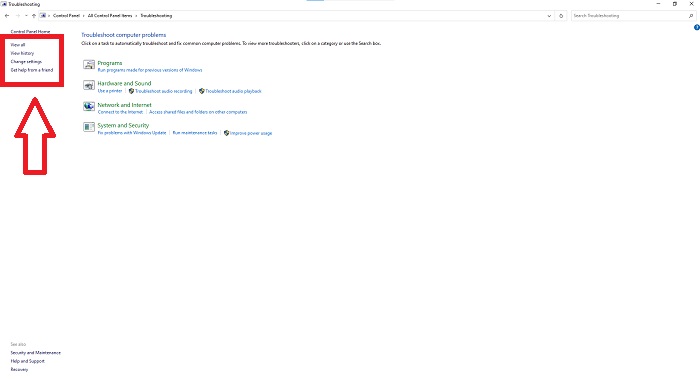
Pasul 2: Continuă dând clic pe Troubleshooting. În colțul din stânga, apasă pe View all și găsește Windows Media Player Library.
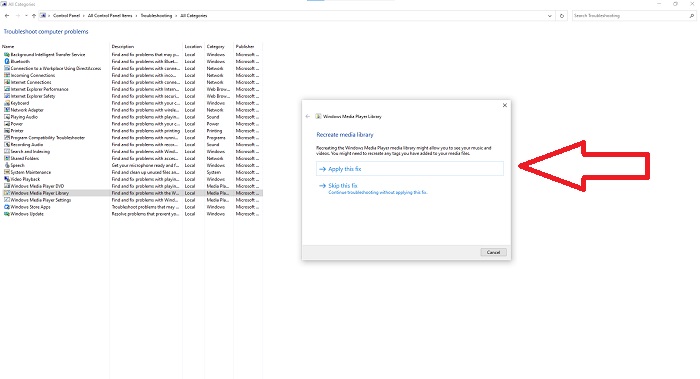
Pasul 3: În final, pornește depanarea pentru Windows Media Player dând clic pe Next după ce apare o fereastră. Apoi continuă selectând Apply this Fix. După ce depanarea s‑a încheiat, alege dacă vrei să închizi instrumentul de depanare sau să lași o recenzie.
Partea 3. O altă modalitate fezabilă de a accelera videoclipurile
Să presupunem că întâmpinați probleme la remedierea vitezei de redare a videoclipurilor dvs. din cauza pașilor complicati. În plus, dacă depanarea nu funcționează și tot nu puteți reda videoclipul. Există instrumente web disponibile pe internet, iar unele dintre ele trebuie achiziționate înainte de a avea acces la instrumentul complet. Video Converter Ultimate este cea mai bună alternativă pentru a accelera videoclipurile și este gratuit de utilizat. Acest software vă poate edita videoclipul la nivelul următor și iată pașii furnizați:
Pasul 1: Selectează Descărcare gratuită pentru a salva software‑ul direct pe computerul tău. Apoi personalizează instalarea și instalează programul.
Descărcare gratuită pentru Windows 7 sau o versiune ulterioară Descărcare securizată
Descărcare gratuită pentru MacOS 10.7 sau o versiune ulterioară Descărcare securizată
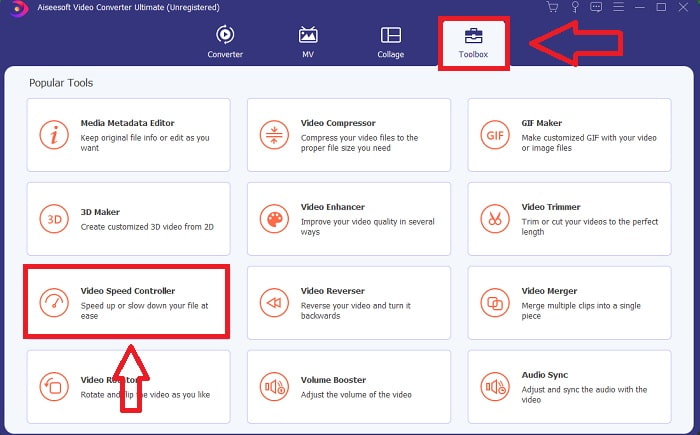
Pasul 2: După ce software‑ul a fost instalat, pornește‑l selectând opțiunea Toolbox din bara de meniu, apoi alege Video Speed Controller din lista care apare.
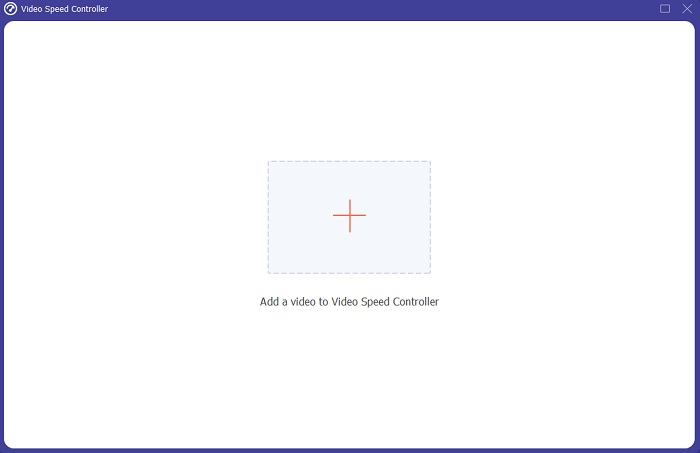
Pasul 3: Apasă butonul +, după preferință, pentru a adăuga un fișier și apoi continuă editarea videoclipului.
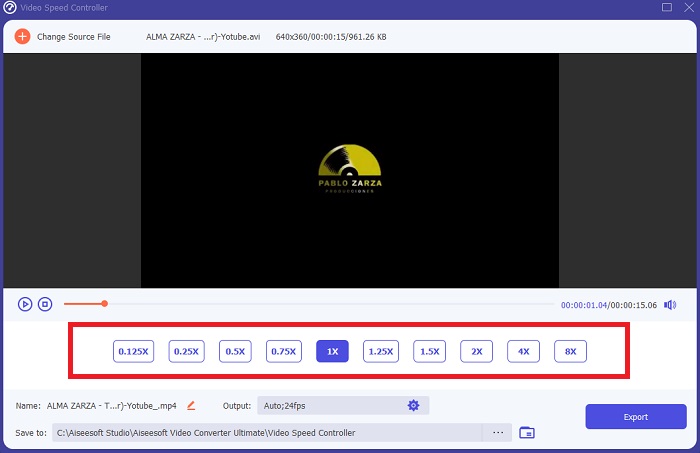
Pasul 4: Alege de câte ori va crește sau va scădea rata cadrelor videoclipului pentru a modifica viteza de redare.
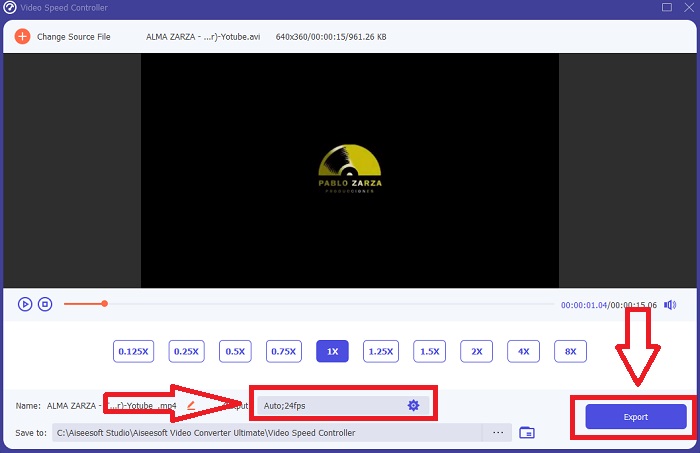
Pasul 5: Modificarea formatului, rezoluției, calității ș.a.m.d. îți va permite să alegi rezultatul dorit după ce ai terminat de ajustat viteza de redare a videoclipului. Apasă pe Export și apoi selectează o locație în care să îți salvezi proiectul, când ai terminat.
Partea 4. Întrebări frecvente despre cum să accelerezi videoclipuri în Windows Media Player
Cum să remediați videoclipurile MP4 care nu se pot reda pe Windows Media Player?
Așa cum s‑a menționat anterior în articol, Windows Media Player nu acceptă o gamă largă de formate video. Deoarece acceptă doar majoritatea formatelor compatibile cu Windows, este dificil să remediezi erorile folosind acest player media. De aceea trebuie să înveți cum să convertești sau cum să redai formatele video MP4. Linkul de aici este un articol util care te ajută să rezolvi această problemă.
Cum se redă DVD-ul în Windows Media Player?
Unele filme sunt pe DVD, iar pentru a le reda trebuie să găsești playerul media potrivit pentru redarea DVD‑urilor. Windows Media Player este unul dintre cele mai comune playere media care redau DVD‑uri. În plus, acest player media oferă și câteva setări care ajută la editare în timp ce redai DVD‑ul. Iată mai multe detalii despre cum să redai DVD‑uri în Windows Media Player.
Dimensiunea fișierului video devine mai mică dacă creșteți viteza de redare?
Doar cadrul va fi împărțit de fiecare dată când creșteți sau micșorați viteza de redare a videoclipului. Dacă îl creșteți de 5 ori mai repede, cadrul va fi de 60 de cadre la 1/120 de secunde. Pe scurt, nu poate afecta videoclipul decât dacă videoclipul are deja o rată scăzută a cadrelor.
Concluzie
În concluzie, Windows Media Player poate fi un software problematic, care acceptă doar câteva formate. Totuși, există unele funcții pe care acest software le oferă și care pot rezolva probleme legate de formatele video. Dacă însă vrei să mărești viteza de redare a clipului tău video, descarcă Video Converter Ultimate, nu doar pentru accelerarea videoclipului. Acest software îți poate duce videoclipul la un alt nivel. Cu toate funcțiile disponibile, acesta va fi cel mai bun și mai accesibil program pe care îți recomandăm să îl folosești.
-
 WebM în GIF - 3 convertoare WebM în GIF gratuite pentru a vă crea propriile GIF-uri
 WebM este un GIF? Cum să transformi un videoclip într-un GIF? Există un convertor gratuit de la WebM la GIF? Această postare prezintă 3 moduri gratuite de a vă ajuta să convertiți WebM în GIF.
-
 Cum se convertesc videoclipuri MKV în GIF-uri animate fără Photoshop / FFmpeg
 După ce ați descărcat și vizionat filme MKV pe computer, vă recomandăm să împărtășiți câteva momente minunate cu prietenii sau pe Internet ca GIF-uri. În acest articol, puteți afla despre cele mai simple 2 modalități de a converti MKV în GIF.
-
 Creați-vă cel mai bun GIF animat prin Creatorul GIF online [2021]
 O recenzie informativă despre cum să creați un GIF folosind acești creatori de GIF online simpli pe care îi întâlniți deja sau nu pe web.
