


 Видео конвертер Ultimate
 Устройство записи экрана
 Видео ремонт
Как легко изменить метаданные файлов MOV на Mac с помощью шагов
Мы все знаем, что MOV — один из первоклассных форматов, который идеально подходит для воспроизведения видео на устройствах Apple и для монтажа. Но что делает MOV особенным? Он поддерживает видеосжатие, которое чаще всего используют профессионалы. Хотя этот формат может хранить несколько элементов в одном файле, все же возможно, что в MOV перепутаются теги, что приведёт к проблемам. В этом случае полезно отредактировать их, чтобы быстро навести порядок в метаданных. С подходящим инструментом эта задача превращается в пустяк. Поэтому сегодня мы представим лучшие способы моментально редактировать метаданные файла MOV.

Часть 1. Как редактировать метаданные MOV с помощью Ultimate Tag Editor на Mac
FVC Video Converter Ultimate — это универсальное решение для работы с метаданными, которое поддерживает более 1000 форматов на Mac и Windows. С помощью этой программы вы можете мгновенно удалять, редактировать или добавлять метаданные в ваш файл MOV. И это ещё не всё: вы можете выполнять с MOV-файлом разные виды монтажа — резку, обрезку, склейку, кадрирование и многое другое, даже если вы не профессиональный редактор. Действительно впечатляет иметь такой инструмент под рукой, и всего в несколько кликов вы сможете сделать гораздо больше. А сегодня мы представляем вам подробную инструкцию, которой вы можете воспользоваться, чтобы успешно отредактировать метаданные ваших MOV-файлов.
Шаг 1. Загрузите Ultimate Converter на ваш Mac или Windows, нажав кнопку скачивания ниже. Перейдите к установке, щёлкнув по загруженному файлу, затем нажмите Start Now, чтобы немедленно запустить программу.
Бесплатная загрузкаДля Windows 7 или более поздних версийБезопасная загрузка
Бесплатная загрузкаДля MacOS 10.7 или более поздних версийБезопасная загрузка
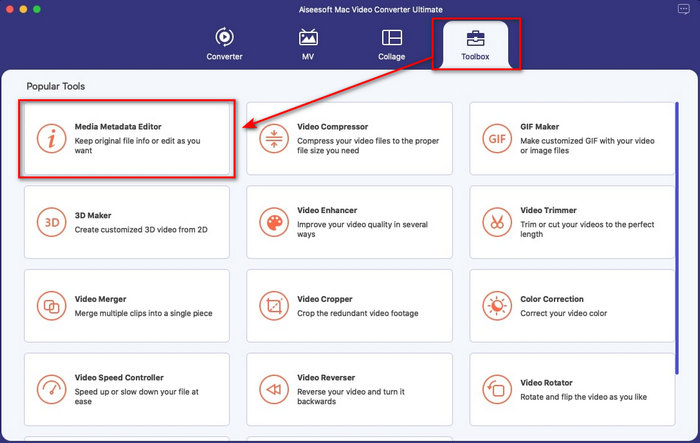
Шаг 2. На экране отобразится интерфейс программы; перейдите в раздел Toolbox и откройте Media Metadata Editor.
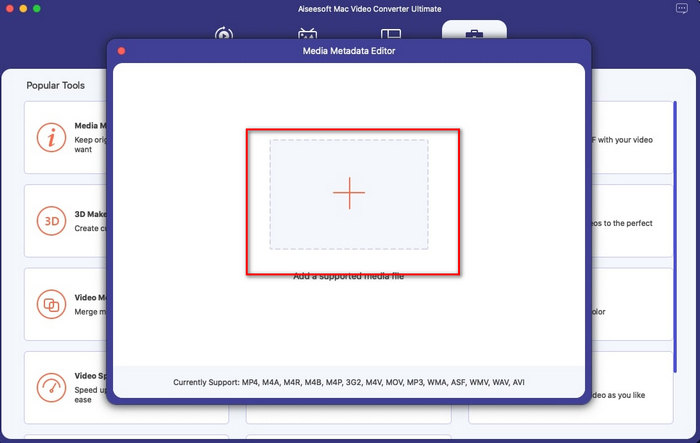
Шаг 3. Когда редактор откроется, появится небольшое окно; нажмите кнопку «+», чтобы открыть папку, в которой находится нужный файл, и для вставки файла нажмите Open.
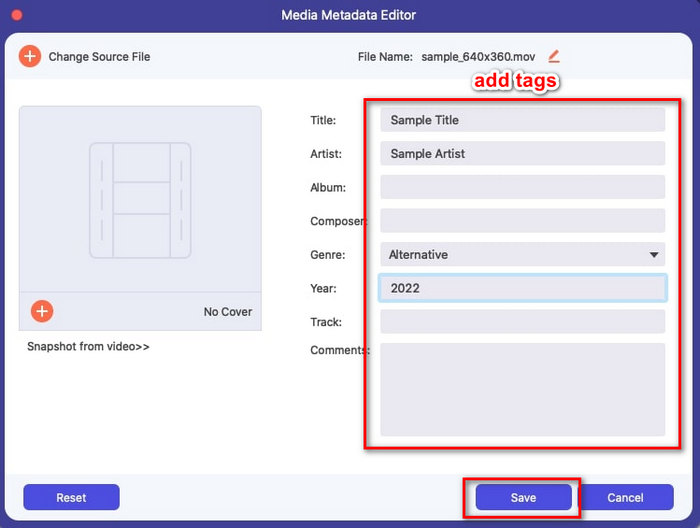
Шаг 4. Теперь вы можете добавлять, редактировать или удалять теги вашего MOV-файла в этом text box. Когда закончите, нажмите кнопку Save. Вот так быстро вы отредактируете метаданные ваших MOV-файлов.
Связанный материал:
Часть 2. 3 лучших редактора тегов MOV для изменения метаданных MOV
VLC Media Player
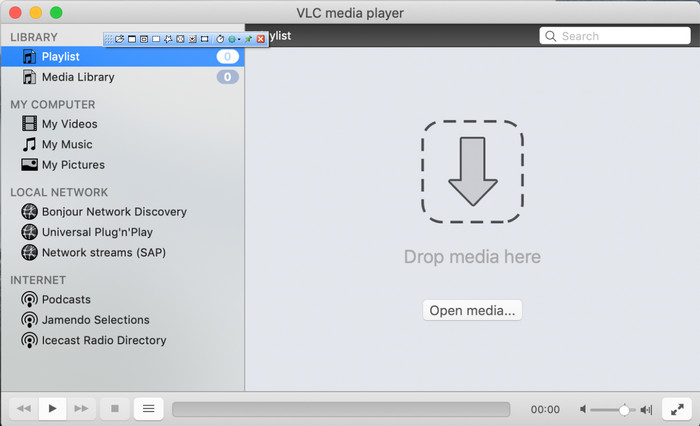
VLC Media Player — известный медиаплеер, доступный на Mac и Windows. Хотя он может воспроизводить разные видеоформаты, с его помощью также можно изменять метаданные мультимедийных файлов, в том числе MOV. Кроме того, если вы хотите просмотреть метаданные файла, вы легко можете сделать это через VLC. Однако он не такой эффективный, как специализированные редакторы метаданных для Mac или Windows. Тем не менее, в этом плеере всё ещё можно отредактировать метаданные MOV-файла.
Шаг 1. Загрузите медиаплеер с официального сайта VLC, затем откройте его.
Шаг 2. Нажмите на клавиатуре Command + I, и отобразится окно с информацией о медиафайле, где вы сможете добавлять или удалять метаданные вашего MOV-файла.
Шаг 3. Нажмите Save Metadata, когда закончите применять теги к MOV-файлу.
iTunes
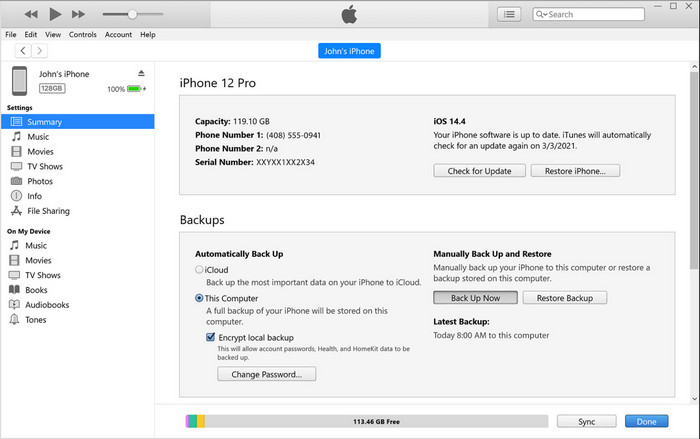
iTunes — лучшее встроенное приложение для потокового воспроизведения, доступное на любом устройстве Apple. Этот инструмент насыщен различными функциями: музыкальный плеер и магазин музыки, фильмов, подкастов и многого другого, защищённых DRM, чтобы избежать проблем с авторскими правами. Несмотря на то, что это отличное встроенное приложение, конкуренция среди редакторов метаданных слишком велика, чтобы iTunes мог полноценно с ними соперничать. Но мы всё же рассматриваем это приложение, потому что в нём можно изменить метаданные MOV на Mac.
Шаг 1. Откройте iTunes, затем импортируйте MOV-файл в медиатеку iTunes.
Шаг 2. Затем щёлкните правой кнопкой мыши по добавленному файлу .mov и выберите Get Info. После этого откроется окно с различными вкладками для изменения метаданных: сведения, обложка, тексты, параметры, сортировка, файл — отрегулируйте их в соответствии с вашими потребностями.
Шаг 3. Нажмите OK, чтобы сохранить изменения.
МетаЗ
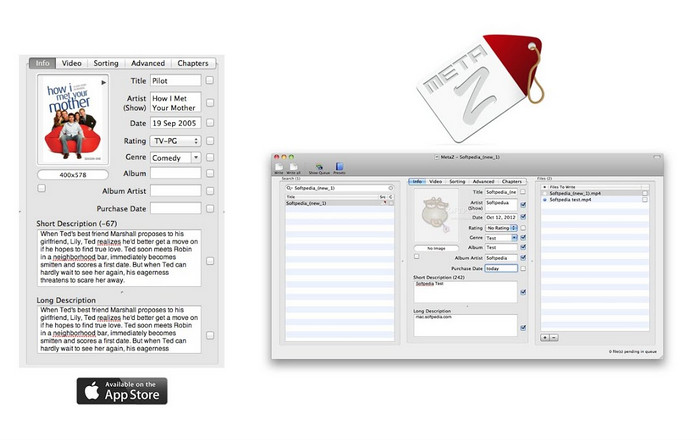
Для macOS X вы можете бесплатно загрузить Metaz, чтобы легко изменять метаданные ваших файлов. Этот редактор метаданных может помочь вам изменить теги видео в большинстве форматов, таких как MOV. С помощью этого приложения вы можете легко упорядочить MOV в своей библиотеке. Однако в последнее время с приложением происходит много сообщений; пользователи сталкиваются со многими неприятными проблемами при использовании приложения. Несмотря на то, что могут возникать проблемы, это по-прежнему один из самых популярных редакторов метаданных MOV, которые вы можете загрузить на свой Mac.
Шаг 1. Загрузите приложение на ваш Mac, запустите его, и на экране появятся три раздела интерфейса программы, где вы можете добавлять файл, редактировать теги и искать теги.
Шаг 2. Перетащите файл MOV в левую часть окна; справа от него вы увидите, что программа автоматически найдёт теги для вашего MOV-файла на основе его названия, но при желании вы можете изменить их в средней части.
Шаг 3. Нажмите Write, и теги будут добавлены в MOV-файл.
Часть 3. Часто задаваемые вопросы о редакторе метаданных MOV
Могу ли я использовать редактор метаданных QuickTime для изменения тегов?
К сожалению, вы не можете, потому что этот инструмент может только воспроизводить формат мультимедиа, редактировать видео и записывать. Но вы можете свободно просматривать метаданные вашего файла в Quicktime, выполнив следующие простые шаги. Сначала откройте файл MOV в Quicktime и воспроизведите его. Вы увидите различные варианты в верхней части; щелкните «Окно» и под ним нажмите «Инспектор просмотра», после чего на вашем экране появится новое окно, в котором вы увидите небольшую информацию о вашем файле MOV.
Влияет ли изменение тегов MOV на качество?
К счастью, этого не произойдет, потому что вы настроили теги, а не разрешение или качество файла MOV. Итак, если вы переживаете, что разрешение видео может уменьшиться после изменения тегов, мы повторим это; это не будет.
Увеличит ли размер файла добавление метаданных в MOV?
В любых файлах после добавления метаданных в этот файл вы увидите разницу между файлом без тега и файлом с тегом. Однако эти теги не так велики, как содержимое файла. Итак, если вы добавите метаданные в свой MOV, ожидайте, что он немного увеличится в размере, потому что вы добавили информацию о видеофайле.
Заключение
Теперь, когда мы закончили объяснять, как изменить метаданные файлов MOV, пришло время выбрать, какой инструкцией вы воспользуетесь. Если вы хотите загрузить бесплатное приложение на Mac, можете установить VLC и Metaz, чтобы исправлять или редактировать метаданные MOV. Но если не хотите ничего дополнительно скачивать, вы можете использовать iTunes, чтобы легко изменить метаданные. Хотя все эти инструменты удобны в работе, среди программ для Mac нет такого мощного средства редактирования метаданных, как то, которое предлагает FVC Video Converter Ultimate. Поэтому, если вы всё ещё не решили, что использовать, мы настоятельно рекомендуем выбрать именно этот универсальный инструмент: он прост в обращении, но при этом предоставляет полный набор функций, которые могут понадобиться вам в любой день.
-
 Что такое метаданные: узнайте основную информацию о метаданных
 Что такое метаданные? Это важно? Из каких частей состоят метаданные? У вас есть тот же вопрос? В этой статье вы узнаете основную информацию о метаданных.
-
 4 из лучших средств просмотра метаданных онлайн и офлайн [Обновлено 2022]
 Могу ли я проверить метаданные моего файла? Да, вы можете, с помощью этого поста мы познакомим вас с различными средствами просмотра метаданных, которые вы можете использовать.
-
 Топ-4 самых популярных редактора тегов WMV для ПК [обновление 2022]
 Нужен надежный редактор тегов WMV для редактирования тегов WMV? Что ж, в этой статье достаточно знаний об инструменте, поддерживающем WMV.
