


 Видео конвертер Ultimate
 Устройство записи экрана
 Видео ремонт
 Безопасная загрузка
Конвертеры VLC в MP4: самые быстрые и совершенные инструменты, которые вам следует знать
The VLC Media Player is not just your ordinary media player for watching movies and listening to tunes, for it is a lot more versatile than you think. If you are a VLC fan, chances are you have a bunch of movies stored in its library. Did you know that you can actually use VLC to convert your videos into different formats like MP4? Thus, if you ever thought about converting these movies or videos in VLC to MP4 format so that you can watch them on your phone or other portable devices, then you are in luck! This post will teach you the quickest and easiest conversion process that you can do on your computer. So, cutting this to the chase, proceed to read the entire content below to catch the learning ASAP!

Часть 1. Самый быстрый способ конвертировать файлы VLC в MP4
If you are looking for great software that handles video conversions like a champ without sacrificing quality, then look no further since we have let you meet this FVC Video Converter Ultimate. This ultimate converter not only swiftly transforms VLC videos into various formats like MP4, MKV, WMA, AVI, MOV, and more, but it does so without any loss in image quality. Furthermore, it is super fast, up to 120x faster, since it comes with hardware acceleration support.
Но подождите, это еще не все! Этот конвертер VLC в MP4 также является первоклассным видеоредактором. Редактор позволяет вам обрезать, вырезать, вращать, добавлять водяные знаки и выполнять множество других известных вам операций редактирования. Помимо этого, он оснащен ключевыми функциями, которые вы не захотите пропустить. Функции, которые помогут вам создавать потрясающие видеоколлажи с вашими клипами, фотографиями и мелодиями! Между тем, давайте перейдем к быстрому процессу конвертации, который вам предлагает FVC, с помощью следующих шагов.
Step 1. Let’s start by grabbing the software on your computer. You may use the Download buttons below according to your system device. Yes, you can convert VLC to MP4 on Mac or Windows with this software.
Бесплатная загрузкаДля Windows 7 или более поздних версийБезопасная загрузка
Бесплатная загрузкаДля MacOS 10.7 или более поздних версийБезопасная загрузка
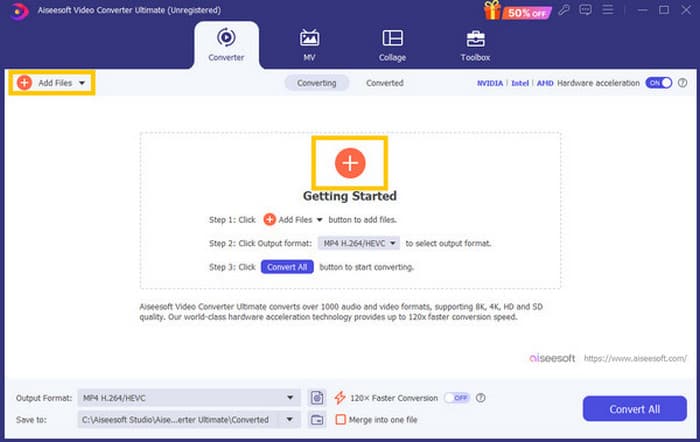
Step 2. After your acquisition, launch the software and start importing all the VLC files that you need to convert. Simply click the red Plus button at the center of the workspace or the Add Files button at the upper right part.
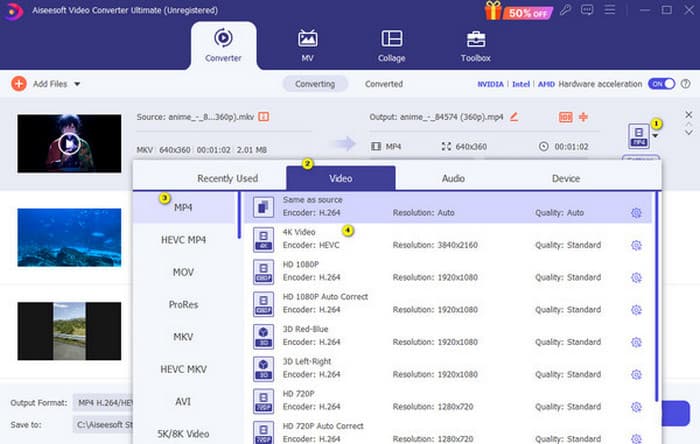
Step 3. After the bulk importation of files, it’s time to change the output format to MP4. To do so, click the inverted triangle button at the tail part of each file. Then, navigate to Video>Select MP4>Select Encoder.
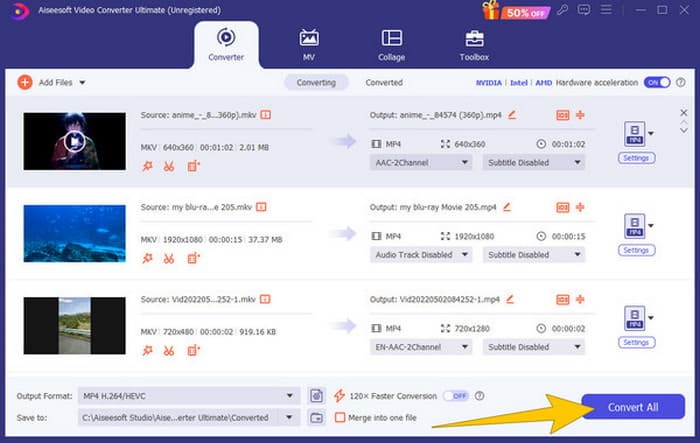
Step 4. As easy as that, you can now navigate the Convert All button to start the ultrafast conversion process.
Плюсы
- Хорошая многофункциональная программа для конвертации, редактирования и создания видеофайлов.
- Предлагается бесплатная пробная версия, которая обеспечивает вам ту же мощность преобразования.
- Позволяет выполнять массовую конвертацию файлов VLC.
- Конвертируйте файлы VLC в 120 раз быстрее.
- Поддерживаются различные форматы ввода и вывода.
Минусы
- Для использования расширенных функций вам необходимо приобрести подписку.
Часть 2. Полные шаги по конвертации файлов в MP4 в VLC
Поскольку вы работаете с файлами VLC, действительно хорошим вариантом будет конвертировать их с помощью самого VLC. Однако, в отличие от предыдущего конвертера VLC в MP4, VLC может быть немного сложным в работе, когда дело доходит до конвертации. Вот почему мы упростили процесс с помощью подробных шагов, которые мы привели ниже.
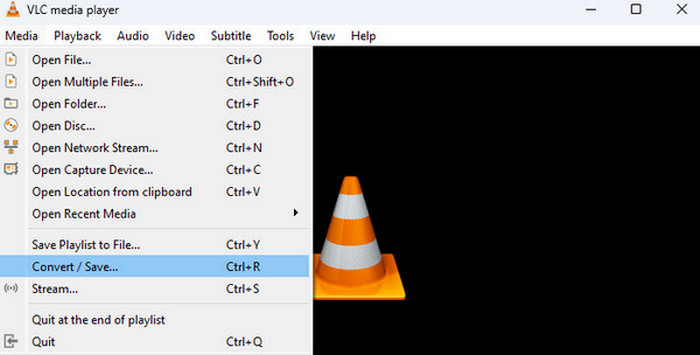
Step 1. Open the VLC on your computer device, then bring the video file on, too. How? Navigate to the Media menu and click the Convert/Save sub-menu.
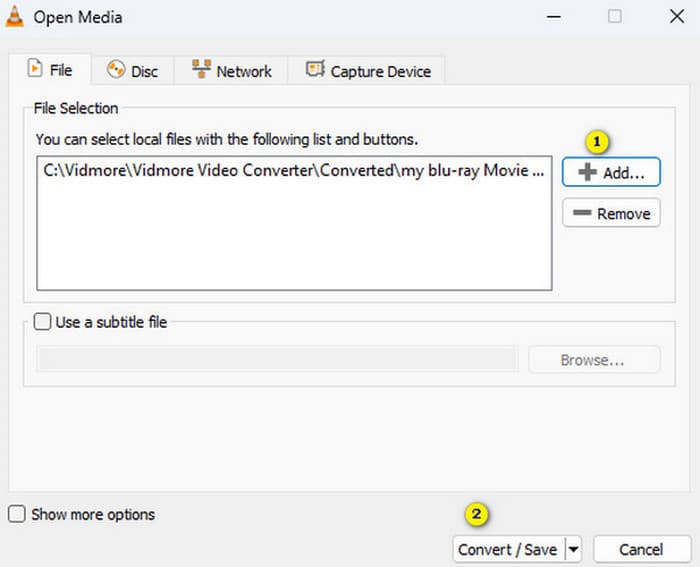
Step 2. On the Open Media window, click the +Add button to bring the file on. When the file is loaded, click the Convert/Save button at the bottom.
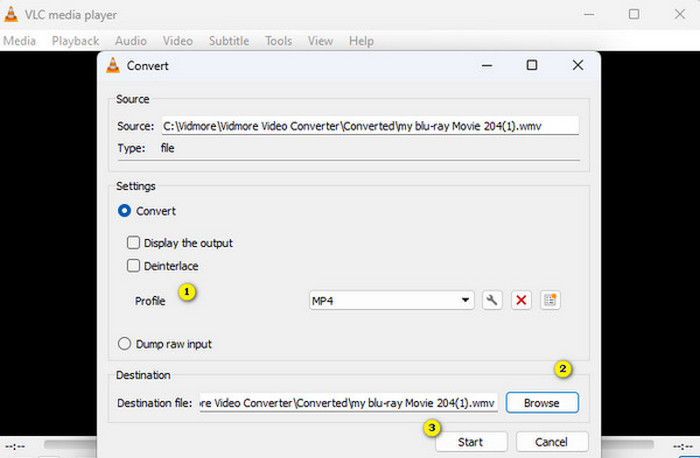
Step 3. After that, VLC will bring you to the next window, where you need to choose the MP4 as your output format. To do this, go to the Profile section. Then, go to the Browse section to set your file destination, then click the Start button to start the conversion process.
Плюсы
- Это бесплатный конвертер и медиаплеер.
- Это кроссплатформенный конвертер VLC в MP4.
- Вы можете работать с файлами VLC напрямую, без сторонних инструментов.
- Вы можете работать с различными форматами видео.
Минусы
- Процесс конвертации не такой уж быстрый.
- При конвертации существует ограничение на размер файла.
Часть 3. Конвертация файлов из VLC в MP4 онлайн
Suppose you want to go the extra mile to convert video files online. If that’s the case, you must learn to convert files with FVC Free Video Converter Online. This web-based converter is all about making multimedia conversion easy and free. It can convert almost any video and even audio file to various formats without losing quality. With this converter, you can quickly turn your HD videos into popular formats while preserving their original clarity. Furthermore, it lets you convert multiple files in a jaw-dropping, fast conversion process!
Этот инструмент также предлагает функции редактирования, где вы можете настроить параметры видео, такие как частота кадров, битрейт и разрешение, а также параметры звука, такие как битрейт и громкость. Это означает, что вы можете настроить свои видео так, как вам нужно, и экспортировать их без потери качества! Следуйте приведенным ниже шагам, чтобы конвертировать из VLC в MP4 онлайн.
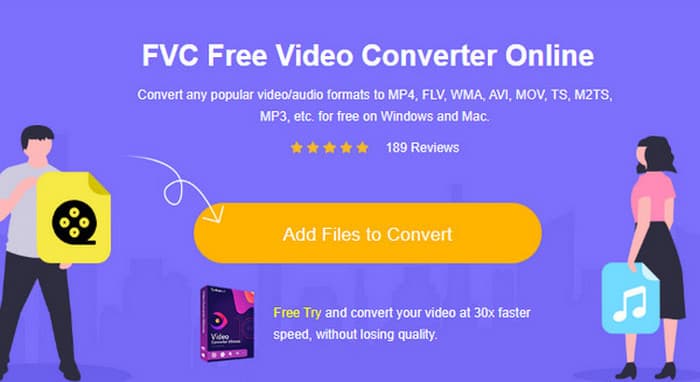
Step 1. Upon reaching the official website of the online converter, click the Add Files to Convert button. This will enable you to upload your initial video files.
Step 2. When your files are shown, click them and choose MP4 as your output format from the options given at the bottom of the interface.
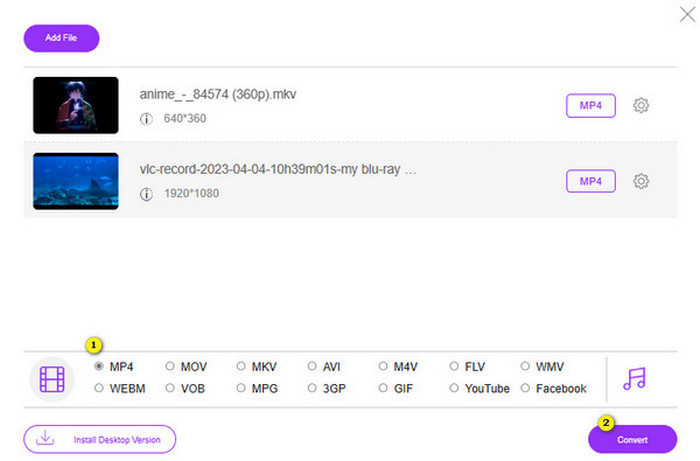
Step 3. After setting all the files into MP4, it’s time to click the Convert button.
Плюсы
- Он стал гораздо более доступным в использовании.
- Не требует установки какого-либо программного обеспечения.
- Вы можете конвертировать все свои файлы одновременно.
Минусы
- Для быстрого процесса конвертации вам понадобится стабильное подключение к Интернету.
Часть 4. Часто задаваемые вопросы о конвертации VLC в MP4
Как конвертировать VLC в MP4 на Mac?
Use the Mac version of FVC Video Converter Ultimate to convert your video files to MP4 without a quality lost.
Можно ли использовать VLC для конвертации зашифрованных или защищенных DRM видео?
No. Unfortunately, VLC cannot convert encrypted or DRM-protected videos to MP4 or any other format.
Выполняет ли VLC конвертацию без потерь?
VLC предлагает возможности настройки параметров видео и аудио для обеспечения наилучшего преобразования без потерь.
Заключение
You see, converting your VLC to MP4 is actually pretty simple as long as you know the right things to do. But if you're aiming for fast and top-notch quality output, you must cling to a powerful converter like the FVC Video Converter Ultimate. This converter won’t require you to use detailed settings just to produce nice outputs, which you are likely to have with VLC.
-
 Процесс копирования и записи DVD с VLC для оцифровки воспроизводимого формата
 VLC поддерживает множество форматов сжатых аудио-видео файлов, включая запись на DVD. Просто продолжайте обсуждение, чтобы продолжить обсуждение и детали до конца.
-
 Возможны отличные способы | Как исправить задержку звука VLC [2024]
 Вам сложно смотреть любимый фильм на медиаплеере VLC из-за неопределенности звука? Продолжайте читать эту статью, чтобы узнать все возможные способы исправить задержку звука VLC.
-
 Как использовать VLC для восстановления видео | Ваше полное руководство
 У вас есть сломанные видео, застрявшие в ваших файлах? Изучите полное руководство по восстановлению видео VLC, чтобы восстановить ваши видео и легко воспроизвести их снова.
