


 Видео конвертер Ultimate
 Устройство записи экрана
 Видео ремонт
 Безопасная загрузка
Как легко конвертировать MP3 в рингтон на iPhone
Кажется, что стандартные рингтоны на iPhone вам не особенно нравятся, и вы хотели бы вместо них использовать мелодию из своих MP3‑файлов? А что, если мы скажем, что вы действительно можете конвертировать MP3 в рингтон на iPhone?
В этой статье вы узнаете о 3 различных способах сделать ваши музыкальные файлы MP3 на вашем iPhone рингтоном. Конвертировать их немного сложно, но с правильным инструментом и методом, давайте сделаем это максимально простым и удобным для вас. Чего вы ждете? Давайте нырнем!

Часть 1. Конвертация MP3 в рингтон для iPhone на Mac/Windows
Один из самых простых и быстрых способов конвертировать MP3 в рингтон на iPhone — воспользоваться отобранной FVC программой Video Converter Ultimate на компьютере с Windows или macOS. Этот универсальный конвертер поддерживает до 300 форматов, включая M4R, что делает его надежным инструментом для превращения MP3‑музыки в рингтоны для iPhone. Кроме того, скорость работы этого конвертера до 120 раз выше по сравнению с другими аналогичными инструментами, поэтому процесс преобразования проходит быстро и без лишних хлопот.
Как использовать рекомендованный FVC Video Converter Ultimate, чтобы превратить MP3 в рингтон:
Шаг 1. Сначала скачайте и установите программу на компьютер с Windows или Mac.
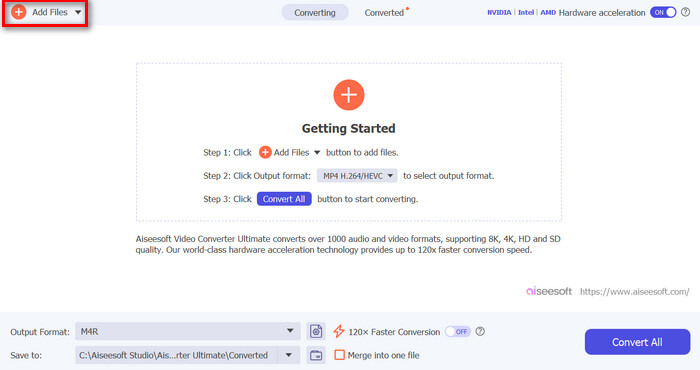
Шаг 2. Запустите программу и на главном экране нажмите кнопку Add Files. Это позволит импортировать MP3‑файл, который вы хотите превратить в рингтон для iPhone.
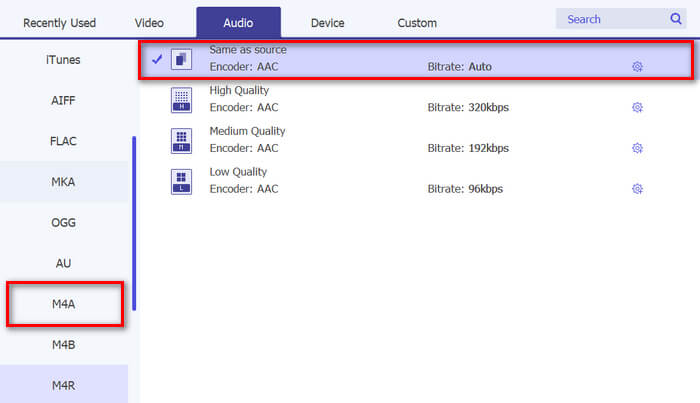
Шаг 3. Затем откройте список Output format и среди доступных аудиоформатов выберите M4R. M4R — это формат файлов для рингтонов iPhone.
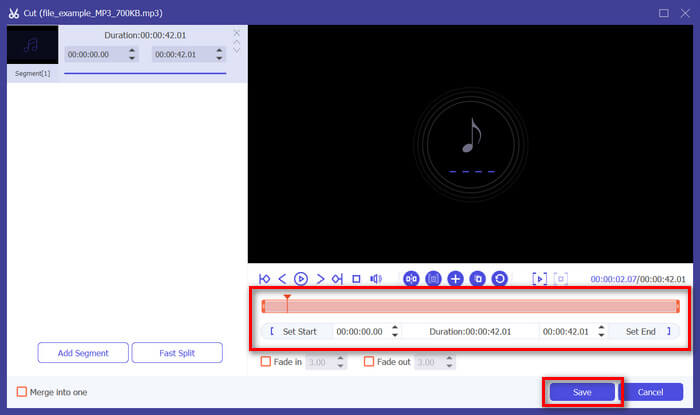
Шаг 4. После этого убедитесь, что ваш MP3‑файл длится не более 30 секунд. Если продолжительность больше, нажмите кнопку Cut и укоротите файл, просто передвинув ползунки на временной шкале или вручную установив конечное время на 30 секунд.
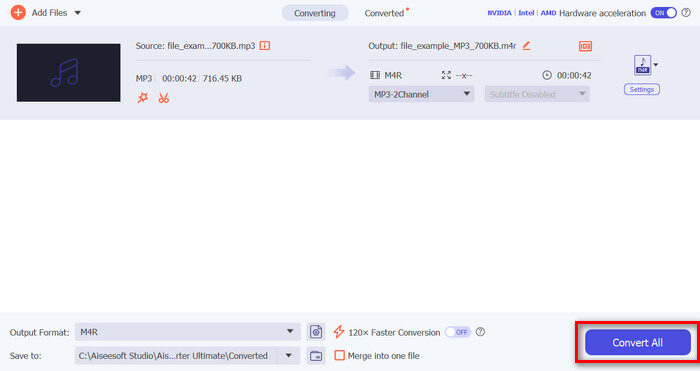
Шаг 5. Теперь нажмите кнопку Convert All, чтобы начать конвертацию MP3‑файлов в рингтоны для iPhone. Готовые файлы будут сразу сохранены в выбранную папку на вашем компьютере.
Это быстро, не так ли? Действительно невероятно, как этот выбранный FVC инструмент Video Converter Ultimate делает преобразование MP3 в рингтон iPhone простым и быстрым. Так что, если вы ищете инструмент-конвертер, который может сэкономить вам время, попробуйте этот инструмент прямо сейчас.
Часть 2. Конвертация MP3 в рингтон на iPhone
Если вы предпочитаете прямой метод без использования компьютера, GarageBand предлагает удобное решение для преобразования MP3 в рингтоны прямо на вашем iPhone. Этот инструмент является мощным приложением для создания музыки, которое предустановлено на большинстве iPhone. Этот инструмент не только удобен для пользователя, но и предоставляет различные функции для эффективной настройки ваших аудиофайлов.
Как использовать GarageBand, чтобы превратить MP3 в рингтон:
Шаг 1. Запустите приложение GarageBand на iPhone. Если оно не установлено, откройте App Store и установите его.
Шаг 2. Нажмите значок Project, затем значок Loop в правом верхнем углу.
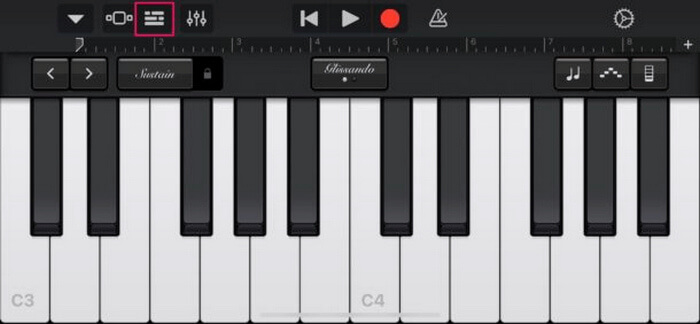
Шаг 3. Нажмите Music или Files, чтобы выбрать MP3‑файл, затем выполните длительное нажатие, чтобы импортировать его в GarageBand.
Шаг 4. После этого нажмите на дорожку и потяните её края, чтобы обрезать аудио. Убедитесь, что продолжительность рингтона менее 30 секунд.
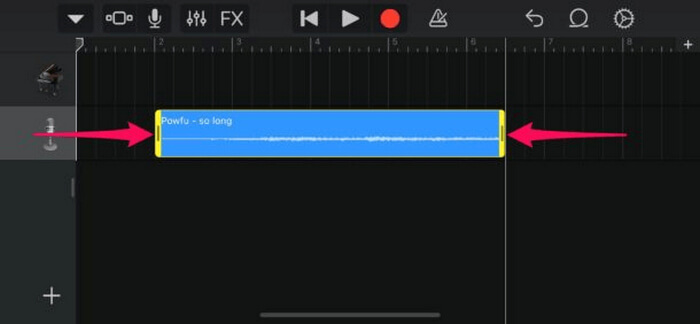
Шаг 5. В левом верхнем углу вы увидите стрелку, направленную вниз. Нажмите на неё и выберите My Songs, чтобы сохранить фрагмент.
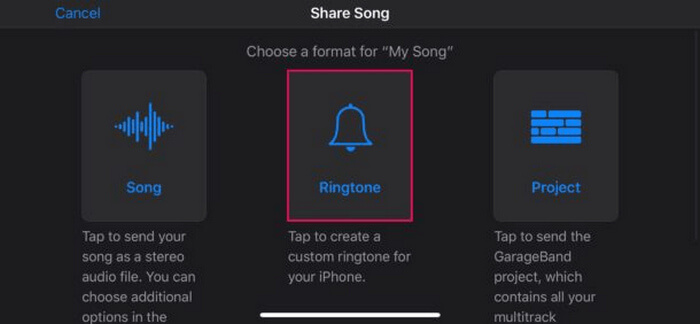
Шаг 6. Найдите созданный клип, выполните длительное нажатие, нажмите Share и выберите вариант Ringtone. Не забудьте дать рингтону имя и нажать Export.
Шаг 7. Чтобы использовать конвертированный MP3‑файл как рингтон на iPhone, нажмите Use Sound As, чтобы задать его в качестве рингтона по умолчанию, звука сообщения или мелодии для конкретного контакта. Либо откройте Settings, затем Sounds & Haptics и Ringtone, чтобы сменить рингтон на iPhone.
Если вы предпочитаете конвертировать файлы MP3 непосредственно в рингтоны на вашем iPhone, этот метод идеально вам подходит. Однако новым пользователям понадобится некоторое время, чтобы освоить его, поскольку он содержит сложные функции, которые могут ошеломить их поначалу.
Часть 3. Конвертируйте MP3 в рингтон iPhone [онлайн и бесплатно]
Если вы предпочитаете бесплатный онлайн‑способ конвертации MP3 в рингтон для iPhone, вам подойдёт FVC Free Audio Converter. С помощью этого инструмента вы можете легко конвертировать практически любой формат аудио, в особенности MP3 в M4R, поскольку он поддерживает форматы MP3, AAC, AC3, WMA, WAV, AIFF, FLAC, MKA, M4A, M4B и M4R. Кроме того, этот сервис идеально подходит тем, кому нужен конвертер «на ходу», благодаря очень простому и интуитивно понятному интерфейсу.
Как использовать FVC Free Audio Converter, чтобы превратить MP3 в рингтон:
Шаг 1. Нажмите кнопку Add Files, чтобы импортировать MP3‑файлы, которые вы хотите преобразовать в рингтон.
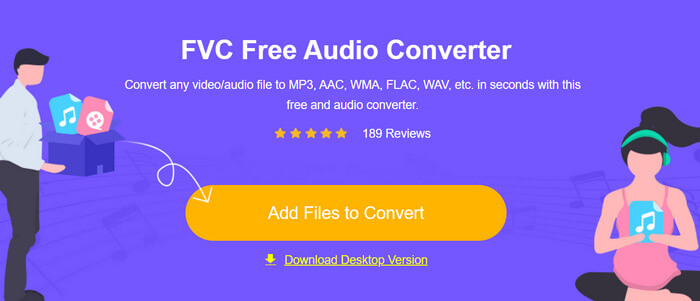
Шаг 2. Выберите M4R в качестве выходного аудиоформата.
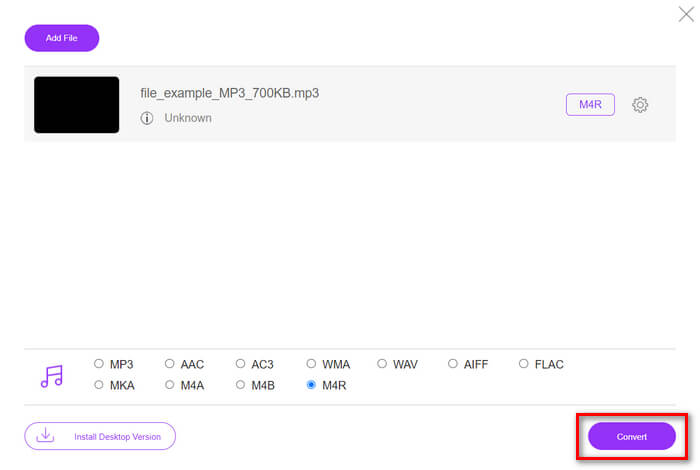
Шаг 3. Наконец, чтобы запустить конвертацию MP3‑файла в рингтон, нажмите кнопку Convert. Конвертированный файл будет напрямую сохранён на ваш компьютер.
Если вы ищете бесплатную онлайн‑альтернативу для конвертации MP3 в M4R-рингтон для iPhone, FVC Free Audio Converter — отличное решение. Его интуитивно понятный интерфейс упрощает процесс конвертации, а поддержка множества аудиоформатов гарантирует совместимость с разными типами файлов.
Часть 4. Как перенести преобразованные рингтоны на iPhone с компьютера
Теперь, когда вы наконец-то преобразовали свои MP3-файлы в рингтоны на своем компьютере, самый быстрый способ перенести их на свой iPhone — воспользоваться iTunes.
Как перенести конвертированные рингтоны на iPhone с помощью iTunes:
Шаг 1. Откройте iTunes на компьютере и подключите iPhone с помощью USB‑кабеля.
Шаг 2. Перетащите конвертированный файл рингтона в библиотеку iTunes. Убедитесь, что он отображается в разделе Tones.
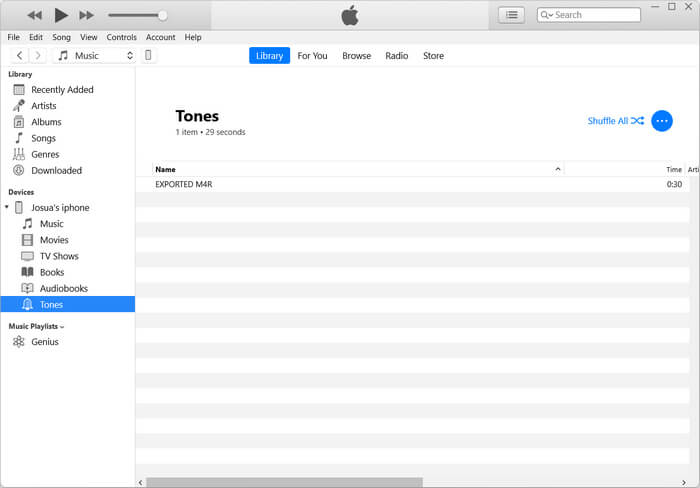
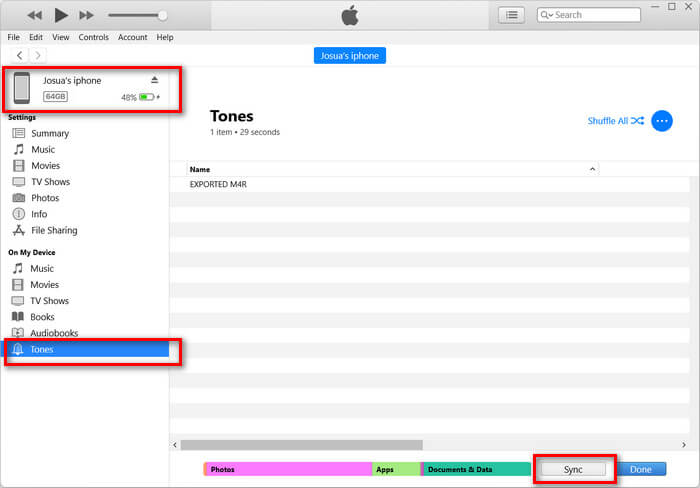
Шаг 3. Выберите значок вашего iPhone в iTunes, перейдите на вкладку Tones и установите флажок Sync Tones. Затем выберите импортированный файл рингтона и нажмите Apply, чтобы запустить синхронизацию.
Шаг 4. Теперь на iPhone откройте Settings, выберите Sounds & Haptics, нажмите Ringtone и укажите новый рингтон.
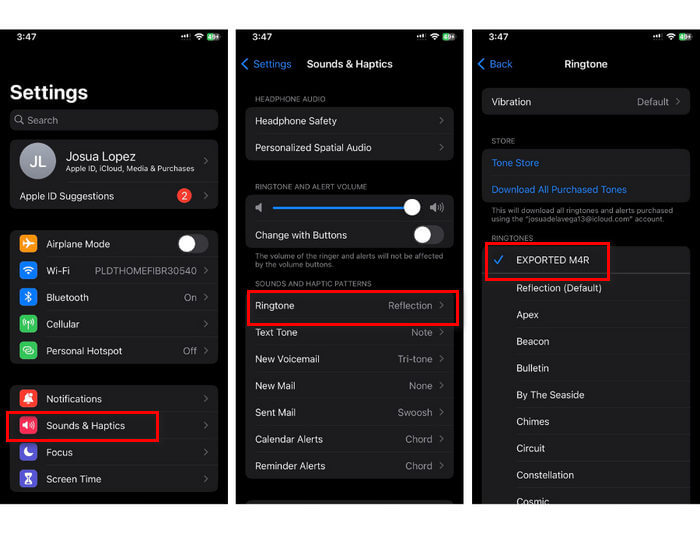
Вот и все. Теперь вы можете легко перенести и использовать преобразованный MP3 в качестве рингтона на своем iPhone, придав своему устройству индивидуальность с помощью любимых звуков.
Часть 5. Часто задаваемые вопросы о конвертации MP3 в рингтон
Какой сайт с бесплатными рингтонами самый лучший?
Многие сайты предлагают бесплатные рингтоны, но некоторые популярные и надежные из них включают Zedge, Mobile9 и Tones7. Эти сайты предоставляют широкий выбор рингтонов, которые вы можете загрузить и использовать на своем телефоне.
Какой формат MP3 подходит для рингтона iPhone?
Формат рингтона iPhone — M4R. При конвертации файла MP3 для использования в качестве рингтона на iPhone его необходимо сохранить в формате M4R.
Как добавить MP3 в рингтон iPhone?
Чтобы добавить MP3 в рингтон вашего iPhone, вы должны сначала преобразовать файл MP3 в M4R с помощью инструмента-конвертера, например, выбранного FVC Video Converter Ultimate. После преобразования файла MP3 используйте iTunes, чтобы перенести его на ваш iPhone и использовать в качестве нового рингтона.
Заключение
Теперь вы можете использовать свои любимые MP3‑файлы и создать рингтон для iPhone. Просто выберите конвертер, который лучше всего подходит под ваши задачи. Каждый из них предлагает простой способ конвертировать MP3 в рингтон на iPhone. Так чего же вы ждёте? Начните создавать свой уникальный рингтон и сделайте свой iPhone по‑настоящему «своим»!
-
 MOV VS MP4 - какой из них выбрать?
 MOV VS MP4, что лучше? В этом сообщении рассказывается о разнице между MP4 и MOV, чтобы вы могли лучше выбрать для своих видеофайлов.
-
 FLAC против MP3: какой формат аудиофайла преобладает
 В этом посте будут сравниваться ключевые различия между FLAC и MP3. Это включает в себя их качество звука, размер файла, совместимость и многое другое.
-
 Как конвертировать MP3 в M4A для улучшения качества звука
 Улучшите качество своих музыкальных файлов, конвертируя MP3 в M4A с помощью наших советов и рекомендаций экспертов. Наше руководство предлагает пошаговые инструкции и рекомендуемое программное обеспечение.
