


 Видео конвертер Ultimate
 Устройство записи экрана
 Видео ремонт
5 лучших режущих инструментов MP4: узнайте, как обрезать видео на ПК, Mac и мобильных устройствах
Если вы видеоблогер или начинающий, снимать себя на видео - обычное дело. Это потребует много усилий и уверенности, как если бы вы снимали перед камерой. Кроме того, чаще всего все профессионалы и новички в ведении видеоблогов совершают ошибки, которые вы совершаете. Вместо того, чтобы переснимать видео, они, как правило, разрезают его и объединяют с исходными видео. Чтобы создать одно совершенно новое видео, которое состоит из разных ракурсов, просмотров, монтажей и многого другого, они вырезают его из разных видеороликов и добавляют в один. Но если вы новичок в этой работе или даже профессионал, то выбрать подходящий триммер сложно. Потому что не все функции, как говорилось в рекламе инструмента, отсутствуют в инструментах. Вместо того чтобы перейти к другой статье и прочитать рекомендации, почему бы вам сначала не извлечь уроки из этой. Поскольку мы собрали только реальные доказательства для вашей собственной выгоды. Итак, вот список резаков MP4, которые вы можете использовать для начала видеоблога. Не упустите возможность узнать, какие триммеры лучше всего подходят для создания простых, но профессиональных качеств ваших видео.

Часть 1. Загрузите лучшее программное обеспечение для обрезки видео MP4 на ПК и Mac
Если уж мы собираемся говорить о лучшем, то в первую очередь вам стоит прочитать именно это. Как уже говорилось ранее, создание влогов оказалось куда сложнее, чем мы ожидали: дело не только в уверенности перед камерой и в последующей публикации. Нужно также позаботиться о наличии многофункционального инструмента, который сделает видео более привлекательным для зрителей. FVC Video Converter Ultimate предоставляет потрясающие возможности редактирования и конвертации, которыми может воспользоваться любой желающий. Будь вы новичком или профессионалом, стоит обратить внимание на лучших из лучших на рынке. Хотя это платная версия, она все равно предлагает максимум того, что вы хотите получить. И если вы выберете ее в качестве своего личного инструмента, впереди у вас светлое будущее. Хотите начать влог прямо сегодня? Тогда следуйте этим шагам по использованию этого MP4-видеорезака.
Шаг 1. Нажмите кнопку скачивания ниже и установите программу на ПК или Mac. Следуйте инструкциям по установке и нажмите «Завершить», чтобы запустить программу.
Бесплатная загрузкаДля Windows 7 или более поздних версийБезопасная загрузка
Бесплатная загрузкаДля MacOS 10.7 или более поздних версийБезопасная загрузка
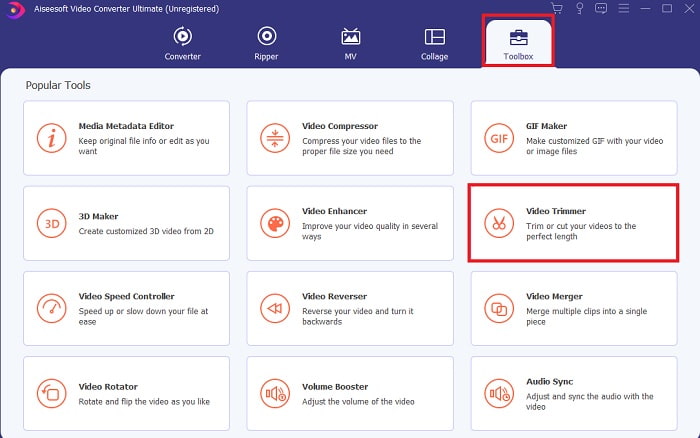
Шаг 2. Если это окно уже на вашем экране, нажмите Toolbar и найдите внизу пункт Video Trimmer.
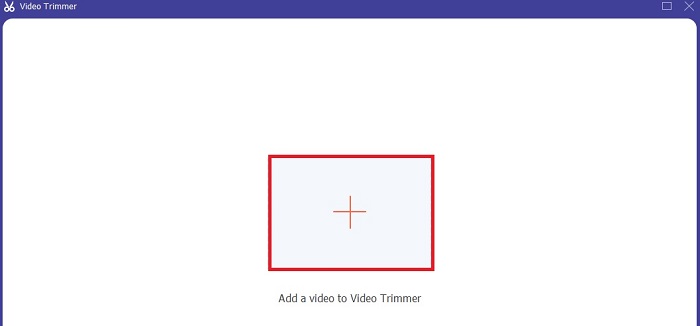
Шаг 3. Нажмите кнопку плюс, чтобы добавить файл. Выберите на диске файл, который хотите обрезать, и нажмите Open, чтобы вставить видео.
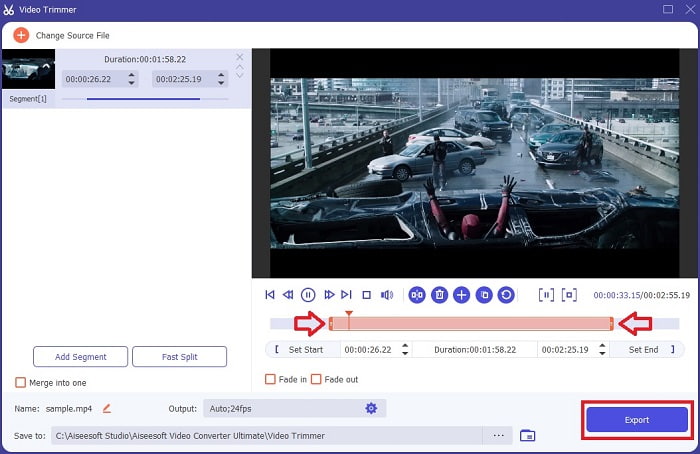
Шаг 4. Отрегулируйте начальную и конечную точку видео, управляя playback in and out, чтобы задать нужную длительность. При желании добавьте эффект плавного появления и исчезновения (fade in / fade out). Также вы можете изменить выходной формат медиафайла, нажав кнопку cog. Когда все будет готово, нажмите кнопку Export, чтобы запустить процесс обрезки.
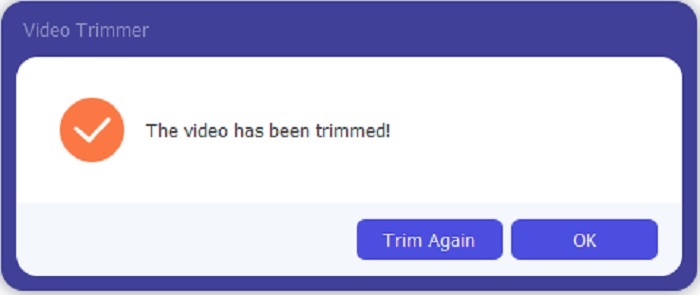
Шаг 5. Подождите всего несколько секунд — и ваше видео будет обрезано. Затем нажмите OK или Trim Again, если нужно обрезать еще один ролик. Если вы хотите улучшить только что созданное видео, снова откройте панель инструментов (toolbar) и найдите модуль улучшения видео (video enhancer).
Преимущество наличия инструмента слияния, предоставляемого FVC Video Converter Ultimate with Steps
В отличие от любого другого приложения, объединить видео в FVC Video Converter Ultimate очень просто. Это бонусная функция, если вы приобретете этот инструмент. Как уже говорилось, этот инструмент многоцелевой, поэтому без лишних слов давайте начнем объединять разные видео в одно.
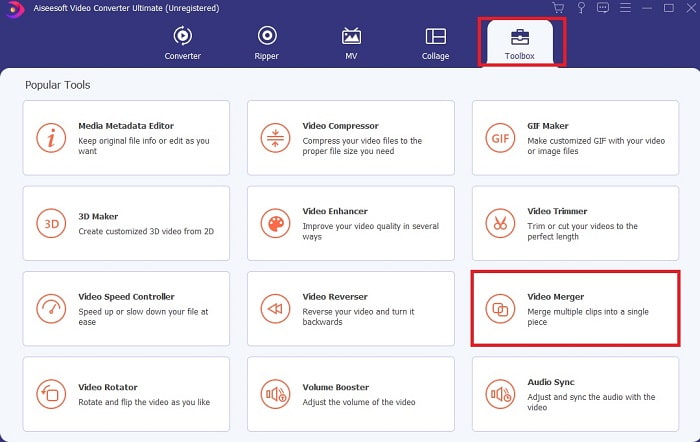
Шаг 1. Откройте программу, перейдите к Toolbar, затем найдите Video Merger и нажмите на него.
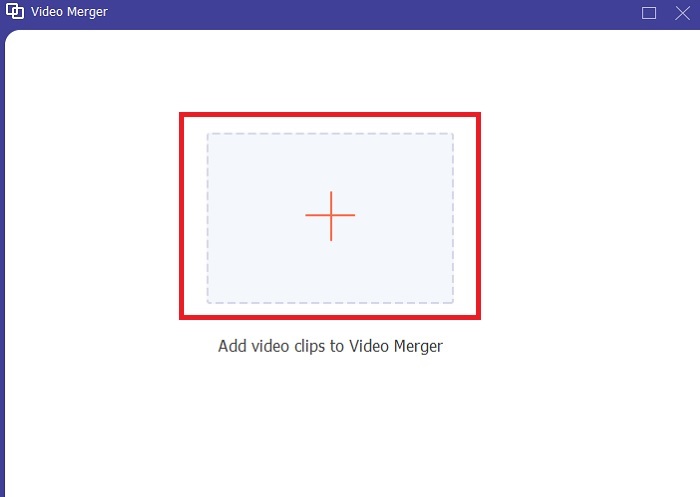
Шаг 2. Нажмите кнопку add, выберите видео, которое хотите объединить, и нажмите Open для продолжения. После выбора первого файла нажмите значок плюса, чтобы добавить другие файлы, которые вы хотите соединить.
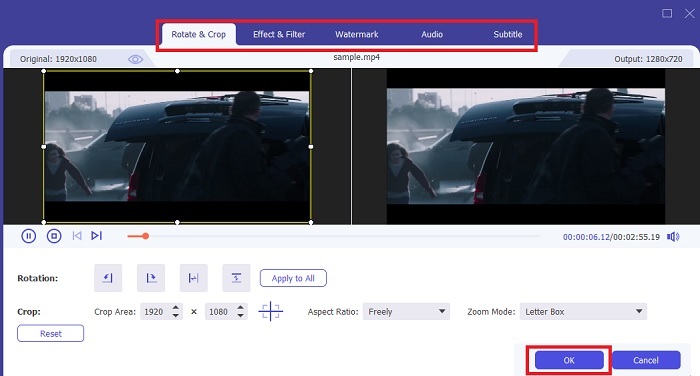
Шаг 3. В интерфейсе нажмите кнопку с wand, чтобы добавить эффекты, улучшить звук, повернуть или обрезать видео и добавить субтитры. Чтобы сохранить внесенные правки, нажмите OK. При желании выполните ту же процедуру и с другими видео.
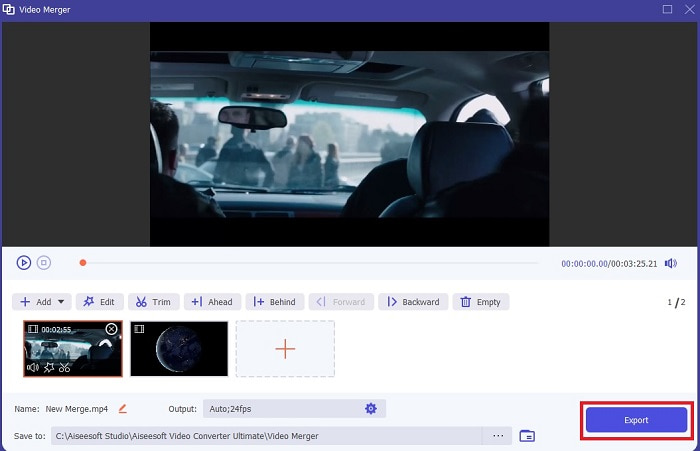
Шаг 4. Когда вы будете готовы начать обработку, нажмите Export. После завершения экспорта на экране появится окно файлового менеджера. Чтобы просмотреть экспортированное видео, просто нажмите его и наслаждайтесь.
Часть 2. Лучшие онлайн-резаки MP4
Это, безусловно, неплохой триммер, но он не дотягивает до уровня FVC Video Converter Ultimate. Тем не менее попробовать эти онлайн-резаки MP4 все же стоит.
1. Онлайн-программа для обрезки видео 123Apps
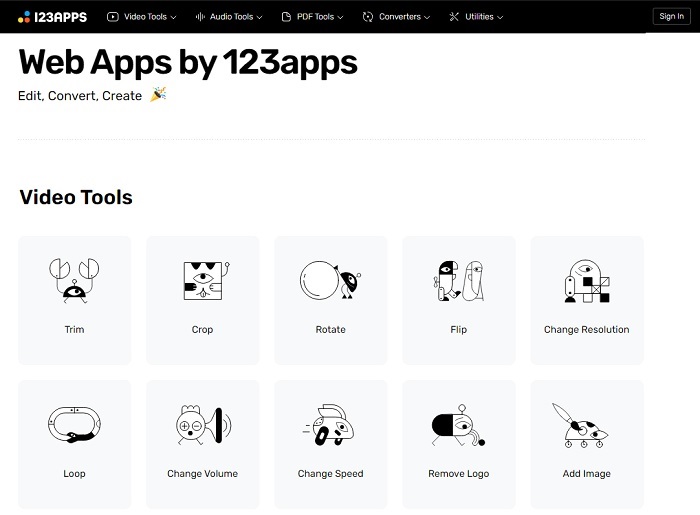
Этот первый онлайн-инструмент предназначен для улучшения ваших видео. Он может регулировать продолжительность видео, обрезать, добавлять текст и многое другое. Но экспорт этого инструмента занимает у вас много времени. После экспорта вы должны загрузить его, и этот процесс будет зависеть от скорости вашего интернета. Кроме того, вы не можете регулировать качество своих видео. Итак, если ваше видео немного размытое и вам нужно настроить его частоту кадров, вы не можете сделать это здесь. Но все же попробовать стоит.
2. Clideo
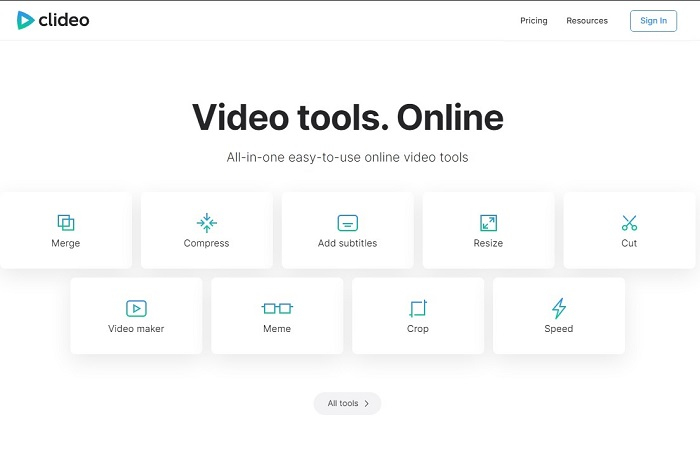
Если говорить об обрезке видео, то это тоже может быть хорошим вариантом. Clideo — один из лучших онлайн‑MP4‑триммеров, которые вы можете найти. Как и первый онлайн‑сервис, упомянутый выше, этот инструмент также предоставляет базовые функции редактирования. Хотя он и поддерживает основные инструменты монтажа, этого все же недостаточно, если вы создаете действительно броское, эффектное видео. Но вы можете попробовать его онлайн — не волнуйтесь, он бесплатный и безопасный.
Часть 3. 3 лучших приложения для обрезки MP4 на Android и iOS
Что делать, если у вас нет рабочего стола для использования перечисленных выше инструментов и вы хотите стать влогером, возможно ли это? Если у вас есть телефон, например Android или iOS, вы можете использовать эти приложения для редактирования на своих телефонах. Но есть некоторые функции, доступные выше, которых здесь нет. Итак, продолжайте читать ниже, чтобы узнать, что это за инструменты, и выбрать из них.
1. iMovie для iOS
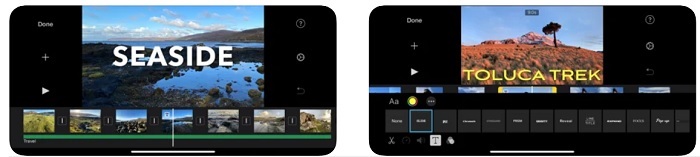
Если вы хотите добавить своему видео голливудский шарм, то iMovie — это подходящее программное обеспечение. Это приложение‑резак MP4 создано только для пользователей iOS. Но, несмотря на то, że программа предлагает продвинутые функции монтажа, часть ошибок в ней до сих пор не исправлена. В некоторых случаях приложение постоянно вылетает при попытке редактирования, и экран просто чернеет. Иногда видео и звук рассинхронизируются из‑за сбоев. Это лишь некоторые примеры ошибок: они могут показаться незначительными, но на деле очень раздражают. Так что, если вы хотите попробовать iMovie, вы все равно можете скачать его в App Store.
2. Видеоредактор и создатель - Viva Video для Android
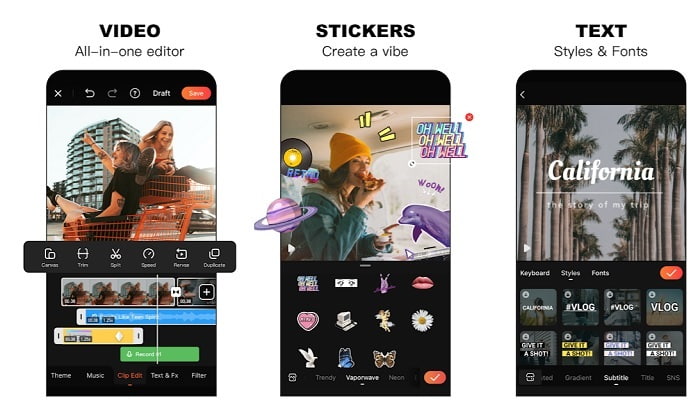
Одно из лучших бесплатных MP4-приложений для обрезки на Android — это Video Editor & Maker – Viva Video. Как и упомянутый выше инструмент, оно предлагает одни из лучших функций редактирования на телефоне: переходы, глитч‑эффекты и многое другое, однако это платное приложение. Есть нюанс: нет отдельной кнопки для отмены подписки в самом приложении. И хотя может показаться, что лучший выход — просто удалить программу, чтобы прекратить подписку, на самом деле платежи не прекратятся. Если в качестве способа оплаты вы выбрали банковскую карту, списания будут продолжаться. Но в целом сам инструмент — класса «А», ни больше ни меньше.
Часть 4. Часто задаваемые вопросы о MP4 Cutter
Что такое MP4?
MP4 также известен как многоцелевой медиаформат. Вместо того, чтобы хранить код, он хранит данные о видео, кадрах, субтитрах или текстах. Кроме того, это наиболее часто используемый формат видео во всем мире.
MP4 с потерями или без потерь?
MP4 является многоцелевым форматом, поэтому он обеспечивает сжатие с потерями.
Какой лучший формат, кроме MP4?
Существуют форматы, которые обеспечивают более качественный медиавывод, чем MP4, но при этом не такие универсальные. Например, WMV: этот формат дает меньший размер файла по сравнению с MP4, но не совместим с устройствами Apple, потому что изначально предназначен как родной формат для Windows Media Player. Вы можете конвертировать свои MP4‑файлы в WMV для более комфортного воспроизведения.
Заключение
Подводя итог, теперь вам проще понять различия между каждым из инструментов. Но, как уже говорилось, далеко не все из них обеспечивают такие мощные функции обрезки, как FVC Video Converter Ultimate. Особенно если вы хотите создавать более привлекательные видео, чтобы получать больше просмотров и, соответственно, доход. Так что вместо того чтобы довольствоваться временным решением, почему бы не выбрать FVC Video Converter Ultimate, чтобы с уверенностью смотреть в будущее и получить для себя лучший вариант.
-
 Руководство по конвертации RMVB в MP4 на Windows / Mac (3 бесплатных способа)
 Хотите преобразовать RMVB в MP4 для удобного воспроизведения на компьютере или мобильном телефоне? В этом руководстве вы найдете простые способы конвертировать файлы RMVB в MP4.
-
 4 лучших конвертера MP4 в M4V, которые с легкостью превращают видео MP4 в M4V
 Когда вам нужно преобразовать файлы MP4 в M4V, вы должны узнать больше о различиях между двумя форматами, а также о лучших конвертерах MP4 в M4V из статьи.
-
 Конвертер AMV - 3 лучших метода конвертации MP4 в AMV на Win / Mac
 Каковы лучшие конвертеры MP4 в AMV для преобразования видео в Amine Music Video? Из этой статьи вы можете узнать больше о 3 наиболее эффективных методах получения желаемых видео.
