


 Видео конвертер Ultimate
 Устройство записи экрана
 Видео ремонт
Быстрое и простое решение: как обрезать изображения в Photoshop
Сложность работы с Photoshop для новичков действительно представляет собой вызов, и в программе есть множество полезных функций, о которых им необходимо знать. Обрезка изображения — это не пустяк. Освоить её крайне важно для улучшения композиции, выделения объектов, изменения соотношения сторон, оптимизации разрешения, выражения творческого замысла, усиления визуального рассказа, исправления ошибок и адаптации изображений под конкретные платформы. Поэтому, если вы задаётесь вопросом, как обрезать изображения в Photoshop, — вы попали по адресу. Это руководство создано, чтобы шаг за шагом провести вас по процессу того, как обрезать в Photoshop. Независимо от того, являетесь ли вы новичком и ищете простой гид или хотите освоить продвинутые приёмы, здесь вы найдёте всё необходимое. Давайте преобразим ваши визуальные работы и воплотим творческие идеи с помощью точной обрезки в Photoshop.

Часть 1. Как обрезать изображения в Photoshop?
Ниже приведено пошаговое руководство по обрезке изображений в Photoshop.
Шаг 1. Откройте Photoshop и импортируйте изображение, которое хотите обрезать, через вкладку File (Файл).
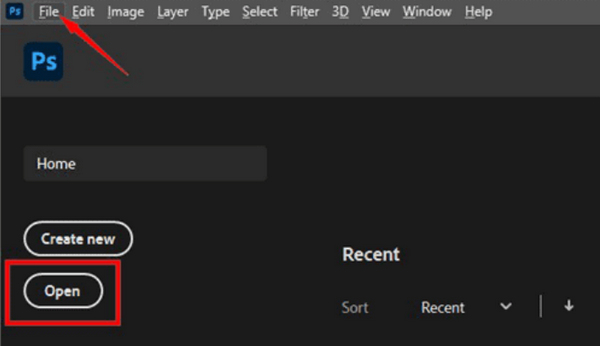
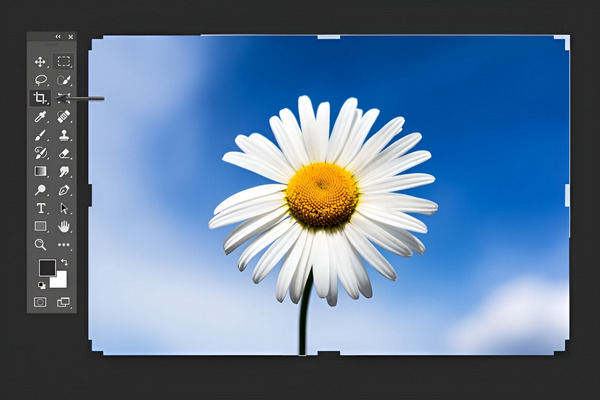
Шаг 2. Используйте Crop Tool (Инструмент «Обрезка») на панели инструментов слева.
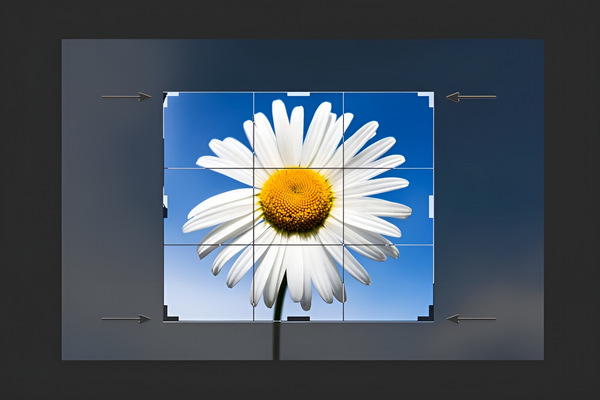
Шаг 3. Нарисуйте область обрезки или перетащите угловые и боковые маркеры, чтобы задать границы обрезки на вашей фотографии, либо, при необходимости, в верхней части экрана используйте параметры инструмента обрезки и введите конкретные размеры или соотношение сторон.
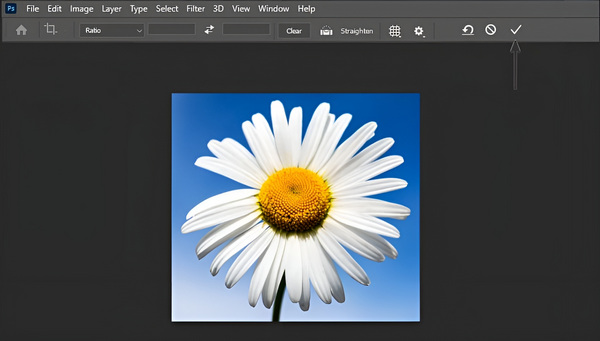
Шаг 4. Если вы получили желаемый результат, просто нажмите кнопку Check (галочка) и сохраните обрезанное изображение, перейдя в меню File и выбрав пункт Save as, чтобы сохранить обрезанный вариант.
Помните, что обрезка в Photoshop не является разрушительной, поэтому вы всегда можете вернуться и отрегулировать обрезку или вернуться к исходному изображению. Просто выберите инструмент обрезки еще раз и измените его по мере необходимости. Кроме того, Photoshop позволяет изменять размер и сжимать изображение при попытке его экспорта.
Часть 2. Почему кадрирование в Photoshop неактивно? - Причины и решения
Инструмент «Обрезка» в Photoshop может быть неактивен по нескольким причинам. Если вы не выбрали слой на панели слоев или если ваше изображение является фоновым слоем, инструмент «Обрезка» может остаться неактивным и т. д. В таблице ниже показаны возможные причины, по которым урожай становится серым, а также возможные решения по их устранению.
| Возможные причины неактивного цвета инструмента обрезки в Photoshop | Решения |
| 1. Нет активного слоя | Убедитесь, что слой выбран на панели «Слои», чтобы активировать инструмент «Обрезка». |
| 2. Фоновый слой | Чтобы разблокировать обрезку, дважды щелкните фоновый слой и преобразуйте его в обычный слой. |
| 3. Выбран слой текста или формы. | Чтобы инструмент «Обрезка» работал, выберите слой на основе пикселей вместо слоя текста или фигуры. |
| 4. Заблокированный слой | Проверьте и разблокируйте слой на панели «Слои», чтобы включить инструмент «Обрезка». |
| 5. Изображение – это смарт-объект. | Чтобы включить обрезку, дважды щелкните смарт-объект, внесите необходимые изменения и сохраните. |
| 6. Пустой или скрытый слой | Убедитесь, что слой содержит видимый контент и не скрыт, чтобы активировать инструмент «Обрезка». |
| 7. Заблокированный фоновый слой в определенных режимах | Отрегулируйте режим наложения фонового слоя, чтобы разблокировать инструмент «Обрезка». |
Часть 3. Советы по уменьшению изображения без обрезки онлайн
Чтобы сделать изображение меньше без обрезки, нужно использовать онлайн‑инструмент сжатия изображений или ресайзер. Один из лучших инструментов для сжатия изображений, которым сегодня может воспользоваться любой, — это FVC Free Image Compressor. Этот инструмент предельно прост в использовании и предназначен для уменьшения размера изображений JPEG, PNG, SVG и GIF без заметной потери качества. Кроме того, он использует продвинутые алгоритмы оптимизации и сжатия, чтобы обеспечить максимально возможное отношение сжатия.
Основные особенности:
Пакетное сжатие: Пользователи могут сжимать несколько изображений одновременно — до 40 файлов, каждый размером не более 5 МБ. Инструмент обеспечивает эффективное сжатие без заметной потери качества.
Автоматическое сжатие: Все загруженные фотографии проходят автоматическое сжатие, что делает процесс быстрым и удобным. Пользователю достаточно загрузить, сжать и скачать изображения без ручных настроек.
Широкая совместимость: FVC Free Image Compressor поддерживает различные форматы изображений, включая JPEG, PNG, SVG и GIF. Выходной формат — PNG. Ознакомьтесь с этой статьёй, чтобы сжать GIF.
Без регистрации: В отличие от некоторых инструментов, FVC Free Image Compressor не требует регистрации, входа в аккаунт или создания учётной записи. Это полностью бесплатный и лишённый скрытых платежей сервис.
Защита конфиденциальности: Пользователи могут быть уверены, что их загруженные изображения надёжно защищены. Инструмент обеспечивает конфиденциальность и не допускает несанкционированного доступа к загруженным файлам.
Отзывы пользователей: Пользователи высоко оценивают инструмент за впечатляющую скорость сжатия, простоту интерфейса и эффективность уменьшения размера файлов при сохранении качества изображений.
Пошаговое руководство по обрезке изображения онлайн:
Шаг 1. Для начала перейдите на их официальный сайт.
Шаг 2. Затем импортируйте свои изображения, нажав кнопку Upload Images (Загрузить изображения).
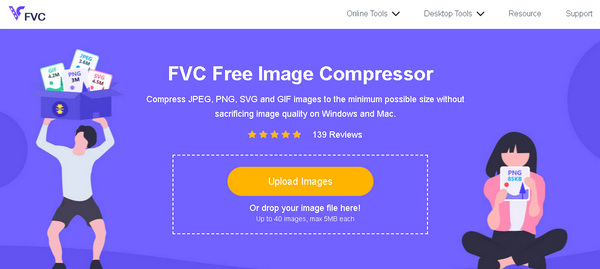
Шаг 3. Подождите, пока процесс обработки завершится. После окончания вы увидите индикатор состояния с информацией о степени завершённости и новом размере сжатого изображения. Нажмите кнопку Download (Скачать), чтобы сохранить файл.
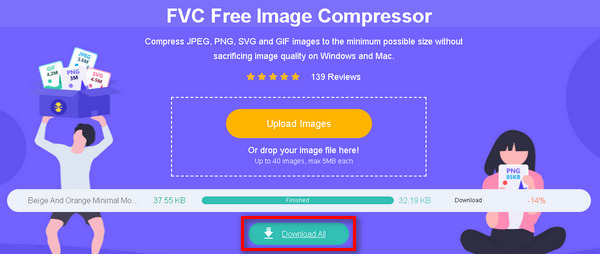
FVC Free Image Compressor действительно является надежным решением для людей, стремящихся оптимизировать размеры изображений для различных целей, включая увеличение скорости веб-сайта, обмен изображениями и экономию места для хранения. Он выделяется своим удобным интерфейсом, автоматическим сжатием и стремлением поддерживать высокое качество продукции.
Часть 4. Часто задаваемые вопросы об обрезке изображения в Photoshop
Где находится инструмент «Обрезка» в Photoshop CC?
В Photoshop CC вы можете найти инструмент «Обрезка» на панели инструментов в левой части экрана. Он представлен значком, похожим на рамку обрезки. Если вы не можете его найти, нажмите клавишу C на клавиатуре, чтобы активировать инструмент «Обрезка».
Как обрезать изображение в Photoshop с помощью инструмента быстрого выделения?
Инструмент “Быстрое выделение” (Quick Selection) в первую очередь используется для создания выделений, а не для обрезки. Чтобы обрезать изображение с его помощью, выполните следующие действия:
1. Сначала с помощью инструмента Quick Selection создайте нужное выделение.
2. После выделения откройте меню Select и выберите «Inverse» (Инвертировать), чтобы инвертировать выделение.
3. Нажмите Ctrl + Shift + I (для Windows) или Cmd + Shift + I (для Mac), чтобы выбрать инвертированную область.
4. Затем перейдите в меню Image, выберите Crop, и ваше изображение будет автоматически обрезано по выделенной области.
Как вырезать и перемещать выделение в Photoshop?
Чтобы вырезать и переместить выделенную область в Photoshop, выполните следующие шаги:
1. Сделайте выделение любым инструментом выделения, например «Прямоугольная область» (Rectangular Marquee) или «Лассо» (Lasso).
2. Нажмите Ctrl + X для Windows или Cmd + X для Mac, чтобы вырезать выделенную область.
3. Перейдите к нужному месту на изображении.
4. Нажмите Ctrl + V для Windows или Cmd + V для Mac, чтобы вставить вырезанный фрагмент на новое место.
Могу ли я обрезать несколько изображений одновременно в Photoshop?
В Photoshop нет встроенной функции для одновременной обрезки нескольких изображений. Однако вы можете создать действие для автоматизации процесса обрезки пакета изображений. Запишите действие обрезки на одном изображении, а затем примените его к папке изображений с помощью команды «Пакетная обработка» в меню «Файл».
Есть ли способ обрезать изображение без потери исходного разрешения в Photoshop?
Да, в Photoshop вы можете использовать функцию обрезки с учетом содержимого, чтобы расширить холст, сохранив исходное разрешение. Это позволяет вам обрезать изображение, не удаляя безвозвратно какие-либо пиксели, что дает вам возможность позже скорректировать обрезку без потери качества.
Заключение
Теперь вы знаете, как обрезать в Photoshop. Так что, будь вы новичок или опытный пользователь, это руководство поможет вам — от базовых шагов до устранения неполадок и использования дополнительного инструмента для изменения размеров изображений без потери качества. Готовы раскрыть свой творческий потенциал? Погружайтесь и исследуйте возможности Photoshop.
-
 Как обрезать файл MP4 без потери качества видео [2025]
 Узнайте, как обрезать MP4, выполнив простые шаги, предоставленные специально для вас. Итак, не отставайте, потому что мы представляем вам лучшие из лучших инструментов для обрезки, которые вы можете использовать.
-
 Пошаговое руководство по вырезанию изображения в Photoshop
 Вы используете Фотошоп? Эта статья может быть для вас. Узнайте, как быстро и легко вырезать изображение в Photoshop. Прочтите это сейчас и кое-что узнайте.
-
 Как удалить водяной знак с фотографии в Photoshop [шаги]
 Photoshop — один из популярных инструментов редактирования. Получите бесплатный учебник здесь, используя Photoshop, чтобы удалить водяной знак с фотографий. Кроме того, откройте для себя альтернативные способы.
