


 Видео конвертер Ultimate
 Устройство записи экрана
 Видео ремонт
6 бесплатных инструментов для удаления фона из изображения: быстро и точно
Удаление фона с изображений с такой легкостью стало переломным моментом в индустрии фоторетуши. Кроме того, поиск подходящего инструмента, который соответствует вашим задачам и удовлетворяет ваши потребности, должен быть для пользователя, такого как вы, приоритетом; просто представьте себе инновационный инструмент, который позволяет пользователям без усилий удалять фон с изображения, чтобы затем превращать его в визуально впечатляющие шедевры. В этой статье мы подробно рассмотрим искусство удаления фона, исследуя шесть лучших инструментов для удаления фона — от популярных до недооценённых. Кроме того, мы разберём их функции и упрощённые шаги работы, чтобы вы могли эффективно научиться ориентироваться в возможностях и выбрать подходящий именно вам инструмент. Чего вы ждёте? Начните читать эту статью уже сегодня и откройте для себя преобразующую силу удаления фонов с изображений — быстро, удобно и без лишних усилий.

Часть 1. Как удалить фон из изображения
FVC бесплатно для удаления фона
FVC Free Background Remover — это веб-инструмент, созданный для пользователей, которым нужно недорогое решение для удаления фона. Этот удобный в использовании сервис ориентирован на тех, у кого ограниченный бюджет, но при этом предлагает функции, сопоставимые, а порой и превосходящие платные аналоги. FVC известен своим простым и понятным интерфейсом, обеспечивающим комфортную работу для всех. Инструмент делает акцент на доступности, поэтому им можно пользоваться на разных устройствах и платформах. Кроме того, FVC Free Background Remover уделяет большое внимание безопасности, обеспечивая надёжную и защищённую среду, в которой пользователи могут улучшать свои изображения с полной уверенностью. Ниже перечислены функции FVC Free Background Remover и шаги по его использованию.
◆ Автоматическое удаление фона с помощью ИИ. Он использует искусственный интеллект для удаления фона с изображений, автоматически обрабатывая снимок и интеллектуально определяя, какую часть изображения нужно убрать. Алгоритмы ИИ проходят тщательное тестирование, чтобы результаты были максимально точными.
◆ Удаление и замена фона. Помимо удаления фона с изображений, инструмент может заменять фон на сплошной цвет, что делает его универсальным решением для различных задач.
◆ Поддержка редактирования. Этот удобный сервис позволяет пользователям легко редактировать изображения — обрезать, поворачивать и отражать. Такие простые функции доработки в сумме заметно улучшают итоговый результат, давая возможность предварительно просмотреть и подкорректировать изображение.
◆ Качественное скачивание. Наслаждайтесь высоким качеством результата при использовании функции удаления фона. После удаления фона вы сохраняете изображение без потери исходного качества.
◆ Поддержка нескольких форматов. Поддерживаются входные изображения в форматах JPG, JPEG и PNG, а вывод осуществляется в PNG, что обеспечивает без потерь качество при сохранении файлов на компьютер.
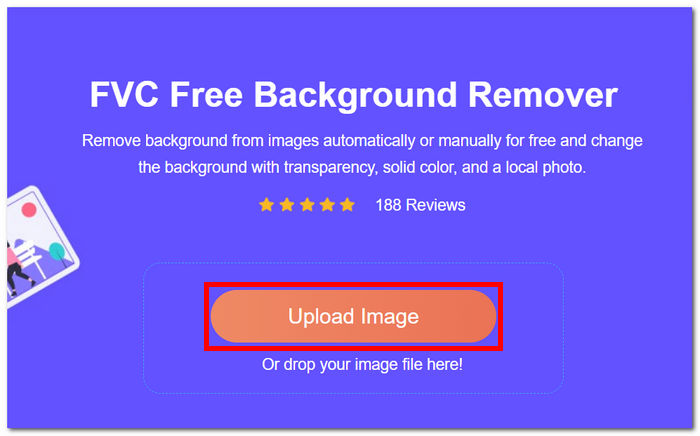
Шаг 1. Перейдите на сайт FVC Free Background Remover и загрузите нужное изображение в поле с надписью Upload Image.
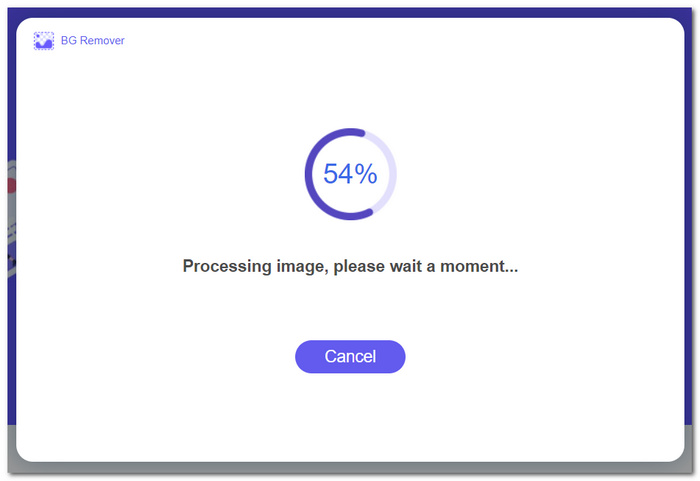
Шаг 2. Воспользуйтесь возможностями ИИ: дождитесь, пока инструмент автоматически определит и удалит фон с загруженного изображения.
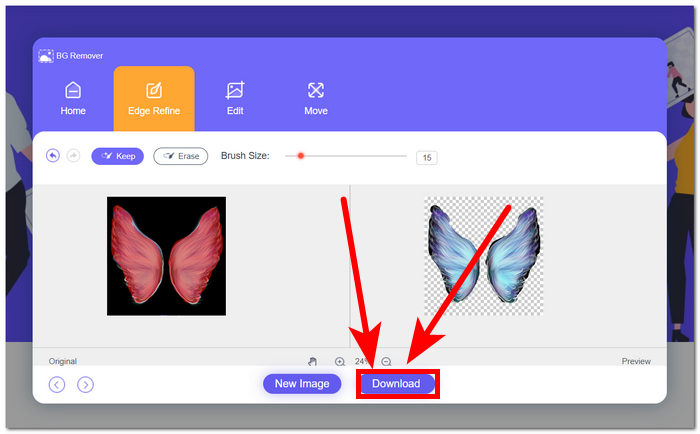
Шаг 3. После завершения процесса удаления фона сохраните изображение с уже убранным фоном, нажав кнопку Download.
FVC Free Background Remover выделяется как недооцененный инструмент, который многие пользователи часто упускают из виду. Несмотря на свой менее известный статус, эта скрытая жемчужина предоставляет ценную и бесплатную услугу, способствуя творческим начинаниям пользователей, открывших ее возможности. Обладая простотой и эффективностью, он остается преданным союзником в процессе редактирования изображений.
Канва
Canva, где творчество не знает границ! Его интуитивно понятная платформа позволяет пользователям легко удалять фон из изображений, открывая мир возможностей дизайна. Удаление фона из изображений в Canva может оказаться сложной задачей для пользователей, не знакомых с интерфейсом; это связано с тем, что Canva является программным обеспечением для редактирования, а это означает, что в программном обеспечении для удаления фона изображения присутствует множество инструментов, которые могут перегружать пользователей. Следовательно, его средство для удаления фона считается лучшим в категории программного обеспечения, поскольку искусственный интеллект управляет этим инструментом. Ниже приведены некоторые функции удаления фона и действия с использованием Canva.
◆ Удаление фона. Фон удаляется практически мгновенно, а дополнительные инструменты — «волшебная» ластик и «волшебная» замена — помогают аккуратно доработать изображение прямо в программе.
◆ Интегрированные технологии ИИ. Искусственный интеллект достаточно мощный, чтобы распознавать отвлекающие детали на снимке и мгновенно удалять их.
◆ Многофункциональный редактор. Это программа, в которой можно делать практически всё: создавать презентации, редактировать фото и видео, работать с документами и удалять фон с изображений.
Шаг 1. Скачайте и установите Canva на компьютер или воспользуйтесь веб-версией сервиса.
Шаг 2. В главном окне загрузите изображение в отведённую для этого область на экране.
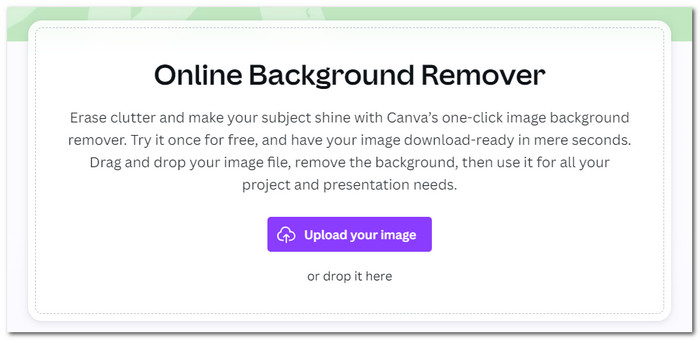
Шаг 3. После того как изображение загрузится в Canva, нажмите BG Remover, чтобы мгновенно удалить фон.
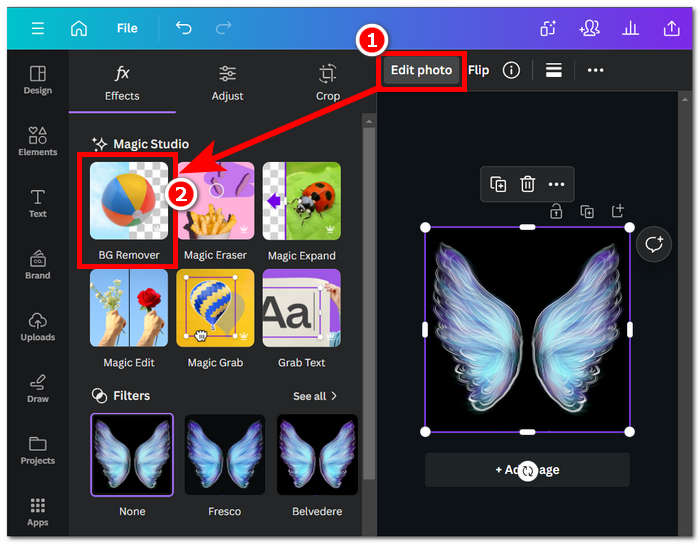
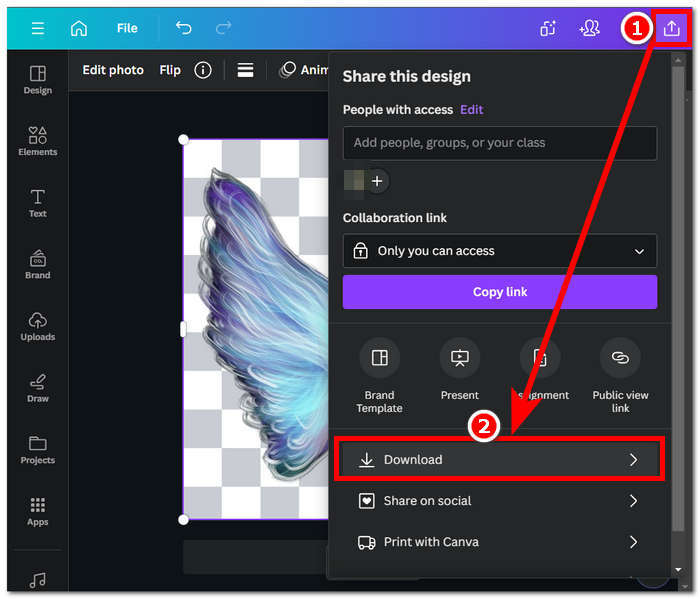
Шаг 4. Когда процесс завершится, нажмите на значок «Поделиться» в правом верхнем углу и затем выберите Download, чтобы сохранить файл на компьютер.
Изучение интерфейса Canva может занять у вас время на удаление фона, но стоит попробовать испытать эти впечатляющие возможности программного обеспечения. Однако бесплатные пользователи не могут максимально использовать потенциал Canva в удалении фона, поскольку программное обеспечение предлагает платные подписки и имеет ограниченный водяной знак при бесплатном использовании программного обеспечения.
Адобе Экспресс
Adobe Express, динамическая функция пакета Adobe Creative Cloud, меняет представление о редактировании изображений благодаря мощным возможностям удаления фона. Этот инструмент, разработанный для удобного использования, обеспечивает удобство и простоту удаления фона из ваших изображений.
◆ Профессиональное удаление фона. Этот инструмент удаляет фон с изображений профессионально, быстро и максимально плавно.
◆ Интуитивно понятный интерфейс. Простота интерфейса делает инструмент очень лёгким в освоении. Предварительных навыков работы с программами Adobe не требуется.
◆ Вырезание фона. Инструмент акцентирует внимание на основном объекте снимка, обеспечивая точное и аккуратное вырезание фона.
Шаг 1. Перейдите на сайт Adobe Express Background Remover в браузере и нажмите «Upload your photo» в интерфейсе страницы.
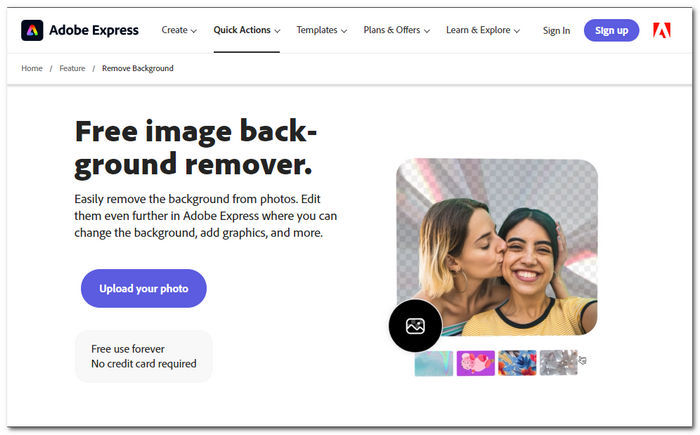
Шаг 2. После нажатия «Upload your photo» кликните по полю для просмотра файлов, чтобы загрузить изображение в инструмент.
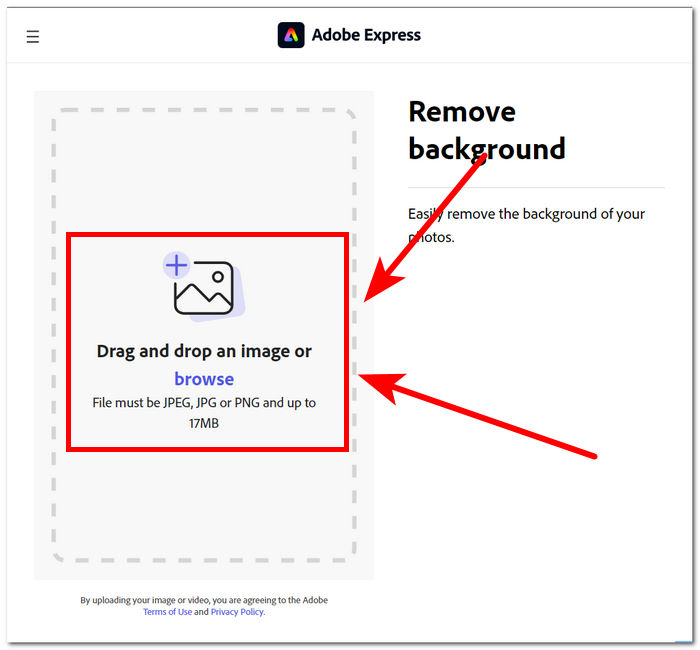
Шаг 3. По мере загрузки изображение будет автоматически обработано, и фон с него будет удалён.
Шаг 4. Нажмите Download, расположенную прямо рядом с изображением, чтобы сохранить файл на компьютер.
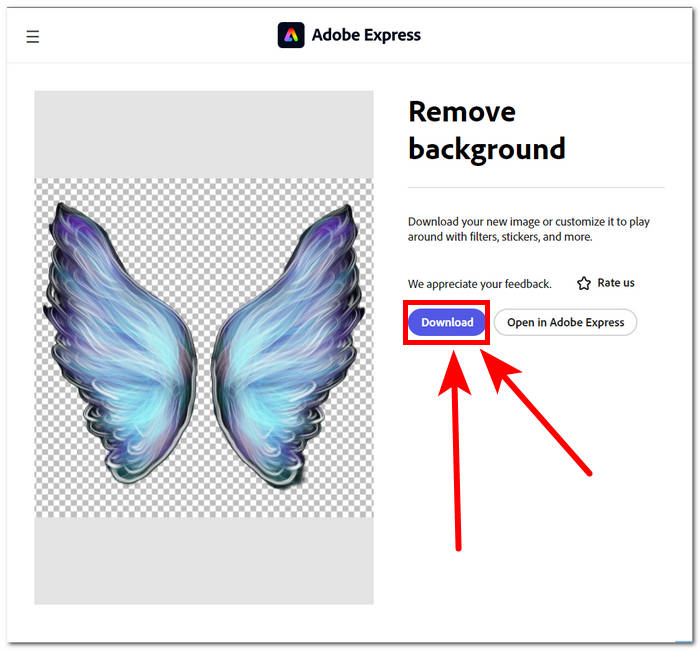
В заключение отметим, что Adobe Express представляет собой инструмент профессионального уровня, достаточно мощный для удаления мельчайших деталей на заднем плане ваших изображений. Интерфейс этого инструмента может иметь простой подход к процессу удаления фона, но он все равно требует от вас регистрации, чтобы иметь возможность сохранить изображение на рабочем столе.
Часть 2. Как удалить фон с изображений на рабочем столе
Adobe Photoshop
Adobe Photoshop — один из самых мощных программных продуктов в области обработки изображений, в том числе для удаления фона. Он предоставляет пользователям широкий набор инструментов и функций, позволяя выполнять почти любую задачу в одном приложении. Безупречное удаление фона начинается с качественного выделения объекта относительно фона; имеет смысл также заранее изучить, как вырезать объекты в Photoshop, чтобы максимально раскрыть потенциал Photoshop при работе с фоном.
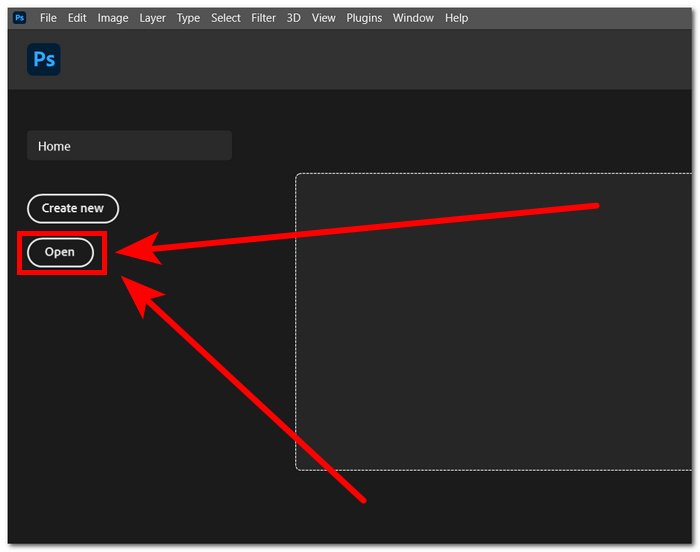
Шаг 1. Откройте Adobe Photoshop на компьютере и загрузите фотографию, нажав кнопку Open в интерфейсе программы.
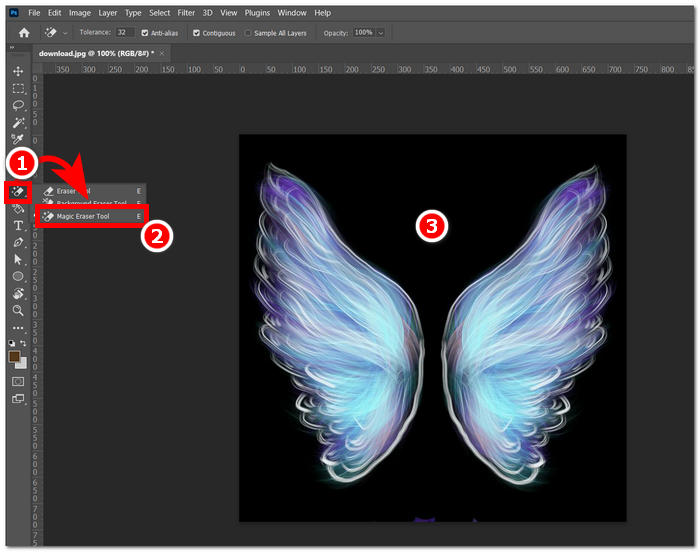
Шаг 2. После загрузки изображения в программе найдите Eraser Tool на панели инструментов слева и выберите Magic Eraser Tool.
Шаг 3. Когда Magic Eraser Tool будет активен, щёлкните по фону изображения, чтобы автоматически удалить его.
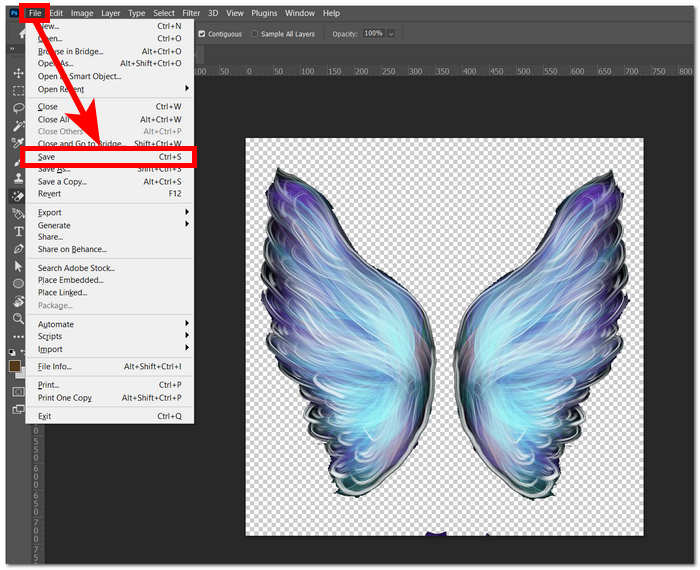
Шаг 4. После того как фон будет удалён, откройте меню File в левом верхнем углу и выберите Save или Export, чтобы скачать изображение на компьютер.
Благодаря сочетанию передовых технологий и функций Photoshop расширяет возможности и раскрывает внутреннего творца в каждом пользователе. Adobe удаляет фон с изображений с помощью интуитивно понятного интерфейса, гарантируя, что выполнение сложных задач в программном обеспечении Adobe невозможно.
GIMP
GIMP — это приложение с открытым исходным кодом, позволяющее пользователям удалять белый фон с изображений или любой нежелательный фон, что делает его идеальным выбором для энтузиастов графики и новичков в редактировании изображений. Помимо функций удаления фона, GIMP может похвастаться универсальным набором инструментов и функций, а изучение возможностей GIMP может помочь максимизировать и преуспеть в удалении фона, а также облегчить более широкий спектр визуальных улучшений и манипуляций.
Шаг 1. Откройте программу GIMP и импортируйте изображение через меню File в левом верхнем углу, нажав Open.
Шаг 2. Когда изображение появится в программе, перейдите в правый нижний угол, выберите нужный слой, кликните по нему правой кнопкой мыши и в настройках выберите Add Alpha Channel.
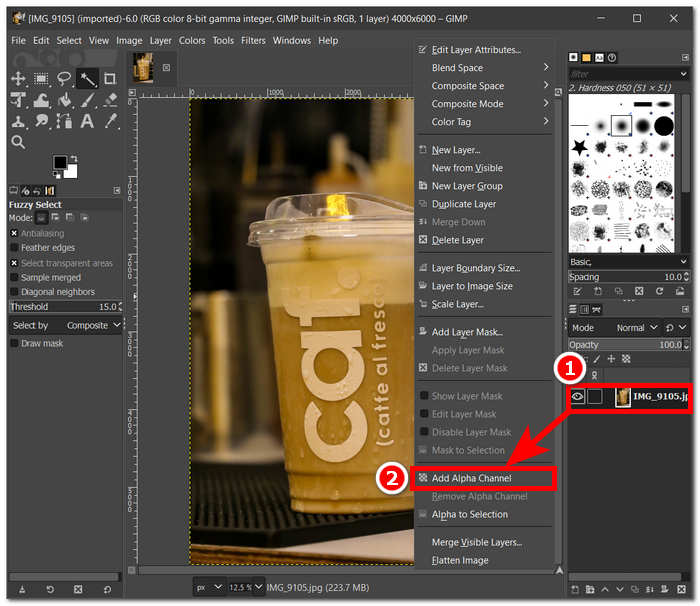
Шаг 3. Нажмите на инструмент Fuzzy Select в левом верхнем углу. Затем проведите им по области, которую хотите удалить с изображения.
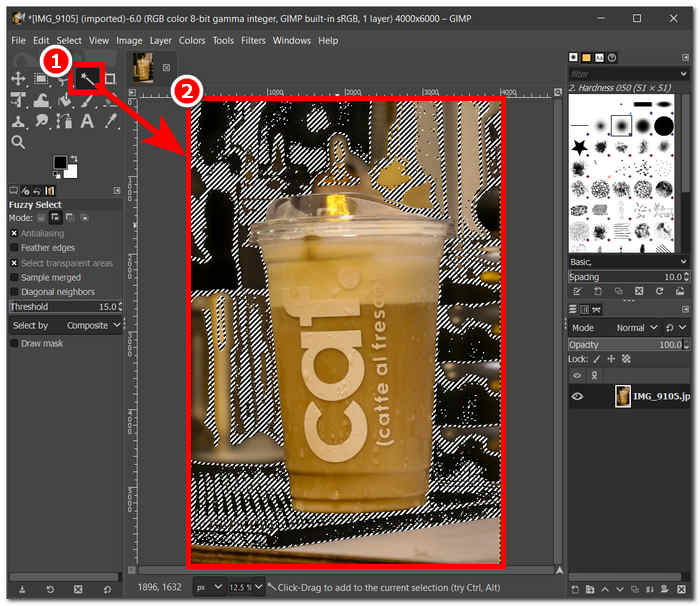
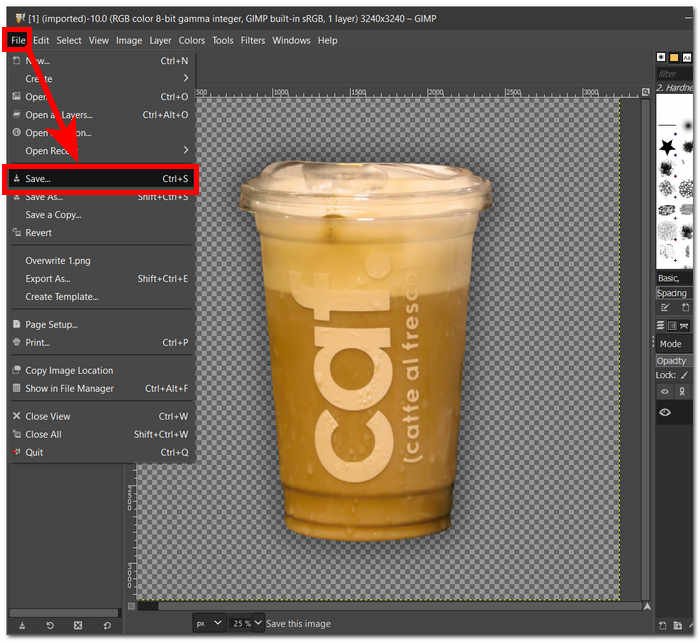
Шаг 4. На выбранной области появится пунктирный контур. Чтобы удалить фон, нажмите клавишу Del на клавиатуре. Когда результат вас устроит, откройте меню File в левом верхнем углу и выберите Save, чтобы скачать изображение на компьютер.
GIMP стал оптимальным инструментом как для опытных специалистов, так и для новичков, во многом благодаря дружелюбному интерфейсу. В программе есть несколько способов удаления фона — вы можете выбрать тот, который вам удобнее. В вашем распоряжении цветовые инструменты, работа с контурами, маскирование слоёв, инструмент Fuzzy и другие возможности, что делает GIMP универсальным решением.
Пиксар
Picsart — это инструмент для новичков, популярный благодаря своей версии приложения для мобильных устройств. Его инструмент для удаления дает простой и мгновенный результат. Его точность в удалении фона и быстрые и эффективные способы его удаления обусловлены используемым им ИИ. Одной из его особенностей, помимо удаления фона, является то, что он может заменять или добавлять фон к вашим изображениям, что делает этот инструмент привлекательным. Как удалить фон изображения? Больше не беспокойтесь и просто следуйте простым шагам, перечисленным ниже.
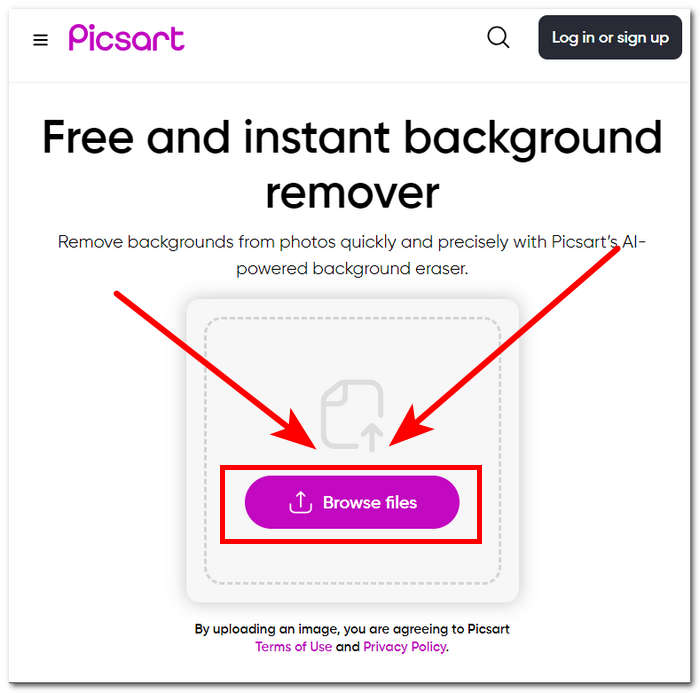
Шаг 1. Откройте в браузере инструмент Picsart Background Remover и нажмите Browse Files, чтобы загрузить изображение.
Шаг 2. Как только начнётся загрузка, сервис автоматически определит и проанализирует изображение, параллельно удаляя фон.
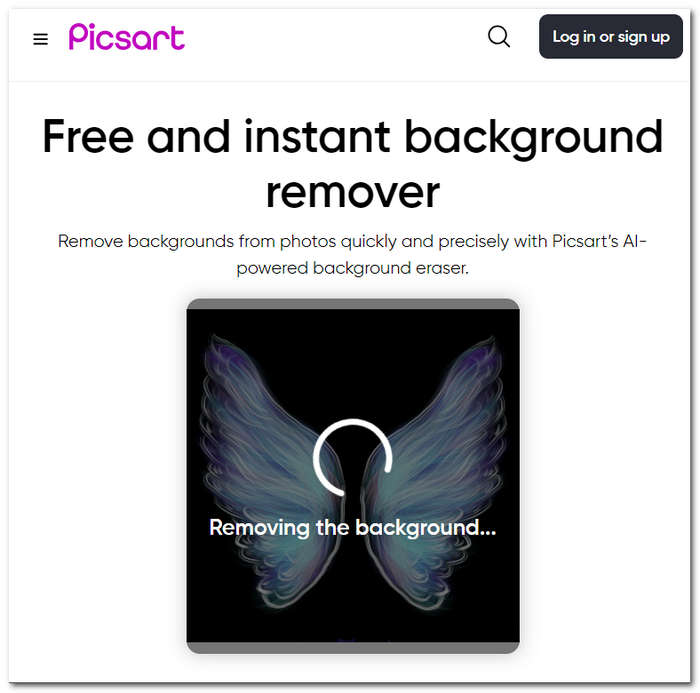
Шаг 3. По завершении обработки вы сможете просмотреть и отредактировать изображение; когда будете довольны результатом, сохраните файл, нажав кнопку Download.
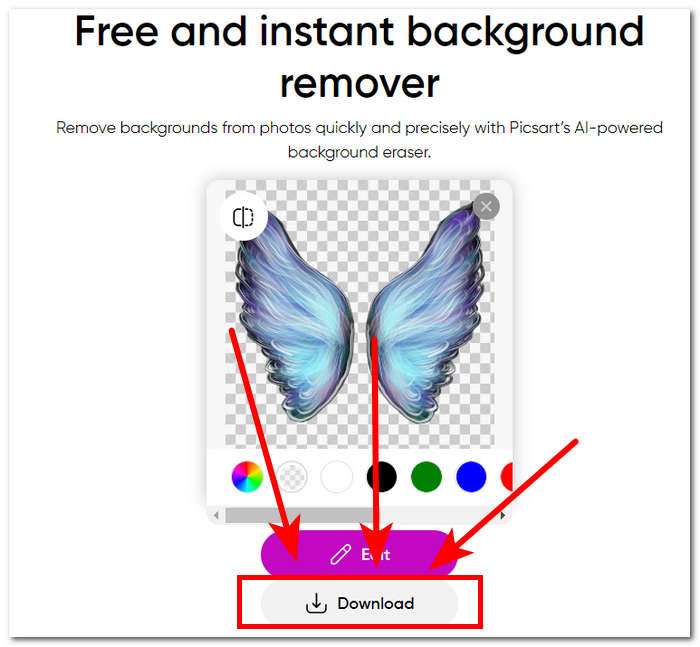
В заключение отметим, что популярность Picsart как приложения для редактирования изображений была адаптирована и инвестирована в то, чтобы этот инструмент отвечал всем типам потребностей визуального редактирования. Его средство для удаления фона, несомненно, мгновенно и точно выполняет свою работу. Следовательно, вам все равно придется зарегистрироваться, чтобы иметь возможность полностью загрузить изображение в высоком разрешении. В противном случае вы застрянете в результатах с низким разрешением.
Часть 3. Часто задаваемые вопросы о том, как удалить фон из изображения
Можете ли вы автоматически удалить фон изображения?
Да, многие продвинутые инструменты редактирования изображений, в том числе FVC Free Background Remover, Adobe Express и Canva, используют алгоритмы искусственного интеллекта для автоматического обнаружения и удаления фона из изображений. Эта функция упрощает процесс редактирования, делая его более быстрым и эффективным для пользователей.
Можете ли вы удалить «Можете ли вы автоматически удалить фон изображения?»
Да, многие продвинутые инструменты редактирования изображений, в том числе FVC Free Background Remover, Adobe Express и Canva, используют алгоритмы искусственного интеллекта для автоматического обнаружения и удаления фона из изображений. Эта функция упрощает процесс редактирования, делая его более быстрым и эффективным для пользователей.
Можете ли вы удалить фон изображений JPG?
Разумеется, инструменты для удаления фона поддерживают форматы изображений JPG. Универсальность инструментов распространяется на различные форматы изображений, гарантируя, что пользователи смогут легко редактировать и улучшать свои файлы JPEG. Следовательно, это по-прежнему зависит от того, какие инструменты или программное обеспечение вы используете, поскольку для некоторых требуется подписка, чтобы иметь возможность удалять фон в форматах JPG и тому подобном.
Является ли PNG единственным форматом изображений, поддерживающим прозрачный фон?
Хотя PNG является широко используемым форматом для изображений с прозрачным фоном, другие форматы, такие как GIF и TIFF, также поддерживают прозрачность. Однако аналогичные инструменты, упомянутые выше, часто обеспечивают оптимальные результаты с PNG благодаря его широко распространенной совместимости с настройками прозрачности.
Что я могу использовать, чтобы удалить фон изображения?
Вы можете использовать специальное программное обеспечение для редактирования изображений, такое как Adobe Express и Photoshop, или специализированные онлайн-инструменты, такие как FVC Free Background Remover. Эти инструменты обычно предлагают удобный интерфейс и расширенные функции, позволяющие добиться точных и профессионально выглядящих результатов.
Заключение
В итоге процесс удаления фона с изображения не зависит строго от конкретных приложений, программ или инструментов. Его эффективность определяется, прежде всего, тем, насколько умело пользователь умеет применять и максимально использовать доступные функции. В конечном счёте успех удаления фона измеряется качественно завершённым проектом, поэтому выбранный инструмент должен соответствовать личным предпочтениям пользователя, независимо от того, какая именно программа используется.
-
 Обзор PicWish Photo Enhancer и альтернативный инструмент, который стоит попробовать
 Откройте для себя волшебство, которое программа улучшения изображений PicWish привносит в мир редактирования фотографий. Углубленный обзор и изучение жизнеспособных альтернатив, которые вы можете попробовать.
-
 Как удалить текст из изображения в Windows/Mac/онлайн
 Попрощайтесь с отвлекающим текстом на изображениях! Узнайте, как стирать текст с изображений с помощью этих удобных решений, специально разработанных для удаления текста.
-
 Обзор Fotor для удаления фона и улучшения фотографий
 Все, что вам нужно знать о Fotor Background Remover и Photo Enhancer. Посмотрите на некоторые его функции и выберите альтернативу, которая соответствует вашим потребностям.
